
1Aan de slag#
Waar dit hoofdstuk over gaat — alles wat waar moet zijn voordat u uw eerste boeking kunt aannemen.
Waarom het uitmaakt — uw account wordt voor u aangemaakt, dus een ontbrekende koppeling of een niet-toegewezen dienst is de meest voorkomende reden dat een nieuwe behandelaar niet geboekt kan worden.
Wat u ziet — wat uw beheerder u gegeven hoort te hebben, hoe u zich bij het portaal en de app aanmeldt, en de lijst die u vóór uw eerste sessie afwerkt.
1.1 Voordat u begint#
Uw beheerder maakt uw behandelaarsaccount aan en koppelt het aan uw diensten. U kunt dat niet zelf doen. Vóór uw eerste sessie hoort u gekregen te hebben:
- Aanmeldgegevens voor de app en het portaal
- Een bevestiging van welke diensten u mag geven
- Uw voorwaarden — hoe u betaald wordt (zie §16)
Ontbreekt iets daarvan, neem dan contact op met uw beheerder voordat u boekingen aanneemt.
1.2 Aanmelden#
U meldt zich precies zo aan als elke cliënt — e-mailadres en wachtwoord, of aanmelden via Google.
Het verschil komt daarna: er wordt een onderdeel Praktijk als behandelaar (Expert practice) aan uw tabblad Profiel toegevoegd, en de omgeving Behandelaar verschijnt in het webportaal op /my/expert.
Ziet u dat niet, dan is uw account nog niet aan een behandelaarsprofiel gekoppeld. Neem contact op met uw beheerder — aan hun kant is het één muisklik.
1.3 Het menu Praktijk als behandelaar#
Tabblad Profiel → naar beneden, naar Praktijk als behandelaar:
| Onderdeel | Waar het voor dient |
|---|---|
| Mijn profiel (My Profile) | Uw openbare pagina, precies zoals cliënten die zien |
| Sessies met cliënten (Meetings with clients) | Ingeplande sessies en de geschiedenis |
| Sessieverslagen (Meeting reports) | Verslagen die openstaan en die ingediend zijn — op het web Werk → Rapportage (Openstaand / Te laat / Ingediend) |
| Chat met gebruikers (Chat with users) | Gesprekken met cliënten — met de resterende minuten bij betaalde consulten |
| Gestelde vragen (Asked questions) | Vragen op uw pagina (opent op de onbeantwoorde) |
| Reacties op mijn profiel (Profile comments) | Goedkeuren, afwijzen en openbaar antwoorden |
| Beschikbaarheid instellen (Schedule availability) | Tijdzone en weekuren |
| Mijn cliënten (My clients) | Cliënten, contactgegevens, aantallen sessies |
| Boekingsanalyse (Bookings analysis) | Trechter, niet-verschijnen, bezetting, voorlooptijd |
| Bestellingen en sessies (Orders & meetings) | Bestellingen van cliënten, gekoppeld aan uw sessies |
| Facturen van cliënten (Client invoices) | Facturen die met uw cliënten te maken hebben |
| Verdiensten (Earnings) | Sessiewaarde, uren en bedrijvigheid per maand |
| Annuleringsgeschiedenis (Cancellation history) | Elke annulering en elke verzette afspraak, en door wie |
1.4 Dezelfde onderdelen op het web#
Het webportaal heeft alles, met meer ruimte voor de tabellen. Het zet een menu langs de linkerkant, en de namen daarin wijken licht af van die in de app — dit is de sleutel tussen de twee:
Overzicht
| Webmenu | Adres | Wat het in de app is |
|---|---|---|
| Dashboard | /my/expert | De vier tegels bovenaan Praktijk als behandelaar |
| Vragen | /my/expert/questions | Gestelde vragen |
| Reacties | /my/expert/comments | Reacties op mijn profiel |
| Beoordelingen | /my/expert/reviews | Beoordelingen |
| Mijn profiel | Uw openbare pagina | Mijn profiel |
Werk
| Webmenu | Adres | Wat het in de app is |
|---|---|---|
| Sessies met cliënten | /my/expert/meetings | Sessies met cliënten |
| Rapportage | /my/expert/reports | Sessieverslagen — de hoofdingang; eronder Openstaand, Te laat, Ingediend |
| Mijn rooster | /my/expert/schedule | Beschikbaarheid instellen |
| Cliënten | /my/expert/clients | Mijn cliënten |
| Monitoring | /my/expert/monitoring | Uw caseload aan programma's tussen sessies door, het zorgelijkste eerst — §8.9. Het getal telt wat aandacht nodig heeft |
| Chat met gebruikers | /my/expert/chats | Chat met gebruikers |
| Bestellingen | /my/expert/orders | Bestellingen en sessies |
| Facturenlijst | /my/expert/invoices | Facturen van cliënten |
| Statistiek | /my/expert/analytics | Boekingsanalyse |
| Verdiensten | /my/expert/earnings | Verdiensten |
Pagina's zonder menu-ingang, bereikt vanaf de pagina's die ze gebruiken:
| Adres | Wat het is |
|---|---|
| /my/expert/payouts | Wat u werkelijk uitbetaald hebt gekregen — §11.2 |
/my/expert/clients/<nummer> | De volledige geschiedenis van één cliënt — §8.2 |
/my/expert/meetings/<nummer>/report | Het verslagformulier voor één sessie — §7.3 |
/my/expert/meetings/<nummer>/programme | Een programma tussen sessies door uit de bibliotheek sturen (alleen sjabloon en datums) — §7.3 |
/my/expert/agreements/<nummer> | De getekende dienstverleningsovereenkomst bij de bestelling van één cliënt — §16.3 |
/my/expert/chats/<nummer>/statement | Het afschrift van de consultminuten; Tijd teruggeven met een reden — §15.1 |
/my/expert/episodes/<nummer> | Eén episode — de doelen erop, en de programma's onder elk doel — §8.6 |
/my/expert/goals/<nummer> | Eén doel — programma's, wat de cliënt vastlegde, verslagen — §8.7 |
| /my/expert/instruments | Vragenlijsten die u gevraagd hebt, met de uitkomsten — §8.10 |
| /my/expert/recalls | Cliënten die teruggevraagd moeten worden — §8.11 |
| /my/expert/membership-clients | Uw cliënten op een lidmaatschap, en wie deze periode niets geboekt heeft — §8.12 |
| /my/expert/book | Namens een cliënt boeken, waar uw rechten dat toelaten — §5.3 |
Bij sommige getallen in het menu staat een teller — onbeantwoorde vragen, reacties en beoordelingen die op u wachten, sessies die aandacht nodig hebben, ongelezen gesprekken, nieuwe bestellingen. Die tellers zijn uw werkvoorraad. Ze leegmaken is het grootste deel van het werk van een praktijk goed draaien.
Onderaan het menu staat een overstap naar uw eigen cliëntaccount — u bent zelf ook cliënt van het Platform, en uw eigen boekingen, facturen en gesprekken staan daar, los van uw praktijk. Bent u ook beheerder, dan staat daar ook een overstap naar de rapporten van de praktijk.
1.5 Uw eerste uur — doe deze vijf dingen#
- Kijk uw openbare profiel na (§3) — daar beslissen cliënten op.
- Zet uw tijdzone (§4.1) — zet die verkeerd en elk tijdvak dat u aanbiedt klopt niet.
- Zet uw weekuren (§4.2) — niemand kan u boeken voordat u dat doet.
- Voeg de uitzonderingen toe die u al kent (§4.3) — vakanties en verplichtingen die al in uw agenda staan.
- Kijk uw meldingsinstellingen na — zodat boekingssignalen u werkelijk bereiken.
2Uw dashboard — de vier getallen#
Waar dit hoofdstuk over gaat — de vier overzichtstegels bovenaan uw praktijkomgeving.
Waarom het uitmaakt — één blik vertelt u hoe de maand ervoor staat, wat er beloofd is, en wat er aan annuleringen verloren ging.
Wat u ziet — Deze maand, Nog te verdienen, Annuleringen en Verdiend — wat elk telt, en waarom beloofd geld met opzet apart gehouden wordt van verdiend geld.
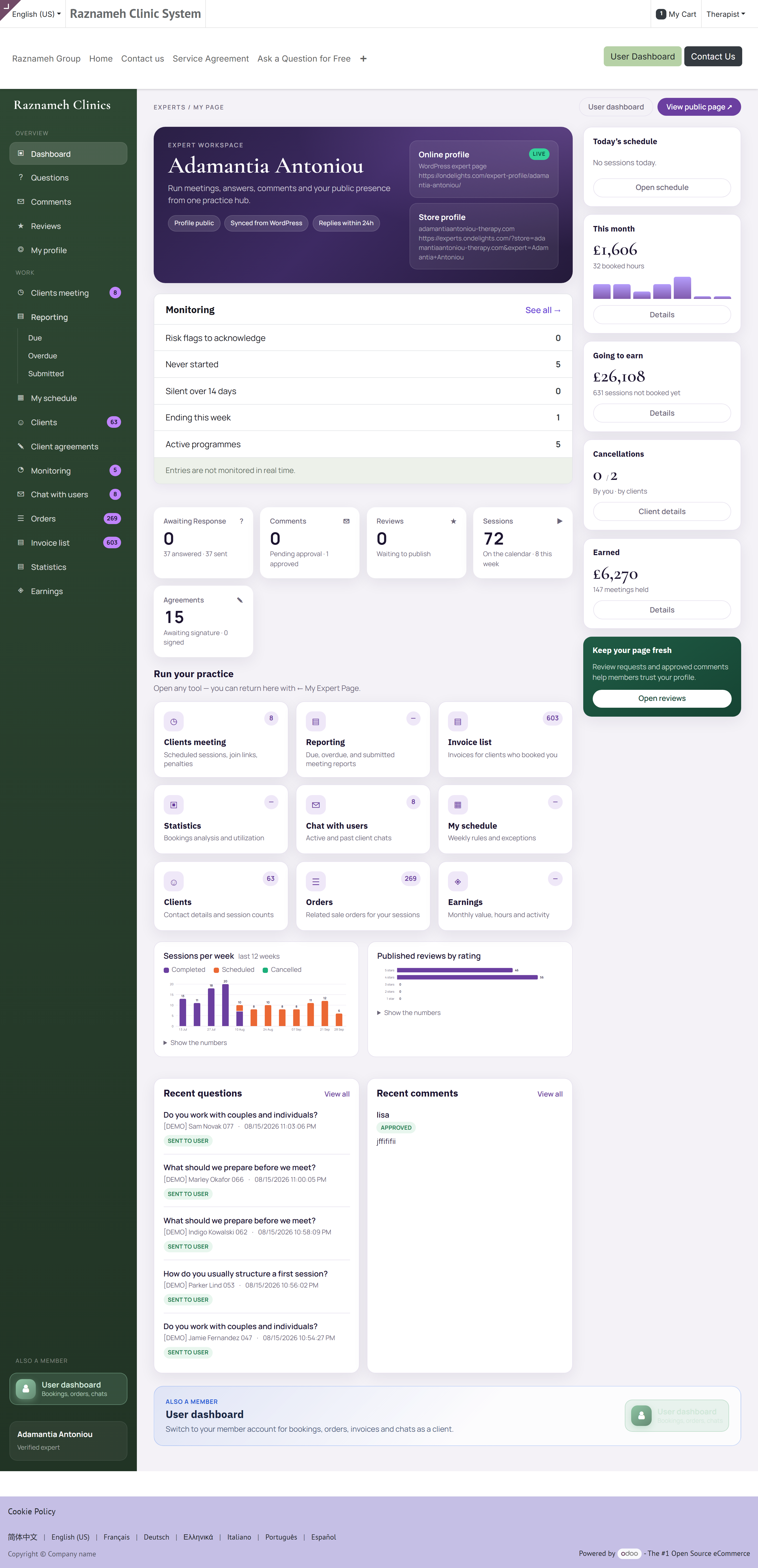
Open /my/expert in het portaal, of de bovenkant van uw onderdeel Praktijk als behandelaar in de app.
| Tegel | Wat ze u vertelt |
|---|---|
| Deze maand | Geboekte uren en uw aandeel daarin. Bij een contract in loondienst staan hier aantallen sessies in plaats van bedragen |
| Nog te verdienen | Uw aandeel in sessies die cliënten gekocht maar nog niet gehad hebben — uw voorraad |
| Annuleringen | Gesplitst in geannuleerd door u en geannuleerd door cliënten |
| Verdiend | Uw aandeel in sessies die werkelijk gehouden zijn |
Waarom ze zo gesplitst zijn#
Het verschil tussen nog te verdienen en verdiend is het verschil tussen geld dat beloofd is en geld dat zeker is. Cliënten kunnen een gekochte maar niet gehouden sessie nog annuleren, dus haar als verdiend meetellen zou uw cijfers mooier maken dan ze zijn en u op het verkeerde been zetten.
Annuleringen staan apart omdat het verschillende problemen zijn. Die van u liggen binnen uw macht; die van cliënten grotendeels niet. Wie uw functioneren beoordeelt, ziet dezelfde splitsing, zodat u nooit op de verkeerde afgerekend wordt.
3Uw openbare profiel#
Waar dit hoofdstuk over gaat — uw openbare pagina, zoals een aanstaande cliënt die ziet.
Waarom het uitmaakt — deze pagina maakt van een zoekresultaat een boeking — en één element erop beweegt het boekingspercentage meer dan alle andere.
Wat u ziet — hoe u uw pagina bekijkt, wat u element voor element goed doet, en hoe uw specialisaties bepalen wie u vindt.
3.1 Zien wat cliënten zien#
Profiel → Praktijk als behandelaar → Mijn profiel.
Dit is uw openbare pagina, onbewerkt. Kijk haar na telkens wanneer u iets wijzigt.
3.2 Wat u goed doet#
| Element | Advies |
|---|---|
| Foto | Een heldere, vriendelijke, verzorgde portretfoto. Dit heeft meer invloed op het boekingspercentage dan wat ook op de pagina |
| Introductie | Wie u helpt en wat er voor hen verandert. Schrijf voor een cliënt, niet voor een collega |
| Specialisaties | Wees specifiek. Ze sturen de zoekfilters — onder alles vermeld staan betekent voor niets gekozen worden |
| Video | Kort en warm. Veel cliënten kijken hiernaar voordat ze boeken |
| Diensten | Heldere namen, eerlijke duur, actuele prijzen |
| Kwalificaties | Volledig en juist. Uw beheerder moet ze mogelijk nakijken |
3.3 Wijzigingen aanbrengen#
Sommige velden bewerkt u zelf; andere — nagekeken kwalificaties, prijzen van diensten, uw geverifieerd-label — staan bij uw beheerder, omdat het beweringen zijn waar de praktijk op aangesproken wordt.
Wilt u een vergrendeld veld gewijzigd hebben, benader dan uw beheerder met de precieze tekst die u wilt.
4Uw beschikbaarheid instellen#
Waar dit hoofdstuk over gaat — het Platform vertellen wanneer u geboekt kunt worden.
Waarom het uitmaakt — al het andere wacht hierop, en de tijdzone-instelling bovenaan bepaalt stilletjes elk tijdvak dat u aanbiedt.
Wat u ziet — hoe u uw tijdzone zet, weekuren opbouwt, uitzonderingen toevoegt voor vakanties en losse dagen, en waarom cliënten soms minder tijdvakken zien dan u aanbood.
Dit is de belangrijkste stap bij het inrichten. Niemand kan u boeken zolang hij niet gedaan is, en een vergissing hier levert boekingen op de verkeerde tijden op.
4.1 Zet eerst uw tijdzone#
Profiel → Praktijk als behandelaar → Beschikbaarheid instellen.
Kies bovenaan hoe uw boekingstijdzone zich gedraagt:
| Keuze | Kies die wanneer |
|---|---|
| Vast (Fixed) — altijd één zone | U altijd vanaf dezelfde plek werkt. De veilige standaard |
| Volgt het toestel (Follow device) — schuift mee | U reist en wilt dat uw uren meebewegen |
Tik op Wijzigen om een zone te kiezen, en daarna op Tijdzone opslaan.
Kies met opzet. Staat het op Volgt het toestel, dan verschuift ergens heen vliegen elk toekomstig tijdvak dat u aanbiedt. Dat is juist voor een werkelijk reizende praktijk en verkeerd voor de meeste mensen. Twijfelt u, kies dan Vast.
4.2 Zet uw weekuren#
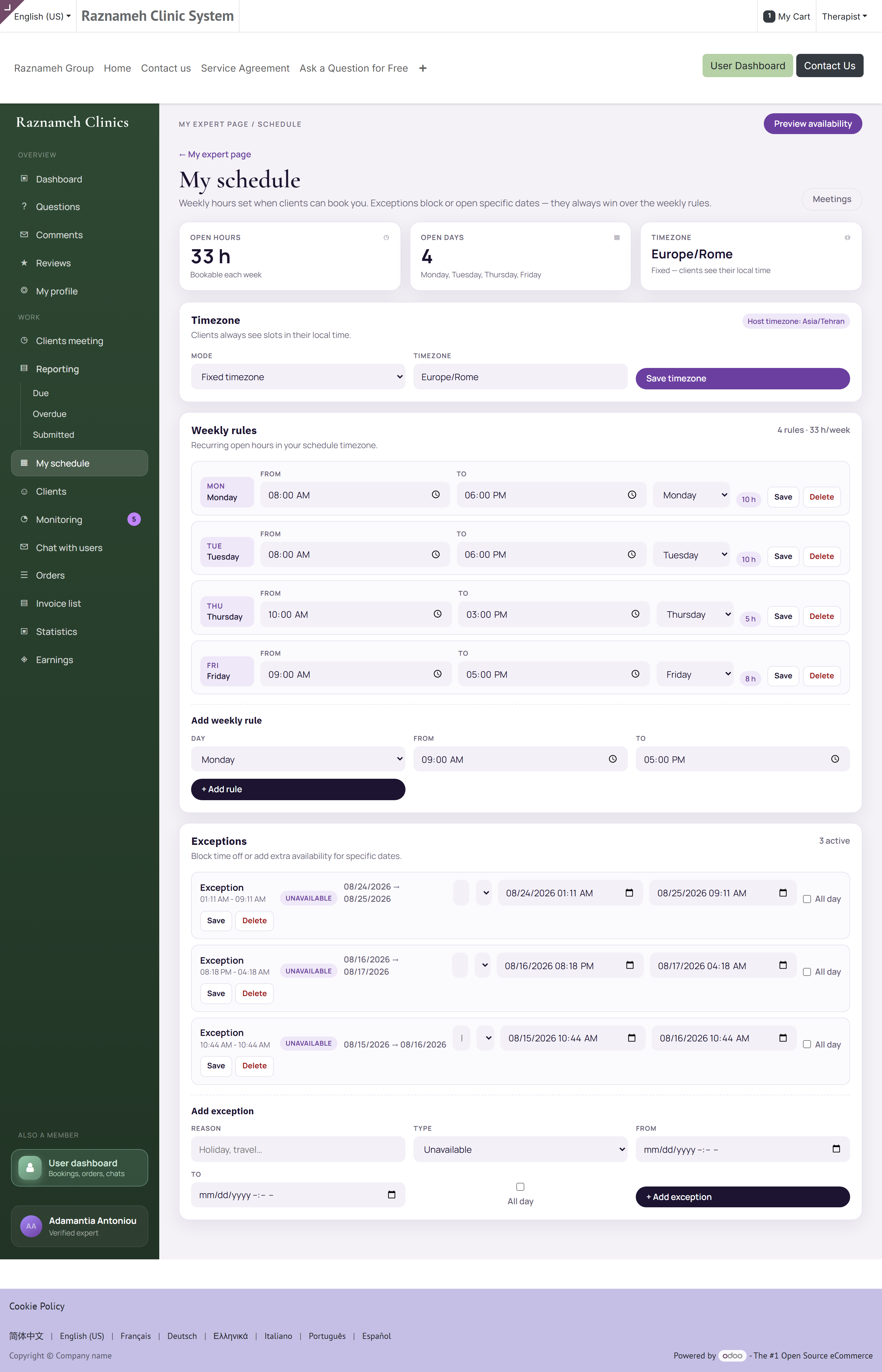
Voeg onder de tijdzone een regel toe voor elk blok tijd waarin u beschikbaar bent:
- Tik op de dag van de week — MA, DI, enzovoort.
- Zet Van en Tot.
- Tik op Toevoegen.
- Herhaal dat voor elk blok.
U kunt meerdere blokken aan één dag toevoegen. Een ochtendblok en een middagblok met een gat ertussen beschermen uw middagpauze veel beter dan één lang blok.
Bovenaan het scherm bevestigen drie cijfers wat u gebouwd hebt:
| Cijfer | Betekenis |
|---|---|
| Open dagen | Hoeveel dagen per week u beschikbaar bent |
| Boekbaar | Het totaal aan uren dat u aanbiedt |
| Getoond in | De tijdzone die cliënten zien |
Een regel wijzigen: tik erop, pas de tijden aan en tik op Opslaan. Een regel weghalen: tik erop, kies Verwijderen en bevestig.
4.3 Uitzonderingen toevoegen#
Uitzonderingen gaan voor op uw weekpatroon, op bepaalde datums — vakanties, scholingsdagen, een eenmalige late afsluiting.
- Open het onderdeel Uitzonderingen.
- Tik op Uitzondering toevoegen.
- Geef haar een naam. Schrijf iets dat u over zes maanden herkent: « Vakantie », « Scholing — bijscholingsdag », niet « x ». U bent de enige die het ziet, en u bent degene die het later leest.
- Kies het soort:
| Soort | Wat het doet | Waarvoor |
|---|---|---|
| Niet beschikbaar | Haalt tijd weg die u anders zou aanbieden | Vakantie, scholing, ziekte, alles wat een dag dichtzet |
| Extra beschikbaarheid | Voegt tijd toe buiten uw weekpatroon | Een losse zaterdag, een avond die u wilt werken, inhalen na verlof |
- Zet het datumbereik. Vink de hele dag aan voor een hele dag of een reeks dagen; vink het uit om precieze begin- en eindtijden te geven.
- Sla op.
Extra beschikbaarheid is wat mensen vergeten dat bestaat. Vraagt een cliënt om een tijd waarop u normaal niet werkt en wilt u het graag doen, dan hoeft u uw weekuren niet te wijzigen en weer terug te zetten — voeg voor die datum een uitzondering met extra beschikbaarheid toe, en ze verdwijnt vanzelf weer.
Een uitzondering wijzigen of weghalen: tik erop in de lijst. Een uitzondering weghalen zet voor die datums weer neer wat uw weekpatroon zegt.
Voeg vakanties toe zodra u ze boekt. Een uitzondering die na iemands boeking toegevoegd wordt, is helemaal geen uitzondering — het is een annulering, en ze wordt u aangerekend in §9.4.
4.4 Wat cliënten werkelijk zien#
Een tijdvak wordt alleen aangeboden wanneer dit allemaal waar is:
- Het valt binnen een weekregel.
- Geen uitzondering blokkeert het.
- Er staat niets anders in geboekt.
- Waar met ruimtes gewerkt wordt, is er een geschikte ruimte vrij.
- Het houdt zich aan de opzegtermijn en aan eventuele marges tussen sessies.
Daarom kan een cliënt minder tijdvakken zien dan uw uren doen vermoeden. Meestal is het een botsing om een ruimte of de opzegtermijn, en geen storing.
Twee van die grenzen zijn getallen die uw beheerder instelt, en die zijn het kennen waard, want ze verklaren de meeste vragen van het type « waarom kan niemand mij vandaag boeken »:
| Grens | Gebruikelijke instelling | Gevolg |
|---|---|---|
| Minimale opzegtermijn voor boeken | 4 uur | Niets binnen de komende paar uur wordt aangeboden, hoe vrij u ook bent |
| Boekingshorizon | 60 dagen | Niets daarbuiten wordt aangeboden, hoe ver uw uren ook vooruit lopen |
Klopt een van beide niet voor uw praktijk — u vindt boeken op dezelfde dag prima, of u wilt dat een cliënt zes maanden vooruit kan boeken — vraag het dan uw beheerder. Het zijn instellingen, geen beperkingen.
4.5 Uw eigen agenda koppelen#
Waar uw praktijk het aanzet, kunt u een externe agenda koppelen, zodat uw persoonlijke verplichtingen uw beschikbaarheid vanzelf blokkeren. Vraag uw beheerder het aan te zetten — het is veruit de beste bescherming tegen uzelf dubbel boeken.
5Sessies beheren#
Waar dit hoofdstuk over gaat — de lijst van elke sessie die aan u verkocht is, en waar elke sessie staat.
Waarom het uitmaakt — het totaal Te boeken is betaald werk dat niemand ingepland heeft — omzet die de praktijk al heeft en die u nog niet verdiend hebt.
Wat u ziet — de vier totalen, hoe u de lijst filtert en doorzoekt, wat er in een sessiedossier staat, en hoe u de lijst Te boeken afwerkt.
5.1 Uw sessielijst#

Profiel → Praktijk als behandelaar → Sessies met cliënten, of /my/expert/meetings.
Vier totalen bovenaan:
| Totaal | Betekenis |
|---|---|
| Sessies | Alles wat in de periode aan u verkocht is |
| Te boeken | Door cliënten gekocht, nog geen tijd gekozen |
| Ingepland | Geboekt en op komst |
| Afgerond | Gehouden |
5.2 « Te boeken » is een kans voor de praktijk#
Sessies die in Te boeken blijven staan, zijn betaald en niet ingepland. Dat is omzet die de praktijk al binnen heeft en die u nog niet verdiend hebt, en cliënten die nooit boeken, haken vaak stilletjes af.
Maak er een gewoonte van deze lijst wekelijks na te lopen en cliënten aan te schrijven die nog niet geboekt hebben. Het zijn de tien minuten met het hoogste rendement in uw week.
5.3 Namens een cliënt boeken#
Belt een cliënt of vraagt hij het in persoon, dan kan uw beheerder voor hem boeken. Afhankelijk van uw rechten kunt u dat zelf doen, vanuit het dossier van de cliënt of op /my/expert/book. Ziet u die mogelijkheid niet, vraag het dan uw beheerder.
6Een sessie geven#
Waar dit hoofdstuk over gaat — de routine rondom het geven van een sessie, online of op locatie.
Waarom het uitmaakt — de sessie achteraf afsluiten is wat haar als verdiend laat meetellen — de meeste gesprekken over « ik ben te weinig betaald » beginnen hier.
Wat u ziet — voorbereiden, deelnemen, een cliënt op locatie binnenlaten, welke aanwezigheid vastgelegd wordt, de sessie afsluiten, en omgaan met iemand die niet komt opdagen.
6.1 Voordat ze begint#
- Open de sessie vanuit Sessies met cliënten.
- Lees de intakeantwoorden als de dienst die verzamelt.
- Kijk de geschiedenis van de cliënt na (§8.2) als u hem eerder zag.
- Neem bij online sessies een paar minuten voorsprong om camera en microfoon na te lopen.
6.2 Deelnemen#
Open de sessie en tik op Deelnemen. De knop wordt kort voor de begintijd actief.
6.3 Een cliënt op de locatie binnenlaten#
Geldt alleen voor sessies op uw eigen locatie — een ruimte, een praktijk, een spreekkamer. Online sessies slaan dit helemaal over, omdat de videoruimte de cliënt binnenlaat.
Een sessie op locatie die geboekt is en waarover nog niet beslist is, staat in uw sessielijst als Wacht op de behandelaar. Er staan twee knoppen bij:
| Knop | Wat het vastlegt |
|---|---|
| Goedkeuren | U ontvangt deze cliënt op de geboekte tijd |
| Afwijzen | U doet dat niet |
U kunt er een notitie bij zetten, en dat is het doen waard: de notitie wordt met uw besluit aan de cliënt getoond. « Neem uw verwijsbrief mee » of « De balie zit op de tweede verdieping » kost u tien seconden en scheelt een telefoontje. Bij een afwijzing is de notitie de enige uitleg die de cliënt krijgt, dus schrijf er een.
Uw naam en de tijd worden bij het besluit vastgelegd, en het komt in de geschiedenis van de sessie. Daar volgen twee dingen uit:
- Het is bewijs. Zegt een cliënt dat hij zonder waarschuwing weggestuurd is, dan staan het besluit, het moment waarop u het nam en de notitie die u schreef er allemaal.
- Het kan niet anoniem, en dat hoort ook niet. Iemand afwijzen is een echt besluit over een echt mens.
Regels die het Platform afdwingt:
- Alleen een geboekte sessie kan goedgekeurd of afgewezen worden — niet een die al geannuleerd, gehouden of verlopen is.
- Alleen een sessie die werkelijk op de locatie gehouden wordt, heeft iets goed te keuren.
- Een sessie waarvan de tijd voorbij is, staat niet meer als wachtend. Nam u nooit een besluit, sluit haar dan af als gehouden of als niet verschenen, net als elke andere sessie (§6.5, §6.6).
Beslis vroeg, niet op de dag zelf. Deze stap bestaat om de cliënt de tijd te geven iets anders te regelen. Een afwijzing een uur van tevoren is formeel een afwijzing en in de praktijk een niet-verschijnen met papierwerk.
6.4 De aanwezigheid wordt vastgelegd#
Het Platform legt vast wanneer u allebei binnenkwam en hoe lang u allebei aanwezig was. Dat is geen toezicht — het is het bewijs dat een geschil beslecht over de vraag of een sessie plaatsgevonden heeft, en het beschermt u net zo goed als de cliënt.
Het voedt ook het rapport Vastgelopen sessies dat uw beheerder gebruikt, en daarom houdt uw sessies netjes afsluiten (§6.5) u van die lijst af.
6.5 De sessie afsluiten#
Merk een sessie na afloop aan als gehouden. Afhankelijk van uw inrichting gebeurt dat vanzelf op de eindtijd, of bevestigt u het met de hand.
Laat sessies niet openstaan. Een sessie die niet afgesloten is, telt niet als verdiend, kan uw betaling vertragen, en verschijnt op het rapport met vastgelopen sessies van de beheerder.
6.6 Als een cliënt niet komt opdagen#
- Wacht de tijd die uw praktijk aanhoudt — meestal 10 tot 15 minuten. Het Platform houdt na de eindtijd een respijttijd aan voordat een sessie op welke manier dan ook afgesloten kan worden, zodat een poging om te vroeg een niet-verschijnen vast te leggen geweigerd wordt in plaats van verloren te gaan.
- Probeer hem via de app een bericht te sturen.
- Merk de sessie aan als niet verschenen.
Laat haar niet zomaar openstaan. Een vastgelegd niet-verschijnen wordt door het annuleringsbeleid afgehandeld — dat de cliënt meestal iets in rekening brengt en u uw aandeel betaalt — terwijl een sessie die u laat liggen een gegevensprobleem is dat iemand moet gaan uitzoeken, en niemand iets oplevert.
6.7 Het hele leven van één sessie#
Elke sessie die u geeft loopt deze weg. Drie stappen zijn van u, en de hoofdstukken daarbij staan erbij aangemerkt:
flowchart TD
  A["Cliënt koopt een tegoed"] --> B["Cliënt boekt een tijd"]
  B --> C{"Gebeurt het?"}
  C -->|"Ja"| D["U sluit haar af als gehouden — §6.5"]
  C -->|"Cliënt afwezig"| E["U legt een niet-verschijnen vast — §6.6"]
  C -->|"Op tijd geannuleerd"| F["Het tegoed komt terug bij de cliënt"]
  D --> G["Verslag, als de dienst er een vraagt — §7"]
  D --> H["Telt mee voor Verdiend — §10"]
  E --> I["Het annuleringsbeleid bepaalt de kosten — §9.3"]
  I --> H
  G --> J["Meegenomen in de volgende uitbetalingsronde — §11"]
  H --> J
Het ene vakje waar geen pijl uit vertrekt, is het vakje dat niet op deze tekening staat: een sessie die u nooit afgesloten hebt. Ze bereikt noch Verdiend noch een uitbetalingsronde, en ze blijft op het rapport met vastgelopen sessies van uw beheerder staan tot iemand haar aanpakt. Sessies afsluiten is geen papierwerk — het is de stap die van werk geld maakt.
7Sessieverslagen en aantekeningen over cliënten#
Waar dit hoofdstuk over gaat — de vertrouwelijke vastlegging van wat er in een sessie gebeurde.
Waarom het uitmaakt — verslagen zijn de gevoeligste informatie die u in handen hebt, ze vallen open op een klok die uw beheerder kan zien, en de toegang ertoe volgt één regel die mensen verrast.
Wat u ziet — wat een verslag is, welke sessies er een vragen, hoe u het indient, wie het precies mag lezen, hoe verslagen versleuteld worden en in het logboek komen, en hoe verbeteringen werken.
Geldt waar uw praktijk verslagen vraagt. Doet de uwe dat niet, ga dan door naar §8.
7.1 Wat een verslag is#
Een vertrouwelijke, versleutelde vastlegging van wat er in een sessie gebeurde, opgeborgen bij die sessie en over die cliënt. Het is een inhoudelijk dossier, geen aantekening voor uzelf.
7.2 Welke sessies er een vragen#

Profiel → Praktijk als behandelaar → Sessieverslagen, of in het webportaal Werk → Rapportage (/my/expert/reports). De ingangen eronder openen Openstaand, Te laat of Ingediend.
De lijst toont wat openstaat en wat ingediend is. De eis wordt per dienst ingesteld, dus sommige van uw diensten vragen er een en andere niet.
7.3 Er een schrijven#
- Open Rapportage → Openstaand (of Sessieverslagen in de app) en kies een sessie die openstaat.
- Kijk bovenaan de naam van de sessie en van de cliënt na.
- Kies: typ het verslag in het formulier, of voeg een bestand toe dat u elders klaarmaakte. De ene keuze verbergt de andere — voegde u een bestand toe en wilt u toch typen, tik dan op Bestand verwijderen — het verslag zelf typen.
- Overweeg Houd dit verslag besloten (§7.5).
- Tik op Verslag indienen.
- Een wizard vraagt of u de cliënt een programma tussen sessies door wilt sturen. Kies een programma uit de bibliotheek van de praktijk en de begin- en einddatum. Dit verzint geen nieuwe doelen — het stuurt een sjabloon dat al bestaat. Tik op Naar de cliënt sturen, of op Overslaan als deze sessie er geen nodig heeft.
De cliënt ziet dat programma daarna onder Tussen sessies door en vult het daar in.
7.4 Termijnen, en wat elke toestand betekent#
Een verslag valt open wanneer de sessie gehouden is, niet wanneer ze geboekt wordt, en de klok begint op de eindtijd van de sessie. Vierentwintig uur is de gebruikelijke ruimte; uw beheerder kan er voor de hele praktijk een andere instellen.
Elke sessie draagt een van vier verslagtoestanden:
| Toestand | Betekenis | Wie het ziet |
|---|---|---|
| Niet vereist | Deze dienst vraagt geen verslag, of de sessie is nog niet gehouden | — |
| Openstaand | Gehouden, verslag niet ingediend, nog binnen de ruimte | U |
| Te laat | De ruimte is verstreken | U en uw beheerder, op hun lijst om achteraan te gaan |
| Ingediend | Ingediend | U en uw beheerder |
U krijgt vóór de termijn een herinnering. Daarna verschijnt de sessie op de lijst met te late verslagen van een beheerder, en dat is waar gesprekken over achterstallige verslagen vandaan komen.
Dien het in terwijl de sessie vers is. Het verschil in kwaliteit tussen een verslag dat dezelfde dag geschreven is en een dat een week later komt, is voor iedereen die ze allebei leest te zien — en een verslag wordt gelezen op precies het moment dat die kwaliteit het meest telt.
7.5 Wie kan lezen wat u indient#
De toegang wordt bepaald door één regel over wie er in het behandelteam van die cliënt zit — niet door rang, en niet door wie het verslag geschreven heeft. Beheerder zijn geeft op zichzelf geen toegang.
Houd dit verslag besloten aanvinken versmalt het verder, doorgaans tot u alleen. Gebruik het voor werkelijk gevoelig materiaal, en begrijp wat het kost: een collega die voor u invalt, kan het dan ook niet lezen.
7.6 Hoe verslagen beschermd zijn#
| Bescherming | Wat het voor u betekent |
|---|---|
| Elk apart versleuteld | Elke versie heeft een eigen sleutel. Niemand leest ze uit de database |
| Standaard gesloten | Toegang vraagt een regel die haar toestaat. Er bestaat geen algemene sleutel voor beheerders |
| Alles wat gelezen wordt komt in het logboek | Openen zo goed als wijzigen, in een logboek dat niemand kan wijzigen of verwijderen |
| Verbeteringen zijn nieuwe versies | Een verbetering indienen vernietigt nooit wat u oorspronkelijk schreef |
| Vernietiging door de sleutel te vernietigen | Loopt de bewaartermijn af, dan gaat de inhoud; de vastlegging dat ze bestond blijft |
Dat logboek kunt u zelf lezen. De Geschiedenis van een verslag opent de eigen pagina van dat verslag: elke versie die het gehad heeft, de nieuwste bovenaan, alles wat erbij ingediend is, en het toegangslogboek — wie het opende, wanneer, en wat die persoon deed, tot vijfhonderd gebeurtenissen terug. Een verslag met meer dan één versie opent daar in plaats van meteen op de inhoud, zodat u ziet dat het herzien is voordat u het leest. Bij een verslag waarvan de bewaartermijn afgelopen is, staat dat er gewoon in plaats van dat u niets te zien krijgt.
U ziet het omdat u recht hebt op dat verslag, en niet vanwege een groep die iemand u gegeven heeft: dezelfde regel die bepaalt of u het verslag mag lezen, bepaalt of u de geschiedenis ervan mag lezen. Wilt u een logboek over een periode in plaats van over één verslag, vraag dat dan uw beheerder.
7.7 Een verslag verbeteren#
Dien een verbetering in als nieuwe versie. Het origineel blijft precies zoals het was. Dat is met opzet: een dossier dat achteraf aan te passen is, heeft als bewijs geen waarde, en er kan een dag komen waarop dat van u wel iets waard moet zijn.
7.8 Als u groepssessies geeft#
Een groep wordt anders vastgelegd, en niet vanuit dit portaal. Het verslag van de sessie wordt één keer geschreven en bij ieder die aanwezig was opgeborgen, dus het werk gebeurt in de backoffice, waar de aanwezigheidslijst en de ene gedeelde tekst wonen. Voor u volgen daar twee dingen uit:
- Geeft u groepen, dan hebt u toegang tot de backoffice nodig, of een collega met die toegang legt de aantekeningen vast op grond van wat u aanlevert. Vraag uw beheerder welke van de twee uw praktijk doet.
- De aanwezigheid bepaalt wie een aantekening krijgt — wie er was, niet iedereen die geboekt stond — en ze wordt met vijf toestanden vastgelegd in plaats van met een vinkje, omdat afwezig en met bericht afwezig inhoudelijk verschillende feiten zijn. Wie het vastlegt, moet weten welke van de twee het was, dus vertel het hun.
De eigen versie hiervan voor uw praktijk staat in de handleiding voor beheerders, §8.9.
Met sjablonen is het hetzelfde verhaal. Aantekeningsjablonen met een naam — SOAP, DAP, BIRP en de rest, en de gestructureerde sjablonen van uw eigen praktijk — worden in de backoffice ingericht en gebruikt. Het verslagformulier in dit portaal is het formulier dat uw praktijk ervoor ingesteld heeft; er staat geen sjabloonkeuze op.
8Uw cliënten#
Waar dit hoofdstuk over gaat — uw eigen cliëntenlijst, de kaart van elke cliënt, en het inhoudelijke dossier daarin: het behandeltraject, de doelen, en wat de cliënt tussen sessies door vastlegt.
Waarom het uitmaakt — een minuut in de geschiedenis van een cliënt vóór een vervolgsessie is de goedkoopste manier om de volgende beter te maken, en de doelpagina is waar die minuut het best besteed is.
Wat u ziet — de lijst met aantallen sessies, de tabbladen op de kaart van één cliënt, de episode- en doelpagina's, hoe u een programma stuurt en een verslag indient, en uw caseload met het zorgelijkste eerst.
8.1 Uw cliëntenlijst#

Profiel → Praktijk als behandelaar → Mijn cliënten, of /my/expert/clients.
Toont elke cliënt die bij u gekocht heeft, met contactgegevens, aantallen sessies, en hoeveel sessies er nog geboekt moeten worden.
De code van elke cliënt staat onder diens naam — C-001253. Gebruik die in plaats van een naam wanneer iemand kan meeluisteren: twee cliënten die Maria Santos heten is geen zeldzaamheid, en een naam is het laatste wat u in een wachtkamer wilt voorlezen. De code komt uit het dossier voort, dus ze verandert nooit, en het is dezelfde code die de cliënt op zijn eigen dashboard ziet en de beheerder op het zijne.
Het zoekvak vindt haar, net zo goed als de naam en het e-mailadres. Plak C-001253, of typ gewoon 1253 — allebei vinden de persoon.
8.2 De geschiedenis van één cliënt#
Tik op een cliënt om alles te zien: gehouden sessies, nog te boeken sessies, eerdere bestellingen, aantekeningen die u indiende en waar u bij kunt, en de annuleringsgeschiedenis.
Open dit vóór een vervolgsessie. Verwijzen naar iets van de vorige keer is de goedkoopste manier om een cliënt te laten merken dat hij meer is dan een vakje in een agenda.
8.3 Privacy van cliënten#
U ziet de cliënten die bij u gekocht hebben. U ziet niet de hele cliëntenlijst van de praktijk, en collega's zien die van u niet. Aantekeningen volgen de toegangsregels uit §7.5, wie het ook vraagt.
8.4 Het inhoudelijke dossier — episode, doelen, programma's#
De zorg voor een cliënt is een behandeltraject, geen stroom afspraken. Vier dingen, elk in het ding erboven:
| Episode | Eén behandeltraject. Opent bij de eerste gehouden sessie. Een cliënt heeft er één tegelijk open |
| Doel | Waar de episode naartoe werkt, met een streefdatum en aan het eind een uitkomst |
| Programma | Wat de cliënt tussen sessies door vastlegt — gestuurd bij een doel, zodat wat hij invoert rapporteert over iets waar het plan om vroeg |
| Verslag | Wat u schrijft over hoe een doel verloopt, opgeborgen bij het doel, binnen de episode |
Een vragenlijst is een soort programma-item, en niet iets aparts om te beheren.
8.5 De cliëntkaart#
Open een cliënt uit uw lijst. De kaart heeft tabbladen: Episodes, Sessies, Ingediende verslagen, Bestellingen, Gesprekken, Beoordelingen, Reacties.
- Episodes toont elk behandeltraject met waar het over gaat, hoe ver het gekomen is, en wat er het laatst op gebeurde. Episode openen → gaat naar de boomstructuur.
- Heeft de cliënt geen open episode, dan start Een episode openen er een.
- Ingediende verslagen is de verslaglijst, versmald tot deze cliënt: wat u ingediend hebt, en daarboven wat er nog in te dienen is, met dezelfde knoppen als bij Rapportage.
8.6 De episodepagina#
Doelen, en onder elk doel de programma's die erop rapporteren.
- Elk doel toont wanneer het begon, de laatste bedrijvigheid, de streefdatum, en Lopend of Afgerond.
- Eronder elk programma met zijn eigen begin, laatste invoering en hoeveel er vastgelegd is.
- Langs de voet: hoeveel verslagen er op dat doel staan, en wanneer het laatste ingediend werd.
- Doel toevoegen — titel, omschrijving, streefdatum. Het eerste doel aanmaken opent het plan.
- Doel bewerken op de regel — bewoording, streefdatum, uitkomst, toestand.
- Programma toevoegen op de regel — kies uit de bibliotheek van de praktijk en zet de datums. Alles wat erin komt, rapporteert over dat doel.
- Episode bewerken bovenaan — naam, aanmeldklacht, geopend op. Een episode sluiten is aan de beheerder.
Doel toevoegen, Doel bewerken en Programma toevoegen openen alle drie als een paneel over de pagina waar u bent, en niet als een eigen pagina. U komt terug op dezelfde episode op dezelfde plek in de pagina, en dat is de bedoeling: een doel schrijven doet u midden in het lezen van het plan, niet als een omweg.
Dezelfde panelen verschijnen op de verslaglijst en op de kaart van een cliënt, zodat u een behandeltraject kunt openen, een doel kunt schrijven, een programma kunt sturen of om een vragenlijst kunt vragen zonder het werk dat voor u ligt te verlaten.
8.7 De doelpagina#
sessie leest:
- Het doel, de omschrijving, het streven en de toestand, met Doel bewerken.
- Programma's op dit doel — ritme, venster, hoeveel er vastgelegd is, de laatste invoering.
- Wat de cliënt vastlegde — datum, item, soort en de invoering zelf. Een verzegeld dagboek leest als Versleuteld — u kunt deze invoering niet openen, nooit als een fragment.
- Verslagen op dit doel — elk met de datum en wie het indiende. Verslag toevoegen dient er een nieuwe in bij dit doel.
- Als doorgenomen aanmerken legt vast dat u de invoeringen met de cliënt doorgenomen hebt. Doel afsluiten rondt het af zonder een uitkomst te verzinnen; de uitkomst wordt gezet wanneer de episode sluit.
8.8 Wanneer het verslag van een collega is#
Elke behandelaar die de cliënt gezien heeft, ziet de episode. Het inhoudelijke verslag van een collega lezen is een aparte vraag: de regel wordt getoond met u hebt hier geen toegang toe en een knop Toegang aanvragen ernaast. Een gat in de lijst zou de stillere leugen zijn.
Een beheerder van de praktijk keurt het goed of wijst het af. Hoe dan ook komt het besluit in het logboek, en elke daaropvolgende keer dat er gelezen wordt ook.
8.9 Monitoring — uw caseload, het zorgelijkste eerst#
Monitoring in de zijbalk, of /my/expert/monitoring.
Opent standaard op Heeft aandacht nodig. De knoppen dragen aantallen: Heeft aandacht nodig, Lopend, Loopt binnenkort af, Alles. Kolommen: cliënt, programma, week, wanneer het afloopt, het zwakste item, hoeveel er vastgelegd is, de laatste invoering, en een risicovlag.
Uw eigen pagina opent met dezelfde vijf cijfers: risicovlaggen om te bevestigen, nooit begonnen, veertien dagen stil, loopt deze week af, lopende programma's. Elk cijfer is een link de lijst in.
Twee dingen doet deze pagina niet. Ze beoordeelt uw cliënten niet — iets wat niet vastgelegd is leest als niet vastgelegd, en niets hier maakt daar een cijfer van. En ze houdt niets in de gaten op het moment zelf: invoeringen worden gelezen wanneer iemand ze opent, en daarom zegt elke pagina die ze draagt dat ook.
CSV downloaden neemt de lijst zoals u haar gefilterd hebt, voor supervisie of een bespreking van uw caseload. Ze draagt de kolommen van het scherm — cliënt, programma, week, wanneer het afloopt, het zwakste item, hoeveel er vastgelegd is, de laatste invoering en de vlag. De invoeringen van een cliënt gaan er niet mee mee, alleen de regel van de caseload.
8.10 Vragenlijsten die u gevraagd hebt#
/my/expert/instruments, en het onderdeel Vragenlijsten op de kaart van een cliënt.
Een vragenlijst is een soort programma (§8.4). Deze pagina is de vlakke lijst van de vragenlijsten die nog openstaan en de beantwoorde, over al uw cliënten heen — handig wanneer u wilt zien waar u op wacht in plaats van wat één persoon doet.
- Er een vragen — kies de cliënt en de vragenlijst uit de bibliotheek van de praktijk. Ze hangt zich aan de open episode van de cliënt wanneer die er is.
- Elke regel toont de vragenlijst, de cliënt, wanneer ze gevraagd werd, en de uitkomst zodra die binnen is.
- Een uitkomst die een risicodrempel overschrijdt, wordt gemerkt, en blijft gemerkt tot u haar bevestigt. Bevestigen legt vast dat een behandelaar het gezien heeft — het is geen manier om de vlag van het scherm te krijgen.
- Vanaf een regel de kaart van een cliënt openen, start dezelfde lijst versmald tot die persoon.
De cliënt voert een totaal in, niet de vragenlijst. Hij werkt het instrument zelf uit — op papier, of in de app die de praktijk gebruikt — en legt het totaal hier vast. Bij sommige instrumenten staat aangemerkt dat de cliënt ze niet alleen kan invullen; die wachten op een sessie en zeggen dat ook op de pagina van de cliënt.
8.11 Terugroepen — cliënten die teruggevraagd moeten worden#
Vervaldatums die om een uitnodiging vragen en niet om een boeking: de jaarlijkse evaluatie, het vervolg na drie maanden, de controle nadat een traject afgelopen is. De lijst toont de cliënt, de vervaldatum, de toestand en uw eigen woorden voor waarom hij bestaat.
Een terugroep staat ingepland tot de datum komt, dan openstaand, en dan uitgenodigd zodra de cliënt gevraagd is. Hij verlaat de lijst wanneer een boeking hem vervult, wanneer iemand hem wegzet, of wanneer hij zijn einddatum passeert zonder boeking. Eén open terugroep per cliënt, behandelaar en dienst tegelijk — zodat de lijst een lijst mensen blijft in plaats van een lijst herinneringen.
Het redenveld is het invullen waard. Het is wat de lijst bruikbaar maakt voor wie hem oppakt terwijl u weg bent.
8.12 Cliënten op een lidmaatschap#
/my/expert/membership-clients.
Uw cliënten op een doorlopend plan, met de huidige periode, en — de reden dat de pagina bestaat — een merkteken bij iedereen die deze periode niets geboekt heeft. Een lidmaatschap dat ongebruikt blijft, is het lidmaatschap dat opgezegd wordt, en niets anders in het portaal zou u dat verteld hebben.
9Annuleringen en verzette afspraken#
Waar dit hoofdstuk over gaat — annuleren, verzetten, en de vastlegging van wie wat deed.
Waarom het uitmaakt — hoe lang van tevoren bepaalt de kosten, en de geschiedenis hier is dezelfde vastlegging die uw beheerder ziet wanneer betrouwbaarheid ter sprake komt.
Wat u ziet — hoe u netjes annuleert, wat er gebeurt wanneer een cliënt annuleert, hoe de kosten en uw aandeel daarin werken, en hoe vrijgekomen tijdvakken zich vanuit de wachtlijst weer vullen.
9.1 Als u moet annuleren#
- Open de sessie in Sessies met cliënten.
- Kies Annuleren.
- Geef een reden — die wordt vastgelegd.
- Bevestig.
De cliënt krijgt vanzelf bericht en zijn tegoed komt volledig terug. Hij betaalt geen kosten wanneer de annulering van u komt.
Annuleer zo vroeg als u kunt. Annuleringen door u worden apart geteld en zijn voor uw beheerder zichtbaar. Af en toe annuleren is het gewone leven; een patroon is een gesprek.
9.2 Bied een alternatief#
Open, in plaats van botweg te annuleren, het dossier van de cliënt en stuur hem tijden die wél schikken. Een verzette sessie houdt zowel de band als de inkomsten in stand.
9.3 Wanneer een cliënt annuleert#
U krijgt bericht. Of er kosten bij komen, wordt bepaald door het gepubliceerde beleid en door hoe lang van tevoren geannuleerd is — niet door u, en niet door de cliënt. Eventuele kosten worden vanzelf berekend en uw aandeel daarin wordt vastgelegd.
9.4 Uw annuleringsgeschiedenis#
Profiel → Praktijk als behandelaar → Annuleringsgeschiedenis.
Elke annulering en elke verzette afspraak op uw sessies, en wie het gedaan heeft. Dit is de vastlegging om te openen vóór elk gesprek over uw betrouwbaarheid, want het is dezelfde die uw beheerder ziet.
9.5 Vrijgekomen tijdvakken gaan niet verloren#
Wordt een sessie geannuleerd, dan wordt het tijdvak vanzelf aan iedereen op de wachtlijst aangeboden. U hoeft er niets voor te doen, en een late annulering vult zich vaak vanzelf weer.
10Uw verdiensten begrijpen#
Waar dit hoofdstuk over gaat — wat u verdiend hebt, wat beloofd is, en wat er nog niet geboekt is.
Waarom het uitmaakt — de vier bakken begrijpen — en het moment waarop uw aandeel vastligt — voorkomt bijna elke vraag over verdiensten.
Wat u ziet — de vier bakken met aantallen, uren en bedragen, de maandtabel, wat er anders is bij loondienst, en een tabel met waarom een cijfer verkeerd kan lijken.
10.1 De vier bakken#
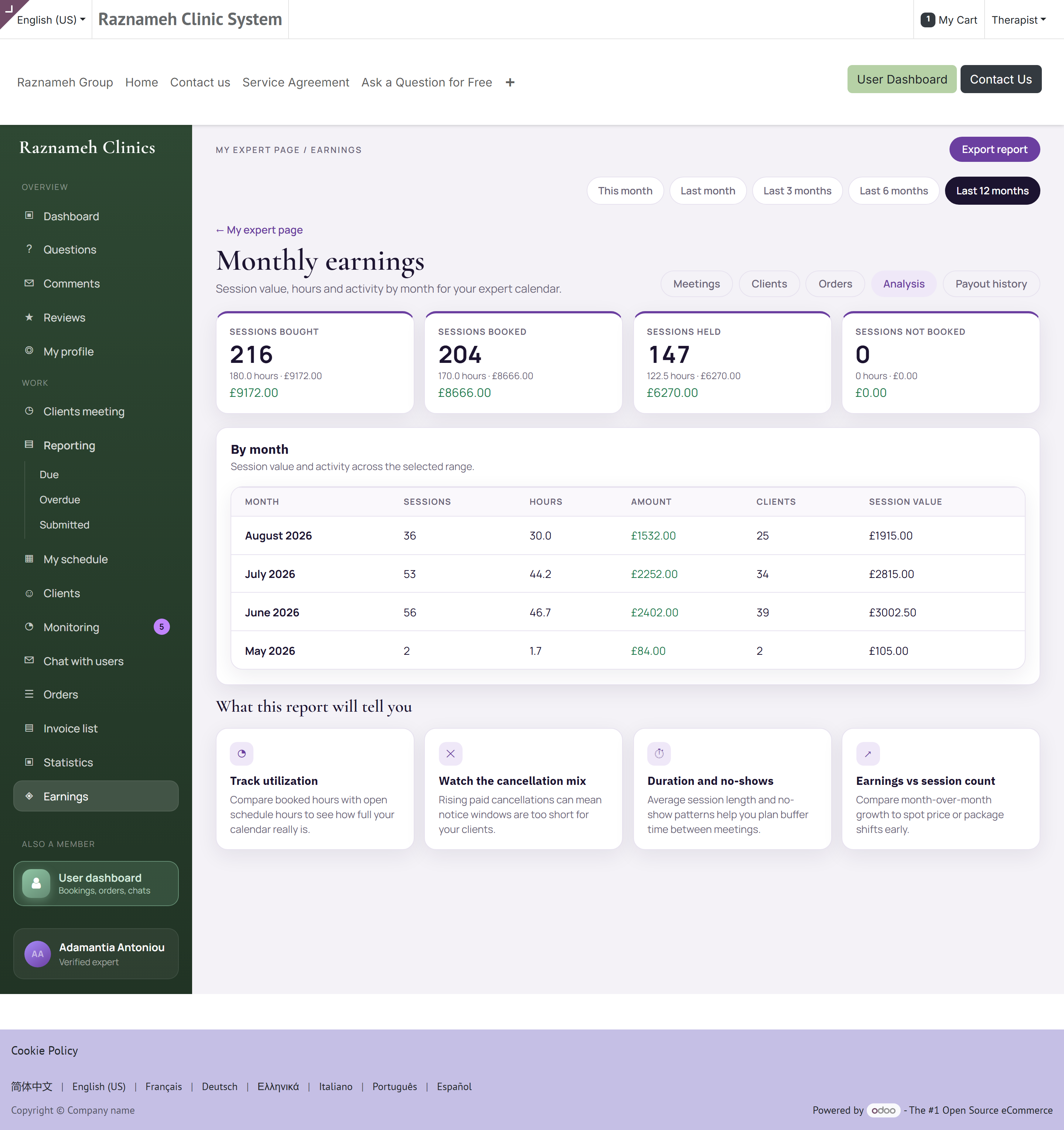
Profiel → Praktijk als behandelaar → Verdiensten, of /my/expert/earnings.
| Bak | Betekenis |
|---|---|
| Gekochte sessies | Cliënten hebben die bij u gekocht |
| Geboekte sessies | Gekocht en nu ingepland |
| Gehouden sessies | Gegeven — dit is wat Verdiend wordt |
| Niet-geboekte sessies | Gekocht, nog niet ingepland — uw nabellijst |
Elke bak toont een aantal, uren, en het bedrag waar uw contract op geld gebaseerd is.
10.2 Per maand#
Onder de bakken staat een tabel per maand: sessies, uren, bedrag, cliënten en gemiddelde sessiewaarde. Het venster verandert u bovenaan — deze maand, vorige maand, 3, 6 of 12 maanden.
Tik op CSV exporteren om de tabel te downloaden voor uw eigen administratie of voor uw boekhouder.
10.3 Uw aandeel ligt vast zodra de sessie geboekt wordt#
Boekt een cliënt, dan wordt uw aandeel berekend uit de voorwaarden die op dat moment gelden, en staat het daarna vast.
Dat beschermt u. Veranderen uw voorwaarden volgende maand, dan wordt werk dat u al gedaan hebt niet stilletjes opnieuw geprijsd. Het betekent ook dat een tariefverhoging voor nieuwe boekingen geldt en niet met terugwerkende kracht — goed om te weten voordat u erom vraagt.
10.4 Als u in loondienst bent#
De bedragen worden overal verborgen en vervangen door aantallen sessies. Dat gaat vanzelf, op grond van uw soort contract. U mist geen recht — een aandeel in de omzet is eenvoudigweg niet hoe u betaald wordt.
10.5 Waarom een cijfer verkeerd lijkt#
| Wat u ziet | De gebruikelijke oorzaak |
|---|---|
| Een gehouden sessie staat niet in Verdiend | Ze is nooit afgesloten. Zie §6.5 |
| Nog te verdienen hoger dan verwacht | Het bevat gekochte maar nog niet gehouden sessies. Dat is de omschrijving |
| Een maand lager dan u zich herinnert | Kijk het venster bovenaan na. Misschien dekt het niet de maand die u bedoelt |
| Bedragen wijken af van uw eigen rekensom | Uw aandeel is het contractaandeel, en het lag vast bij de boeking, niet op het tarief van vandaag |
| Bij een percentage staat een streepje | Minder dan vijf sessies in het venster. Kleine aantallen worden met opzet niet tot stellige percentages gemaakt |
11Betaald worden#
Waar dit hoofdstuk over gaat — hoe het geld u werkelijk bereikt.
Waarom het uitmaakt — de sessies zijn uw urenstaat: u dient niets in, maar een sessie die u nooit afsloot, bereikt de uitbetalingsronde nooit.
Wat u ziet — de betaalcyclus van begin tot eind als tekening, wat « concept » betekent, uw betalingsgeschiedenis met bij elke regel de contractversie die haar prijsde, en de twee controles die geschillen voorkomen.
11.1 Hoe de betaling werkt#
Uw praktijk betaalt op een ritme dat in uw contract staat — meestal maandelijks. Sluit een cyclus, dan wordt er vanzelf een uitbetalingsronde geopend, worden uw cijfers berekend uit de sessies die werkelijk gehouden zijn, en wordt er voor u een nota opgemaakt.
U hoeft niets in te dienen. De sessies zijn de urenstaat.
flowchart LR
  A["Cliënt boekt een sessie"] --> B["Uw aandeel ligt op dat moment vast"]
  B --> C["Sessie wordt gehouden en afgesloten"]
  C --> D["Geteld in Gehouden sessies"]
  D --> E["Cyclus sluit: uitbetalingsronde opent in Concept"]
  E --> F["Iemand bevestigt de ronde"]
  F --> G["Betaald — het verschijnt in uw betalingsgeschiedenis"]
  C -. niet afgesloten .-> H["Niet geteld, dus niet betaald"]
  H -. sluit haar af .-> D
Twee dingen in die keten zijn het twee keer lezen waard.
« Concept » is niet « kwijt ». Een ronde die door de cyclus geopend is, blijft in concept tot een mens haar bevestigt. Een periode zien die gesloten is en nog niet in uw geschiedenis staat, is een paar dagen lang gewoon — het betekent dat de ronde bestaat en nog niemand haar bevestigd heeft.
De enige aftakking die u geld kost, is de gestippelde. Een sessie die gegeven maar nooit afgesloten is, bereikt de ronde helemaal niet. §11.3 gaat erover van die aftakking af te blijven.
Een ronde kan ook uw aandeel in de annuleringskosten bevatten die cliënten in rekening gebracht zijn, waar uw contract u er een geeft. Die staan als eigen regels, dus een totaal dat hoger is dan uw sessierekensom komt meestal hierdoor en niet door een fout.
11.2 Uw betalingsgeschiedenis#
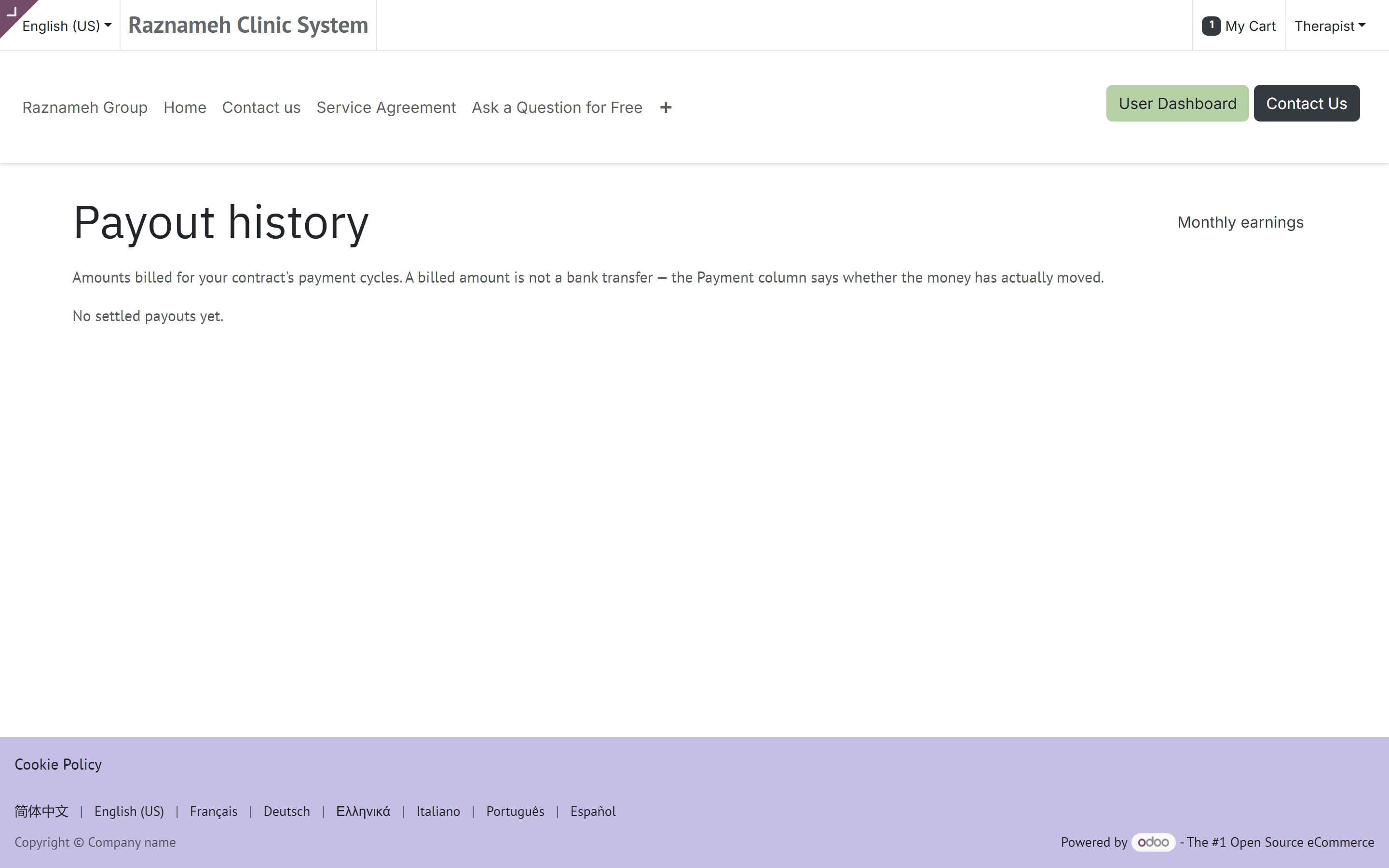
Uitbetalingsgeschiedenis op uw pagina Verdiensten, of /my/expert/payouts. In de app is het Profiel → Praktijk als behandelaar → Verdiensten → betalingsgeschiedenis.
Elke eerdere betaling: de periode, wat erin zat, het totaal, en de status. Elke regel legt vast welke versie van uw contract haar geprijsd heeft — zodat een vraag over een betaling van acht maanden geleden te beantwoorden is.
| Op de pagina | Wat het u vertelt |
|---|---|
| Periode | De datums die de ronde besloeg |
| Regels | Elke sessie, en elk aandeel in kosten, waaruit het totaal bestond |
| Contractversie | De voorwaarden die deze regel prijsden — de reden dat een tarief tussen twee regels kan verschillen |
| Bedrag | Uw aandeel, in de munt van de praktijk |
| Status | Concept (berekend, nog niet bevestigd), Betaald, of Geannuleerd |
| Totaal betaald | Alles wat u ooit uitbetaald gekregen hebt, bovenaan |
Een geannuleerde ronde is een ronde die geopend en daarna ingetrokken is, meestal omdat ze niet klopte. De sessies erin zijn niet weg — ze komen terug in de voorraad en verschijnen in de verbeterde ronde die haar vervangt. Ziet u een geannuleerde ronde en komt er binnen een paar dagen geen vervanging, dan is dat een vraag voor uw beheerder.
11.3 Zorgen dat u juist betaald wordt#
Twee gewoonten dekken bijna elk betaalgeschil af:
- Sluit uw sessies af. Sessies die niet afgesloten zijn, tellen niet als gehouden, en sessies die niet gehouden zijn, worden niet betaald. Dit is veruit de meest voorkomende oorzaak van een te lage betaling.
- Kijk de bakken na voordat de cyclus sluit. Leg Gehouden sessies naast wat u zich herinnert gegeven te hebben. Kaart alles wat verkeerd lijkt aan voordat de ronde gefactureerd wordt — dat is veel eenvoudiger dan het achteraf herstellen.
11.4 Als een betaling verkeerd lijkt#
- Open de betaling en kijk de sessies na die erin staan.
- Leg ze naast Gehouden sessies voor dezelfde periode.
- Kijk na of een ontbrekende sessie nog open staat.
- Klopt het werkelijk niet, neem dan contact op met uw beheerder met de periode, het verwachte bedrag en de precieze sessies.
12Bestellingen en facturen#
Waar dit hoofdstuk over gaat — de bestellingen waaruit uw sessies voortkwamen, en de facturen die voor uw cliënten opgemaakt zijn.
Waarom het uitmaakt — dit zijn de facturen van de praktijk aan cliënten, niet uw betaling — het verschil kennen voorkomt een ongemakkelijk gesprek over geld dat niet aan u is om achteraan te gaan.
Wat u ziet — aantallen bestellingen en wat er werkelijk verkoopt, de vier factuurcijfers, filters en de CSV-export.
12.1 Bestellingen#
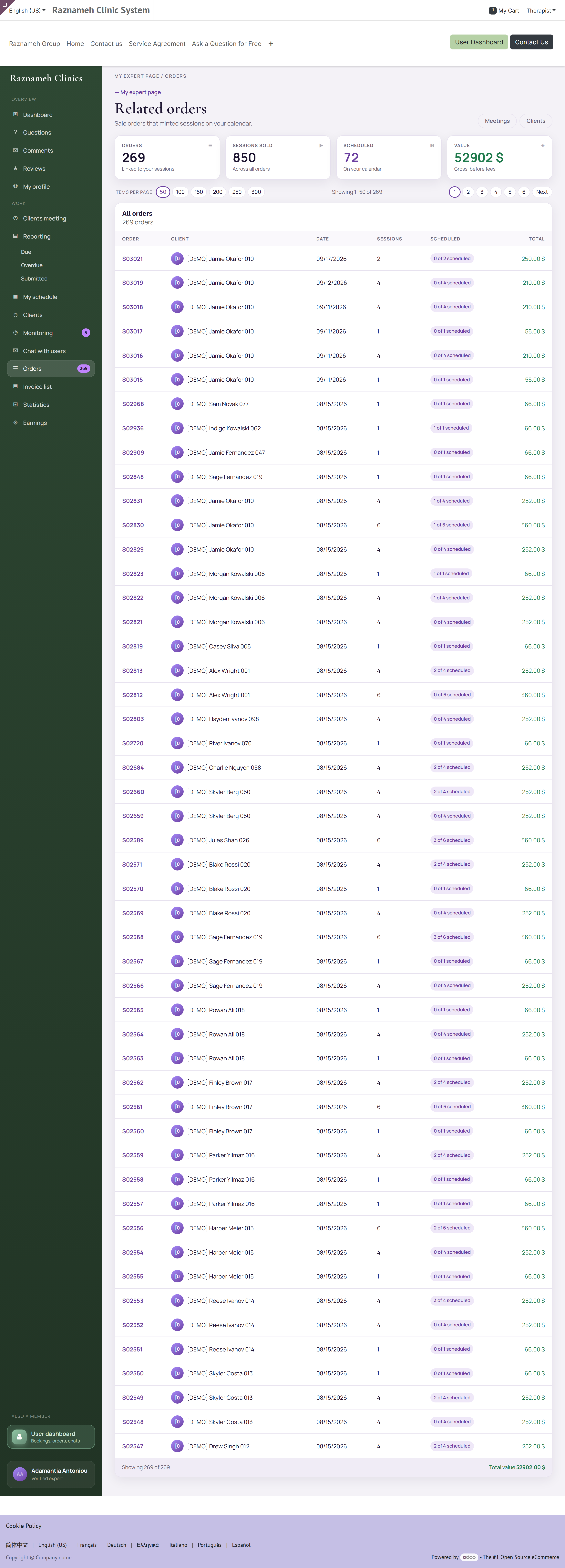
Profiel → Praktijk als behandelaar → Bestellingen en sessies, of /my/expert/orders.
Bestellingen van cliënten waaruit uw sessies voortkwamen — het aantal bestellingen, de verkochte sessies, hoeveel er ingepland zijn, en de waarde. Handig om te zien welke pakketten werkelijk verkopen.
12.2 Facturen van cliënten#
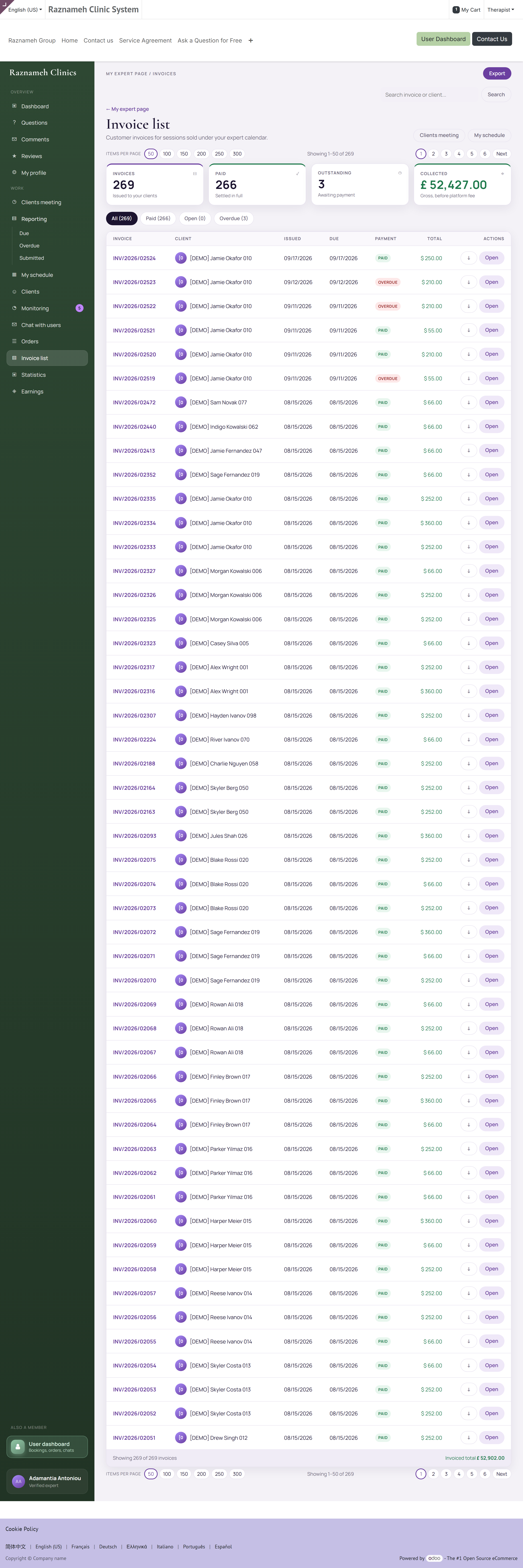
Profiel → Praktijk als behandelaar → Facturen van cliënten, of /my/expert/invoices.
Dit toont alleen facturen die uit uw werk voortkomen — niet alles wat die cliënten ooit bij de praktijk gekocht hebben. Vier cijfers bovenaan:
| Cijfer | Betekenis |
|---|---|
| Facturen | Het aantal in de periode |
| Betaald | Voldaan |
| Openstaand | Open plus te laat |
| Geïnd | Het totaal dat werkelijk binnengekomen is |
Filter op Alles, Betaald, Open of Te laat, of zoek. Exporteer naar CSV.
Dit zijn de facturen van de praktijk aan cliënten, niet uw betaling. De uwe staat in §11. Achter een onbetaalde cliëntfactuur aan gaan is normaal gesproken het werk van de praktijk — overleg voordat u een cliënt over geld benadert.
13Hoe uw boekingen lopen#
Waar dit hoofdstuk over gaat — de cijfers achter hoe mensen u vinden en besluiten te boeken.
Waarom het uitmaakt — het wijst de ene stap aan die u cliënten kost, zodat u het juiste verbetert in plaats van te gokken.
Wat u ziet — de boekingstrechter met wat elke uitval meestal betekent, hoe lang van tevoren mensen u boeken, een uitsplitsing per cliënt, en cijfers over bezetting en niet-verschijnen.
Profiel → Praktijk als behandelaar → Boekingsanalyse, of /my/expert/analytics.
Kies een venster: 7, 30 of 90 dagen, of 6 of 12 maanden.
13.1 De boekingstrechter#
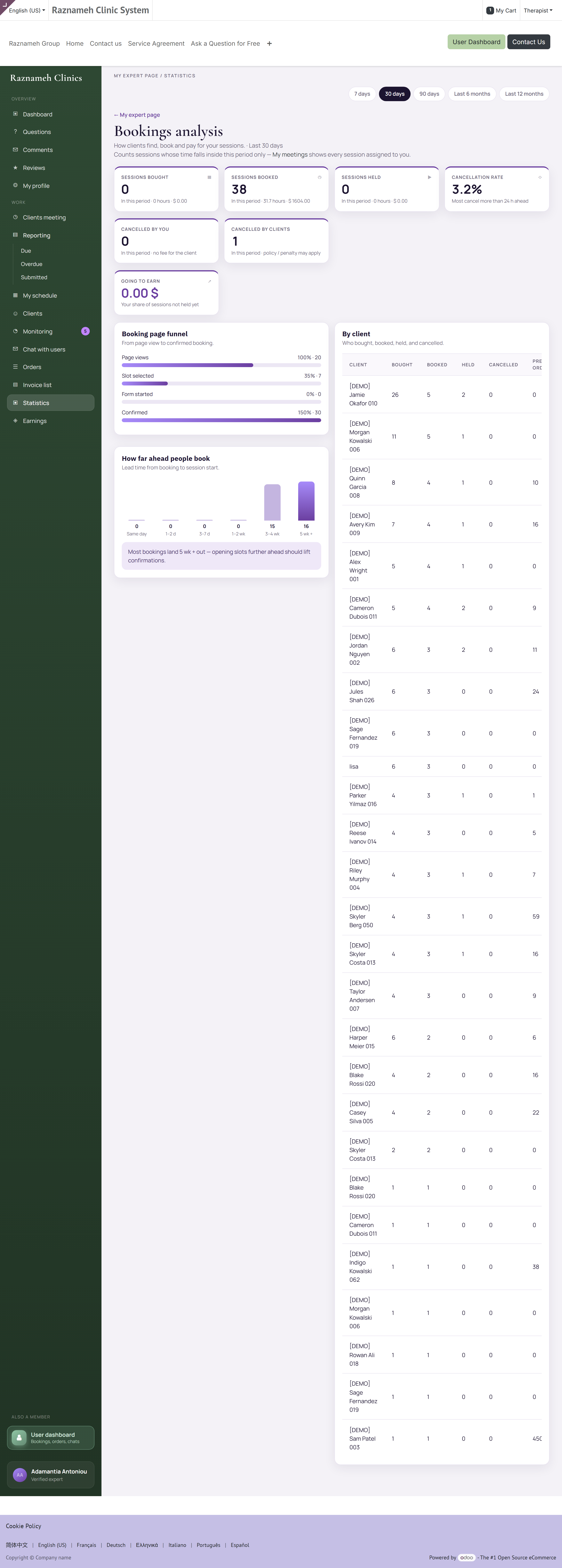
Hoeveel mensen uw boekingspagina bekeken, een tijdvak kozen, aan het formulier begonnen en bevestigden — met aantallen en balken.
Lees hem door de grootste uitval te zoeken:
| Grootste uitval | Waarschijnlijke oorzaak | Wat u doet |
|---|---|---|
| Weinig paginaweergaven | Niemand vindt u | Verbeter uw profiel en uw specialisaties; vraag naar promotie |
| Weergaven maar geen tijdvak gekozen | Er was niets passends vrij | Open meer uren, of uren op andere tijden |
| Tijdvak gekozen, formulier afgebroken | Het formulier vraagt te veel | Vraag uw beheerder de intakevragen korter te maken |
| Formulier ingevuld, niet bevestigd | De prijs of de voorwaarden verrasten hen | Zorg dat de prijs en de annuleringsvoorwaarden vóór het afrekenen duidelijk zijn |
Dit is het scherm waar u het meest mee kunt. Een uitval in de trechter is een bepaald, herstelbaar probleem — veel bruikbaarder dan weten dat uw totaal gedaald is.
13.2 Hoe lang van tevoren mensen u boeken#
De voorlooptijd in bakken, van dezelfde dag tot vijf weken of meer, met een observatie in gewone woorden erbij.
- Vooral dezelfde dag en de dag erna → open meer tijdvakken op korte termijn; u bedient dringende vraag.
- Vooral weken vooruit → u kunt plannen, maar late annuleringen doen meer pijn, omdat het gat moeilijk te vullen is.
13.3 Per cliënt#
Gekocht, geboekt, gehouden, geannuleerd en eerdere bestellingen per cliënt. Sorteer op gekocht maar niet geboekt om uw nabellijst te vinden.
13.4 Annuleringen#
Gesplitst in door u en door cliënten, in hetzelfde venster. Let op de trend in die van u; het cijfer van de cliënten is context, geen oordeel over u.
14Reputatie — beoordelingen, reacties en vragen#
Waar dit hoofdstuk over gaat — alles wat openbaar over u is: beoordelingen, reacties en vragen.
Waarom het uitmaakt — die zijn blijvend, openbaar, en worden door elke toekomstige cliënt gelezen; eerlijke kritiek afwijzen is voor uw beheerder zichtbaar.
Wat u ziet — hoe u goed op een beoordeling antwoordt (ook op een slechte), wanneer afwijzen terecht is, hoe u de reactiewachtrij leegwerkt, en hoe u openbare vragen beantwoordt.
14.1 Beoordelingen#
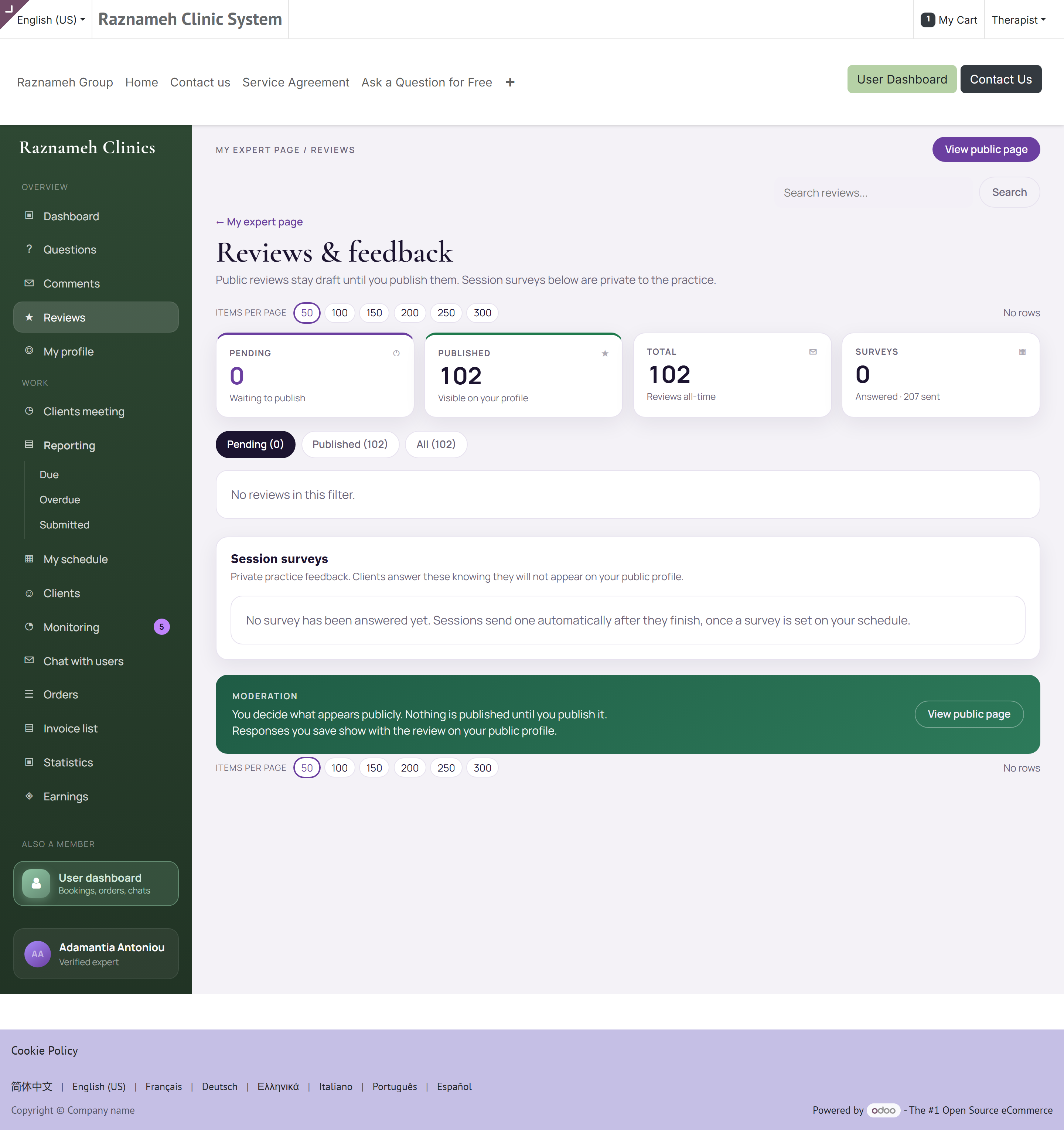
/my/expert/reviews, of Reacties op mijn profiel in de app.
Alleen cliënten die werkelijk een sessie hadden, kunnen u beoordelen.
- Antwoord openbaar op een beoordeling — toekomstige cliënten lezen het antwoord net zo goed als de beoordeling.
- Wijs een beoordeling alleen af waar ze tegen de regels ingaat — beledigend, met persoonsgegevens erin, of kennelijk niet over een sessie. Kritiek afwijzen waar u het gewoon niet mee eens bent, is voor uw beheerder zichtbaar en doet u geen goed.
Hoe u op een slechte beoordeling antwoordt: bedank hen, erken het punt dat zij maken, zeg wat u veranderd hebt, en stop. Ga niet in discussie, en noem nooit iets uit hun sessie — dat is vertrouwelijk, wat zij ook geplaatst hebben.
14.2 Reacties#
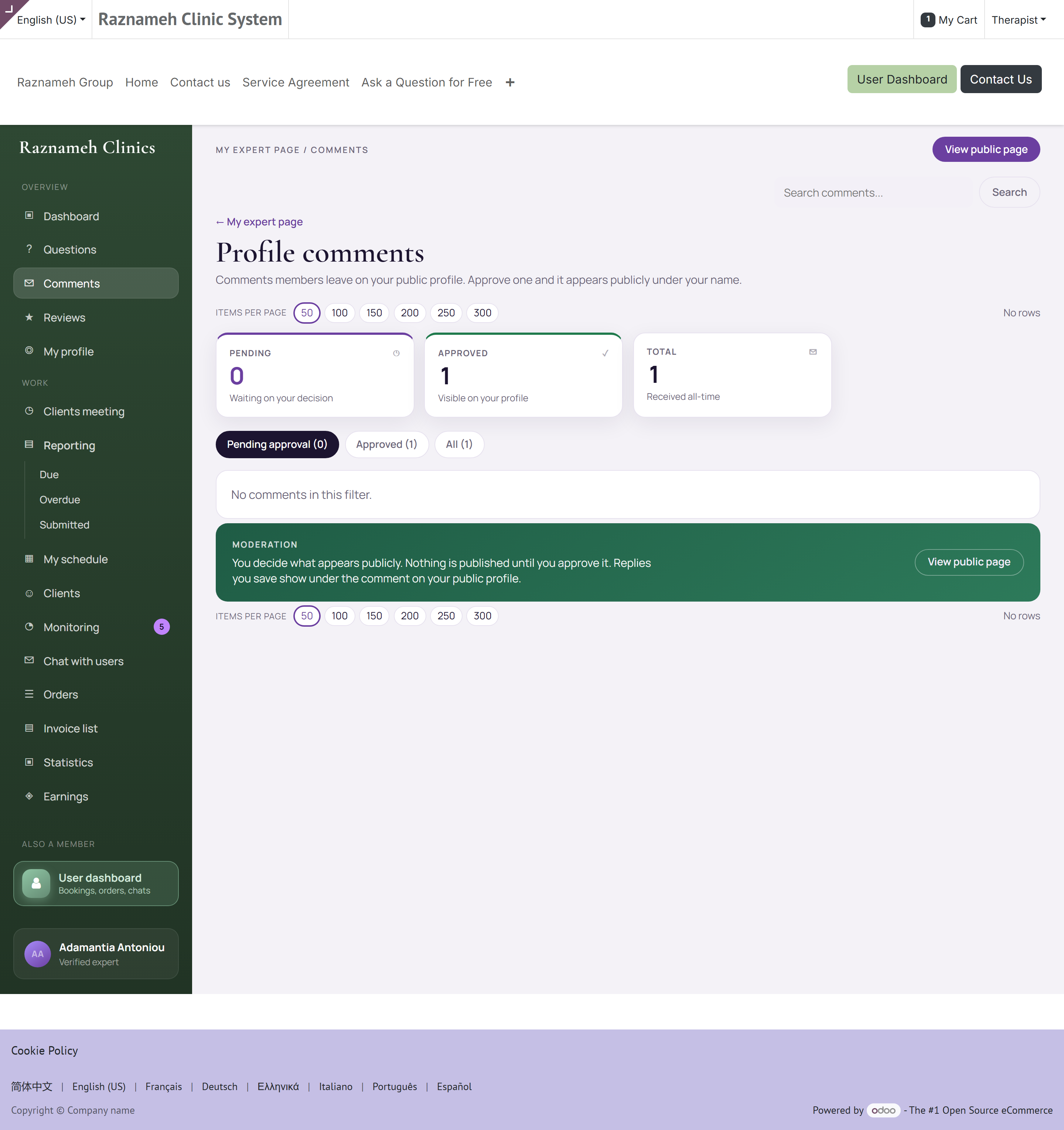
Reacties op mijn profiel in de app, /my/expert/comments in het portaal. Goedkeuren, afwijzen of beantwoorden. Werk de wachtrij geregeld leeg — een onbeantwoorde reactie op uw pagina leest als onoplettendheid.
14.3 Vragen#
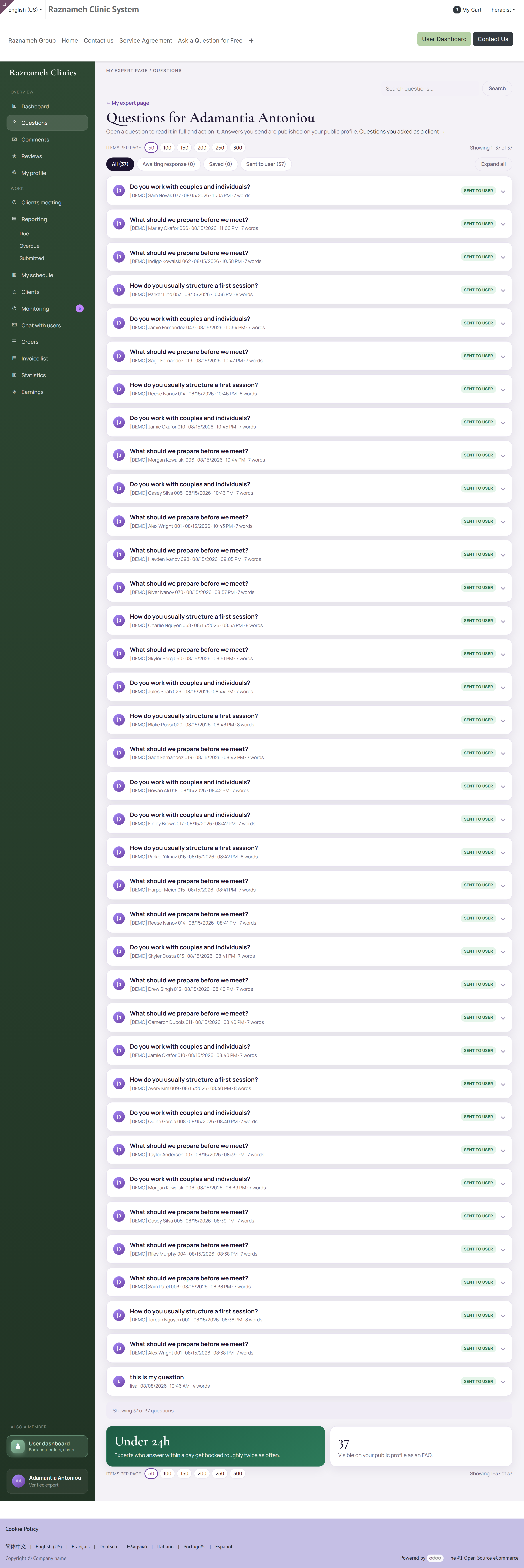
/my/expert/questions, of Gestelde vragen onder Praktijk als behandelaar.
Opent u de ledenpagina /my/questions, dan wordt u hierheen gestuurd — dat adres is de lijst met vragen die u als cliënt gesteld hebt. Gebruik Vragen die ik stelde (of ?as=client) alleen wanneer u die ledenlijst nodig hebt.
Openbare vragen met openbare antwoorden, wat betekent dat elk goed antwoord voor u blijft werken lang nadat u het geschreven hebt.
- Antwoord alsof een vreemde het over een jaar leest, want dat gebeurt.
- Geef nooit persoonlijk advies in een openbaar antwoord. Leg het in het algemeen uit, en nodig hen daarna uit om te boeken.
15Met cliënten praten#
Waar dit hoofdstuk over gaat — tussen sessies door met cliënten praten.
Waarom het uitmaakt — de chat van het Platform is de vastlegging die u allebei beschermt, en ze houdt uw eigen telefoonnummer erbuiten.
Wat u ziet — waar gesprekken staan, hoe sessiechats open- en dichtgaan, spraak- en videogesprekken, en verstandige grenzen aan reactietijden en inhoud.
15.1 Chats#
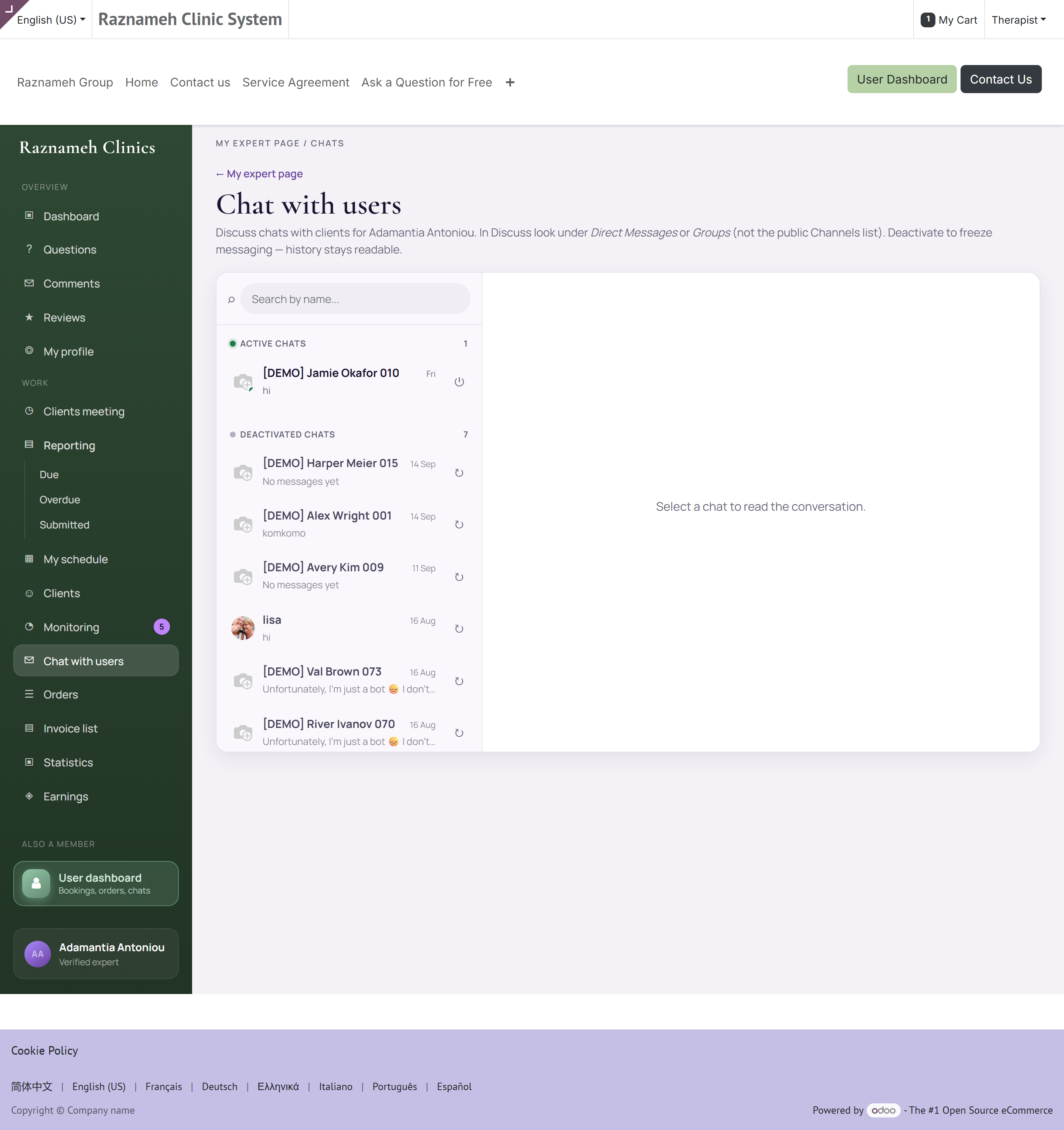
Profiel → Praktijk als behandelaar → Chat met gebruikers, of /my/expert/chats. Lopende gesprekken staan bovenaan, de geschiedenis eronder.
Afhankelijk van uw inrichting kan een chat voor een geboekte sessie opengaan en daarna weer dichtgaan. U kunt een gesprek mogelijk zelf open- of dichtzetten.
Betaalde consulten. Kocht de cliënt een dienst voor consult via de chat, dan toont het gesprek de resterende minuten en een balk. Open Hoe de tijd geteld wordt en het afschrift (/my/expert/chats/<nummer>/statement) voor elke afboeking. Tijd teruggeven scheldt een afboeking kwijt en vraagt een reden — alleen u, als de toegewezen behandelaar, kunt dat doen. Meer tijd kopen doet de cliënt zelf; het vult ditzelfde gesprek aan.
Op de website kunt u een spraakbericht sturen of een filmpje bijvoegen. De lengte wordt aan het bestand zelf gemeten.
Staat Chatinhoud versleutelen aan, dan zijn de berichten alleen door u en die cliënt te lezen.
Programma's tussen sessies door worden in de backoffice toegewezen (Praktijk → Monitoring van doelen), niet vanuit dit menu. Hebt u toegang tot de backoffice, dan kunt u de episode van de cliënt en de observatiegrafieken daar openen.
15.2 Spraak en video#
Waar het aanstaat, heeft een chat een belknop. Gesprekken lopen binnen de app.
15.3 Verstandig gebruik#
- Spreek reactietijden met cliënten af en houd u eraan. Bereikbaar zijn betekent niet onmiddellijk zijn.
- Houd inhoudelijke, vakmatige zaken in de sessie en in het verslag, niet in de chat.
- Gebruik de chat van het platform in plaats van persoonlijke kanalen. Die chat is de vastlegging die u allebei beschermt.
16Uw contract en de overeenkomsten#
Waar dit hoofdstuk over gaat — het papierwerk achter uw praktijk: uw eigen voorwaarden en de overeenkomsten die uw cliënten aanvaarden.
Waarom het uitmaakt — betwist een cliënt annuleringskosten, dan maakt de getekende overeenkomst het gesprek in een minuut af; en uw eigen voorwaarden bepalen wat uw verdienstenschermen u überhaupt tonen.
Wat u ziet — de vier manieren waarop u betaald kunt worden, hoe u uw contract tekent, hoe u precies de overeenkomst opent die een cliënt aanvaardde, en waar elk document woont.
16.1 Hoe u betaald wordt#
Uw voorwaarden staan op uw contract, dat een gedateerde geschiedenis heeft — elke wijziging is een nieuwe versie, en er geldt er één tegelijk. Vier afspraken zijn mogelijk:
| Soort | Hoe het werkt |
|---|---|
| Loon | Een vast bedrag per cyclus, ongeacht het aantal sessies. Bedragen verborgen; aantallen getoond |
| Per uur | Betaald per gegeven uur |
| Per sessie | Een vast bedrag per gehouden sessie |
| Aandeel in de omzet | Een afgesproken percentage van wat de cliënt betaalde |
Weet u niet zeker welke op u van toepassing is, vraag het dan uw beheerder. Het verandert wat uw verdienstenschermen tonen.
16.2 Uw contract tekenen#
Contracten worden ter elektronische ondertekening verstuurd. U krijgt een melding met een link.
- Open de link en lees het document.
- Vul de handtekeningvelden in.
- Bevestig.
De getekende versie wordt bij uw dossier opgeborgen en blijft voor u beschikbaar.
16.3 Dienstverleningsovereenkomsten met cliënten#
Waar bij uw diensten een overeenkomst hoort, aanvaarden cliënten die bij het afrekenen, en die aanvaarding wordt met de datum blijvend vastgelegd.
Er een openen: ga naar de sessie of de bestelling, en volg de link naar de overeenkomst. Die downloadt de getekende pdf — precies het document dat die cliënt aanvaardde, en niet een actuele kopie van het sjabloon. Dat onderscheid doet ertoe: zijn de voorwaarden sindsdien veranderd, dan krijgt u wat hij aanvaardde.
Er gelden twee grenzen, allebei met opzet:
- U kunt alleen overeenkomsten openen van cliënten die u werkelijk gezien hebt. Behandelaar zijn op het platform geeft u geen inkijk in andermans papierwerk.
- Alleen afgeronde ondertekeningen zijn beschikbaar. Een overeenkomst die nog getekend wordt, heeft nog niets te tonen.
Het praktische nut is onenigheid over annuleringskosten. Open de overeenkomst, wijs de trede aan, en het gesprek is in een minuut afgelopen — met een document in plaats van een herinnering. Betwist de cliënt de kosten zelf en niet de voorwaarden, verwijs hem dan naar zijn Annuleringsgeschiedenis, waar staat wie er geannuleerd heeft en wanneer, en daarna naar de ondersteuning: besluiten over wat er in rekening gebracht wordt zijn aan de praktijk, niet aan u.
16.4 Waar elk document woont#
| Document | Wie het tekent | Waar u het vindt |
|---|---|---|
| Uw eigen contract | U en de praktijk | Ter ondertekening verstuurd; daarna bij uw dossier opgeborgen (§16.2) |
| Dienstverleningsovereenkomst met een cliënt | De cliënt, bij het afrekenen | De sessie of de bestelling — zie hierboven |
| Uw sessieverslagen | U | Werk → Rapportage (§7.2) |
| Facturen van cliënten | — | Facturen van cliënten (§12.2) |
| Uw betaalvastleggingen | — | Betalingsgeschiedenis (§11.2) |
17Problemen oplossen#
Waar dit hoofdstuk over gaat — een tabel van verschijnsel naar oplossing.
Waarom het uitmaakt — de meeste problemen in een praktijk hebben een van een twaalftal oorzaken, en de volgorde waarin u ze nakijkt doet ertoe.
Wat u ziet — twaalf veelvoorkomende problemen met de gebruikelijke oorzaak en wat u eraan doet.
| Probleem | Wat u doet |
|---|---|
| Geen onderdeel Praktijk als behandelaar | Uw account is niet aan een behandelaarsprofiel gekoppeld. Vraag het uw beheerder |
| Cliënten kunnen mij niet boeken | Kijk op volgorde na: er bestaan weekregels; geen uitzondering blokkeert de datums; de tijdzone klopt; u bent aan de dienst toegewezen; er is een ruimte vrij als er met ruimtes gewerkt wordt |
| Tijdvakken op de verkeerde tijden | De tijdzone. Kijk de instelling bovenaan Beschikbaarheid instellen na — zeker als u Volgt het toestel koos en gereisd hebt |
| Minder tijdvakken dan mijn uren doen vermoeden | Opzegtermijn, marge tussen sessies, botsing om een ruimte, of een bestaande boeking. Alle vier halen tijdvakken weg |
| Gehouden sessie staat niet in Verdiend | Ze is nooit afgesloten. Zie §6.5 |
| Verdiensten lager dan verwacht | Kijk het venster na, kijk of er sessies openstaan, en denk eraan dat uw aandeel vastlag bij de boeking |
| Er ontbreekt een sessie in de betaling | Kijk na of ze afgesloten is en of ze in die cyclus viel. Neem daarna contact op met uw beheerder met de bijzonderheden |
| Ik kan een verslag niet openen | De toegang loopt via het behandelteam, niet via rang. Hoort u toegang te hebben, vraag uw beheerder de regel na te kijken |
| Ik kan geen bestand aan een verslag toevoegen | Kijk het bestandstype en de omvang na. Typte u eerst tekst, gebruik dan Bestand verwijderen — het verslag zelf typen om te wisselen |
| Cliënt kwam niet opdagen | Wacht de afgesproken tijd, stuur hem een bericht, en merk het daarna aan als niet verschenen. Laat het niet openstaan |
| Bij een percentage staat een streepje | Minder dan vijf sessies in het venster. Met opzet — kleine aantallen worden niet als percentage getoond |
| Ik krijg geen boekingssignalen | Kijk de meldingsinstellingen in de app na, en daarna de instellingen van uw telefoon voor de app |
18Snelzoeker#
Waar dit hoofdstuk over gaat — het spiekbriefje van één pagina.
Waarom het uitmaakt — voor wanneer u weet wat u wilt doen en alleen nog hoeft te weten waar u heen gaat.
Wat u ziet — een tabel van taak naar bestemming, de belangrijkste cijfers naast elkaar, en de gewoonten die een praktijk op orde houden.
Veelvoorkomende taken#
| Ik wil… | Ga naar |
|---|---|
| Mijn werkuren zetten | Praktijk als behandelaar → Beschikbaarheid instellen |
| Een vakantie blokkeren | Beschikbaarheid instellen → Uitzonderingen |
| De sessies van vandaag zien | Praktijk als behandelaar → Sessies met cliënten |
| Cliënten nabellen die nog niet geboekt hebben | Sessies → Te boeken, of Boekingsanalyse → Per cliënt |
| Een sessieverslag indienen | Praktijk als behandelaar → Sessieverslagen, of op het web Werk → Rapportage → Openstaand |
| Nakijken wat ik verdiend heb | Praktijk als behandelaar → Verdiensten |
| Nakijken wat ik betaald gekregen heb | Verdiensten → Betalingsgeschiedenis |
| Zien waarom de boekingen teruglopen | Praktijk als behandelaar → Boekingsanalyse → trechter |
| Op een beoordeling antwoorden | Praktijk als behandelaar → Reacties op mijn profiel / /my/expert/reviews |
| Een sessie annuleren | Sessies met cliënten → open haar → Annuleren |
| Zien wie wat geannuleerd heeft | Praktijk als behandelaar → Annuleringsgeschiedenis |
| Mijn getekende contract openen | Praktijk als behandelaar → overeenkomsten |
| Een cliënt tonen waarmee hij akkoord ging | De sessie of de bestelling → link naar de overeenkomst (§16.3) |
| Een losse zaterdag werken | Beschikbaarheid instellen → Uitzonderingen → Extra beschikbaarheid (§4.3) |
| Uitzoeken waarom een verslag te laat is | Rapportage → Te laat — de toestand staat op elke regel (§7.4) |
| Een programma tussen sessies door sturen | Na Verslag indienen, of Programma sturen bij de sessie — kies een sjabloon uit de bibliotheek en zet de datums, schrijf geen nieuwe doelen (§7.3) |
| Een betaling nakijken die ik niet herken | Betalingsgeschiedenis → open de ronde → de regels erin (§11.2) |
| De resterende consultminuten zien | Chat met gebruikers → open het gesprek — de balk staat bovenaan; het afschrift en Tijd teruggeven staan op /my/expert/chats/<nummer>/statement |
Elke pagina, met haar adres#
| Pagina | Adres |
|---|---|
| Dashboard | /my/expert |
| Sessies | /my/expert/meetings |
| Beschikbaarheid | /my/expert/schedule |
| Cliënten | /my/expert/clients |
| Gesprekken | /my/expert/chats |
| Sessieverslagen | /my/expert/reports |
| Bestellingen | /my/expert/orders |
| Facturen van cliënten | /my/expert/invoices |
| Boekingsanalyse | /my/expert/analytics |
| Verdiensten | /my/expert/earnings |
| Betalingsgeschiedenis | /my/expert/payouts |
| Beoordelingen | /my/expert/reviews |
| Reacties | /my/expert/comments |
| Vragen | /my/expert/questions |
| Uw eigen cliëntaccount | /my |
De vier cijfers over verdiensten#
| Cijfer | Betekenis |
|---|---|
| Gekochte sessies | Bij u gekocht |
| Nog te verdienen | Uw aandeel in wat gekocht maar nog niet gehouden is |
| Verdiend | Uw aandeel in gehouden sessies |
| Niet geboekt | Gekocht, niet ingepland — bel deze na |
Wekelijkse routine#
- Loop Te boeken na en schrijf cliënten aan die nog niet ingepland hebben.
- Werk Rapportage → Openstaand leeg.
- Werk de wachtrijen met reacties, beoordelingen en vragen leeg.
- Leg de beschikbaarheid van volgende week naast uw eigen agenda.
- Werp één blik op Boekingsanalyse — één stap in de trechter, één ding om te verbeteren.
- Kijk bij betaalde chats naar de resterende minuten voordat u uitgebreid antwoordt; geef Tijd terug als een afboeking niet had horen te gelden.
Gewoonten die uw cijfers kloppend houden#
- Sluit elke sessie af. Het is de meest voorkomende oorzaak van een te lage betaling.
- Voeg vakanties als uitzondering toe op de dag dat u ze boekt, niet de week ervoor.
- Dien verslagen dezelfde dag in.
- Annuleer zo vroeg als u maar kunt, en bied een andere tijd aan.
- Kijk uw bakken na voordat de betaalcyclus sluit, niet erna.
Schermen en menunamen verschillen per praktijk, omdat elke praktijk zelf kiest welke functies aanstaan. Komt iets hieruit niet overeen met wat u ziet, vraag het dan uw beheerder.