
1Getting set up#
1.1 Before you start#
Your administrator creates your professional account and links it to your services. You cannot create it yourself. Before your first session you should have received:
- Login details for the app and portal
- Confirmation of which services you are set up to deliver
- Your engagement terms — how you are paid (see §16)
If any of those are missing, contact your administrator before taking bookings.
1.2 Signing in#
Sign in exactly as any client does — email and password, or Google sign-in.
The difference appears afterwards: an Expert practice section is added to your Profile tab, and the Expert area appears in the web portal at /my/expert.
If you do not see it, your account has not been linked to a professional profile yet. Contact your administrator — it is a one-click fix on their side.
1.3 The Expert practice menu#
Profile tab → scroll to Expert practice:
| Item | What it is for |
|---|---|
| My Profile | Your public page, exactly as clients see it |
| Meetings with clients | Scheduled sessions and history |
| Meeting reports | Reports due and submitted — web Work → Reporting (Due / Overdue / Submitted) |
| Chat with users | Client conversations — remaining minutes on paid consultations |
| Asked questions | Questions on your page (opens on those awaiting an answer) |
| Profile comments | Approve, reject and reply publicly |
| Schedule availability | Timezone and weekly hours |
| My clients | Clients, contact details, session counts |
| Bookings analysis | Funnel, no-shows, utilization, lead time |
| Orders & meetings | Client orders linked to your sessions |
| Client invoices | Invoices related to your clients |
| Earnings | Session value, hours and activity by month |
| Cancellation history | Every cancellation and reschedule, and by whom |
1.4 The same areas on the web#
The web portal has all of it, with more room for the tables. It puts a menu down the left, and its labels differ slightly from the app's — this is the map between them:
Overview
| Web menu | Address | App equivalent |
|---|---|---|
| Dashboard | /my/expert | The four cards at the top of Expert practice |
| Questions | /my/expert/questions | Asked questions |
| Comments | /my/expert/comments | Profile comments |
| Reviews | /my/expert/reviews | Reviews |
| My profile | Your public page | My Profile |
Work
| Web menu | Address | App equivalent |
|---|---|---|
| Clients meeting | /my/expert/meetings | Meetings with clients |
| Reporting | /my/expert/reports | Meeting reports — parent; submenu Due, Overdue, Submitted |
| My schedule | /my/expert/schedule | Schedule availability |
| Clients | /my/expert/clients | My clients |
| Monitoring | /my/expert/monitoring | Your caseload of between-session programmes, worst first — §8.9. The badge counts what needs attention |
| Chat with users | /my/expert/chats | Chat with users |
| Orders | /my/expert/orders | Orders & meetings |
| Invoice list | /my/expert/invoices | Client invoices |
| Statistics | /my/expert/analytics | Bookings analysis |
| Earnings | /my/expert/earnings | Earnings |
Pages with no menu entry, reached from the pages that use them:
| Address | What it is |
|---|---|
| /my/expert/payouts | What you have actually been paid — §11.2 |
/my/expert/clients/<number> | One client's full history — §8.2 |
/my/expert/meetings/<number>/report | The report form for one session — §7.3 |
/my/expert/meetings/<number>/programme | Send a library between-session programme (template and dates only) — §7.3 |
/my/expert/agreements/<number> | The signed service agreement for one client's order — §16.3 |
/my/expert/chats/<number>/statement | Consultation minute statement; Return time with a reason — §15.1 |
/my/expert/episodes/<number> | One episode — its goals, and the programmes under each — §8.6 |
/my/expert/goals/<number> | One goal — programmes, what the client recorded, reports — §8.7 |
| /my/expert/instruments | Questionnaires you have asked for, and the results — §8.10 |
| /my/expert/recalls | Clients due to be invited back — §8.11 |
| /my/expert/membership-clients | Your clients on a membership plan, and who has not booked this period — §8.12 |
| /my/expert/book | Book on a client's behalf, where your permissions allow it — §5.3 |
Some numbers in the menu carry a badge — unanswered questions, comments and reviews waiting on you, sessions needing attention, unread chats, new orders. The badges are your work queue. Clearing them is most of the job of running a practice well.
At the bottom of the menu is a switch back to your own client account — you are a client of the Platform too, and your own bookings, invoices and chats live there, separately from your practice. If you are also an administrator, a switch into the clinic reports appears there as well.
1.5 Your first hour — do these five things#
- Check your public profile (§3) — it is what clients decide on.
- Set your timezone (§4.1) — get this wrong and every slot you offer is wrong.
- Set your weekly hours (§4.2) — nobody can book you until you do.
- Add known exceptions (§4.3) — holidays and commitments already in your diary.
- Check your notification settings — so booking alerts actually reach you.
2Your dashboard — the four numbers#
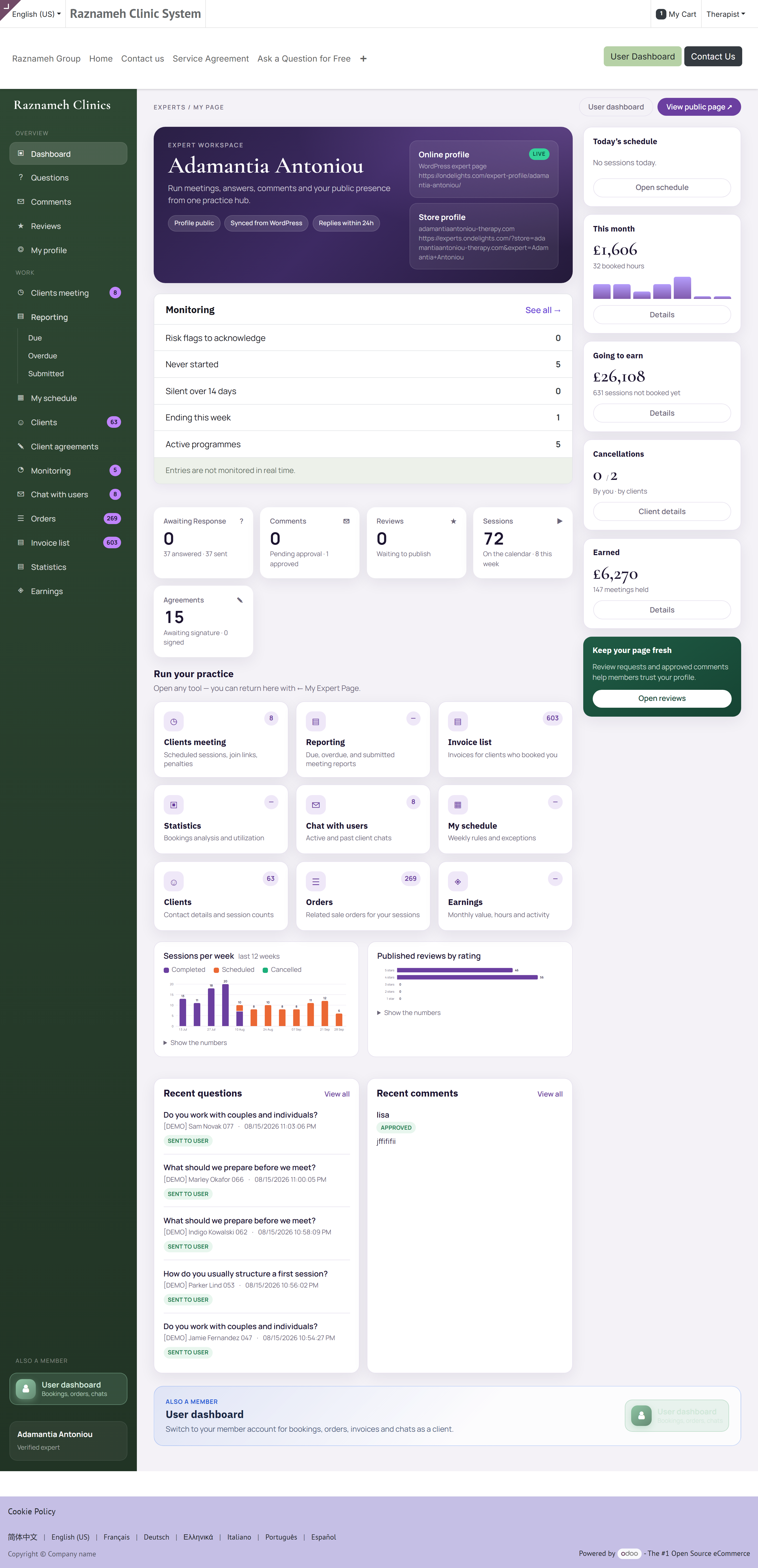
Open /my/expert in the portal, or the top of your Expert practice section in the app.
| Card | What it tells you |
|---|---|
| This month | Booked hours and your share of them. On a salaried contract this shows session counts instead of money |
| Going to earn | Your share of sessions clients have bought but not yet held — your pipeline |
| Cancellations | Split into cancelled by you and cancelled by clients |
| Earned | Your share of sessions actually held |
Why they are separated this way#
The split between going to earn and earned is the difference between money that is promised and money that is secured. Clients can still cancel a bought-but-unheld session, so counting it as earned would flatter your figures and mislead you.
Cancellations are split because they are different problems. Yours are within your control; clients' largely are not. Anyone reviewing your performance sees the same split, so you are never measured on the wrong one.
3Your public profile#
3.1 See what clients see#
Profile → Expert practice → My Profile.
This is your public page, unedited. Check it whenever you change anything.
3.2 What to get right#
| Element | Advice |
|---|---|
| Photo | A clear, friendly, professional headshot. This has more effect on booking rates than anything else on the page |
| Introduction | Who you help and what changes for them. Write for a client, not a colleague |
| Specializations | Be specific. These drive search filters — being listed under everything means being chosen for nothing |
| Video | Short and warm. Many clients watch this before booking |
| Services | Clear names, honest durations, current prices |
| Qualifications | Complete and accurate. Your administrator may need to verify them |
3.3 Making changes#
Some fields you edit yourself; others — verified qualifications, service prices, your verification badge — are controlled by your administrator, because they are claims the business is accountable for.
To request a change to a locked field, contact your administrator with the exact wording you want.
4Setting your availability#
This is the most important setup step. Nobody can book you until it is done, and a mistake here produces bookings at the wrong times.
4.1 Set your timezone first#
Profile → Expert practice → Schedule availability.
At the top, choose how your booking timezone behaves:
| Option | Use it when |
|---|---|
| Fixed — always one zone | You always work from the same place. The safe default |
| Follow device — moves when you do | You travel and want your hours to move with you |
Tap Change to pick a zone, then Save timezone.
Choose deliberately. On Follow device, flying somewhere shifts every future slot you offer. That is right for a genuinely mobile practice and wrong for most people. If in doubt, choose Fixed.
4.2 Set your weekly hours#
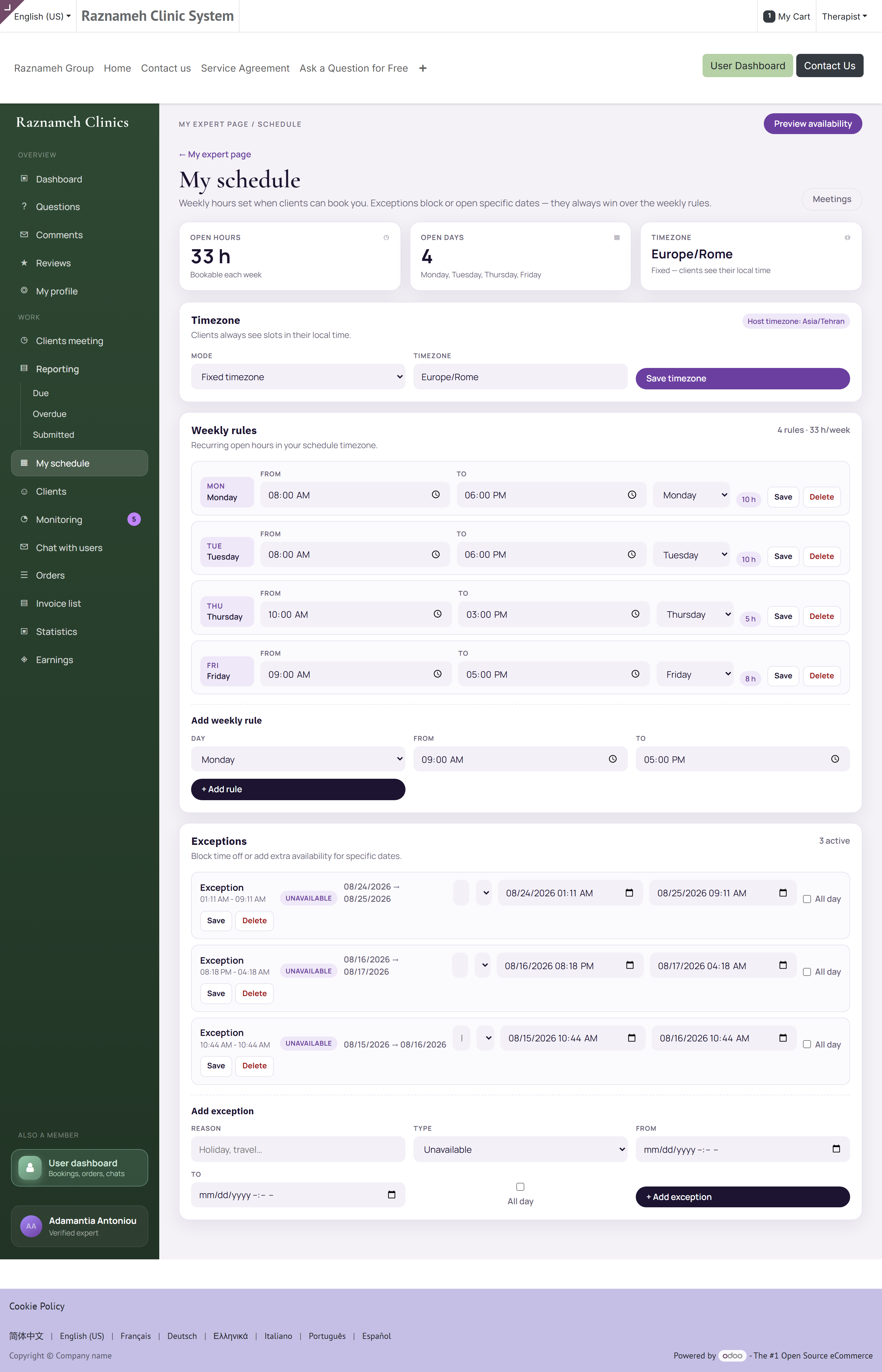
Below the timezone, add a rule for each block of time you are available:
- Tap the day of the week — MON, TUE, and so on.
- Set From and To.
- Tap Add.
- Repeat for each block.
You can add several blocks to one day. A morning block and an afternoon block with a gap between them protects your lunch break far better than one long block does.
At the top of the screen, three figures confirm what you have built:
| Figure | Meaning |
|---|---|
| Open days | How many days a week you are available |
| Bookable | Total hours you are offering |
| Shown in | The timezone clients see |
To edit a rule, tap it, change the times and tap Save. To remove one, tap it and choose Remove, then confirm.
4.3 Add exceptions#
Exceptions override your weekly pattern for specific dates — holidays, training days, a one-off late finish.
- Open the Exceptions section.
- Tap Add exception.
- Give it a name. Write something you will recognise in six months: "Annual leave", "Training — CPD day", not "x". You are the only person who sees it, and you will be reading it later.
- Choose the type:
| Type | What it does | Use it for |
|---|---|---|
| Unavailable | Removes time you would otherwise offer | Holidays, training, illness, anything that closes a day |
| Extra availability | Adds time outside your weekly pattern | A one-off Saturday, an evening you are willing to work, catching up after leave |
- Set the date range. Tick all day for a whole day or a run of days; untick it to give exact start and end times.
- Save.
Extra availability is the one people forget exists. If a client asks for a time you do not normally work and you are happy to do it, you do not have to change your weekly hours and change them back — add an extra-availability exception for that date and it disappears by itself.
To edit or remove one, tap it in the list. Removing an exception restores whatever your weekly pattern says for those dates.
Add holidays as soon as you book them. An exception added after someone books is not an exception at all — it is a cancellation, and it counts against you in §9.4.
4.4 What clients actually see#
A slot is offered only when all of these are true:
- It falls inside a weekly rule.
- No exception blocks it.
- Nothing else is booked in it.
- Where rooms are used, a suitable room is free.
- It respects the notice period and any buffer between sessions.
This is why a client may see fewer slots than your hours suggest. It is usually a room clash or the notice period, not a fault.
Two of those limits are numbers your administrator sets, and they are worth knowing because they explain most "why can nobody book me today" questions:
| Limit | Common setting | Effect |
|---|---|---|
| Minimum booking notice | 4 hours | Nothing within the next few hours is offered, however free you are |
| Booking horizon | 60 days | Nothing beyond it is offered, however far ahead your hours run |
If either is wrong for your practice — you are happy with same-day bookings, or you want a client to be able to book six months out — ask your administrator. They are settings, not limitations.
4.5 Connect your own calendar#
Where your business enables it, you can sync an external calendar so your personal commitments block your availability automatically. Ask your administrator to enable it — it is the single best protection against double-booking yourself.
5Managing sessions#
5.1 Your sessions list#

Profile → Expert practice → Meetings with clients, or /my/expert/meetings.
Four totals at the top:
| Total | Meaning |
|---|---|
| Sessions | Everything sold to you in the period |
| To book | Bought by clients, no time chosen yet |
| Scheduled | Booked and upcoming |
| Completed | Held |
5.2 "To book" is a business opportunity#
Sessions sitting in To book are paid for and unscheduled. That is revenue already banked by the business but not yet earned by you, and clients who never book often quietly drift away.
Get into the habit of reviewing this list weekly and messaging clients who have not booked. It is the highest-return ten minutes in your week.
5.3 Booking on a client's behalf#
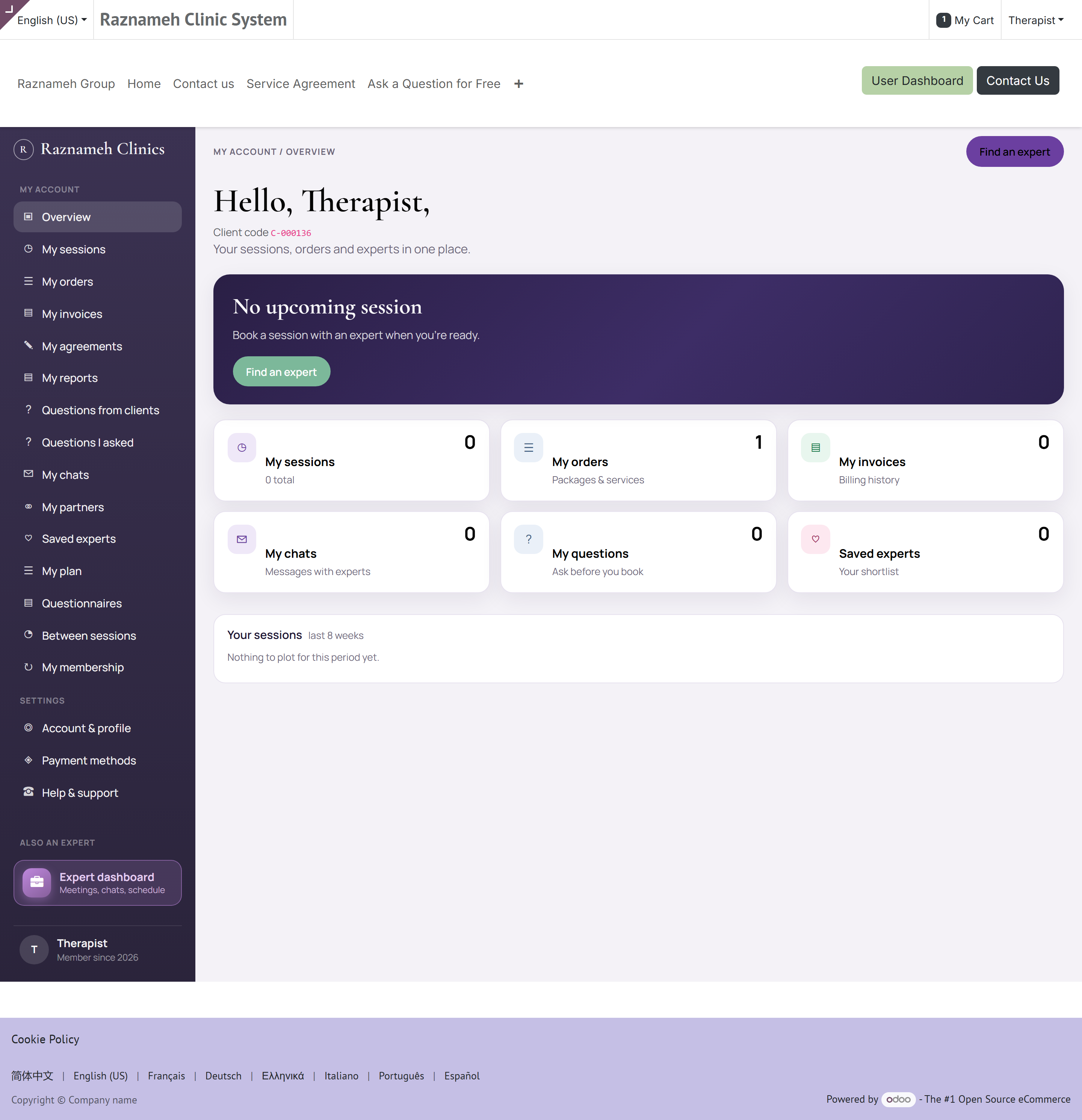
If a client phones or asks in person, your administrator can book for them. Depending on your permissions you may be able to do this yourself, from the client's record or at /my/expert/book. If you cannot see the option, ask your administrator.
6Running a session#
6.1 Before it starts#
- Open the session from Meetings with clients.
- Read the intake answers if the service collects them.
- Check the client's history (§8.2) if you have seen them before.
- For online sessions, join a few minutes early to check camera and microphone.
6.2 Joining#
Open the session and tap Join. The button activates shortly before the start time.
6.3 Admitting a client to the premises#
Applies only to sessions held at your premises — a room, a clinic, a consulting suite. Online sessions skip this entirely, because the video room lets the client in.
An on-site session that is booked but not yet decided shows as Waiting for the expert in your sessions list. Two buttons sit on it:
| Button | What it records |
|---|---|
| Approve | You will receive this client at the booked time |
| Decline | You will not |
You may add a note, and it is worth doing: the note is shown to the client with your decision. "Please bring your referral letter" or "Reception is on the second floor" costs you ten seconds and saves a phone call. On a decline, the note is the only explanation the client gets, so write one.
Your name and the time are recorded against the decision, and it is written into the session's history. Two consequences follow:
- It is evidence. If a client says they were turned away without warning, the decision, the time you made it and the note you wrote are all there.
- It cannot be made anonymously, and it should not be. Declining someone is a real decision about a real person.
Rules the Platform enforces:
- Only a booked session can be approved or declined — not one already cancelled, held or expired.
- Only a session actually held on the premises has anything to approve.
- A session whose time has passed no longer appears as waiting. If you never decided, close it as held or as a no-show like any other session (§6.5, §6.6).
Decide early, not on the day. The point of the step is to give the client time to make other arrangements. A decline an hour beforehand is technically a decline and practically a no-show with paperwork.
6.4 Attendance is recorded#
The Platform records when each of you joined and how long you were both present. This is not surveillance — it is the evidence that settles a dispute about whether a session happened, and it protects you as much as the client.
It also feeds the Stuck sessions report your administrator uses, which is why closing your sessions properly (§6.5) keeps you off that list.
6.5 Closing the session#
After a session, mark it as held. Depending on your setup this happens automatically at the end time, or you confirm it manually.
Do not leave sessions unclosed. An unclosed session is not counted as earned, may delay your payment, and appears on the administrator's stuck-sessions report.
6.6 If a client does not arrive#
- Wait the period your business specifies — usually 10 to 15 minutes. The Platform enforces a grace period after the end time before a session can be closed either way, so an attempt to mark a no-show too early is refused rather than lost.
- Try messaging them through the app.
- Mark the session as a no-show.
Do not simply leave it open. A recorded no-show is handled by the cancellation policy — which usually charges the client and pays your share — while an abandoned session is a data problem that someone has to chase, and it pays nobody.
6.7 The whole life of one session#
Every session you deliver walks this path. Three steps are yours, and the guide sections for each are marked:
flowchart TD
  A["Client buys a credit"] --> B["Client books a time"]
  B --> C{"Does it happen?"}
  C -->|"Yes"| D["You close it as held — §6.5"]
  C -->|"Client absent"| E["You mark a no-show — §6.6"]
  C -->|"Cancelled in time"| F["Credit returns to the client"]
  D --> G["Report, if the service requires one — §7"]
  D --> H["Counts towards Earned — §10"]
  E --> I["Cancellation policy decides the fee — §9.3"]
  I --> H
  G --> J["Included in the next payment run — §11"]
  H --> J
The one box that has no arrow out of it is the one that is not on this diagram: a session you never closed. It reaches neither Earned nor a payment run, and it sits on your administrator's stuck-sessions report until somebody deals with it. Closing sessions is not paperwork — it is the step that turns work into money.
7Session reports and client notes#
Applies where your business requires reports. If yours does not, skip to §8.
7.1 What a report is#
A confidential, encrypted record of what happened in a session, filed against that session and about that client. It is a clinical or professional record, not a note to yourself.
7.2 Which sessions need one#

Profile → Expert practice → Meeting reports, or the web portal Work → Reporting (/my/expert/reports). Submenu items open Due, Overdue, or Submitted.
The list shows what is due and what is submitted. Requirements are set per service, so some of your services may require a report and others may not.
7.3 Writing one#
- Open Reporting → Due (or Meeting reports in the app) and select a session that is due.
- Check the session and client name at the top.
- Either type the report into the form, or attach a file you prepared elsewhere. Choosing one hides the other — if you attached a file and want to type instead, tap Remove file — type the report instead.
- Consider Keep this report private (§7.5).
- Tap Submit report.
- A wizard asks whether to send a between-session programme to the client. Pick a programme from the clinic library and the start and end dates. This does not invent new goals — it sends a template that already exists. Tap Send to client, or Skip if this session does not need one.
The client then sees that programme under Monitoring and fills it in there.
7.4 Deadlines and what each state means#
A report becomes due when the session is held, not when it is booked, and the clock starts at the session's end time. Twenty-four hours is the usual allowance; your administrator can set a different one for the whole business.
Every session carries one of four report states:
| State | Meaning | Who sees it |
|---|---|---|
| Not required | This service does not require a report, or the session has not been held yet | — |
| Due | Held, report not filed, still inside the allowance | You |
| Overdue | The allowance has passed | You and your administrator, on their report-chasing list |
| Submitted | Filed | You and your administrator |
You are reminded before the deadline. After it, the session appears on an administrator's overdue list, which is where report-chasing conversations come from.
File it while the session is fresh. The quality difference between a report written the same day and one written a week later is obvious to anyone who reads both — and a report is read at exactly the moment its quality matters most.
7.5 Who can read what you file#
Access is decided by one rule about who is on that client's care team — not by seniority, and not by who filed it. Being an administrator does not grant access by itself.
Ticking Keep this report private narrows it further, typically to you alone. Use it for genuinely sensitive material, and understand the trade-off: a colleague covering for you will not be able to read it either.
7.6 How reports are protected#
| Protection | What it means for you |
|---|---|
| Encrypted individually | Every version has its own key. Nobody reads them from the database |
| Closed by default | Access requires a rule that permits it. No general administrator override exists |
| Every read is logged | Openings as well as changes, in a log nobody can edit or delete |
| Corrections are new versions | Submitting a correction never destroys what you originally wrote |
| Disposal by key destruction | When retention expires, the content goes; the record that it existed remains |
You can read that log yourself. A report's History opens the report's own page: every version it has had, newest first, anything filed with it, and the access log — who opened it, when, and what they did, up to the last five hundred events. A report with more than one version opens there rather than going straight to the content, so you see that it was revised before you read it. A report whose retention has expired says so plainly instead of showing you nothing.
You see it because you are entitled to that report, not because of a group somebody granted: the same rule that decides whether you may read the report decides whether you may read its history. For a log spanning a period rather than one report, ask your administrator.
7.7 Correcting a report#
Submit a correction as a new version. The original stays exactly as it was. That is deliberate: an amendable record is worthless as evidence, and one day you may need yours to be worth something.
7.8 If you run group sessions#
A group is documented differently, and not from this portal. The account of the session is written once and filed to each person who attended, so the work happens in the back office, where the attendance list and the one shared body live. Two consequences for you:
- If you run groups, you need back-office access, or a colleague who has it files the notes from what you give them. Ask your administrator which of the two your clinic does.
- Attendance decides who gets a note — people who attended, not everybody who was booked — and it is marked as five states rather than a tick, because absent and excused are different clinical facts. Whoever marks it needs to know which it was, so tell them.
Your clinic's own copy of this is in the administrator's guide, §8.9.
Templates are the same story. Named note templates — SOAP, DAP, BIRP and the rest, and your clinic's own structured ones — are configured and used in the back office. The session report form in this portal is the form your clinic has set for it; there is no template picker on it.
8Your clients#
8.1 Your client list#

Profile → Expert practice → My clients, or /my/expert/clients.
Shows every client who has bought from you, with contact details, session counts, and how many sessions are awaiting booking.
Each client's code is under their name — C-001253. Use it instead of a name whenever somebody might overhear you: two clients called Maria Santos is not a rare event, and a name is the thing you least want to read out in a waiting room. The code is derived from the record, so it never changes and it is the same code the client sees on their own dashboard and the administrator sees on theirs.
The search box matches it, as well as the name and the email. Paste C-001253, or just type
8.2 One client's history#
Tap a client to see everything: sessions held, sessions still to book, previous orders, notes you filed and can access, and cancellation history.
Open this before a repeat session. Referring to something from last time is the cheapest way to show a client they are more than a slot in a calendar.
8.3 Client privacy#
You see clients who have bought from you. You do not see the business's whole client list, and colleagues do not see yours. Notes follow the access rules in §7.5, regardless of who is asking.
8.4 The clinical record — episode, goals, programmes#
A client's care is a course of care, not a stream of appointments. Four things, each inside the one above it:
| Episode | One course of care. Opens on the first held session. A client has one open at a time |
| Goal | What the episode is working towards, with a target date and, at the end, a result |
| Programme | What the client records between sessions — sent to a goal, so entries report against something the plan asked for |
| Report | What you write about how a goal is going, filed on the goal, inside the episode |
A questionnaire is a kind of programme item, not a separate thing to manage.
8.5 The client card#
Open a client from your list. The card has tabs: Episodes, Meetings, Submitted reports, Orders, Chats, Reviews, Comments.
- Episodes lists each course of care with what it is about, how far it has got, and the last thing that happened on it. Open episode → goes to the tree.
- If the client has no open episode, Open an episode starts one.
- Submitted reports is the reports list narrowed to this client: what you have filed, and above it what is still to file, with the same buttons as Reporting.
8.6 The episode page#
Goals, and under each goal the programmes reporting on it.
- Each goal shows when it started, its last activity, its target date, and Running or Finished.
- Under it, each programme with its own start, last entry and how much has been recorded.
- Along the foot: how many reports are on that goal, and when the last one was filed.
- Add goal — title, description, target date. Creating the first goal opens the plan.
- Edit goal on the row — wording, target date, result, status.
- Add programme on the row — pick from the clinic library, set the dates. Every item in it reports against that goal.
- Edit episode at the top — name, presenting problem, opened-on. Closing an episode is the administrator's.
Add goal, Edit goal and Add programme all open as a panel over the page you are on, not as a page of their own. You come back to the same episode with the same scroll position, which is the point: writing a goal is something you do in the middle of reading the plan, not a detour.
The same panels appear on the reports list and on a client's card, so you can open a course of care, write a goal, send a programme or ask for a questionnaire without leaving the work in front of you.
8.7 The goal page#
before a session:
- The goal, its description, its target and its state, with Edit goal.
- Programmes on this goal — cadence, window, how much is recorded, last entry.
- What the client recorded — date, item, kind and the entry itself. A sealed journal reads Encrypted — you cannot open this entry, never an excerpt.
- Reports on this goal — each with its date and who filed it. Add report files a new one against this goal.
- Mark reviewed records that you went through the entries with the client. Close goal finishes it without inventing an outcome; the outcome is set when the episode closes.
8.8 When the report is a colleague's#
Every expert who has met the client sees the episode. Reading another clinician's clinical report is a separate question: the row is shown with you do not have access and a Request access button beside it. A gap in the list would be the quieter lie.
A clinic administrator approves or refuses. Either way the decision is written to the log, and so is every read that follows it.
8.9 Monitoring — your caseload, worst first#
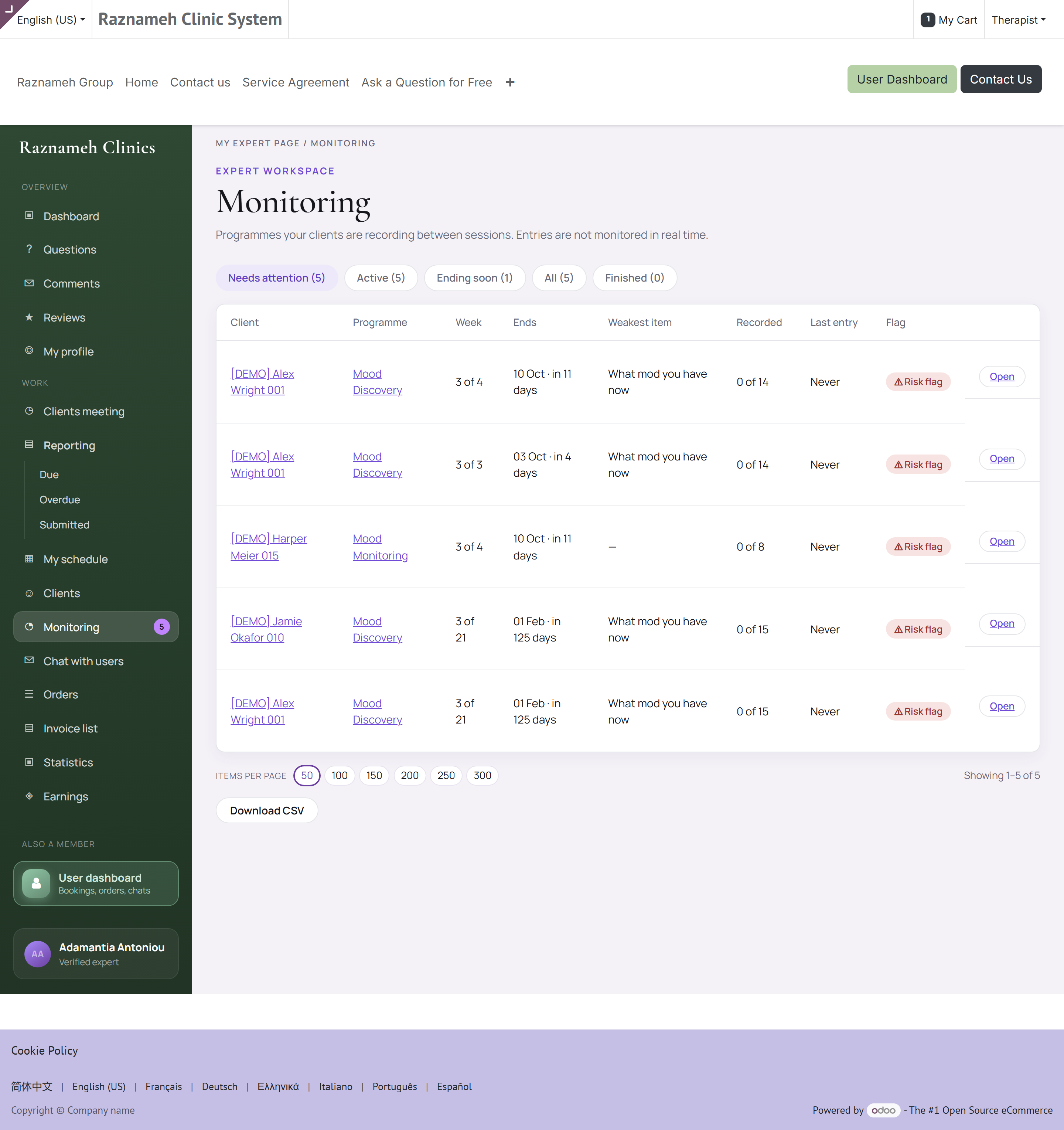
Monitoring in the sidebar, or /my/expert/monitoring.
Defaults to Needs attention. The chips carry counts: Needs attention, Active, Ending soon, All. Columns: client, programme, week, when it ends, the weakest item, how much is recorded, last entry, and a risk flag.
Your own page opens with the same five figures: risk flags to acknowledge, never started, silent over fourteen days, ending this week, active programmes. Each is a link into the list.
Two things this page will not do. It does not rate your clients — a thing not recorded reads as not recorded, and nothing here turns that into a score. And it does not watch anything in real time: entries are read when somebody opens them, which is why every page carrying them says so.
Download CSV takes the list as you have filtered it, for supervision or a caseload review. It carries the columns on screen — client, programme, week, when it ends, the weakest item, how much is recorded, the last entry and the flag. No client's entries leave with it, only the caseload row.
8.10 Questionnaires you have asked for#
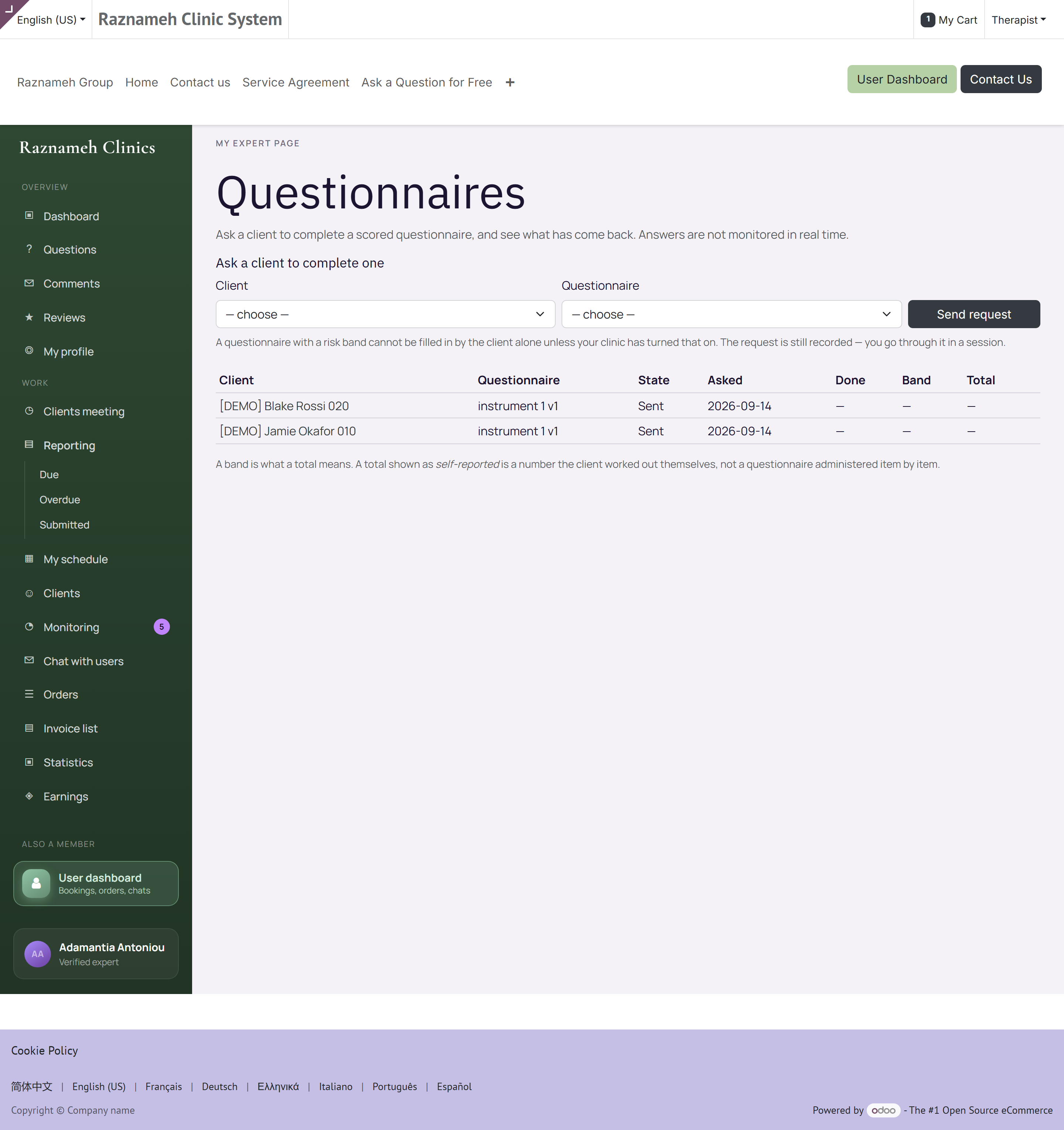
/my/expert/instruments, and the Questionnaires section on a client's card.
A questionnaire is a kind of programme (§8.4). This page is the flat list of the ones outstanding and the ones answered, across all your clients — useful when you want to see what you are waiting for rather than what one person is doing.
- Ask for one — pick the client and the questionnaire from the clinic library. It attaches to the client's open episode when there is one.
- Each row shows the questionnaire, the client, when it was asked, and the result once it is in.
- A result that crosses a risk threshold is marked, and stays marked until you acknowledge it. Acknowledging records that a clinician has seen it — it is not a way of clearing the flag off the screen.
- Opening a client's card from a row starts the same list narrowed to that person.
The client enters a total, not the questionnaire. They work the instrument out themselves — on paper, or in whatever app the clinic uses — and record the total here. Some instruments are marked as ones the client cannot fill in alone; those wait for a session and say so on the client's page.
8.11 Recalls — clients due to be invited back#
Due dates that need an invitation, not a booking: the annual review, the three-month follow-up, the check after a course finishes. The list shows the client, the due date, the state and your own words for why it exists.
A recall is scheduled until its date comes round, then due, then invited once the client has been asked. It leaves the list when a booking fulfils it, when somebody dismisses it, or when it passes its expiry date without a booking. One open recall per client, practitioner and service at a time — so the list stays a list of people rather than a list of reminders.
The reason field is worth filling in. It is what makes the list usable by whoever picks it up when you are away.
8.12 Clients on a membership plan#
/my/expert/membership-clients.
Your clients on a recurring plan, with the current period, and — the reason the page exists — a mark against anybody who has not booked anything this period. A membership that goes unused is the one that gets cancelled, and nothing else in the portal would have told you.
9Cancellations and reschedules#
9.1 If you must cancel#
- Open the session in Meetings with clients.
- Choose Cancel.
- Give a reason — this is recorded.
- Confirm.
The client is notified automatically and their credit is returned in full. They pay no fee when the cancellation is yours.
Cancel as early as you can. Cancellations by you are counted separately and are visible to your administrator. Occasional cancellations are normal life; a pattern is a conversation.
9.2 Offer an alternative#
Rather than cancelling outright, open the client's record and message them with times that do work. A rescheduled session keeps the relationship and the income.
9.3 When a client cancels#
You are notified. Whether a fee applies is decided by the published policy and the notice given — not by you, and not by the client. Any fee is calculated automatically and your share of it is recorded.
9.4 Your cancellation history#
Profile → Expert practice → Cancellation history.
Every cancellation and reschedule on your sessions, and who did it. This is the record to open before any conversation about your reliability, because it is the same one your administrator sees.
9.5 Freed slots do not go to waste#
When a session is cancelled, anyone on the waitlist is offered the slot automatically. You do not have to do anything, and a late cancellation often refills itself.
10Understanding your earnings#
10.1 The four buckets#
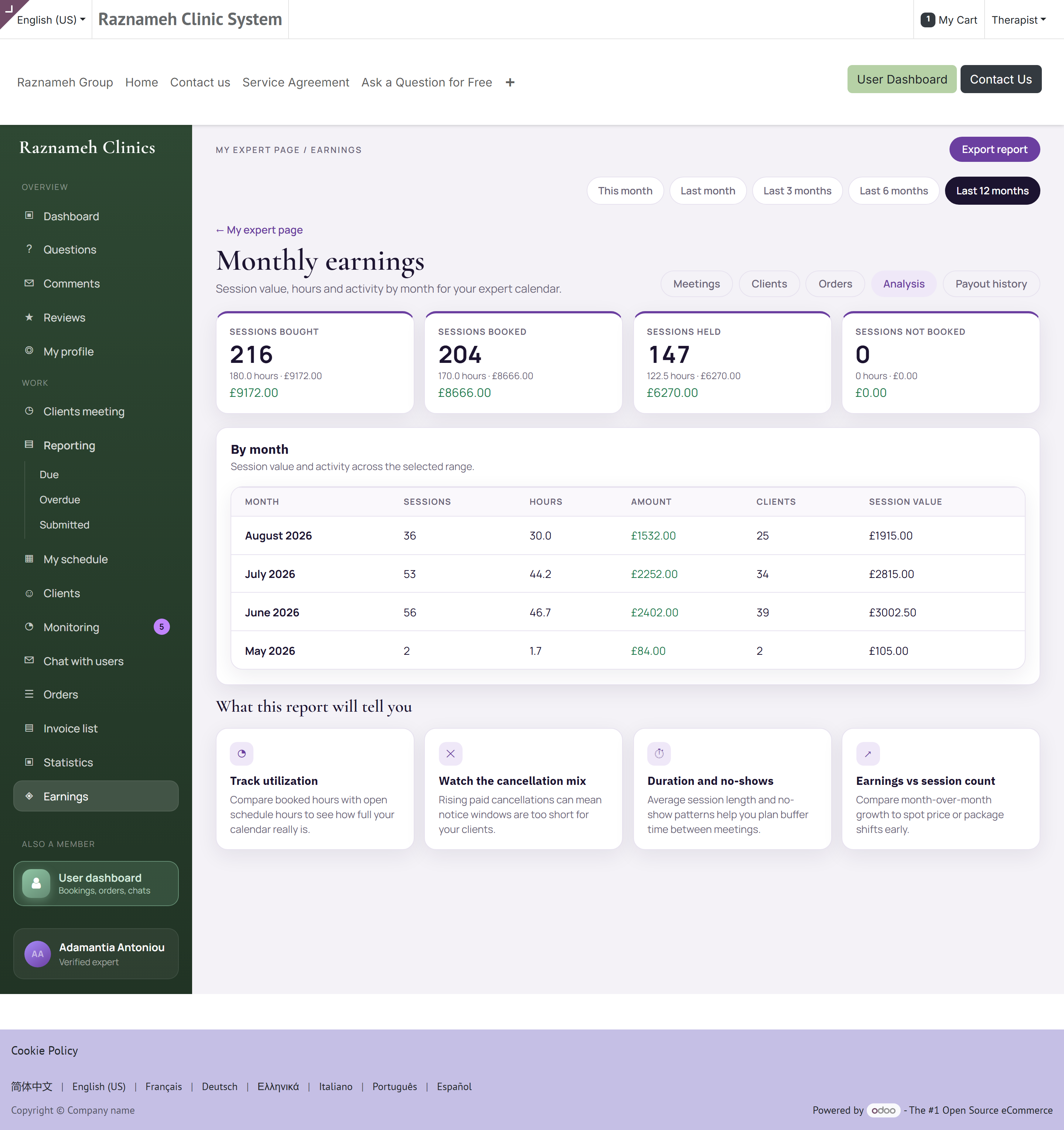
Profile → Expert practice → Earnings, or /my/expert/earnings.
| Bucket | Meaning |
|---|---|
| Sessions bought | Clients purchased these from you |
| Sessions booked | Bought and now scheduled |
| Sessions held | Delivered — this is what becomes Earned |
| Sessions not booked | Bought, still unscheduled — your follow-up list |
Each shows a count, hours, and the money where your contract is money-based.
10.2 By month#
Below the buckets, a table by month: sessions, hours, amount, clients, and average session value. Change the window at the top — this month, last month, 3, 6 or 12 months.
Tap Export CSV to download it for your own records or your accountant.
10.3 Your share is locked when the session is booked#
When a client books, your share is calculated from the terms in force at that moment and fixed.
This protects you. If your terms change next month, work you have already done is not silently repriced. It also means a rate rise applies to new bookings, not retrospectively — which is worth knowing before you ask for one.
10.4 If you are salaried#
Money figures are hidden and replaced by session counts throughout. This is automatic, based on your contract type. You are not missing a permission — a revenue share is simply not how you are paid.
10.5 Why a number looks wrong#
| You see | Usual cause |
|---|---|
| Held session not in Earned | It was never closed. See §6.5 |
| Going to earn higher than expected | It includes bought-but-unheld sessions. That is its definition |
| A month lower than you remember | Check the window at the top. It may not cover the month you mean |
| Amounts differ from your own arithmetic | Your share is the contract share, and it was locked at booking, not at today's rate |
| A rate shows a dash | Fewer than five sessions in the window. Small samples are deliberately not turned into confident percentages |
11Getting paid#
11.1 How payment works#
Your business pays on a cycle set in your contract — usually monthly. When a cycle closes, a payment run is opened automatically, your figures are calculated from sessions actually held, and a bill is raised for you.
You do not have to submit anything. The sessions are the timesheet.
flowchart LR
  A["Client books a session"] --> B["Your share is fixed at that moment"]
  B --> C["Session is held and closed"]
  C --> D["Counted in Sessions held"]
  D --> E["Cycle closes: payment run opens in Draft"]
  E --> F["Someone confirms the run"]
  F --> G["Paid — it appears in your payment history"]
  C -. not closed .-> H["Not counted, so not paid"]
  H -. close it .-> D
Two things in that chain are worth reading twice.
"Draft" is not "lost". A run opened by the cycle stays in draft until a person confirms it. Seeing a period that has closed but not yet appeared in your history is normal for a few days — it means the run exists and nobody has confirmed it yet.
The only branch that costs you money is the dotted one. A session that was delivered but never closed does not reach the run at all. §11.3 is about staying off that branch.
A run may also include your share of cancellation fees clients were charged, where your contract gives you one. Those appear as their own lines, so a total that is higher than your session arithmetic is usually this rather than an error.
11.2 Your payment history#
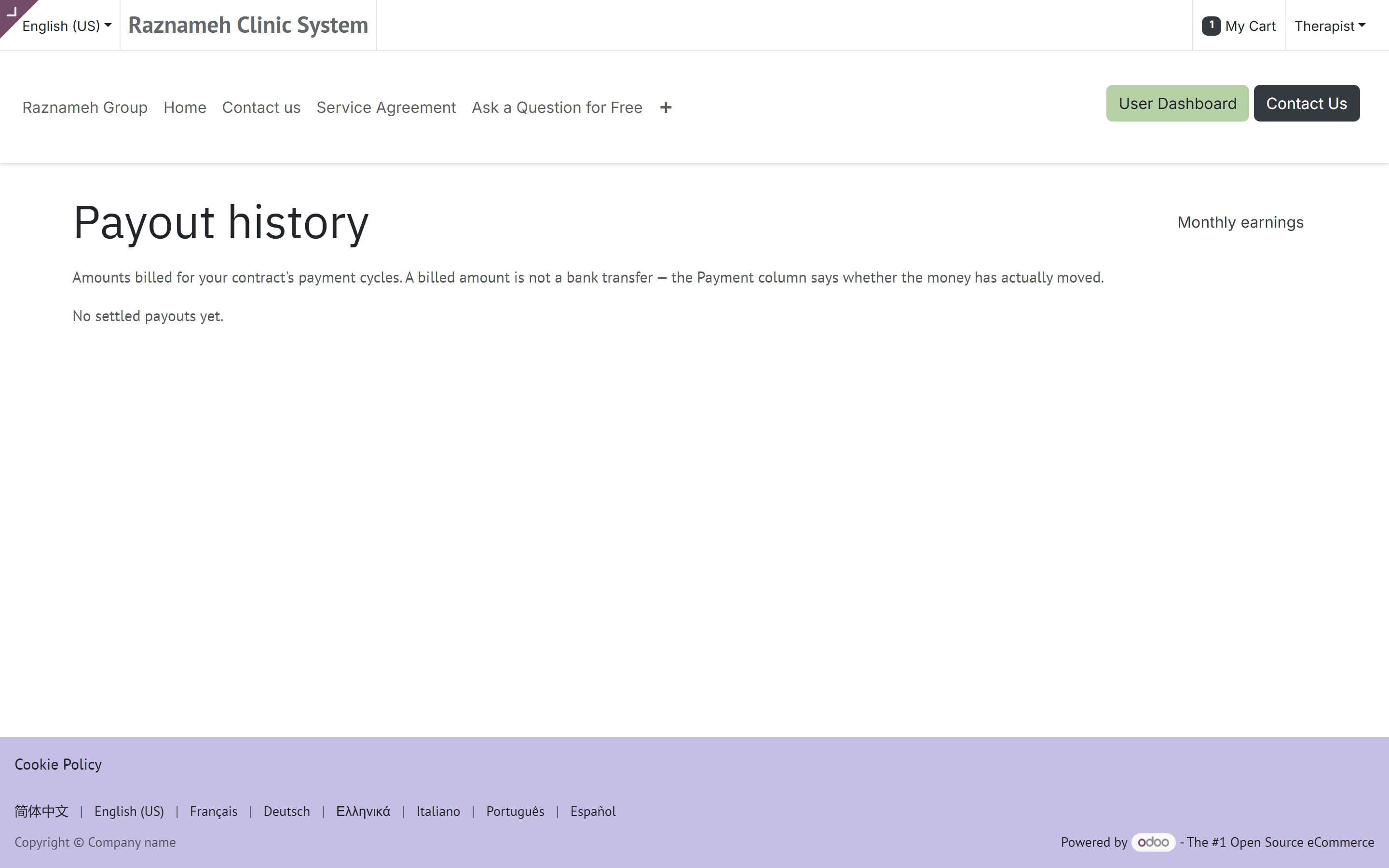
Payout history on your Earnings page, or /my/expert/payouts. In the app it is Profile → Expert practice → Earnings → payment history.
Every past payment: the period, what was in it, the total, and its status. Each line records which version of your contract priced it — so a question about a payment from eight months ago is answerable.
| On the page | What it tells you |
|---|---|
| Period | The dates the run covered |
| Lines | Each session, and each fee share, that made up the total |
| Contract version | The terms that priced this line — the reason a rate may differ between two lines |
| Amount | Your share, in the business's currency |
| Status | Draft (calculated, not yet confirmed), Paid, or Cancelled |
| Total paid | Everything ever paid to you, at the top |
A Cancelled run is one that was opened and then withdrawn, usually because it was wrong. Its sessions are not lost — they return to the pool and appear in the corrected run that replaces it. If you see a cancelled run and no replacement within a few days, that is a question for your administrator.
11.3 Making sure you are paid correctly#
Two habits cover almost every payment dispute:
- Close your sessions. Unclosed sessions are not counted as held, and unheld sessions are not paid. This is the single most common cause of a short payment.
- Check the buckets before the cycle closes. Compare Sessions held against what you remember delivering. Raise anything that looks wrong before the run is billed — much easier than correcting it afterwards.
11.4 If a payment looks wrong#
- Open the payment and check the sessions listed.
- Compare against Sessions held for the same period.
- Check whether a missing session is still sitting unclosed.
- If it is genuinely wrong, contact your administrator with the period, the expected figure and the specific sessions.
12Orders and invoices#
12.1 Orders#
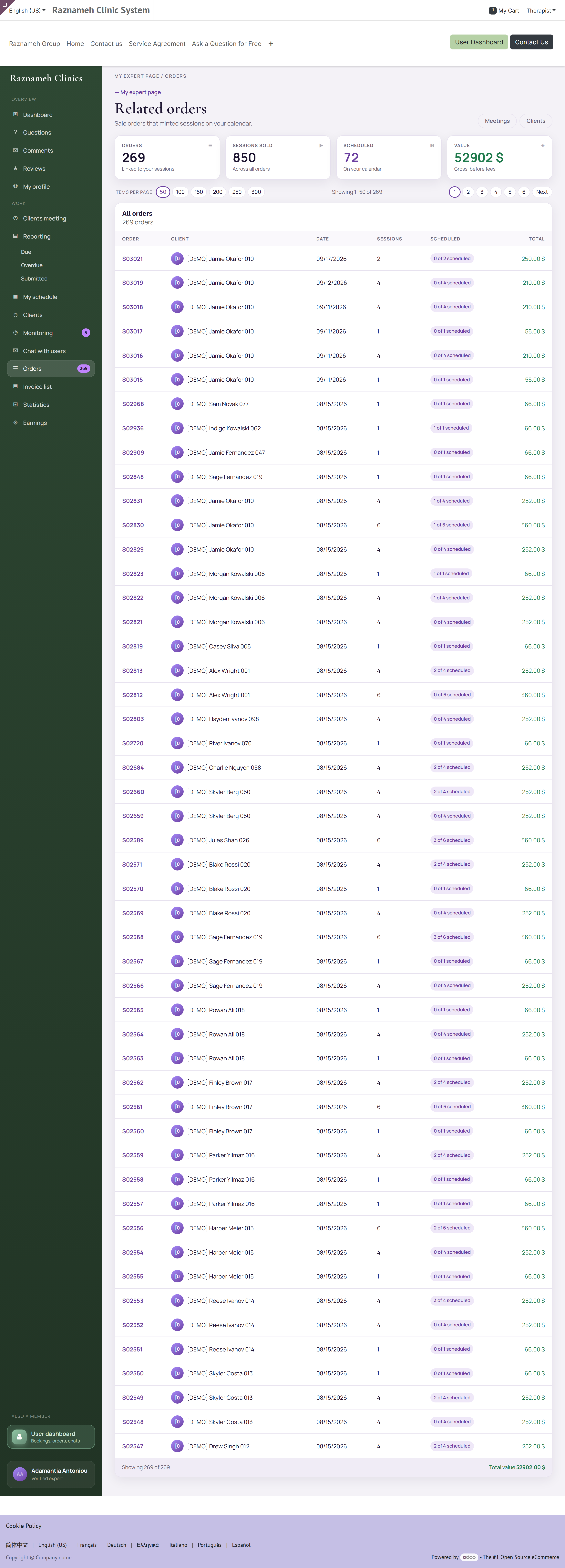
Profile → Expert practice → Orders & meetings, or /my/expert/orders.
Client orders that produced your sessions — order count, sessions sold, how many are scheduled, and the value. Useful for seeing which packages actually sell.
12.2 Client invoices#
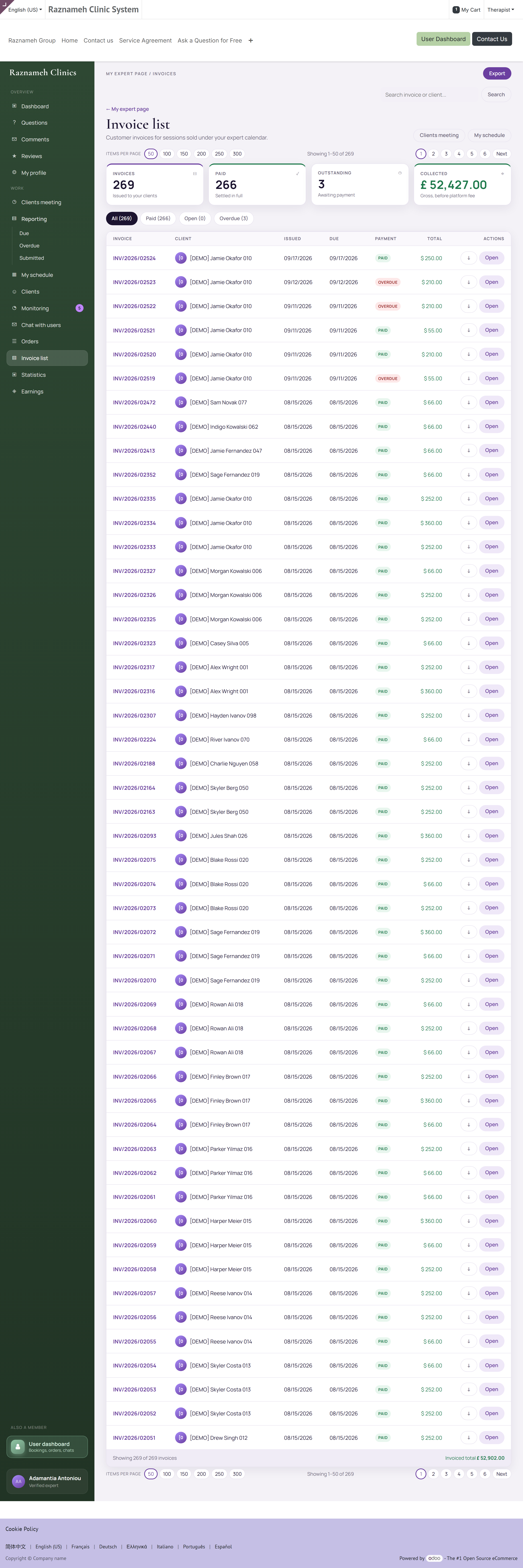
Profile → Expert practice → Client invoices, or /my/expert/invoices.
This shows only invoices arising from your work — not everything those clients have ever bought from the business. Four figures at the top:
| Figure | Meaning |
|---|---|
| Invoices | Count in the period |
| Paid | Settled |
| Outstanding | Open plus overdue |
| Collected | Total actually received |
Filter by All, Paid, Open or Overdue, or search. Export to CSV.
These are the business's invoices to clients, not your payment. Yours is in §11. Chasing an unpaid client invoice is normally the business's job — check before contacting a client about money.
13Your booking performance#
Profile → Expert practice → Bookings analysis, or /my/expert/analytics.
Choose a window: 7, 30 or 90 days, 6 or 12 months.
13.1 The booking funnel#
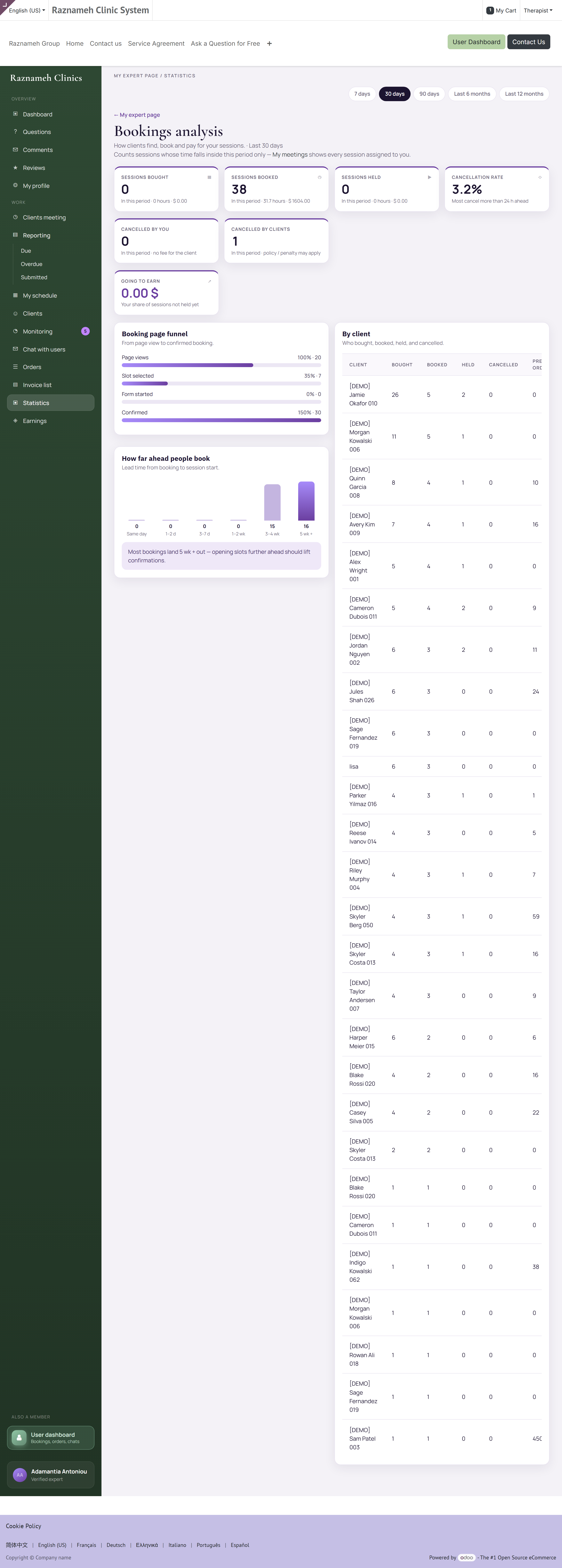
How many people viewed your booking page, picked a slot, started the form, and confirmed — with counts and bars.
Read it by finding the biggest drop:
| Biggest drop | Likely cause | What to do |
|---|---|---|
| Few page views | Nobody is finding you | Improve your profile and specializations; ask about promotion |
| Views but no slot picked | Nothing suitable was free | Open more hours, or hours at different times |
| Slot picked, form abandoned | The form is asking too much | Ask your administrator to shorten the intake questions |
| Form completed, not confirmed | Price or terms surprised them | Check the price and cancellation terms are clear before checkout |
This is the most actionable screen you have. A funnel drop is a specific, fixable problem — far more useful than knowing your total went down.
13.2 How far ahead people book you#
Lead time in buckets, from same-day to five weeks or more, with a plain-English observation.
- Mostly same-day and next-day → open more slots at short notice; you are serving urgent demand.
- Mostly weeks ahead → you can plan, but late cancellations hurt more because the gap is hard to refill.
13.3 By client#
Bought, booked, held, cancelled and previous orders for each client. Sort by bought but not booked to find your follow-up list.
13.4 Cancellations#
Split into by you and by clients, in the same window. Watch the trend on yours; the clients' figure is context, not a verdict on you.
14Reputation — reviews, comments and questions#
14.1 Reviews#
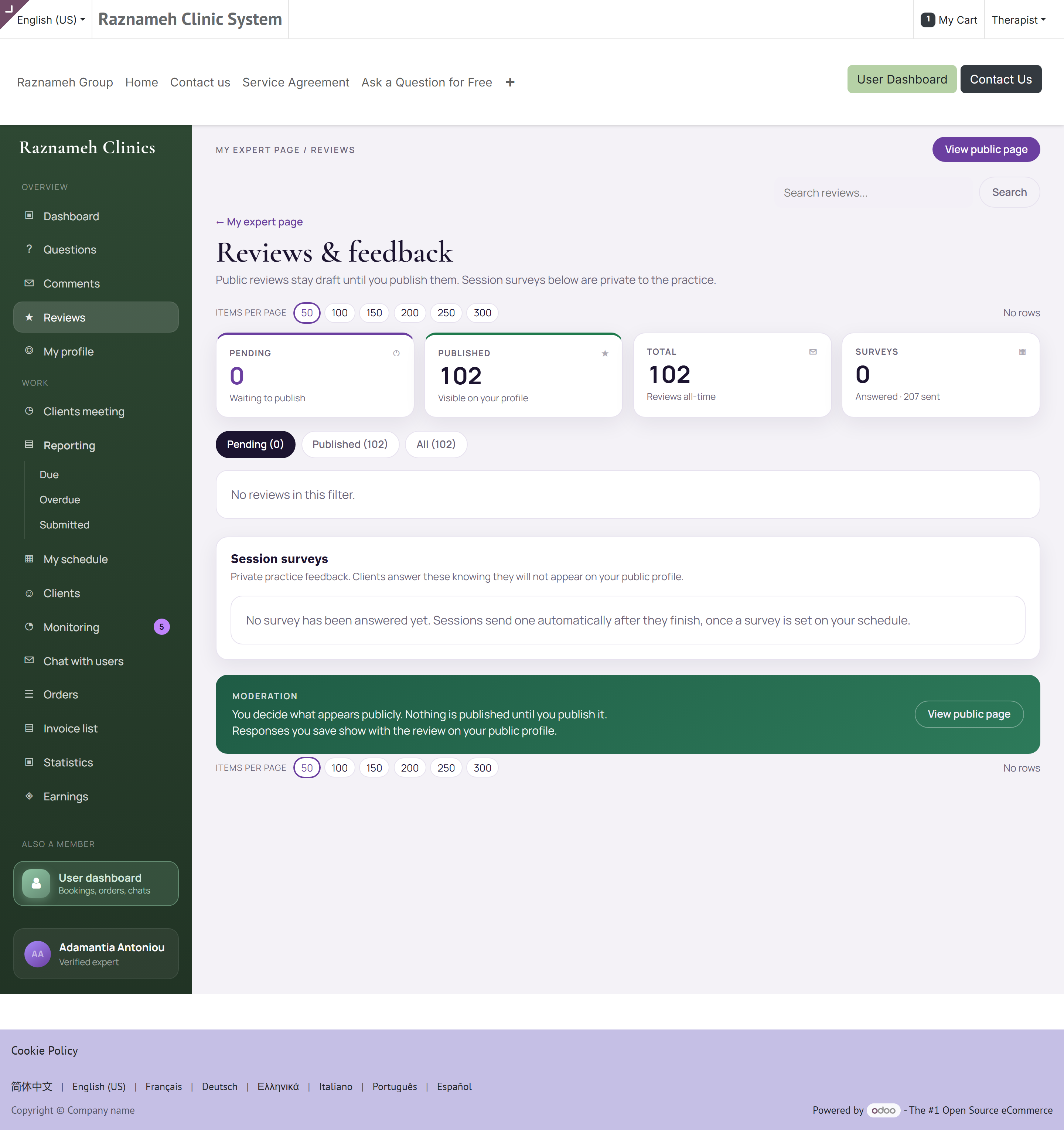
/my/expert/reviews, or Profile comments in the app.
Only clients who actually had a session can review you.
- Reply publicly to a review — future clients read the reply as much as the review.
- Reject a review only where it breaks the rules — abuse, personal data, or plainly not about a session. Rejecting criticism you simply disagree with is visible to your administrator and does you no favours.
How to reply to a poor review: thank them, acknowledge the specific point, say what you have changed, and stop. Do not argue, and never mention anything from their session — that is confidential regardless of what they have posted.
14.2 Comments#
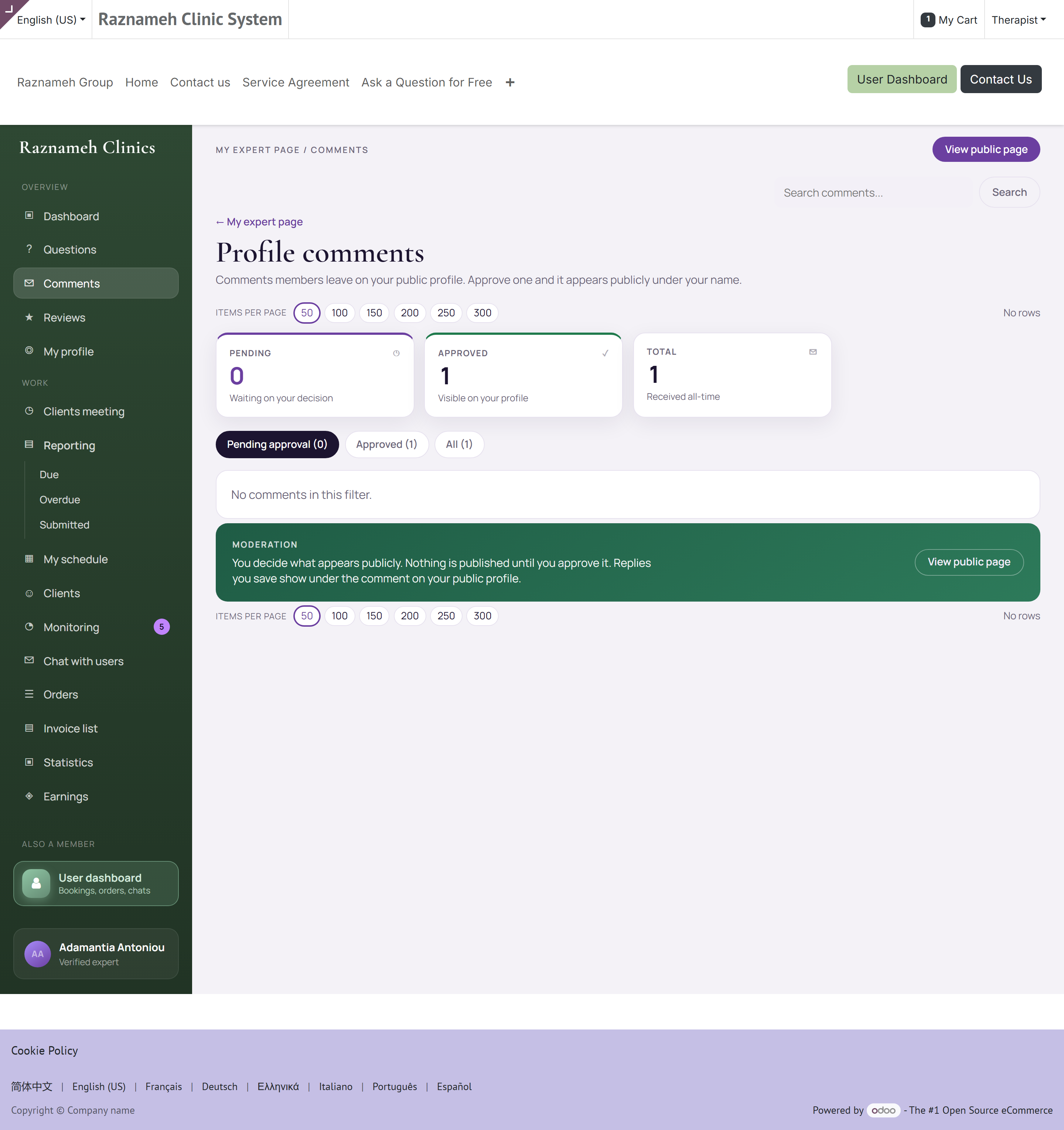
Profile comments in the app, /my/expert/comments in the portal. Approve, reject or reply. Clear the queue regularly — an unanswered comment on your page reads as inattention.
14.3 Questions#
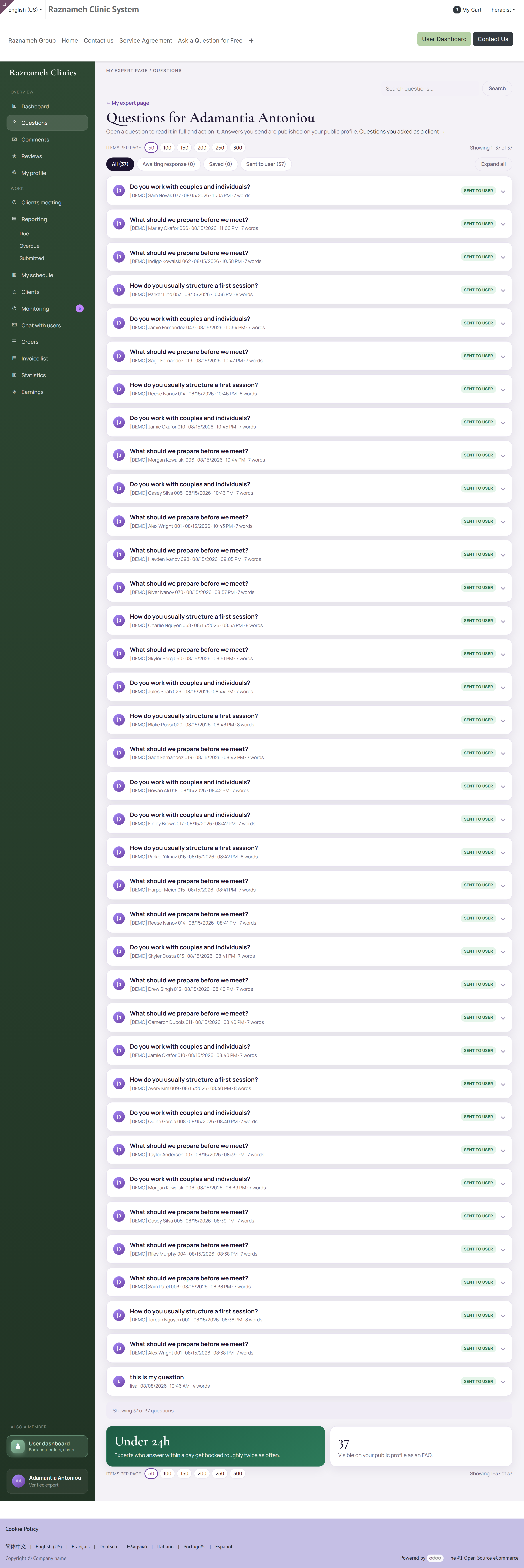
/my/expert/questions, or Asked questions under Expert practice.
If you open the member page /my/questions, you are sent here automatically — that address is the client list of questions you asked. Use Questions I asked (or ?as=client) only when you need that member list.
Public questions with public answers, which means every good answer keeps working for you long after you write it.
- Answer as though a stranger will read it in a year, because they will.
- Never give individual advice in a public answer. Explain generally, then invite them to book.
15Talking to clients#
15.1 Chats#
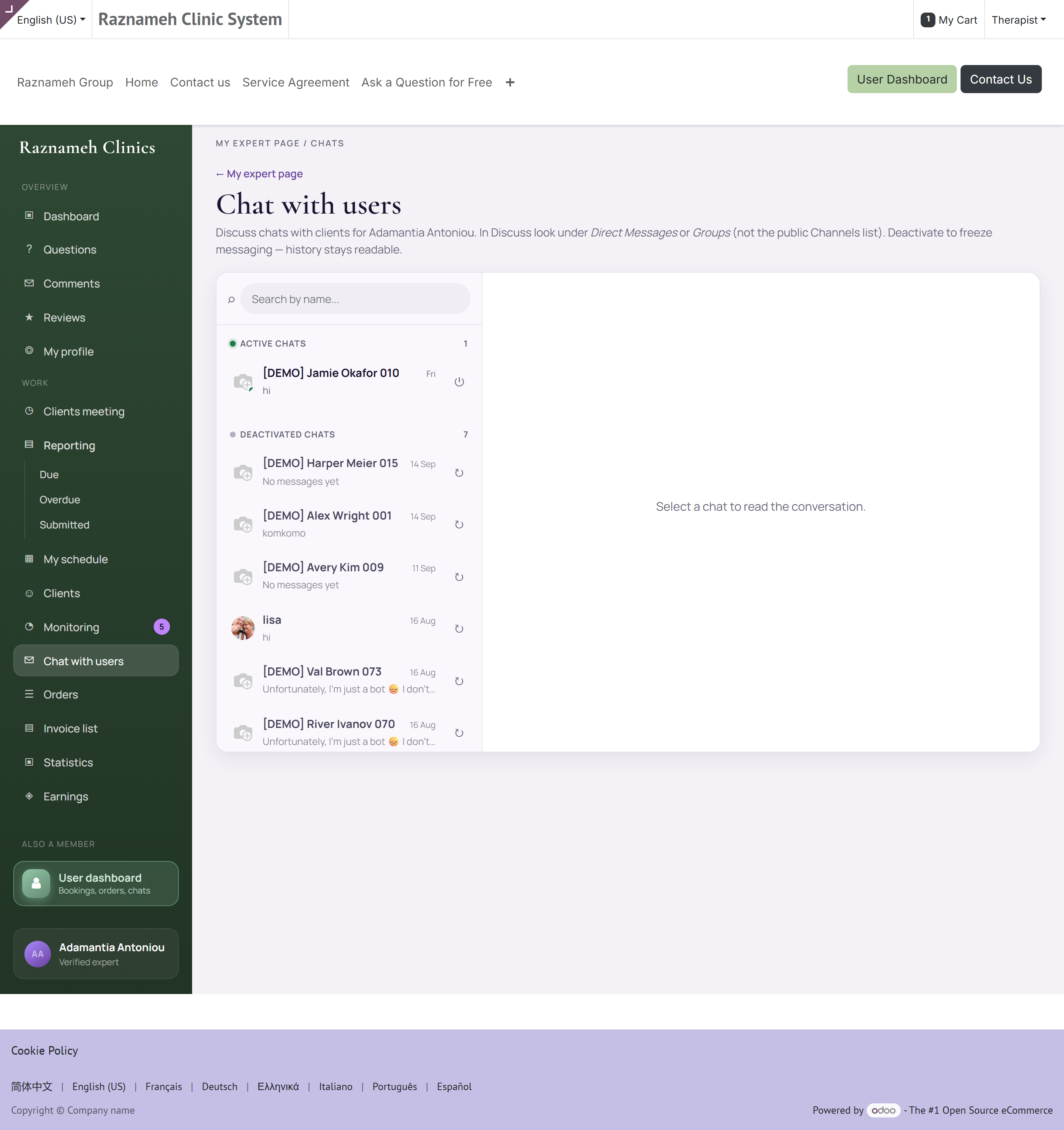
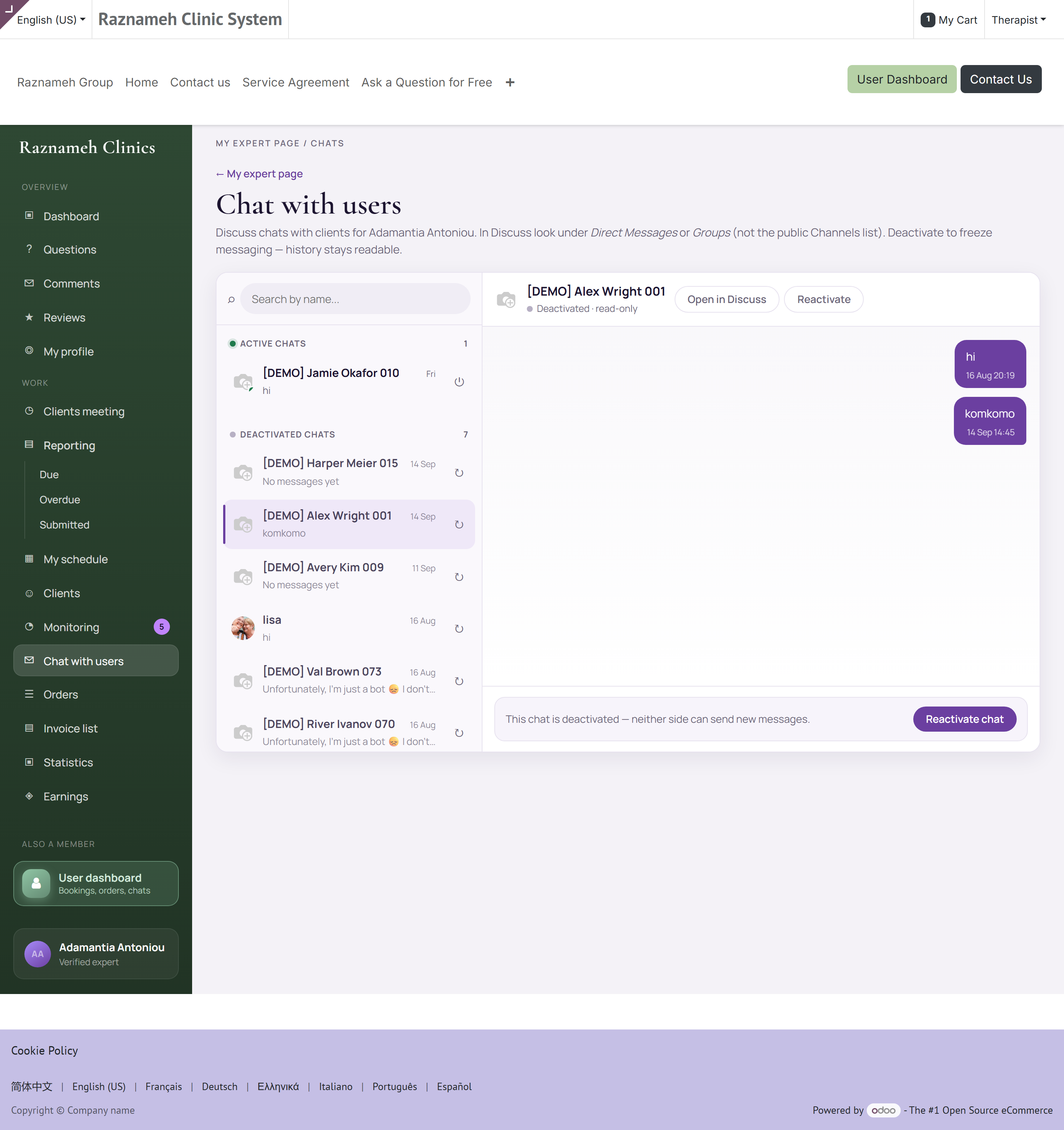
Profile → Expert practice → Chat with users, or /my/expert/chats. Active conversations are at the top, history below.
Depending on your setup, a chat may be opened for a booked session and closed afterwards. You may be able to activate or deactivate a conversation yourself.
Paid consultations. When the client bought a chat-consultation product, the conversation shows remaining minutes and a bar. Open How time is counted and the statement (/my/expert/chats/<number>/statement) for every charge. Return time waives a charge and needs a reason — only you, as the assigned professional, can do that. Buying more time is the client's action; it tops up this same chat.
On the website you can send a voice note or attach a clip. Length is measured from the file.
When Encrypt chat content is on, message bodies are readable only by you and that client.
Between-session programmes are assigned in the back office (Clinic → Goals Monitoring), not from this menu. If you have back-office access you can open the client's episode and the observation charts there.
15.2 Voice and video#
Where enabled, a chat includes a call button. Calls run inside the app.
15.3 Sensible practice#
- Agree response times with clients and stick to them. Being reachable does not mean being instant.
- Keep clinical or professional content in the session and the report, not in chat.
- Use the platform's chat rather than personal channels. It is the record that protects you both.
16Your contract and agreements#
16.1 How you are paid#
Your engagement terms are held on your contract, which has a dated history — every change is a new version, and one is in force at a time. Four arrangements are possible:
| Type | How it works |
|---|---|
| Salary | A fixed amount per cycle regardless of sessions. Money figures hidden; counts shown |
| Hourly | Paid per hour delivered |
| Per session | A fixed amount per session held |
| Revenue share | An agreed percentage of what the client paid |
If you are unsure which applies to you, ask your administrator. It changes what your earnings screens show.
16.2 Signing your contract#
Contracts are sent for electronic signature. You will receive a notification with a link.
- Open the link and read the document.
- Complete the signature fields.
- Confirm.
The signed copy is filed against your record and stays available to you.
16.3 Client service agreements#
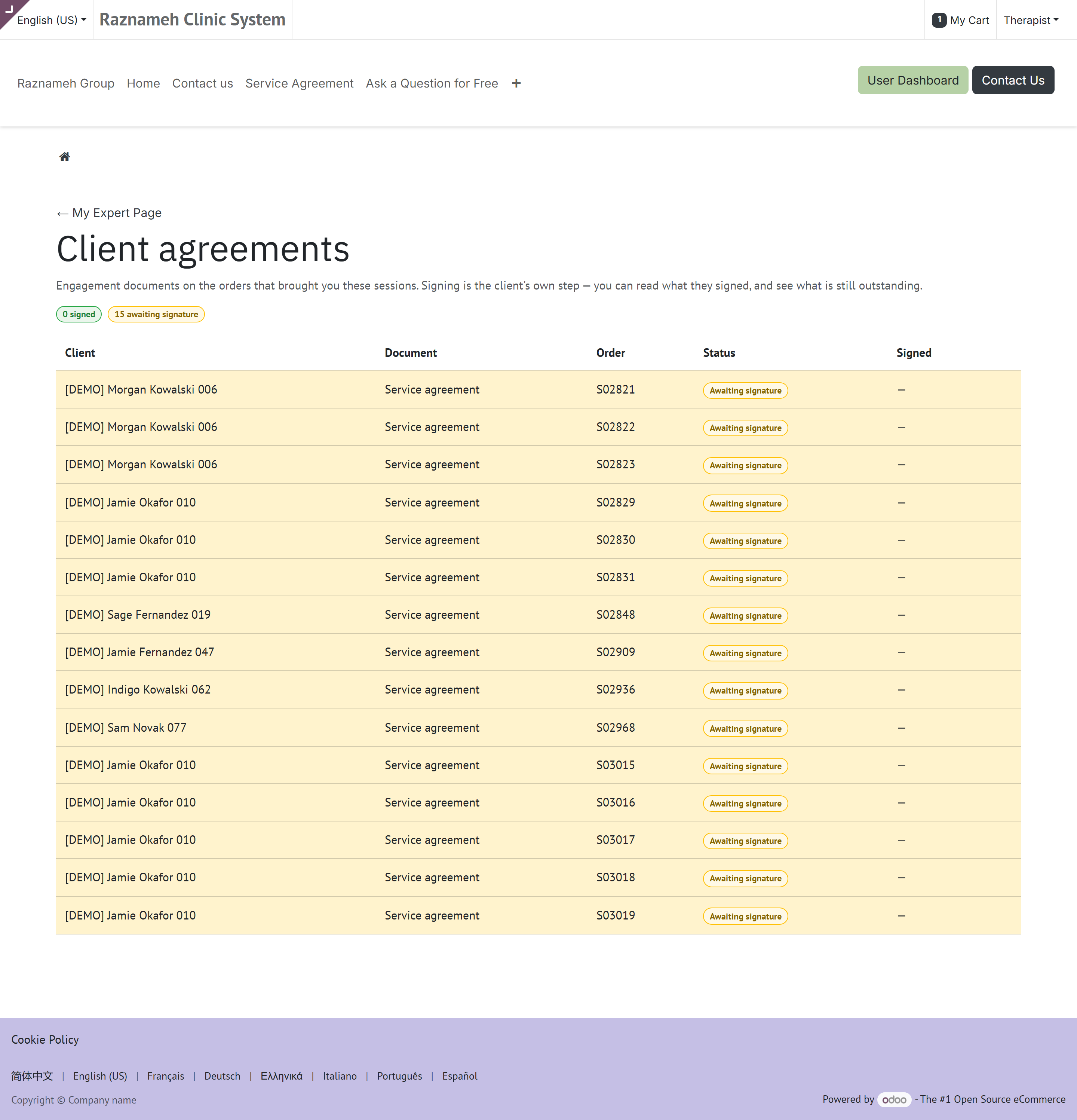
Where your services carry an agreement, clients accept it at checkout, and the acceptance is recorded permanently with the date.
To open one: go to the session or the order, and follow the agreement link. It downloads the signed PDF — the exact document that client accepted, not a current copy of the template. That distinction matters: if the terms changed since, what you get is what they agreed to.
Two limits apply, and both are deliberate:
- You can only open agreements for clients you have actually served. Being a professional on the platform does not give you a view of other people's paperwork.
- Only completed signatures are available. An agreement still being signed has nothing to show yet.
The practical use is a disagreement about a cancellation fee. Open the agreement, show the tier, and the conversation is over in a minute — with a document rather than a recollection. If the client disputes the fee itself rather than the terms, send them to their Cancellation history, which names who cancelled and when, and then to support: charging decisions are the business's to make, not yours.
16.4 Where each document lives#
| Document | Who signs it | Where you find it |
|---|---|---|
| Your engagement contract | You and the business | Sent for signature; filed on your record afterwards (§16.2) |
| Client service agreement | The client, at checkout | The session or order — see above |
| Your session reports | You | Work → Reporting (§7.2) |
| Client invoices | — | Client invoices (§12.2) |
| Your payment records | — | Payment history (§11.2) |
17Troubleshooting#
| Problem | What to do |
|---|---|
| No Expert practice section | Your account is not linked to a professional profile. Ask your administrator |
| Clients cannot book me | Check, in order: weekly rules exist; an exception is not blocking the dates; the timezone is right; you are assigned to the service; a room is free if rooms are used |
| Slots appear at wrong times | Timezone. Check the setting at the top of Schedule availability — especially if you chose Follow device and have travelled |
| Fewer slots than my hours suggest | Notice period, buffer between sessions, room clash, or an existing booking. All four remove slots |
| Held session not in Earned | It was never closed. See §6.5 |
| Earnings lower than expected | Check the window, check for unclosed sessions, and remember your share was locked at booking |
| Payment missing a session | Check whether it is closed and whether it fell in that cycle. Then contact your administrator with the specifics |
| Cannot open a report | Access is by care team, not seniority. If you should have access, ask your administrator to check the rule |
| Cannot attach a file to a report | Check the file type and size. If you typed text first, use Remove file — type the report instead to switch modes |
| Client did not arrive | Wait the agreed period, message them, then mark as no-show. Do not leave it open |
| A rate shows a dash | Fewer than five sessions in the window. Deliberate — small samples are not shown as percentages |
| Not getting booking alerts | Check notification settings in the app, then your phone's settings for the app |
18Quick reference#
Common tasks#
| I want to… | Go to |
|---|---|
| Set my working hours | Expert practice → Schedule availability |
| Block a holiday | Schedule availability → Exceptions |
| See today's sessions | Expert practice → Meetings with clients |
| Chase clients who have not booked | Meetings → To book, or Bookings analysis → By client |
| File a session report | Expert practice → Meeting reports, or web Work → Reporting → Due |
| Check what I have earned | Expert practice → Earnings |
| Check what I have been paid | Earnings → Payment history |
| See why bookings are dropping | Expert practice → Bookings analysis → funnel |
| Reply to a review | Expert practice → Profile comments / /my/expert/reviews |
| Cancel a session | Meetings with clients → open it → Cancel |
| See who cancelled what | Expert practice → Cancellation history |
| Open my signed contract | Expert practice → agreements |
| Show a client what they agreed to | The session or order → agreement link (§16.3) |
| Work a one-off Saturday | Schedule availability → Exceptions → Extra availability (§4.3) |
| Find out why a report is overdue | Reporting → Overdue — the state is on each line (§7.4) |
| Send a between-session programme | After Submit report, or Send programme on the meeting — pick a library template and dates, do not write new goals (§7.3) |
| Check a payment I do not recognise | Payment history → open the run → its lines (§11.2) |
| See remaining consultation minutes | Chat with users → open the chat — bar at the top; statement and Return time on /my/expert/chats/<number>/statement |
Every page, and its address#
| Page | Address |
|---|---|
| Dashboard | /my/expert |
| Sessions | /my/expert/meetings |
| Availability | /my/expert/schedule |
| Clients | /my/expert/clients |
| Chats | /my/expert/chats |
| Session reports | /my/expert/reports |
| Orders | /my/expert/orders |
| Client invoices | /my/expert/invoices |
| Bookings analysis | /my/expert/analytics |
| Earnings | /my/expert/earnings |
| Payment history | /my/expert/payouts |
| Reviews | /my/expert/reviews |
| Comments | /my/expert/comments |
| Questions | /my/expert/questions |
| Your own client account | /my |
The four earnings figures#
| Figure | Meaning |
|---|---|
| Sessions bought | Purchased from you |
| Going to earn | Your share of bought-but-not-yet-held |
| Earned | Your share of sessions held |
| Not booked | Bought, unscheduled — follow these up |
Weekly routine#
- Review To book and message clients who have not scheduled.
- Clear Reporting → Due.
- Clear the comments, reviews and questions queues.
- Check next week's availability against your own diary.
- Glance at Bookings analysis — one funnel step, one thing to improve.
- On paid chats, glance at remaining minutes before you reply at length; Return time if a charge should not have applied.
Habits that keep your figures right#
- Close every session. It is the most common cause of a short payment.
- Add holidays as exceptions the day you book them, not the week before.
- File reports the same day.
- Cancel as early as you possibly can, and offer an alternative time.
- Check your buckets before the pay cycle closes, not after.
Screens and menu names vary between businesses, because each one chooses which features to enable. If something here does not match what you see, ask your administrator.