
1Getting started#
1.1 Create your account#
- Open the app and tap Get Started on the welcome screen.
- Tap Register.
- Enter your name, email address and a password.
- Enter your date of birth. This is required, and it is used to confirm you meet the minimum age for the service. You can also switch on a birthday reminder here.
- Accept the terms and privacy notice.
- Tap Create account.
You can also register on the website — the account is the same either way.
1.2 Sign in#
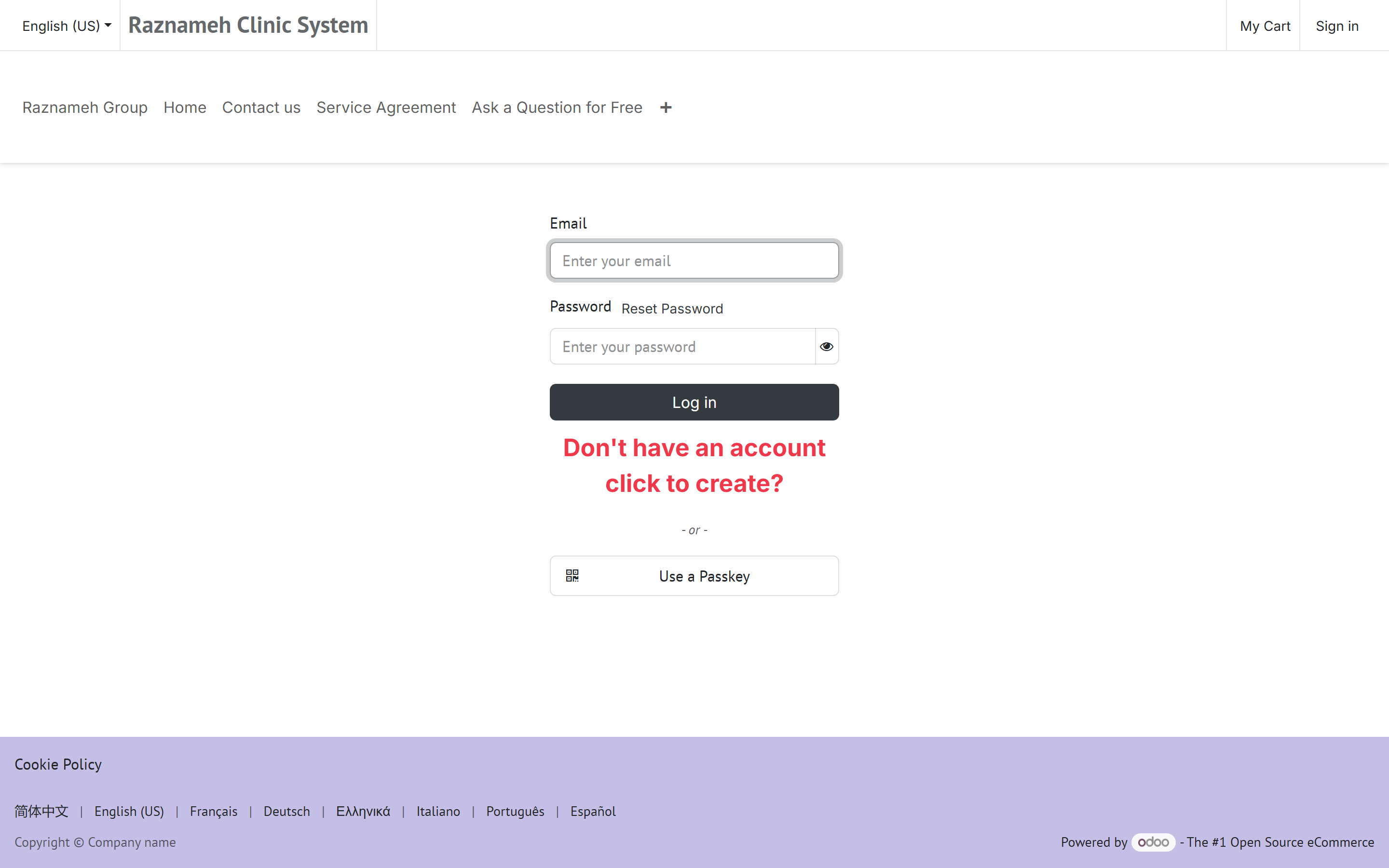
- Tap Log in.
- Enter your email and password, or tap Continue with Google.
- Tap Log in.
Your email address is not case-sensitive.
1.3 Forgotten password#
- On the login screen, tap Forgot password.
- Enter your email address and tap Send.
- Open the email you receive and follow the link to set a new password.
If the email does not arrive within a few minutes, check your spam folder before requesting another one.
1.4 Confirming your identity and age#
Some services require you to confirm your age before you can book. If yours does, you will be prompted the first time you try to use a restricted feature.
There are two ways this happens, and the app always tries the easier one first:
Face check (fastest)
- Tap Start verification.
- Allow camera access when prompted.
- Hold your phone at eye level, in reasonable light, with your whole face in the frame.
- Follow the on-screen prompts and stay still until it finishes.
Most people are approved immediately.
Identity document (only if the face check is inconclusive)
- Tap Continue with document.
- Photograph your identity document — passport, driving licence or national ID — following the guides on screen.
- Record the short selfie video when prompted.
- Tap Submit.
Your submission then goes to Under review. A member of staff checks it, usually within one working day. You will get a notification when the decision is made.
Your documents are protected. Identity photos and videos are stored encrypted, are only visible to the small number of staff who review them, and are deleted automatically once the retention period passes. You can ask for them to be deleted sooner — see §13.5.
1.5 Choose your language and calendar#
- Go to the Profile tab.
- Tap Settings → Language.
- Choose your language.
23 languages are available. Arabic, Persian, Hebrew and Urdu switch the whole app to right-to-left layout automatically.
If your business offers them, you can also display dates in the Gregorian, Persian (Jalali) or Islamic (Hijri) calendar. This affects how dates are shown everywhere, including on booking pages.
2Finding your way around#
2.1 The tabs at the bottom of the app#
| Tab | What is there |
|---|---|
| Home | Your content feed — articles, videos, and updates |
| Services | Browse services and professionals, and book |
| Profile | Everything about you: sessions, billing, messages, settings |
Your app may show fewer tabs than this, or an extra one. That is normal — the business running your app chooses which features to include, and this guide covers the ones every app has.
2.2 The Profile tab, section by section#
The Profile tab is the hub. It is organized into sections:
| Section | What is in it |
|---|---|
| Sessions & Bookings | Booked meetings · My Bought Services · Cancellation history |
| Saved | My Experts · My Services · My Content |
| Messages & Questions | Notifications · Chats with Experts · Partner chats · My Questions |
| Billing | Billing address · Invoices |
| Trust & Support | Age & Identity · Support tickets |
| Account | Settings, security, privacy, log out |
2.3 Using the website instead#
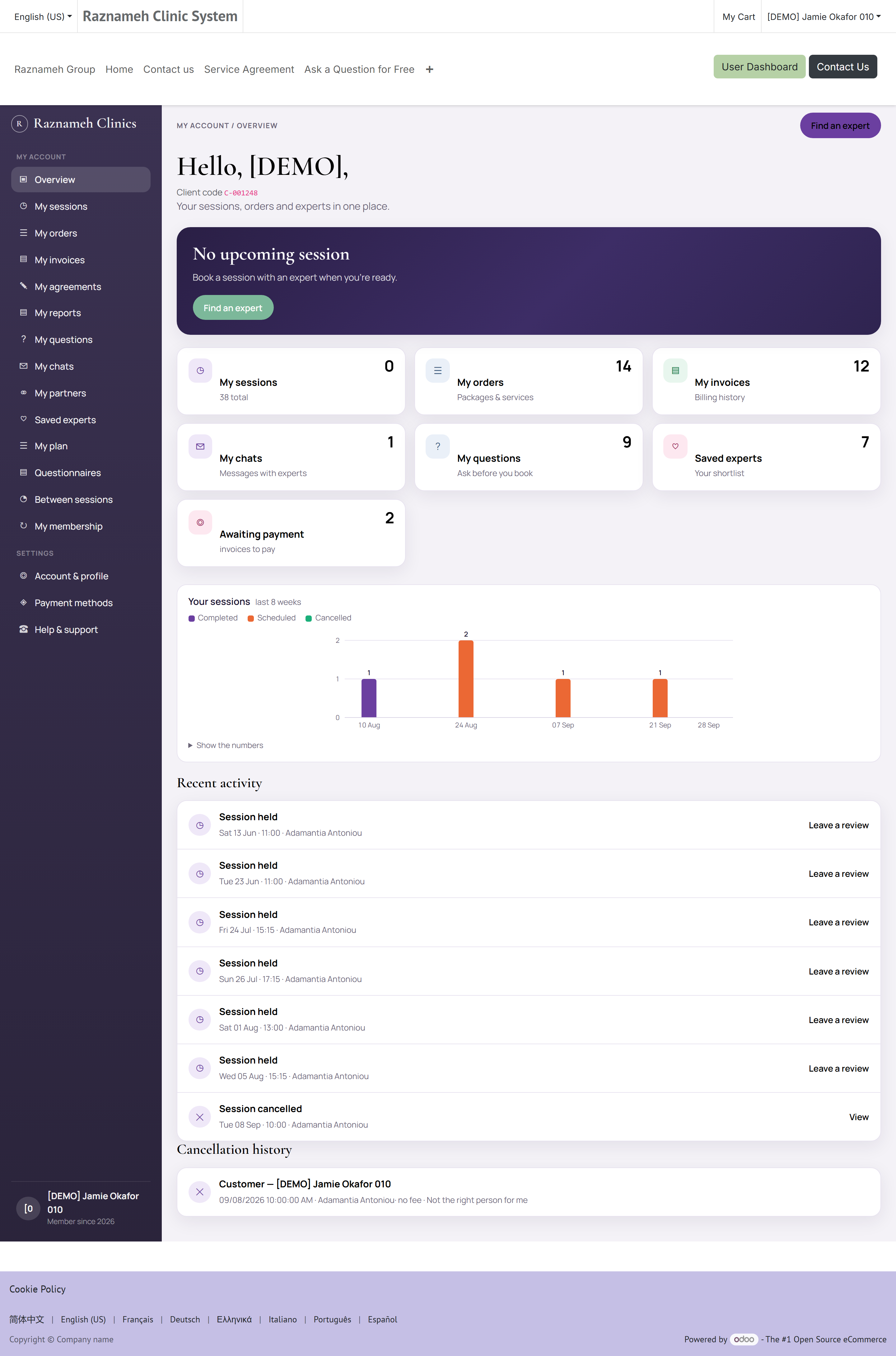
Everything above is also on the website, under My Account. The website puts a menu down the left-hand side. These are its entries, in the order you will see them, and the address each one opens.
My account
| Menu entry | Address | What it is |
|---|---|---|
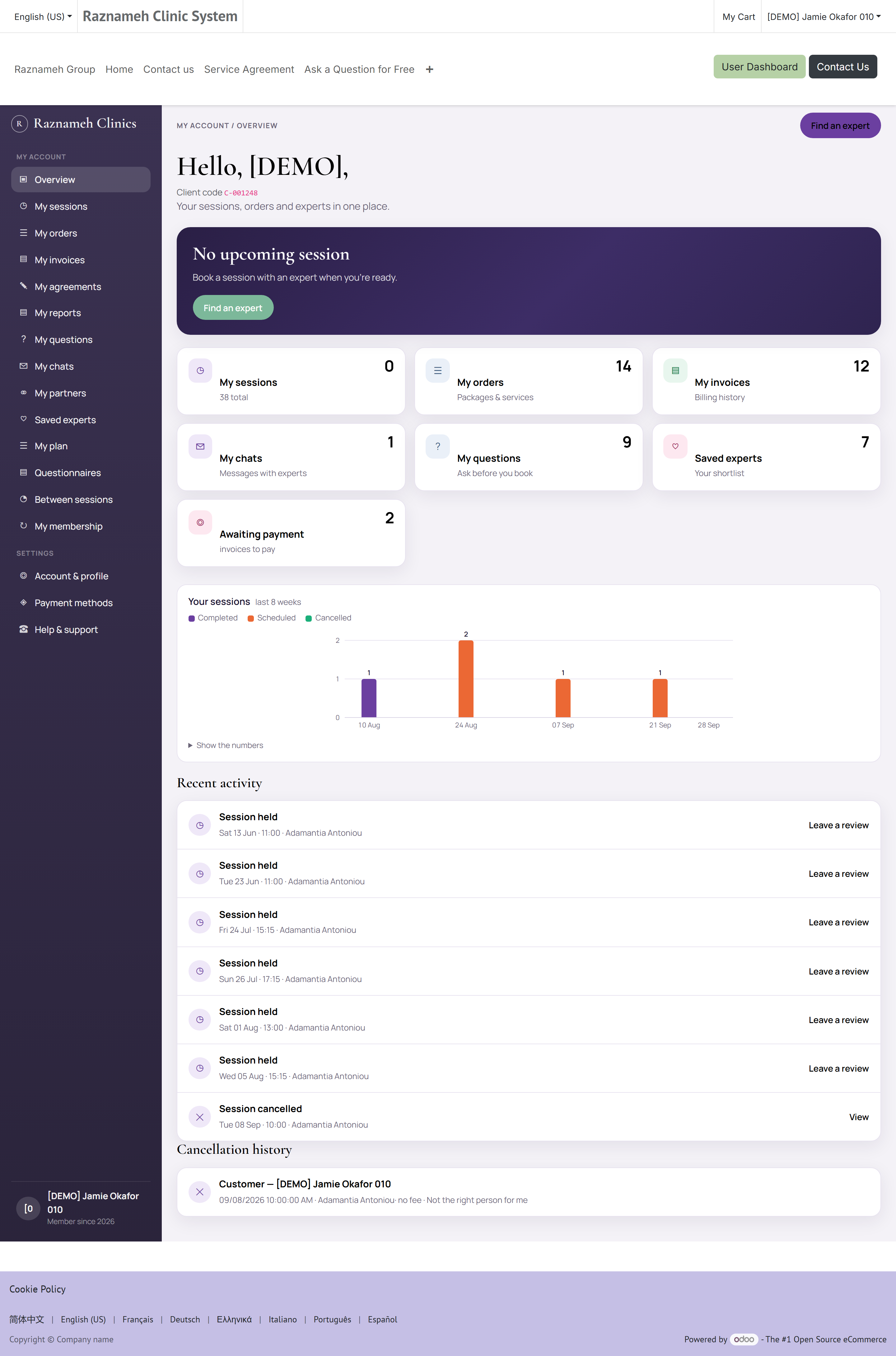
| Overview | /my | Your dashboard — a summary of everything below |
| My sessions | /my/meetings | Every session you own. A number beside it counts the ones still waiting for a time |
| My orders | /my/account/orders | Every order you have placed, and what was in it |
| My invoices | /my/account/invoices | Your invoices, each downloadable as a PDF |
| My questions | /my/questions | Public questions you asked, and the answers |
| My chats | /my/chats | Conversations with professionals. The number beside it counts unread messages. Paid consultations show remaining minutes |
| My plan | /my/plans | Your episodes, goals, programmes, and anything to record today — §6.6 |
| My partners | /my/partners | Named partner groups, optional photo, email invites, and a join link per group. The group page lists people who have joined and invitations that have not been accepted yet. If you created the group you can remove a member, cancel an invitation, or delete the group. |
| Saved experts | /my/saved-experts | Your favourites |
| My membership | /my/memberships | Recurring plans you bought — image, description, remaining sessions and consultation minutes |
| Questionnaires | /my/instruments | Questionnaires your clinician has asked you to fill in — §6.7 |
| My scores | /my/scores | The results of the ones you have completed, over time — §6.7. Only where your clinic shows them |
| Between sessions | /my/monitoring | What to record between appointments, and what you have recorded — §6.8 |
| My reports | /my/reports | Things written about you that your clinic has chosen to share with you — §13.6 |
| My agreements | /my/agreements | Service agreements: what is waiting for your signature, and what you have signed — §4.2 |
Not every entry is on every clinic's menu: an entry appears once the clinic uses that part of the Platform. A menu without Questionnaires means nobody has sent you one, not that something is broken.
Settings
| Menu entry | Address | What it is |
|---|---|---|
| Account & profile | /my/account/profile | Your details, timezone, language and notification preferences — §13.1 and §13.2 |
| Payment methods | /my/payment-methods | Saved cards |
| Help & support | /my/help | Support tickets |
Pages with no menu entry. These exist, and the pages that need them link to them, but you will not find them in the menu:
| Address | What it is | Where it is linked from |
|---|---|---|
| /my/bought-services | Packages you bought, with sessions remaining — §8.2 | Overview, and the app's Profile tab |
| /my/account | Edit your contact details and billing address | Account & profile → Edit details |
| /my/security | Password and security settings — §13.3 | Account & profile |
| /my/documents | Records held about you, where your business publishes them — §13.6 | Overview, when there is something to show |
| /my/plans/goals/<id> | One goal, its programmes, and what you recorded (§6.6) | My plan, each goal title |
/my/meetings/<number> | One session in full detail | Tap any session in the list |
/my/chats/<number>/statement | How consultation minutes were counted | Link on a paid chat |
Two more things sit at the bottom of that menu. Links to download the mobile app, and — if your account is also a professional's or an administrator's — a switch into that workspace. An ordinary client account shows neither, and nothing is missing if you do not see them.
2.4 How the parts fit together#
Nothing here is bought and booked in a single step, and that is deliberate: it is what lets you buy a package today and schedule the appointments over the following months. This is the whole path, once:
flowchart LR
  A["Find a professional"] --> B["Buy a session or a package"]
  B --> C["Accept the service agreement"]
  C --> D["Pay"]
  D --> E["Session credit sits in To book"]
  E --> F["Book a time"]
  F --> G["Attend"]
  G --> H["Review and feedback"]
  D --> I["Invoice issued"]
  F -.->|"cancel or move it"| J["Cancellation policy decides any fee"]
  J -.->|"credit usually returns"| E
One line is worth remembering, because most of §7 and §8 follows from it:
A credit is what you own. A booking is when you spend it.
Buying gives you credits. Booking attaches a time to one. Cancelling usually detaches the time and hands the credit back — which is why a cancelled session is not the same as a lost one.
3Finding the right professional#
3.1 Browse and search#

- Go to the Services tab.
- Browse the list, or use the search box at the top.
- Use the filters to narrow by category, specialization, rating or price.
- Tap any professional to open their profile.
3.2 What a profile tells you#
| On the profile | What it means |
|---|---|
| Verified badge | The business has checked this person's credentials |
| Rating | Average star rating from clients who have actually had a session |
| Category ratings | Separate scores for different aspects of the service |
| Specializations | What they focus on |
| Video and photos | Introduction material they have published |
| Services | What you can book, with duration and price |
| Reviews | Written feedback, sometimes with the professional's reply |
| Availability | When they can be booked |
Reviews can only be left by someone who had a session, so they are not anonymous opinions from people who never turned up.
3.3 Save the ones you like#
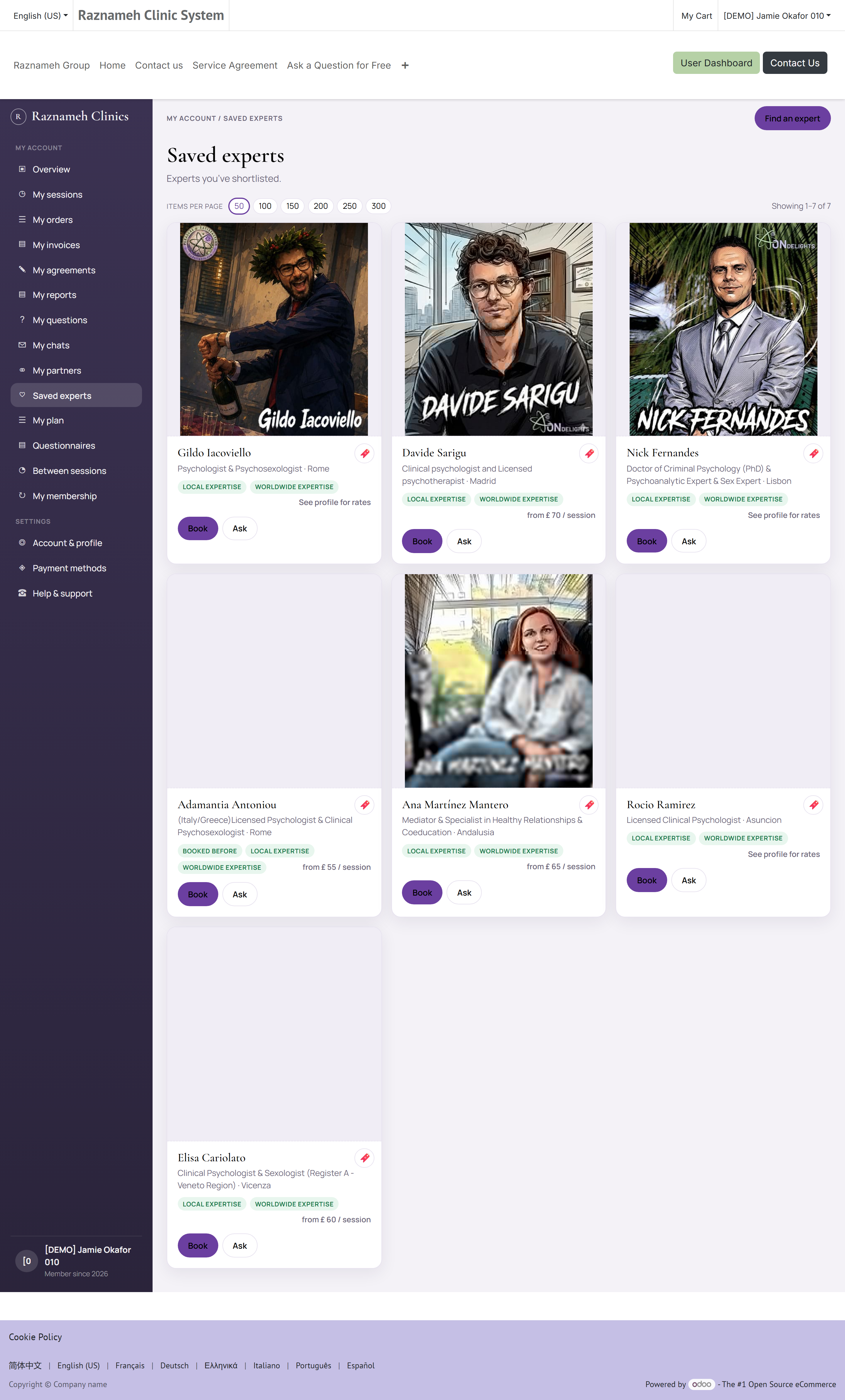
Tap the heart icon on a profile, a service or an article to save it.
Find your saved items later under Profile → Saved → My Experts, My Services or My Content.
3.4 Ask before you book#
If you are not sure a professional is right for you:
- Ask a public question — open their profile and tap Ask a question. The answer is published for everyone, so browse existing questions first.
- Request a consultation — some businesses offer a short introductory conversation. Look for Request consultation on the profile or the website.
4Buying sessions#
Sessions are bought first and booked afterwards. That means you can buy a package now and schedule the individual appointments whenever it suits you.
4.1 Buy a single session or a package#
- Open the professional's profile and choose a service.
- Check the duration, the price, and how many sessions are included.
- Tap Add to basket to keep shopping, or Book Meeting to go straight to checkout.
- Open the basket (if you stayed there) and tap Checkout.
4.2 Accepting the service agreement#
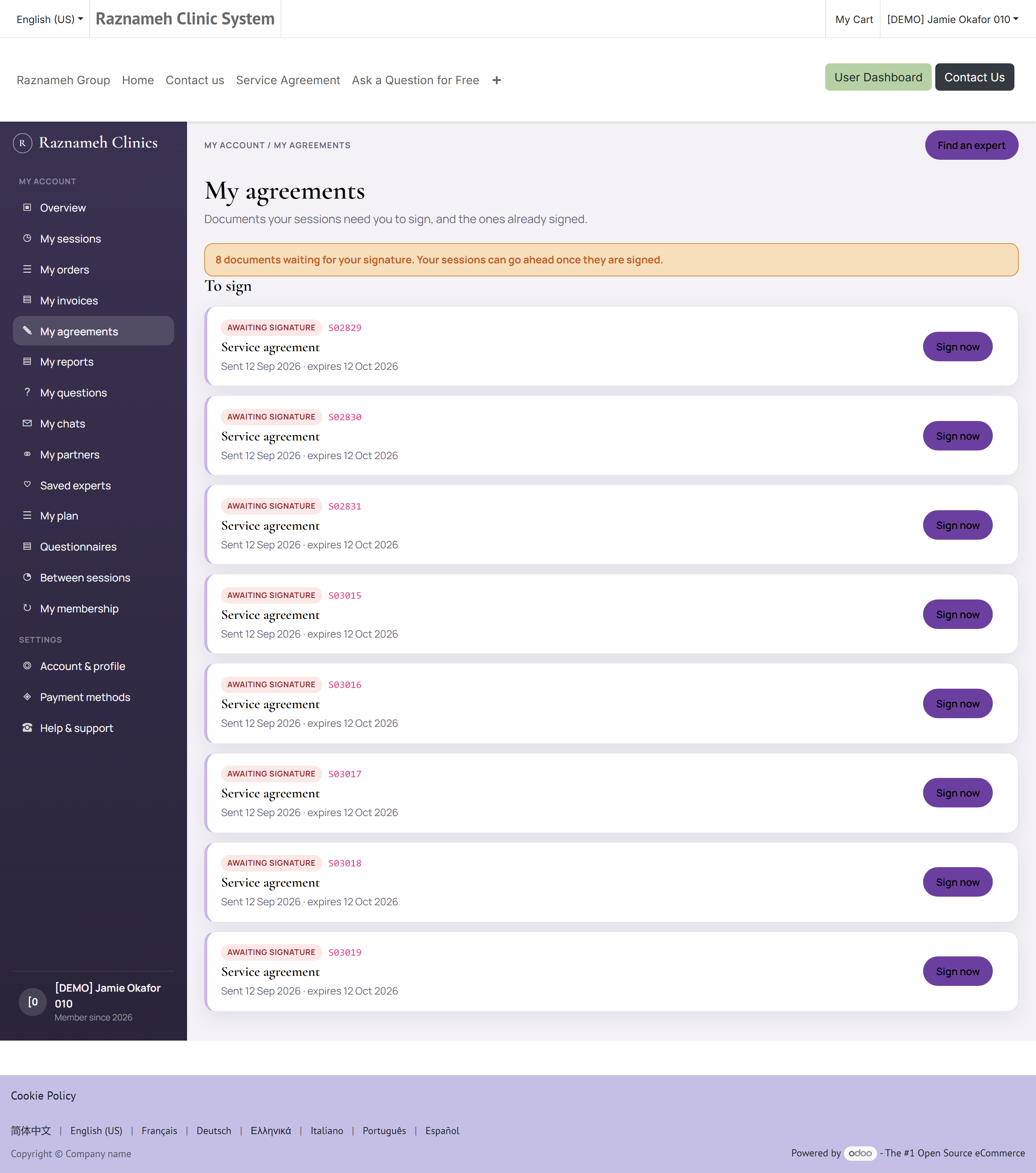
Before you can send the order, you may be shown a service agreement — the terms covering cancellations, expiry and what is included.
- Read it. It is short and it matters — the cancellation terms in §7 come from this document.
- Tick I have read and accept this Package Service Agreement.
- Continue to checkout.
Your acceptance is recorded permanently. You can retrieve the signed agreement afterwards from the session's detail page, so you never have to remember what you agreed to.
All of them in one place. My agreements in the account menu (/my/agreements) lists every service agreement on your orders, with anything waiting for your signature first — nobody should have to scroll to find the one thing that needs doing. Signed ones are underneath, and each opens as a PDF you can download and keep.
4.3 Sending for review and paying#
Checkout collects your billing address. There is no Pay now on this step.
- Check the address and tap Send for review.
- The order is held as a quotation. You will get a notification when it has been reviewed.
- If it is approved, the email contains a payment link and any bank / payment instructions.
- Pay the fee using those instructions, then open the link, upload the payment information (receipt or transfer proof) and send it.
- When staff confirm the payment, the order is paid and your session credits appear as in §4.4.
- If the order or the payment is not approved, you receive a notification with the reason. For a rejected payment you can upload new proof from the same link.
4.4 What you now own#
After payment, you own session credits — or, for a chat consultation service, a budget of expert minutes. Find packages under Profile → Sessions & Bookings → My Bought Services, or on the website at /my/bought-services.
Each credit is one session you can book with that professional. A credit is not tied to a date until you book it, and it is not tied to a particular date after that either — moving it is covered in §7.
A credit also remembers which service it came from. A "60-minute follow-up" credit books a 60-minute follow-up; it does not become an hour of anything else. If you want a different service, buy that service.
Chat consultations are different: you are buying time in the existing conversation, not a slot on the calendar. The shop and the order confirmation show a rate card — how writing, voice and video are counted. After purchase the chat opens with a remaining-minutes bar (§10.1). Buying more time later adds to the same conversation.
4.5 How long a credit lasts#
Credits usually expire. Your business sets the period — twelve months from purchase is the standard setting, and some businesses set it to never expire.
- The expiry date is on the package in My Bought Services.
- Unbooked credits nearing expiry are one of the things your business's administrators actively chase, so you may be contacted about them.
- An expired credit shows the status Expired (§8.4). Ask support before assuming it is gone — businesses commonly reinstate one that expired for a reason outside your control.
The practical advice: book at least the first appointment of a package as soon as you buy it, even if the date is far out. You can always move it (§7.2), and a booked session is one that cannot quietly expire.
4.6 Membership plans#
Some services also offer a membership — a plan that renews every week, month, quarter or year. A plan can include bookable sessions, chat with the plan's experts, offline (chat) consultation minutes, or a mix of those.
You will see it:
- on Memberships — every published plan (picture, name, price, short description). Open a plan to read the full description, see the experts, and Buy this plan
- on the service's shop page, as cards with a picture and a description
- in the shop under Memberships
- on the plan's own product page
Buying a membership is the same checkout as a package (Add to basket / Buy this plan, agreement, send for review, pay). After staff confirm payment, the membership starts. If the plan includes sessions, that period's credits appear under My sessions. If it includes chat or offline consultation, conversations appear under My chats (remaining minutes show on the chat when consultation metering is on). Open /my/memberships for the picture, the description, what is left, and which professionals you may use.
Buying the ordinary service on a tagged service page still buys a one-off package. You start a membership only by buying the plan.
5Booking a time#
5.1 Book from a credit you already own#
- Go to Profile → Sessions & Bookings → Booked meetings.
- Open the To book tab.
- Find the session and tap Schedule.
- The booking page opens.
If your package or membership covers more than one thing, step 4 asks first — which expert on a package, and on a membership which service and with whom. You get their photos and what each of them does, and Book with them opens that expert's own calendar with this session ready to book. The session you spend is the one you already paid for, whichever of them you pick.
You can choose differently for each session in the package — seeing one expert now does not commit the rest of your sessions to them. A package sold for a single expert skips the question entirely and goes straight to their calendar.
5.2 On the booking page#
- Check the timezone shown at the top. Change it if you are travelling — everything on the page updates.
- Pick a date from the calendar.
- Pick a time from the available slots. Only genuinely free times are shown.
- Tap Continue.
- Fill in the booking form. Some businesses ask intake questions here — answer them properly, because the professional reads them before your session.
- Tap Confirm booking.
You will see a confirmation page and receive a confirmation notification and email.
5.3 If there are no free slots#
You have two options:
Join the waitlist
- Tap Join the waitlist on the booking page.
- Choose which days or times would work for you.
- Confirm.
If someone cancels, you are offered the slot automatically. Offers are time-limited, so respond promptly.
Try a different professional — open the Services tab and filter by availability.
5.4 Add it to your own calendar#
On the confirmation page and in the confirmation email, tap Add to calendar. This downloads a calendar file that works with Apple Calendar, Google Calendar, Outlook and others.
5.5 Why a time you wanted is not offered#
The calendar shows only times that pass every test below. When a slot you expected is missing, it is almost always one of these rather than a fault:
| Test | What it means | Typical setting |
|---|---|---|
| Inside the professional's hours | They publish a weekly pattern of working hours | Set by them |
| Not blocked by an exception | Holidays, training days and one-off closures | Set by them |
| Nothing already booked | Someone else has that time | — |
| A room is free, where the business uses rooms | An in-person session needs somewhere to happen | — |
| Enough notice | You cannot book at the last minute | 4 hours ahead, commonly |
| Not too far ahead | The calendar stops at a horizon | 60 days, commonly |
Both of the last two are set by your business and can differ per service, which is why one professional may be bookable tomorrow morning and another not.
If the whole month looks empty, check the timezone at the top of the page before anything else. A timezone set to the other side of the world can push every slot outside the days you are looking at.
6Before, during and after a session#
6.1 Reminders#
You will be reminded automatically before your session. Depending on your settings, reminders come by push notification, in-app message, email and WhatsApp.
To change which reminders you get: Profile → Notifications → notification settings.
6.2 Joining an online session#
- Go to Profile → Booked meetings → Scheduled tab.
- Find your session and tap Join.
The Join button becomes active shortly before the start time. Join a few minutes early the first time so you can check your camera and microphone.
For the best experience: use a stable connection, allow camera and microphone access when prompted, and use headphones to avoid echo.
6.3 Attending in person#
Your confirmation shows the location and, where the business uses room booking, the room. Arrive a few minutes early.
Some businesses ask the professional to confirm you before an on-site session. Where that applies, the session shows one of three states, and you will be notified when it changes:
| State | What it means | What you do |
|---|---|---|
| Waiting for the expert | Booked, not yet confirmed | Nothing yet. You will be told |
| Approved | They will see you at the booked time | Attend. Read the note — it often says something useful about where to go or what to bring |
| Declined | They will not see you at that time | Read the note for the reason, then book another time or another professional (§5) |
A decline is not a cancellation charge. The credit is yours; book it again whenever you like. If a session was declined and the credit did not come back, raise a ticket (§12.1).
This step does not exist for online sessions — the video room admits you — and many businesses do not use it at all.
6.4 After the session#
Two things are worth doing, and both appear as buttons on the session in your list:
- Give feedback — a short private survey. It goes to the business, not onto anyone's profile, and it is what they use to fix a service that is not working.
- Write a review — a public rating and comment on the professional's profile.
6.5 Writing a review, in detail#
Profile → Booked meetings → Completed → open the session → Write a review. The confirmation email you receive after a session also carries a review link, and that link works without signing in — useful if you read your email on a device you are not logged in on.
The form asks for:
| Field | Required? | Notes |
|---|---|---|
| Overall rating | Yes | One to five stars |
| Your words | Yes | A review with no text is rejected — the star alone helps nobody |
| Title | No | A short headline for the review |
| Professionalism | No | Rated separately, one to five |
| Effectiveness | No | Did it achieve what you came for |
| Communication | No | How clearly they explained things |
| Value | No | Worth what you paid |
The four category ratings are what produce the category ratings shown on a professional's profile (§3.2). Filling them in takes a few seconds and makes the profile far more useful to the next person than a bare star count does.
Rules that apply:
| Rule | Why |
|---|---|
| Only after the session has ended | You are reviewing what happened, not what you hope will |
| One review per session | A five-session package gives you five reviews, not five edits of one |
| It is not published immediately | Every review is held for moderation before it appears |
| It cannot be left for a cancelled session | There is nothing to review |
On moderation: holding reviews back is not a way of hiding bad ones. It exists because the review link goes out by email, and an emailed link that puts arbitrary text straight onto somebody's public profile is an obvious thing to abuse. A genuine critical review gets published; the professional may reply to it publicly, and that reply appears underneath yours.
6.6 My plan — episodes, goals, and programmes#
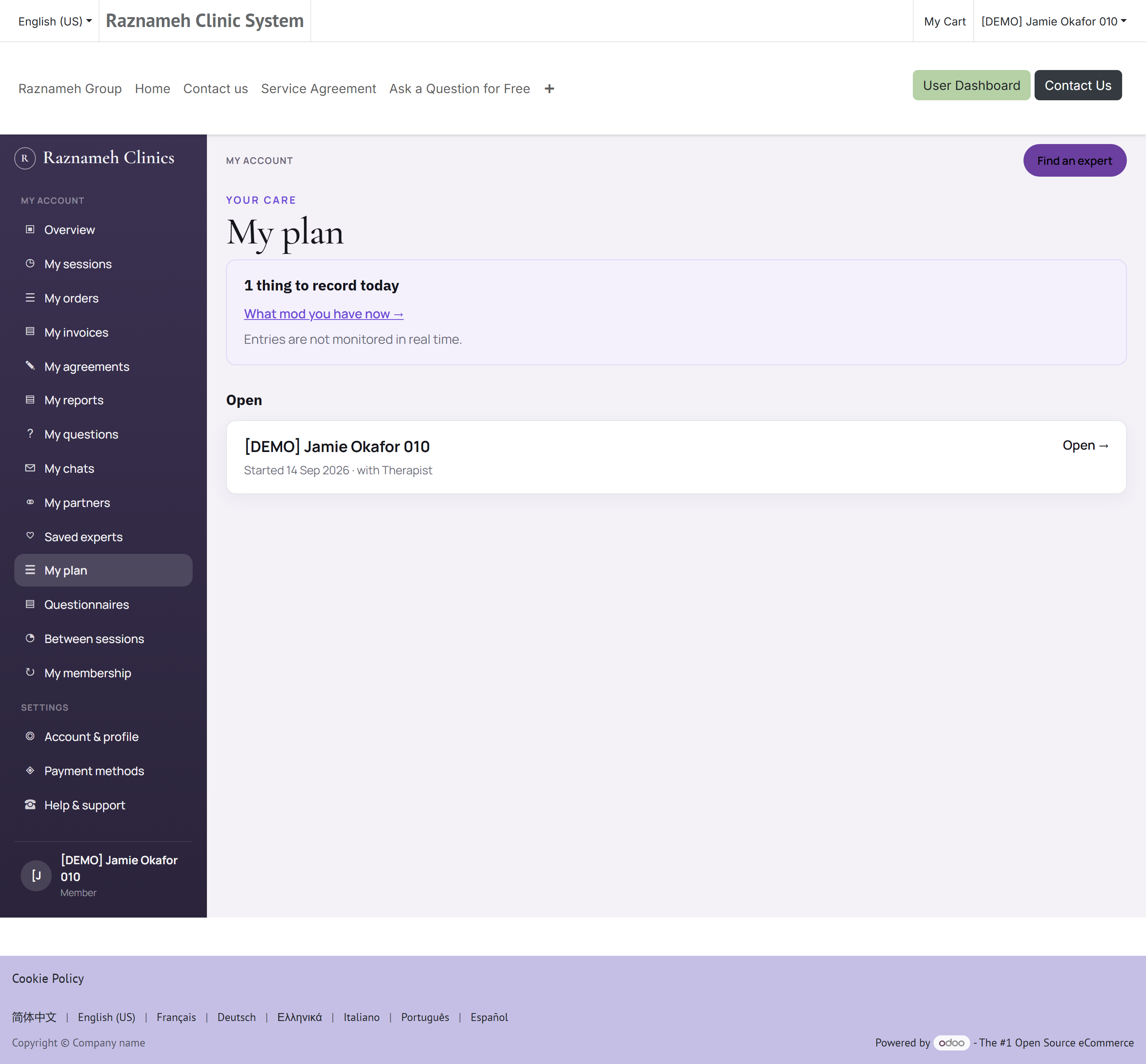
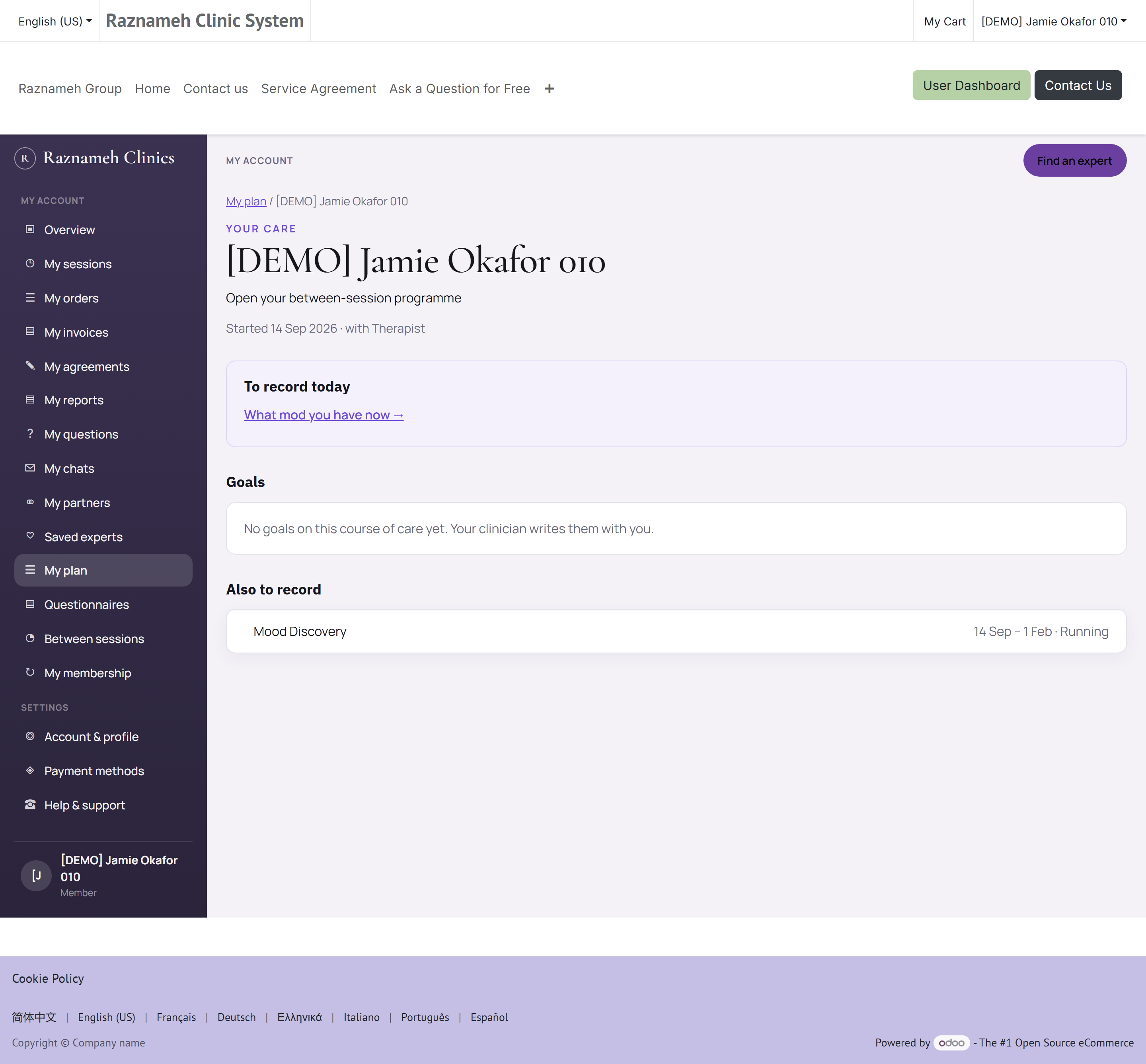
My plan is the page for your episode of care. Open My plan in the account menu, or /my/plans.
- Today at the top lists anything you still need to record. Each title opens the form.
- Open episodes show when they started, the goals on them, and the programmes under each goal. Click the episode's name, or Open →, for the course of care on its own page: the same goals, what is due on it today, and anything to record that is not attached to a goal. Click a goal to open the goal itself, and a programme to open what you record in it. Finished episodes show the start and finish dates, and open the same way.
- On a goal: To record opens the form for what is still due; What you recorded is your own entries. I'm finding this hard tells your clinician — they will see it. The clinician's own result note is not shown here.
- The record form is one item: a slider or number for a scale, an optional note, then Save. It is not a live crisis line: entries are read by your care team, not watched in real time. If you are in crisis, contact emergency services.
- Journals and uploads may be encrypted — only you, your clinician, and clinic administrators can open them.
- A daily reminder may arrive while something is still due.
Your clinician sends you a programme against one of your goals, picking one that already exists in the clinic library and setting the start and end dates. A questionnaire is one of these programmes, not a separate thing to keep track of.
Two things this page will never do. It does not count you, rate you or score you: something not recorded reads as not recorded, and that is all it says. And nobody is watching it as you type — your care team reads entries when they open them, which is why every page that carries them says so.
6.7 Questionnaires your clinician asks for#
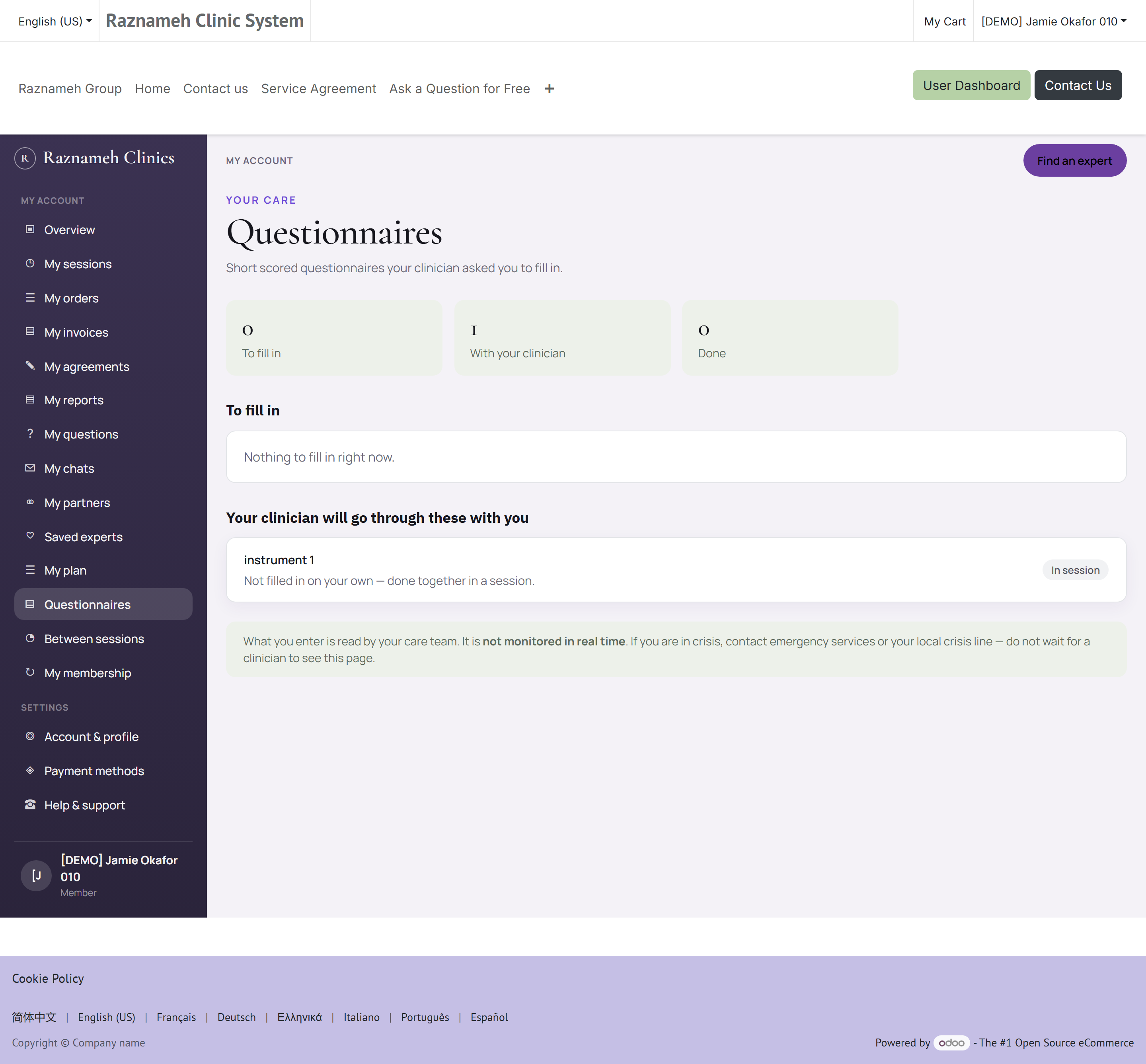
Questionnaires in the account menu, or /my/instruments.
The page is in three parts:
- To fill in — what has been asked of you, with the date it was asked. The title opens it.
- Your clinician will go through these with you — asked, but not meant to be filled in on your own. There is nothing for you to do with these; they are listed so you know they exist.
- Already done — what you have completed.
What the form asks for. You work the questionnaire out yourself and enter your total, with the range shown underneath. The form is not the questionnaire — it is where the total is recorded, so the paper or the app you filled in stays the source.
Whether you see a result is your clinic's choice. Where they show it, you get the band the total falls in rather than a bare number, with a line saying your clinician will explain what it means. Where they do not, the page says how many you have completed and leaves the discussion to the session. Neither version is a diagnosis, and neither is meant to be read alone.
My scores (/my/scores) is the same results over time, where your clinic shows them. Gaps are shown as gaps — a month you did not fill anything in is blank, never joined up into a line that suggests something was measured.
6.8 Between sessions#
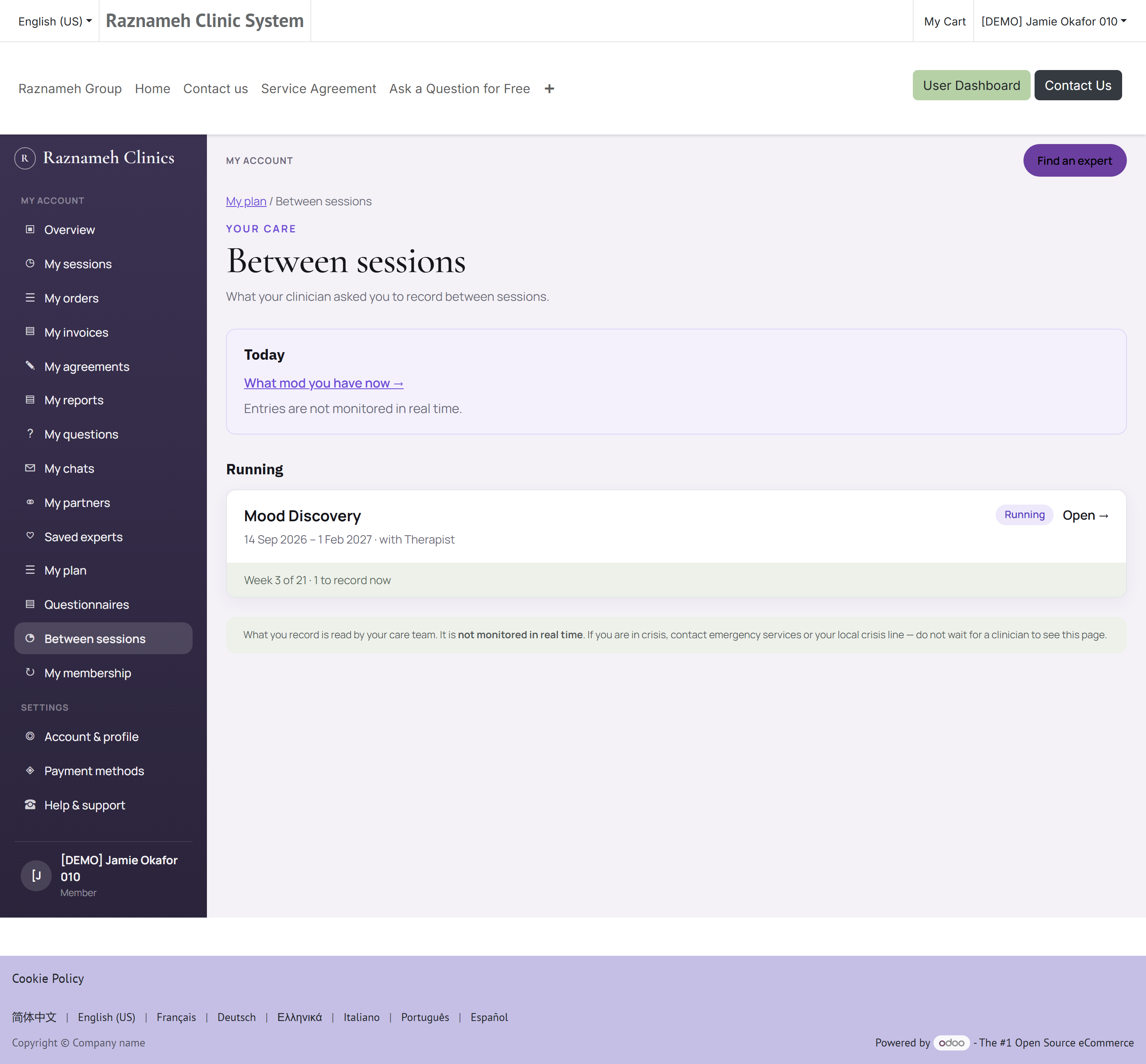
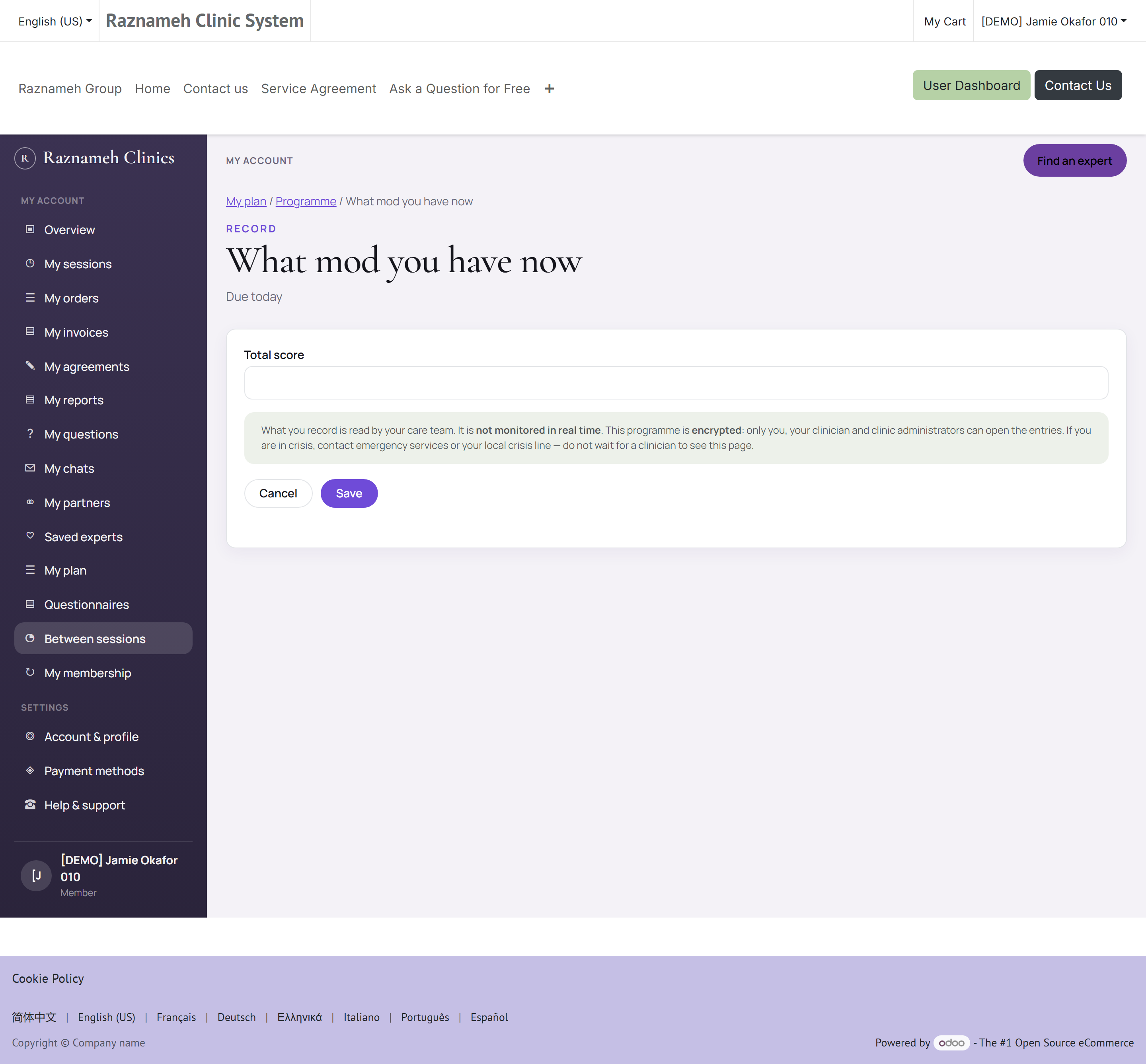
Between sessions in the account menu, or /my/monitoring.
This is the same recording as My plan (§6.6), reached the other way round: by programme rather than by goal. Use whichever suits you — there is one record underneath both.
- The top band is what is due today. Each title opens the form.
- Each programme shows what it is, the window it runs for, and what you have recorded in it.
- I'm finding this hard is on the programme as well as on the goal. It tells your clinician; it does not send an alert to anyone on call.
The two things §6.6 says about My plan hold here word for word: nothing on this page counts, rates or scores you, and nobody is watching it as you type. Entries are read by your care team when they open them. If you are in crisis, contact emergency services or your local crisis line — do not wait for a clinician to see the page.
7Changing or cancelling a booking#
7.1 Understand the policy first#
The business publishes a cancellation policy: a ladder of tiers based on how much notice you give. The more notice, the less it costs. Your exact ladder is in the service agreement you accepted at checkout (§4.2), and it is shown again before you confirm anything.
A widely used ladder looks like this:
| Notice you give | Charge |
|---|---|
| 24 hours or more | Nothing |
| 12 to 24 hours | 25% |
| 6 to 12 hours | 50% |
| 3 to 6 hours | 75% |
| Under 3 hours | 100% |
| Did not attend, no cancellation | 100% |
flowchart LR
  A["24h+ before<br/>free"] --> B["12–24h<br/>25%"] --> C["6–12h<br/>50%"] --> D["3–6h<br/>75%"] --> E["Under 3h<br/>100%"] --> F["Session time"]
Your business's numbers may differ — the shape does not. Check yours once, when you buy, rather than when you need it.
The app always shows you the fee before you confirm anything. You will never be charged a cancellation fee you were not shown first, and the figure you are shown is calculated from the time you are looking at the screen, not from when you first opened it.
If a session already carries a charge, the list shows a Fee applies badge on it.
The fee is a charge, not a lost session. They are separate: §7.4 covers what happens to the credit, which in most tiers comes back to you.
7.2 Reschedule#
- Go to Profile → Booked meetings → Scheduled.
- Find the session and tap Reschedule / cancel.
- Choose Reschedule.
- Pick a new date and time from the available slots.
- Confirm.
Rescheduling inside the free window usually costs nothing. Two limits apply, and both are set by your business:
| Limit | Typical setting | What it means |
|---|---|---|
| Free reschedules per credit | 1 | How many times one session may be moved for free |
| Free rescheduling until | 24 hours before | The notice you must give for a move to be free |
Below that notice, a session is not moved at all. This surprises people, so it is worth stating plainly: a late "reschedule" is handled as a cancellation — the cancellation fee for the notice you gave is invoiced, and your credit becomes bookable again once that invoice is paid. The app tells you this before you confirm, and the session's status becomes Penalty due in the meantime (§8.4).
So if you are inside the late window and want a different time, you are choosing between paying the fee and keeping the appointment you have. Moving it for free is no longer one of the options.
7.3 Cancel#
- Go to Profile → Booked meetings → Scheduled.
- Find the session and tap Reschedule / cancel.
- Choose Cancel.
- Read the summary. It shows any fee, and whether the session credit returns to your account.
- Confirm.
7.4 What happens to your credit#
| Situation | Result |
|---|---|
| Cancelled inside the free window | The credit returns to To book. Book it again whenever you like |
| Cancelled with a fee | The fee is invoiced. The credit usually returns and becomes bookable once that invoice is paid |
| Late reschedule | The same as above — the move is handled as a cancel-and-rebook (§7.2) |
| Did not attend without cancelling | Treated as the latest tier of the policy. The credit may be consumed |
| The professional cancelled | The credit returns in full, immediately, and no fee is charged to you |
| The credit expired before you booked it | Status Expired. Ask support (§12) — this is routinely reinstated |
When the professional is the one who does not turn up, you get your credit back in full, and some businesses add compensation on top — a credit note or an extra session. The credit itself is always returned free of charge, whatever else your business chooses to do. If a professional failed to attend and your record does not reflect that, raise a ticket with the date and time (§12.1); the attendance record is what support checks.
7.5 Reviewing your cancellation history#
Go to Profile → Sessions & Bookings → Cancellation history.
This shows every cancellation and reschedule on your account, including who did it. If you ever disagree with a charge, this is the page to open first, and it is the same record support sees.
8Keeping track of what you bought#
8.1 The sessions screen#

Profile → Sessions & Bookings → Booked meetings, or /my/meetings on the website.
At the top are four totals:
| Total | Meaning |
|---|---|
| Sessions | Everything you have bought |
| To book | Paid for, no time chosen yet — your action list |
| Scheduled | Booked and coming up |
| Completed | Already held |
Below them, four tabs filter the list the same way. Each session shows the professional, the service, the date and time if booked, and its current status.
8.2 Your purchased packages#
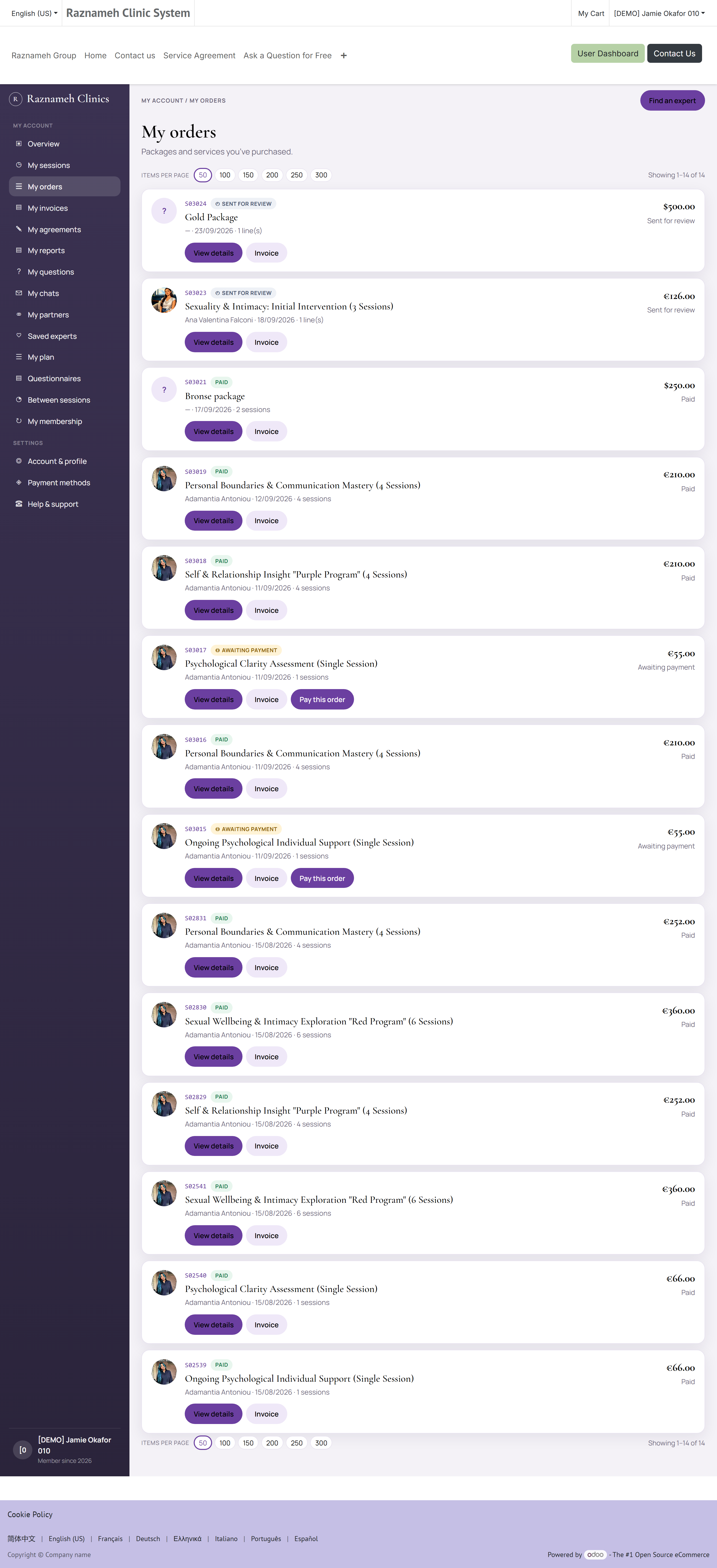
Profile → My Bought Services, or /my/bought-services.
Each package shows what you bought, how many sessions it included, how many remain, and the order it came from. Use this when you want to check what is left before buying more.
8.3 Credits#
Some apps show a separate Credits screen with your remaining session balance per professional. It is the same information as To book, presented as a balance.
8.4 Every status a session can have#
The tabs group sessions into four buckets. Underneath, each session carries a more precise status, and it is the one support will quote at you, so it is worth being able to read:
| Status | What it means | What you do |
|---|---|---|
| Available — shown as To book | Paid for, no time chosen | Book a time (§5.1) |
| Booked — shown as Scheduled | It has a date and time | Turn up, or move it (§7.2) |
| Consumed — shown as Completed | It was held | Review it (§6.5) |
| Cancelled | Called off by you or by the professional | Check §7.4 for where the credit went |
| Penalty due | A late cancellation or late reschedule has been invoiced and not yet paid | Pay the invoice; the credit then becomes bookable again |
| Expired | The credit's validity ran out before it was booked | Ask support (§12) |
| Draft | The order has not completed — usually a payment still processing | Wait, then refresh. If it stays, see §14 |
Penalty due and Expired are the two that stop a credit being booked. Both are recoverable: one by paying the invoice, one by asking. Neither means the session has been taken away from you.
8.5 Your booking link#
Every credit you own has its own booking link, and the Book a time button simply opens it. That link belongs to that one session — it is not a general "book anything" page. Two things follow:
- Do not share it. Whoever opens it can book your session.
- It stops working once used. If you have booked and the link now looks dead, that is it working correctly. Manage the booking from Booked meetings instead.
8.6 Your membership#
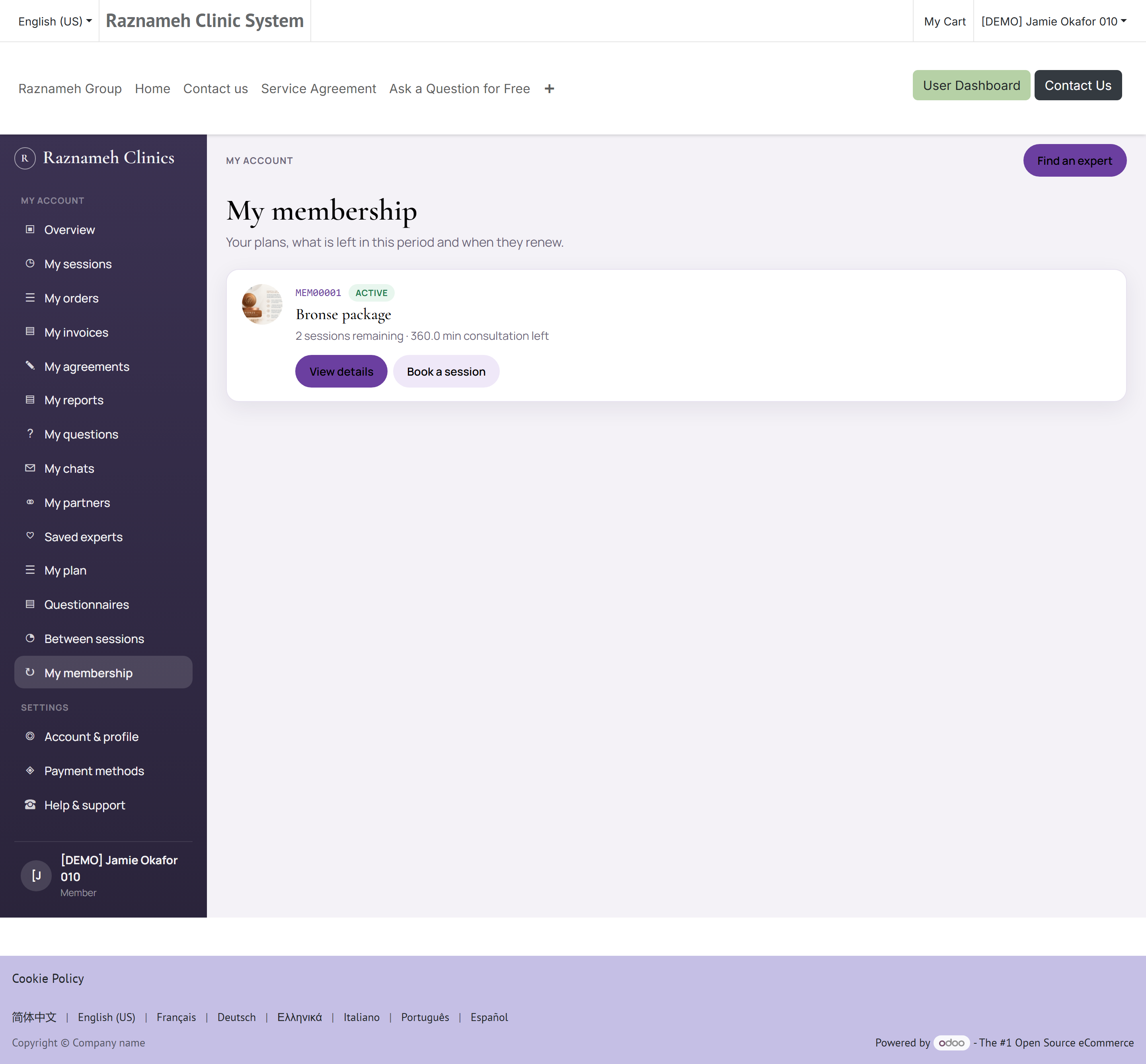
/my/memberships lists each plan you are on, with its picture, remaining sessions (when the plan includes booking), remaining consultation minutes (when it includes offline consultation), and when it renews. Open one plan for the HTML description and the professionals on it — Book a session goes to My sessions; Chat goes to My chats.
Public catalogue: /memberships (also /shop/memberships).
A membership is not the same list as My Bought Services (one-off packages). Bookable credits still show under My sessions.
What your membership covers is on the plan's own page: the services included, and who delivers each one. Some services are members only — your clinic offers them as part of a membership rather than selling them on their own. You will have seen them on the expert's page with a Members only note where the Book button usually is; once you are a member they are yours to book.
When you schedule a session, your sessions list asks which of them you want and with whom (§5.1), then opens that expert's calendar. The session you spend is the one your membership already paid for, whichever you pick.
9Payments and invoices#
9.1 Saved payment methods#
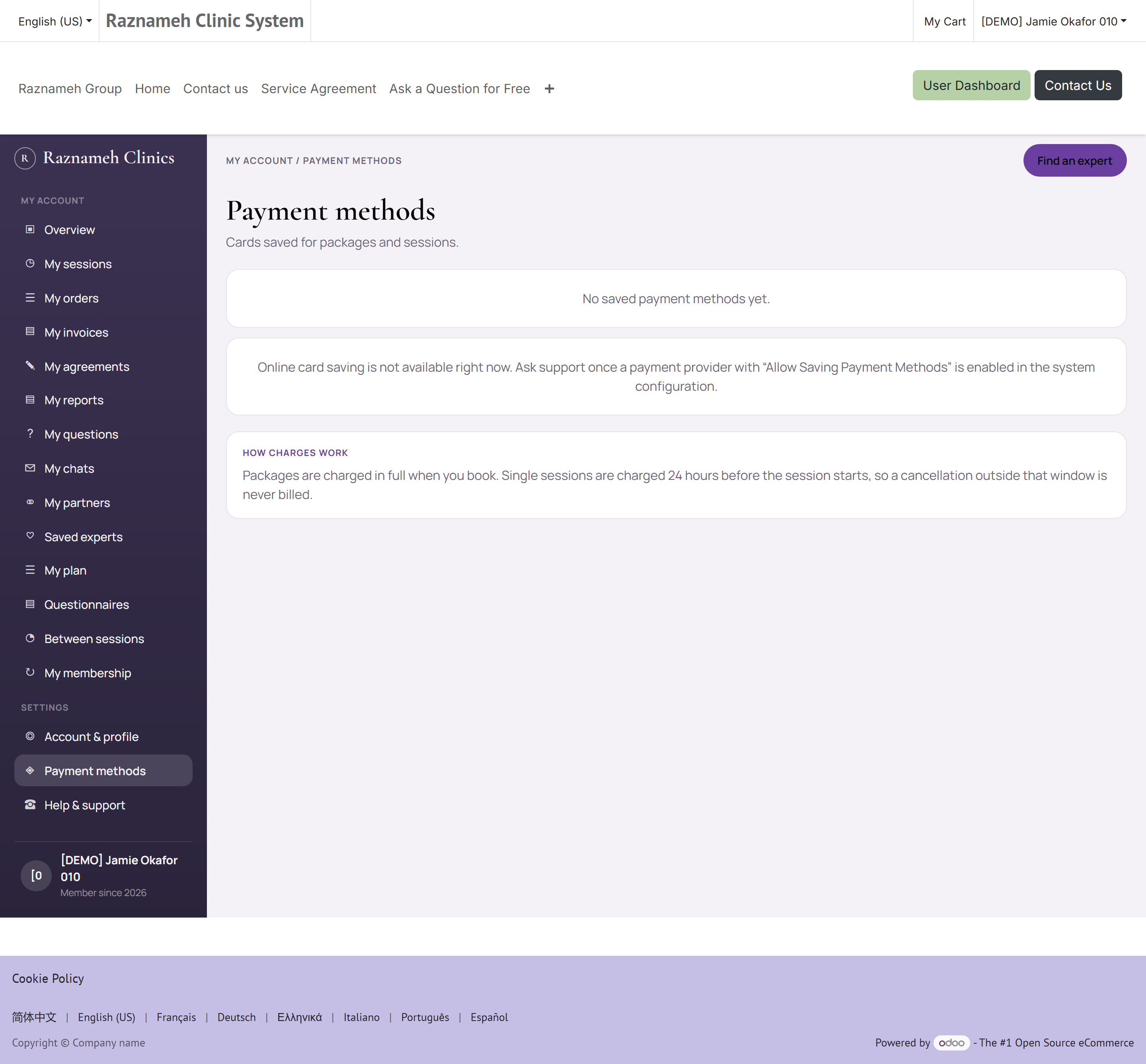
Profile → Billing, or /my/payment-methods.
- Add a card — tap Add payment method and follow the prompts.
- Set a default — tap the card and choose Set as default.
- Remove a card — tap the card and choose Delete.
Only a secure token is kept. Your full card number is never stored by the business.
9.2 Your billing address#
Profile → Billing → Billing address.
This address appears on your invoices. Update it before your next purchase if it has changed — an issued invoice cannot be edited afterwards.
9.3 Invoices#
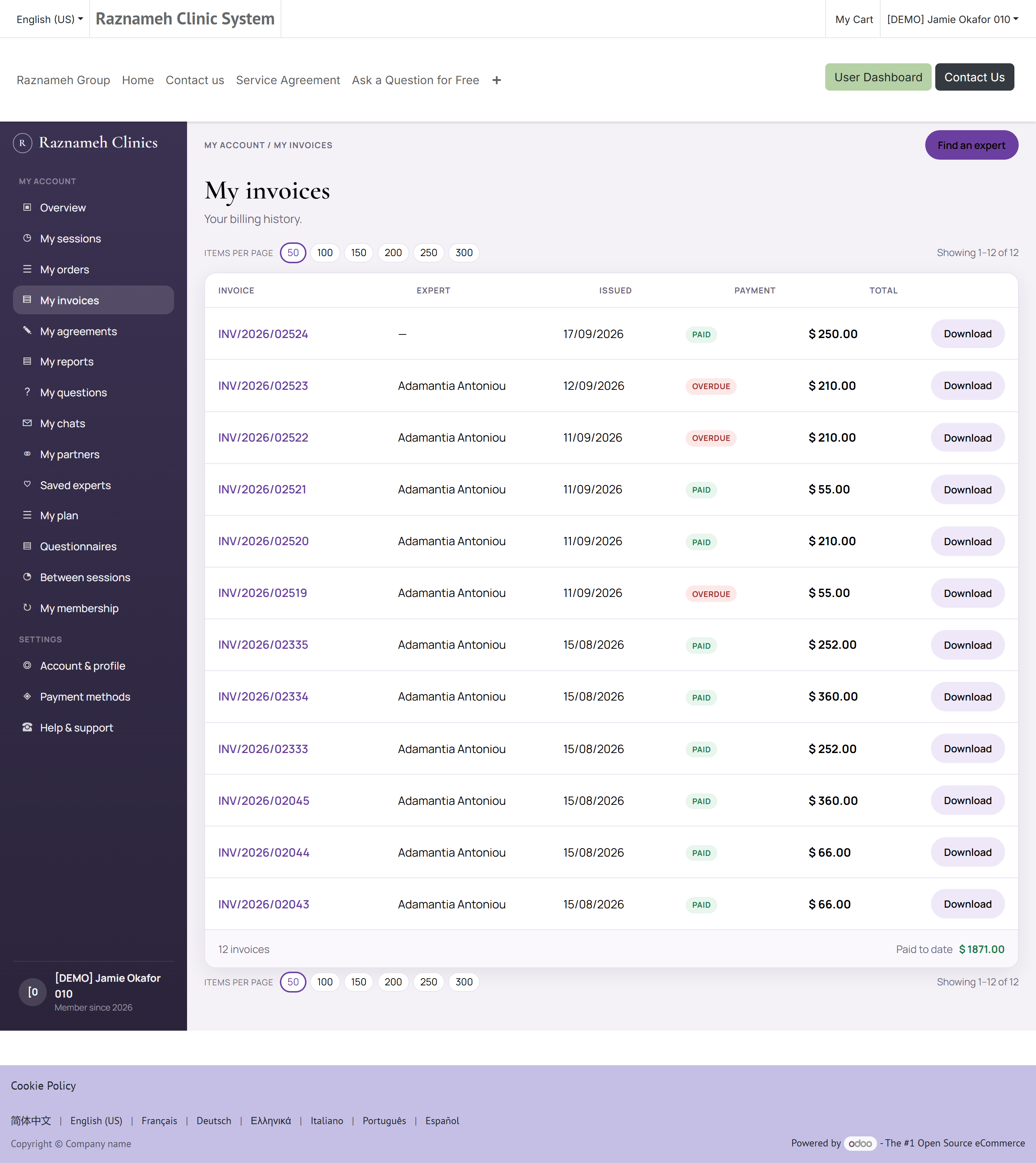
Profile → Billing → Invoices, or /my/account/invoices.
Each invoice shows the number, date, amount, and payment status. Tap one to see the detail and download it as a PDF for your records or your employer.
9.4 If a payment fails#
- Check the card has not expired and has available funds.
- Try a different payment method.
- If it still fails, raise a support ticket (§12) — include the date and amount, but never send your full card number to support.
Nothing is charged twice if you retry. The Platform protects against duplicate charges from a dropped connection.
9.5 Your orders#
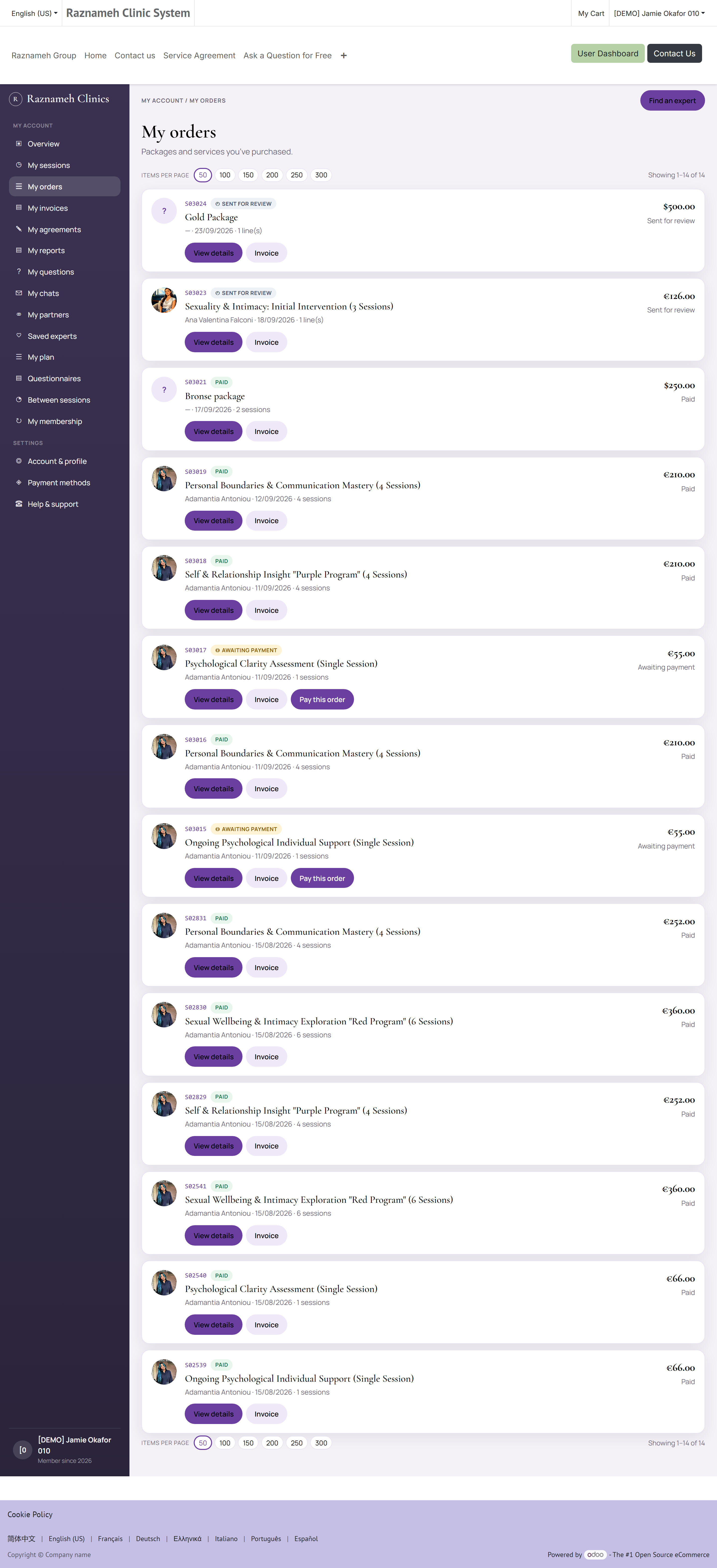
My orders, or /my/account/orders on the website.
An order is a purchase. An invoice is the demand for payment arising from it. They are usually one-to-one, but not always — a package paid in instalments produces one order and several invoices.
Use the orders page when you want to answer "what did I actually buy, and when?" — it shows each order's date, its lines, the professional and service on each line, how many sessions the line bought, and the total. Use invoices (§9.3) when you need a document for your records, your employer or your accountant.
The chain, end to end, is short:
flowchart LR
  A["Order"] --> B["Session credits"]
  A --> C["Invoice"]
  C --> D["Payment"]
  B --> E["Bookings"]
If a session you paid for is missing, this is the page to check first: find the order, confirm the line, and count the sessions on it. That count is the number of credits you should have in My Bought Services (§8.2).
Where an order is waiting on you, the page says so rather than leaving it to look like any other order. An order approved and not yet paid is marked Awaiting payment, and your dashboard carries a card counting how many invoices are still to pay. If a payment you sent was not accepted, the reason is on this page — where the person who has to act on it will actually read it — and you can send new proof from the same link (§4.3).
10Messages, questions and notifications#
10.1 Chat with your professional#
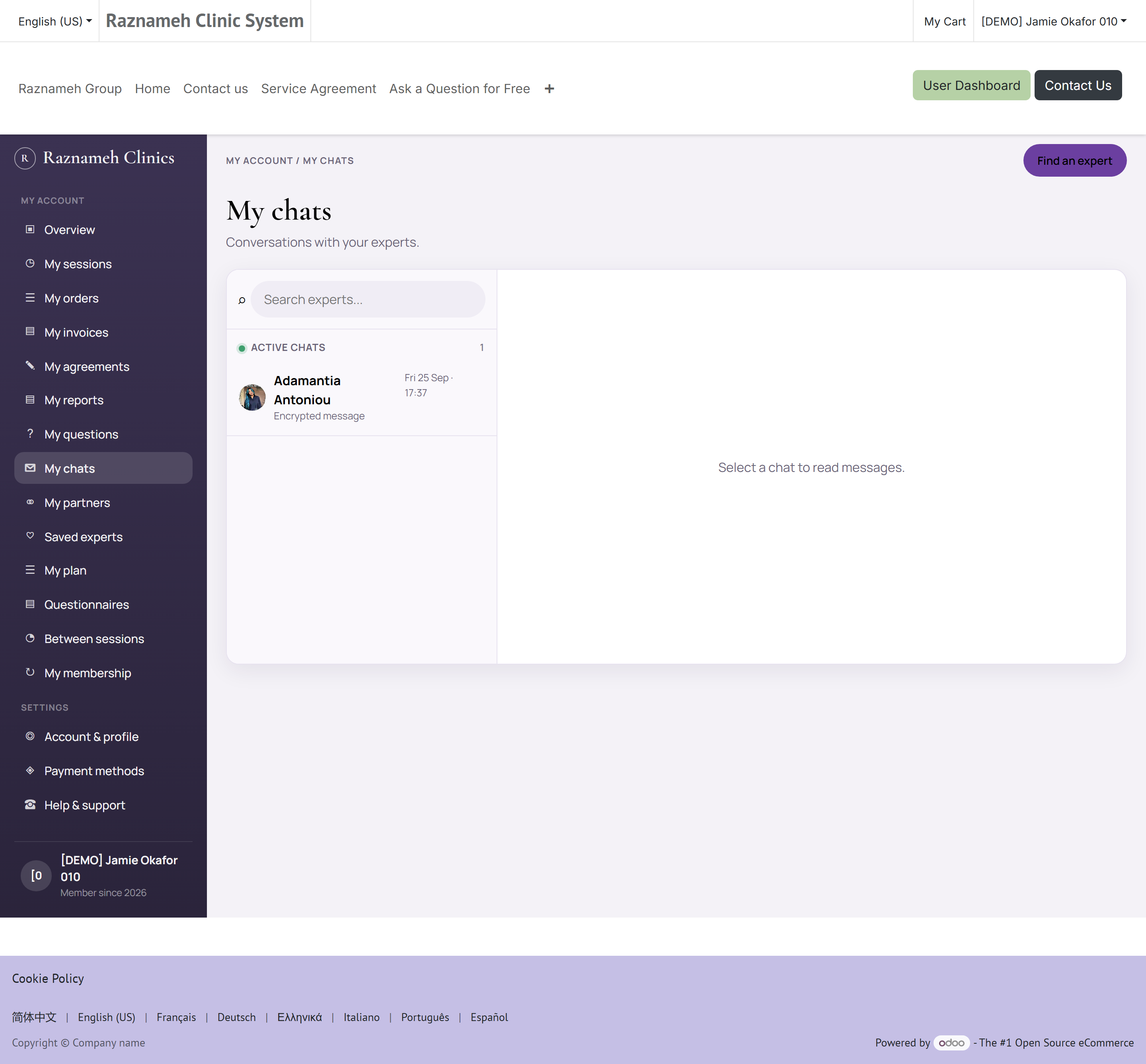
Profile → Messages & Questions → Chats with Experts, or /my/chats.
- Tap a conversation to open it.
- Type in the box at the bottom and tap send.
- Active conversations are at the top; past ones are below.
- On the website you can send a voice note or attach a file or short clip. Clip length is measured from the file, not from what the recorder claimed.
Some businesses only open the chat around the time of a booked session. If you cannot send a message, that is usually why.
Paid consultations. When you bought a chat-consultation product, the conversation shows remaining minutes and a bar. Open How time is counted for the rates that apply to this chat. View statement (/my/chats/<number>/statement) lists every charge. When the bar reaches zero the history stays visible; tap Buy more time to add minutes to the same chat. A bought consultation does not expire unless the service itself set a validity window.
Messages in an encrypted consultation can be read only by you and the assigned professional.
10.2 Voice and video calls#
Where the business enables it, a chat has a call button. Allow microphone and camera access when prompted. Calls run inside the app — nothing to install.
10.3 Group chats#
If you belong to a group — a shared programme, or a partner group you were invited to — find it under Partner chats. You can message the whole group or an individual member.
10.4 Questions you have asked#
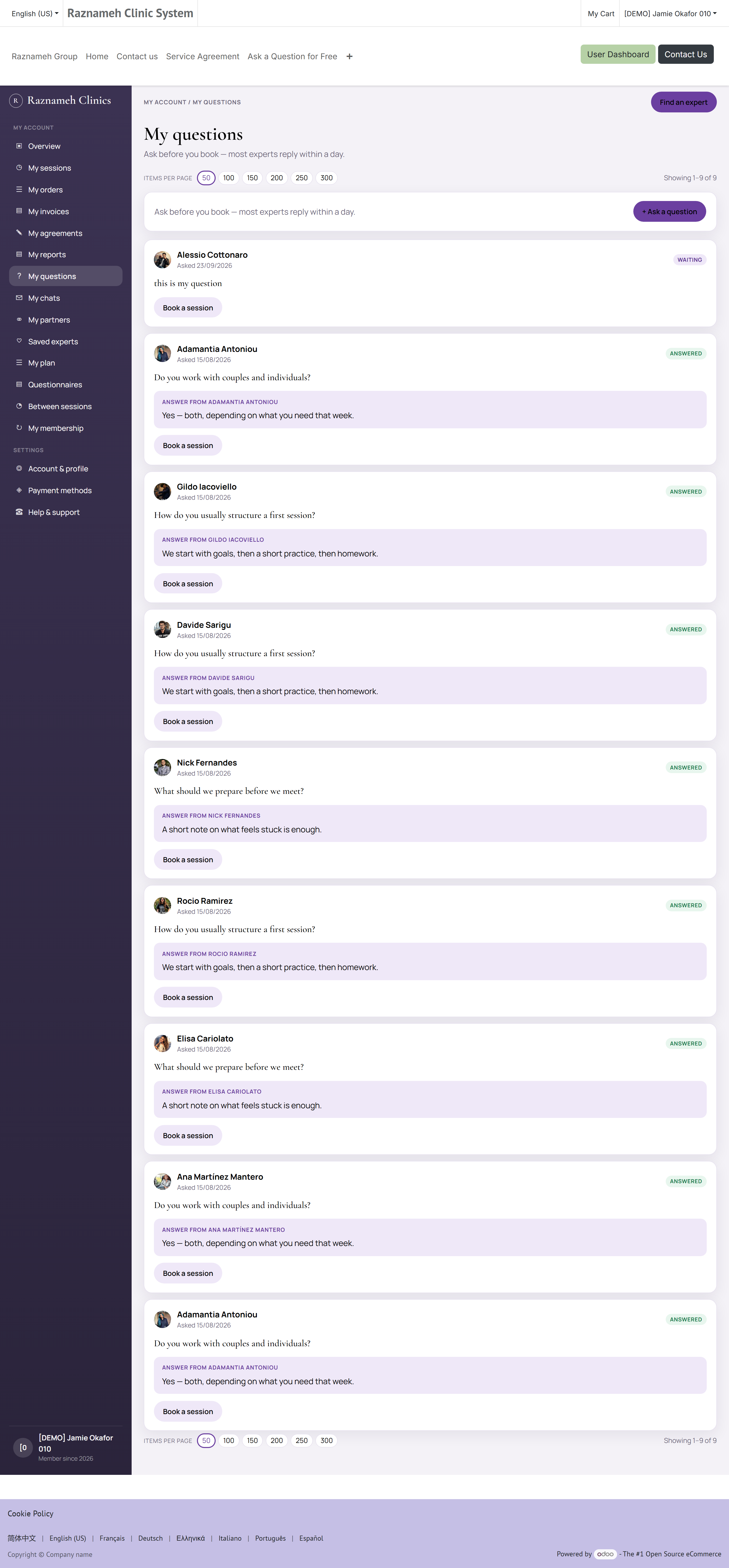
Profile → My Questions, or /my/questions.
Shows every question you asked and any replies. You are notified when a professional answers.
10.5 Notifications#
Profile → Notifications.
Your inbox holds every alert: booking confirmations, reminders, replies, and account updates.
To change what you receive and how:
- Open Notifications.
- Tap the settings icon.
- Switch categories on or off, and choose the channels — push, email, in-app, WhatsApp.
Some notifications cannot be switched off. Security alerts, payment confirmations and booking changes are sent regardless, because you need them.
11Content and community#
11.1 The feed#
The Home tab shows articles and videos chosen for you. Tap any item to read it. Inside, you can like it, comment, share it, or save it to My Content.
11.2 Authors#
Tap an author's name to see everything they have published and follow them. Following puts their new material higher in your feed.
11.3 The question feed#
Browse questions other people have asked professionals, and the answers. Search it before asking your own — it is often already answered.
12Getting help#
12.1 Raise a support ticket#
- Go to Profile → Trust & Support → Support tickets, or /my/help.
- Tap New ticket.
- Choose a subject that matches your problem.
- Describe what happened, including dates, amounts and the name of the professional if relevant.
- Attach a screenshot if it helps.
- Tap Submit.
12.2 Track it#
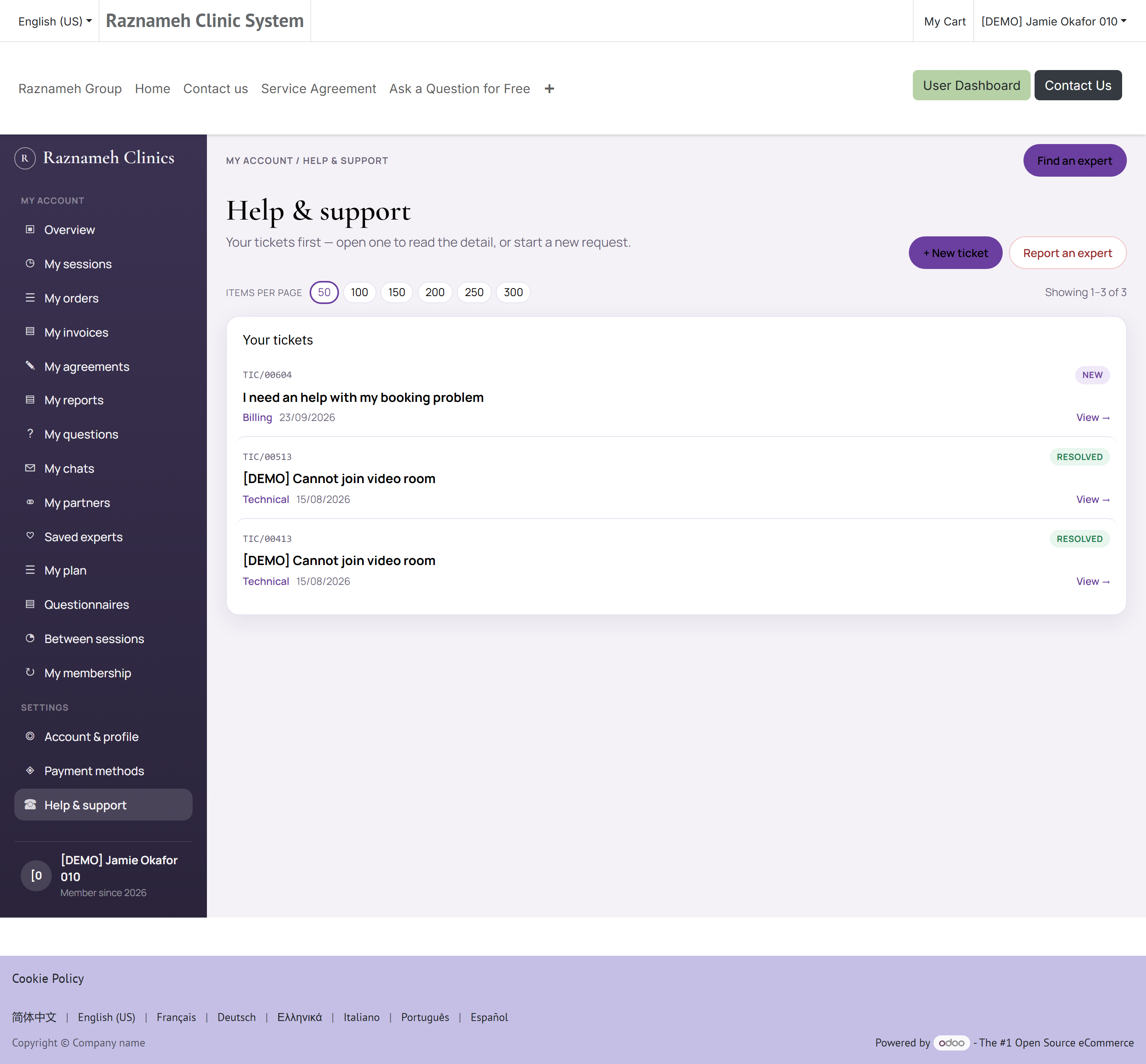
Open Support tickets to see all your tickets and their stage. Tap one to read replies and respond. You are notified when support replies.
12.3 Reporting a problem with a professional#
If your concern is about a professional's conduct rather than a technical fault, use Report on their profile, or choose the reporting subject when raising a ticket. These go to a different team and are handled confidentially.
13Your account, privacy and security#
13.1 Your account and profile page#
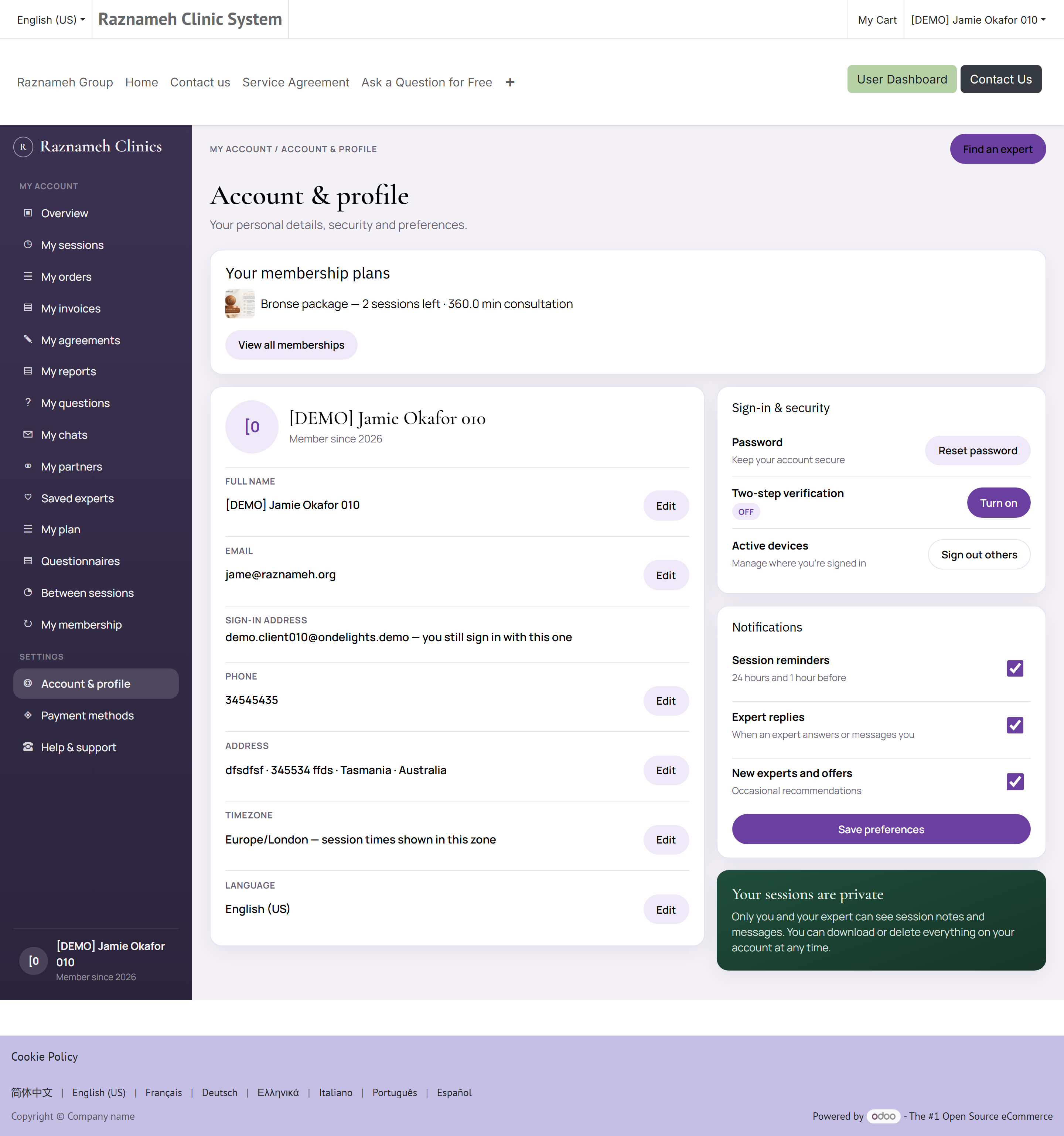
Profile → Settings → Edit profile in the app, or Account & profile — /my/account/profile — on the website.
Your client code — something like C-001253 — is on your dashboard, under the greeting. Read it out when you ring the clinic: it identifies you without anybody having to say your name in a room with other people in it. It never changes, and it is not a password — it identifies your record, it does not open it.
The page shows what the business holds about you and lets you change most of it:
| On the page | What it is | Editable |
|---|---|---|
| Name | How you appear to professionals you book | Yes, via Edit details |
| Where confirmations, reminders and invoices are sent | Yes, via Edit details | |
| Phone | Used for reminders where your business sends them | Yes, via Edit details |
| Address | Your billing address — it appears on invoices (§9.2) | Yes, via Edit details |
| Timezone | Every time shown to you is converted into this | Yes |
| Language | The language of the site, the app and your emails | Yes |
| Member since | The date your account was created | No |
Edit details opens the full form. Change what you need and Save, or Discard to leave it as it was.
13.2 Choosing which messages you get#
The same page carries three switches. They control the messages the Platform sends you on its own initiative:
| Switch | Turns on and off |
|---|---|
| Session reminders | The reminders before a booked session |
| Replies from professionals | Alerts when a professional answers a chat message or a question |
| Offers and news | Marketing — promotions, new services, announcements |
Change them and press Save; the page confirms with a saved message.
Some messages ignore these switches, on purpose. Booking confirmations, cancellation and fee notices, payment receipts and security alerts are sent regardless. They are not marketing — they are the record of something that happened to your money or your account, and you need them. Nothing in the Platform lets anyone switch those off for you either.
Reminders are usually sent twice — a day before, and an hour before — though your business sets the exact lead times, and may send up to four. Which channel they arrive on (push, email, in-app, WhatsApp) is set in Notifications (§10.5).
13.3 Change your password#
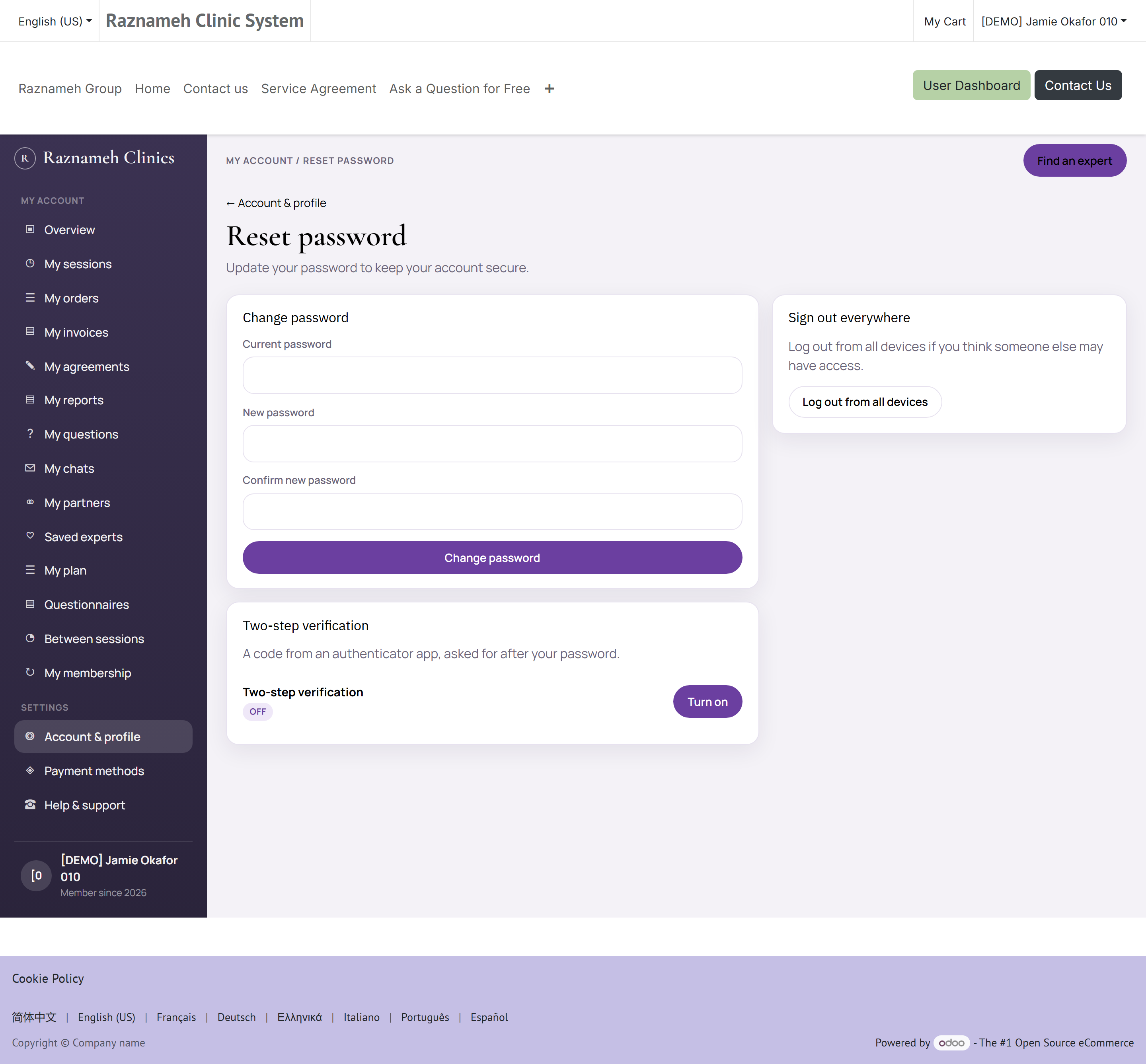
Profile → Settings → Security, or /my/security.
Enter your current password, then the new one twice. You stay signed in on this device; other devices may be signed out.
13.4 Lock the app on your device#
Profile → Settings → Security settings.
Switch on App lock and choose fingerprint or face unlock, a PIN, or a pattern. The app then locks after a period of inactivity or when you switch away from it.
This is worth doing if anyone else ever uses your phone.
13.5 Privacy controls#
Profile → Settings → Privacy settings.
| Control | What it does |
|---|---|
| Profile visibility | Who can see your profile |
| Marketing preferences | Whether you receive promotional messages |
| Data request | Ask for a copy of your data |
| Erasure request | Ask for your data to be deleted |
An erasure request is a formal request the business must act on within the legal deadline in your country. You will receive confirmation when it is complete.
13.6 Records held about you#
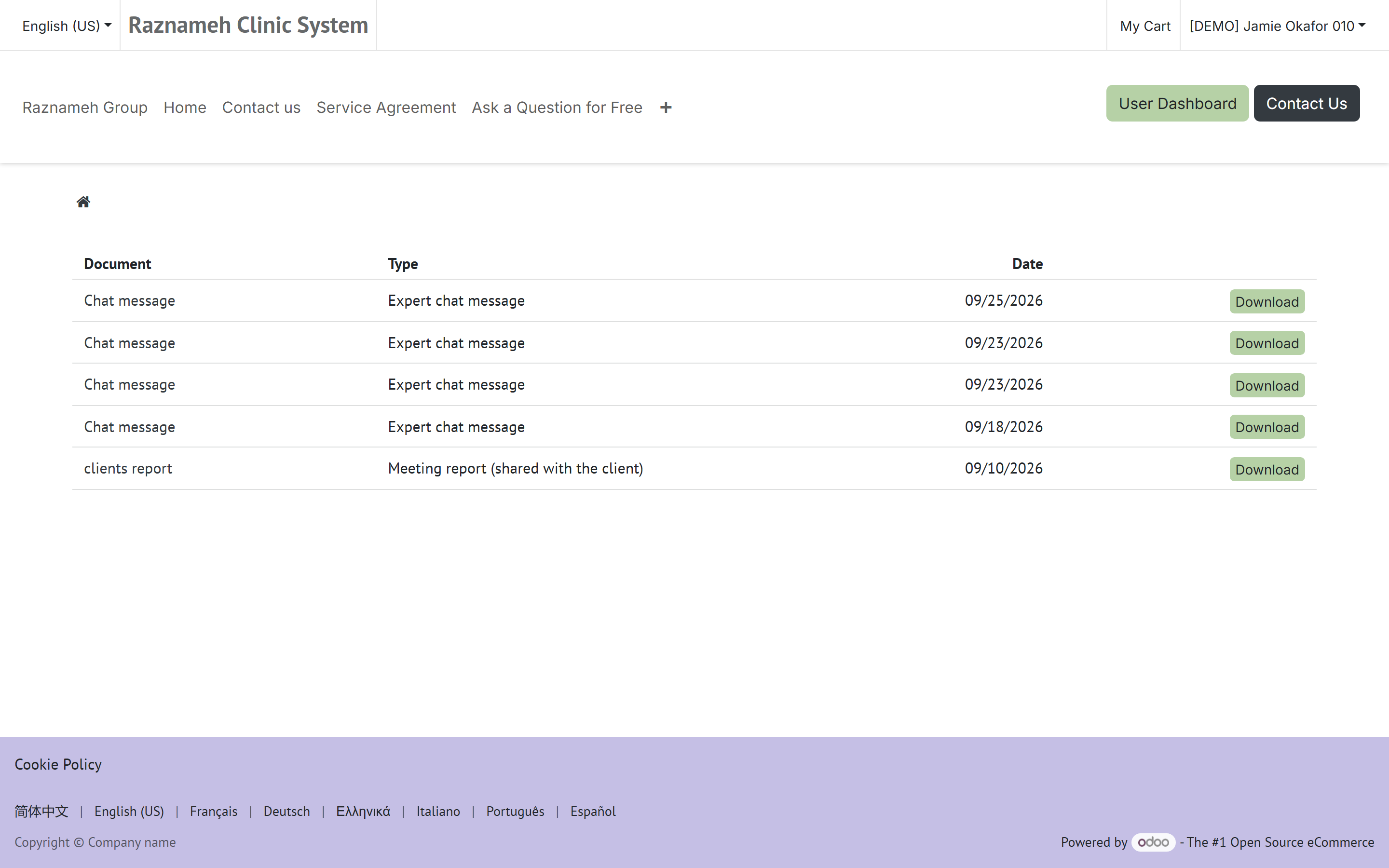
/my/documents on the website.
Where your business uses the Platform's secure records — clinics and practices usually do — this page lists the documents held about you that they have chosen to make visible to you. Tap one to read it, or download it.
What you will and will not see:
| You see | You do not see |
|---|---|
| Documents where the business explicitly published it to you | Anything not explicitly published to you |
| Documents about you as the subject | Documents about anyone else, ever |
| Documents still held | Anything already destroyed under the retention policy |
A professional's session notes are not automatically here. They are written for the professional and for clinical continuity, and a business decides deliberately, per document type, whether the client sees them. An empty page usually means your business publishes nothing to clients — not that nothing exists.
Two things about this page are worth knowing:
- Every view and download is logged, with who, what and when. That log protects you: it is the evidence if you ever ask who has looked at your record.
- There is a rate limit — around 60 documents in five minutes. You will never meet it reading your own records; it exists to stop automated harvesting.
If you want a copy of everything held about you, including what is not published here, that is a data request (§13.5) rather than this page.
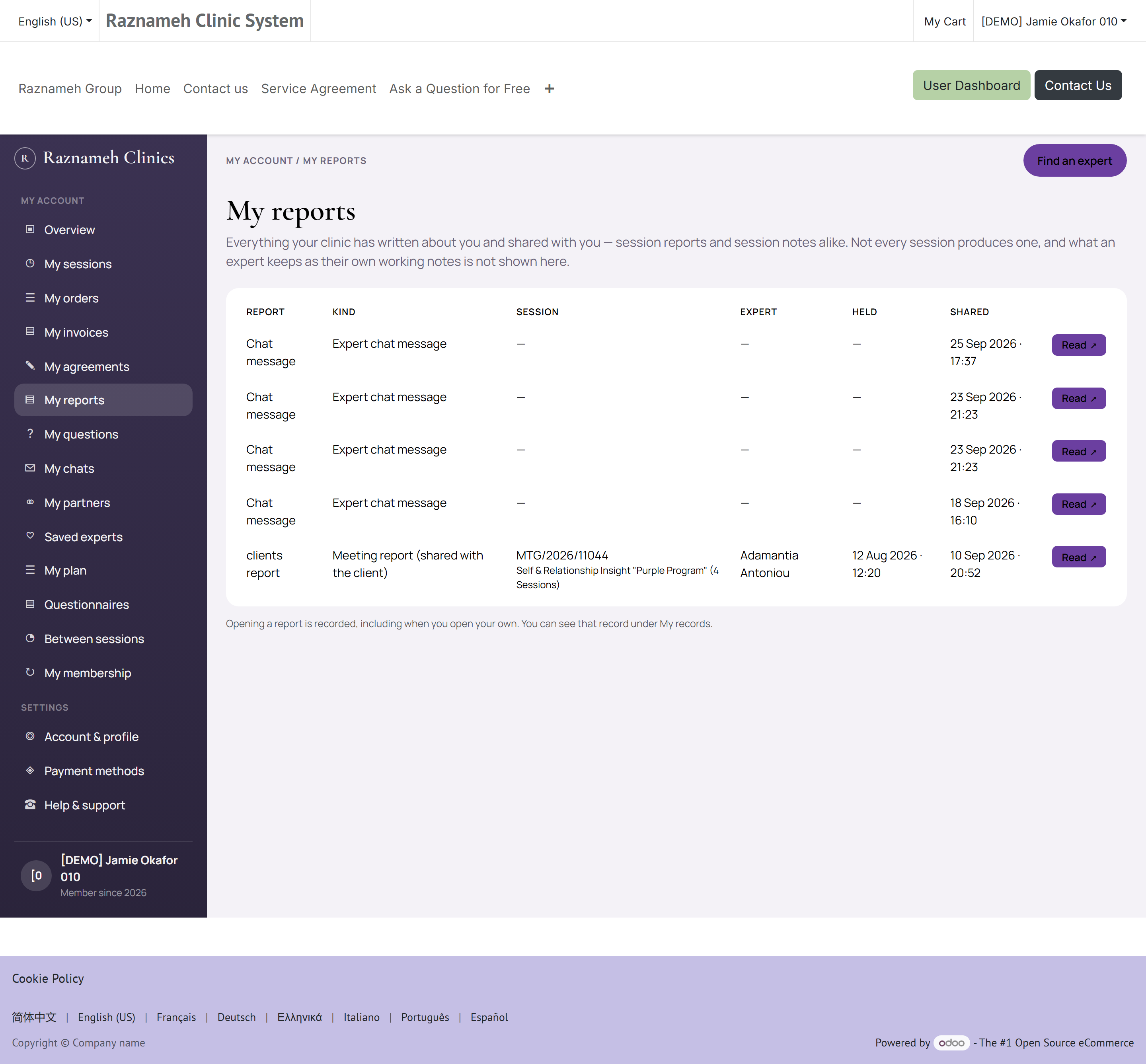
My reports (/my/reports) is the same set, arranged for reading rather than for filing: each row says what kind of thing it is, which session it came from, who wrote it and when it was filed, newest first. It is one list on purpose — a session report and a clinic note are different records to the people who write them, but to you they are the same thing: something written after your session that somebody decided you should read. Opening a row goes through the same check and the same log as the page above.
13.7 Delete your account#
Profile → Settings → Delete account.
Read the summary carefully — it explains what is deleted and what the business is legally required to keep, such as invoices for tax purposes. Confirm to proceed.
Before deleting: download any invoices you need, and use unused session credits or ask support about a refund. Deletion cannot be undone.
14Troubleshooting#
| Problem | What to do |
|---|---|
| Cannot log in | Check the email is spelled correctly. Use Forgot password. If it says the account is locked, wait a few minutes — that is the protection against password guessing |
| No available slots | Change the month, check the timezone at the top of the page, join the waitlist, or try another professional |
| Times look wrong | The booking page has a timezone selector at the top. Set it to where you actually are |
| Booking failed at the last step | Someone took the slot first. Go back and pick another time — nothing was charged |
| Payment declined | Check expiry and funds, try another method, then contact support with the date and amount |
| Charged twice | You almost certainly were not — the system prevents duplicates. Check Invoices; if there really are two, raise a ticket |
| Session missing from my list | Check the All tab rather than a filtered one. If it was just purchased, pull down to refresh |
| Join button not working | It activates shortly before the start time. Check your connection and that you allowed camera and microphone access |
| Verification rejected | Retry in better light with the whole document in frame and no glare. If it fails again, raise a ticket — a person will review it |
| Not receiving notifications | Check notification settings in the app, then check your phone's own settings for the app. For email, check spam |
| App is slow or stuck | Close and reopen it. If it persists, check for an update in your app store |
| Wrong language or layout | Profile → Settings → Language |
| Cancellation fee I disagree with | Open Cancellation history — it shows who cancelled and when. Raise a ticket referencing that entry |
15Quick reference#
Common tasks#
| I want to… | Go to |
|---|---|
| Book a session I already paid for | Profile → Booked meetings → To book → Book a time |
| Join an online session | Profile → Booked meetings → Scheduled → Join |
| Cancel or move a session | Profile → Booked meetings → Reschedule / cancel |
| See what I have left | Profile → My Bought Services |
| Get an invoice | Profile → Billing → Invoices |
| Message my professional | Profile → Chats with Experts |
| See remaining consultation minutes | Open the chat — the bar is at the top. Statement is linked from there |
| Record my between-session programme | My plan, or /my/plans |
| See my membership | My membership, or /my/memberships |
| Browse membership plans | /memberships |
| Change my reminders | Profile → Notifications → settings |
| Ask a question publicly | Professional's profile → Ask a question |
| Report a problem | Profile → Support tickets → New ticket |
| Change my password | Profile → Settings → Security |
| Lock the app | Profile → Settings → Security settings → App lock |
Session statuses#
| Status | Meaning |
|---|---|
| To book | Paid for, no time chosen. Your action |
| Scheduled | Booked and upcoming |
| Completed | Held. You can review it |
| Cancelled | Cancelled by you or the professional |
| Penalty due | A late cancellation fee is invoiced and unpaid. Paying it frees the credit |
| Expired | The credit's validity ran out before it was booked. Ask support |
| Fee applies | A cancellation charge is attached to this session |
Full detail on each is in §8.4.
Words this guide uses#
| Word | What it means here |
|---|---|
| Credit | One session you have paid for and may book. What you own |
| Booking | A credit with a date and time attached. What you attend |
| Package | Several credits bought at once, usually cheaper per session |
| Membership | A plan that renews each period with sessions, chat, and/or offline consultation minutes until it ends or you cancel (§4.6, §8.6) |
| Service agreement | The terms you accept at checkout, including the cancellation ladder |
| Cancellation policy | The ladder of fees by how much notice you gave (§7.1) |
| Notice | How long before the start time you cancelled or moved something |
| Free window | The amount of notice above which nothing is charged |
| Order | One purchase. It produces credits and one or more invoices |
| Invoice | The demand for payment arising from an order |
| Waitlist | A standing request to be offered a slot if one frees up (§5.3) |
| Session report | A professional's written record of a session. Private unless your business publishes it (§13.6) |
| Consultation minutes | Time you bought for chat with a professional, counted from the rate card on that conversation (§10.1) |
| Monitoring programme | What you record between sessions when your clinician assigned one (§6.6) |
Where to go when something is wrong#
| The question | The page that answers it |
|---|---|
| "Where is the session I paid for?" | My orders (§9.5), then My Bought Services (§8.2) |
| "Why was I charged this?" | Cancellation history (§7.5), then Invoices (§9.3) |
| "Who cancelled this?" | Cancellation history (§7.5) — it names them |
| "What did I agree to?" | The session's detail page — the signed agreement is on it (§4.2) |
| "Why can I not book?" | §5.5, then §8.4 for the status |
| "Nobody has answered me" | Support tickets (§12.2) — it shows the stage each ticket is at |
Good habits#
- Book from To book rather than buying again — you may already own the session.
- Check the timezone before picking a slot, especially when travelling.
- Read the cancellation policy when you buy, not when you need it.
- Leave a review — it is the main thing other clients rely on.
- Keep your billing address current before, not after, buying.
Screens and menu names may differ slightly between businesses, because each one chooses which features to enable. If something in this guide does not match what you see, your business has turned that feature off — ask their support team.