
0What you are administering#
Before the menus, the shape of the thing. Almost every problem you will be asked about is a break somewhere on this picture, and knowing which link broke tells you which report to open.
flowchart TD
  subgraph People
    C["Client"]
    E["Professional"]
  end
  subgraph "What is sold"
    S["Service — price, duration, report required?"]
    P["Cancellation policy — ladder, validity, notice"]
    AG["Service agreement — the terms accepted"]
  end
  subgraph "What happens"
    O["Order"] --> CR["Session credits"]
    CR --> BK["Booking — a credit with a time"]
    BK --> AT["Attendance"]
    AT --> RP["Session report"]
  end
  subgraph Money
    INV["Client invoice"] --> PAY["Payment"]
    PR["Payout run"] --> BILL["Bill to the professional"]
  end
  C --> O
  S --> O
  P --> S
  AG --> S
  E --> BK
  O --> INV
  AT --> PR
  BK -. cancelled .-> FEE["Cancellation fee"]
  FEE --> INV
  FEE -. share .-> PR
Read it once and three things become obvious:
- A credit is the unit that matters. It is created by an order, spent by a booking, and returned by most cancellations. Almost every "where did my session go?" question is a question about one credit.
- Attendance is the hinge. Nothing downstream — reports, professional pay, earned revenue — moves until a session is closed as held or as a no-show. That is why §5.1 is the report you work first, every day.
- The policy sits upstream of everything. Change it and you change what clients are charged, what professionals are paid, how long credits live and how far ahead people can book. §11.1 is worth reading in full before you touch it.
Who sees what:
| Role | Their workplace | Covered by |
|---|---|---|
| Client | The app, and /my on the web | Client guide |
| Professional | /my/expert and the Expert practice section of the app | Expert guide |
| Administrator | /my/admin and the back office | This guide |
One login can hold all three. If you also see clients, and also buy sessions yourself, you have three workspaces on one account and a switch between them at the bottom of each menu.
1Your two workplaces#
1.1 The admin portal#
Sign in and open /my/admin/health, or use the Clinic health dashboard link that appears on your home page.
The portal puts a menu down the left. It is short, it never changes, and it is the whole admin portal — there is nothing else to find. This is every entry, in the order they appear:
Clinic
| Menu entry | Address | What it is for |
|---|---|---|
| Clinic health | /my/admin/health | The daily overview — every alert, the calendars, reports due, invoice queues |
| Clients | /my/admin/clients | One person: sessions, orders, and the same invoice queues as clinic health, for them only |
| Room calendar | /my/expert/room-calendar | Every room, side by side, with clashes and gaps visible (§7.3) |
| Experts calendar | /my/expert/experts-calendar | Every professional's day, side by side (§3.1) |
| Invoice queues | /my/admin/invoices | Orders awaiting approval, awaiting payment, or with payment proof to approve (§12) |
Reporting — meeting reports and the clinic flag lists, as a parent with submenu items
| Menu entry | Address | What it is for |
|---|---|---|
| Meeting reports | /my/admin/meeting-reports | Parent: all reports due and done, across the business. Badge when any are overdue (§15.3) |
| → Overdue | /my/admin/meeting-reports?report_state=overdue | Held sessions past the filing deadline |
| → Due | /my/admin/meeting-reports?report_state=due | Held sessions still inside the filing window |
| → Filed | /my/admin/meeting-reports?report_state=submitted | Reports already on file |
Reporting → Alignment — the reports that answer "is the record true?"
| # | Menu entry | Address | Covered in |
|---|---|---|---|
| 1 | Stuck sessions | /my/admin/stuck | §5.1 |
| 2 | Unbooked credits | /my/admin/unbooked | §5.2 |
| 3 | Coverage vs demand | /my/admin/coverage | §5.3 |
| 4 | Money chain | /my/admin/money-chain | §5.4 |
| 5 | Fee ledger | /my/admin/fees | §5.5 |
| 17 | Cancelled sessions | /my/admin/cancellations | §5.12 |
| 6 | Payout readiness | /my/admin/payouts | §5.6 |
| 7 | Cancellation conduct | /my/admin/conduct | §5.7 |
| 8 | Compliance file | /my/admin/compliance | §5.8 |
| 9 | Client continuity | /my/admin/continuity | §5.9 |
| 10 | Moderation queue | /my/admin/moderation | §5.10 |
Reporting → Performance — the reports that answer "how are people doing?"
| # | Menu entry | Address | Covered in |
|---|---|---|---|
| 11 | Expert scorecard | /my/admin/scorecard | §6.2 |
| 12 | League table | /my/admin/league | §6.3 |
| 13 | Reliability | /my/admin/reliability | §6.4 |
| 14 | Client outcomes | /my/admin/outcomes | §6.5 |
Numbers 15 and 16 are not extra top-level items: 15 is the health digest itself (§3), and 16 is Reporting → Meeting reports. 17 sits beside the fee ledger rather than at the end of the Alignment list, because the two are read together — see §5.12 for why.
At the bottom of the menu are switches into your other roles: your Expert dashboard if you also see clients, and your User dashboard, which is your own client account. They are separate accounts' worth of data on one login, and nothing you do in one changes the others.
The portal is designed for the daily loop: look, spot what is out of line, click through, fix it.
1.2 The back office#
The full business system, for configuration, finance and bulk work. The menus you will use most:
| Menu | What is there |
|---|---|
| Booking → Operate | Bookings, stale holds, attendance, waitlist, slot offers, free slots, what's blocking availability, erasure, suppression, reporting, funnel events |
| Booking → Configure | Appointment schedules, calendars, locations, rooms, settings |
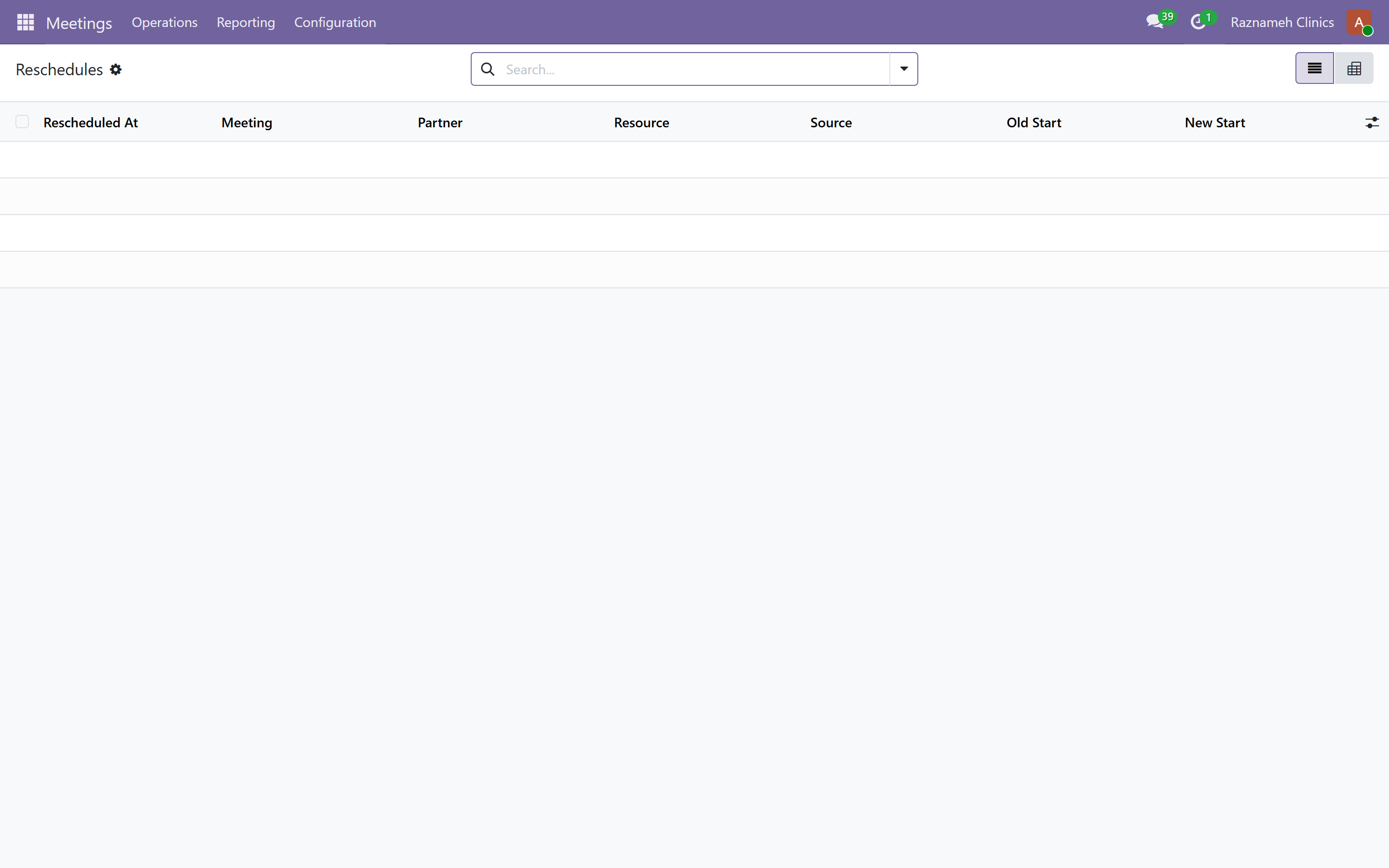
| Meetings → Operations | Session credits, direct booking, cancellations, reschedules |
| Meetings → Reporting | Earnings (monthly earnings, expert progress); Meeting reports (due / done); Health digest, Alignment, Performance, Graphs |
| Clinic (app switcher) | Memberships (Plans, Subscriptions, health, clients), Goals Monitoring, Recalls, Notes, Episodes, Groups, Instruments |
| Meetings → Configuration | Professionals, cancellation policies, agreements, acceptances |
| Platform → Experts | Profiles, bookings, reviews, questions, consultations, services |
| Platform → Content / Partners / Social | Editorial and community |
| Platform → Notifications / Support / Age Verifications | Inbox, tickets, identity review |
| Accounting | Invoices, bills, payments, reconciliation |
| HR → Expert Pay | Contracts, payout runs |
1.3 Which to use when#
| Task | Use |
|---|---|
| Daily check for problems | Portal — health dashboard |
| Investigating one professional | Portal — scorecard |
| Changing a policy or a price | Back office |
| Bulk edits, imports, exports | Back office |
| Anything financial | Back office |
| A quick check on your phone | Portal |
2The daily routine#
Fifteen minutes, in this order. It is built around one idea: an empty report is the good outcome, so you are looking for lists that are not empty.
Every morning#
- Open the health dashboard. Scan the counts. Anything not zero is work.
- Stuck sessions first (§5.1) — these are sessions that happened but were never closed. Everything downstream, including pay, is wrong until they are fixed.
- Check today's calendars — room clashes and gaps.
- Clear the moderation queue (§17) if anything is waiting.
Every week#
- Unbooked credits (§5.2) — clients who paid and never booked. Chase them.
- Coverage vs demand (§5.3) — are you offering hours when people want them?
- Reports due (§15.3) — chase overdue session reports.
- Client continuity (§5.9) — who has stopped coming.
- Support tickets — anything ageing.
Every month#
- Payout readiness (§5.6) — before running payments, not after.
- Run the payment cycle (§13).
- Money chain (§5.4) — every session traced to a payment.
- Cancellation conduct (§5.7) — patterns worth a conversation.
- Scorecards (§6) — before any performance discussion.
Every quarter#
- Review cancellation policies against what actually happened.
- Review the compliance file (§5.8).
- Check retention and disposal is running (§15.5).
3The health dashboard#
3.1 What is on it#
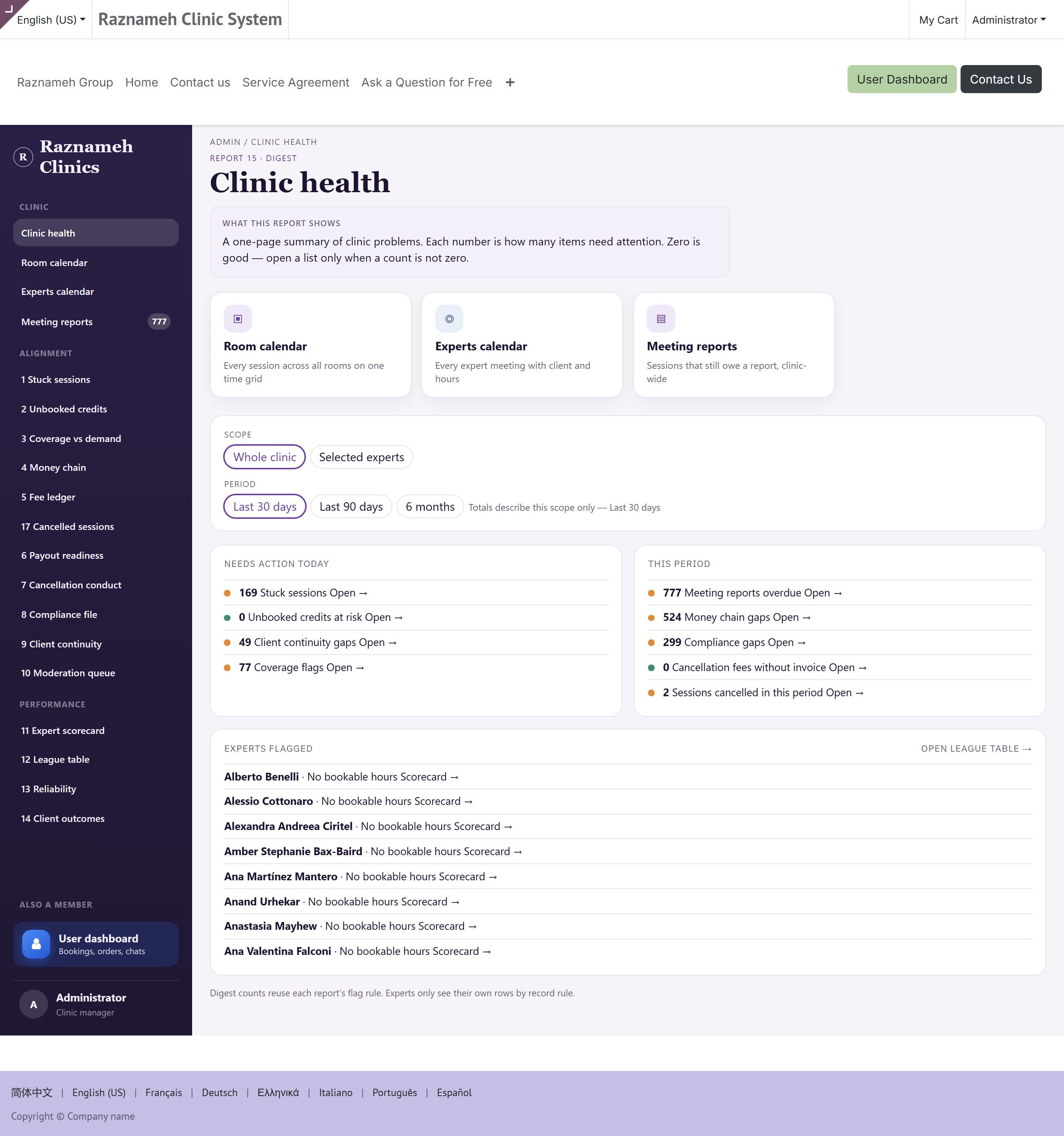
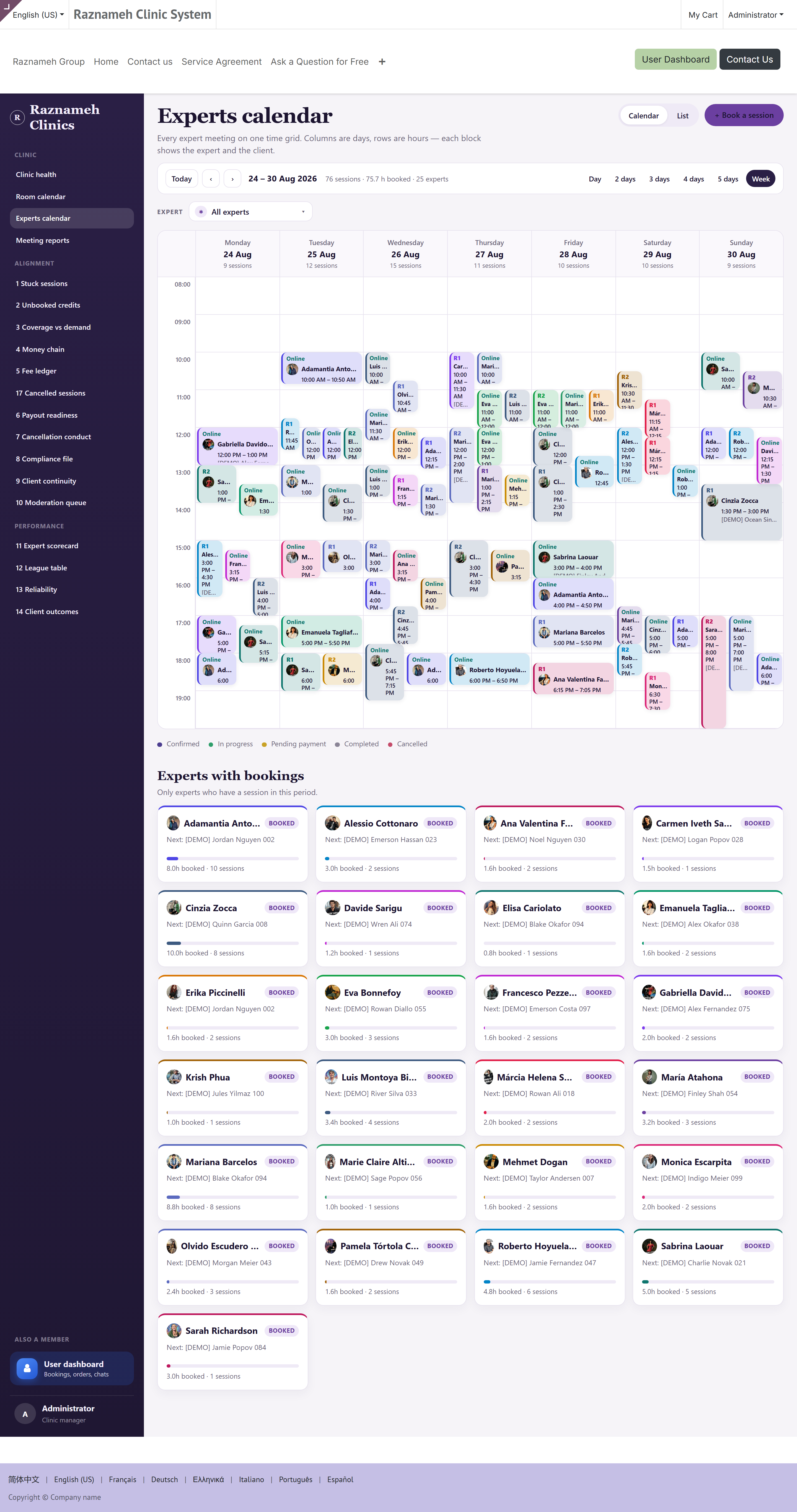
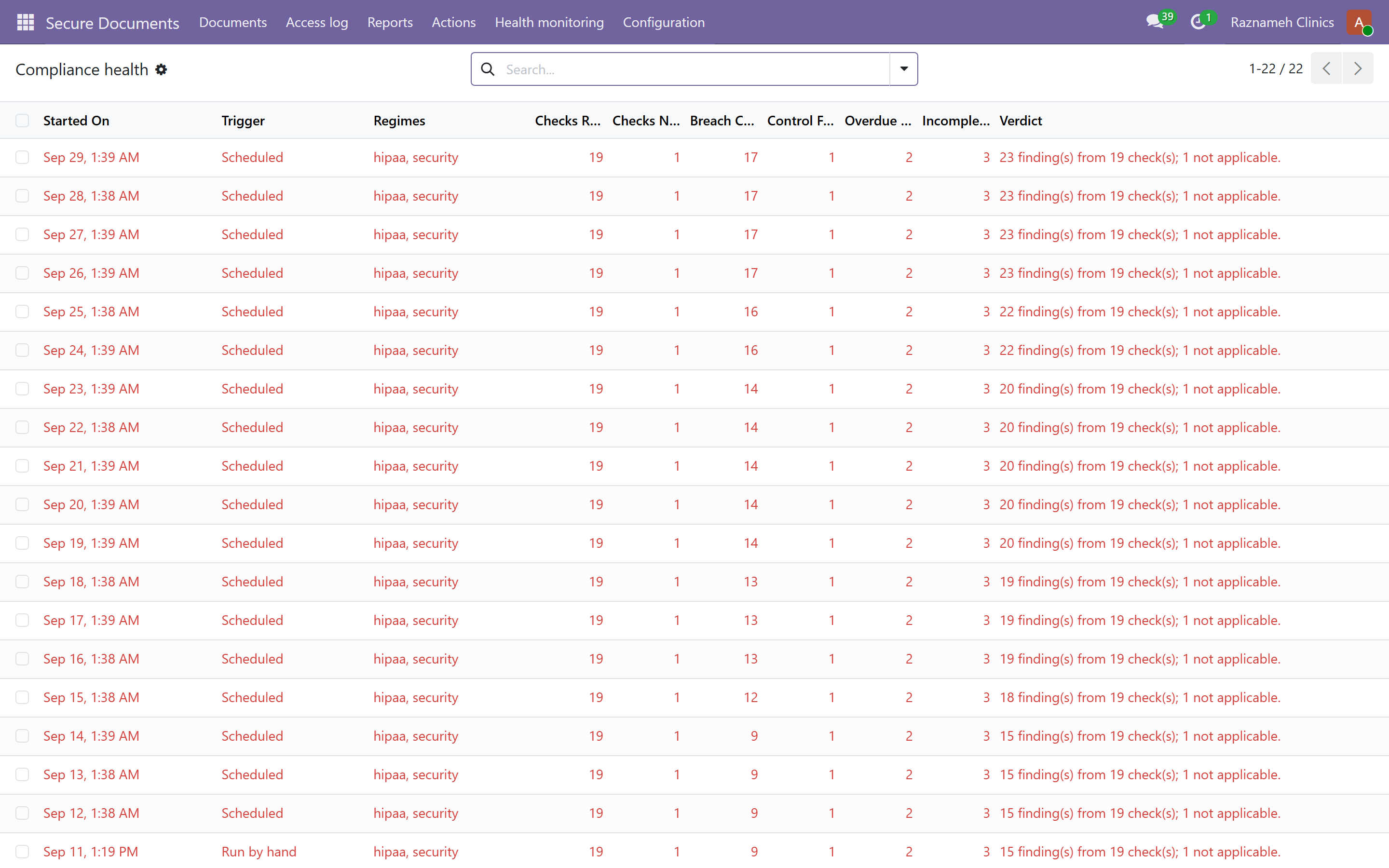
- System health check — compliance findings, checks asked, encryption health. Each is a link.
- Agreements — awaiting signature, signed.
- Invoices — awaiting approval, awaiting payment, payments to approve.
- Room calendar — every room, so clashes and empty rooms are visible at a glance.
- Team calendar — every professional's day in one view.
- Reports due and done.
3.2 How to read it#
Every count is the number of things that are out of line. Zero is success. A number is a to-do list, not a statistic.
Click any count to open the list with your current scope and period preserved — you do not have to set the filters again.
3.3 The daily digest email#
The dashboard also arrives as an email each morning, so you do not have to remember to look.
To change who receives it or when, ask your system administrator — it is a scheduled task in the back office.
Accountants have a separate dashboard at /my/finance. It shows billed, collected and owed, then twenty-one reports (payments, ageing, payroll, margin, forecast, leaks). Period chips are this month (a forecast), the past month, the past three months, the past six months, and this year from 1 January. An administrator grants the Accountant group of OnDelights, together with Internal User. It has a guide of its own: User Guide — Accountants, and §12.4 says what you need to know about it from this side.
4How every report works — the scope control#
Every report in §5 and §6 takes the same control. Learn it once.
Scope:  ( ) Whole business    (•) Selected people    ( ) One person
Period: [ Last 90 days ▾ ]    Compare to previous period ☑
4.1 The three scopes#
| Scope | What the report becomes |
|---|---|
| Whole business | Everyone. Rows grouped by professional, totals across the business. The default |
| Selected people | A subset — one service line, one location, a team, or two people being compared |
| One person | A single professional. For alignment reports this is their flag list; for performance it is their scorecard |
4.2 Three rules that keep it honest#
- Totals always describe what is currently selected. A rate shown while two people are selected is those two people's rate — never the whole business behind them.
- The grouping never changes with the scope. Grouped by professional at business scope, still grouped by professional with one selected. A screenshot is never ambiguous about what it counted.
- Every scope keeps a comparison period. A number needs something to be better or worse than.
4.3 The drill path#
The scopes are one path, each step narrowing the last:
Health dashboard  →  a flag list (e.g. 12 stuck sessions)
        ↓ click a count             ↓ click a row's professional
   the list, business-wide      that person's scorecard
                                     ↓ click a session
                              the individual session record
4.4 Saved views and export#
Save the scopes you use often — "my team", "one person" — so your daily routine is one click.
Every report has Export CSV for spreadsheets, board packs and accountants.
4.5 Who can see what#
Professionals opening any of these see only themselves. That is enforced by a permission rule, not by a filter that happens to be pre-set — so it holds however they reach the page.
Managers see everyone. Do not work around this by sharing exports: a performance comparison leaking between colleagues is a personnel incident, not an inconvenience.
5Alignment reports#
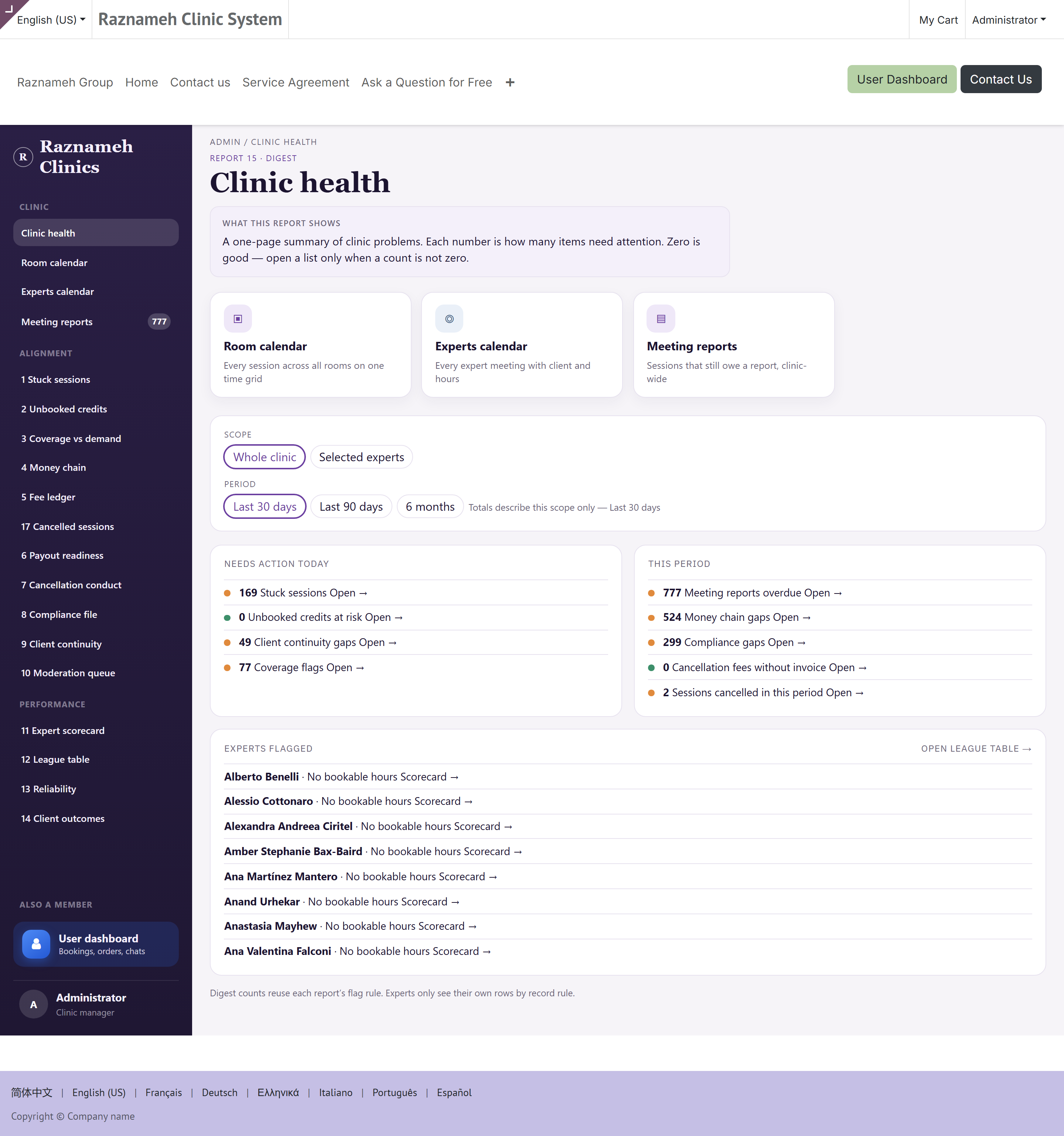
The question these answer: does our record match what actually happened?
Each is defined by its trigger condition — what puts a row on the list. Work them until they are empty.
Every report is in the menu down the left (§1.1), and every count on the health digest links straight into the matching list. /my/admin/reports now takes you to the health digest rather than a separate index — the digest is the index.
There are seventeen reports. Eleven are alignment reports (1–10 and 17, below); four are performance reports (11–14, in §6); 15 is the health digest itself (§3); and 16 is the overdue report list (§15.3).
5.1 Stuck sessions#
Report 1 ·
/my/admin/stuck
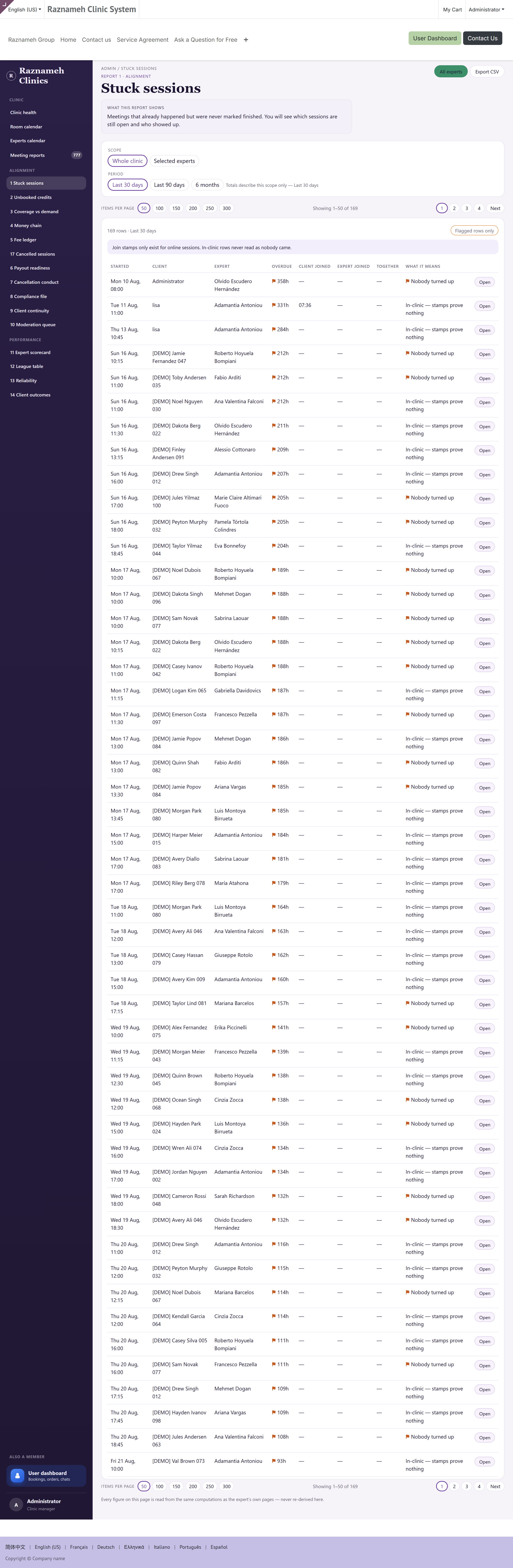
The most valuable report you have. Work it first, every day.
What it shows: sessions whose time has passed while still marked as scheduled. Either the session was delivered and never closed, or it never happened and was never cancelled. Until someone looks, the money, the professional's pay and the client's remaining credits are all wrong.
Reading it by the attendance columns:
| Pattern | What it means | What to do |
|---|---|---|
| Both joined, minutes together above zero | Held, never closed | Mark completed |
| Only client joined | Client turned up, professional did not | Investigate. Likely refund or rebook, and a conversation |
| Only expert joined | Professional waited, client did not arrive | Mark as no-show; the policy decides any fee |
| Neither joined | Nobody attended | Cancel and apply the policy |
Sort by hours overdue, worst first.
Why daily: every day one of these sits unresolved, a client's credit balance is wrong and a professional's pay is wrong. It is also the cheapest problem to fix while people still remember the session.
5.2 Unbooked credits#
Report 2 ·
/my/admin/unbooked
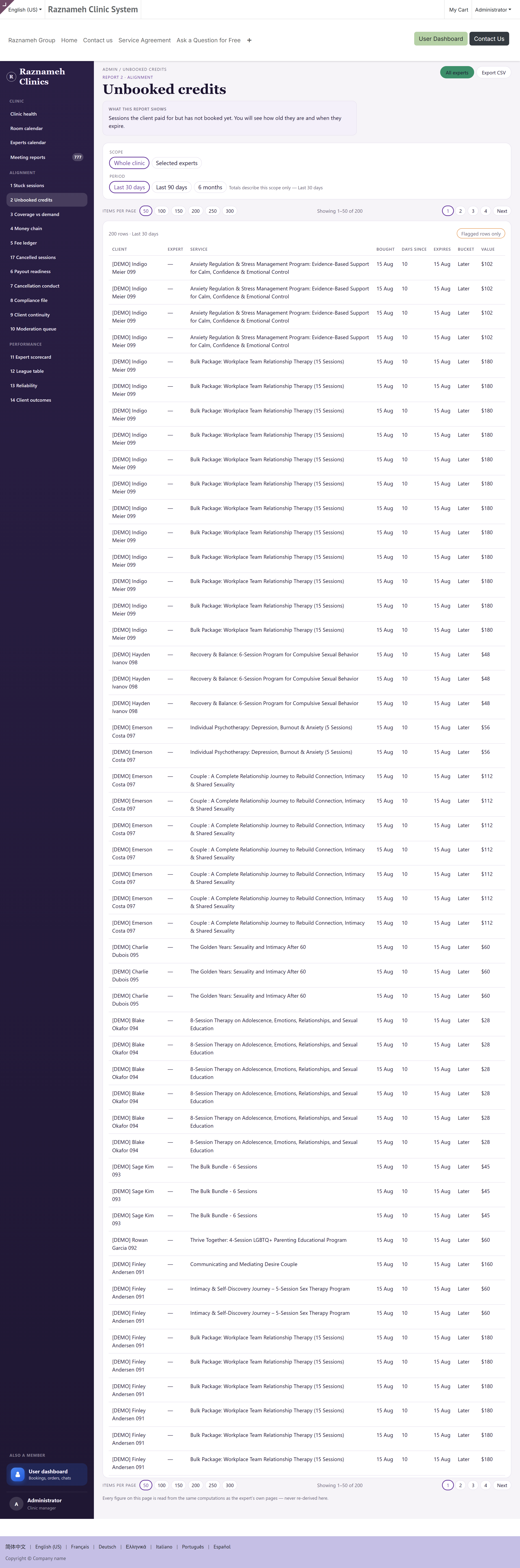
What it shows: clients who paid and never booked, grouped by how close they are to expiry.
Watch these groupings: never started (45+ days), idle 21+ days, waiting 7+ days, and the expiry risk bands.
What to do: contact them. A personal message from the professional works better than an automated reminder. Never-started clients are the priority — they paid and got nothing, which is where refund requests and complaints come from.
5.3 Coverage vs demand#
Report 3 ·
/my/admin/coverage
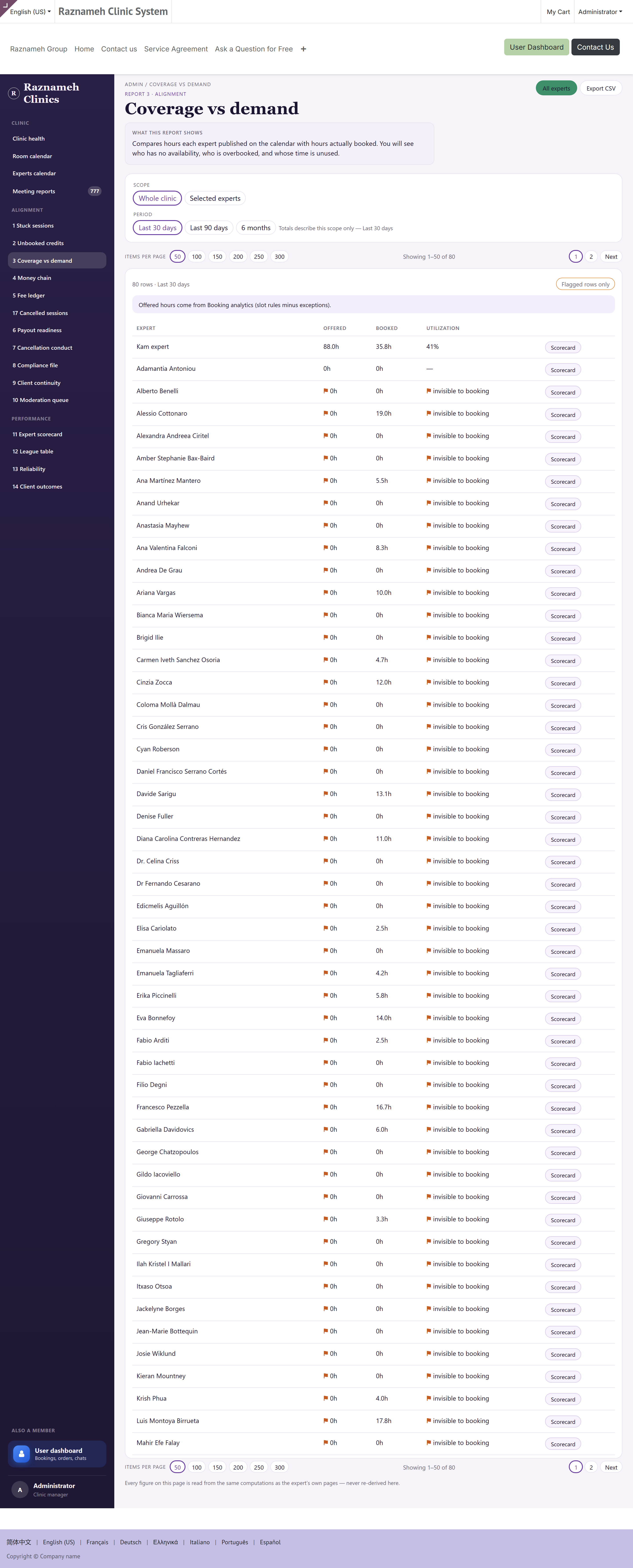
What it shows: when people wanted appointments against when you were offering them.
What to do: if demand clusters where you have no coverage, that is a rota conversation, not a marketing problem. It is also the strongest evidence you have when asking a professional to open different hours.
5.4 Money chain#
Report 4 ·
/my/admin/money-chain
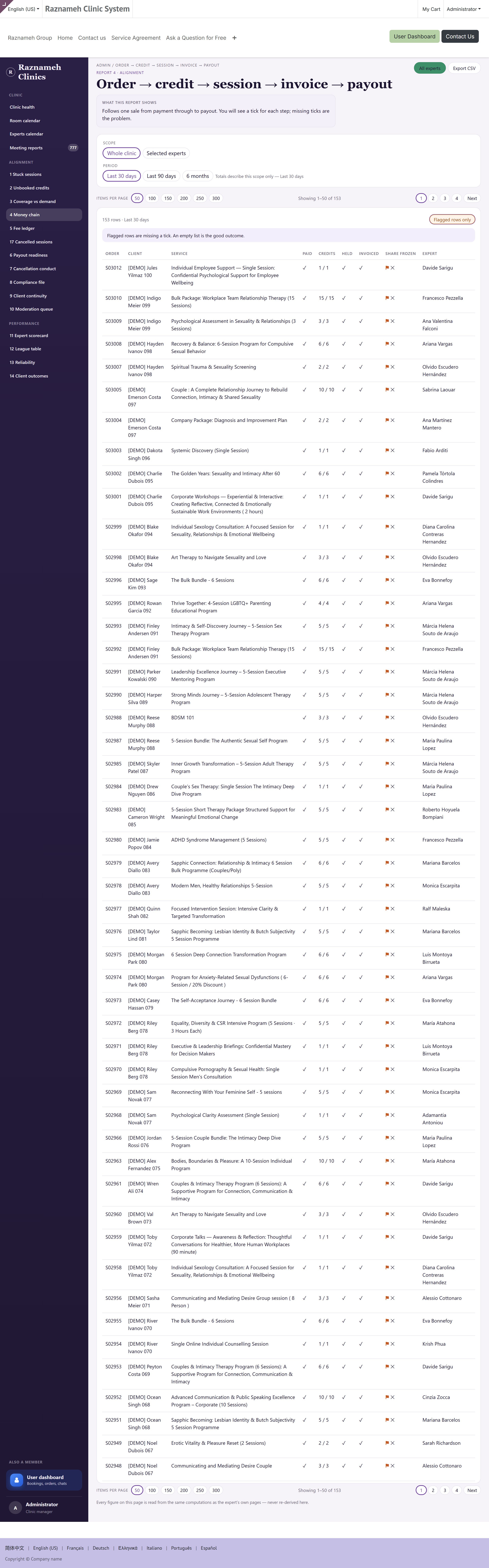
What it shows: session → order → invoice → payment, end to end, with every break visible. Watch for incomplete chain, no invoice, and unpaid 30+ days.
flowchart LR
  A["Session"] --> B["Order"] --> C["Invoice"] --> D["Payment"]
  A -.->|"no order"| X1["Break: sold outside the system"]
  B -.->|"no invoice"| X2["Break: never billed"]
  C -.->|"unpaid 30+ days"| X3["Break: billed, not collected"]
Each break is a different failure with a different owner, so read the column, not just the count:
| Break | What usually caused it | Who fixes it |
|---|---|---|
| No order | A session created by hand, outside a sale | Whoever created it — usually reception |
| No invoice | The order never produced one | Finance |
| Unpaid 30+ days | It was billed and not collected | Finance, then §12.3 |
| Incomplete chain | Any of the above, in combination | Start at the left-hand break |
What to do: this is your month-end report. Every break is money that will not arrive by itself. Work it before closing the month — and work it left to right, because fixing a missing order often creates the invoice that was also missing.
5.5 Cancellation fees#
Report 5 ·
/my/admin/fees
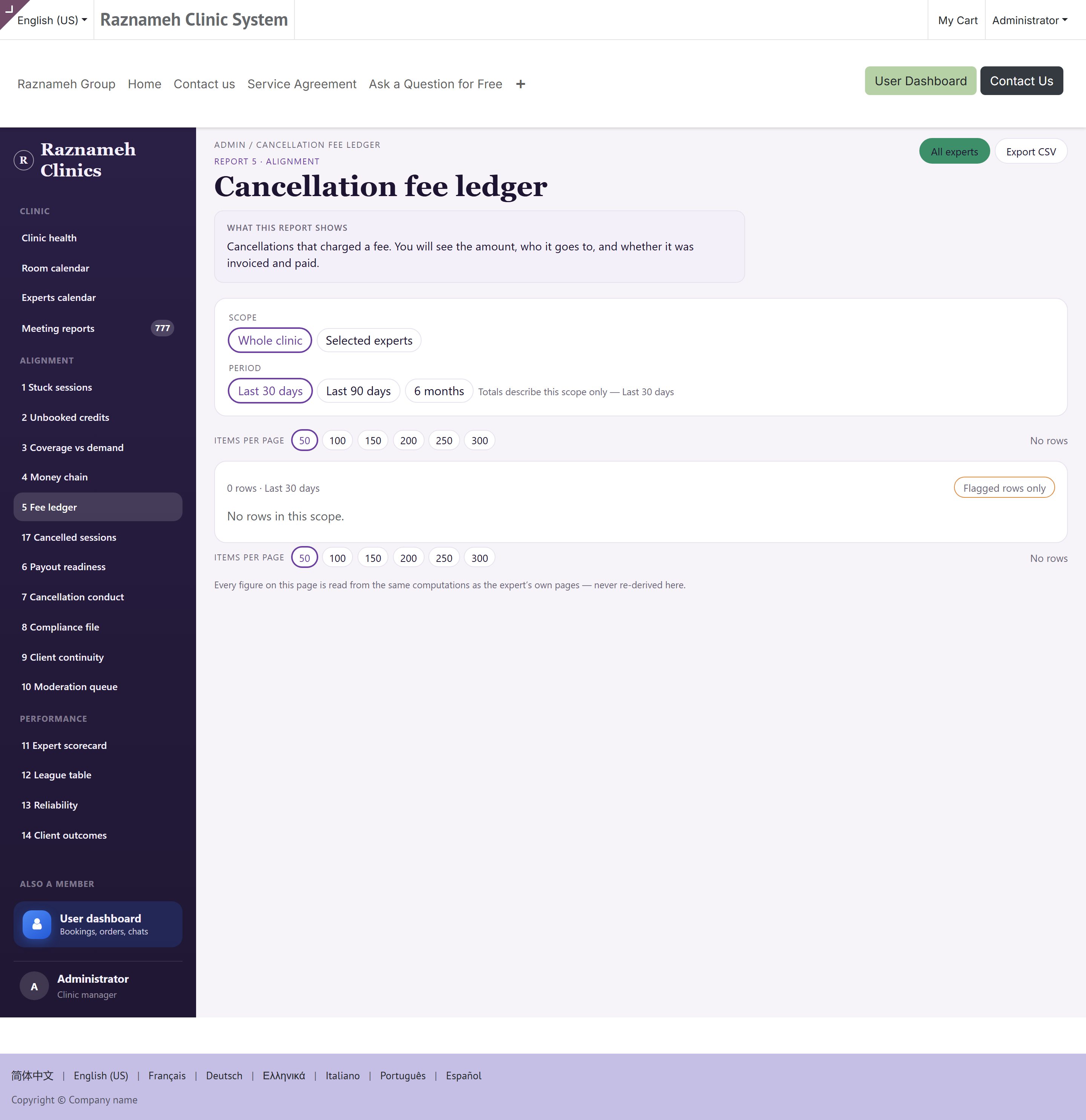
What it shows: which penalties were charged, waived, or never applied at all.
What to do: check that waivers were deliberate. A pattern of un-applied fees usually means a policy that is set up wrong rather than staff being generous.
5.6 Payout readiness#
Report 6 ·
/my/admin/payouts
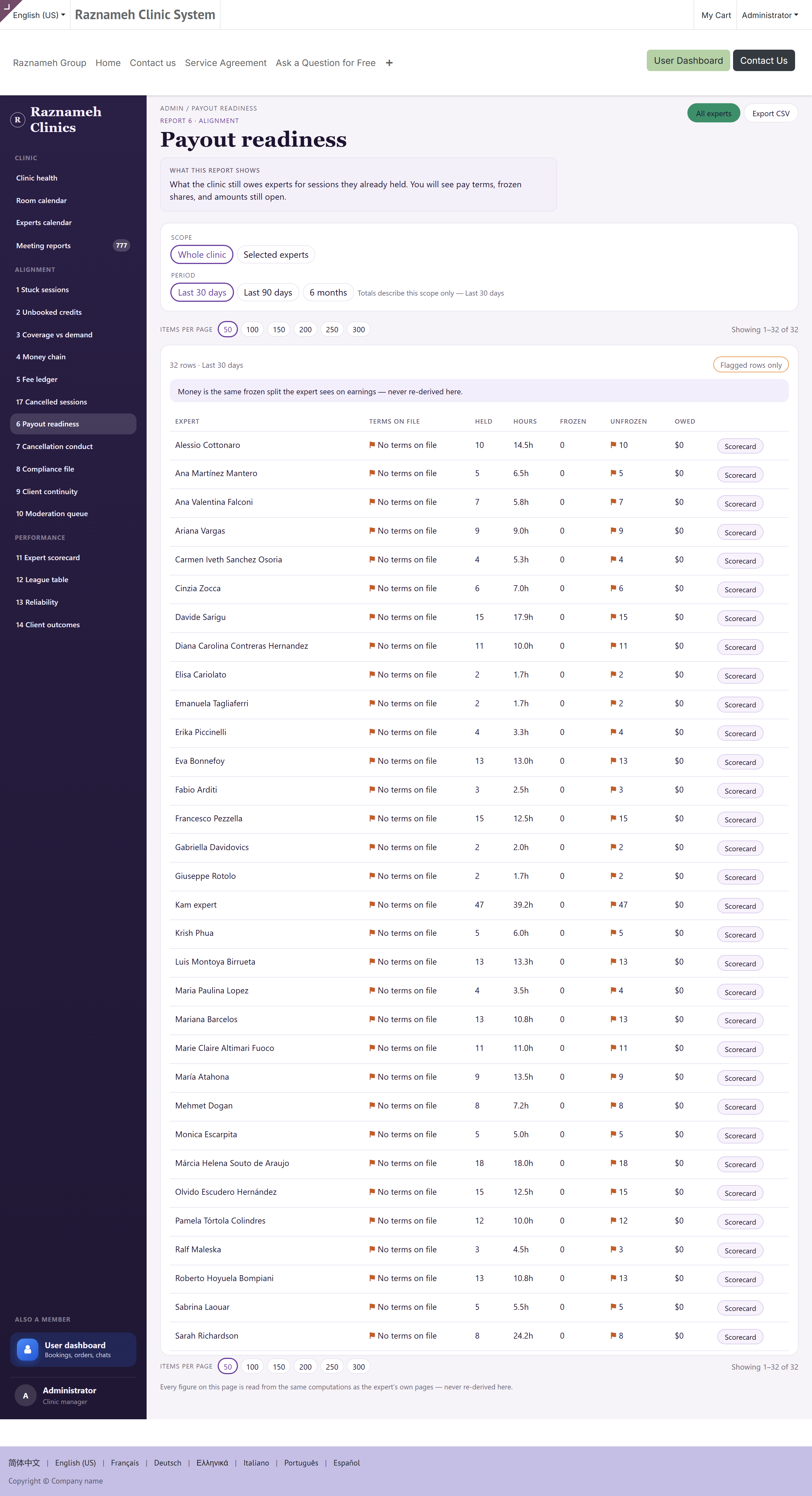
Run this before every payment cycle.
What it shows: what would go wrong if you ran payments right now — sessions held with no terms on file, and sessions held where the share was never frozen.
What to do: fix every row before opening the payment run. Correcting a payment after billing is far more work than preventing it, and it damages trust with the person being paid.
5.7 Cancellation conduct#
Report 7 ·
/my/admin/conduct
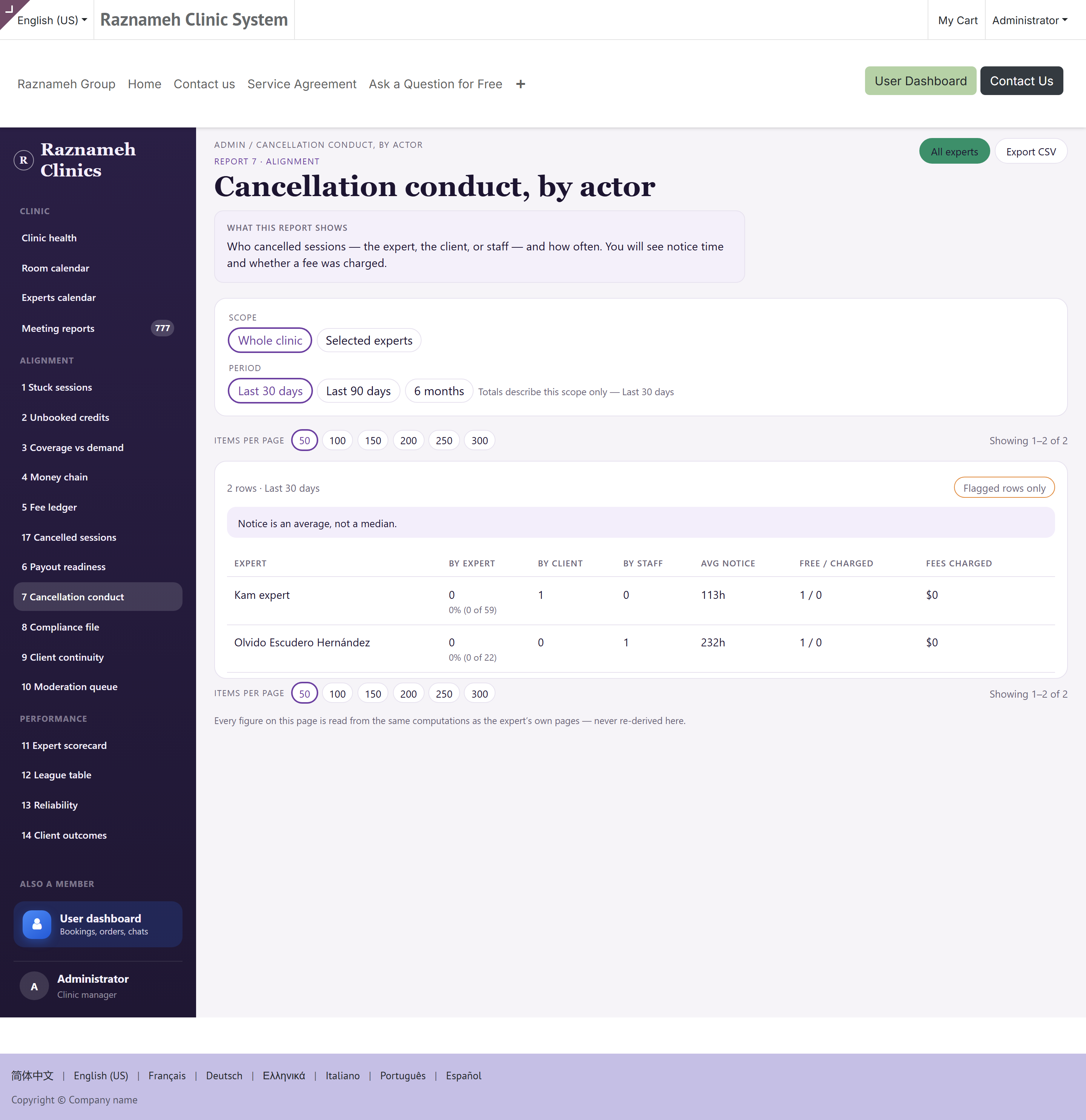
What it shows: cancellations by whom, when, and against which policy tier.
What to do: look for patterns, not incidents. Everyone cancels sometimes. Someone consistently cancelling at short notice is a conversation — and §6.5 tells you how to hold it fairly.
5.8 Compliance file#
Report 8 ·
/my/admin/compliance
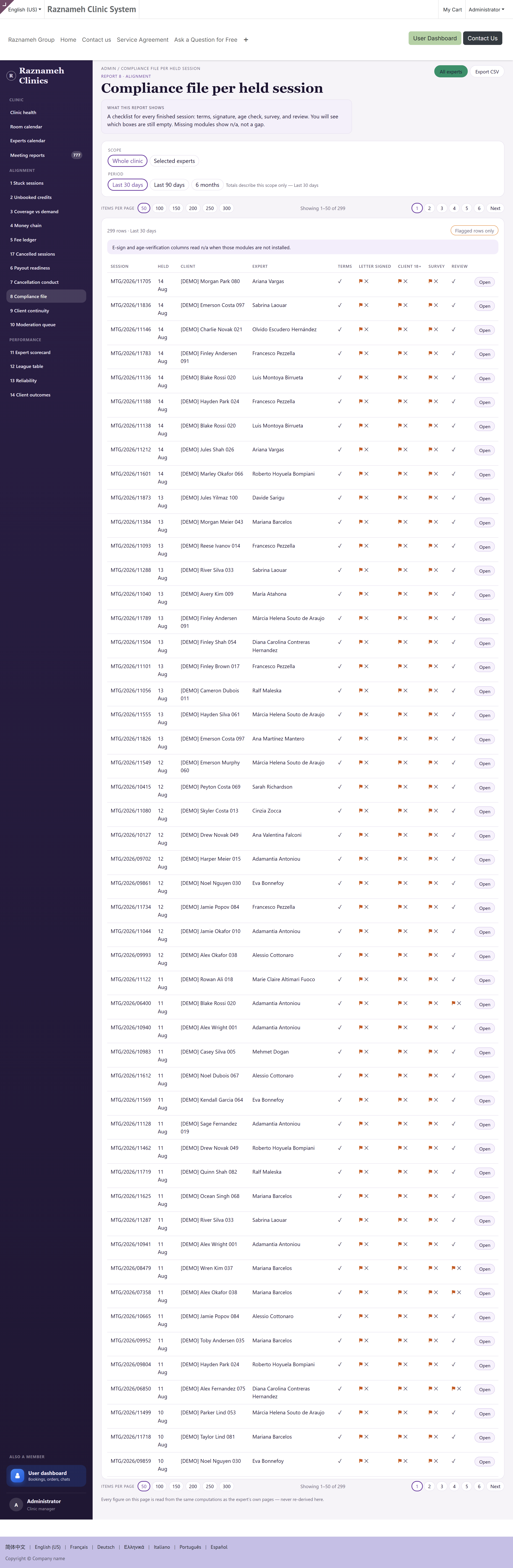
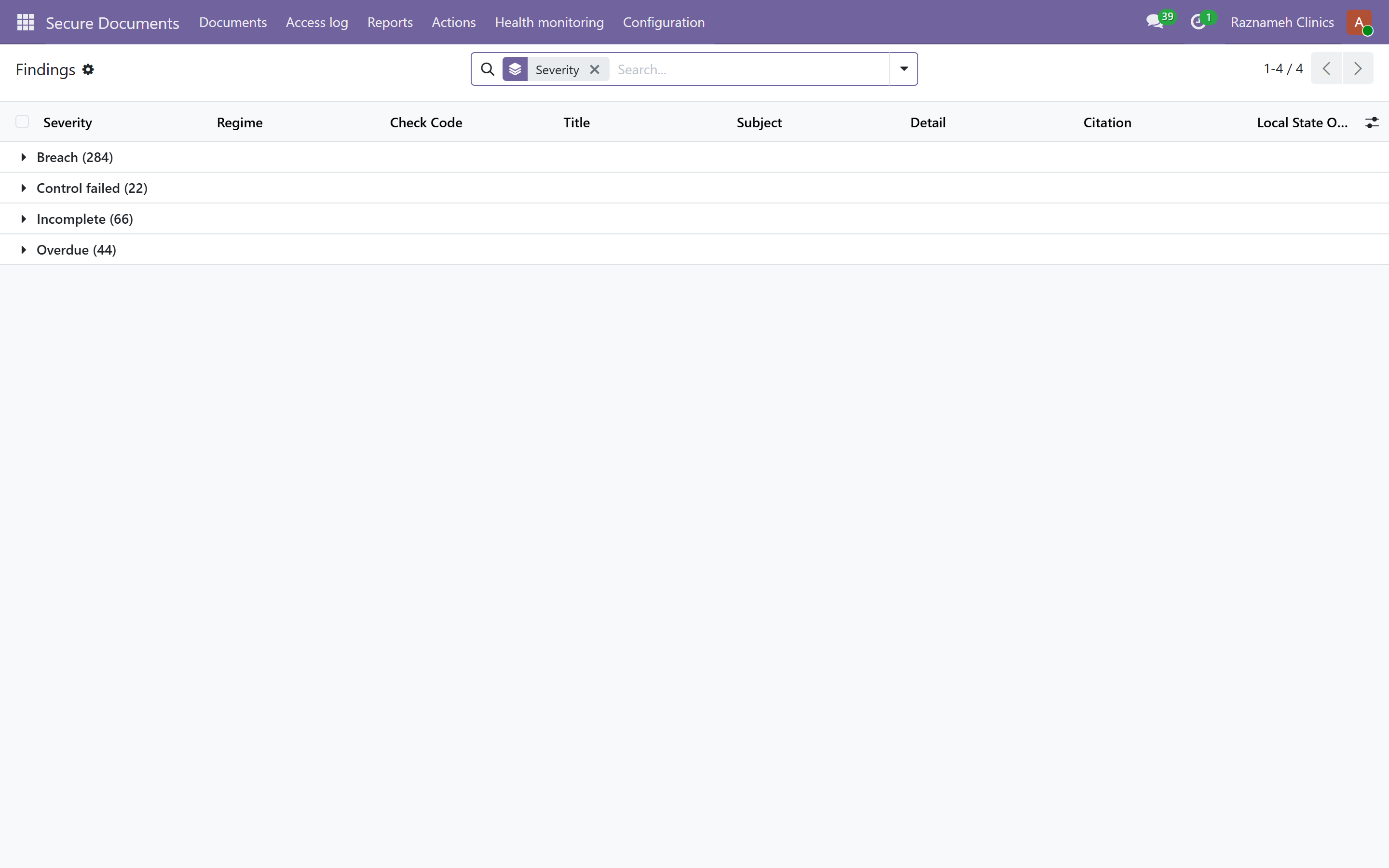
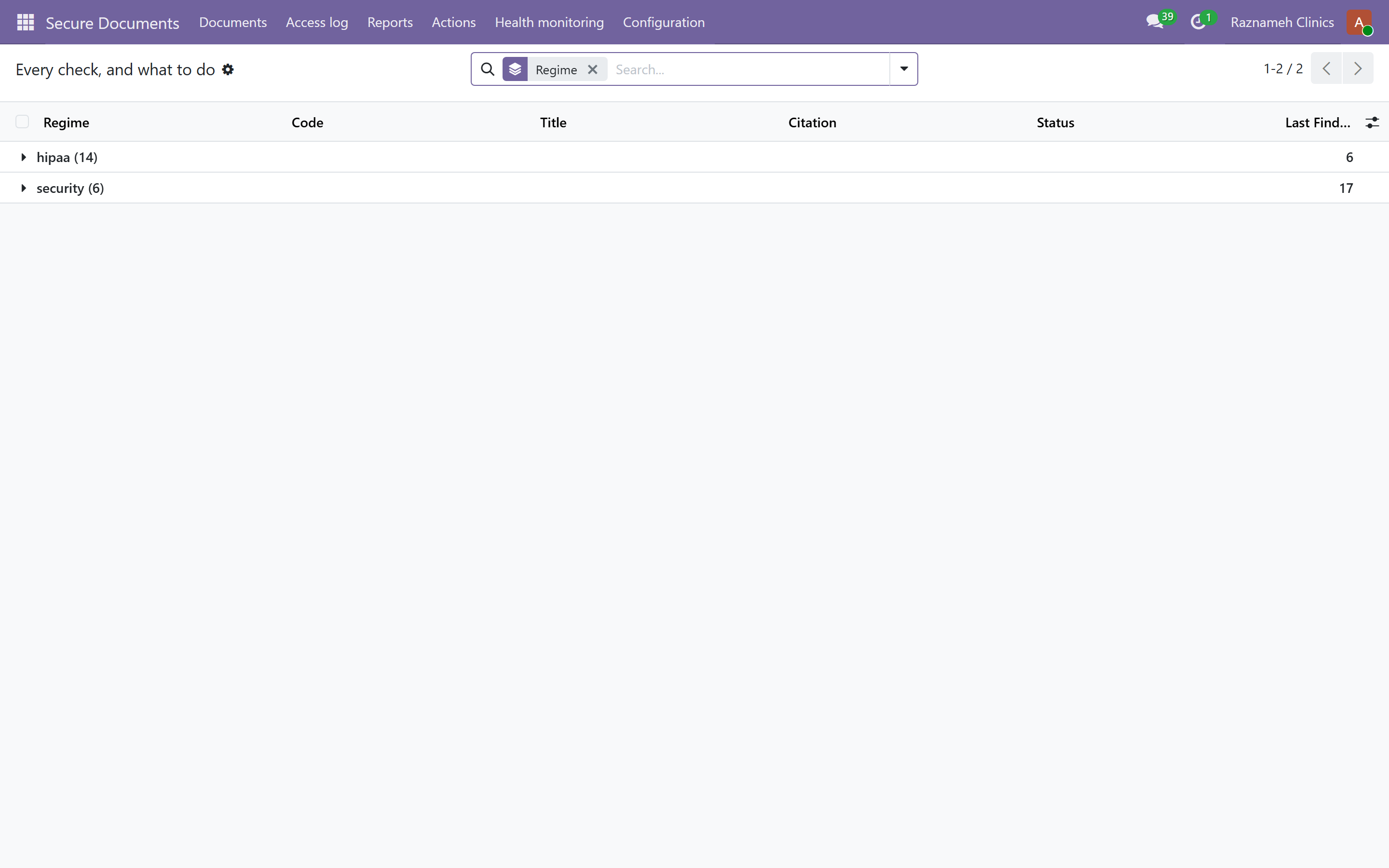
What it shows: required documents that are missing, and for whom.
What to do: chase them. This is the report you will wish you had run before an inspection, an audit or an insurance renewal.
5.9 Client continuity#
Report 9 ·
/my/admin/continuity
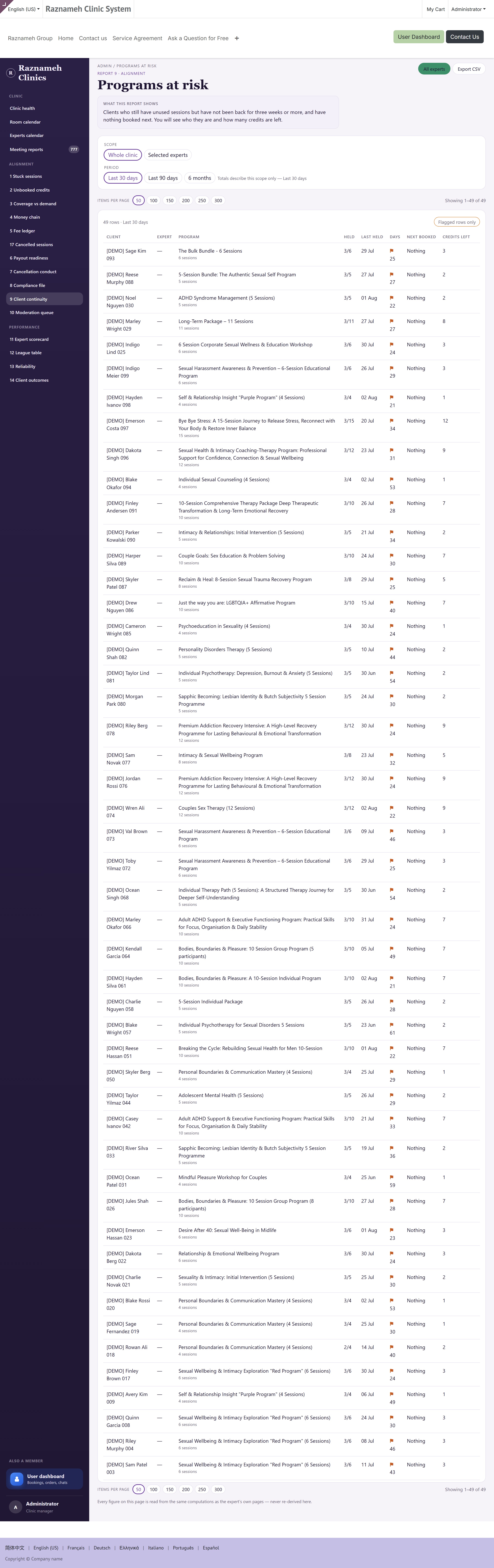
What it shows: clients who have stopped coming, and after which session.
What to do: look at where people stop. If several stop after the same session number or the same professional, that is a service problem worth naming, not a coincidence.
5.10 Moderation queue#
Report 10 ·
/my/admin/moderation
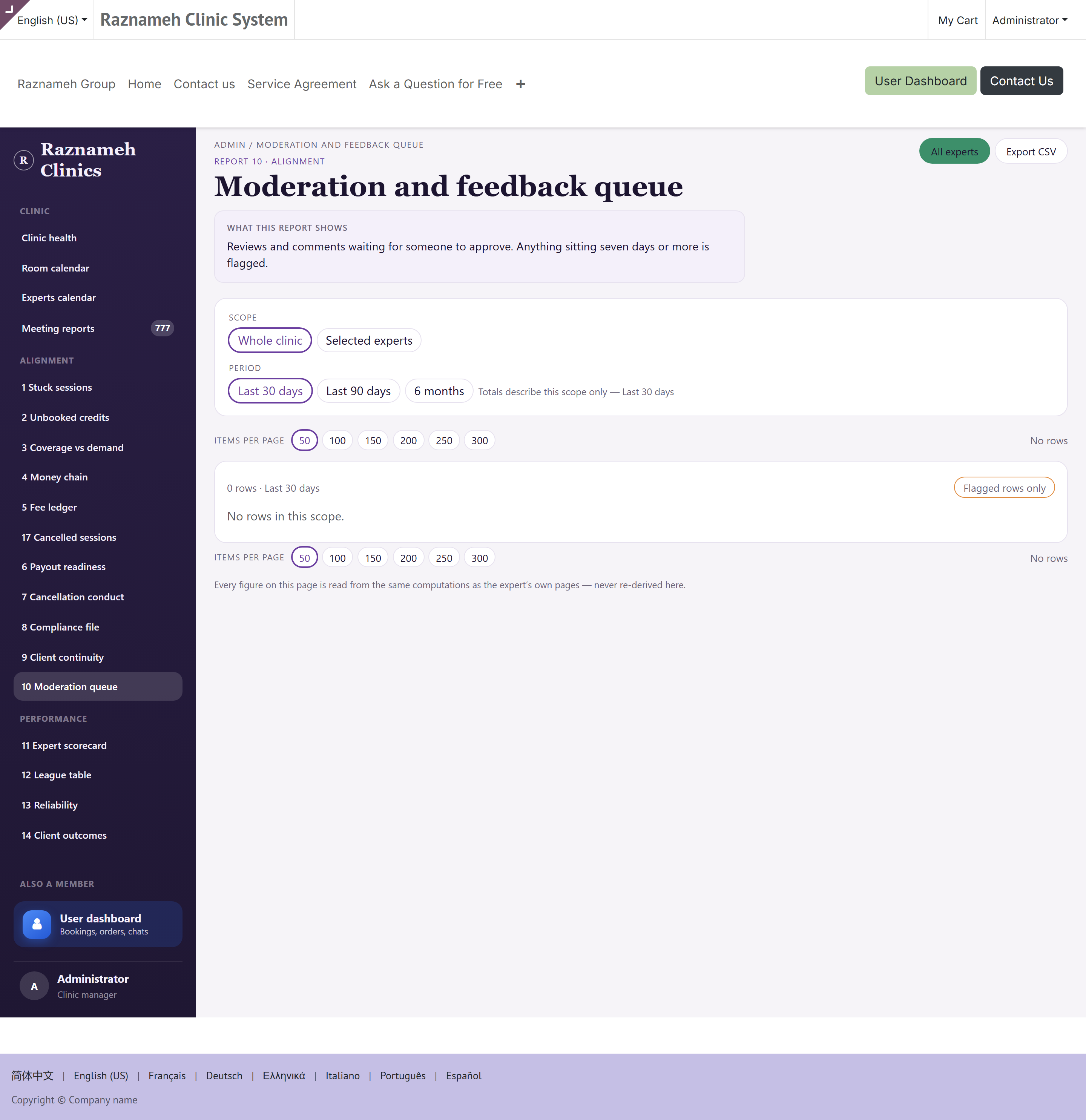
What it shows: reviews, comments and questions awaiting a decision. See §17.
5.11 Sessions without a report#
Report 16 ·
/my/admin/meeting-reports
What it shows: sessions delivered where the professional's report is overdue. See §15.3.
5.12 Cancelled sessions#
Report 17 ·
/my/admin/cancellations
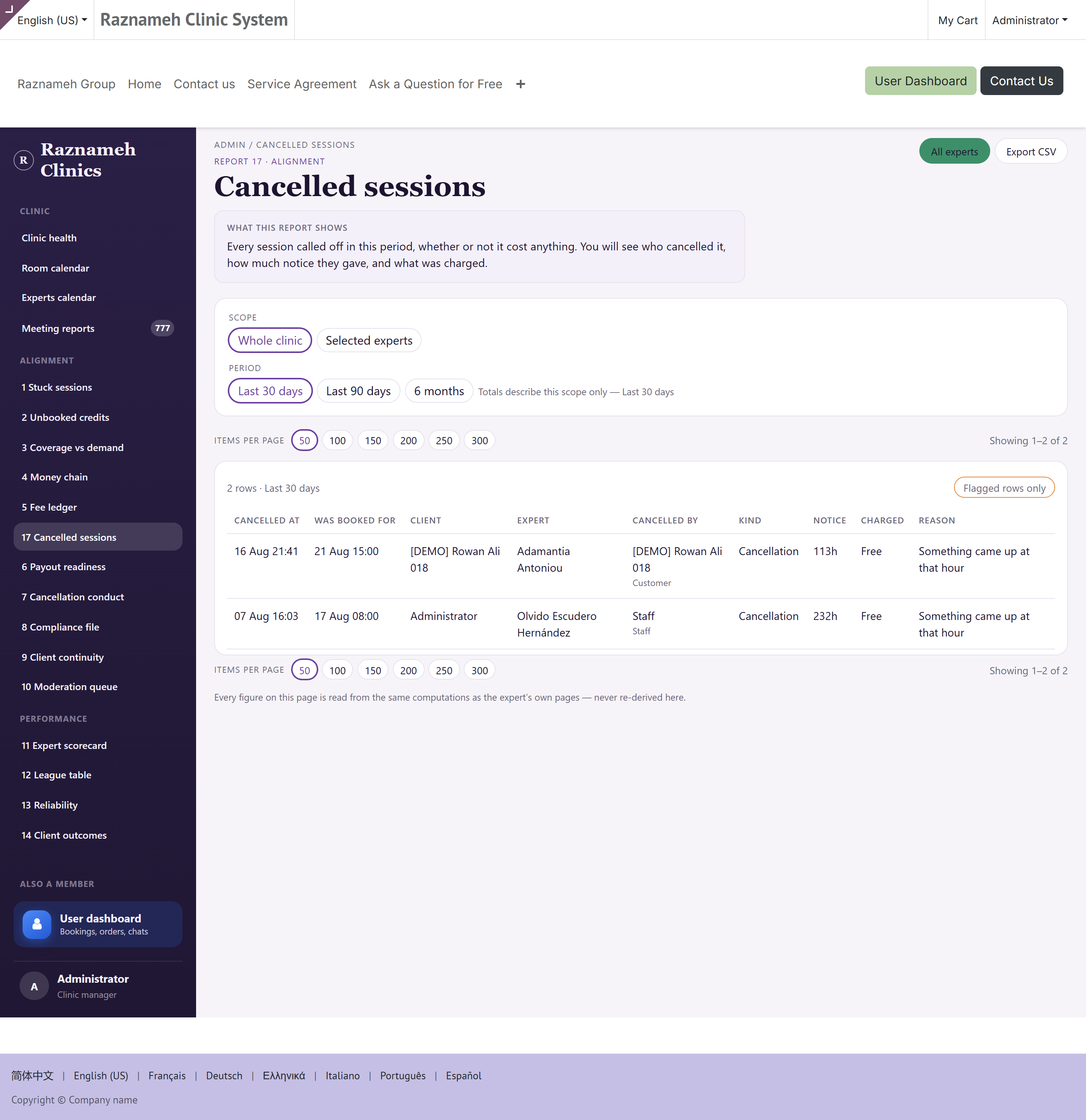
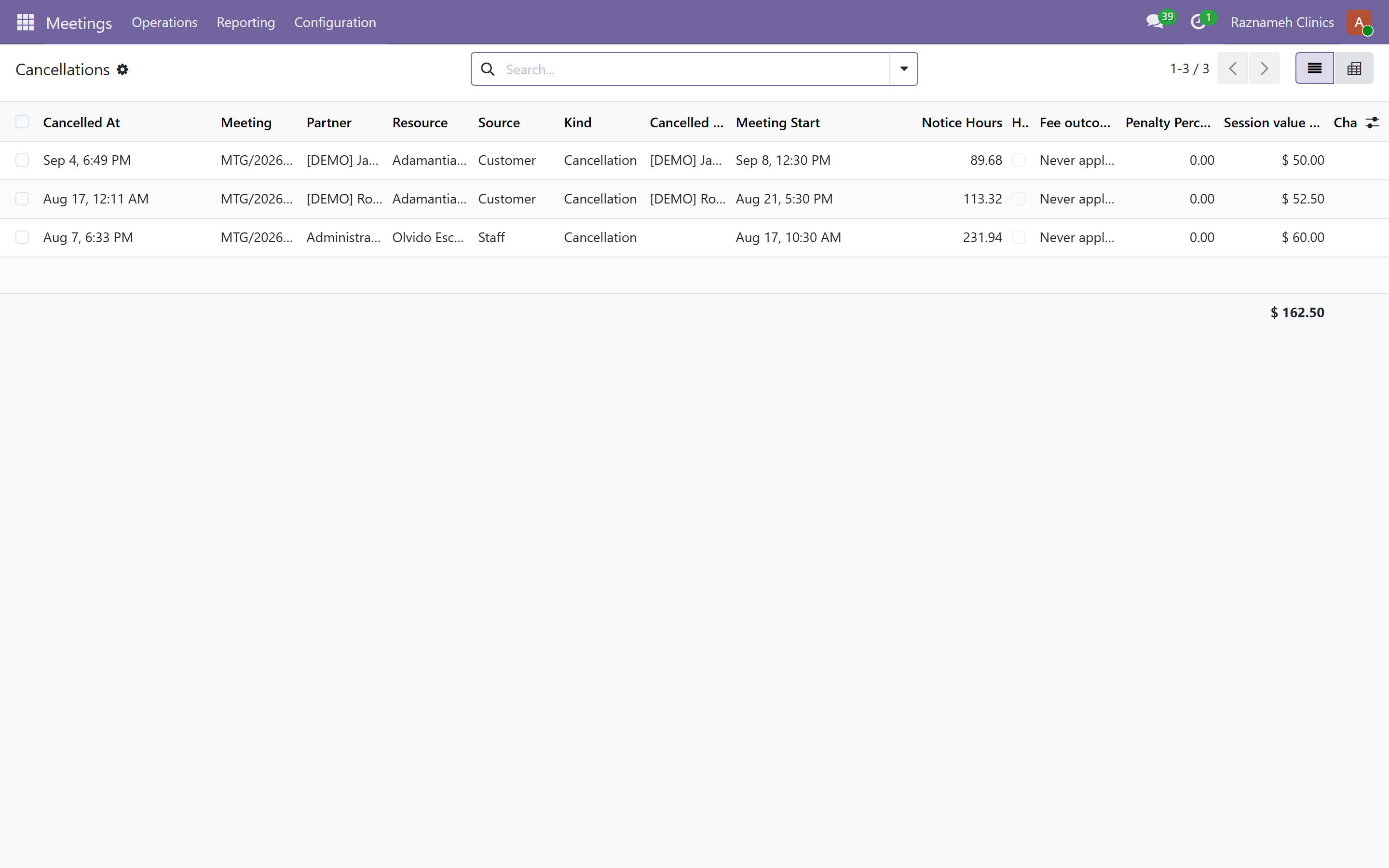
What it shows: every session called off in the period — whether or not it cost anybody anything.
Why it exists. The fee ledger (§5.5) lists only cancellations that charged something. Most cancellations charge nothing, and those are precisely the ones nobody ever looks at. A clinic asking "what was called off this month, and by whom?" had nowhere to look before this report. A professional quietly cancelling a day a week inside the free window costs you real money and appears on no ledger at all.
Columns:
| Column | What it tells you |
|---|---|
| Cancelled at | When the cancellation happened |
| Was booked for | The session's time — or Never booked, for a credit cancelled before it had one |
| Client | Who it was for |
| Expert | Who was going to deliver it |
| Cancelled by | The person, and beneath it the source — client, professional, staff, or the system |
| Kind | Cancellation, reschedule, or no-show |
| Notice | Hours of notice given. Flagged when it counts as late |
| Charged | The fee, or Free |
| Reason | What was given, where one was given |
Flagged rows are no-shows and late cancellations. Open the report with flagged only on for the daily scan, off for the monthly read.
How to read it, at two speeds:
| When | How |
|---|---|
| Daily | Flagged only. You are looking for no-shows that need a fee decision, and for a professional cancelling at short notice twice in a week |
| Monthly | Everything, scoped to one professional at a time. You are looking for a pattern: the same person, the same day of the week, always just inside the free window |
What to do with what you find:
| Pattern | Action |
|---|---|
| One professional cancelling repeatedly, always free | A rota conversation, not a policy one. Their published hours do not match the hours they can actually work — fix the hours (§7.1) |
| Clients cancelling late, repeatedly, same person | §5.7 has the per-person conduct view. Then §11.1: your free window may be too generous |
| Many Never booked rows | Credits are being cancelled before they were ever scheduled. Usually a refund or a mis-sale — check against §5.2 |
| No-shows with no fee charged | Somebody is waiving them. That is a decision, and §5.5 shows who is making it |
Export the CSV before a performance conversation. Rows here are evidence with times on them; recollections are not.
5.13 Goals monitoring#
Report 15 · Care ·
/my/admin/monitoring
What it shows: whether clients are recording what they agreed to between sessions, and whether anybody has looked. One row per expert, not per client.
Why it is read by expert. A whole caseload going quiet is almost never the clients. It is the programme — too long, too often, badly worded, or sent to people it does not suit. Reading it per client hides that; reading it per expert makes it obvious in one glance.
Columns:
| Column | What it tells you |
|---|---|
| Expert | Whose caseload this row is |
| Clients monitored | How many people are on a programme from them |
| Active programmes | How many are running now |
| With any entry | The share that has been recorded in at all |
| Median days silent | The typical gap since the last entry |
| Never started | Programmes sent and never opened. Flagged from one |
| Risk flags open | Flags raised and not yet acknowledged by a clinician. Flagged from one |
| Reviewed at a session | The share gone through with the client |
Nothing a client wrote appears on this page, and the page says so under the title. These are counts, dates and bands — an administrator runs the clinic, and running the clinic does not require reading the record. Scorecard on a row opens that expert's own scorecard, with the fairness rules of §6.1 applying unchanged.
What to do with what you find:
| Pattern | Action |
|---|---|
| Never started high for one expert | The programme is not being introduced in the session. A conversation about how it is sent, not about the clients |
| Risk flags open above zero | Somebody raised a flag and no clinician has acknowledged it. This is the row to act on today |
| Median days silent rising across everybody | The cadence is wrong clinic-wide, not a person problem |
| Reviewed at a session low with good entry rates | Clients are doing the work and nobody is reading it back to them. That is how a programme dies |
6Performance reports and the fairness rules#
The question these answer: how are my people doing the job, next to each other?
6.1 Read the fairness rules before you open a scorecard#
These are built into the reports. Understand them, because they are what makes the numbers defensible when someone disagrees — and someone will.
| Rule | Why it exists |
|---|---|
| Measured per opportunity — per available hour, per scheduled session | Someone given ten hours a week cannot out-earn someone given thirty. Ranking on raw totals measures your rota, not the person |
| The context is always shown — "12% (3 of 25)", never a bare "12%" | Three out of twenty-five is a pattern. Three out of four is a small month |
| Rates below five sessions show a dash | A performance page must not be the one place in your business that invents a confident number |
| What they control is separated from what they do not | Delivery and conduct are theirs. Demand and hours offered are yours. One column for both ranks people on your marketing budget |
| Every summary figure is one click from the sessions behind it | A score nobody can check is a score nobody accepts |
| No league table on a professional's own page | Their portal shows their own figures. Ranking belongs here, with you |
Practical consequence: never take a figure from these reports into a conversation without clicking through to the sessions behind it first. If you cannot show the underlying sessions, do not use the number.
6.2 Expert scorecard#
Report 11 ·
/my/admin/scorecardOpens on a card per professional for this calendar month. Click a card (or add?user_id=<id>) for that person's full page.&days=month|last_month|30|90|yearsets the window./my/admin/scorecard/csvexports the cards as a spreadsheet.
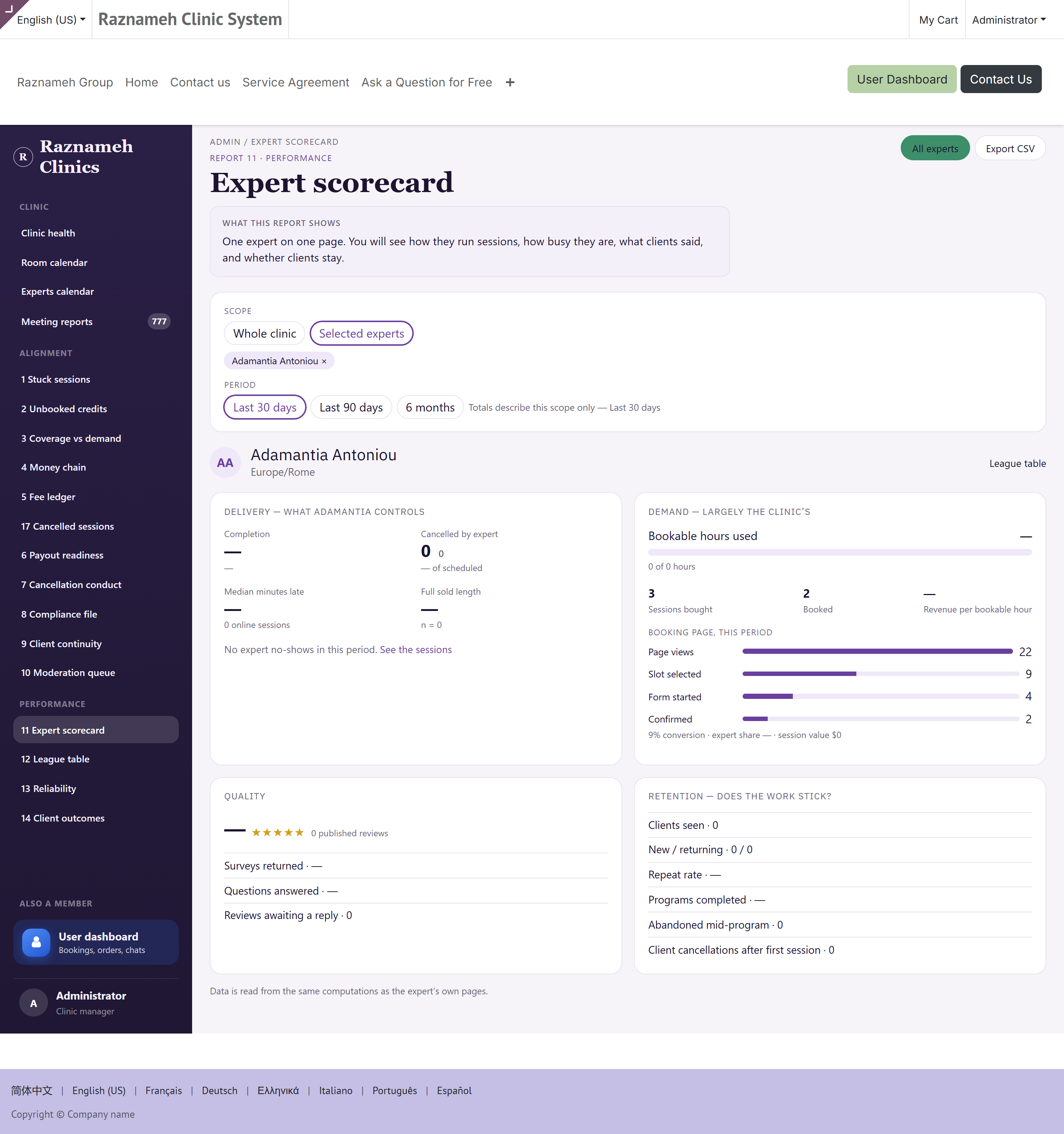
The first screen is the team: to book (outstanding today, not a monthly total), booked, held, cancelled by that professional, clinic revenue, utilisation, and rating. A card with no sessions this period stays on the page, greyed.
Click through for one professional's whole picture: delivery, reliability, cancellations, client outcomes, and the trend against the previous period.
Open this before any one-to-one, and share the screen during it. A conversation where both people are looking at the same page goes very differently from one where a manager quotes numbers from a printout.
6.3 Expert league#
Report 12 ·
/my/admin/league
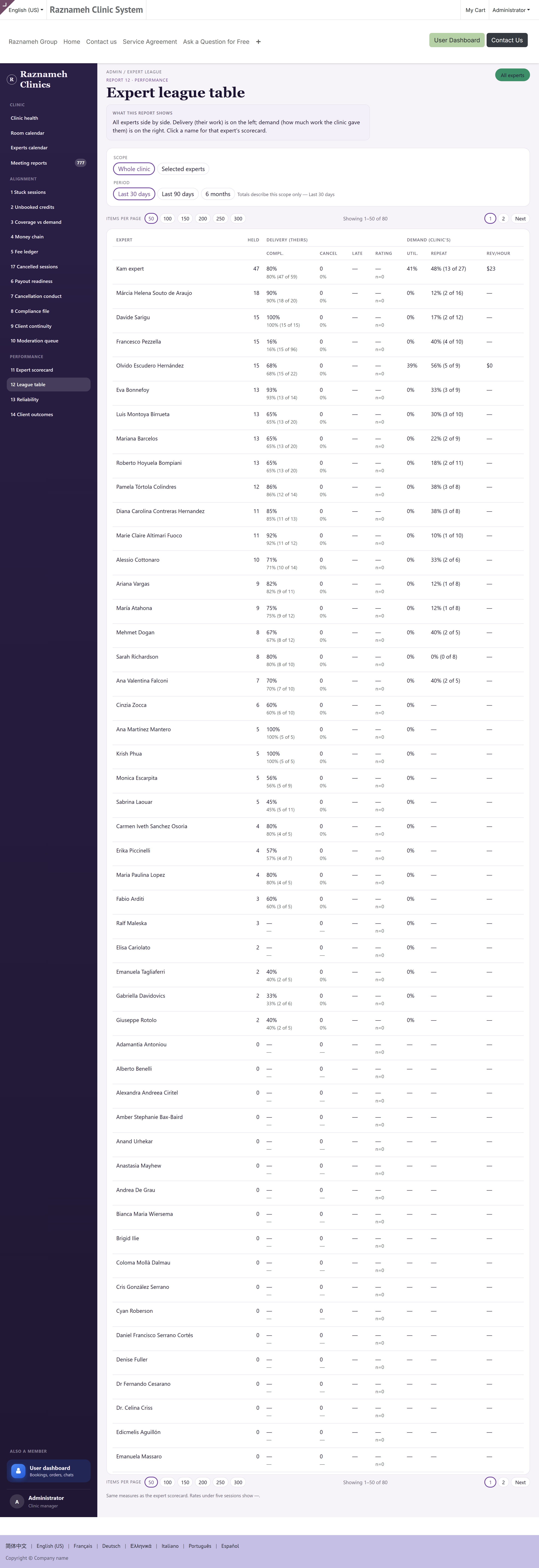
Comparison across the team, normalized by opportunity.
Use it to spot who needs support, not to rank people publicly. It is a management tool. It is not for circulation, and it is deliberately absent from every professional's own view.
6.4 Reliability#
Report 13 ·
/my/admin/reliability
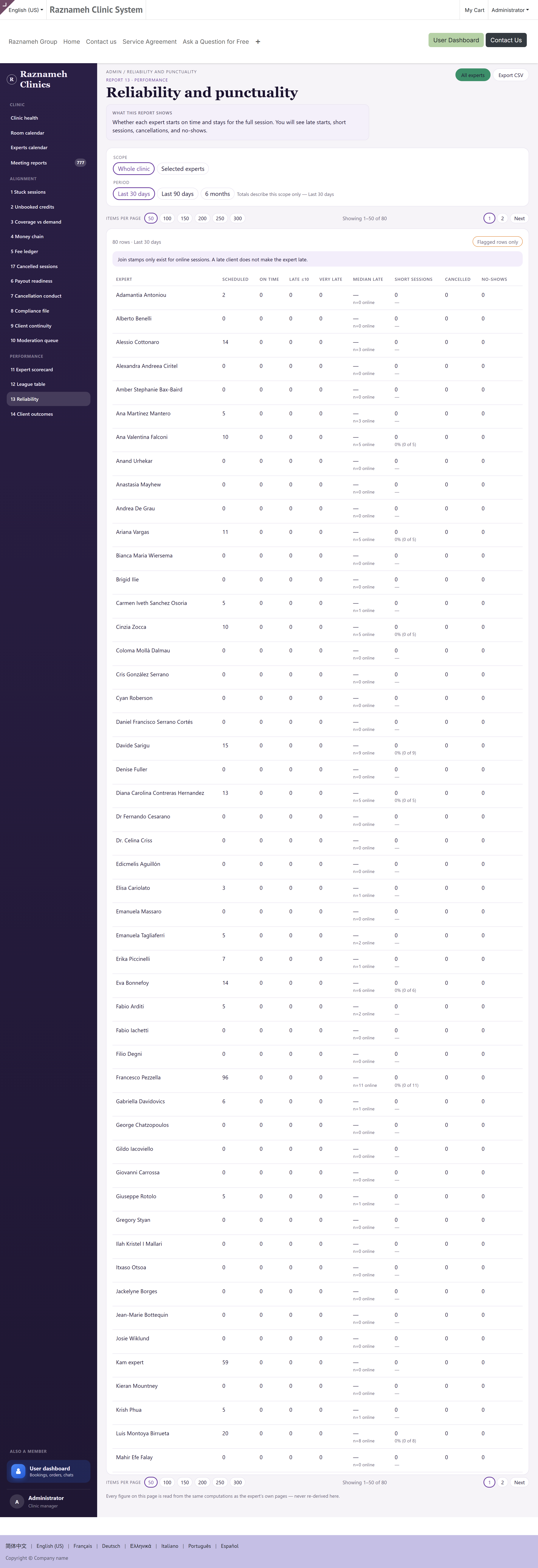
Turned up, on time, closed the record. Combines attendance, punctuality and administrative completeness.
Note that the last of those is fixable by training. Someone reliable in person but poor at closing sessions needs a five-minute explanation of §5.1, not a performance review.
6.5 Client outcomes#
Report 14 ·
/my/admin/outcomes
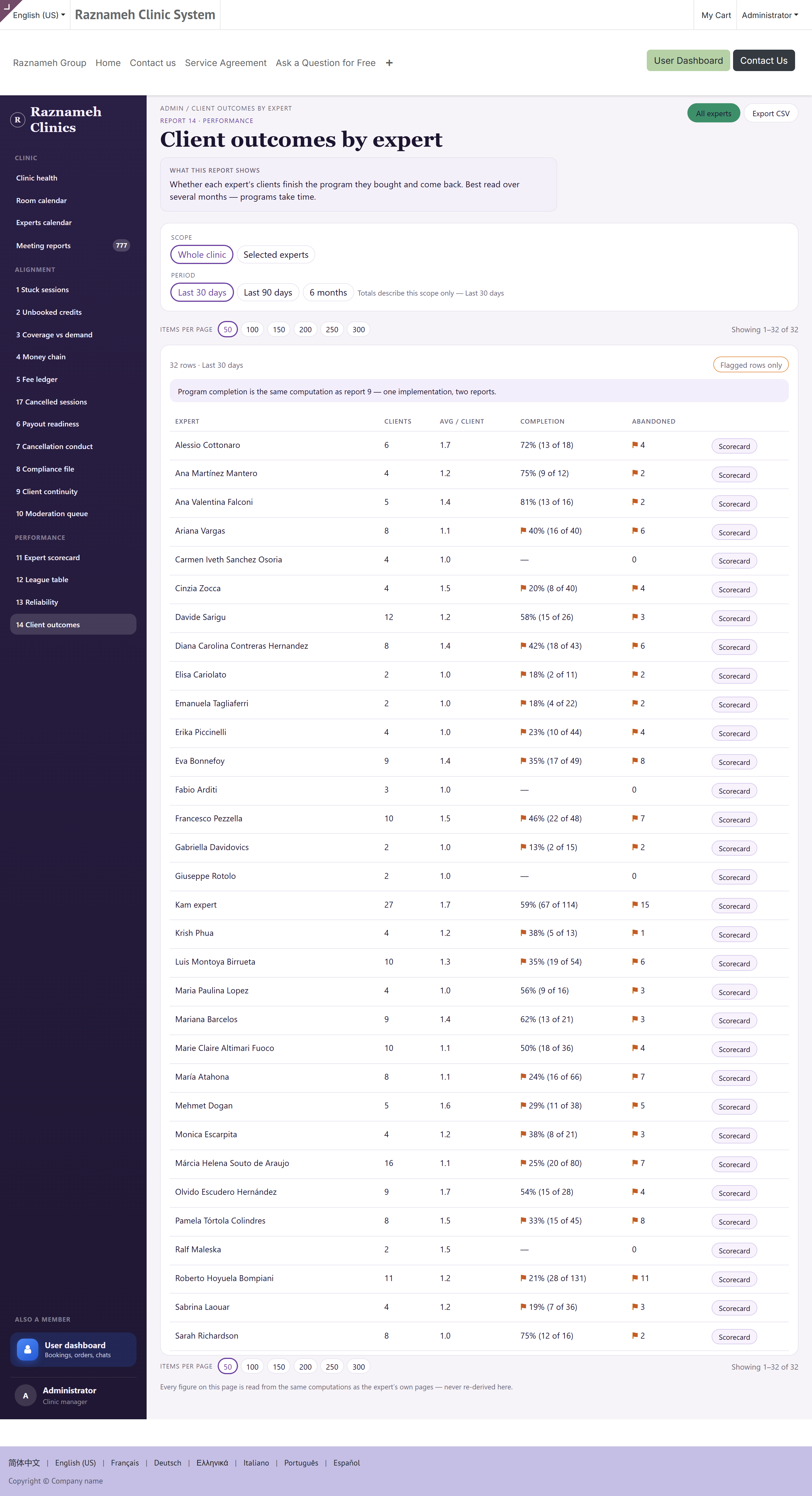
Whether clients continued, and how they rated the work.
Read alongside continuity (§5.9). A professional with low continuity but high ratings may be resolving people's problems quickly — which is a good outcome that a naive reading calls a failure.
6.6 Holding a performance conversation#
- Open the scorecard for the period, with the comparison on.
- Click through to the sessions behind any figure you intend to raise.
- Separate what they control from what you control — the rota is yours.
- Check the sample. Under five sessions, the rate is a dash for a reason.
- Agree one or two specific changes, and note the period you will review them in.
7Managing schedules, rooms and availability#
7.1 Appointment schedules#
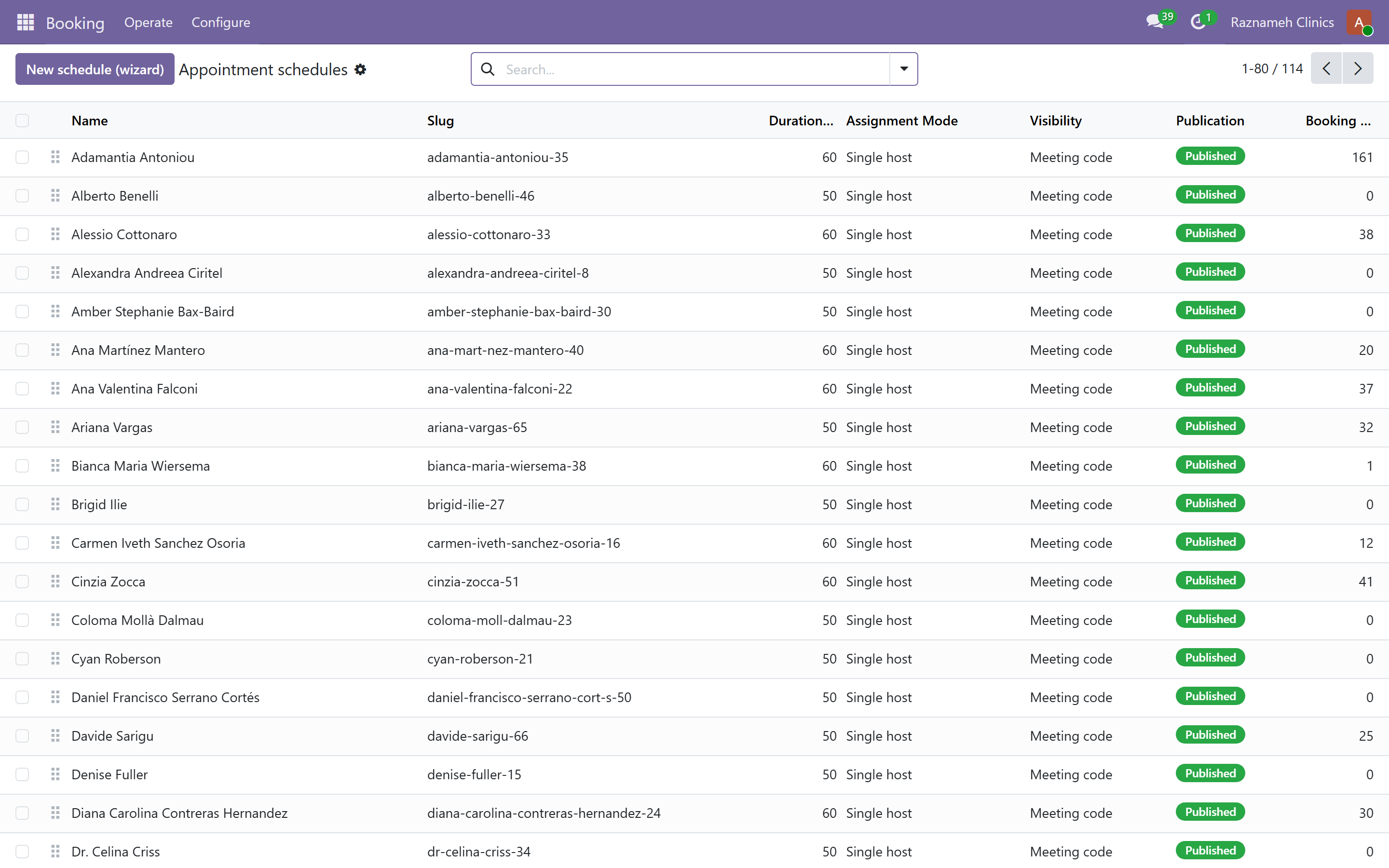
Booking → Configure → Appointment schedules
A schedule is a bookable offering with its own public page. Create one with the New schedule wizard, which walks through the setup.
For each schedule you set: name and web address, who can host it, the location type (online, on site or phone), duration, buffers, notice period, how far ahead people can book, and any intake questions.
7.2 Intake questions#
Questions attached to a schedule, answered at booking. The professional reads them beforehand.
Keep them short. §13 of the expert guide shows what happens when they are not: people abandon the form. Every question must earn its place — if nobody reads the answer, delete it.
7.3 Rooms#
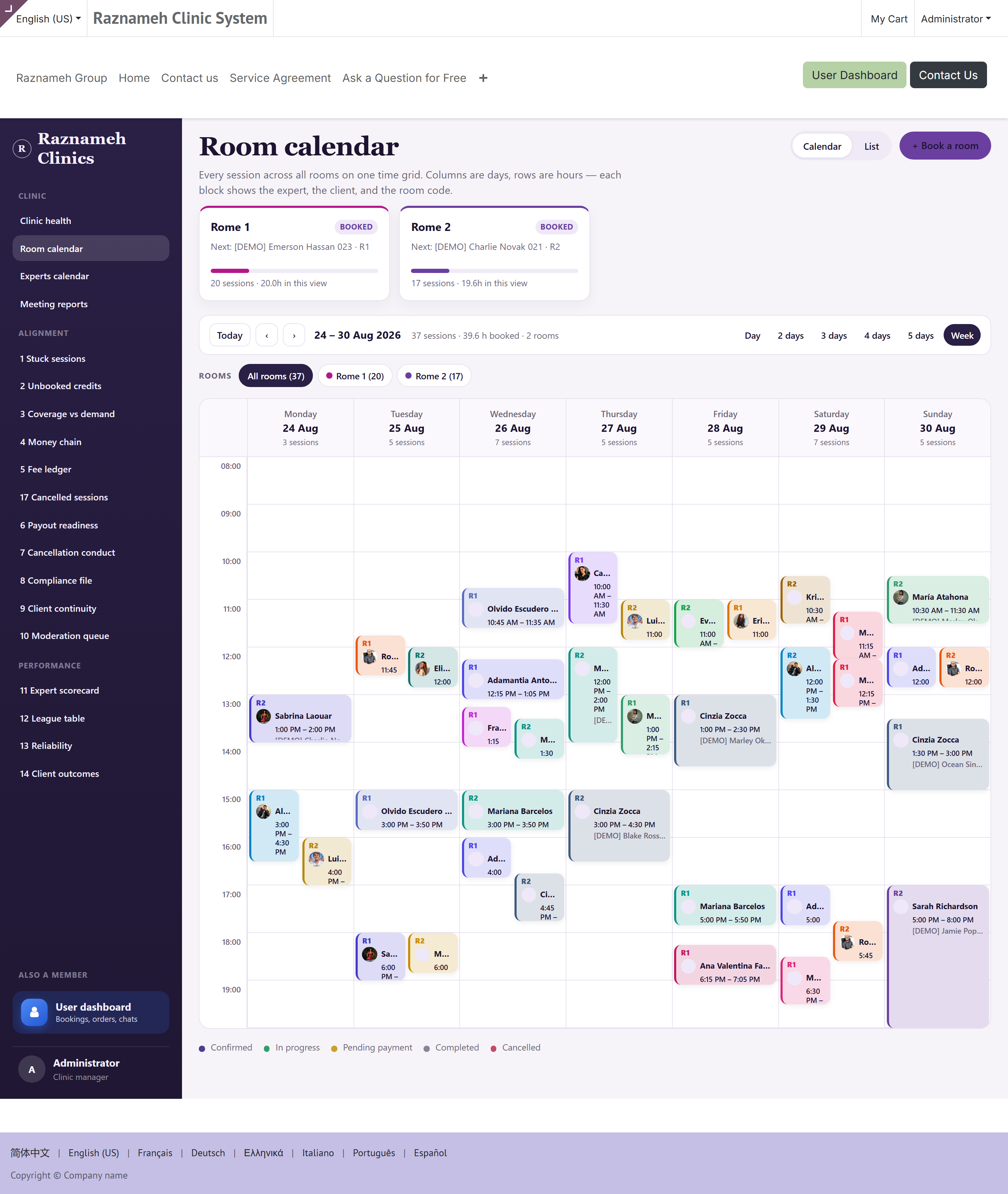
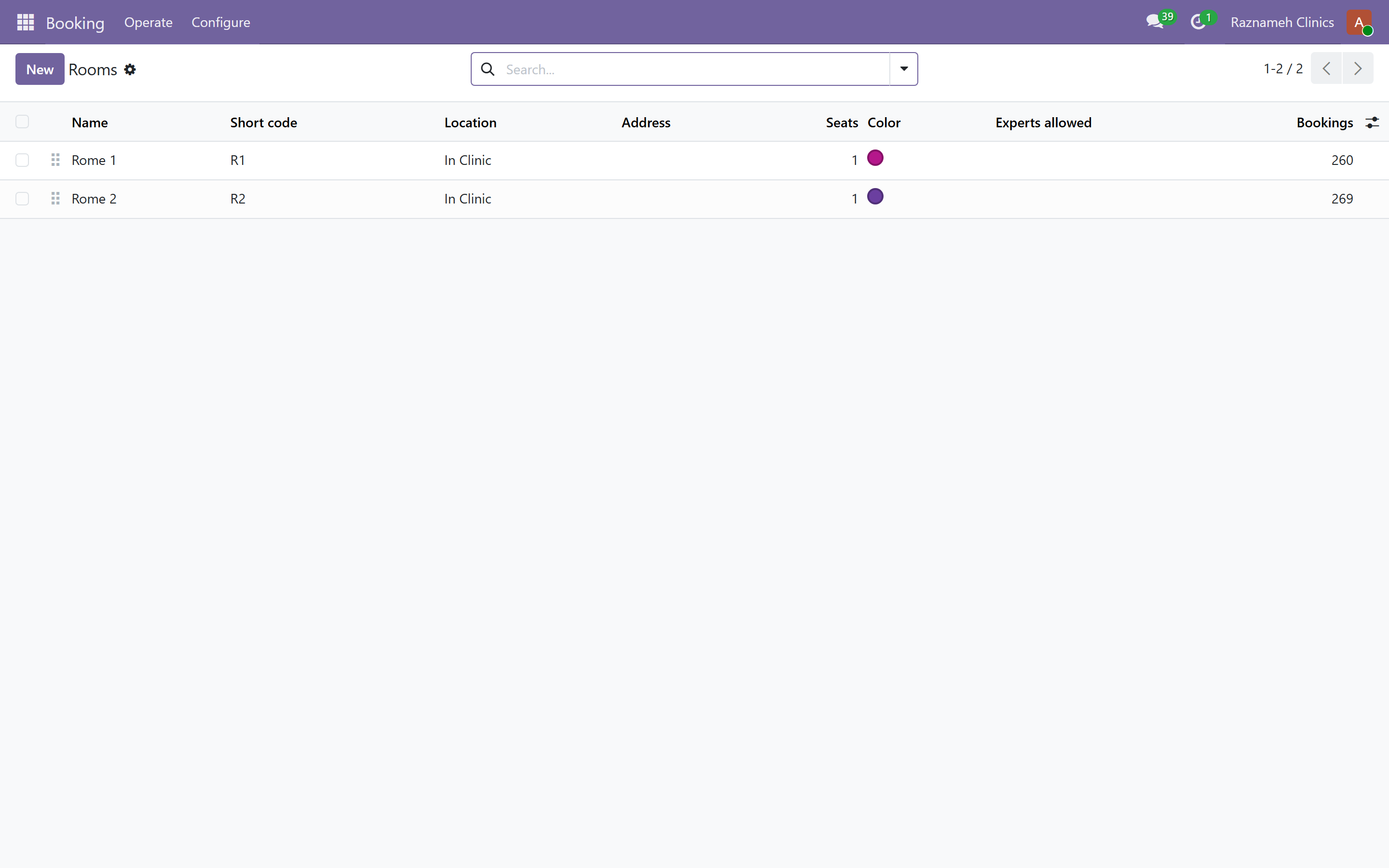
Booking → Configure → Rooms
Create each physical room with its capacity and any equipment. Once a session needs a room, the Platform will not offer a slot unless a suitable room is free — which prevents double-booking a room at the source rather than catching it afterwards.
7.4 Locations and calendars#
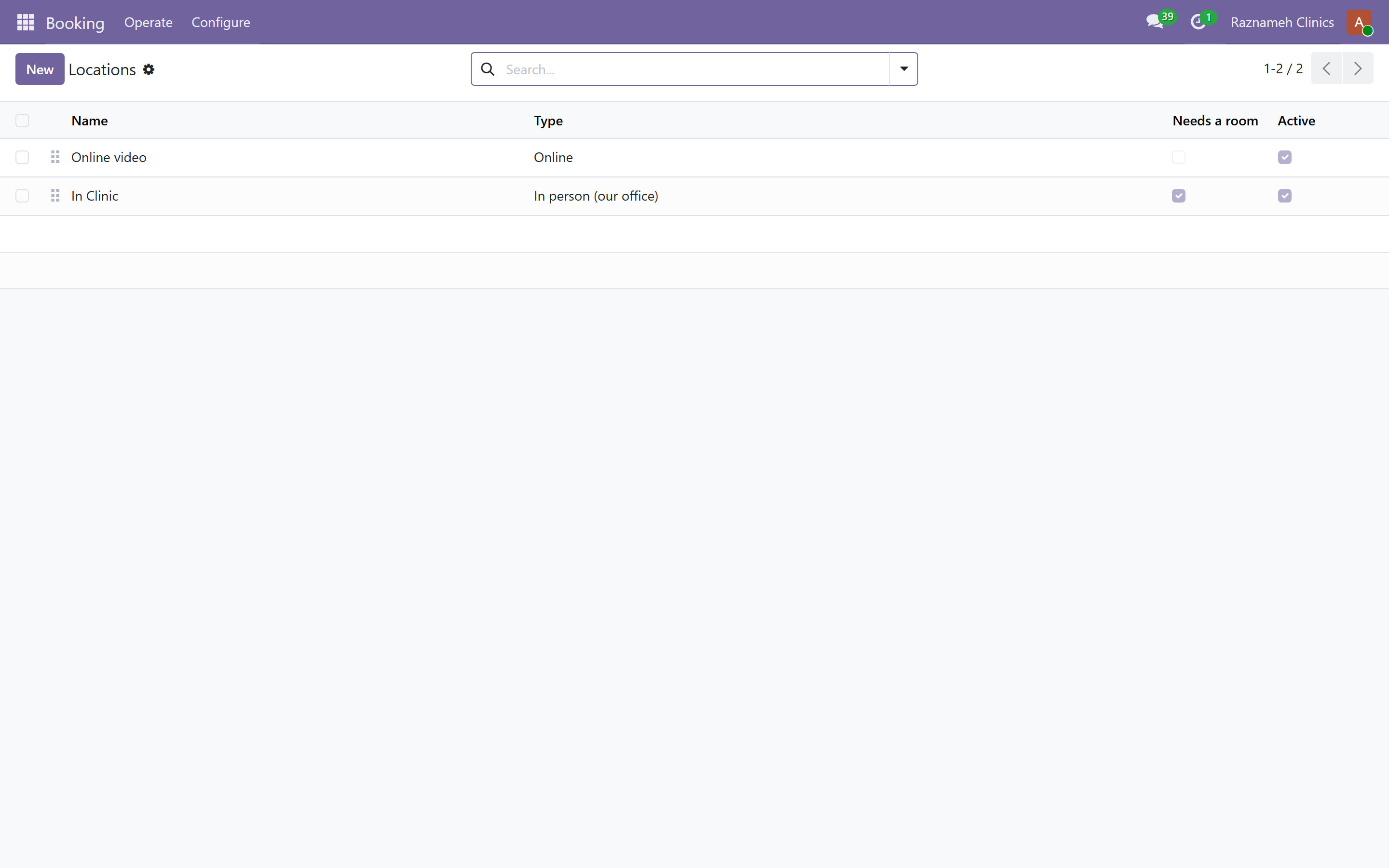
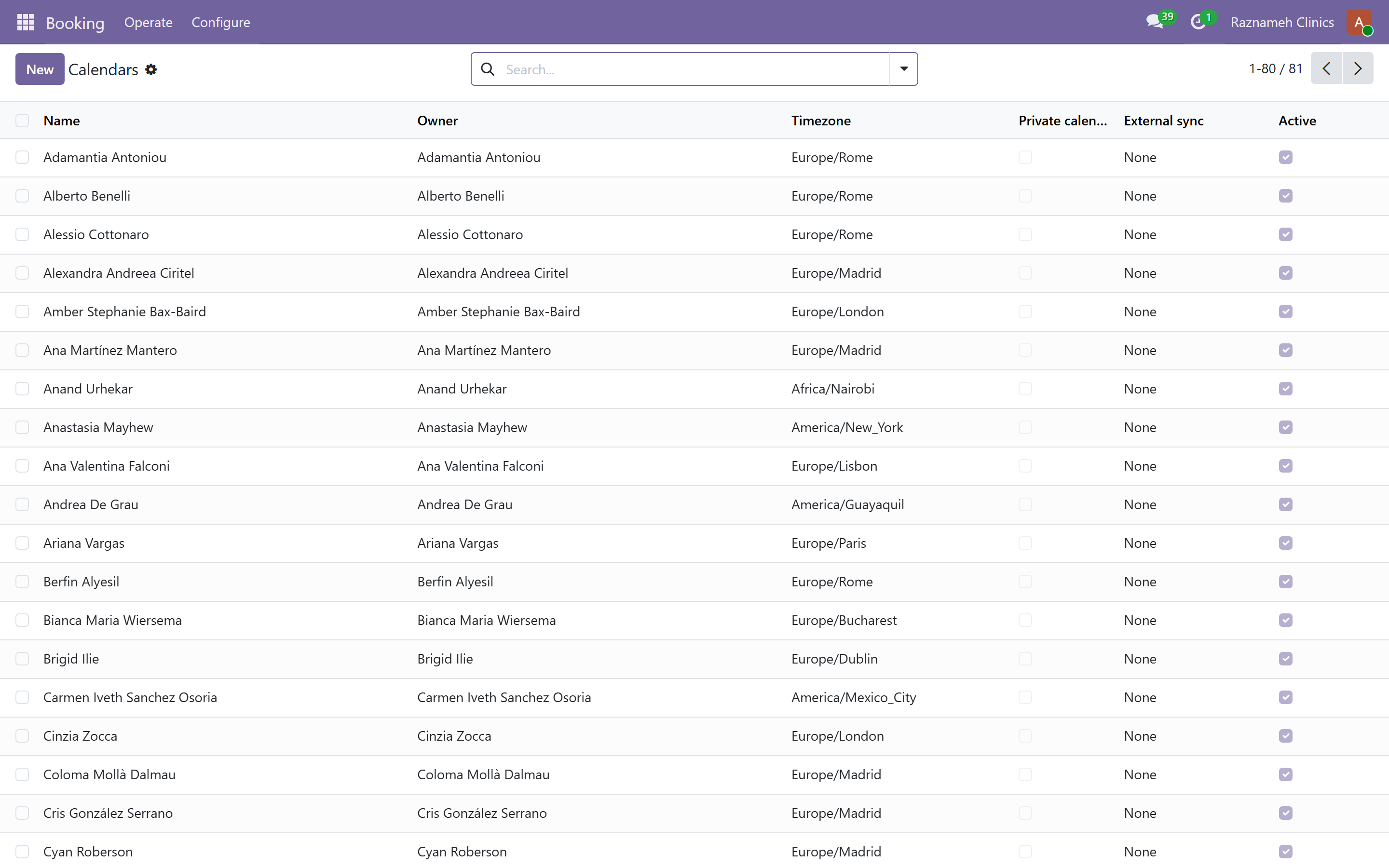
Locations — the places or channels sessions happen in. Calendars — including Gregorian, Persian and Islamic calendar systems where your clients need them.
7.5 When someone cannot be booked#
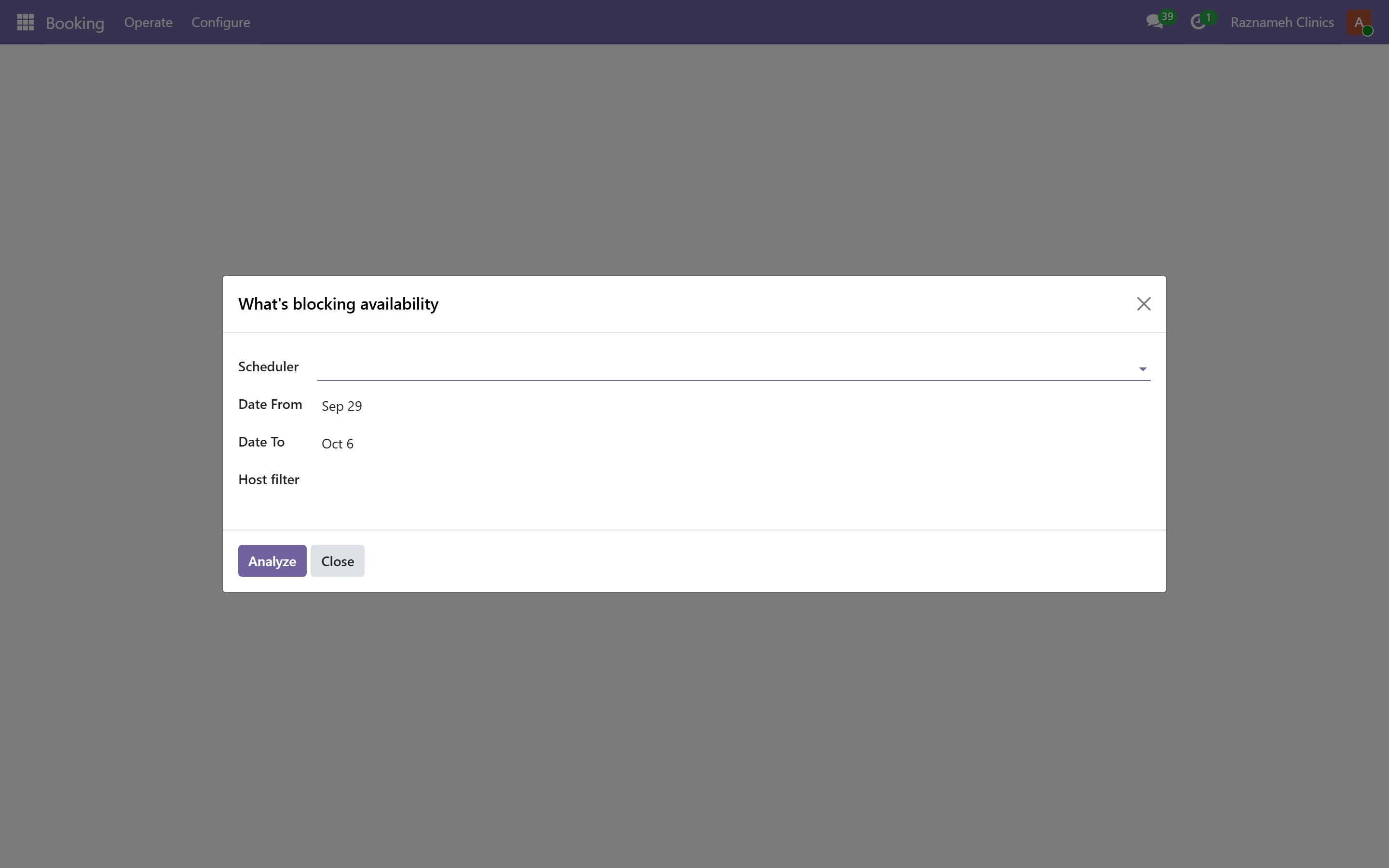
Booking → Operate → What's blocking availability
Give it a professional and a date range and it tells you exactly why slots are not appearing — missing weekly rules, an exception, a room clash, the notice period, or an existing booking.
Use this before escalating. It answers the most common support question you will receive from your own team.
7.6 Free slots#
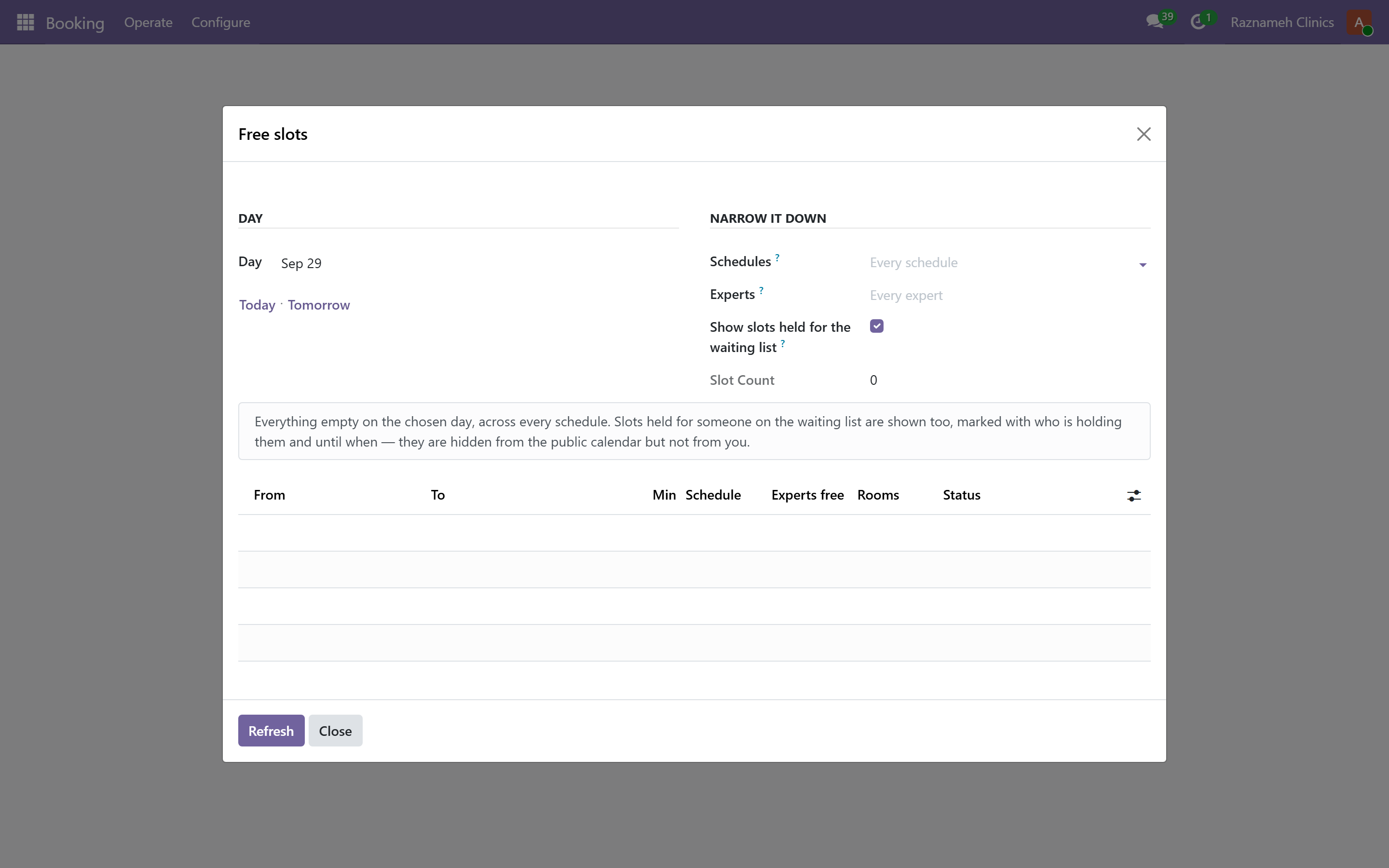
Booking → Operate → Free slots — find genuinely available slots across professionals and rooms. Use it when a client phones wanting the earliest appointment.
8Managing bookings and sessions#
8.1 All bookings#
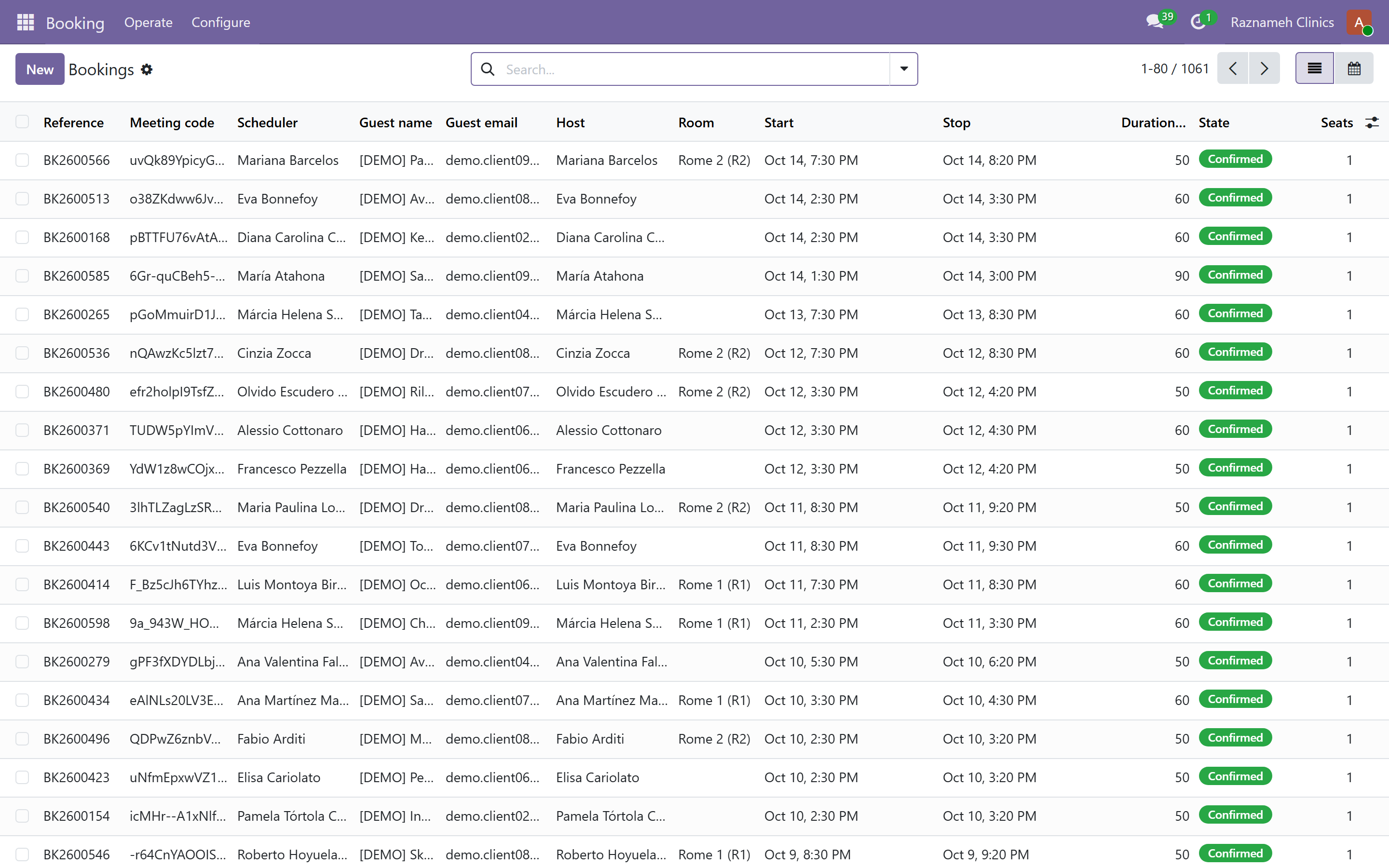
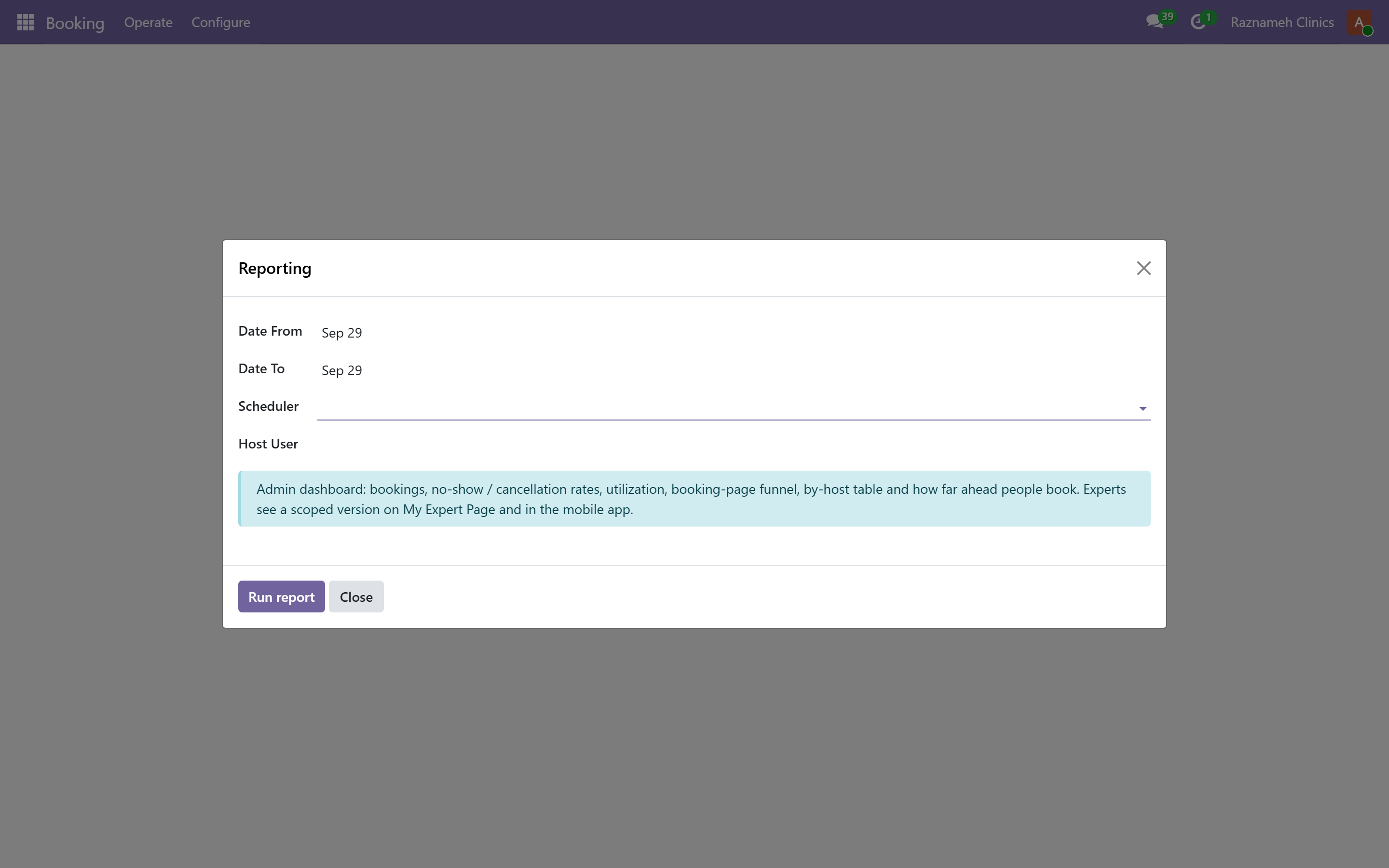
Booking → Operate → Bookings — every booking, filterable by date, professional, schedule, status.
8.2 Booking on someone's behalf#
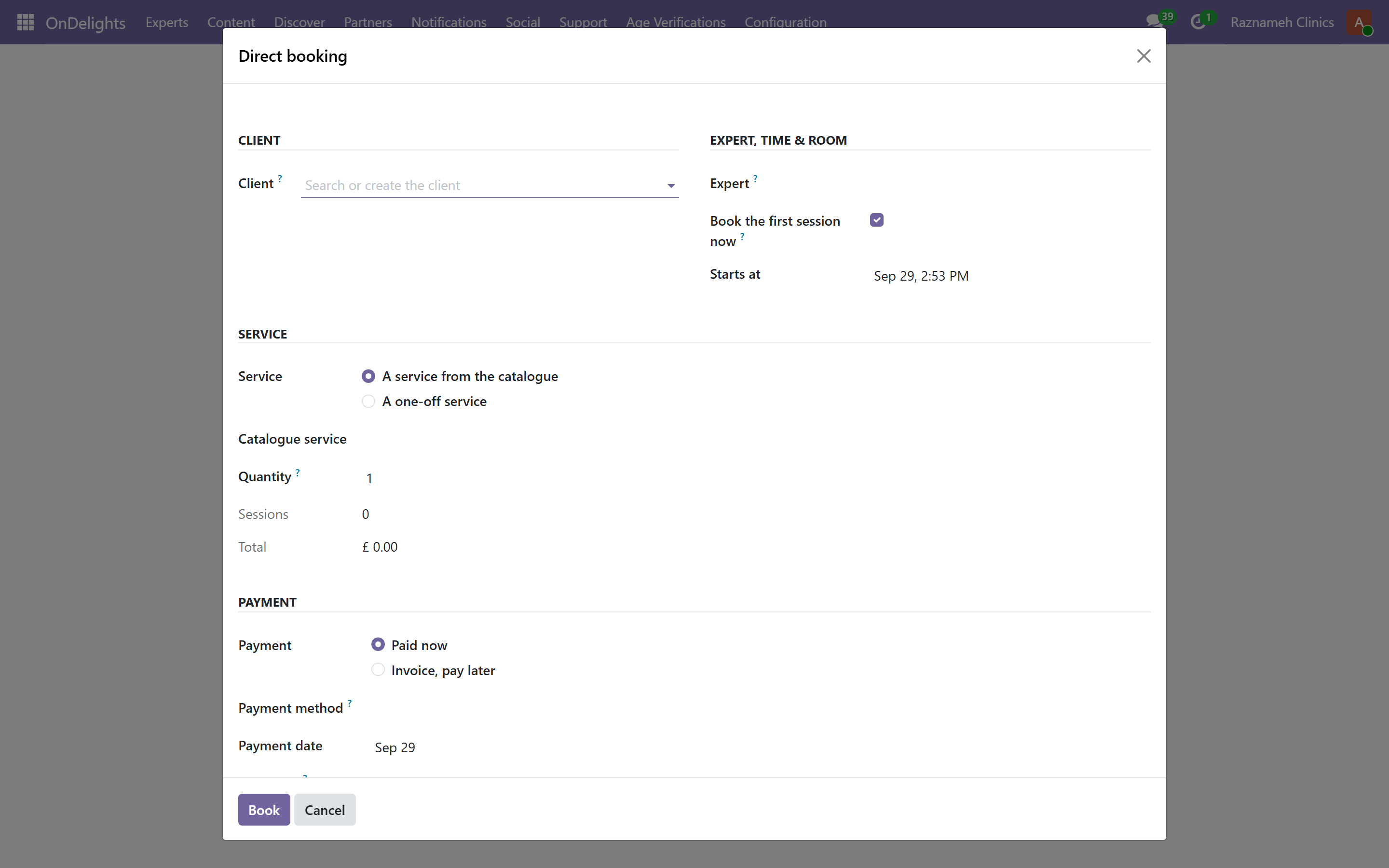
Meetings → Operations → Direct booking
Choose the client, the credit and the slot. Use it when a client phones, or when you are fixing a stuck session.
8.3 Session credits#
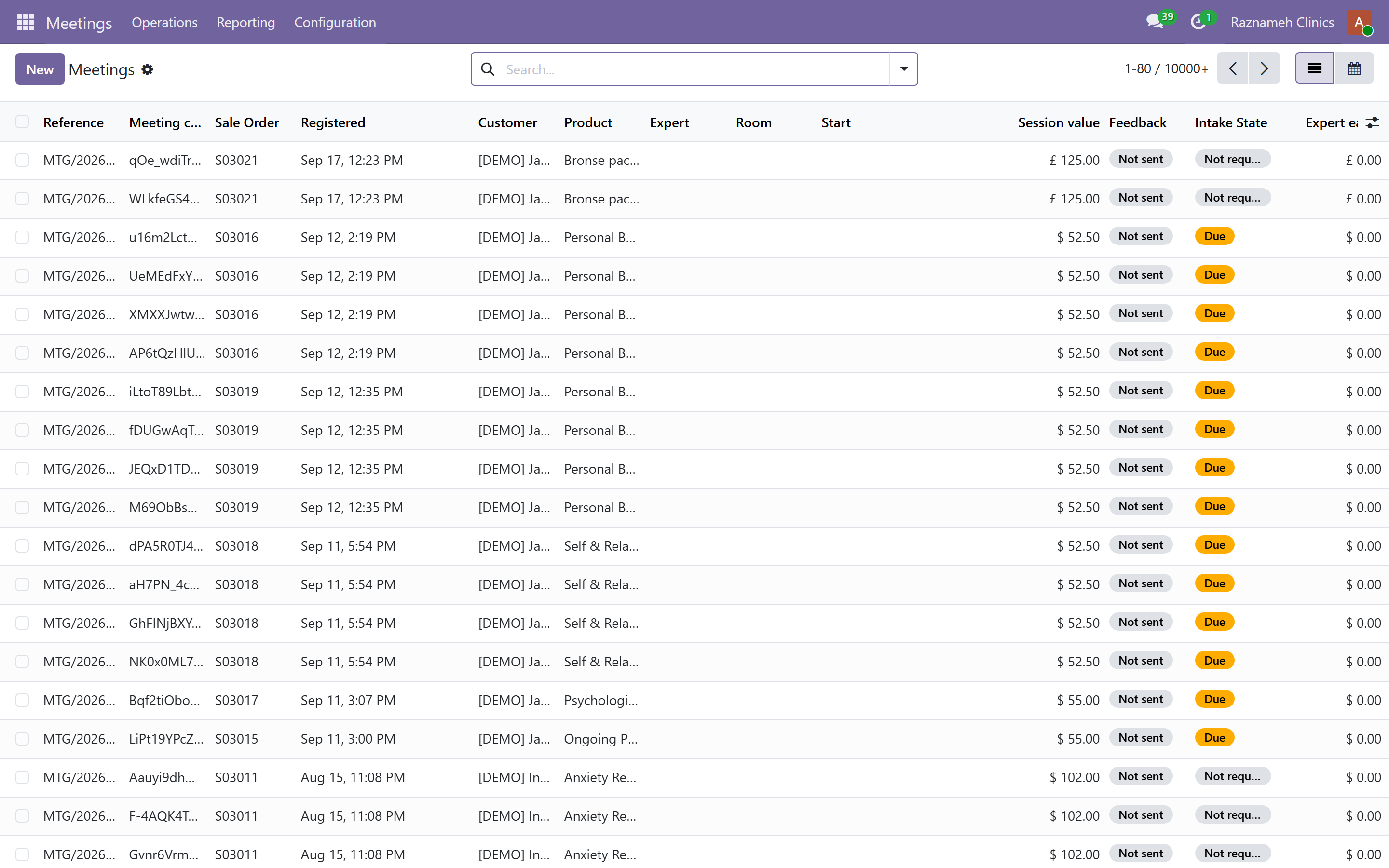
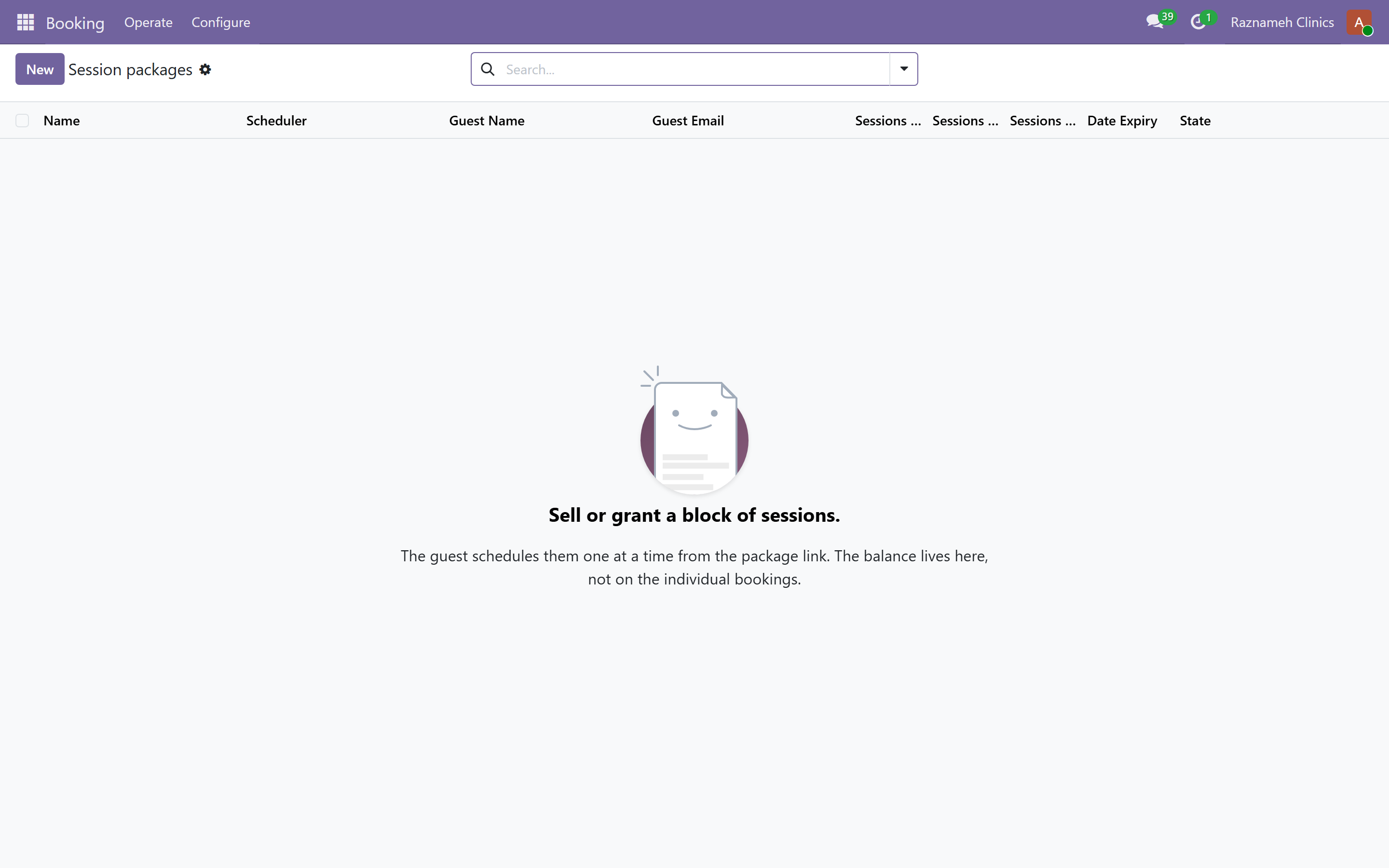
Meetings → Operations → Meeting credits — every session credit and its state: bought, booked, held, cancelled. This is where you correct a session that is in the wrong state.
8.4 Reviewing shop quotations#
Website checkout no longer takes payment immediately. The client sends the basket for review; you approve it, add a payment link, then confirm the proof they upload.
Sales → Orders (filter Awaiting review or Payment submitted)
- Open the quotation. Status Awaiting review means the client submitted it.
- Approve & send payment link — enter payment instructions and/or an external payment URL. The client is emailed
/shop/order/pay/…and notified in the app. - When they have paid and uploaded proof, status becomes Payment submitted. Check the Review / payment tab.
- Confirm customer payment — attach your evidence that the money arrived and choose the bank/cash journal. The invoice is marked paid, the order is confirmed, session credits are created, and those credit names are written on the order chatter. Or Reject with a reason the client will see as a notification.
If you reject the quotation before sending a payment link, they cannot pay until you approve it.
8.5 Stale holds#
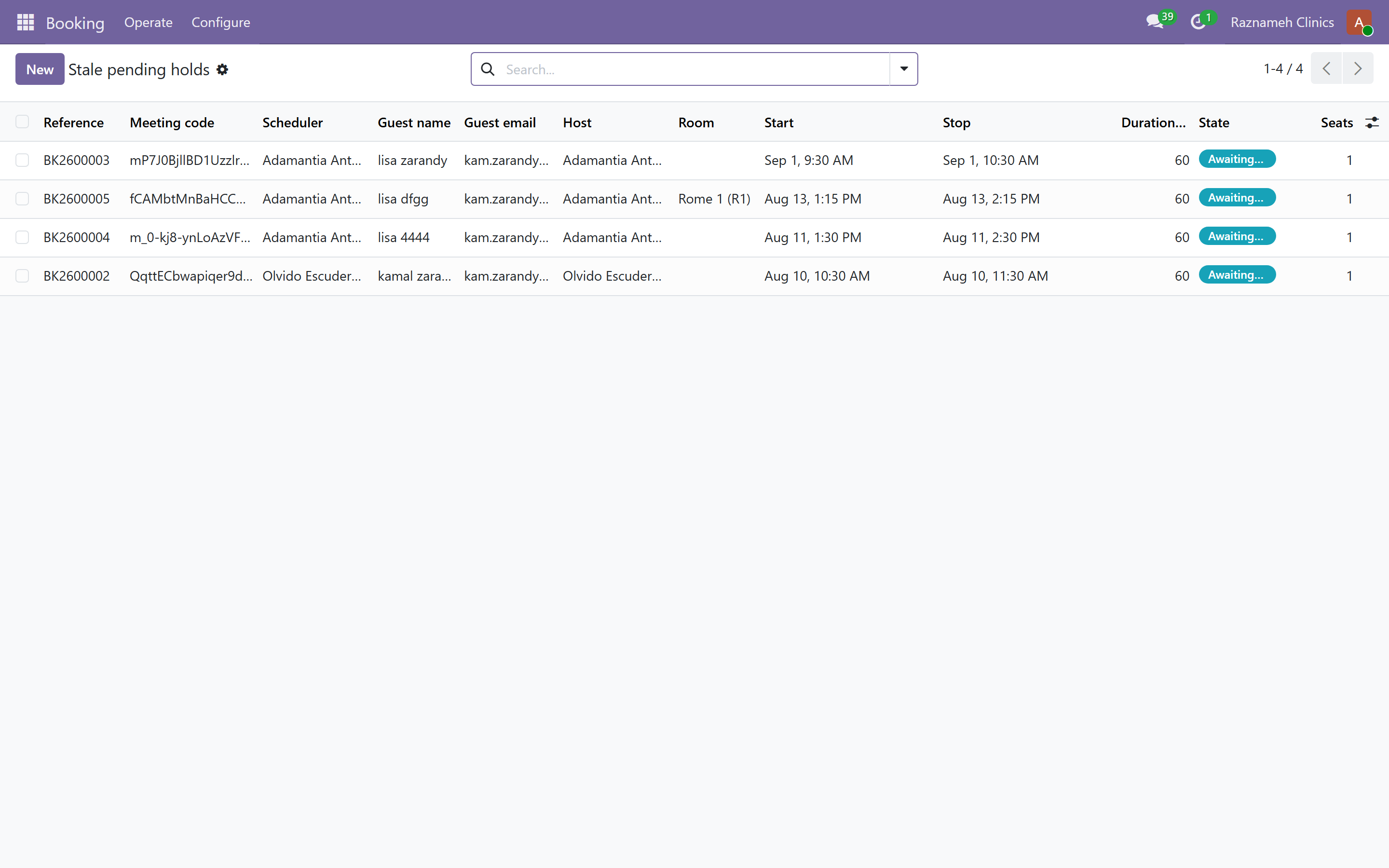
Booking → Operate → Stale holds — slots held by someone who started booking and never finished. Clear them so the time returns to sale.
8.6 Waitlist and slot offers#
Booking → Operate → Waitlist and Slot offers
When a session is cancelled, waitlisted clients are offered the slot automatically. These pages show who is waiting and which offers are outstanding.
A healthy waitlist turns cancellations into revenue. If it is always empty while you also have unmet demand, check that clients are being shown the option.
8.7 Attendance and outcomes#
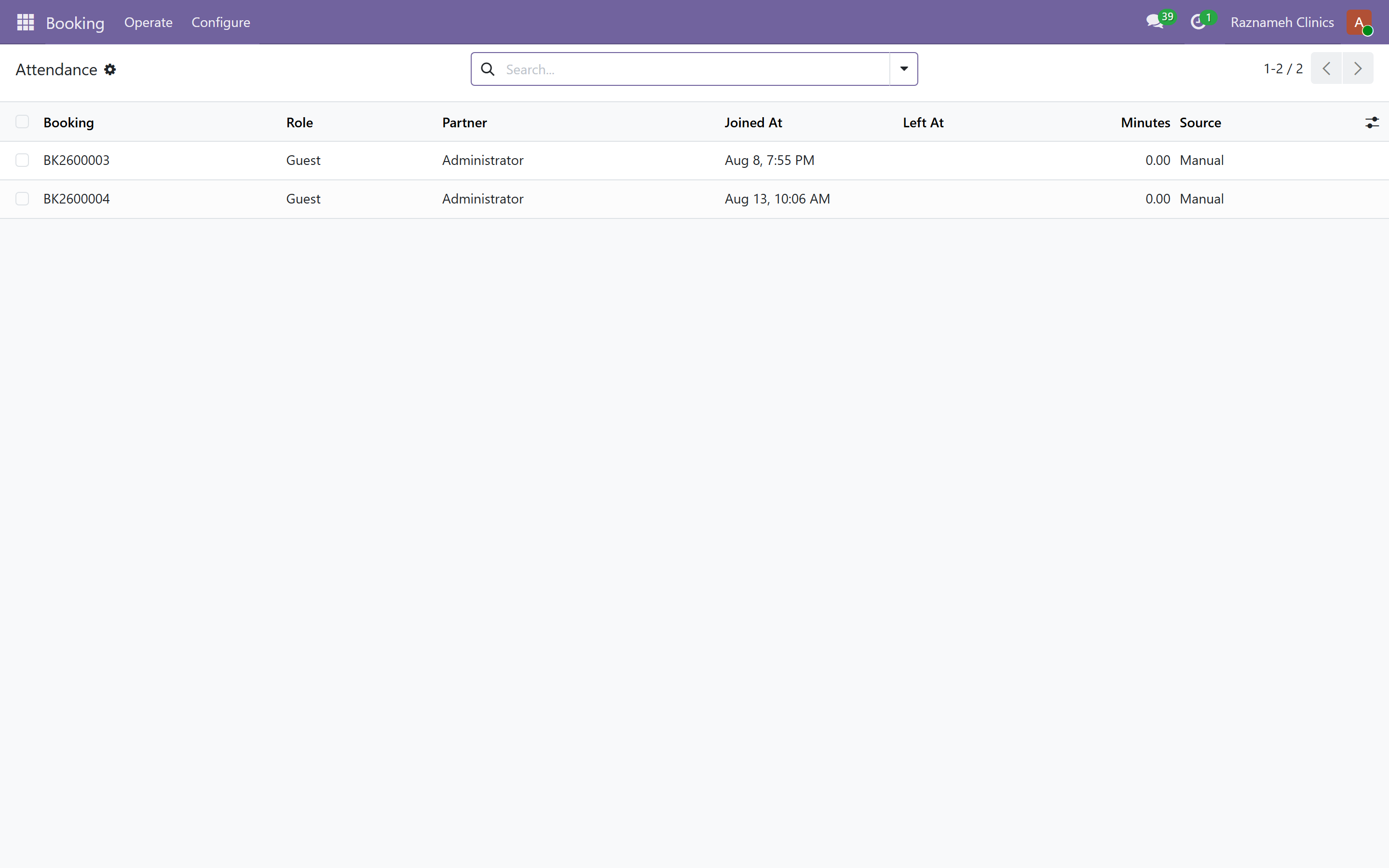
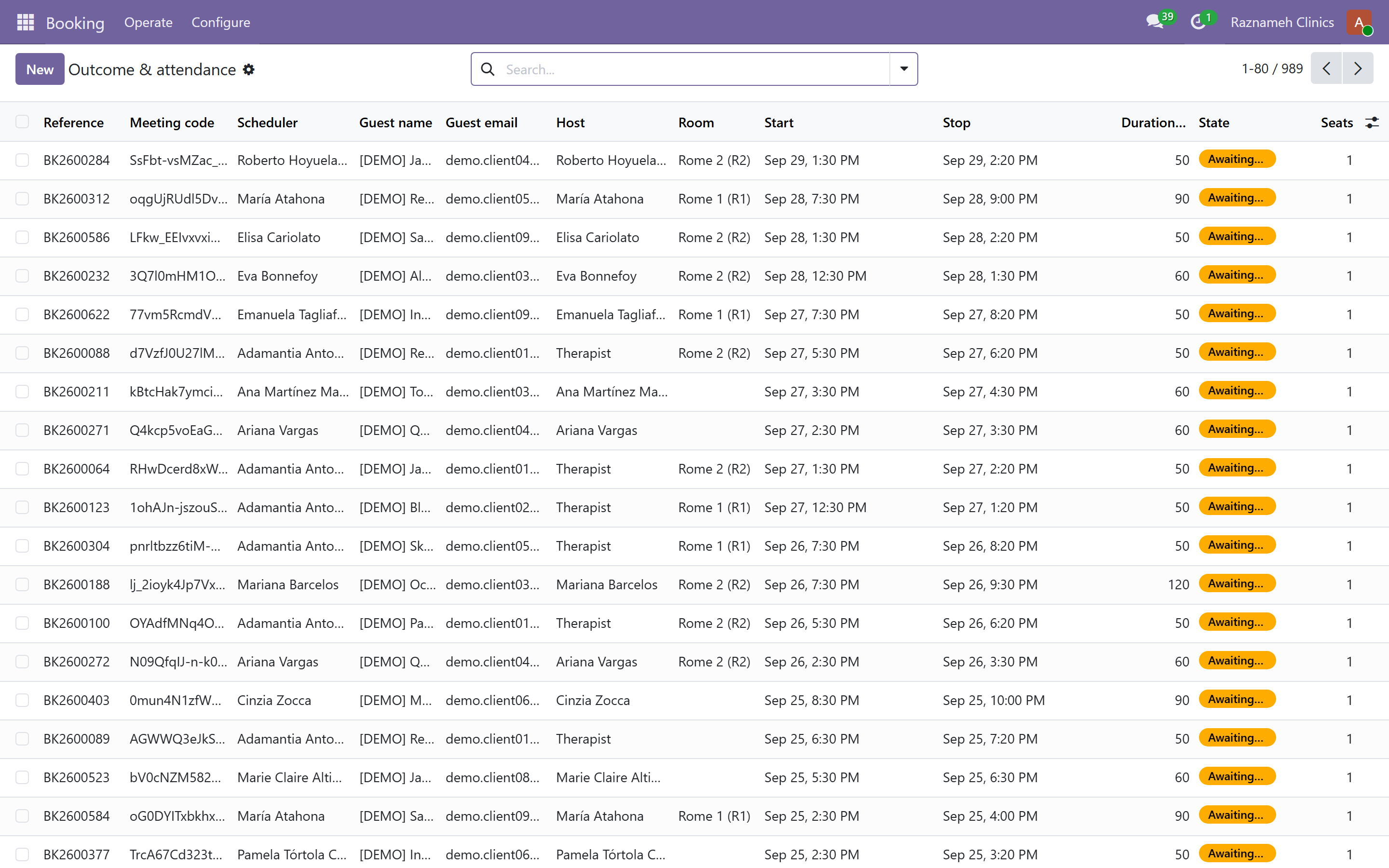
Booking → Operate → Outcome & attendance — who joined, when, and for how long. This is the evidence behind §5.1 and behind any dispute about whether a session happened.
8.8 Clinic attendance — admitting clients to the premises#
Applies to sessions held on your premises. Online sessions have nothing to approve.
Where you run on-site work, a booked session carries a clinic attendance decision made by the professional who will deliver it:
| Value | Meaning |
|---|---|
| Waiting for the expert | Booked, no decision yet |
| Approved | The professional will receive this client at the booked time |
| Declined | They will not |
Each decision records who made it, when, and the professional's note — which is shown to the client. The decision is also written into the session's message history, so it survives in the record rather than only in the field.
What to watch, and what it means:
| Pattern | What it usually is | What to do |
|---|---|---|
| Sessions still waiting close to their start time | The professional is not checking, or does not know this step exists | A reminder; then check they are receiving notifications |
| Declines with no note | The client got a refusal and no explanation | A training point. The note is the only explanation the client receives |
| Repeated declines from one professional | Either a rota problem or a screening problem. Both are conversations, not settings | Read them alongside Cancelled sessions (§5.12) |
| A decline where the credit did not return | A data problem, not a policy one | Check the credit's state (§8.3) — a declined session should leave the client able to re-book |
Only a session that is booked, on the premises and not yet ended can be approved or declined. Everything else is out of scope for this step: after the time has passed, the session is closed as held or as a no-show like any other (§5.1).
8.9 Group sessions#
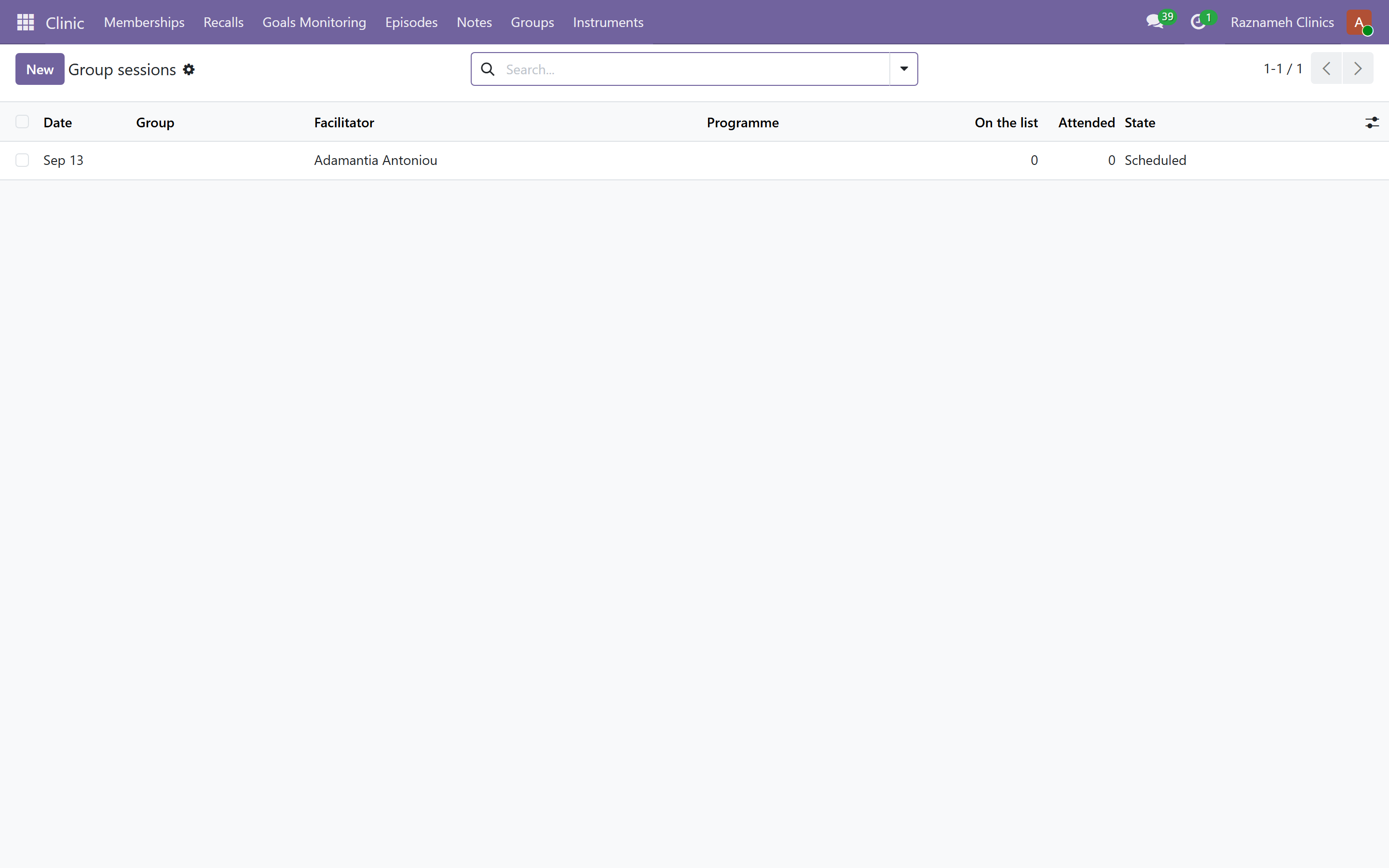
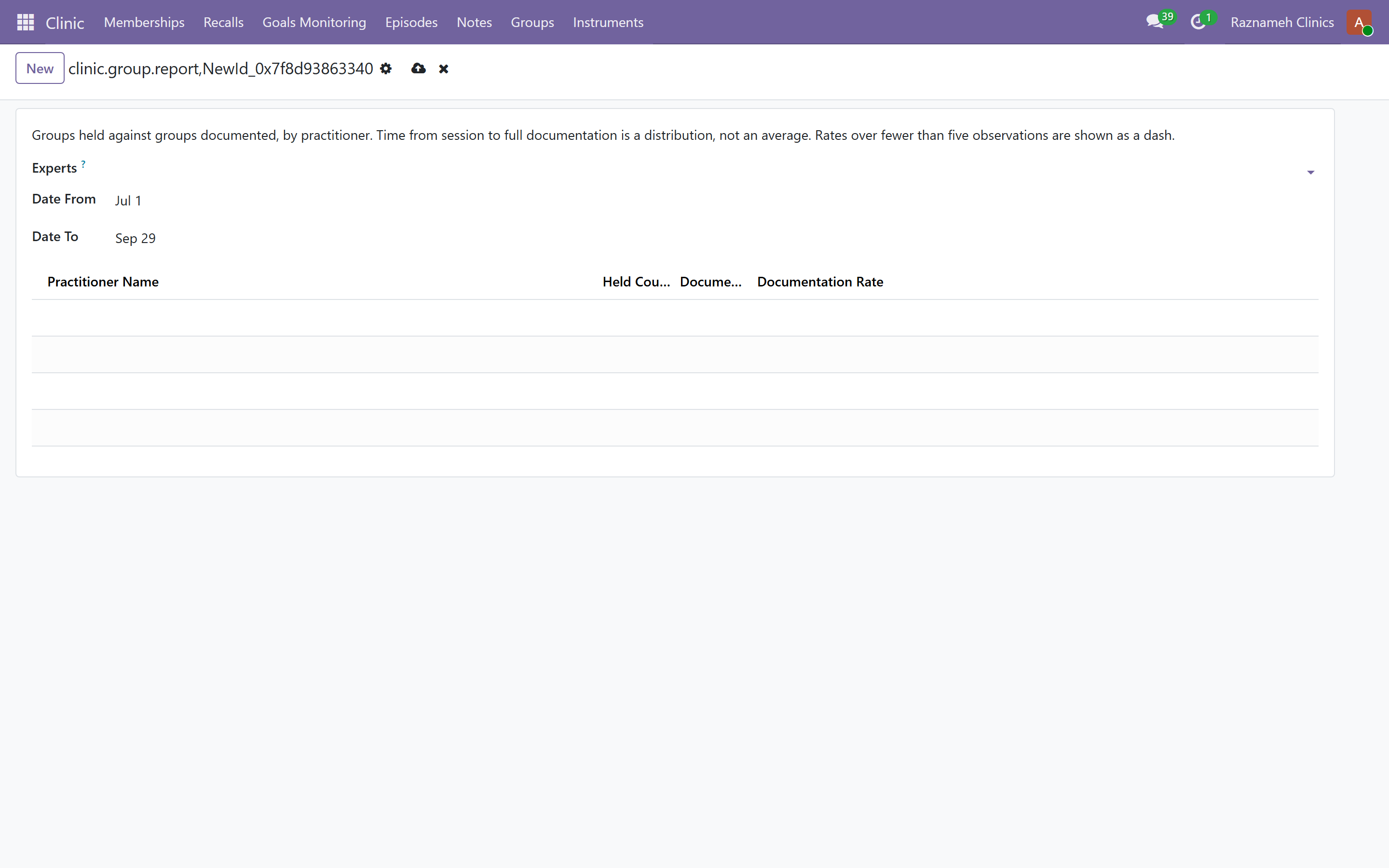
Clinic reports → Groups → Group sessions, with Group documentation beside it.
A group is not eight sessions that happen to share a room. It is one session with one clinical account of it, and eight people who each need that account in their own record. The module exists so it is written once and filed N times.
How one runs:
- Scheduled — the session with its practitioner, time, room and the attendee list. A group that runs as a series carries a programme label and a session number.
- Mark held — this is the step that reads the door. Attendance is pulled from the booking's attendance rows and each attendee is set accordingly.
- Write it once. The shared body is the account of the session. Each attendee can carry an individual addendum — their own prose for the same session — and their own private answers.
- Documented — reached only when every attending client has a filed note. Until then the session is held and not documented, and the overdue sweep chases it like any other missing report (§15.3).
Attendance is five states, not a tick:
| State | What it means |
|---|---|
| Expected | On the list, not yet marked |
| Present | Came |
| Late | Came late |
| Absent | Did not come, and nobody heard |
| Excused | Did not come, and told somebody |
Absent and excused are different clinical facts, which is why this is not a checkbox. Marking held never downgrades an excused row — the booking system cannot tell the difference and the clinician can, so a clinician's judgement wins over the door list.
Three rules worth knowing before anyone asks:
- Notes go to people who attended, not to everybody who was booked. Somebody who did not come does not get a record of a session they were not at.
- A private field is absent from another attendee's document, not hidden in it. There is no redaction to fail — the other person's copy never contained it.
- The session's own record belongs to nobody. It is filed as a document with no subject, so a subject-access request from one attendee cannot hand over the other seven people's session.
Cancel exists for a group that did not run. Leaving it scheduled for ever, or deleting the attendance list, were the only honest options before it.
9Managing professionals#
9.1 Creating one#
- Create their user account.
- Experts → All Experts → create their profile.
- Complete the profile (§9.2).
- Assign the services they can deliver (§9.4).
- Link them to a booking schedule so slots can be offered (§9.5).
- Set up their availability, or ask them to (§4 of the expert guide).
- Create their contract with pay terms (§13.1) and send it for signature.
9.2 The professional's profile, field by field#
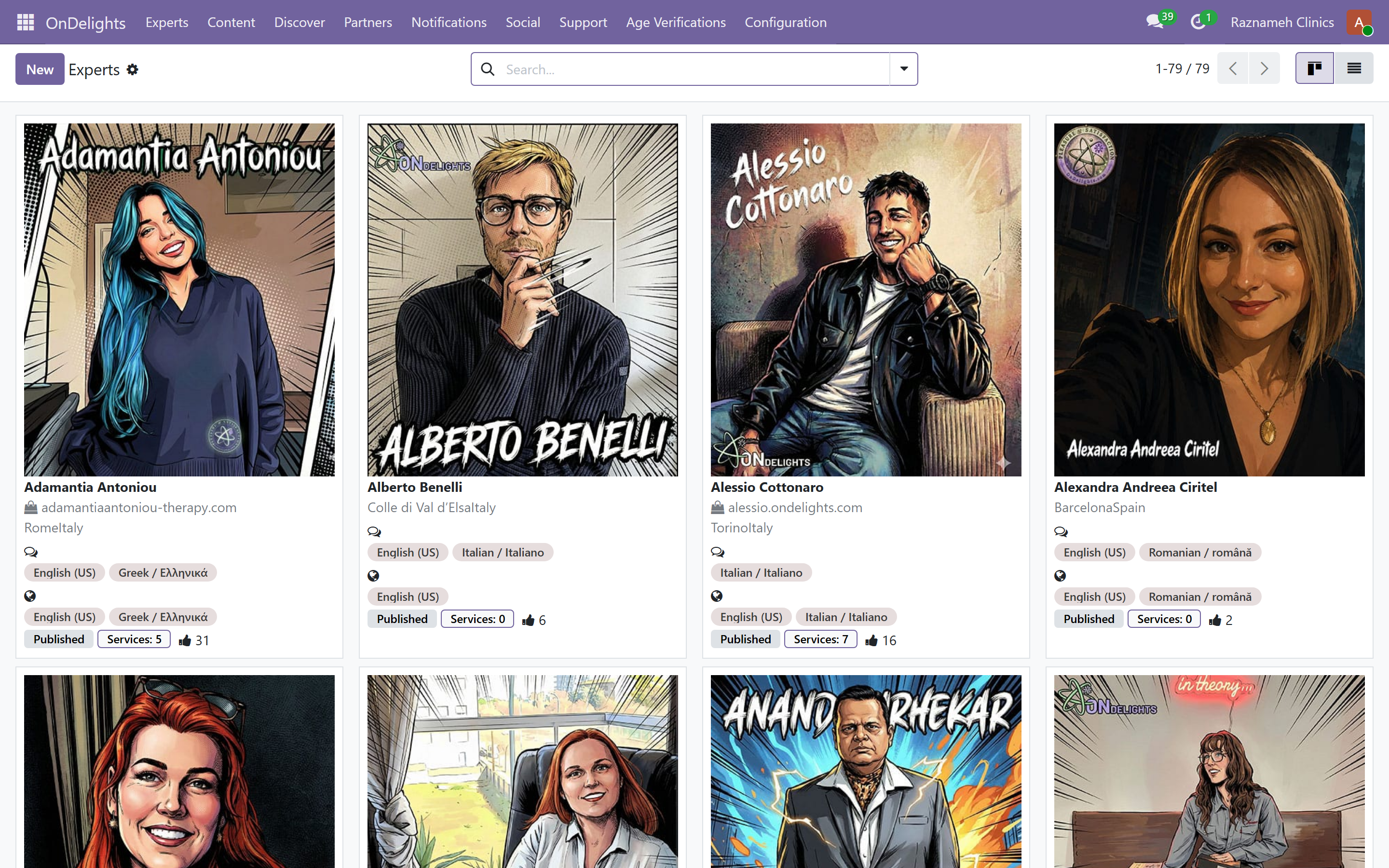
Experts → All Experts → open a record.
To fill the session counts and star ratings shown on the mobile expert cards, open Experts → Generate Sessions & Ratings (or the button on the All Experts list). Each expert gets a random session count between 200 and 400 and a rating between 4.4 and 4.8. You can also edit Displayed Sessions and Displayed Rating on the expert form.
| Field | Who sees it | Notes |
|---|---|---|
| Name and photo | Public | The photo affects booking rates more than anything else on the page |
| Introduction | Public | Written for a client, not a colleague |
| Specializations | Public, drives search filters | Be specific. Listed under everything means chosen for nothing |
| Video and gallery | Public | Many clients watch before booking |
| Qualifications | Public | Your business is accountable for these — check evidence before publishing |
| Verified badge | Public | Admin-controlled. Never let a professional set their own |
| Active | Internal | Unticking removes them from the directory without deleting history |
| Linked user | Internal | This is what makes the Expert practice area appear in their app |
The most common setup problem is a profile with no linked user: the person signs in and sees no practice area. Check that first whenever a new professional says the app looks wrong.
9.3 Verification#
Verified qualifications and the verified badge are controlled here, not by the professional, because they are claims your business is accountable for. Check the evidence before ticking.
Client age and identity verification is a separate queue — see §14.
9.4 Services — what can actually be booked#
Experts → Expert Services. Each service carries:
| Setting | Effect |
|---|---|
| Name and description | What the client sees when choosing |
| Duration | Sets the slot length, so it must match reality |
| Price | What is charged, and the base for any revenue share |
| Sessions included | 1 for a single session, more for a package |
| Which professionals deliver it | Nobody can be booked for a service they are not assigned to |
| Report required | Whether a session report falls due afterwards |
| Agreement | Which terms the client accepts at checkout |
Membership plans (when clinic_membership is installed) | Tag one or more existing plans, like tags. Each tagged plan's image and HTML description appear on this service's shop page. Define the library under Clinic → Memberships → Plans — do not author a plan on the service. Buying this service is still a one-off package; the client must buy the plan product to start a membership |
Two of these deserve thought rather than a default:
Duration is the slot length. Setting 60 minutes for a service that really runs 75 produces back-to-back bookings your professionals cannot honour, and the overrun resurfaces later as cancellations and stuck sessions.
Report required should be set per service deliberately. Requiring reports where they add nothing trains people to file late for the ones that matter.
9.5 Connecting a professional to bookable time#
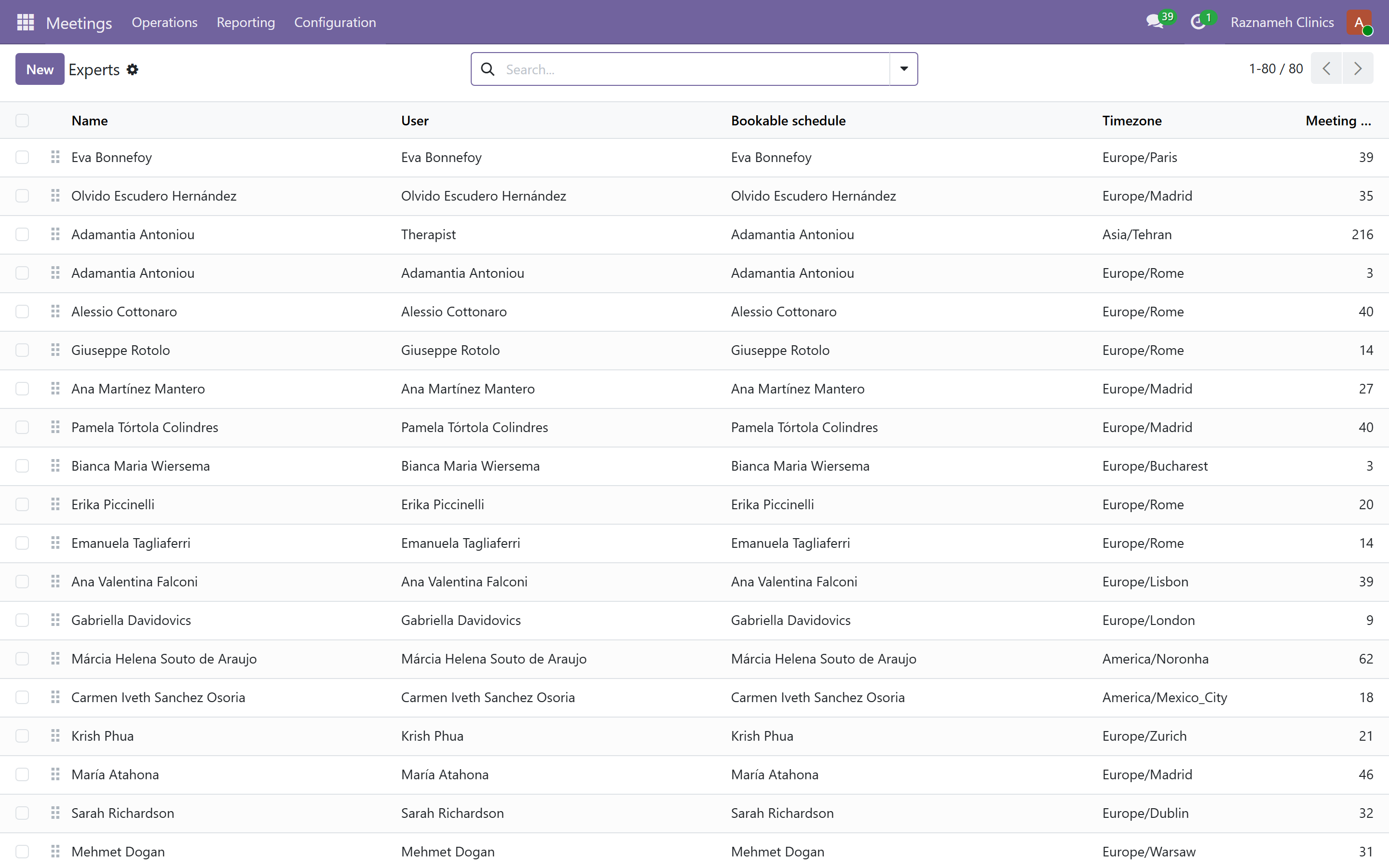
A professional with a profile and services still cannot be booked until they are linked to a booking schedule.
- Meetings → Configuration → Experts maps each professional to their schedule and products.
- Booking → Configure → Appointment schedules holds the schedule itself.
- A helper action creates booking schedules for several professionals at once, which is worth using when onboarding a group.
If a new professional shows no availability despite having set hours, this link is usually what is missing — and Booking → Operate → What's blocking availability (§7.5) will say so.
9.6 Onboarding checklist#
- [ ] User account created and tested
- [ ] Professional profile complete and checked on the public page
- [ ] Qualifications verified against evidence
- [ ] Services assigned with correct prices and durations
- [ ] Contract created, terms confirmed, signed
- [ ] Availability set and producing bookable slots
- [ ] Report requirements explained
- [ ] Cancellation policy explained
- [ ] Test booking made end to end, then cancelled
Do the test booking. It catches more setup errors than any amount of checking screens.
9.7 When someone leaves#
- Stop new bookings — remove availability and unassign services.
- Rebook or cancel their scheduled sessions.
- Chase outstanding session reports before access ends.
- Close their final payment cycle (§13).
- Deactivate the account.
- Reassign their clients.
Do these in order. Chasing reports after access is removed is painful and sometimes impossible.
10Managing clients#
10.1 Client records#
Platform → Experts → Bookings, and the contacts area, show clients with their orders, sessions, invoices and history. The admin portal's own list is at /my/admin/clients.
Every client has a code — C-001253 — shown under their name on their page here, on the professional's client list and card, and on the client's own dashboard. It exists so your staff have something to say on the phone and write on a form that is not the person's name.
Three things about it are worth knowing before somebody asks:
- It is derived from the record, not stored and not sequenced. So it is correct for every client who has ever existed, including those created before the code did, and there is no backfill, no sequence to allocate and nothing that can drift out of step.
- It never changes, and it is the same code on every screen that shows it.
- It is not a secret. It identifies a record; it does not authorise anything. Saying it over the phone is the point of it.
Searching by it works wherever clients are searched, including the professional's list — C-001253 or plain 1253.
10.2 Common requests#
| Request | How to handle it |
|---|---|
| "Move my session" | Direct booking (§8.2), or ask them to self-serve |
| "Refund me" | Check the agreement and cancellation policy first, then process in Accounting |
| "I paid and cannot book" | Check unbooked credits (§5.2) and whether the professional has availability (§7.5) |
| "Change my invoice" | An issued invoice cannot be edited. Issue a credit note and a corrected invoice |
| "Delete my data" | §16 |
| "I want a different professional" | Check the agreement — credits are often specific to one person |
10.3 Merging duplicates#
Duplicate client records split someone's history across two profiles. Merge them in the contacts area, checking first that both really are the same person.
10.4 Between-session monitoring programmes#
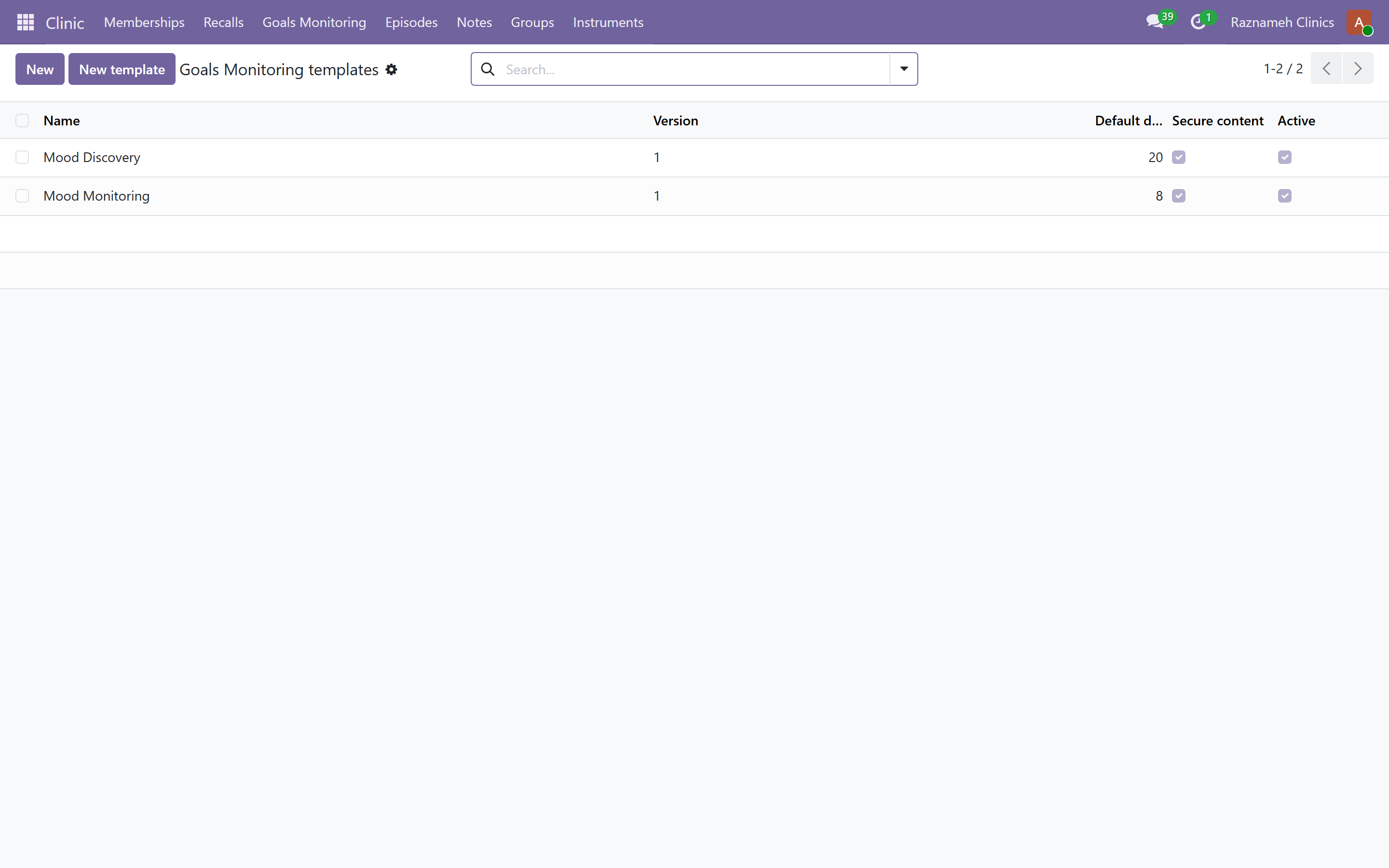
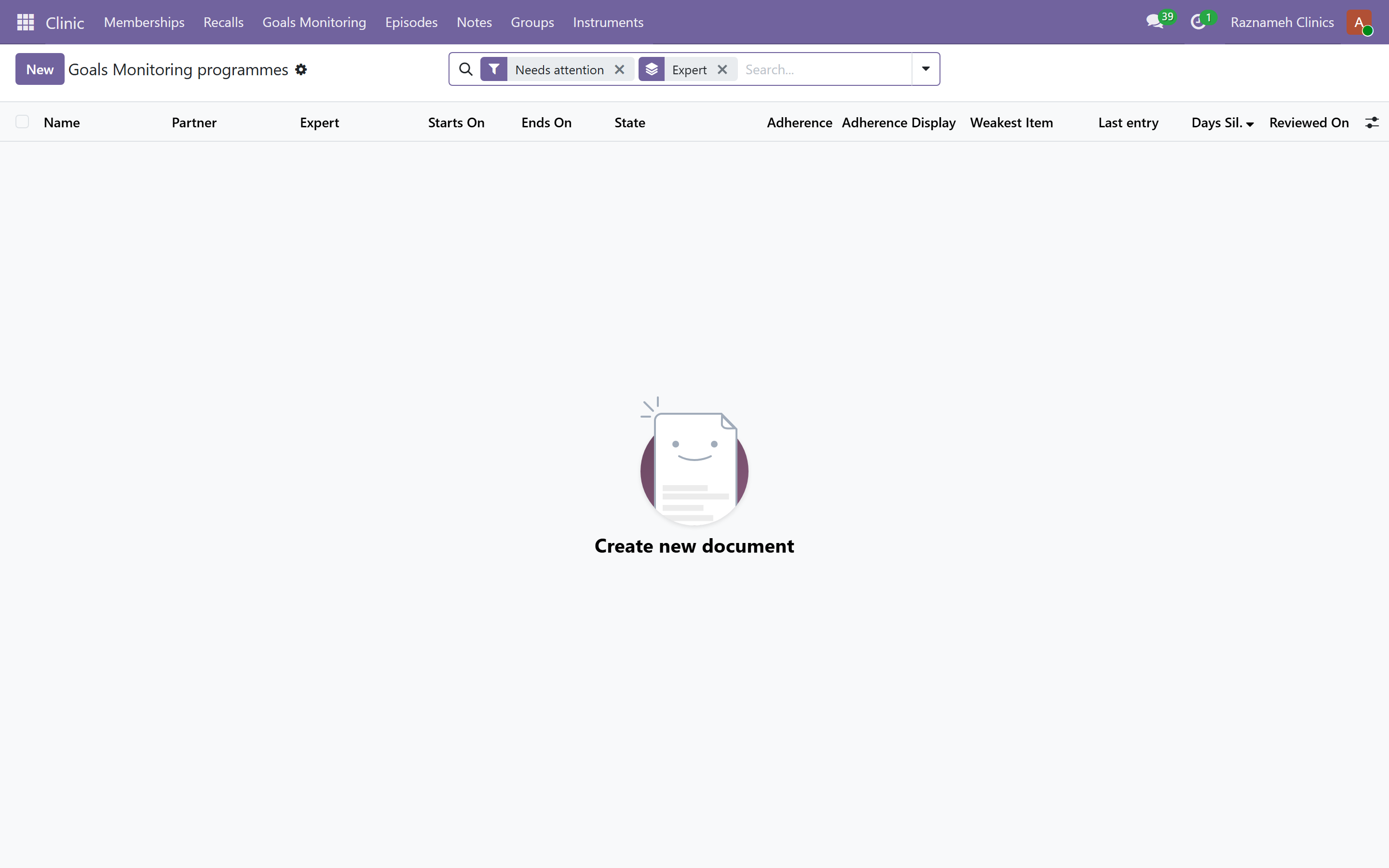
When clinic_monitoring is installed, open the Clinic app, then Goals Monitoring.
| What | Menu |
|---|---|
| Author a programme | New template — three steps: about → items → client-page preview |
| Library | Templates |
| Who is on a programme | Programmes (assigned to a client's episode) |
The wizard's Next, Back and Save template sit in the form header, not the footer. Item kinds: a number, a choice, a journal, a task, an upload, a questionnaire. Fill an 8-week example seeds a starter set. A choice needs at least two options; they save with the item. The preview is the same page the client fills in. Save is disabled; sample numbers are labelled as a preview.
Clients open My plan (/my/plans) and record from the Today list or from a goal. Journals and uploads are encrypted when the programme's secure-content flag is on (the default). Entries are not watched in real time.
After a session report, experts can send a library programme to the client (template and start/end dates only). They cannot invent new goals on that wizard. Clients then record on /my/plans.
10.5 Episodes — the courses of care#
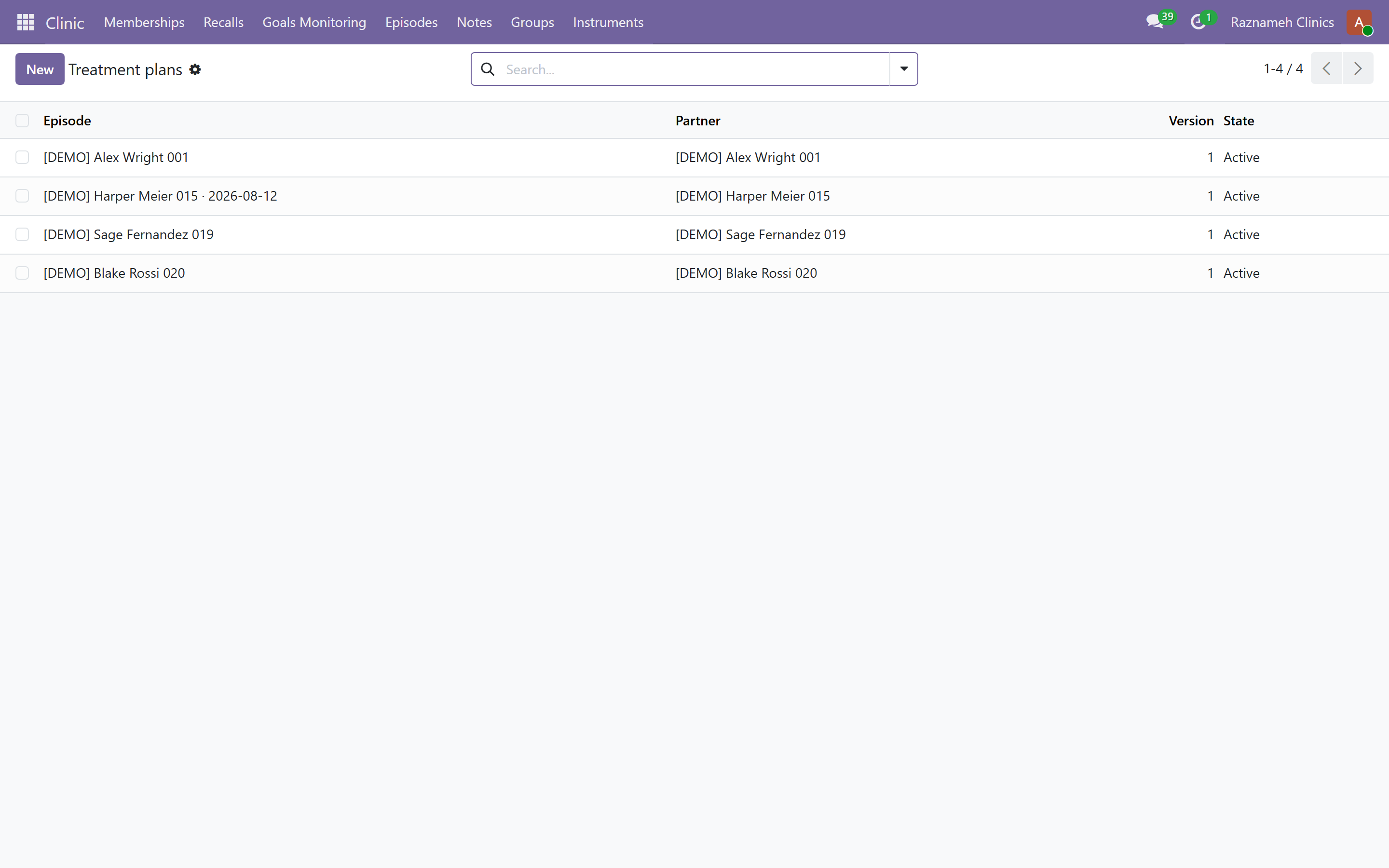
Administration → Episodes, or /my/admin/episodes.
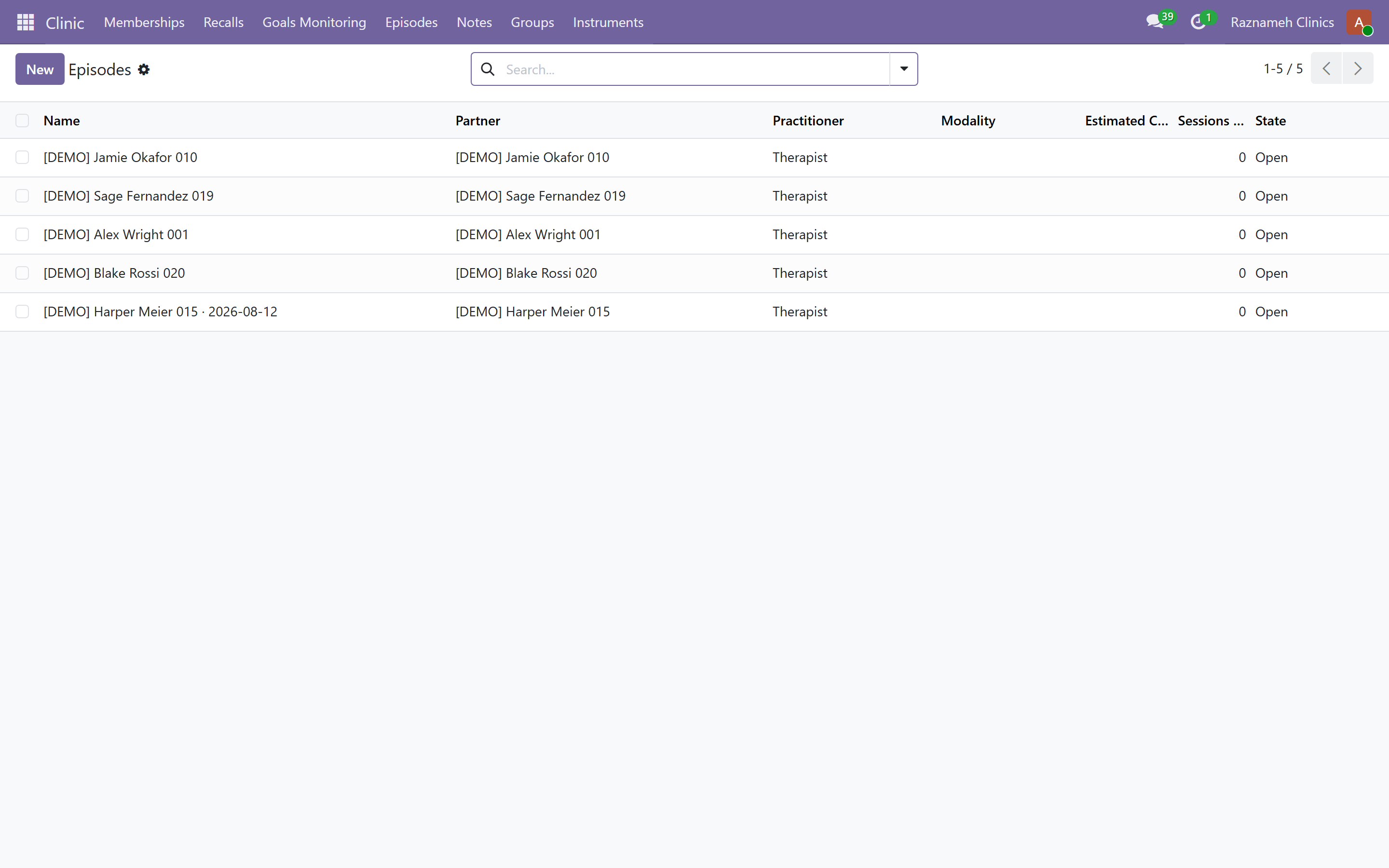
Every course of care in the clinic: client, practitioner, when it opened, its state, how many goals are running, how many programmes are active, and the last activity on it. An open episode with nothing ever recorded is flagged — that is the row worth asking about, and it looks like every other row until something says so.
Open one to see:
- Goals and outcomes — each goal, its target, its clinical status, and what monitors it.
- History — what actually happened: the episode opened, programmes activated, entries recorded, reviews at a session, reports filed, the episode closed.
- The page carries counts, dates and bands only. Nothing a client wrote appears on it, and the footnote says so rather than leaving you to assume it.
10.6 Closing an episode#
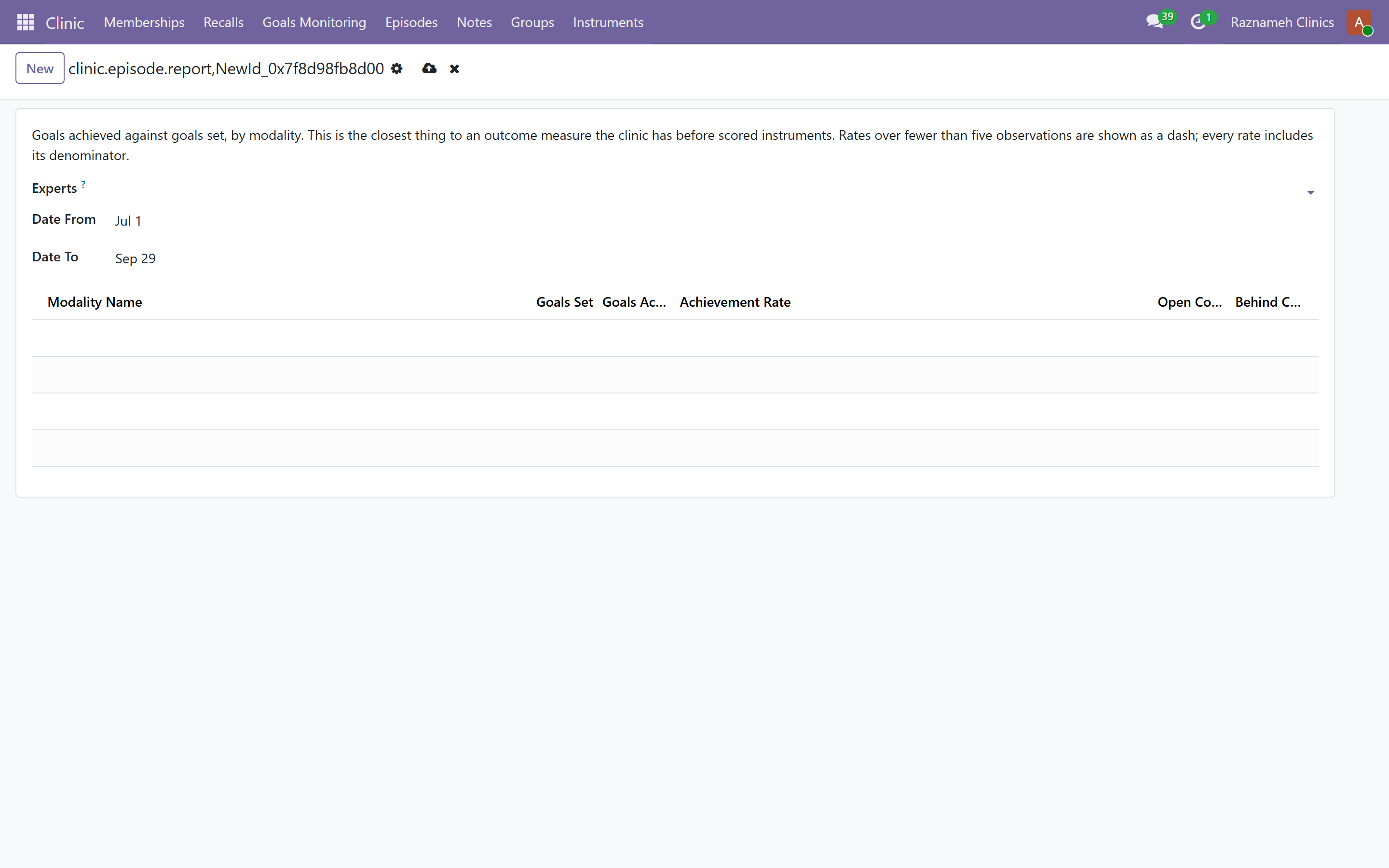
Close episode on the episode page opens the wizard. It asks for an outcome on every goal that is still running, because closing is the only moment anyone knows the answer — and it tells you how many would close without one before you confirm.
| Outcome per goal | Not started, In progress, Achieved, Partly achieved, Not achieved, No longer relevant |
| Closure reason | Required where goals were still in progress |
| Goals left unset | Stop running, but are counted as closed without an outcome — never as a success |
Closing starts the retention clock the document service counts from. It is an administrator's action: an expert finishes goals, and proposes closure by finishing them all.
10.7 Reports filed on a goal#
Administration → Reports on goals, or /my/admin/reports.
Every report filed against a goal: the date, the client, the goal, who filed it, and its state. A report the client sealed has no Open button at all — that is what the label means, and no administrative approval changes it.
Opening one is a separate, logged act. The report page shows the goal's state at the time of filing and the access log: who read it, when, and on what basis — treating clinician, operations review, or a numbered access request. The log is hash-chained and cannot be edited. The text itself is not printed on the administration page; opening it goes through the secure viewer, where the read is recorded against your name.
10.8 Access requests between clinicians#
Every expert who has met a client sees the episode. Reading a colleague's clinical report is a separate request, and it lands with you.
- The expert sees the report row with you do not have access and asks.
- You approve or refuse. Either way the decision is written to the record.
- Every read that follows the approval is logged with that request as its basis, which is what makes the access log answer why somebody was entitled rather than only that they read it.
The client is not notified when a colleague is granted access. The log is the safeguard, which is why it records the basis and not just the name.
10.9 Membership plans#
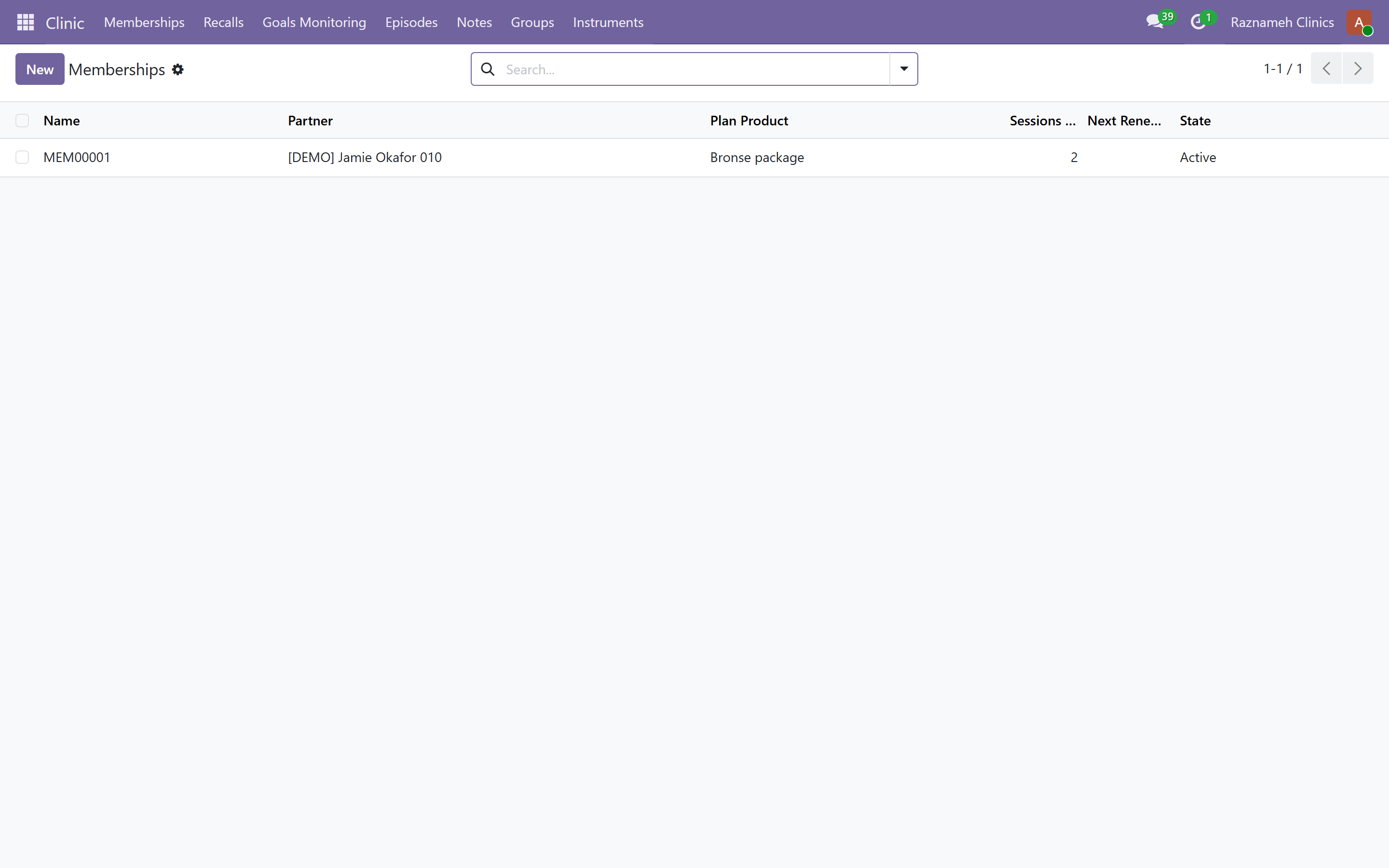
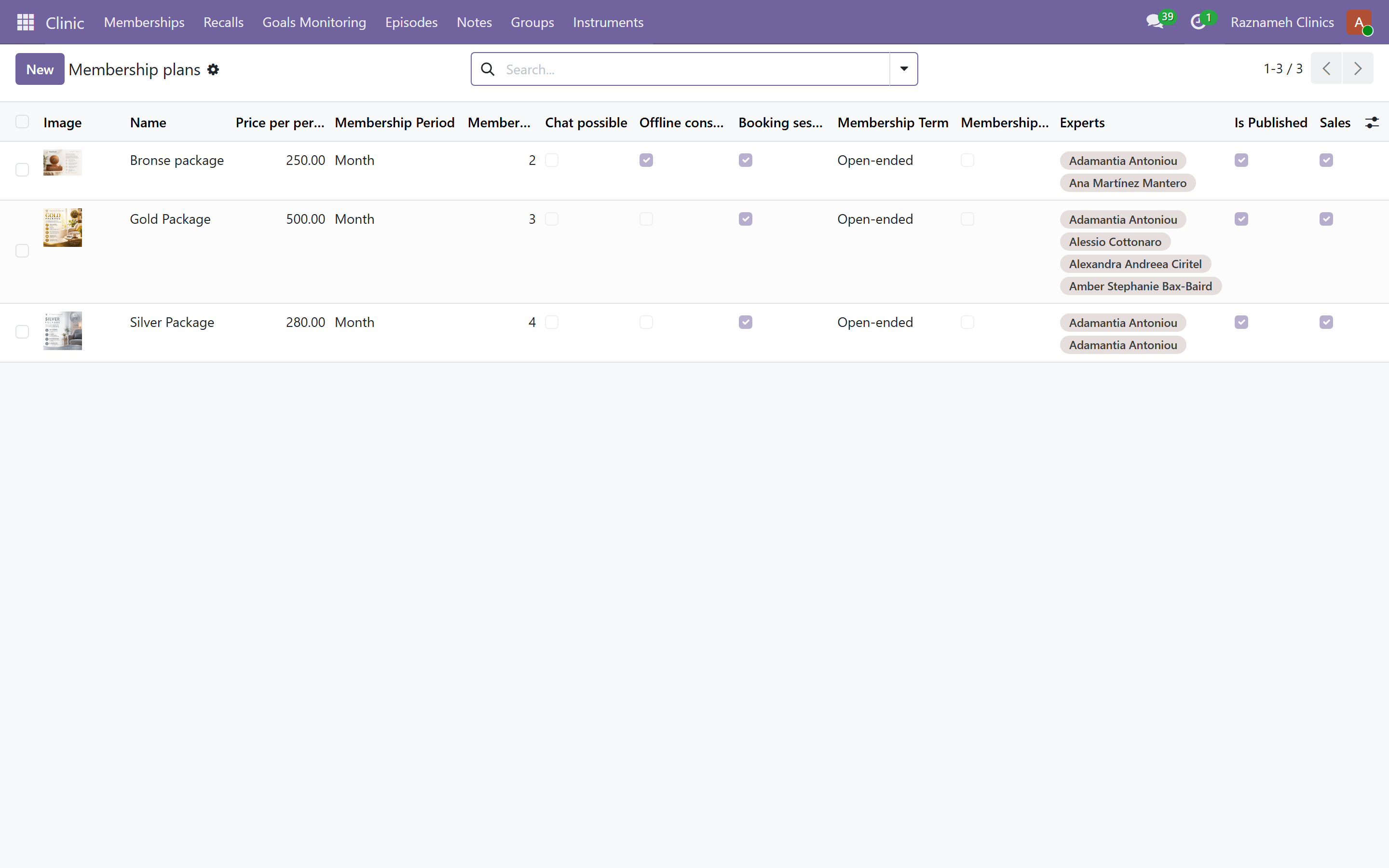
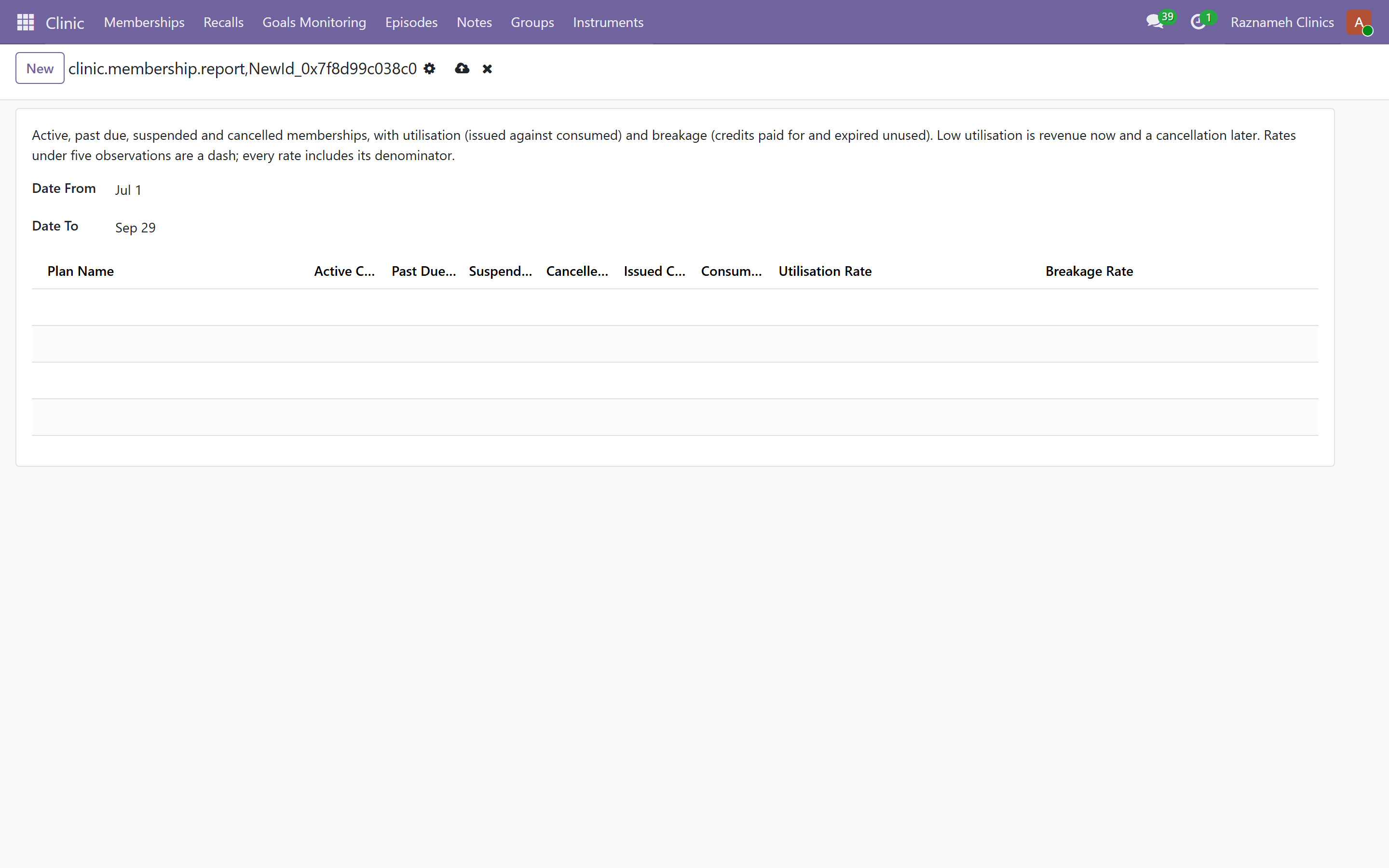
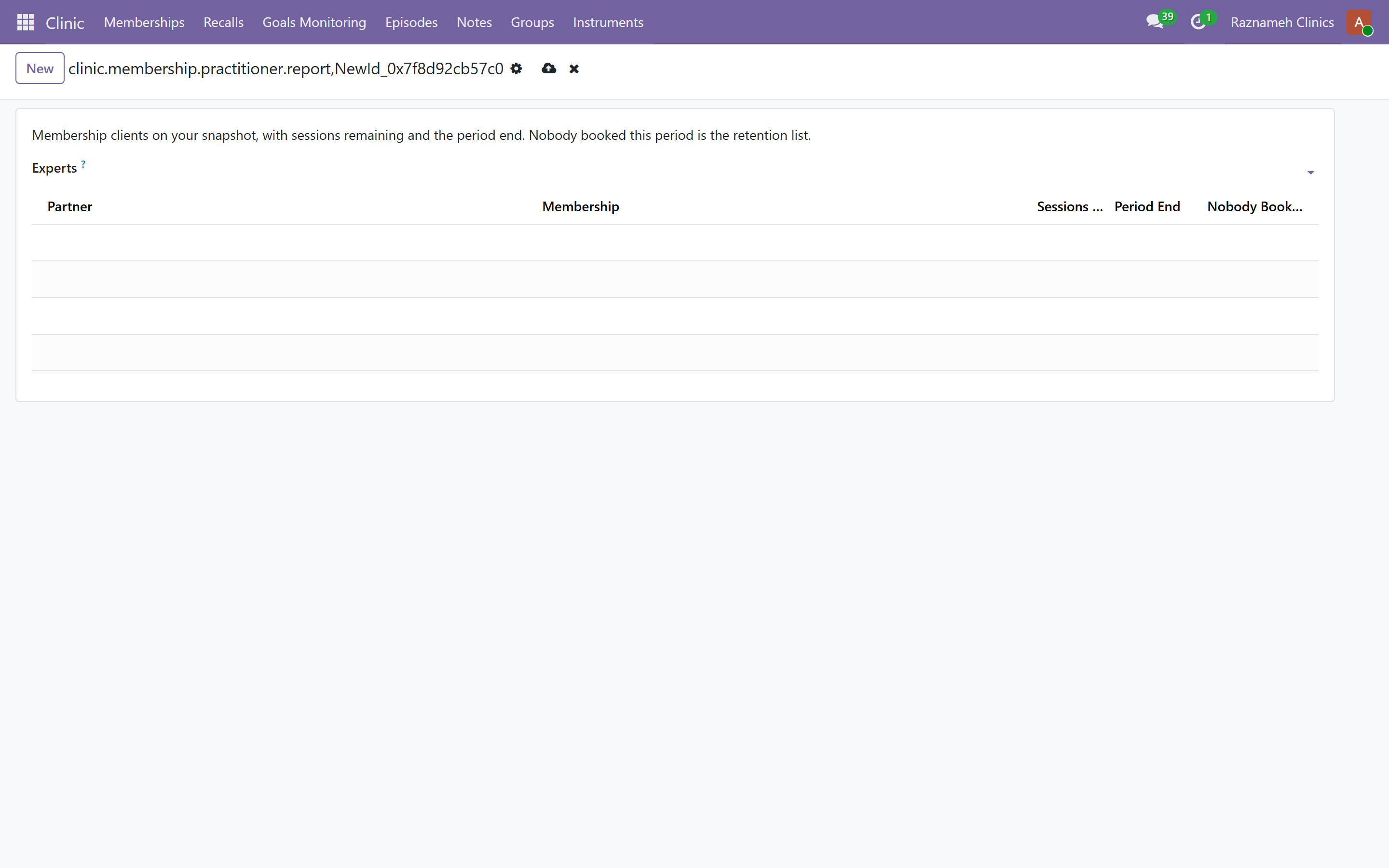
When clinic_membership is installed, open the Clinic app in the Odoo switcher (it is not under Meetings), then Memberships → Plans. That is the plan library: each plan is a shop product. Memberships is a folder — Plans is the library, Subscriptions is who is on a plan.
Do not invent a plan on a service. On Experts → Expert Services, Membership plans is a tag field — pick one or more plans that already exist. Tagging advertises those plans on the service's shop page (image + HTML). Clients still buy the plan itself from /memberships or the shop. After payment they manage it on /my/memberships.
| What | Menu |
|---|---|
| Define / edit the plan library | Clinic → Memberships → Plans |
| Client subscriptions | Clinic → Memberships → Subscriptions |
| Tag plans on a bookable service | Experts → Expert Services → Membership plans |
| Make a service members-only | Experts → Expert Services → the service → Members only |
| Narrow a plan to some of those services | Clinic → Memberships → Plans → the plan → Experts on this plan → Services included |
Services that only a member can book#
Members only, on a service, says it is not sold on its own. It is the field for work an expert delivers to members and to nobody else.
What the client sees does not disappear — that would be worse than useless, because somebody told to ask about the service would find nothing. The service still appears on the expert's page, in the shop and on its own page; what changes is the way in. Where Add to basket and Book Meeting were, the page says Members only and points at the plans.
The rule is enforced underneath the pages, not by them. A members-only service on an ordinary order is refused with a message, and the add-to-basket address answers a bookmark or a stale tab the same way. A page is a courtesy; the order line is the rule.
Which services a plan covers#
Services included, on the plan, is optional and usually left empty:
| The plan's field | What the member may book |
|---|---|
| Empty | Every members-only service its experts deliver — so a service added next month works without editing any plan |
| Filled in | Only the services named, and nothing widens them later |
You pick the experts first. The field sits under Experts on this plan and offers only members-only services that one of those experts actually delivers — so it is empty until there is somebody to read services from. That is the honest state: a menu of services nobody on the plan can give is worse than no menu.
Three things it will not let you do, because each is a way of promising something nobody can deliver:
| You try to | What happens |
|---|---|
| List a service that is not marked Members only | Refused, naming the service. Tick Members only on it first |
| List a service none of the plan's experts delivers | Refused: "None of this plan's experts delivers X." Add the expert to the plan, or the service to an expert already on it |
| Remove the last expert who delivered a listed service | Allowed — but that service quietly drops off the member's page rather than opening a calendar that would refuse them |
The experts are decided separately, by the plan's expert list, and they are snapshotted onto each membership when it activates. A plan that gains a practitioner in June does not widen what somebody who joined in March may book with — their membership keeps the team it was sold with.
Image, description and the website#
On the plan form:
| Field | What it is for |
|---|---|
| Image | Shown on /memberships, the shop product page, tagged session services, and My membership after purchase |
| Website description | HTML (rich text). Same places as the image. Plain-text product notes are not used here — write the public copy in this field |
| Can be sold | Allows the plan into a quotation or the shop basket. Untick while you finish the copy |
| Published | Lists the plan at /memberships and in /shop (Memberships category). Untick to hide it from the public website |
| Shop page | The shop product URL, shown once the plan is published |
| Memberships page | The dedicated public URL /memberships/<id> |
| Public shop categories | New plans are placed in Memberships. Add further categories if you also want it on another shop shelf |
| Price per period | Charged at first checkout and at each renewal. Must be 0 if the plan is free. Changing it later does not rewrite an already-open period |
| Free plan | Still opens periods (and issues whatever the plan includes), but never raises an invoice |
| Chat possible | After payment, opens expert chats with the plan's practitioners. Members message them from My chats |
| Offline consultation | Includes metered consultation time (no booked slot). Remaining time uses the chat meter when ondelights_chat_metering is installed |
| Offline consultation duration (minutes) | Expert-time minutes granted each period. Same unit as a consultation service budget. Unused minutes expire when the period closes |
| Booking sessions possible | When on (the default), buying the plan mints session credits as today. When off, the plan is chat/consultation-only and does not sell session credits |
| Period | How often the plan renews and (for paid plans) invoiced: week, month, quarter or year |
| Sessions per period | How many bookable credits the client receives at the start of every period. Shown only when booking is on; at least one in that case |
| Term | Open-ended renews until cancelled; fixed term runs for a set number of periods then ends |
| Term periods | Length of a fixed term (at least two periods) |
| Rollover | Unused credits carried into the next period, capped. Default 0 means leftovers expire |
| Credit validity (days) | 0 = bookable until the period ends. A positive number shortens that window from the period start |
| Cancellation notice (days) | How long after a cancel request the membership actually stops. Never shortens the current period |
| Dunning ladder | Days after the invoice due date to send reminders (for example 3,7,14). Reminds only — it never charges a saved card. After the last step the membership is suspended |
| Cancellation policy | Applied to every session credit the plan issues when the client later moves or cancels a booking. Not required on a chat-only plan |
| Agreement | Terms accepted at checkout. Required before publishing |
| Experts | Who the member may book, chat, or consult with. Shown on /memberships with photo and a link to /experts/<id>. Snapshotted when the membership activates |
Package tagging and payment#
Tagging a plan on a service does not turn that service into a membership. Two checkouts:
- Buy the service — one-off package of session credits, as before.
- Buy the plan (from /memberships,
/shop, the Memberships category, or the links on the tagged service's shop page) — after payment, the same meeting-credit hook as a package creates aclinic.membershipand opens the first period. Session credits are issued only when Booking sessions possible is on. Chat / offline consultation open expert chats (metered when chat metering is installed).
The client then uses what the plan includes: book credits from My sessions (only with the experts on the plan), and/or chat from My chats. Renewals raise an invoice and wait for the client to pay; the system does not charge a saved card in the background.
A client may have only one open membership at a time (draft, active, past due or suspended). A second purchase while one is still open is refused — cancel or end the first, or wait until it ends.
A published plan is visible at:
- /memberships (list) and
/memberships/<id>(detail + Buy this plan) - its shop product page (image + HTML + experts + Add to basket / Buy this plan)
- the shop Memberships category
- any session service you tagged it on
10.10 Questionnaires — the instrument library#
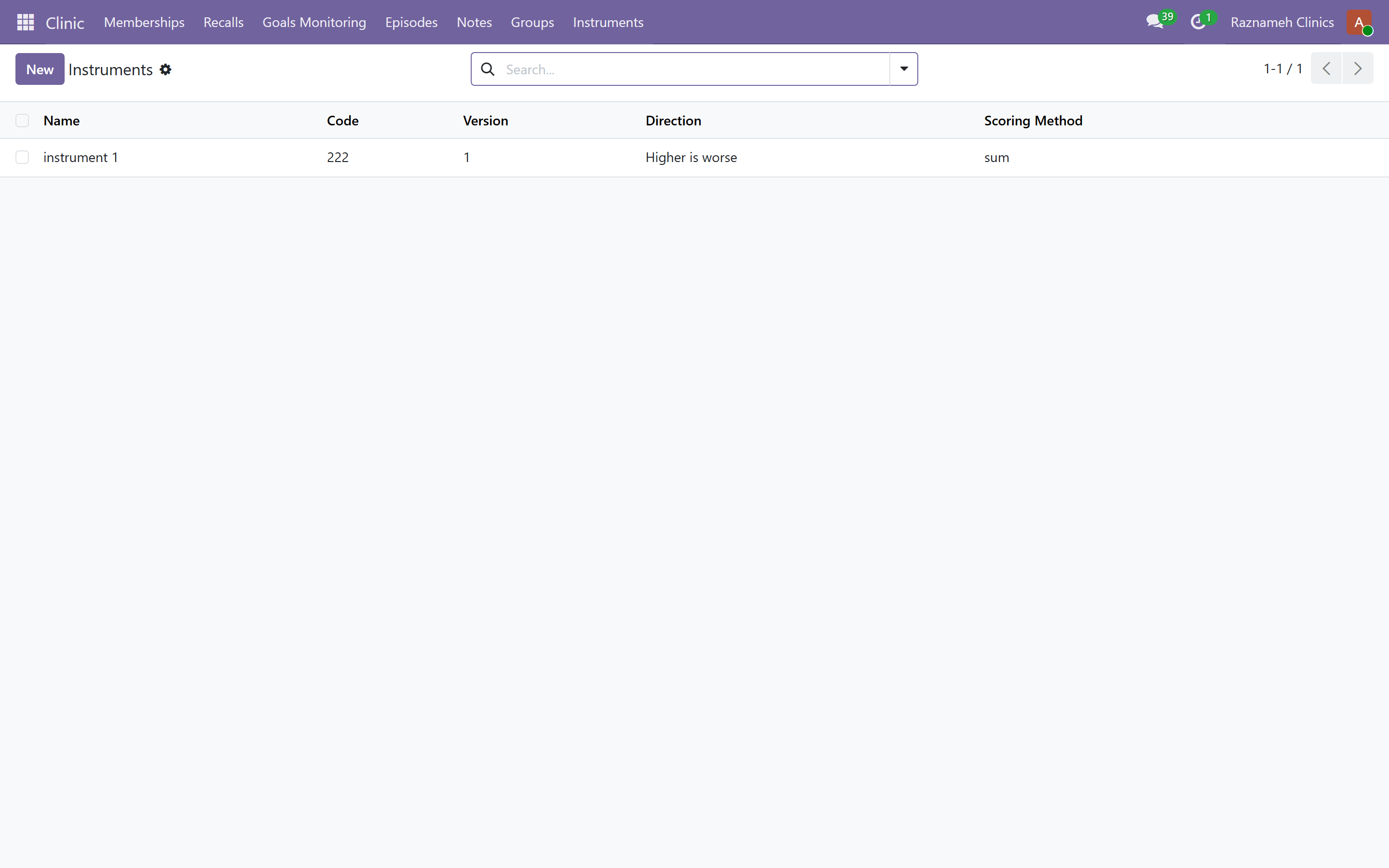
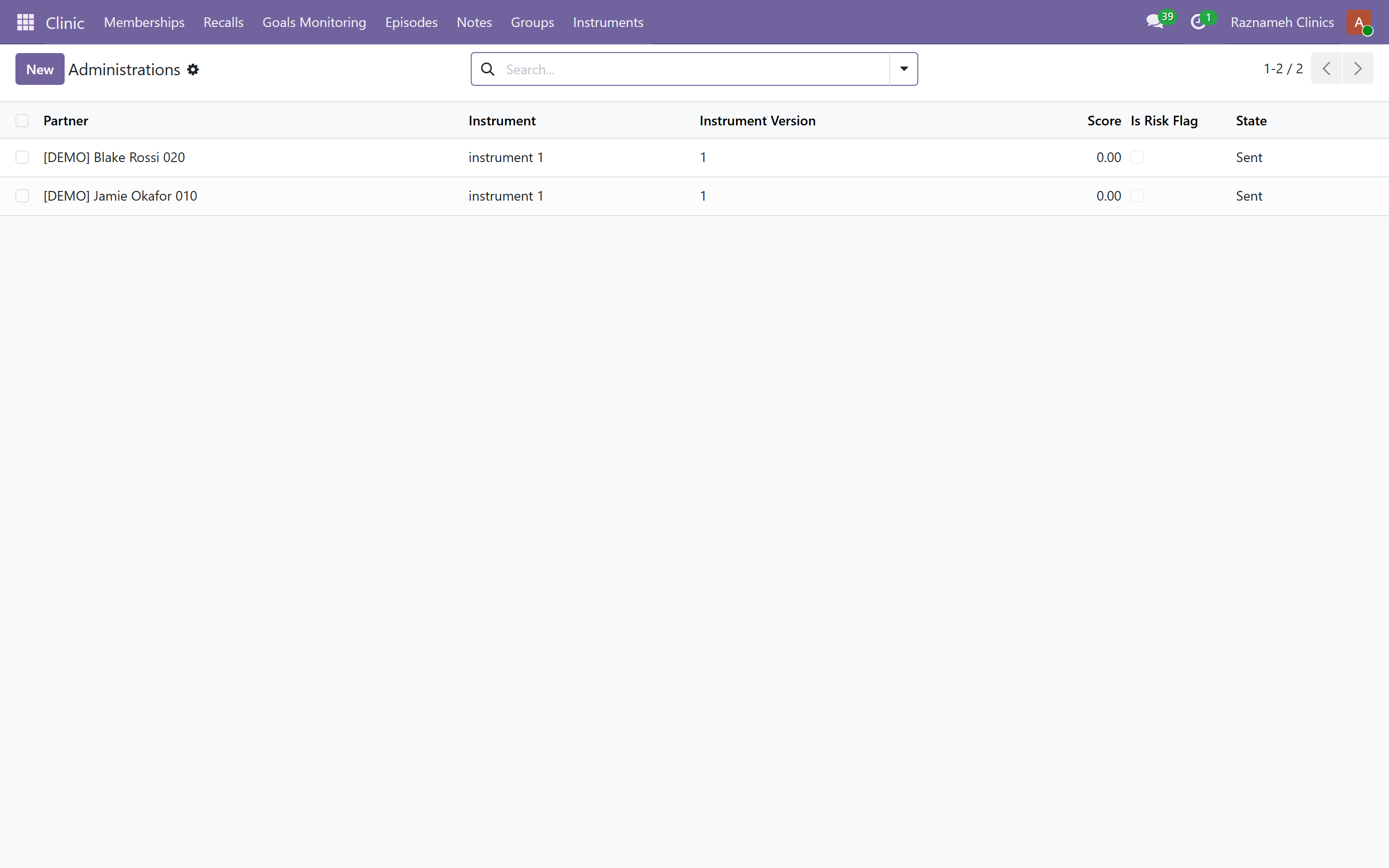
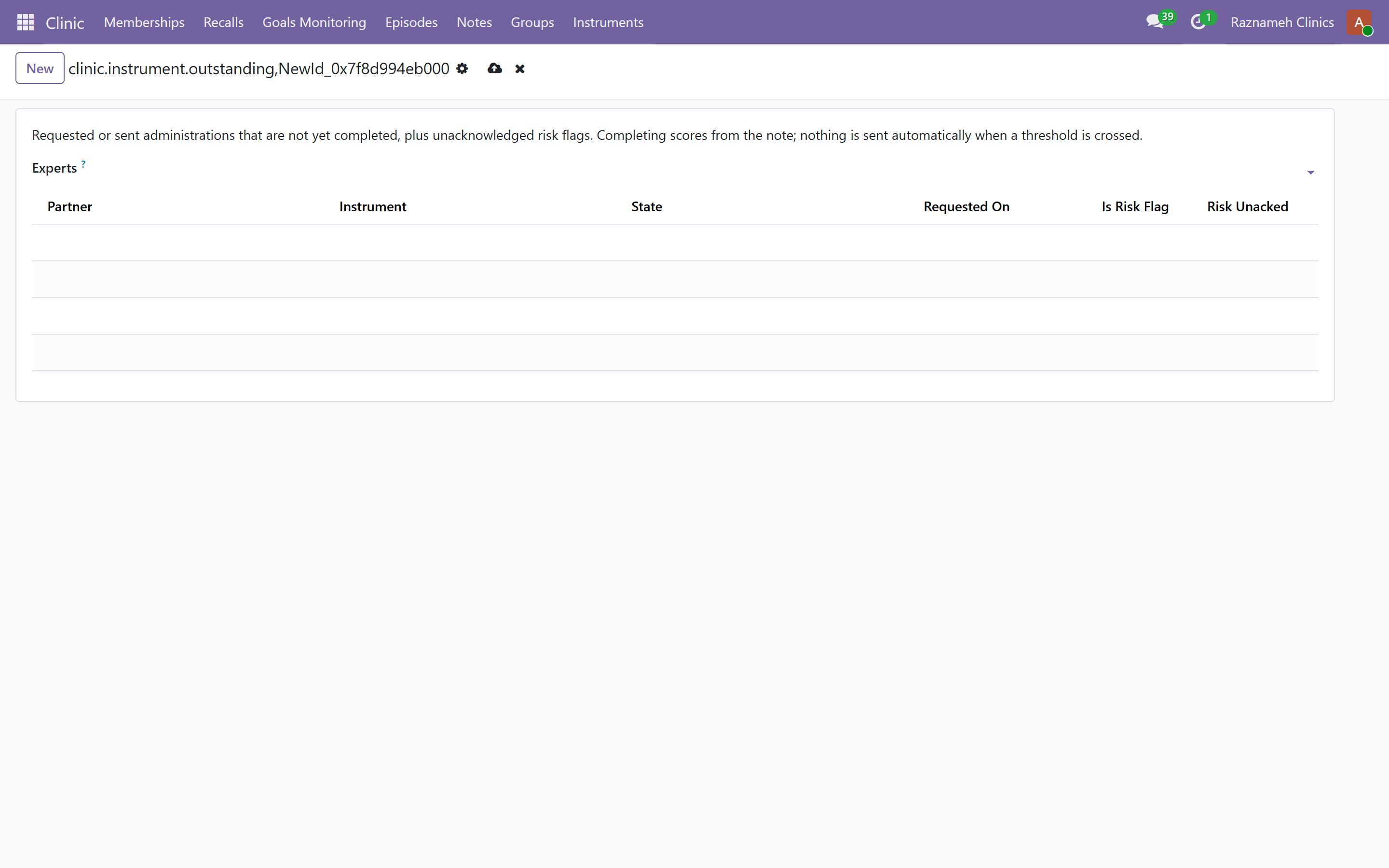
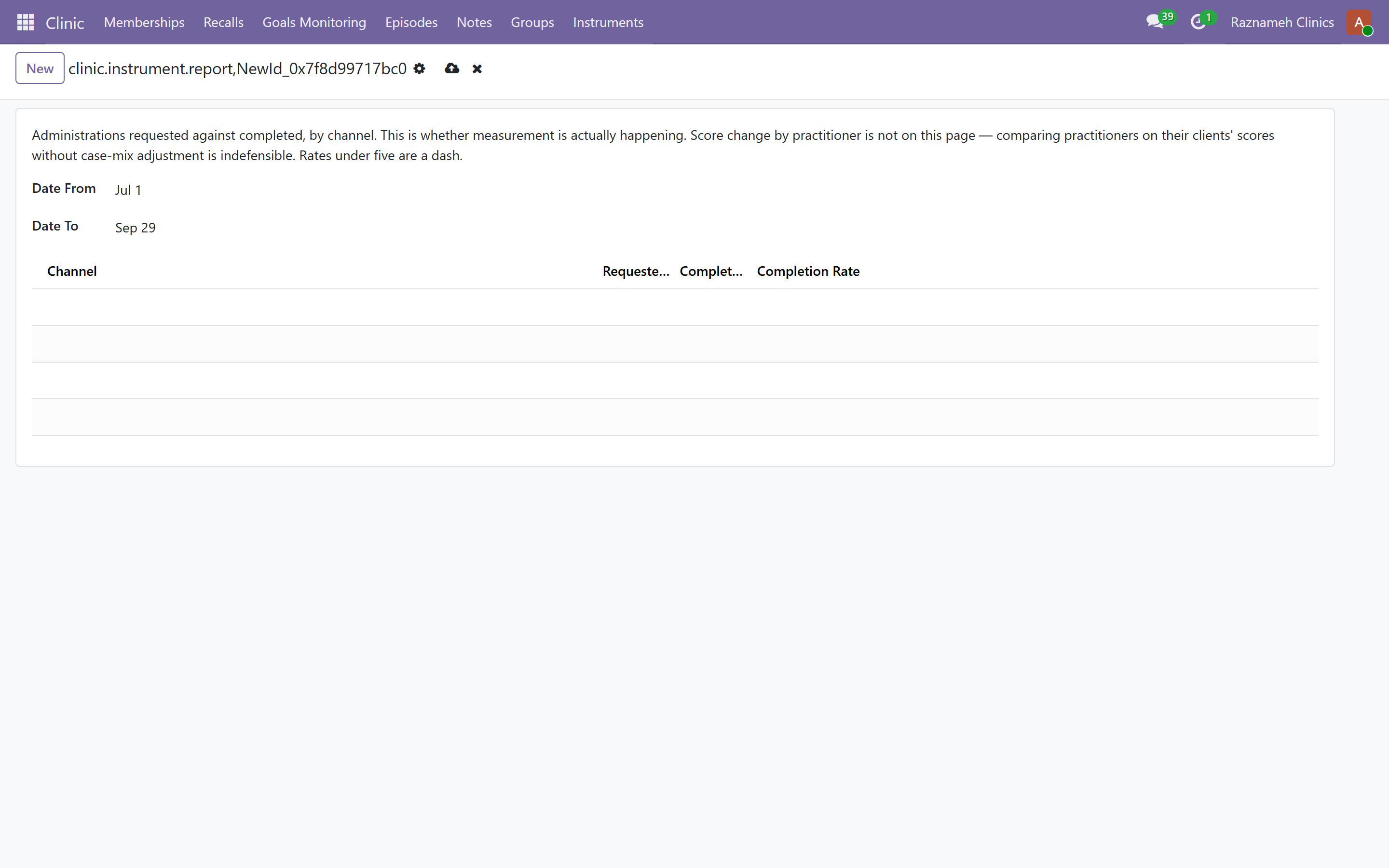
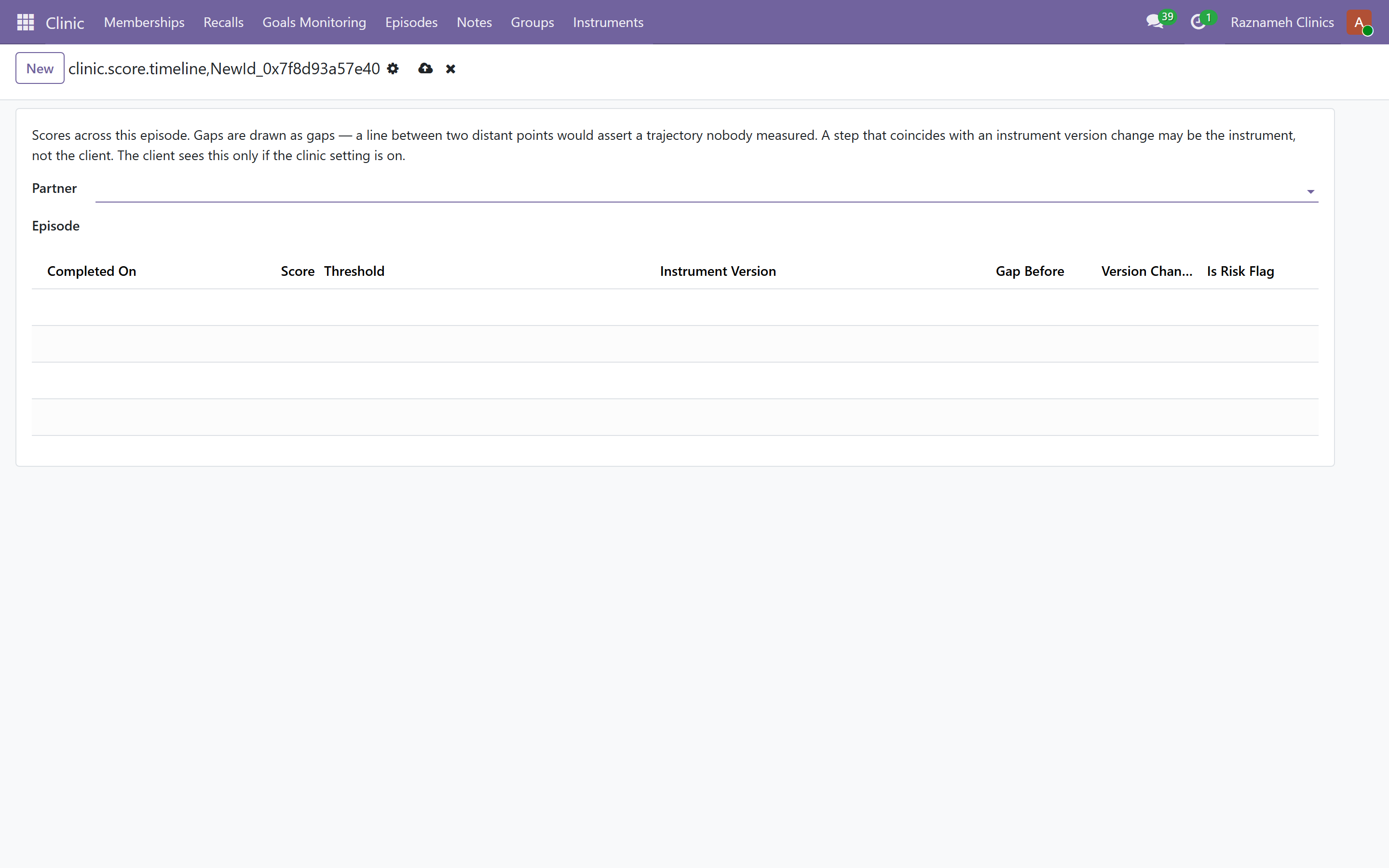
Clinic → Instruments, with Administrations, Score timeline, Instrument completion and Outstanding administrations beside it.
An instrument is a named questionnaire your clinicians can ask for: its code, its version, how it is scored, the range it runs over, and which direction is worse. An administration is one request for it from one client.
The bands are yours to set. Each instrument carries thresholds — a label, a score range, a severity and a colour — and any band can be marked a risk flag. That flag is what puts a mark on the clinician's questionnaire list and keeps it there until a clinician acknowledges it (expert guide §8.10). Acknowledging is a record that somebody saw it, not a way of clearing it.
Two settings decide what the client sees:
- The licence note is printed on the form. Most published instruments are licensed, and the licence usually dictates that text — put it here rather than leaving a clinician to paste it.
- Show clients their score timeline is a company switch, and it is off by default. On, a client sees the band their total falls in and a history at /my/scores. Off, they see only that they completed it, and the conversation happens in the session. The default is off deliberately: showing somebody their own deterioration with nobody in the room is a clinical decision, not a display preference.
What a client actually enters is a total, not the questionnaire. They work it out from the instrument itself; this records the number. An instrument that must not be self-administered is marked as such, and their page says a clinician will go through it with them.
Outstanding administrations is the operational list: asked for, not answered. Instrument completion is the same question as a rate over a date range, grouped by the channel the request went out on — how many were asked for, how many came back. Like every rate in the product it is suppressed rather than printed when the sample is too small to mean anything.
10.11 Recalls — bringing people back#
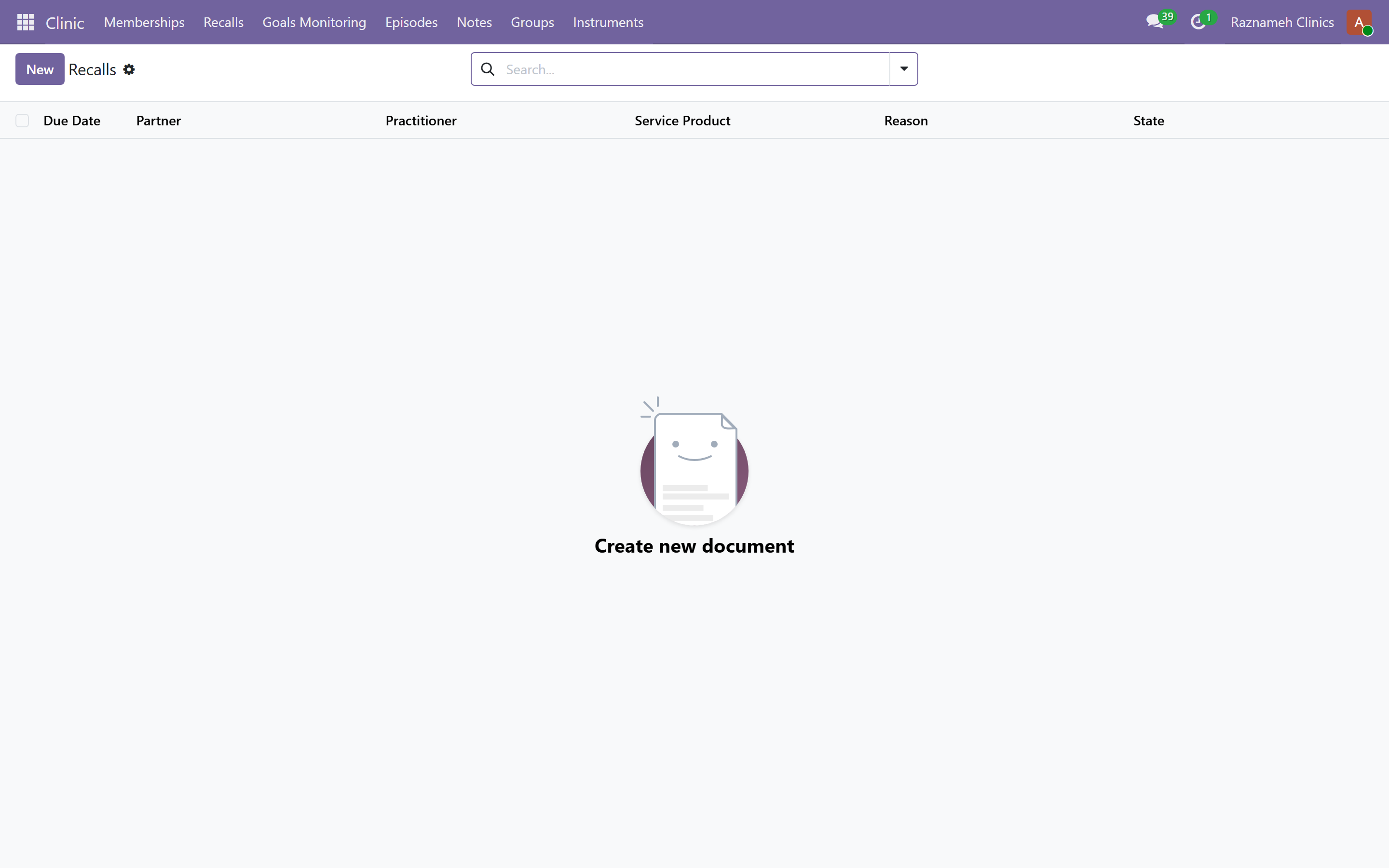
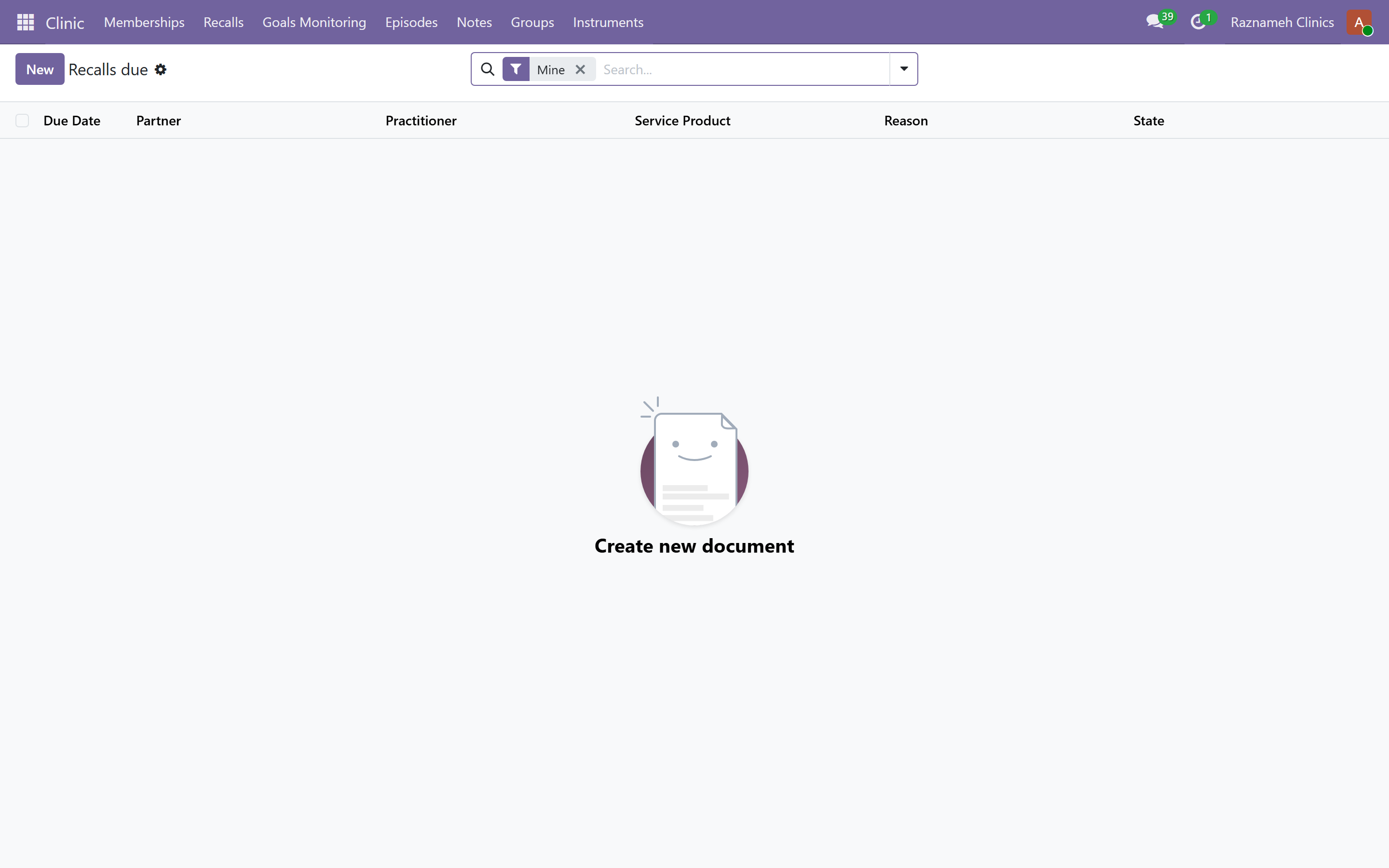
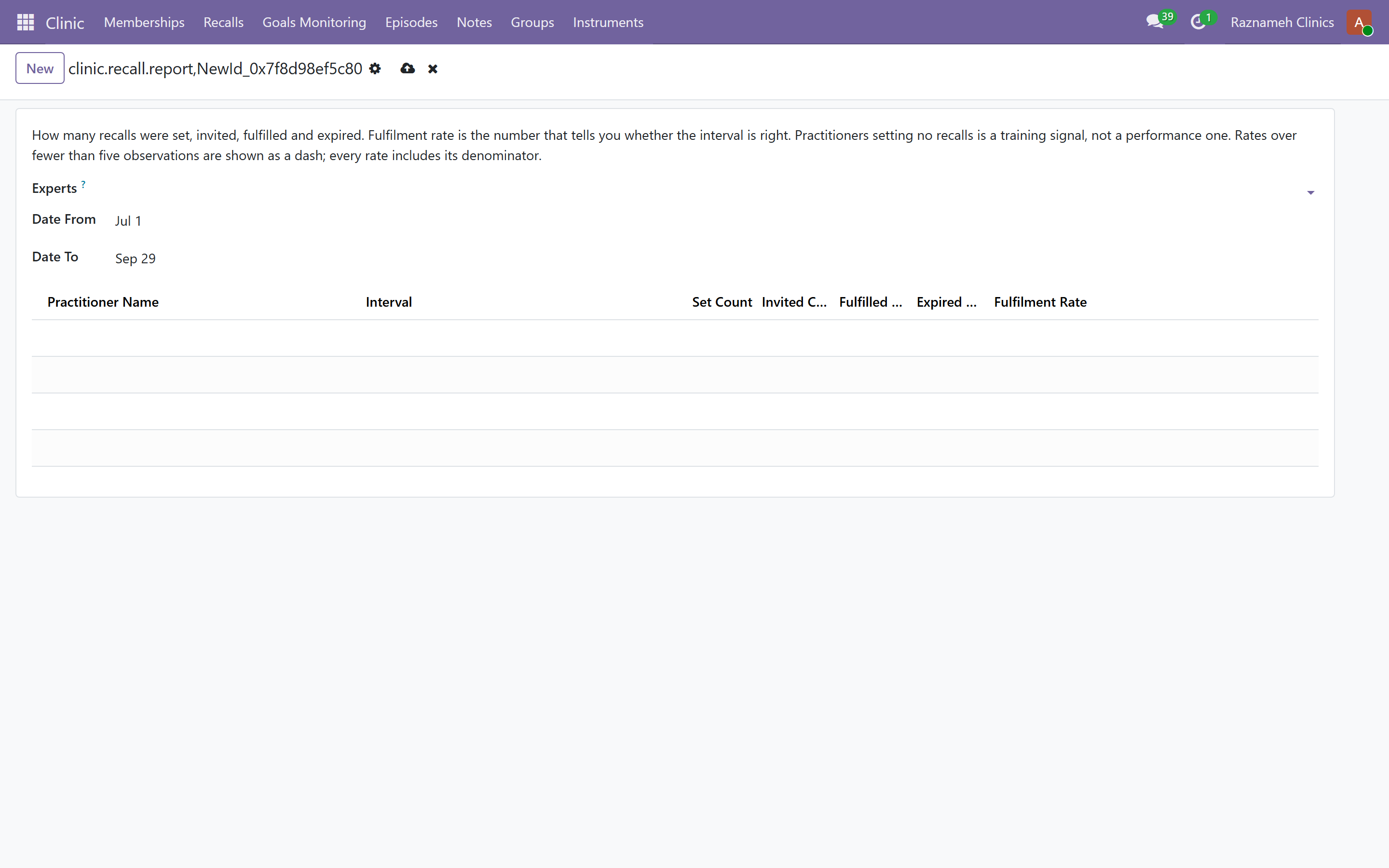
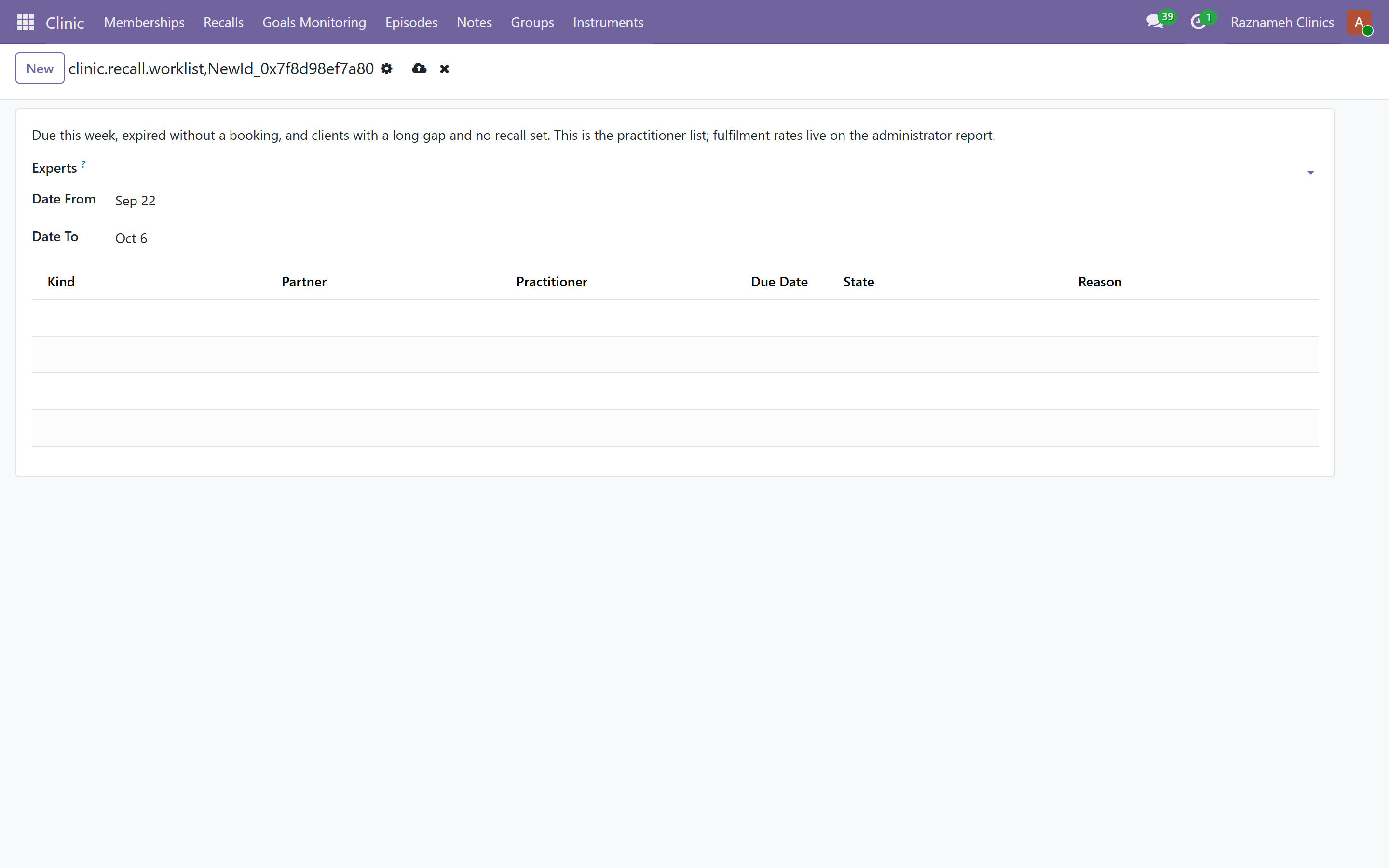
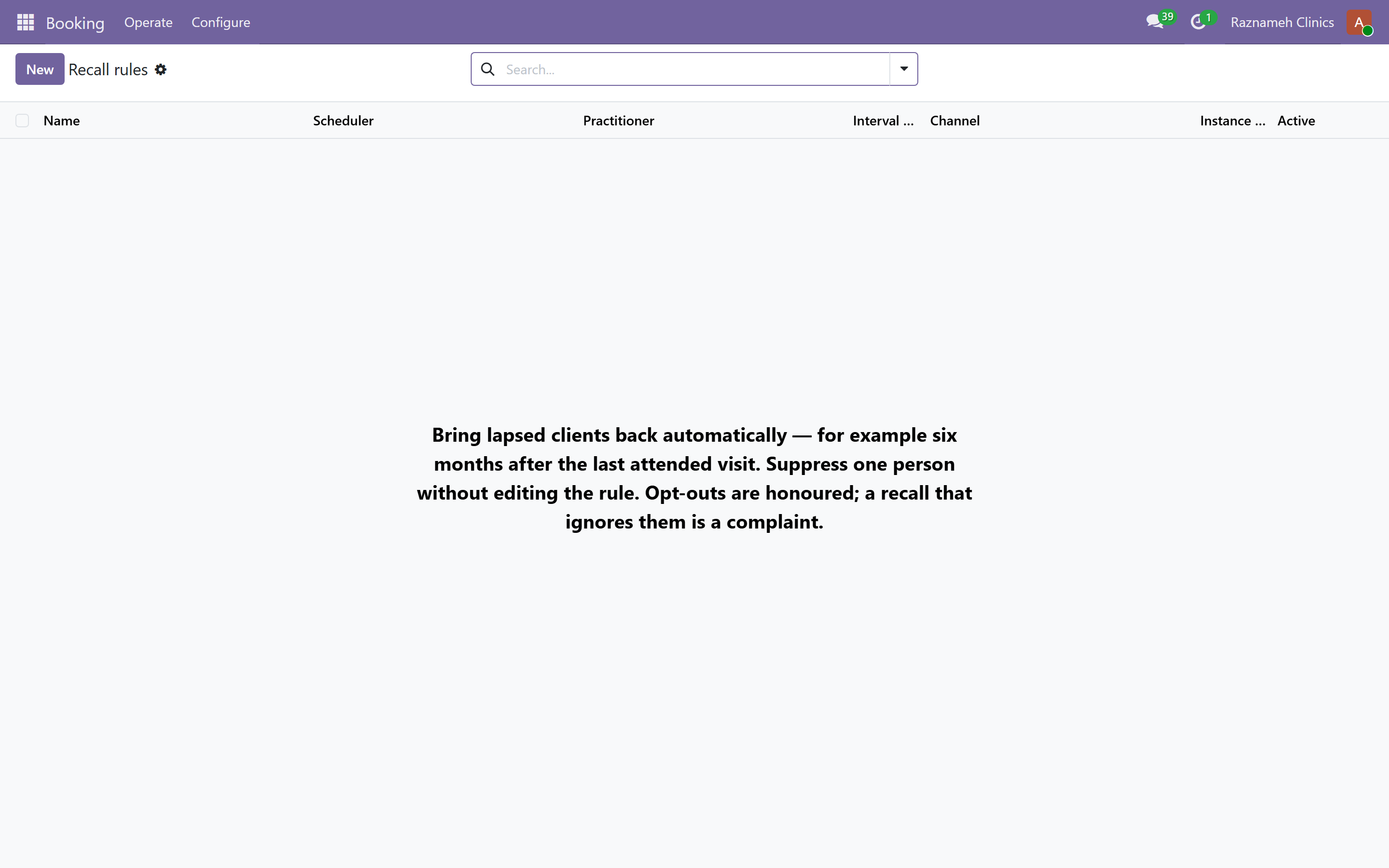
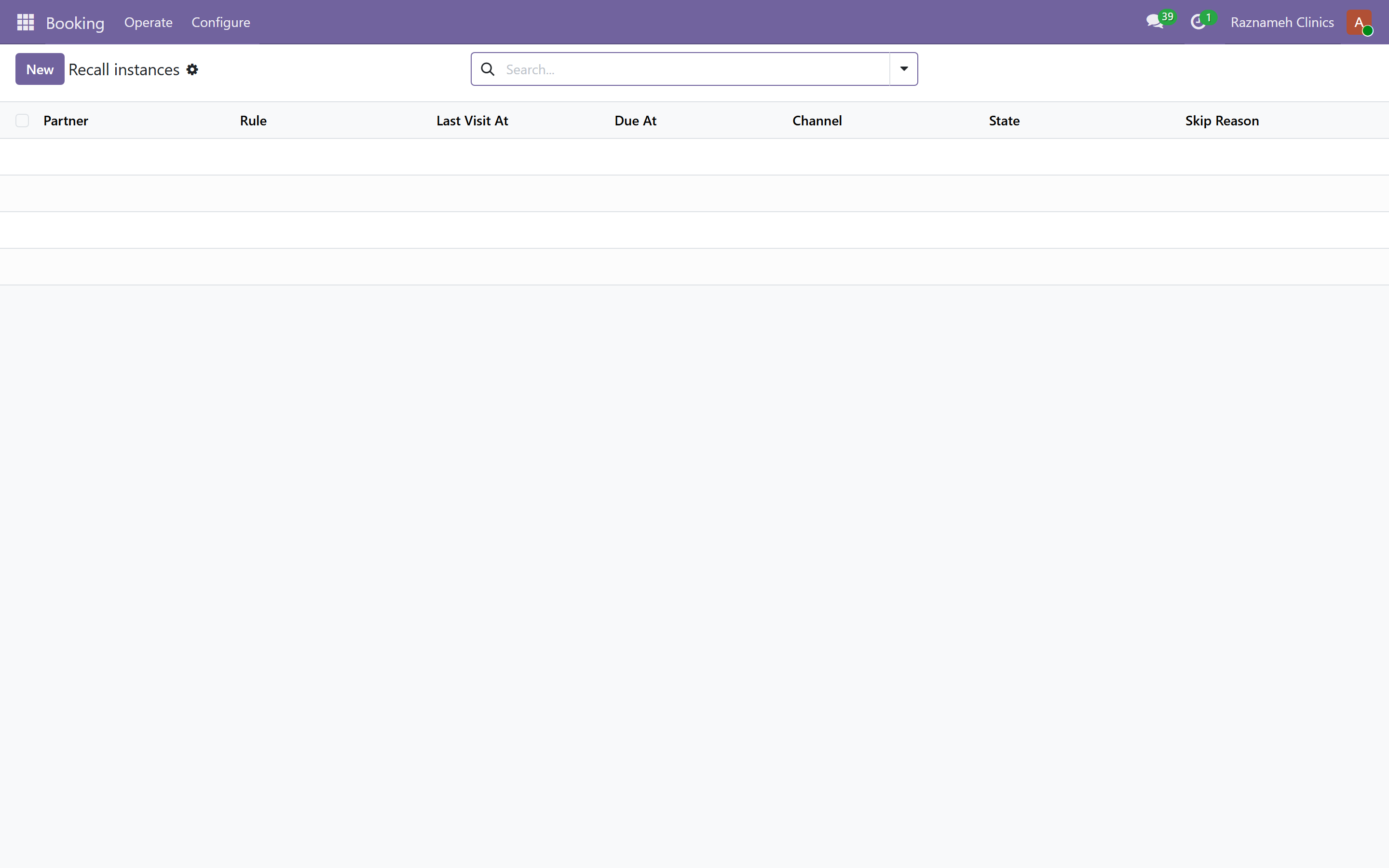
Clinic → Recalls, with Recalls due, Recall fulfilment and the Recall worklist.
A recall is a due date that needs an invitation, not a booking: the annual review, the three-month follow-up, the check after a course of care finishes. It carries the client, the practitioner, the service, the interval it was derived from, the clinician's reason, and an expiry date.
| State | Means |
|---|---|
| Scheduled | Set, date not yet reached |
| Due | The date has come — it is on somebody's worklist |
| Invited | The client has been asked, with the count and the date of the last invitation |
| Fulfilled | A booking answered it |
| Dismissed | Somebody decided it is not needed, with a reason |
| Expired | Passed its expiry date without a booking |
| Cancelled | Withdrawn |
One open recall per client, practitioner and service at a time. That constraint is what keeps the worklist a list of people to contact rather than a pile of duplicate reminders.
The practitioner sees their own share of it in the portal at /my/expert/recalls — due, invited and scheduled only. Recall fulfilment is where you check whether invitations are turning into bookings: a high invited count and a low fulfilled count is a message problem, not a demand problem.
10.12 Diagnosis codes (ICD-10)#
Where clinical_coding is installed, the client record carries ICD-10-CM codes, searchable by code or by wording, organised into the standard chapters. Header codes are marked not billable and only leaf codes are — so a category code does not reach an invoice by accident.
A code set on the client flows forward: a new order copies the client's codes, and the invoice raised from that order carries them. Codes already on an order are left alone — the copy happens when there are none, so an override made for one order stays that override.
This is the field your billing needs where a funder requires a diagnosis on the claim. It is not a clinical record: nothing here replaces the note, and nothing on the portal shows a client their codes.
11Cancellation policies and agreements#
11.1 Cancellation policies#
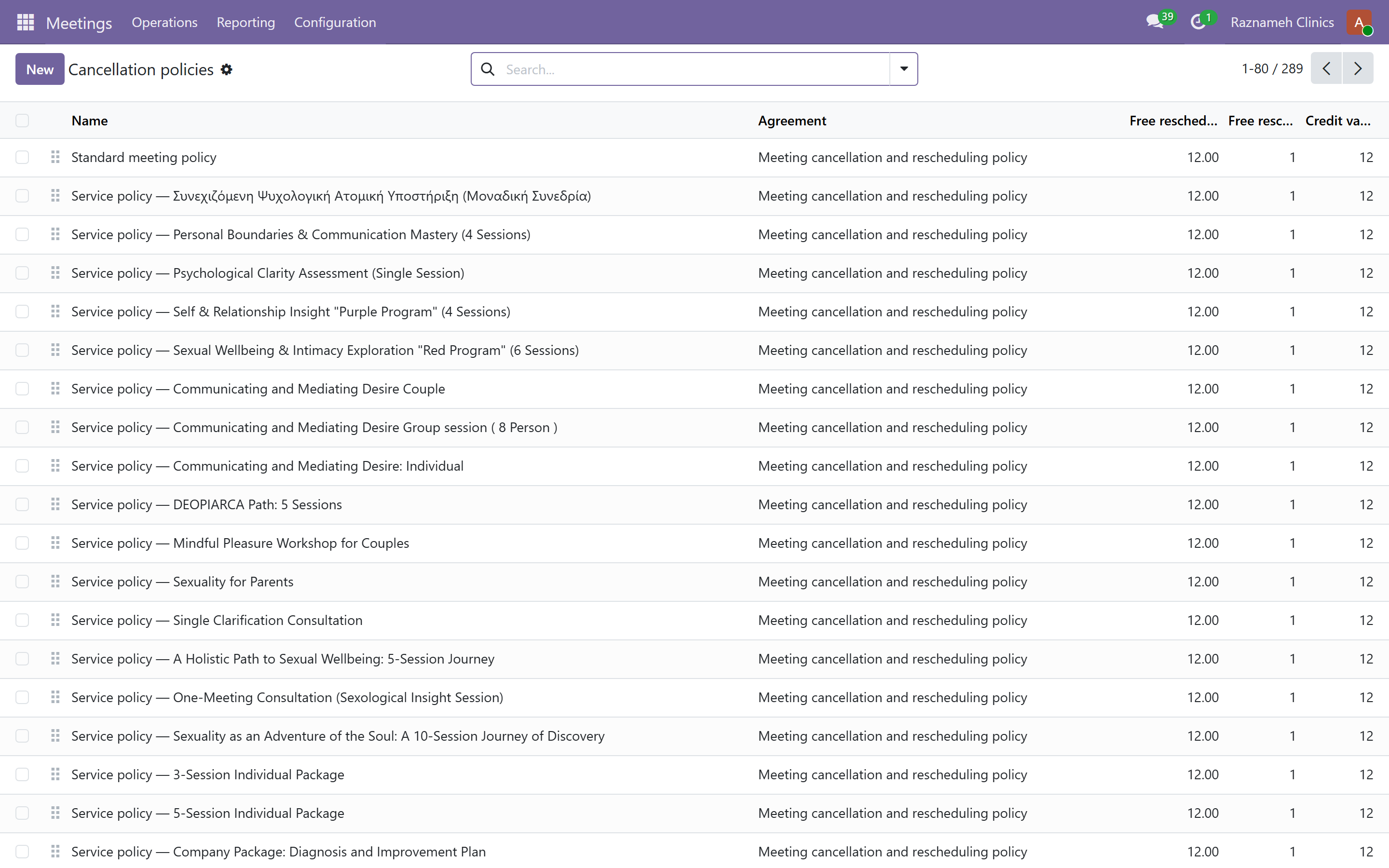
Meetings → Configuration → Cancellation policies
A policy is far more than a cancellation ladder. It is the single record that decides how a credit behaves from the moment it is sold to the moment it expires, and it is attached to products — so different services can behave differently.
The notice ladder#
The heart of it: a list of tiers, each saying "with at least this much notice, this percentage is charged". The ladder shipped as standard is six tiers:
| Notice | Charged |
|---|---|
| 24 hours or more | 0% |
| 12 hours | 25% |
| 6 hours | 50% |
| 3 hours | 75% |
| 1 hour | 100% |
| Any (the floor) | 100% |
flowchart LR
  A["24h+<br/>free"] --> B["12h<br/>25%"] --> C["6h<br/>50%"] --> D["3h<br/>75%"] --> E["1h<br/>100%"] --> F["Start time"]
The ladder must descend consistently — more notice can never cost more — and the system rejects a ladder that does not. Always keep a bottom tier at zero hours, or a cancellation made after the start time falls off the end of the ladder.
Every other setting on a policy#
These are the ones that quietly cause support tickets when they are wrong:
| Setting | Standard | What it controls |
|---|---|---|
| Free reschedules allowed | 1 | How many times one credit may be moved inside the free window |
| Free rescheduling until (hours before) | Matches the free cancellation tier | Above this notice a move is free. Below it, the session is not moved at all — see the warning below |
| Minimum booking notice (hours) | 4 | How close to a slot a client may book it |
| Booking horizon (days) | 60 | How far ahead the calendar goes |
| Credit validity (months) | 12 | How long an unspent credit lasts. 0 means never expires |
| Customer no-show charge (%) | 100 | Charged when the client does not attend |
| Expert no-show compensation (%) | 0 | Credited to the client when the professional does not attend. The credit itself always returns free regardless |
| Attendance grace period (minutes) | 15 | How long after the end time before a session may be closed as attended or as a no-show. Also what decides when a session becomes stuck (§5.1) |
| Penalty product | Company default | The service line a fee invoice is raised on |
| Reminder lead times (hours) | 24,1 | When reminders go out. Comma-separated, at most four |
The setting people get wrong is "free rescheduling until". Below that threshold a reschedule is not a reschedule: the session is cancelled, the fee for the notice given is invoiced, and the credit becomes bookable again only once that invoice is paid. In the meantime the client sees the status Penalty due. This is deliberate — it stops a fee being avoided by moving a session to a date the client never intends to attend — but a client who was not expecting it will contact support, so make sure the agreement (§11.3) says it in plain words.
Practical advice#
- One policy per way of working, not one per service. Ten near-identical policies is ten places to make the same edit and nine places to forget.
- Changing a policy does not reprice history. A cancellation is judged by the policy in force when it happened, and the tier that applied is stored on the cancellation record. That is what makes §5.5 answerable months later.
- Set validity deliberately. Twelve months is generous and forgiving; a short validity raises revenue and raises complaints. Whatever you choose, §5.2 is the report that tells you whether clients are actually using what they bought.
- The reminder lead times are the cheapest no-show prevention you have.
24,1is the default for a reason; adding a third at72helps for services people book far ahead.
Getting this right matters twice over. It is what clients are shown before they confirm a cancellation, and it is what your professionals are paid from. Review it against §5.5, §5.7 and §5.12 each quarter — the policy that survives contact with reality is rarely the one you first wrote.
11.2 Grace period#
The grace period decides how long after a session's end time it can sit unclosed before appearing in stuck sessions. Too short and the report is noise; too long and problems age before anyone sees them.
11.3 Service agreements#
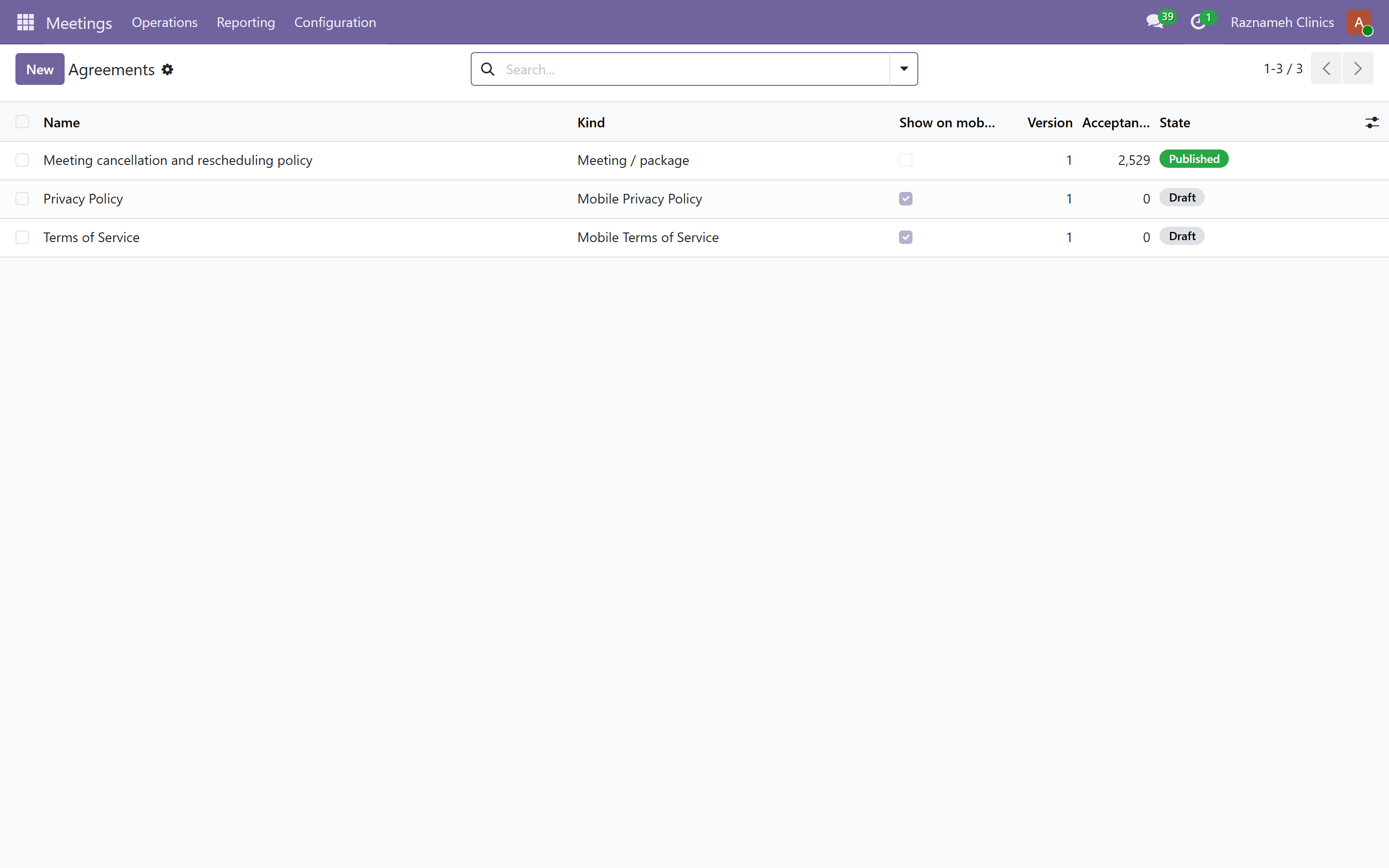
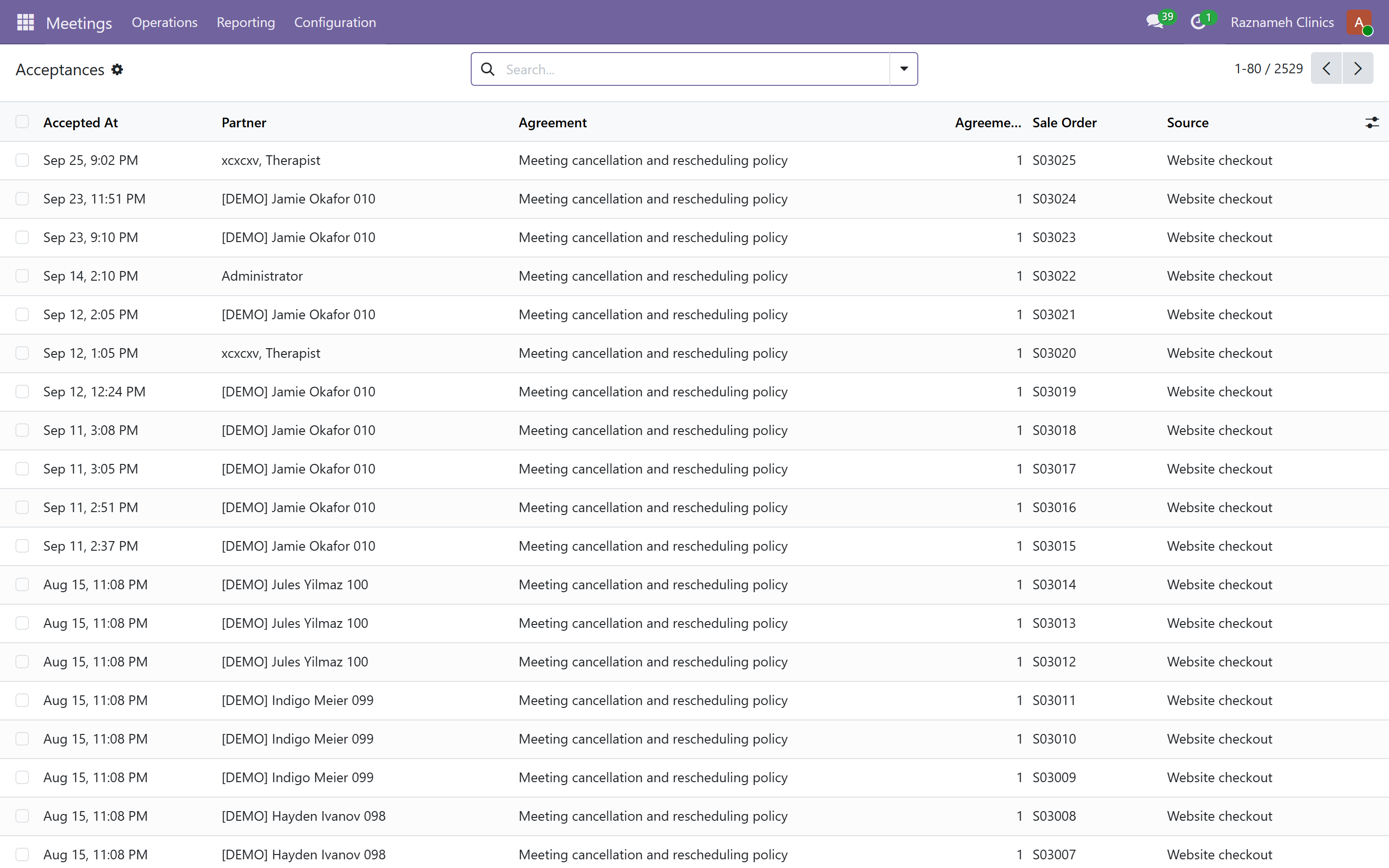
Meetings → Configuration → Agreements
The terms clients accept at checkout. Attach them to services or professionals.
Acceptances records who accepted what and when — permanently. This is what you produce when a client says they were never told about the cancellation terms.
In the admin portal, the same agreements are at /my/admin/agreements — every agreement across all orders, with chips for waiting, signed and other, and a count on each. Open it on waiting for the daily scan: an order held up on an unsigned agreement looks, from every other screen, exactly like a client who changed their mind. Each signed row opens the PDF.
The client sees their own half of the same list at /my/agreements, which is where to point somebody who says they cannot find what they signed.
12Finance and invoicing#
12.1 Invoices#
Invoices are raised automatically from orders. Find them in Accounting.
An issued invoice cannot be edited. To correct one, issue a credit note and a corrected invoice — that is an accounting requirement, not a limitation of the system.
12.2 Month-end#
- Money chain (§5.4) — every session traced to a payment. Fix every break.
- Stuck sessions (§5.1) — must be empty before you close.
- Payout readiness (§5.6) — before running payments.
- Reconcile payments in Accounting.
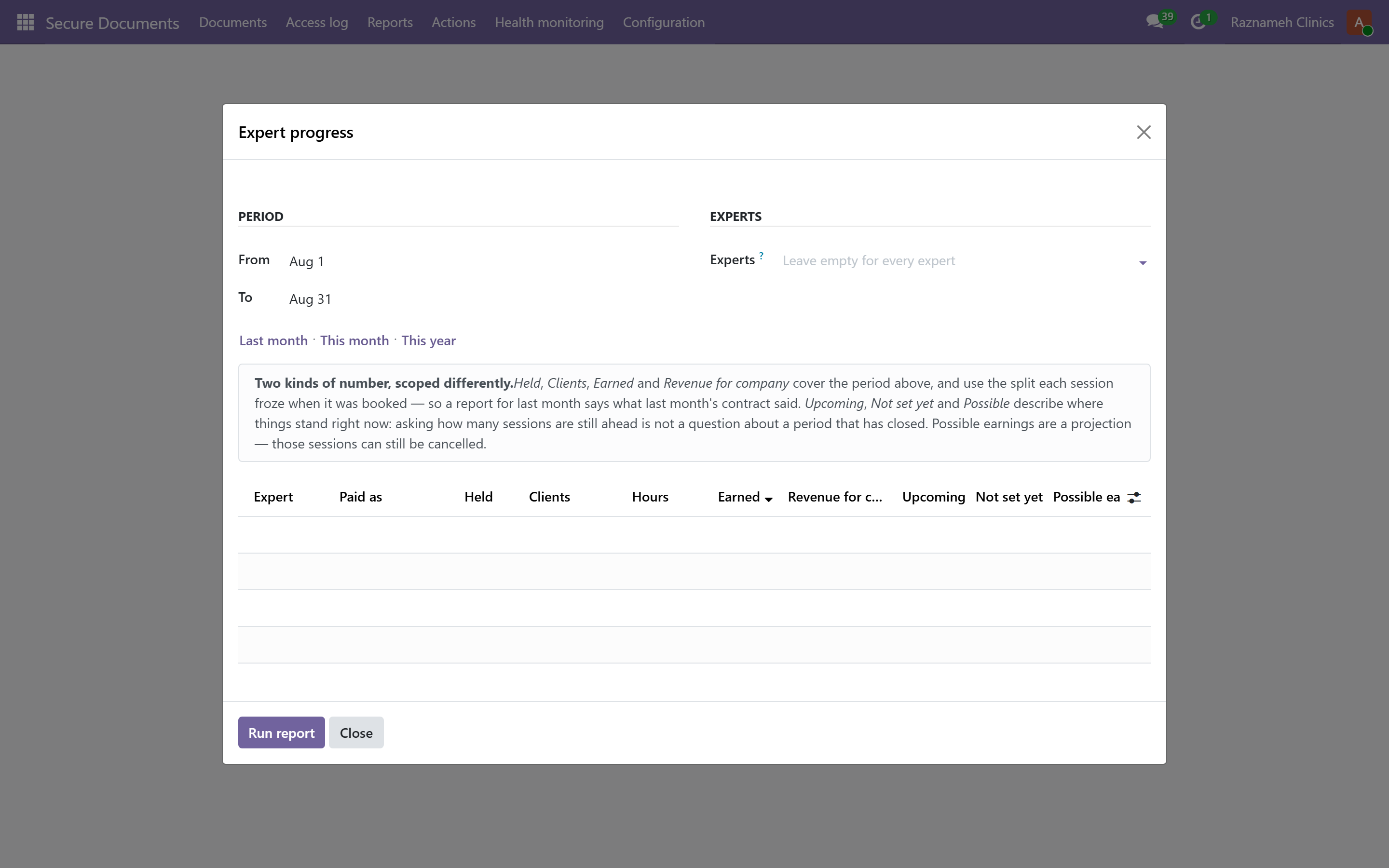
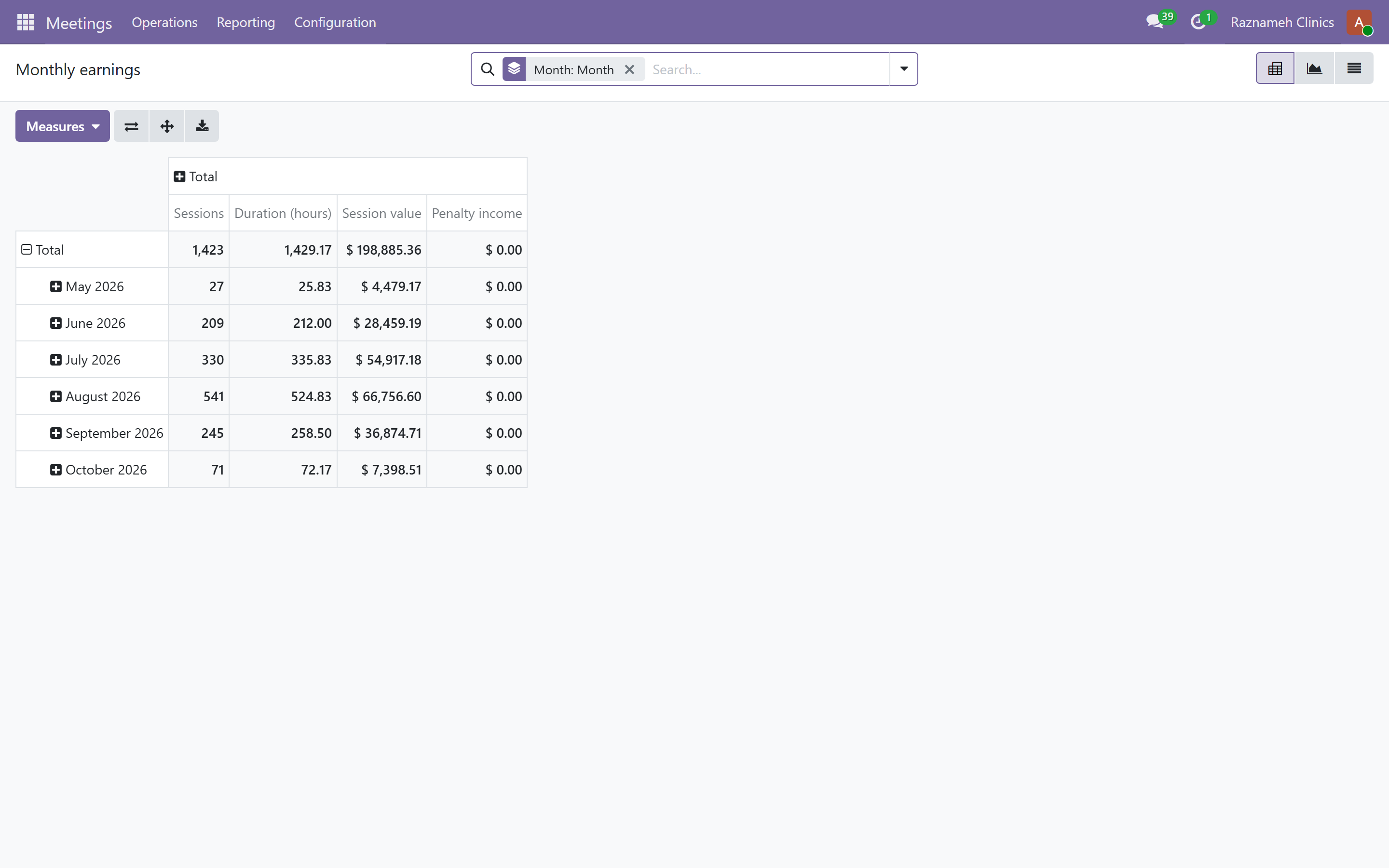
- Monthly earnings (Meetings → Reporting → Earnings → Monthly earnings) — sessions, hours, session value, what professionals earn, what the business keeps, penalty income, cancellations, clients. Available as a table, pivot or chart.
12.3 Chasing unpaid invoices#
Money chain flags unpaid 30+ days. Chase from there. It is the business's job, not the professional's — make sure your team knows that, because otherwise professionals end up having awkward money conversations with their own clients.
12.4 The accountant's dashboard, and where your job ends#
The books are not on your dashboard. They are on /my/finance, and the person who keeps them has their own guide.
The split is deliberate, and worth being clear about with your team:
You, on /my/admin/… | The accountant, on /my/finance |
|---|---|
| Chase the unpaid invoice, because you know the client | Age the receivable and decide when it is written off |
| Fix the break in the money chain — usually an operational fix | See the same break as an incomplete money trail |
| Close the sessions and get the payout run ready | Confirm the run, and carry the accrual |
| Get the reports filed and the contracts signed | Flag anybody delivering with no terms on file |
Two practical consequences:
- Your grant does not open that dashboard. Being a clinic manager or a platform manager gives you no access to
/my/finance— the ledger is a separate hat, granted deliberately, and on an internal account rather than a portal one. §1.1 of the accountant's guide names the grant to forward to whoever administers your users. - When the two dashboards disagree, check the period and the basis first. Yours counts operational exceptions; theirs counts ledger entries, on accrual or on cash. The same month can legitimately give two different numbers, and knowing which question was asked settles it faster than a re-count.
The month-end checklist the accountant runs (A21) overlaps with yours in §12.2 on purpose: held sessions unbilled, payout runs still in draft, invoices overdue. If you clear those before they close, their close is a formality.
13Paying your professionals#
13.1 Contracts and pay terms#
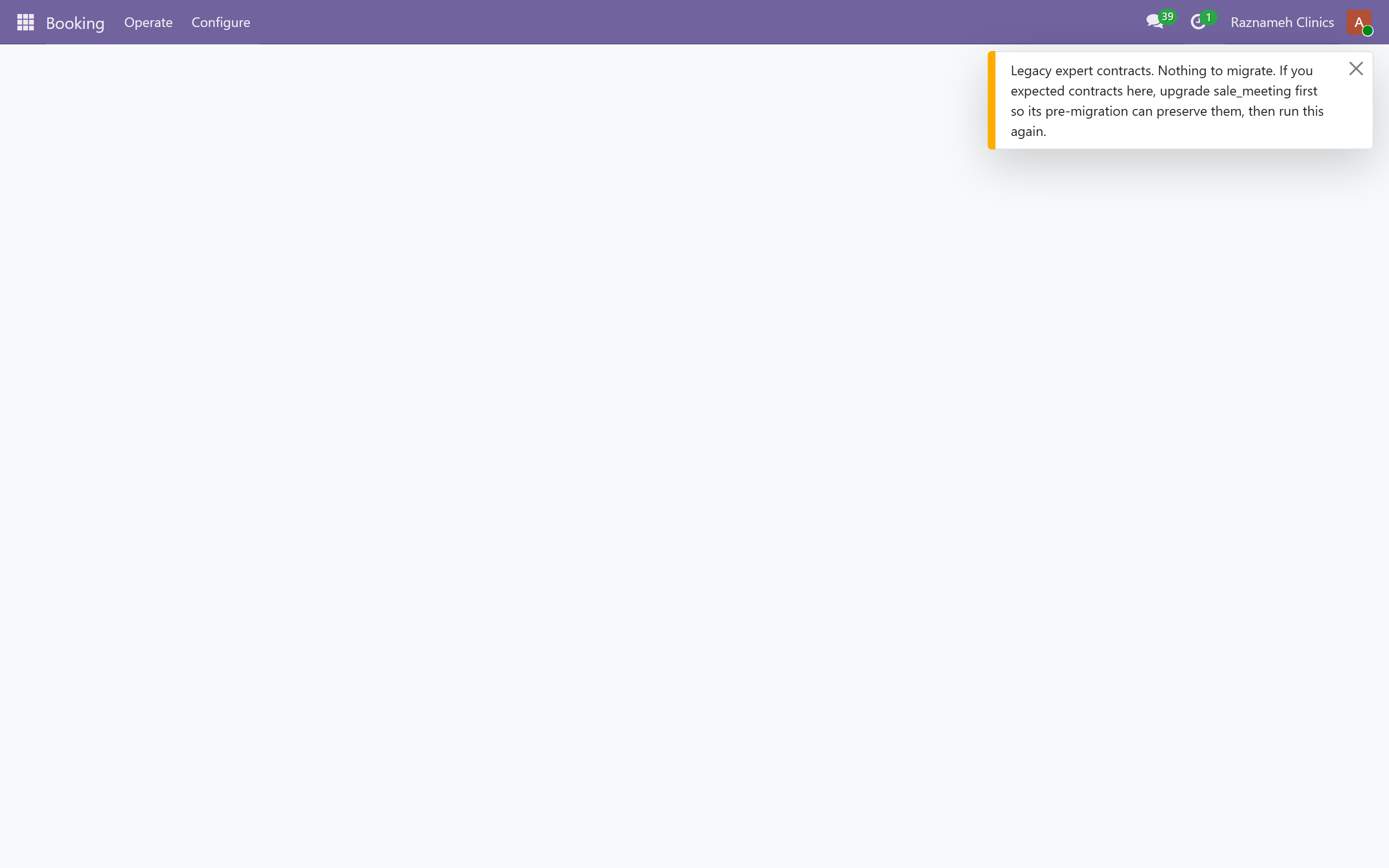
HR → Expert Pay → Contracts
Each professional's contract carries their terms and their payment cycle. The contract has a dated history: every change is a new version, one is in force at a time, and the history is preserved.
Four pay types:
| Type | How it is calculated |
|---|---|
| Salary | Fixed per cycle regardless of sessions |
| Hourly | Per hour delivered |
| Per session | Fixed amount per session held |
| Revenue share | Agreed percentage of what the client paid |
Changing terms: create a new version with the date it takes effect. Sessions already booked keep the share they were priced at — deliberately, so a change never retrospectively reprices completed work. Explain this when you agree a rate change, because it decides whether the new rate applies to the sessions already in the diary.
13.2 Running a payment cycle#
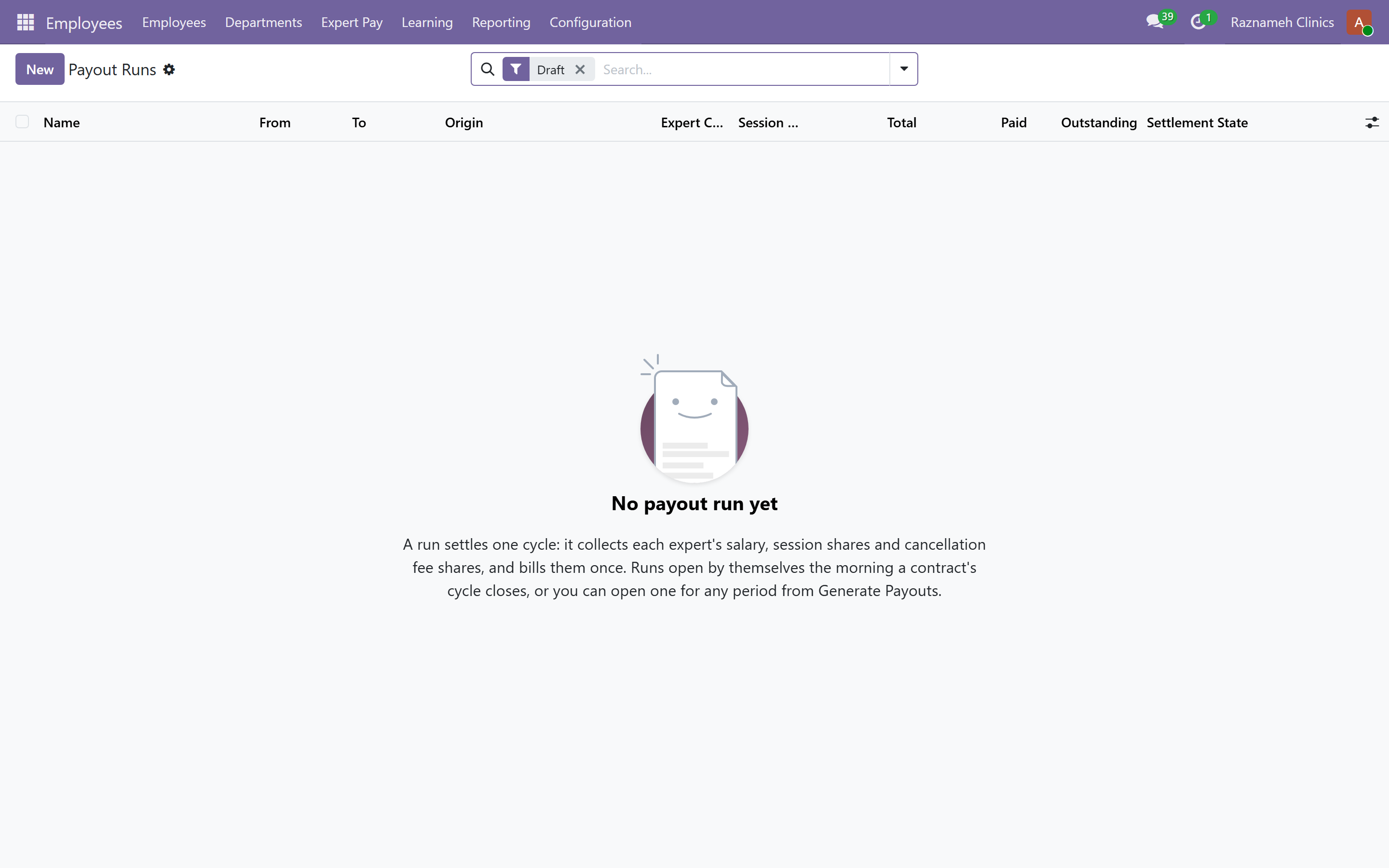
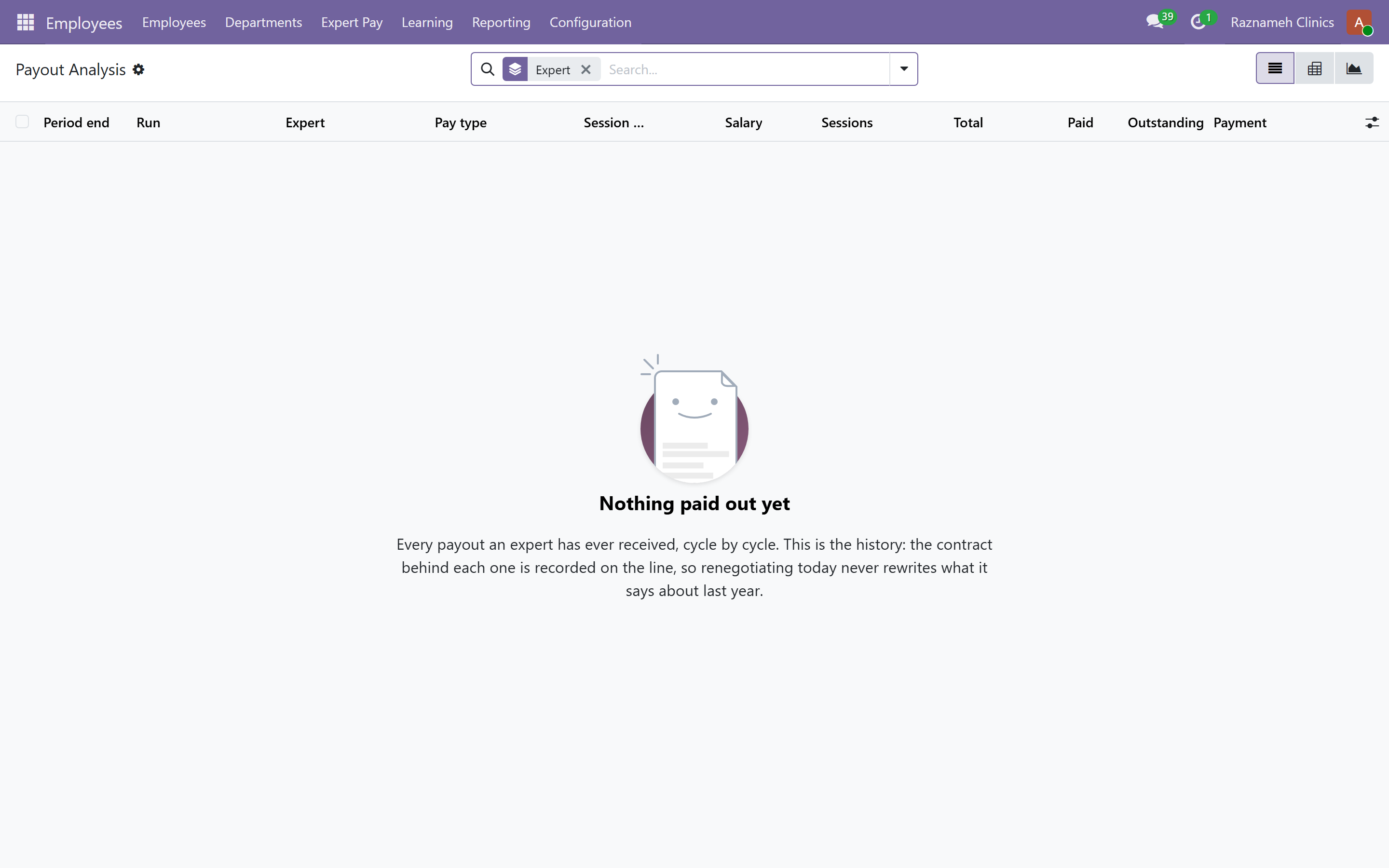
- Run payout readiness (§5.6) first. Fix everything on it.
- A payment run opens automatically when the cycle closes. Find it under HR → Expert Pay → Payout runs.
- Open the run. It is in Draft — nothing is billed yet.
- Review each line: the person, the period, sessions paid, cancellation fees, the total.
- If anything changed since the run opened, use Recompute.
- When it is right, Confirm & bill. Bills are created.
- Pay the bills through Accounting as you pay any supplier.
flowchart LR
  A["Cycle closes"] --> B["Run opens in Draft"]
  B --> C["Payout readiness §5.6"]
  C -->|"problems found"| D["Fix the data, Recompute"]
  D --> C
  C -->|"clean"| E["Confirm & bill"]
  E --> F["Paid — visible to the professional"]
  B -.->|"wrong run"| G["Cancelled"]
  G -.-> B
A run has exactly three states, and knowing which one you are in decides how you fix a mistake:
| State | What it means | How to correct it |
|---|---|---|
| Draft | Calculated, nothing billed. Nobody is owed anything yet | Fix the underlying data and Recompute. Free |
| Paid | Confirmed and billed | Accounting, with a credit note. Slow and visible |
| Cancelled | Opened and withdrawn | Its sessions return to the pool and appear in the next run |
Two origins. A run marked Scheduled was opened by the cycle automatically; one marked Manual was opened by a person. Either way it stays in draft until somebody confirms it — nothing is ever billed without a decision.
Cancellation fee shares. A run includes each professional's share of the cancellation fees charged in the period, where their contract gives them one. There is a switch on the run to exclude them. Turn it off only for a deliberate reason, and tell the people affected — an unexplained drop against last month is exactly the thing that produces a payment dispute.
Professionals can see this. Their payment history (Expert guide §11.2) shows every run, its lines and its state — including a cancelled one. Leaving a cancelled run without a replacement is visible to them, so replace it promptly rather than at month end.
13.3 Correcting a run#
Before billing, use Reset to draft, correct the underlying data, then Recompute.
After billing, correct through Accounting with a credit note. Always prefer catching it in draft — which is exactly what §5.6 is for.
13.4 Answering "why was I paid this?"#
Every payment line records which version of the contract priced it. Open the run, open the line, and you can show the sessions and the terms that produced the figure.
If the answer is "a session you delivered was never closed", fix the session and explain §5.1 — it will not be the last time.
14Identity and age verification#
14.1 The queue#
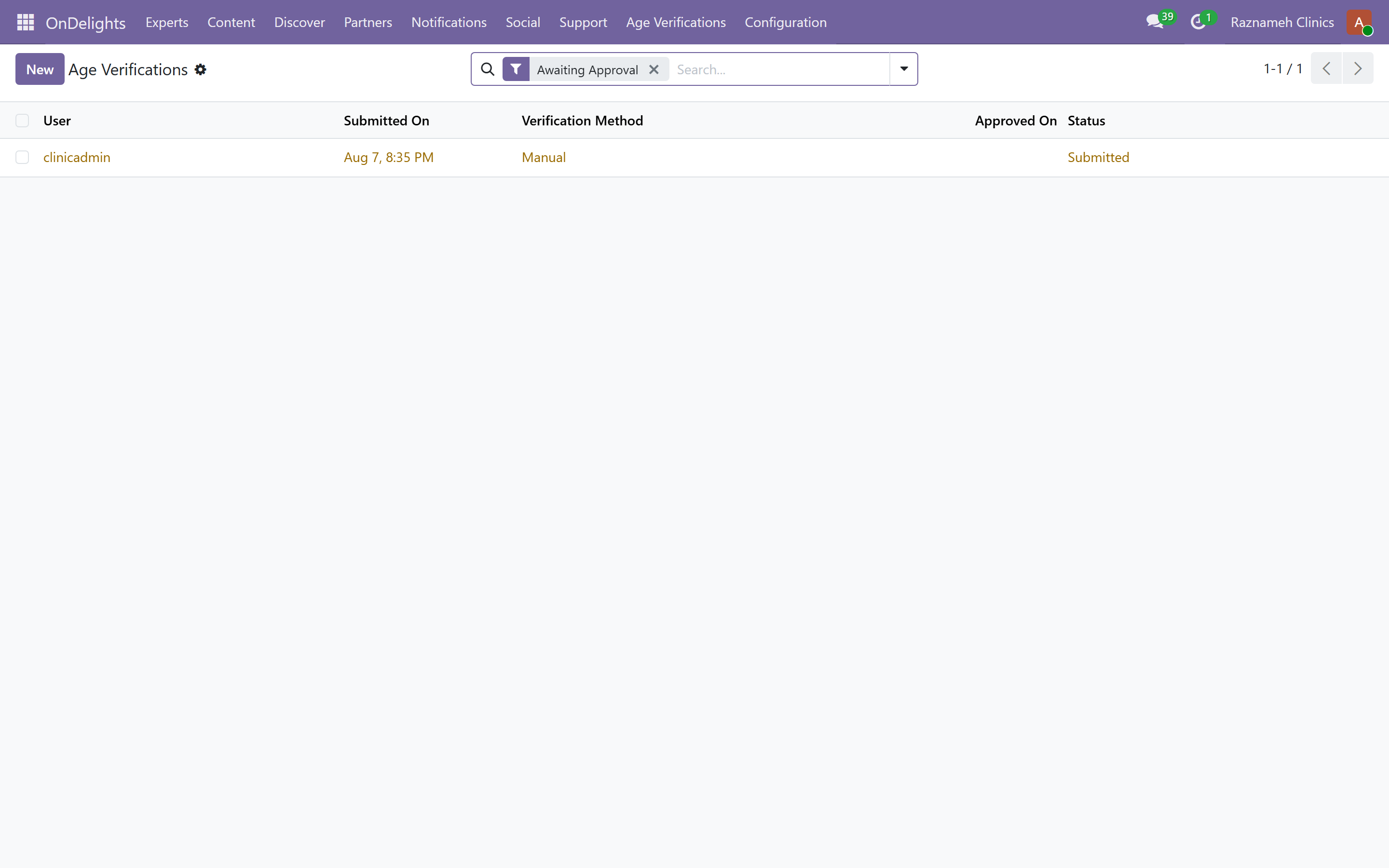
Platform → Age Verifications
Submissions arrive here when the automated check is inconclusive. Each has the client's submitted document and video.
14.2 Reviewing#
- Open the submission.
- Check the document is valid, legible and unexpired.
- Check the selfie video is of the same person.
- Check the date of birth meets the requirement.
- Approve, or Reject. Reject opens a popup — type the reason (blur, glare, expired ID). Confirming Reject and notify writes the reason, puts it on the member's Age Identity screen, and sends an in-app alarm with the same text.
Reject for quality — blur, glare, a cut-off edge — rather than assuming bad intent. Most rejected submissions are simply badly photographed, and the client can retry immediately.
14.3 The rules that apply to you#
- Every decision is written to an audit log that cannot be edited.
- Identity media is deleted automatically when its retention period ends.
- Never download, screenshot, or forward identity documents. They are encrypted and access controlled for a reason, and every access you make is recorded.
- Only staff who need to review should have this permission. Review who holds it periodically.
15Secure records and session reports#
15.1 What makes them different#
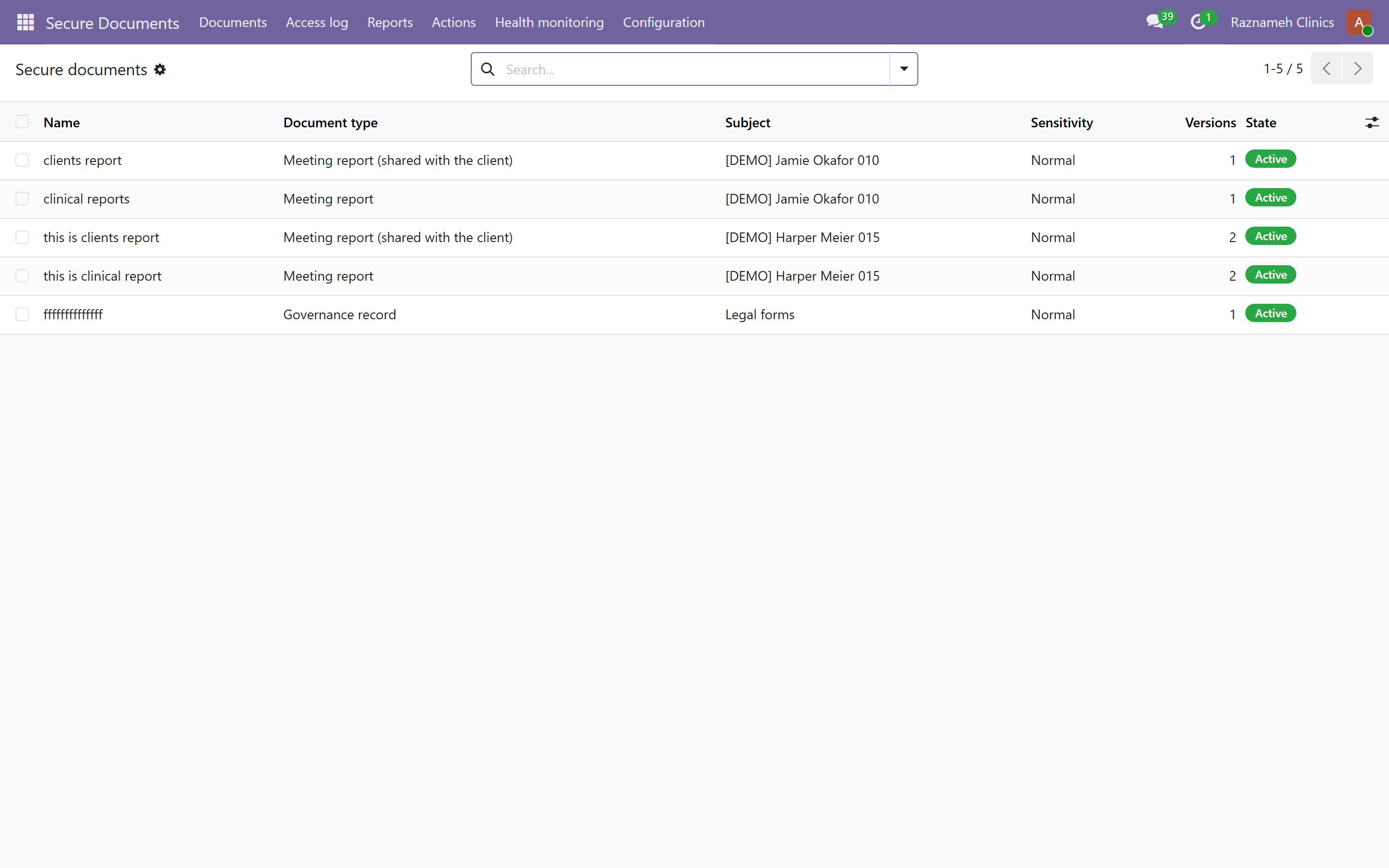
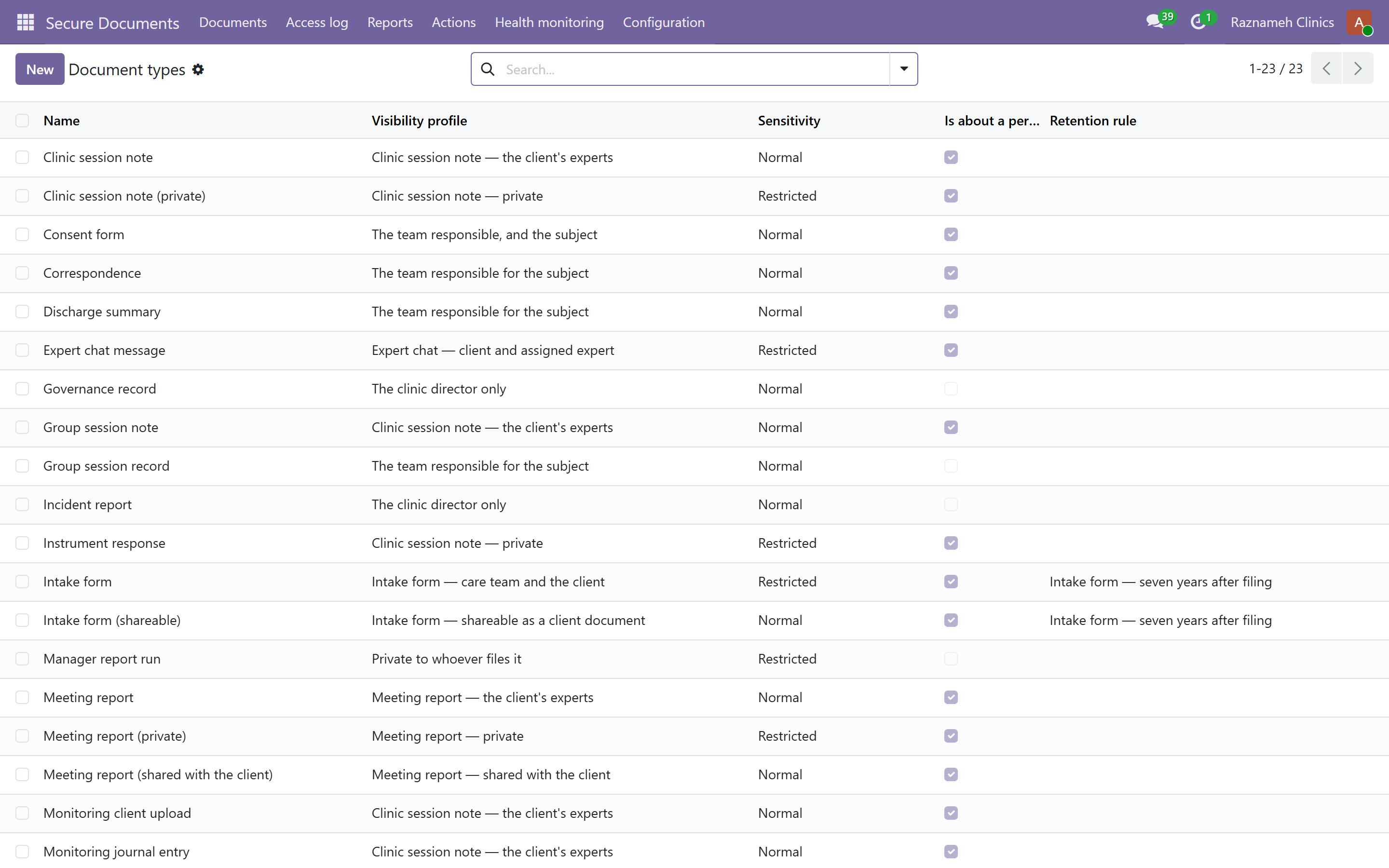
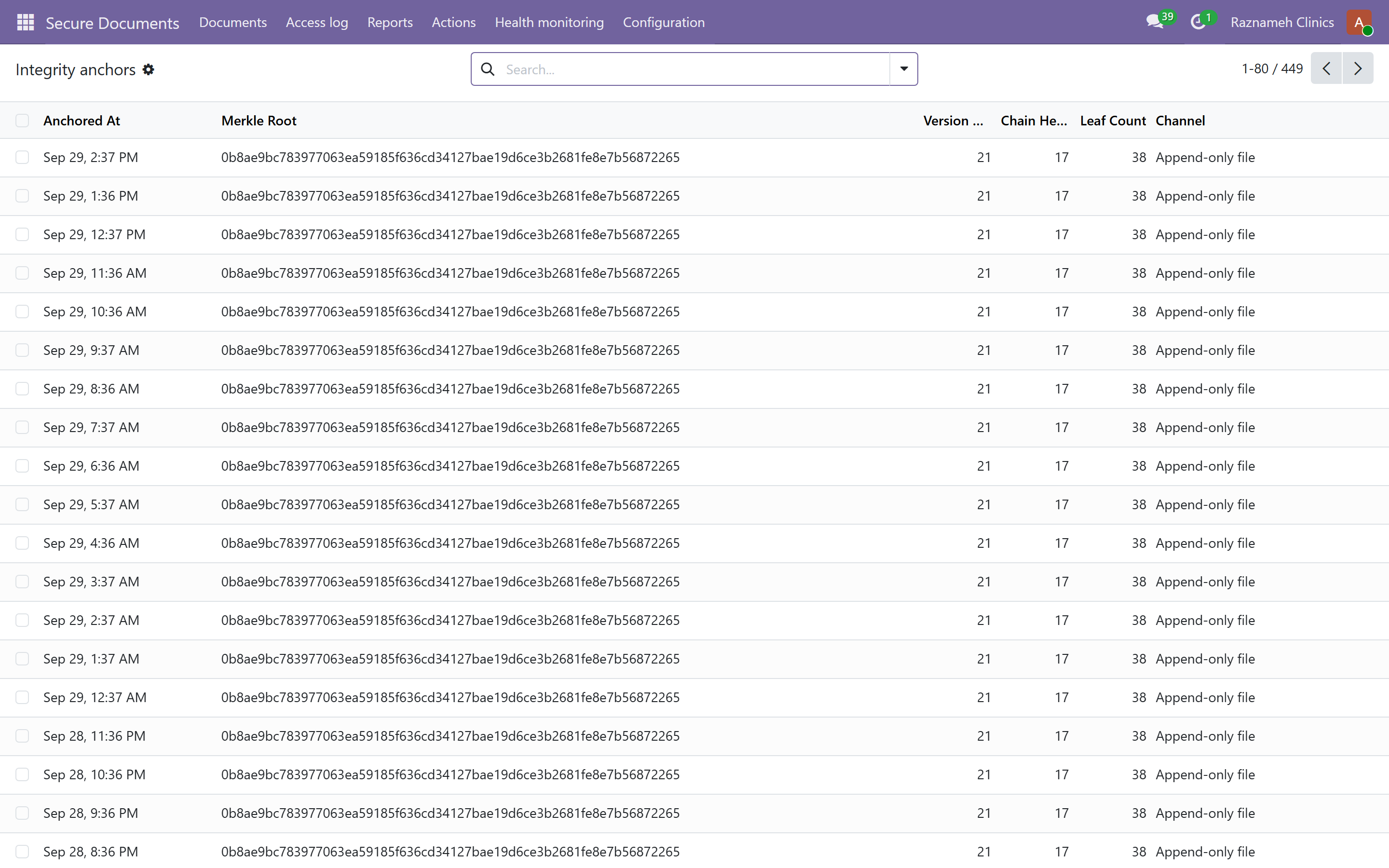
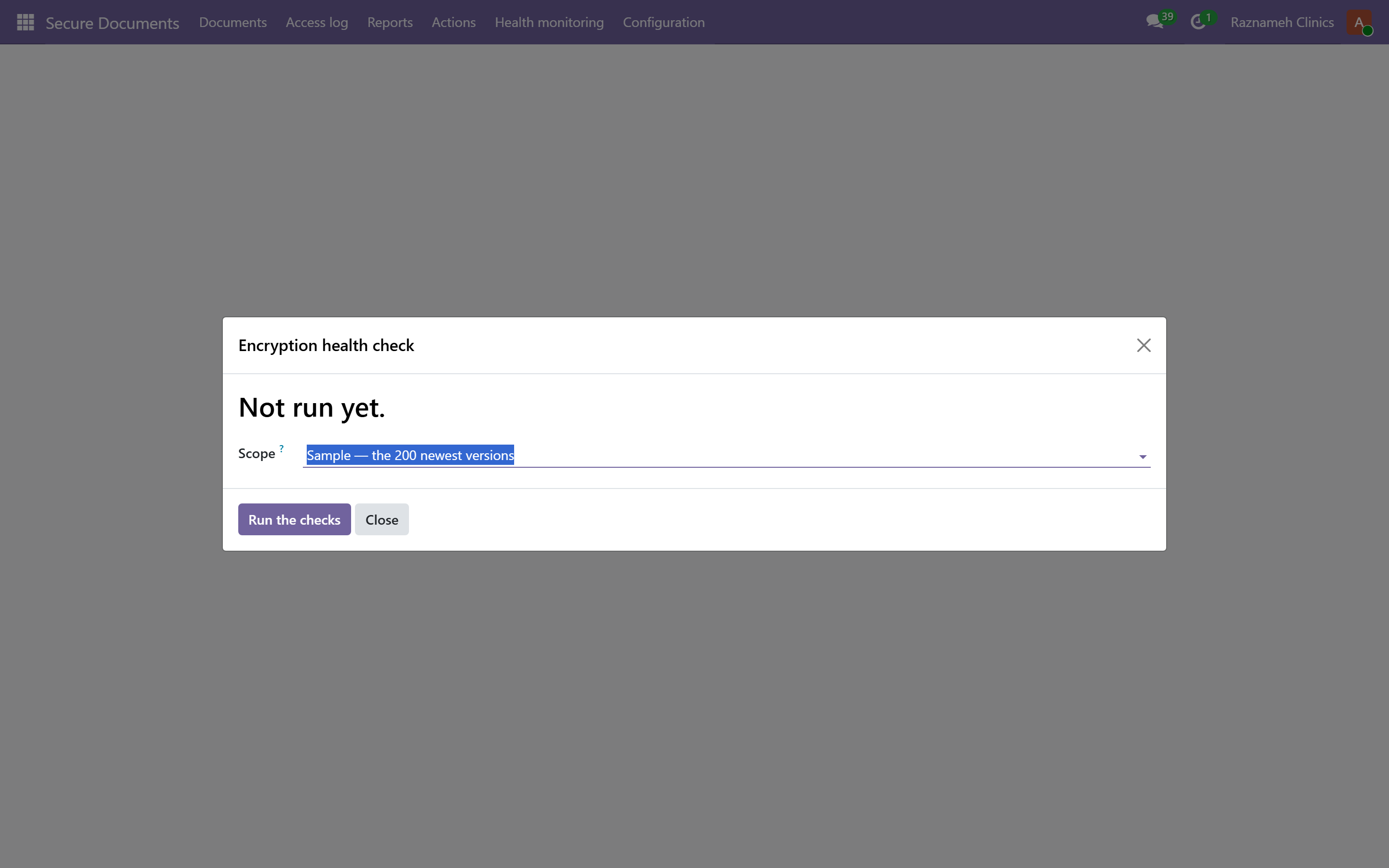
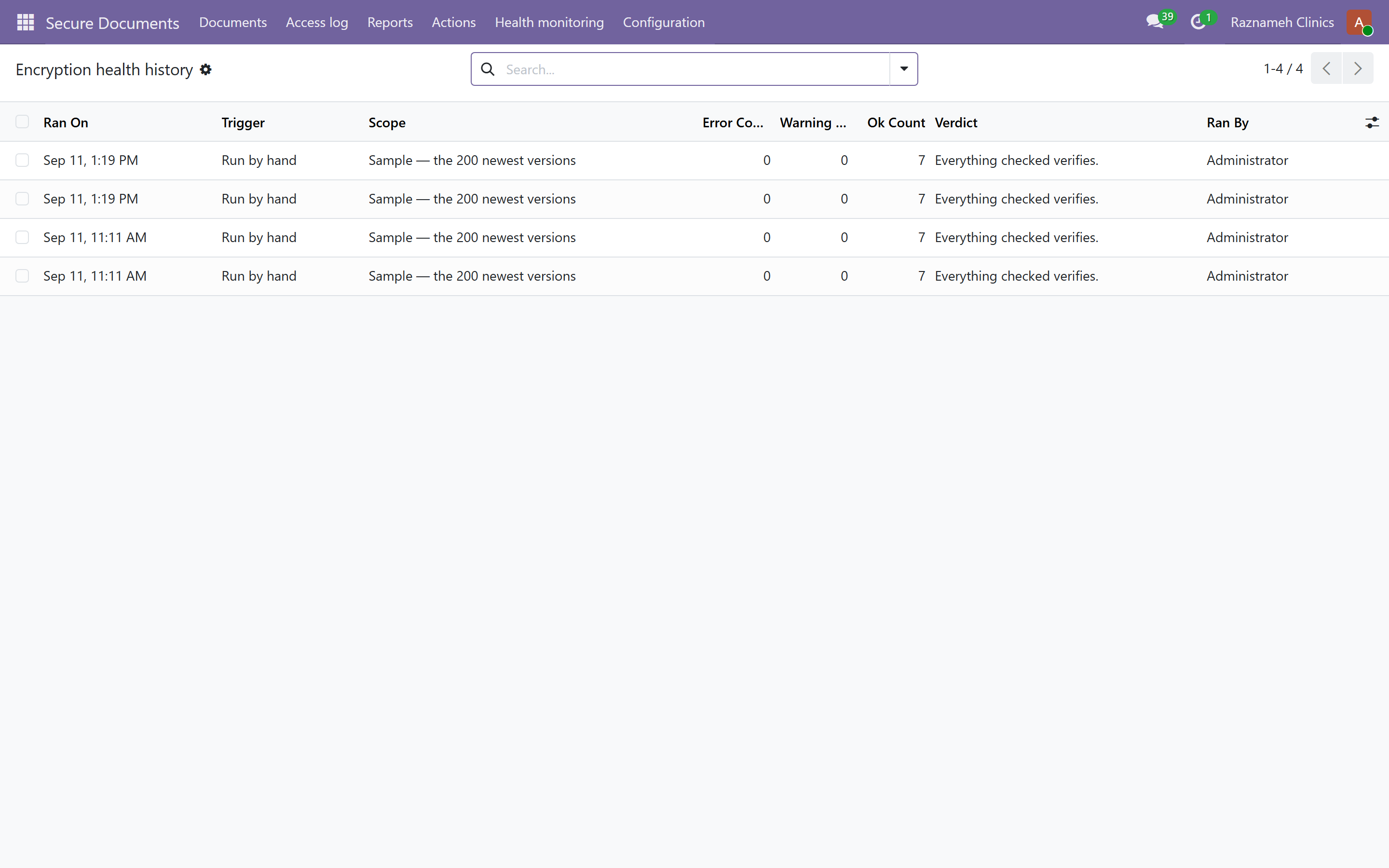
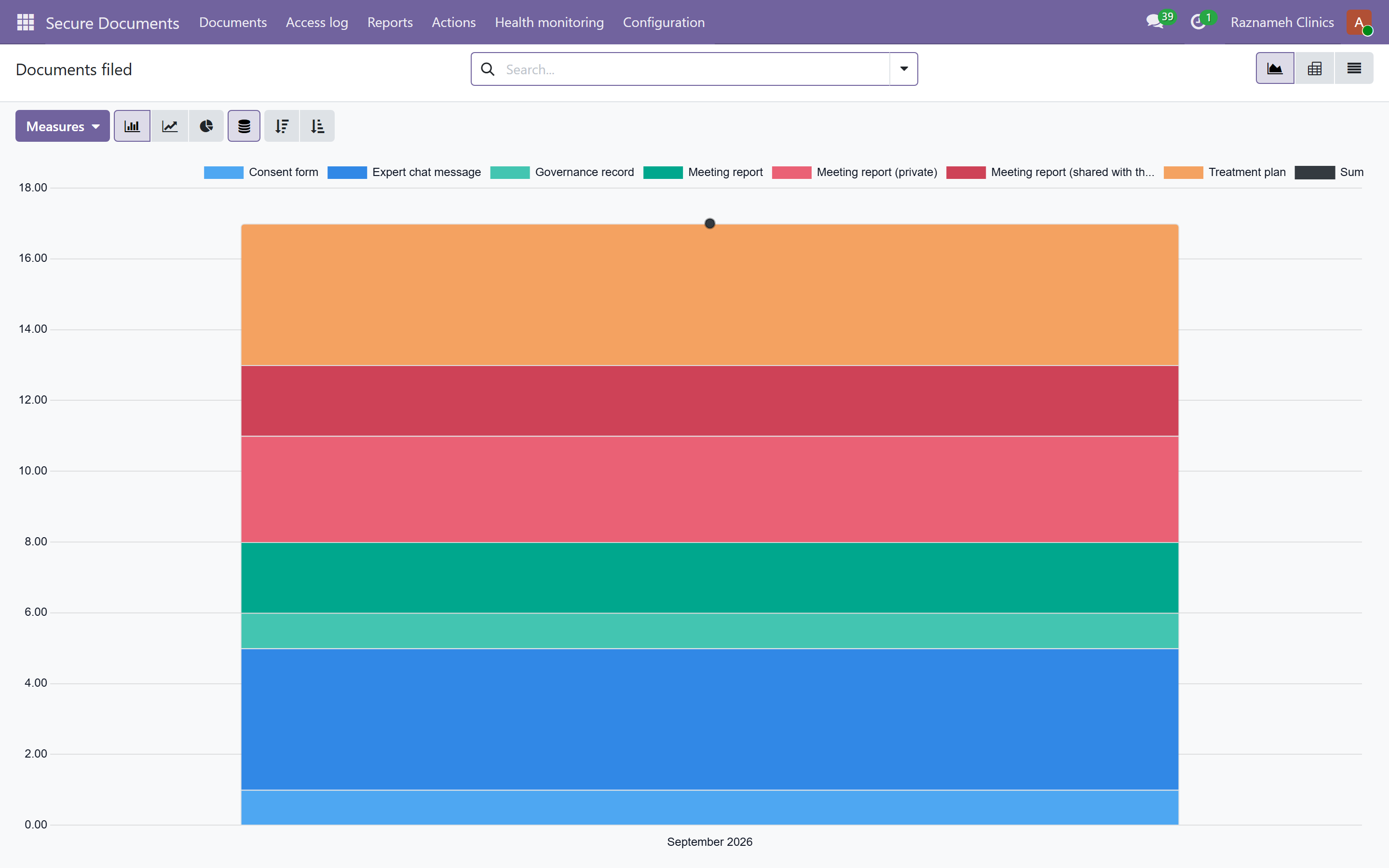
Session reports and client documents are held as secure documents:
| Property | What it means for you |
|---|---|
| Encrypted individually | Every version has its own key. Nobody reads them from the database |
| Closed by default | Access requires a rule that permits it. Being an administrator grants nothing by itself |
| Every read is logged | Openings as well as changes, in a log nobody can edit or delete |
| Corrections are new versions | The original is never overwritten |
| Disposal destroys the key | The content goes; the record that it existed remains |
| Not searchable by content | Encrypted material cannot be indexed. Find documents by subject, type and date |
15.2 Your own access is limited — on purpose#
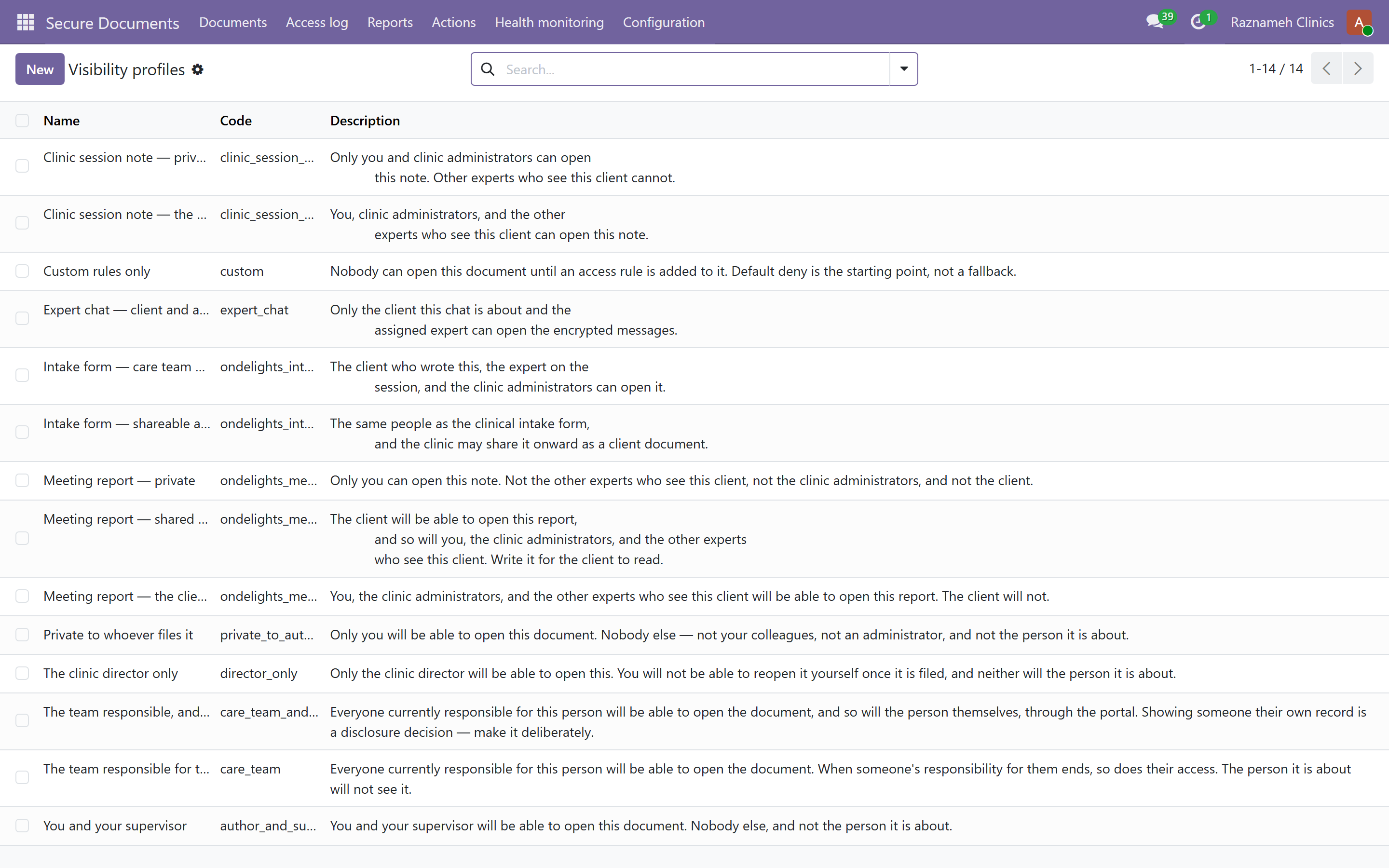
You will not be able to open every client record, and that is the design working. Access follows the care team rule, not your job title.
Do not treat this as a fault to be escalated. If you genuinely need access, there is a recorded emergency route (§15.4) — use that rather than asking for a permanent permission that would weaken the rule for everyone.
15.3 Chasing overdue reports#
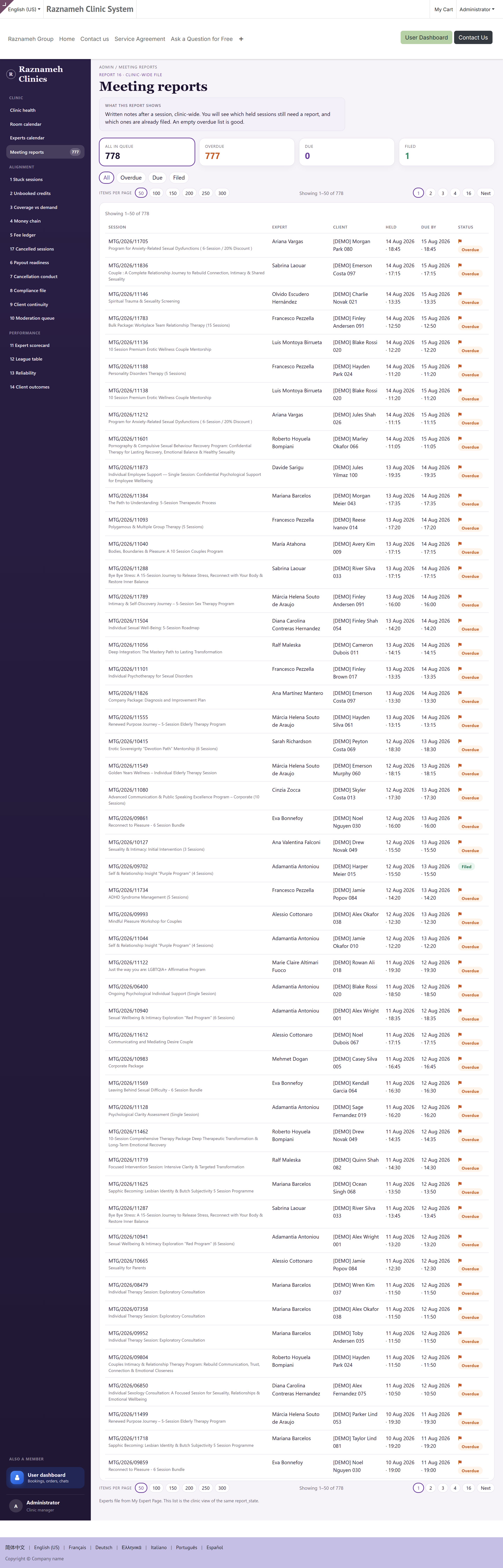
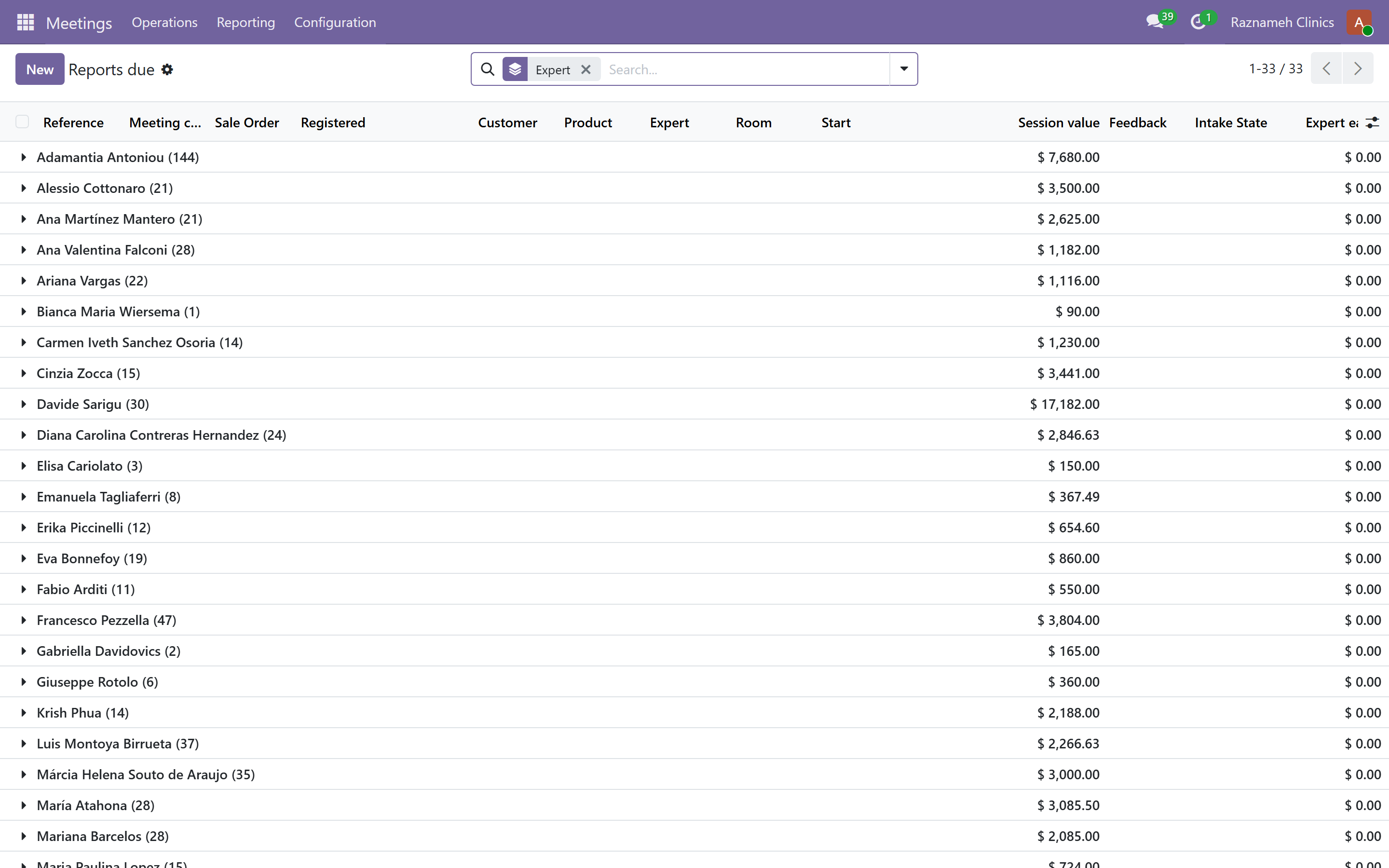
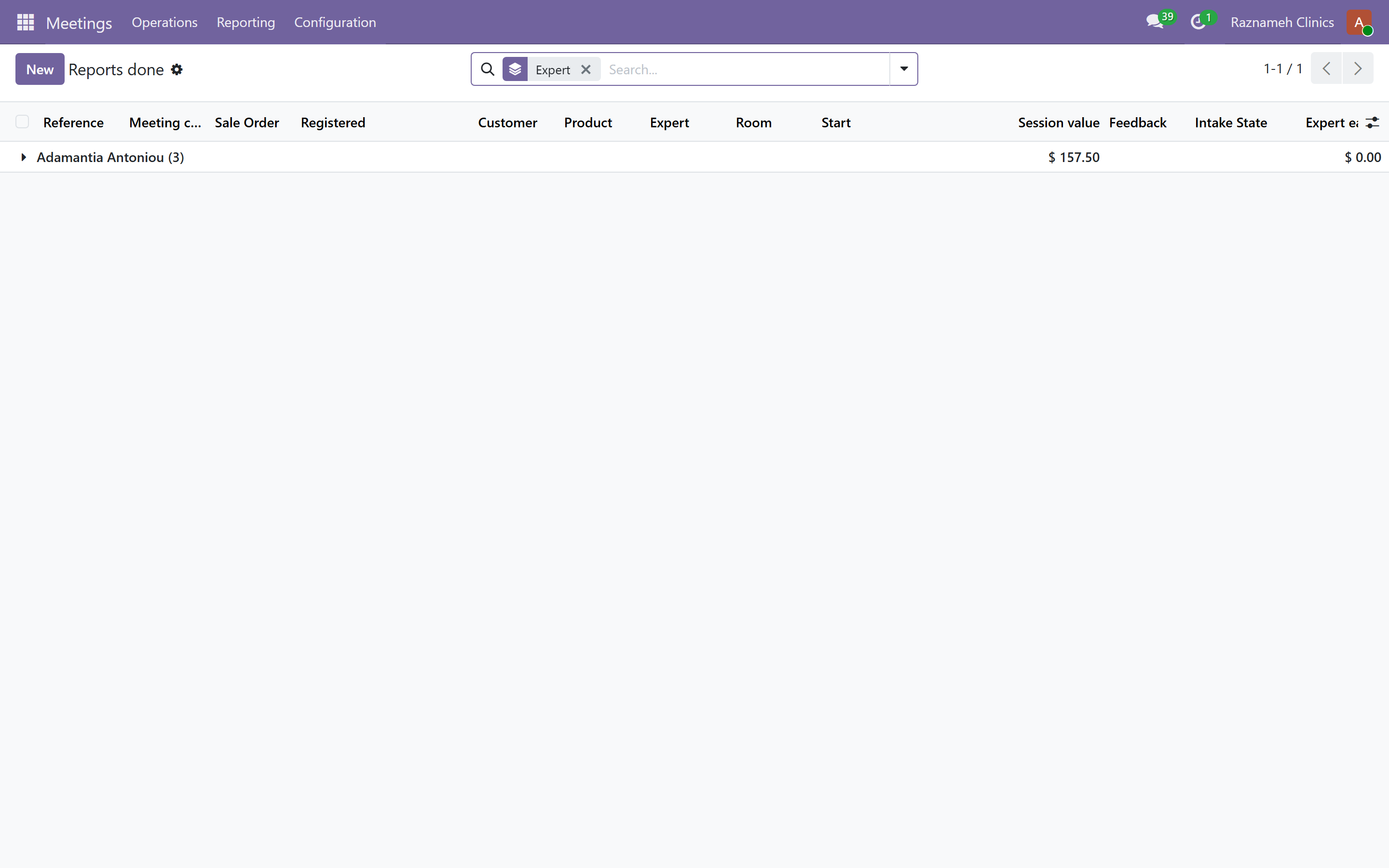
/my/admin/meeting-reports, or sessions without a report on the dashboard.
Shows what is due and what is done, business-wide. Chase weekly, not monthly — a report written a month late is worth very little, and by then the professional genuinely may not remember.
What decides whether a report is expected:
| Condition | Set where |
|---|---|
| The service requires a report | On the service (§9.4). Set per service, not per professional |
| The session has been held | Nothing is due before that — a booked session is not a late report |
| The allowance has passed | A business-wide setting, 24 hours after the session ends by default |
That allowance is a single system parameter (ondelights.meeting_report_grace_hours). Your system administrator can change it; ask before you do, because it moves every deadline in the business at once. Twenty-four hours is deliberately tight — the value of a report falls off quickly.
The four states a session's report can be in:
| State | Meaning | On your list? |
|---|---|---|
| Not required | The service does not require one, or the session has not been held | No |
| Due | Held, unfiled, still inside the allowance | No — it is not late yet |
| Overdue | The allowance has passed | Yes — this is what you chase |
| Submitted | Filed | No |
Open the list filtered to overdue for the weekly chase; the badge on the menu entry counts exactly that. The health digest links to the same filtered view.
How to chase well. Sort by professional, not by date. One person with eleven overdue reports is a workload or a training problem and needs a conversation; eleven people with one each is normal friction and needs a reminder. Chasing them identically wastes your time and irritates ten people.
Report requirements are set per service (§9.4).
15.4 Emergency access#
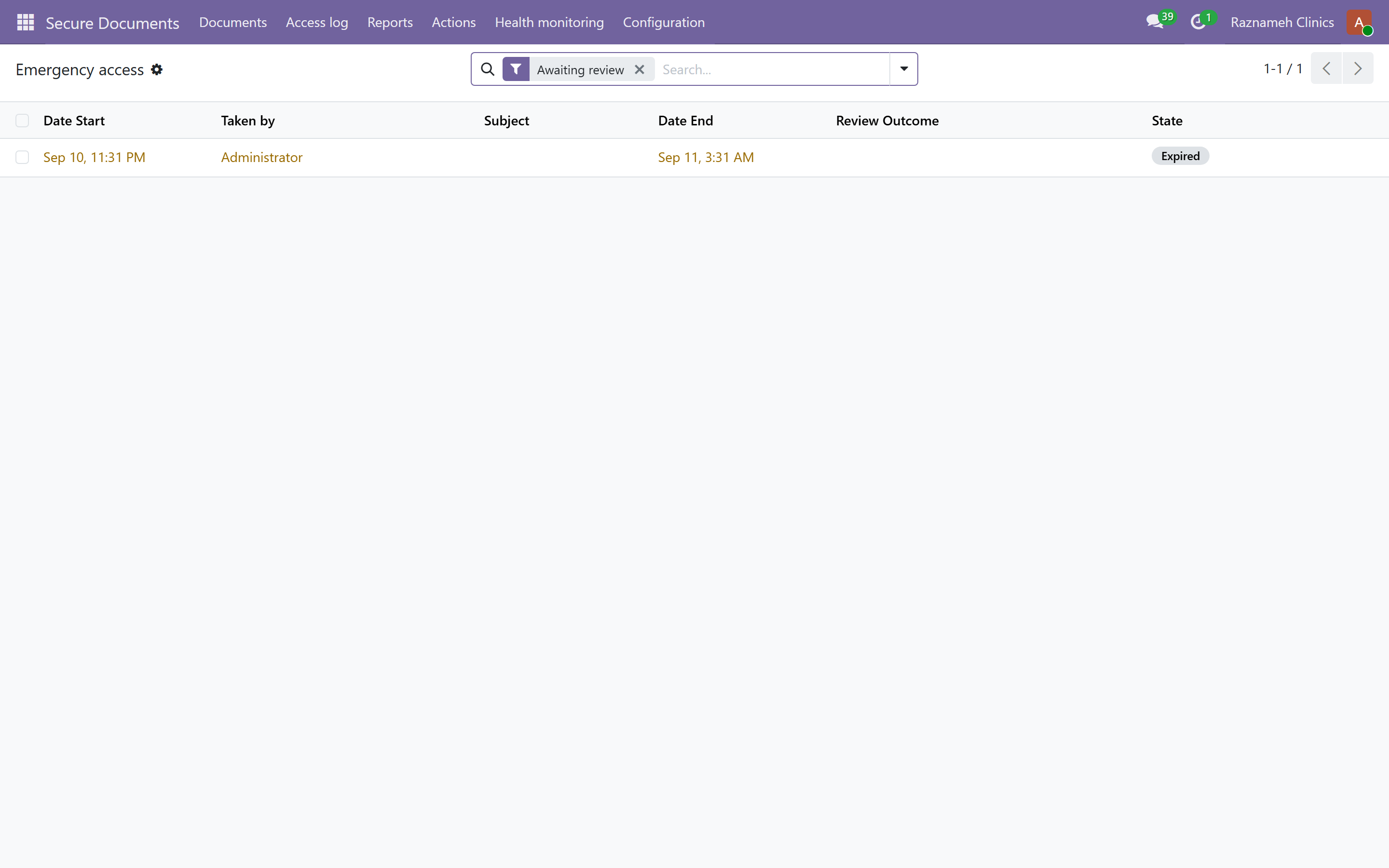
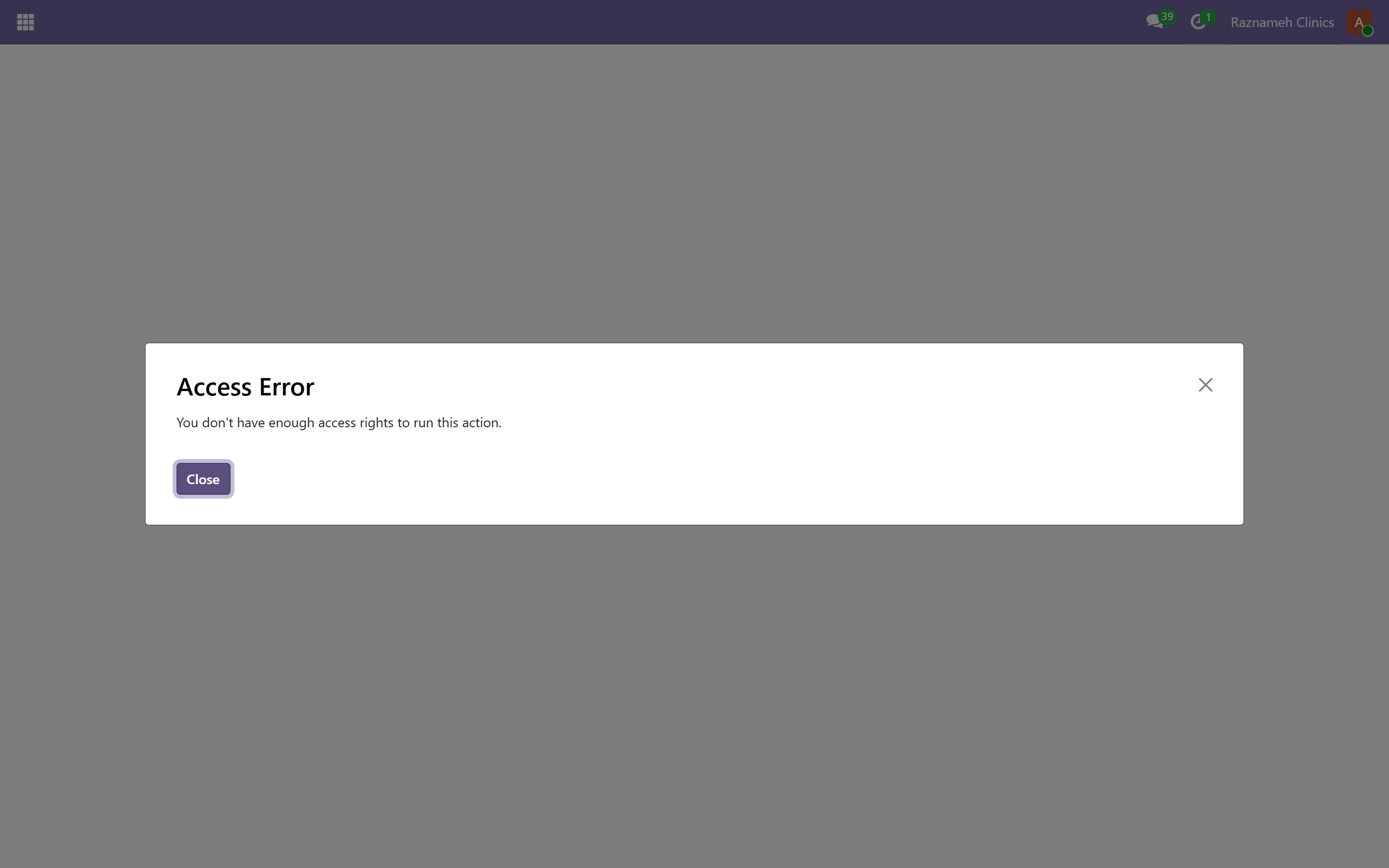
Where your business permits it, an emergency access route exists for genuine urgency.
Using it is a recorded event, reviewed afterwards. That is the point: it is available when someone truly needs it, and never quiet.
15.5 Retention and disposal#
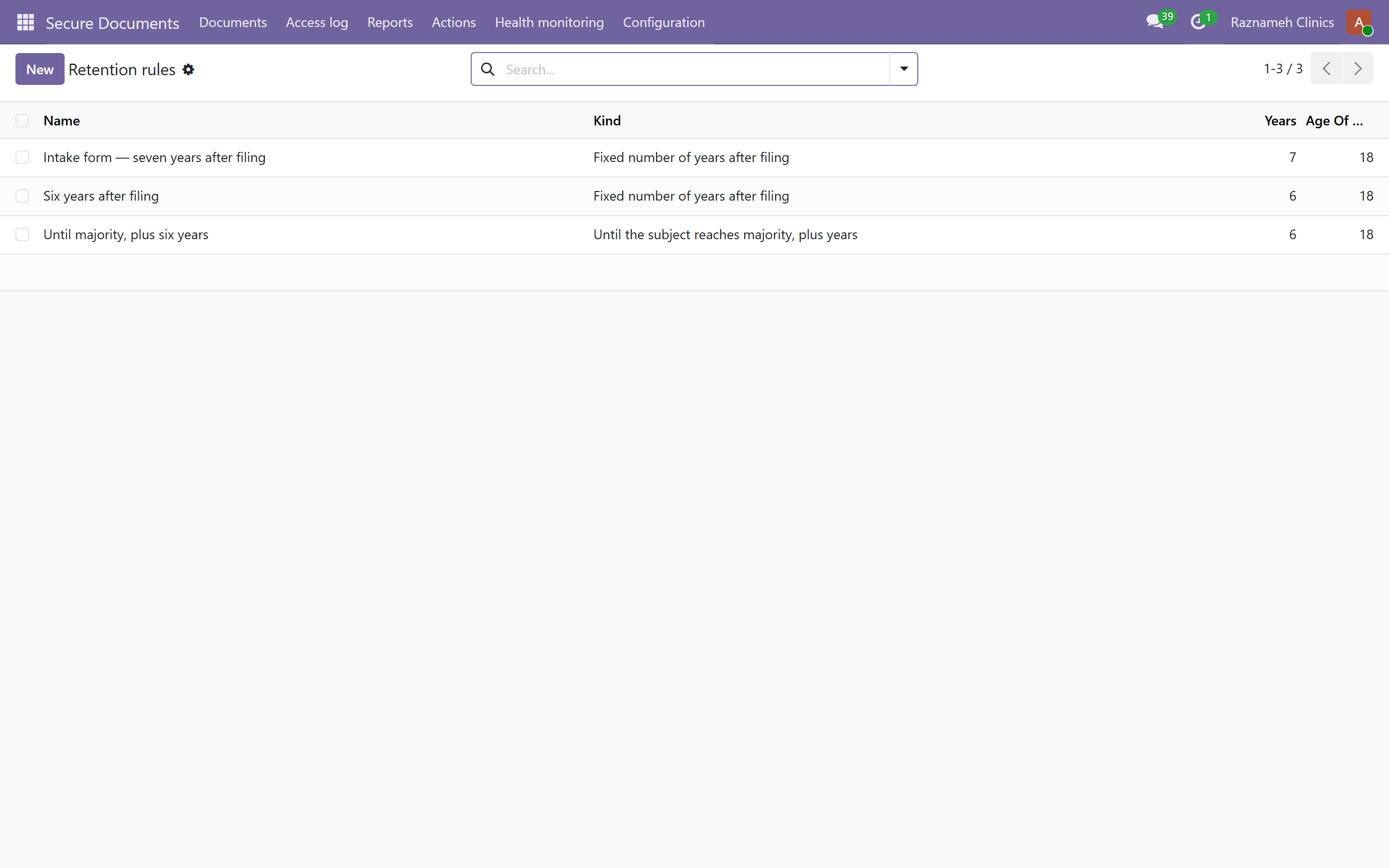
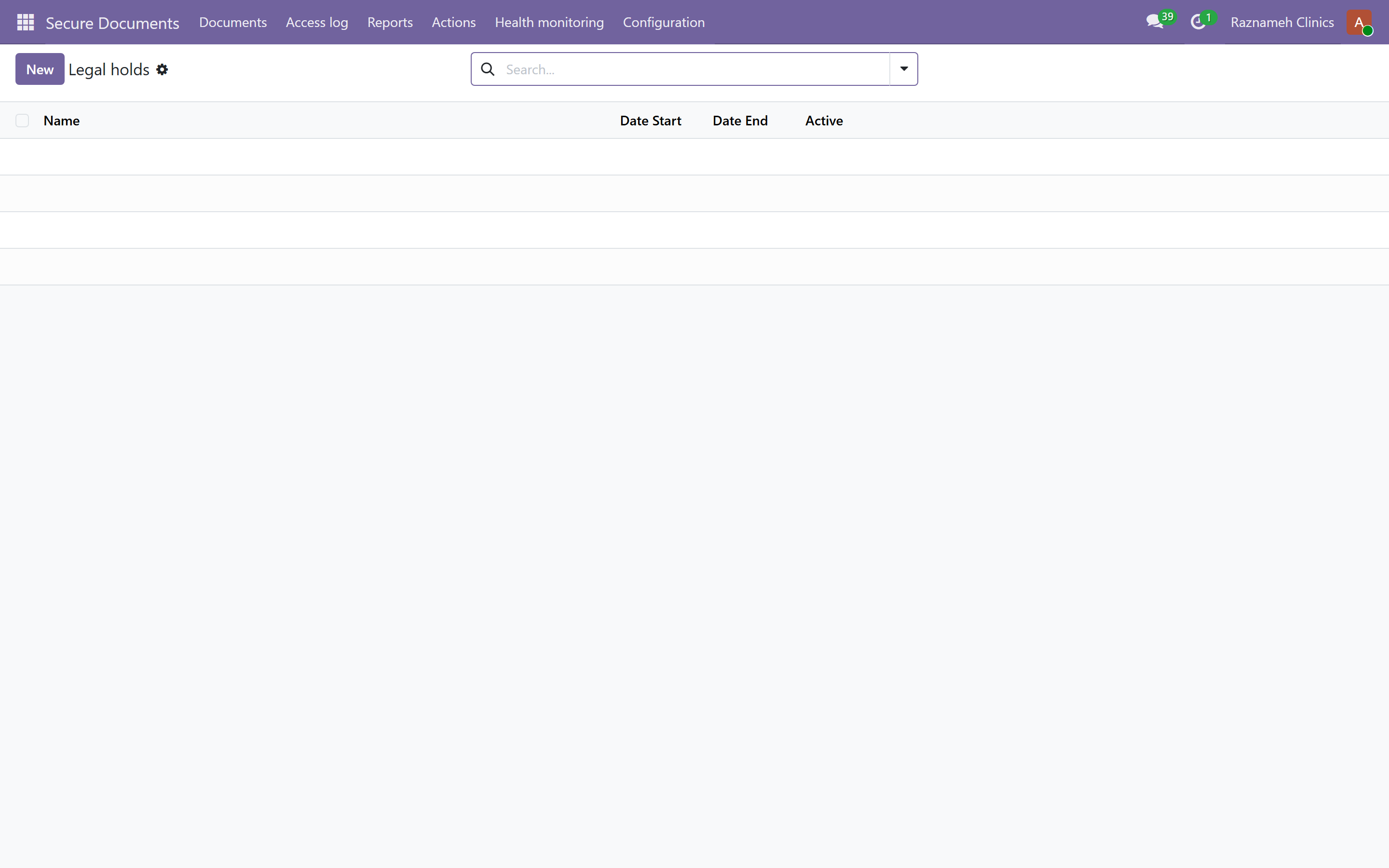
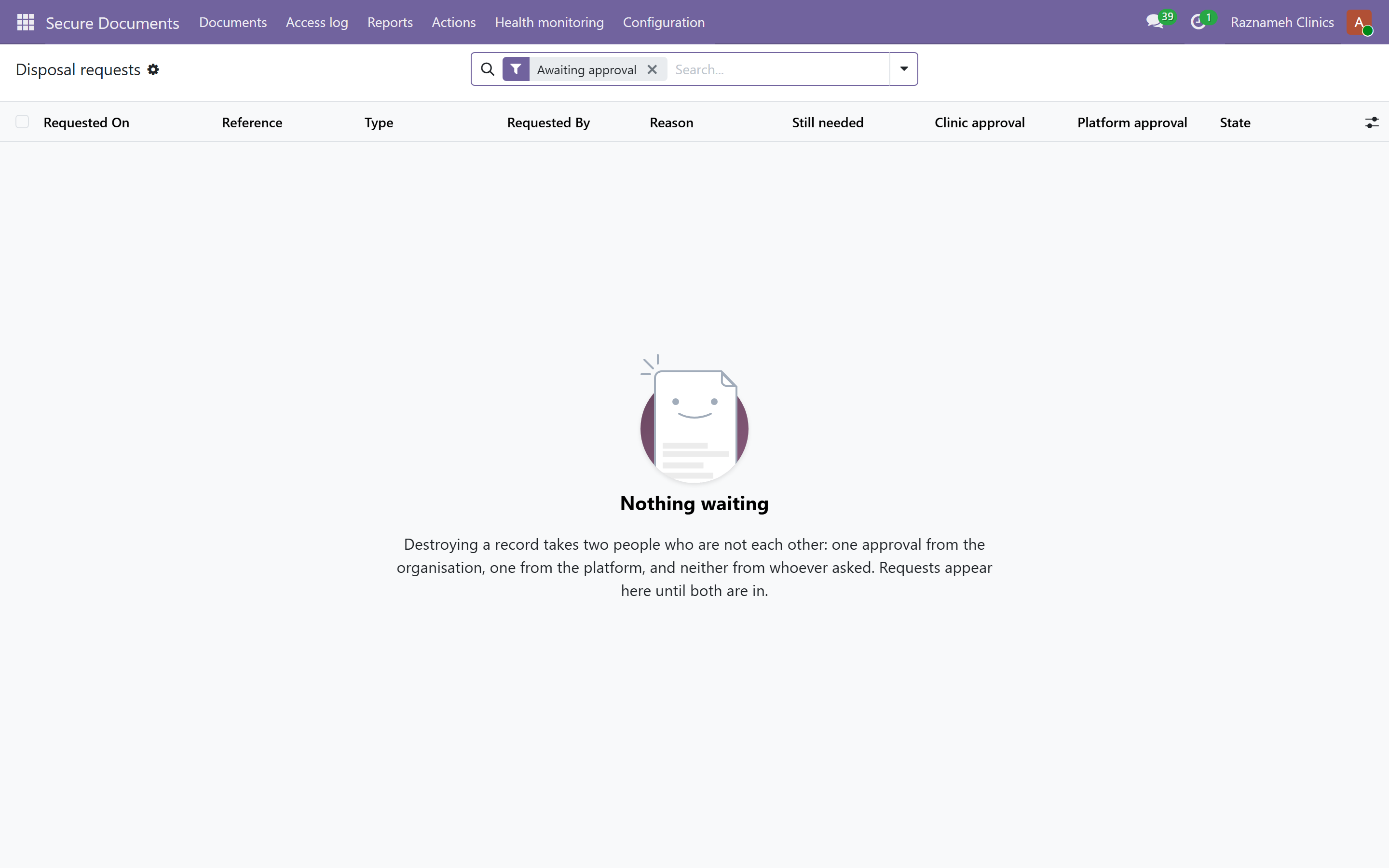
Retention schedules run automatically. When a period expires, the encryption key is destroyed: the content is gone, the record that it existed and was properly disposed of remains.
Check periodically with your system administrator that the scheduled task is running. Silent failure of a retention job is a compliance problem that only shows up in an audit.
15.6 Producing an access log#
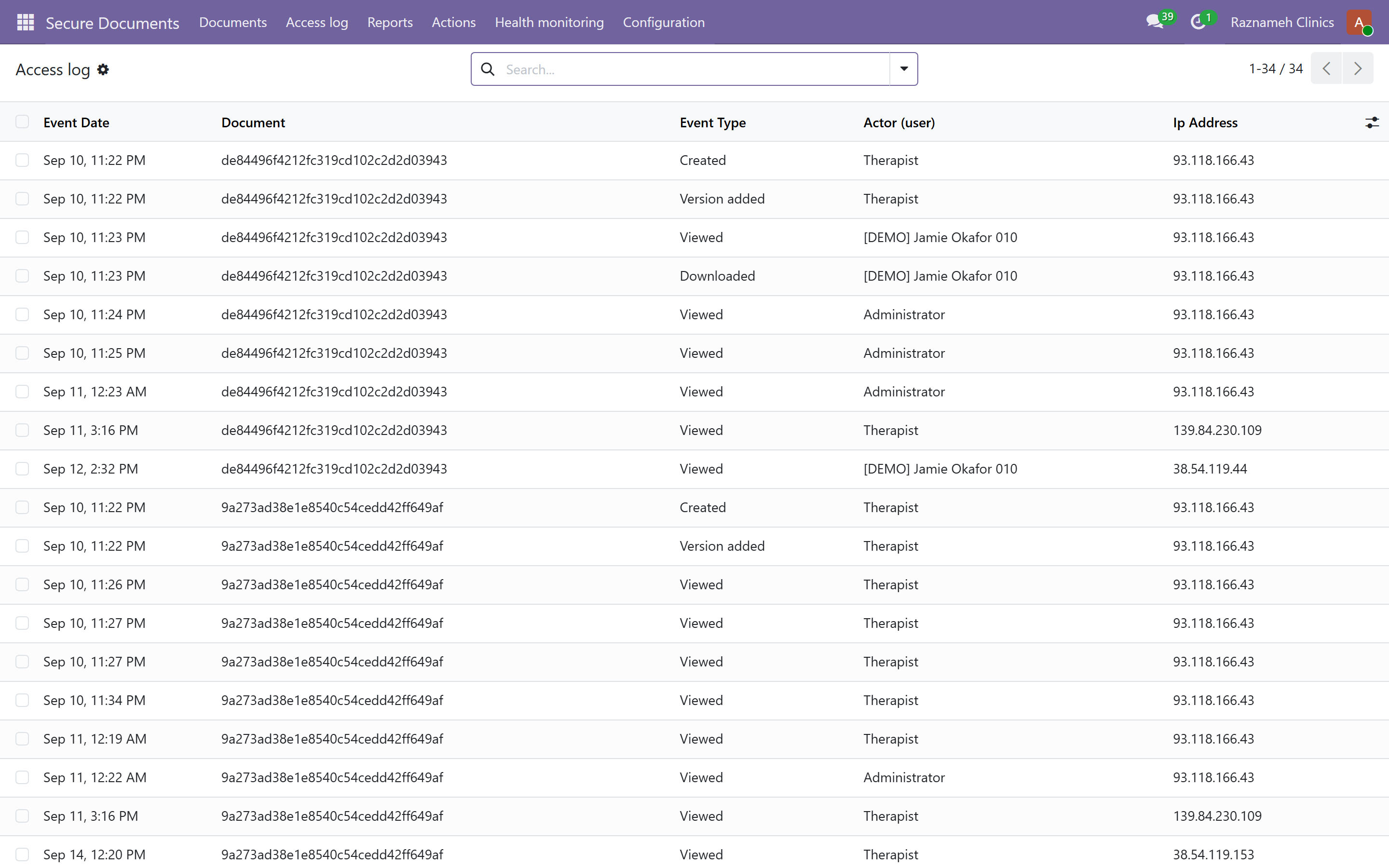
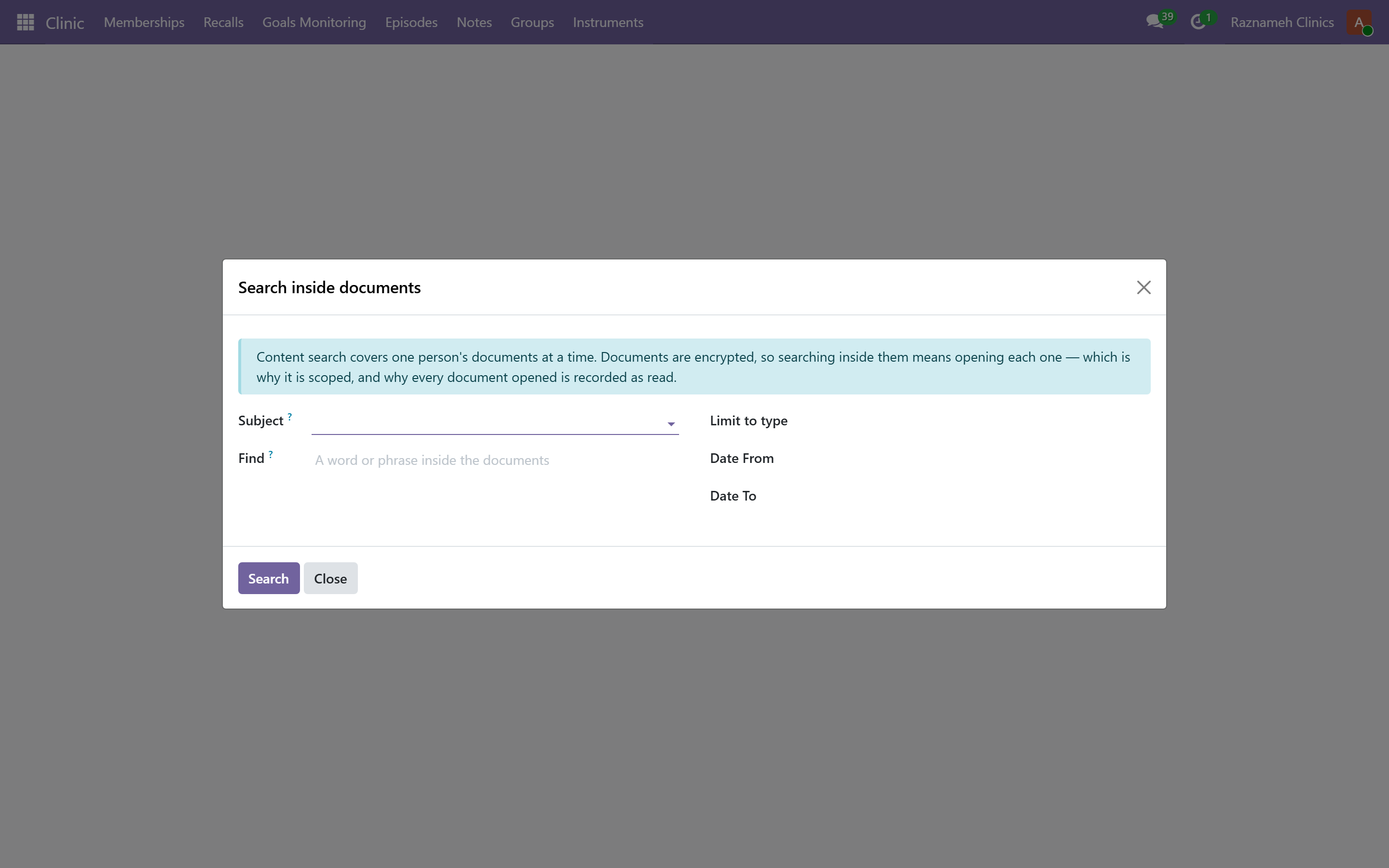
If someone asks who has read a record — a client, a regulator, your own legal team — the log is complete and cannot have been edited. Your system administrator can produce it.
For a single report you do not have to ask anybody. Its History page shows the report's versions and its access log — who opened it, when, and what they did — to anyone entitled to read that report, the filing professional included. Point a clinician there before you start assembling an extract: most "who has seen this?" questions are about one report and answer themselves.
What still needs you is the question asked about a period or a person rather than a document.
15.7 Monitoring journals and encrypted chat#
Between-session journals and uploads (clinic_monitoring) use the same secure-document path when the programme's secure-content flag is on. Consultation chat bodies (ondelights_chat_metering) do likewise when Encrypt chat content is on. Your job title still does not grant a back-door read — related people only.
15.8 Note templates — what a clinician is asked to fill in#
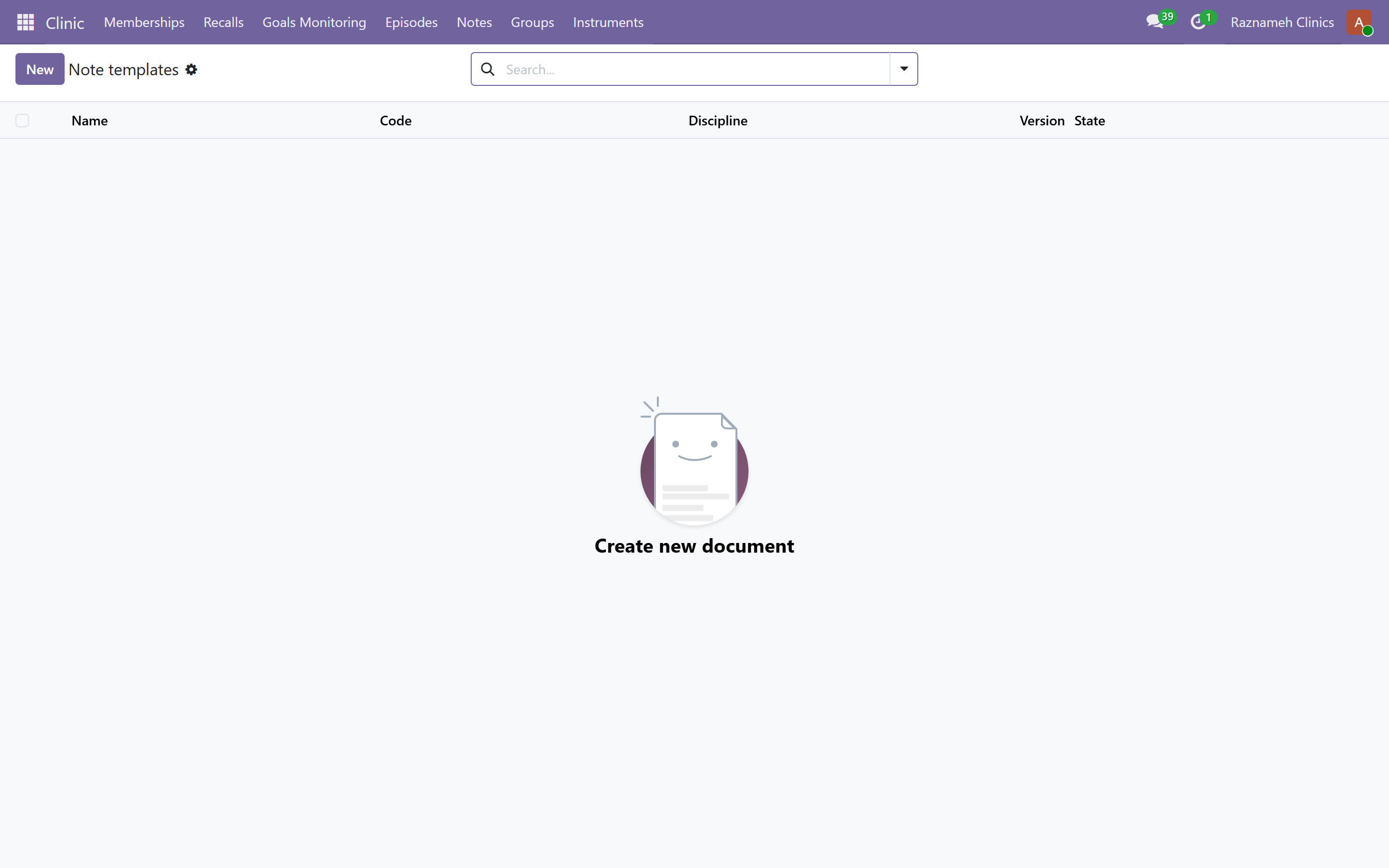
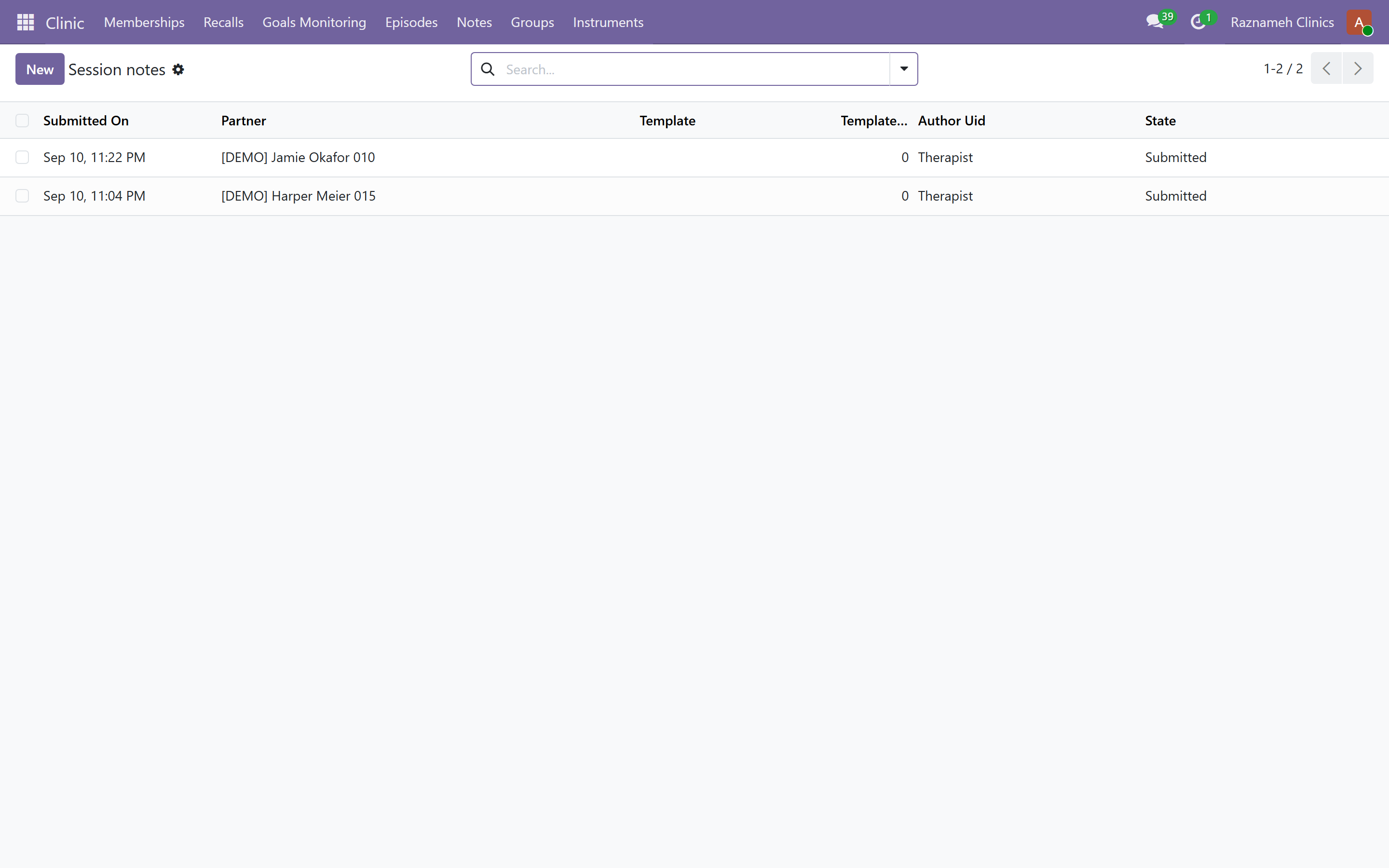
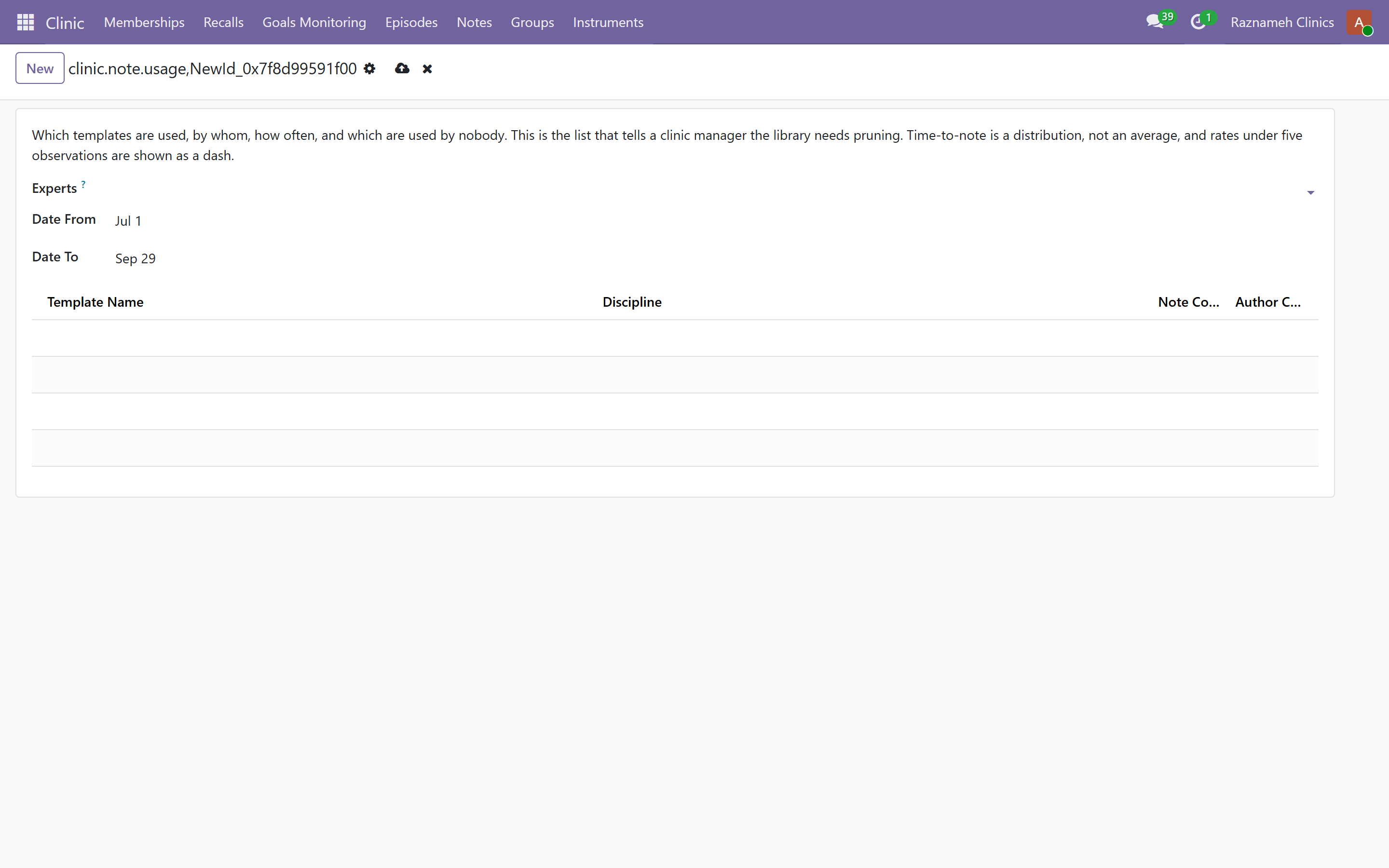
Two different things carry that name, and knowing which you want saves an afternoon.
Clinic → Notes → Note templates is the structured kind: a template is a named set of fields, and a completed one becomes a secure document of the type you choose. Each field has a label, a technical name, a type — text, long text, choice, multiple choice, number, scale, date, date and time, or yes/no — an optional section, help text, a default, units for anything numeric, and its own shared or private visibility.
It is versioned like a document that matters:
| State | What you can do |
|---|---|
| Draft | Edit freely, including the fields |
| Published | In use. The name, code, discipline, document type and fields cannot be changed, and no field can be removed |
| Retired | Out of use, still readable on every note already filed with it |
To change a published template you revise it: that forks a new draft, remembers which version it came from, and publishes as the next version. Notes already filed keep the version they were written on — which is the entire point, because a note has to mean what it meant on the day.
Starter note templates seeds a usable set to work from, and marks what it created so the same menu can remove it again. Template usage shows which templates are actually being used; Adopt HTML notes brings older free-text notes into the structured world.
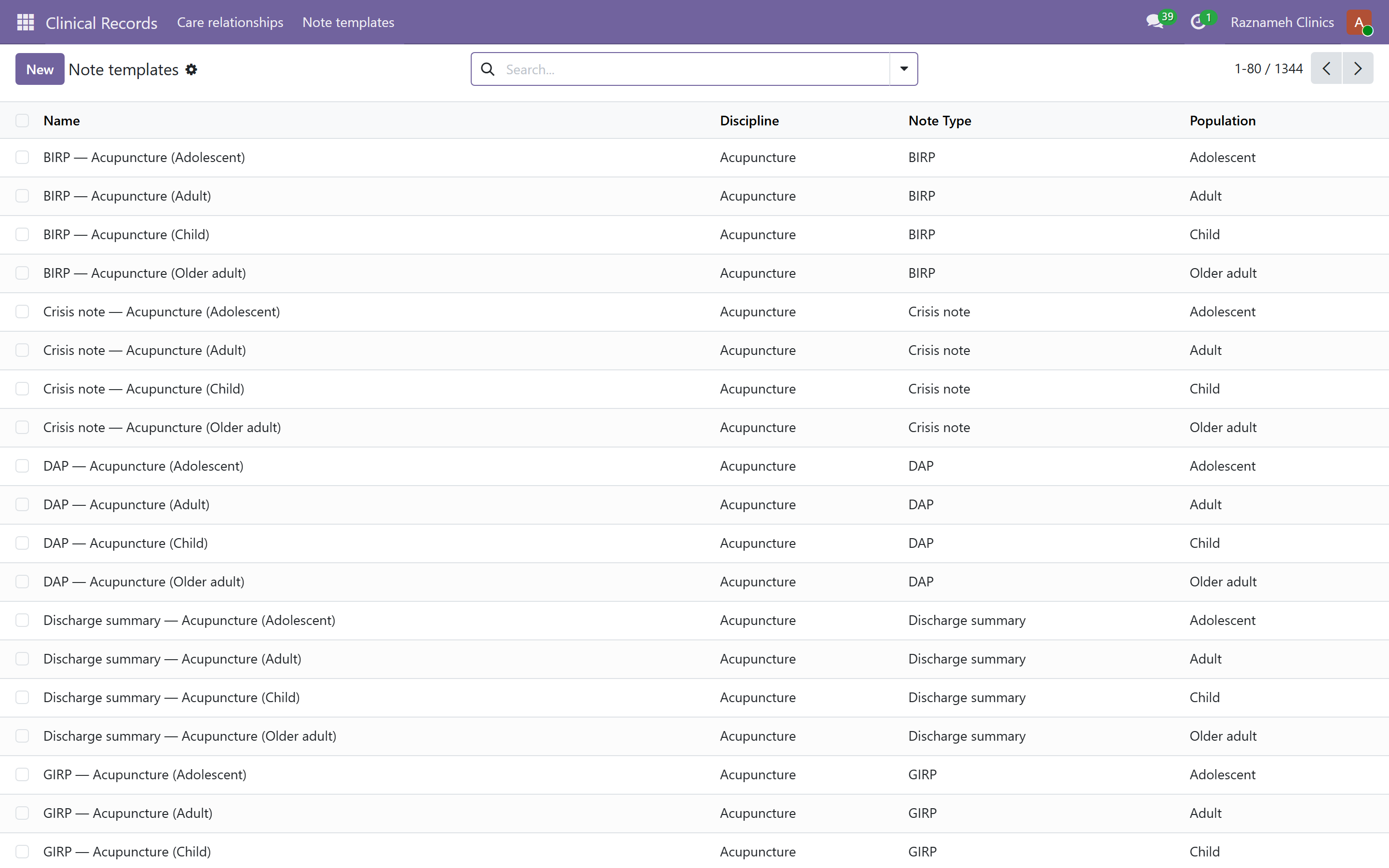
Clinical → Note templates is the other kind: a library of 1,344 named clinical templates — 28 disciplines × 12 note types × 4 populations. The note types are SOAP, DAP, BIRP, GIRP, PIRP, intake, progress note, discharge summary, crisis note, treatment review, telehealth SOAP and group process; the populations are adult, child, adolescent and older adult. Search or group the list by any of the three.
What a library template contains is its sections, not its content. A SOAP body arrives as Subjective / Objective / Assessment / Plan, each with a prompt line saying what belongs there and asking to be replaced. It is scaffolding for the clinician, not text to file as it stands. A note started from one remembers which template it came from.
Neither appears in the professional's portal: templates are configured and used in the back office, so a clinician who needs them needs back-office access.
15.9 Where the encryption key lives#
Settings → Remote key authority. Off by default, and off is a perfectly good answer: documents are wrapped with the key file on this server, as they always have been.
Turned on, wrapping and unwrapping go to a key-authority process on another host. This server then never loads that key at all — and, deliberately, never falls back to a local key if the authority is unreachable. A silent fallback would mean a document you believed was protected by a key you hold elsewhere was quietly protected by one sitting next to it.
Two practical notes:
- Set the URL and tokens in
odoo.conf, not in the settings screen, wherever you can. There is a Test connection button for checking the result. - Every key request is logged — what was asked, by whom, for which document, whether it succeeded and, when it did not, why. That log is the evidence of who could open what, and it is the one to produce when somebody asks that question about a period rather than a document.
This is an infrastructure decision, made with whoever runs your servers. It changes nothing a clinician or a client sees.
16Data protection requests#
16.1 Access requests#
A client asking for a copy of their data. Your system administrator produces the export. Keep to the deadline in your jurisdiction.
16.2 Erasure requests#
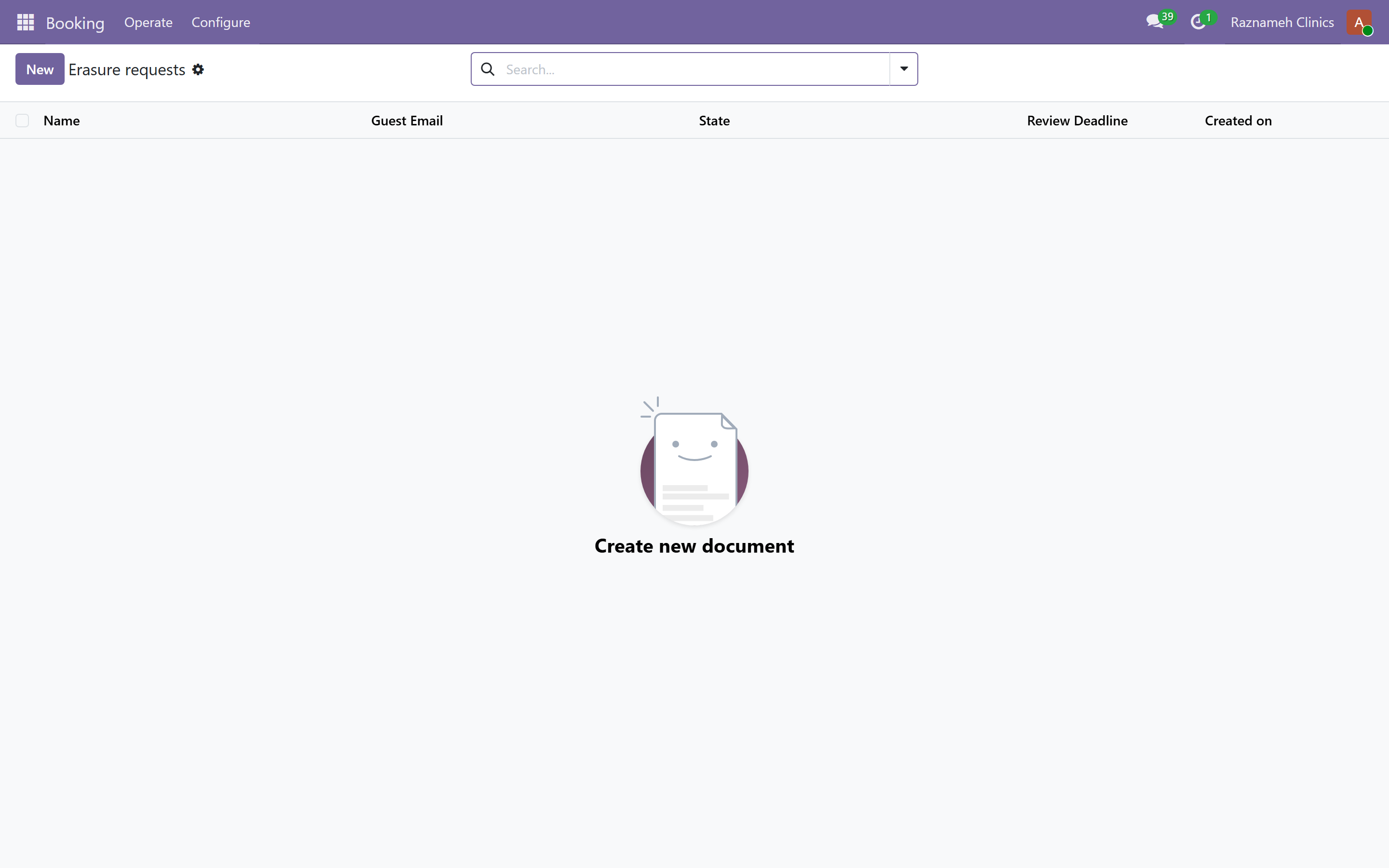
Booking → Operate → Erasure
- Open the request.
- Confirm the identity of the person asking.
- Check what must legally be kept — invoices for tax, clinical records for their retention period.
- Process the erasure.
- Confirm to the requester.
Erasure of secure documents destroys the key. The record that a document existed and was erased remains — which is what proves you complied.
16.3 Email suppression#
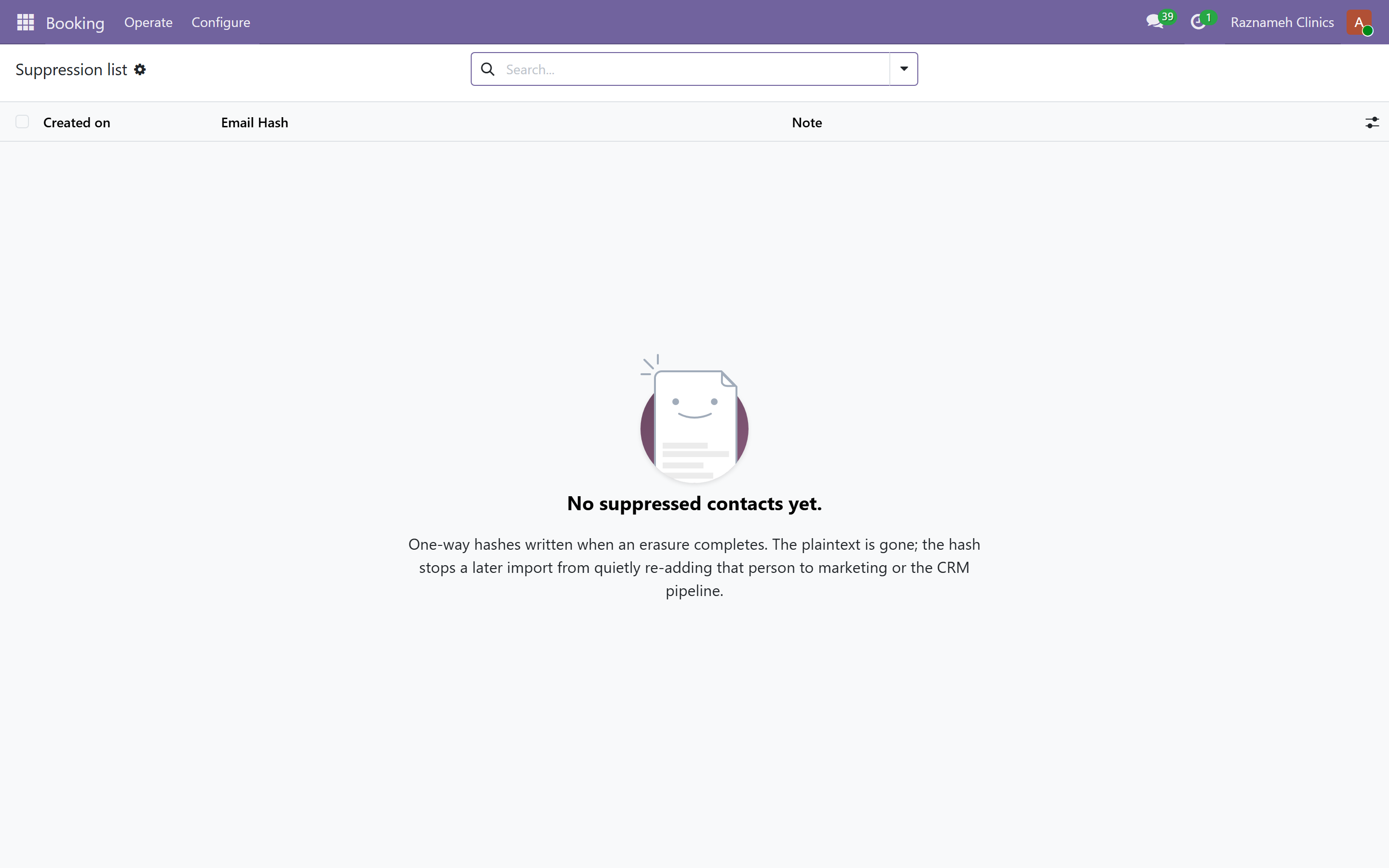
Booking → Operate → Suppression — addresses that must not be emailed, from unsubscribes and bounces. Check here first when someone says they are not receiving email.
17Moderation#
17.1 The queue#
The moderation queue on the dashboard collects reviews, comments and questions awaiting a decision.
17.2 Reviews#
Professionals moderate their own reviews, but you can see and override.
Watch for a professional rejecting genuine criticism. A rejection pattern is visible to you and is worth a conversation — the credibility of every review on your site depends on it.
Reject a review only where it contains abuse, personal data, or is not about a session.
17.3 Comments and questions#
Approve, reject or reply. Keep the queue short: an unanswered public question is a visible sign that nobody is looking after the site.
18Content, notifications and support#
18.1 Content#
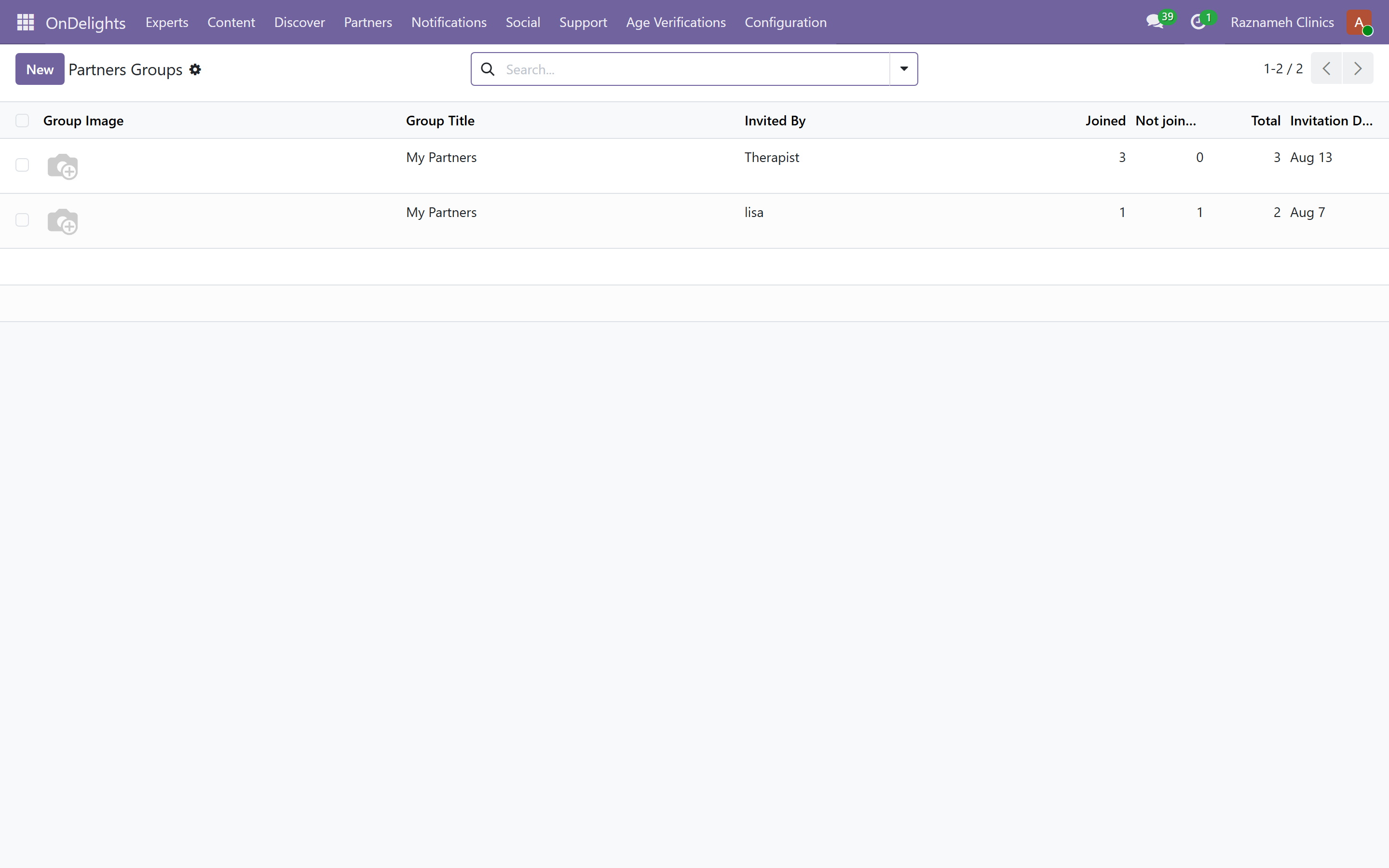
Platform → Content — articles and videos, with authors under Publishers. Advertising and click reporting live in the same area.
18.2 Notifications#
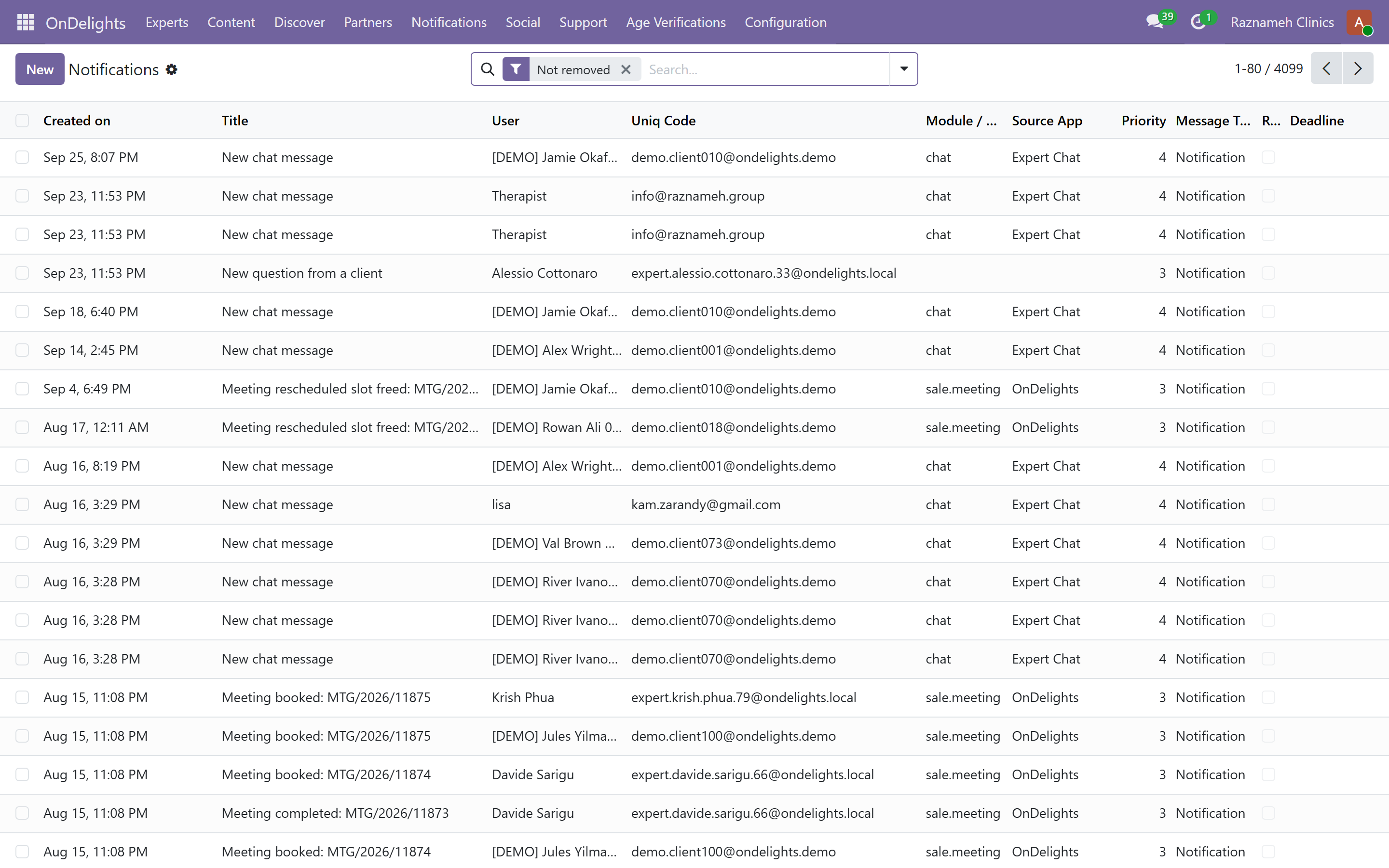
Platform → Notifications
One event reaches people through the app inbox, push, email and WhatsApp at once.
Send Test Notification lets you verify a specific person's delivery path instead of guessing. Use it as the first step whenever someone says they get no notifications.
18.3 Support tickets#
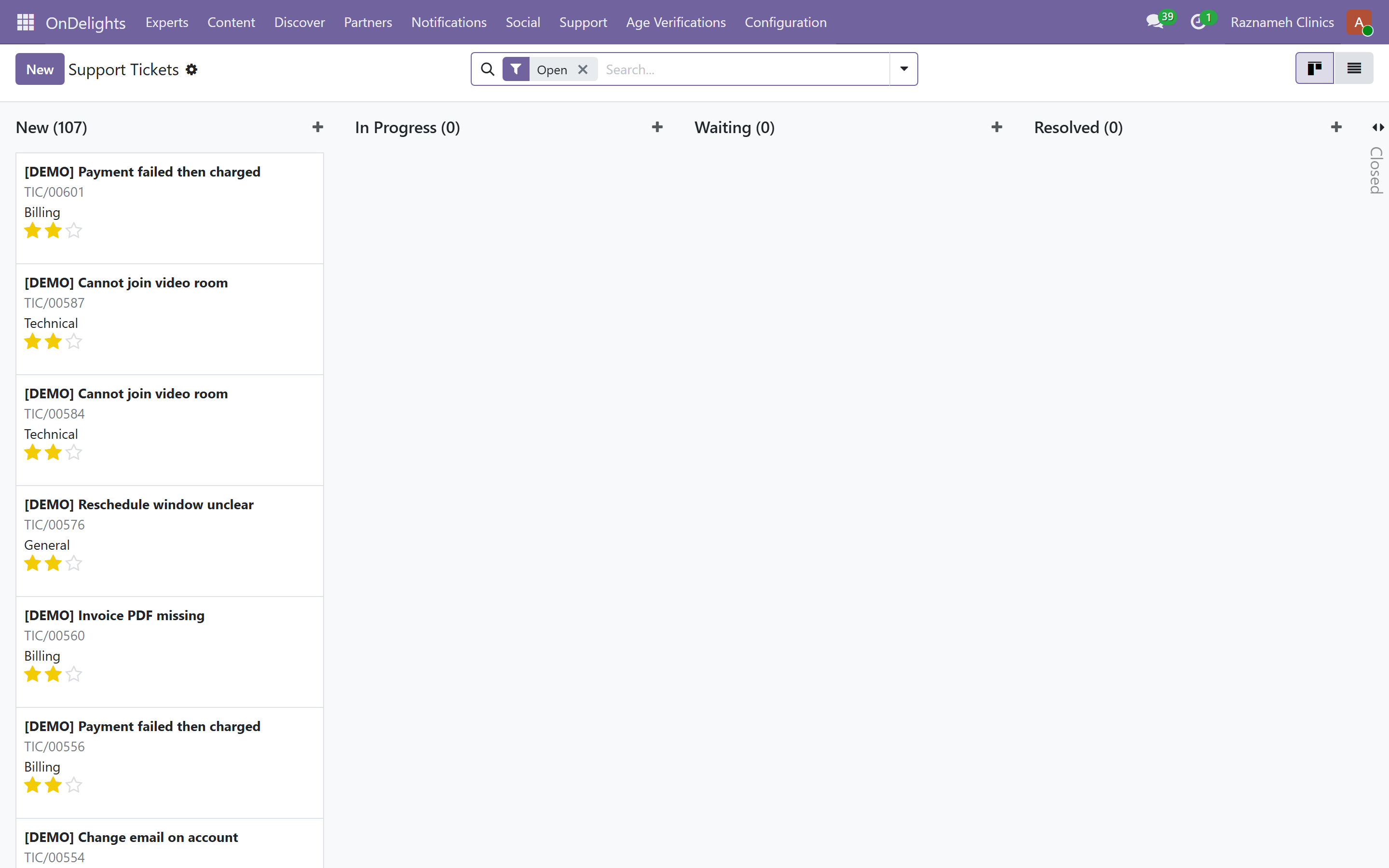
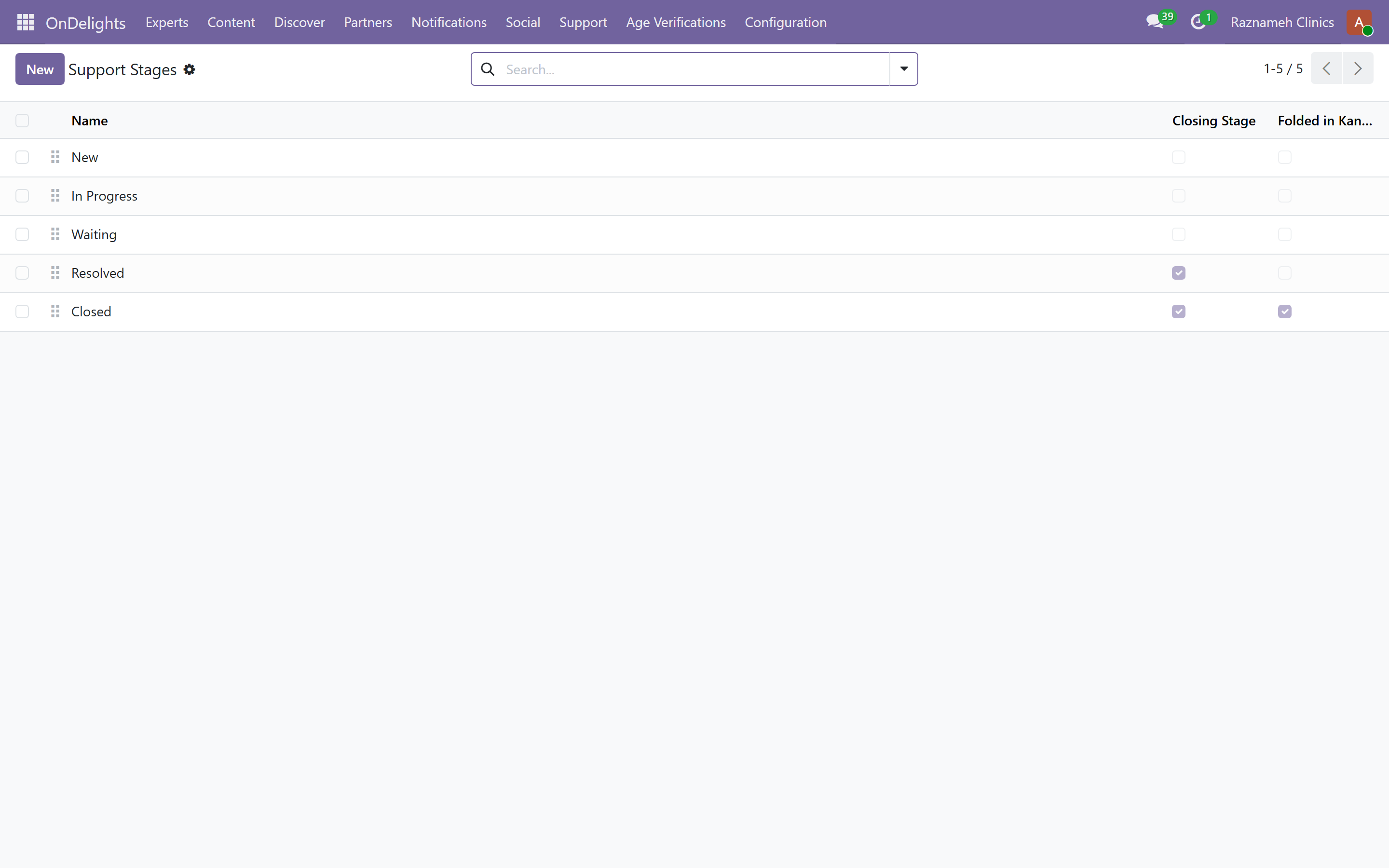
Platform → Support → Tickets, with Stages to configure the workflow.
Watch ticket age rather than ticket count. A small number of old tickets damages trust more than a large number of fresh ones.
18.4 Consultation requests#
Platform → Experts → Consultation Requests — enquiries from the public website, with phone and WhatsApp contact captured. Respond quickly; these are people at the point of deciding.
19Configuration#
19.1 Users and permissions#
Create accounts and assign permissions. Give the narrowest permission that lets someone do their job — particularly for identity verification (§14.3) and secure records (§15).
Review permissions when people change role. Accumulated access is how a small mistake becomes a reportable one.
Portal or internal — the one thing to know before you grant anything#
Odoo treats Role / Portal and Role / User (internal) as mutually exclusive. One account is one or the other, never both, and the permissions in your list are split down that line:
| Permission | Side | Who it is for |
|---|---|---|
| OnDelights → User / Expert / Publisher / Manager / Administrator | Portal | Clients, practitioners and content authors. The whole ladder ends at Portal — including Administrator |
| Booking → User / Manager / Administrator / Clinic Manager | Internal | Your own staff. This is what opens the admin portal and the back office |
| Paid Meetings → Expert / Manager | Internal | Staff working with sessions, credits and payouts |
| OnDelights → Accountant | Internal | The books, on /my/finance (accountant's guide §1.1) |
OnDelights → Administrator is not a back-office administrator. It is the top of the portal ladder. Tick it for a member of staff and Odoo refuses, correctly:
User 'clinicadmin' cannot be at the same time in exclusive groups 'Role / User', 'Role / Portal'.
What to grant a clinic administrator instead: OnDelights — Clinic administration → Clinic administrator, which covers the whole OnDelights back office, plus Booking → Clinic Manager for the admin portal and the room calendar, Paid Meetings → Manager for sessions and payouts, and Settings → Administration only if they also configure Odoo itself.
The four staff roles, and what each one opens#
Not everybody who works in the back office should see all of it. These four are internal, they are granted one at a time, and each opens one part of the OnDelights menu:
| Permission | The person | What appears |
|---|---|---|
| Experts and service profiles | Whoever keeps the directory right | Experts: the expert list, expert services, bookings, reviews, questions, consultation requests |
| Content management | Whoever writes and publishes | Content (articles, authors, advertising), Social (comments, likes) and Discover |
| Support administration | Whoever answers tickets | Support, and the ticket stages under Configuration |
| Age verification | Whoever reviews identity | Age Verifications, and nothing else |
| Clinic administrator | The person running the platform | All four, plus Partners, Notifications, Configuration and the sync tools |
Age verification is its own role on purpose. It reads identity documents, and nobody should hold that because it came attached to another job. It is the one role here that is also a hard boundary: a staff account without it cannot open a verification record at all, by any route.
The other three scope the menus rather than the database. A support administrator sees the support section and not the expert directory — but the expert records themselves are still readable by any internal account, because that is how this platform has always been configured and narrowing it is a separate change with its own testing. Treat these three as "what this person works in", not as a wall.
A staff account with none of them sees no OnDelights menu at all. That is the intended outcome — grant the role that matches the job — but it does mean existing staff need a role assigned after this change, or the app looks empty to them.
And if the same person is also a practitioner, they need two accounts: the practitioner one on the portal, the staff one internal. That is not a limitation of this platform — it is how Odoo separates the two, and no permission combination gets around it.
19.2 Converting a client into a staff member#
If someone with a client account becomes staff, convert their user type rather than creating a second account. Two accounts split their history and cause problems later.
19.3 Demo data#
OnDelights → Configuration → Demo data. Seeds realistic activity onto the experts and services already in your database, then removes it again. Use it for training, for demonstrations, and for seeing how a page looks with something on it.
| Menu | What it does |
|---|---|
| Generate / wipe | The full run, or remove everything a previous run created |
| Demo for chosen experts / users | The same journey, scoped to the people you name |
| Demo batches | One row per run, with its progress and a Wipe this batch button |
| Demo records | Every row a run created — the list the wipe reads |
Never seed demo data into a live system holding real client records. Use a separate environment.
What a full run leaves behind#
A hundred invented clients, each running a whole journey before the next one starts: buying one to three services, booking them, holding some, cancelling one late enough to attract a fee, then leaving likes, follows, reviews, chats, questions and a support ticket. Roughly half the sessions are in a room and half online, with no double-booked expert or room.
The clinical work that follows those sessions is seeded too, so the clinical pages are not empty: an episode with a treatment plan, goals and a review; a Goals Monitoring programme back-dated several weeks with entries already recorded against it; session notes; a recall. A few clients also get a group session and a request to read another clinician's episode, left undecided so the queue has something in it. Every fifth client joins a membership, and the run finishes with the money — credit notes, the offline payment queue with an order at each stage, a payout run, and identity verifications still awaiting review.
Entries on a programme are recorded as the client, through the same page a client uses, and some windows are deliberately left open — a programme showing perfect adherence never shows you what a due entry looks like.
What it adds to your catalogue#
It sells what you already have and does not invent experts or services, with one exception it cannot avoid: a membership demo needs plans to sell. The run creates three plans named [DEMO] and one members-only service per participating expert.
Those plans are published, so they appear in your shop alongside the real ones until the run is wiped. On a demonstration site that is the point; anywhere a customer might see it, wipe when you are done.
Running it for named people#
Demo for chosen experts / users answers "show me this expert with this client", which the full run does not. Name the experts and only their services are sold; name existing accounts and the journey runs for those accounts instead of invented ones.
A named account is a real person. It is never marked as demo data and a wipe never deletes it — only the orders, sessions and engagement created for it. Their clinical record is left alone entirely: episodes and plans are seeded for invented clients only, because an episode opened on a real client's first session may be their actual chart.
Wiping, and the one thing a wipe cannot delete#
Every row a run creates is registered as it is created, and the wipe works from that register rather than guessing. Secure documents are the exception: this platform disposes of a document by destroying its content and keeping the record that it existed (§15), and a wipe honours that. What stays behind is a shredded stub, not a readable record.
A run works in short background steps, so a large one does not block the browser. Open the batch to watch it, and use Process now or Resume if it looks stalled.
Demo clients sign in as [email protected] (and so on) with the password
19.4 Remove operational data#
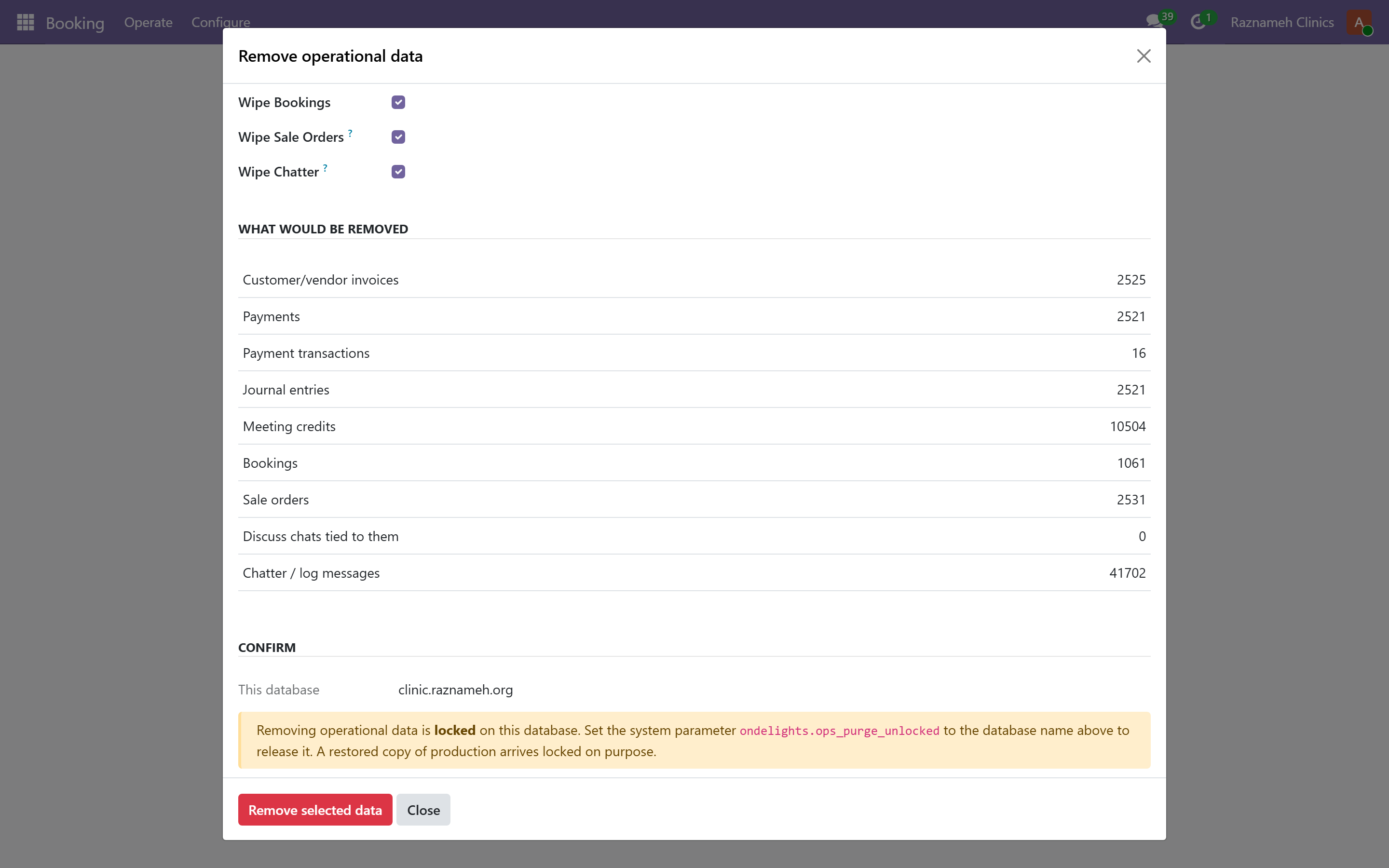
OnDelights → Configuration → Remove operational data (Settings administrators only).
Use this when a demo or test company must lose its trading history: invoices, payments, miscellaneous journal items, meeting credits, bookings, the sale orders behind them, and the chatter / Discuss logs attached to those records.
It does not remove journals, the chart of accounts, products, professionals or contacts. Type REMOVE in the box after checking the preview counts. This cannot be undone. Prefer a database backup first. For wipeable demo seed only, use the demo-data wizard instead (§19.3).
19.5 Settings worth knowing#
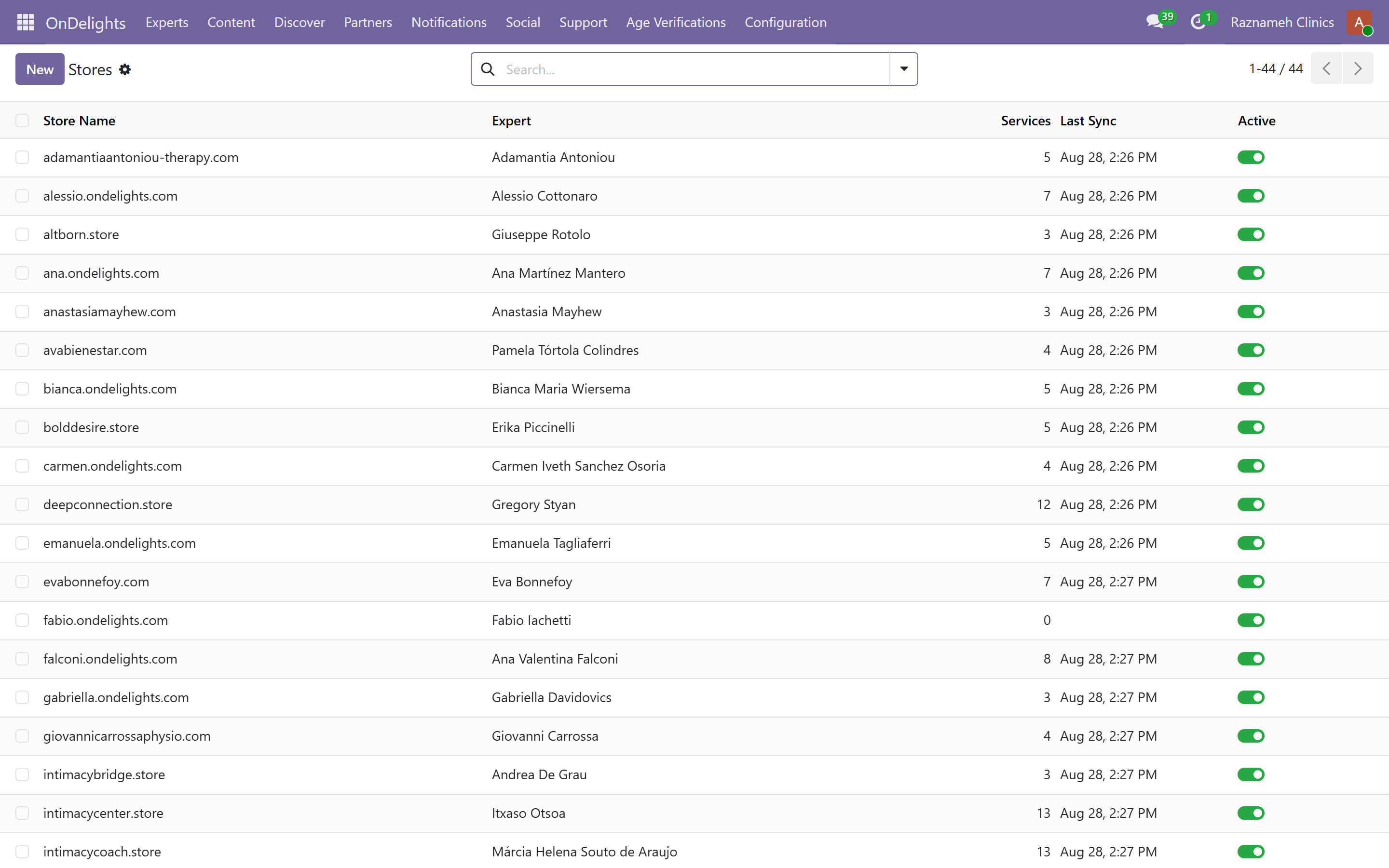
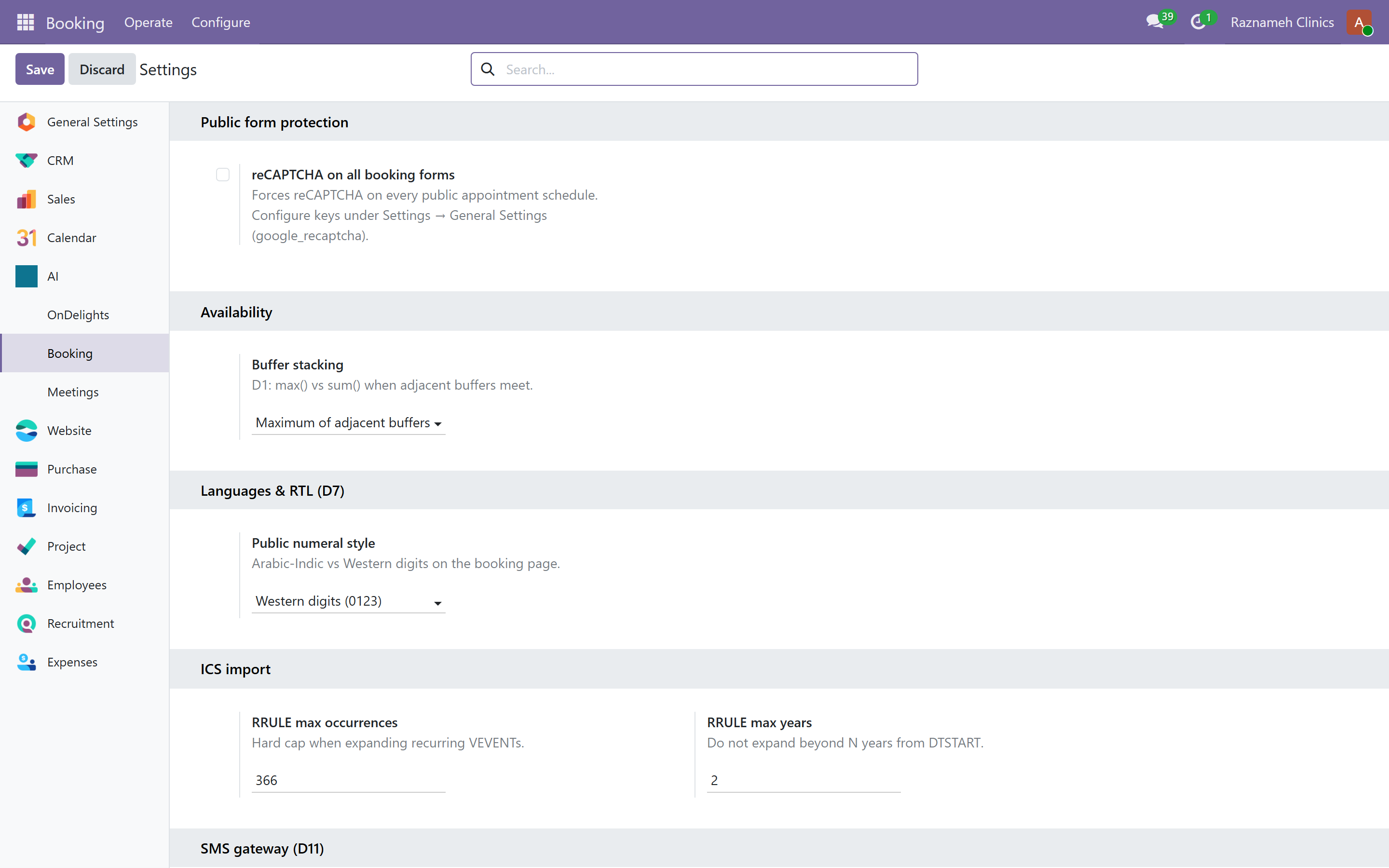
| Setting | Effect |
|---|---|
| Grace period | How long before an unclosed session becomes "stuck" |
| Report due and reminder hours | Deadlines for session reports |
| Care team window | How long a professional retains access to a client's records |
| Notice period and buffers | Minimum warning, and gaps between sessions |
| Retention schedules | When documents are disposed of |
| Chat consultation meter | Company defaults for writing, voice and video rates, floor and ceiling, and the fallback when a clip's length cannot be measured. A writing rate of 0 meaning "text is free" is set here — leaving 0 on the service means "use the company value". Per-service overrides and delivery_mode (appointment vs consultation) are on the product. |
| Encrypt chat content | Seals consultation message bodies; only the client and assigned professional decrypt them |
20Troubleshooting#
| Problem | What to check |
|---|---|
| A professional's slots are not appearing | What's blocking availability (§7.5). It gives the exact reason |
| Client says they paid but cannot book | Unbooked credits (§5.2) — the credit exists. Then check availability (§7.5) |
| A session shows the wrong state | Stuck sessions (§5.1). Use the attendance columns to decide what really happened |
| Payment run figures look wrong | Payout readiness (§5.6). Usually unclosed sessions or missing contract terms |
| A professional says they were underpaid | Open the payment line — it shows the sessions and the contract version. Usually an unclosed session |
| I cannot open a client record | Correct behaviour (§15.2). Use emergency access if genuinely needed |
| Reports are overdue everywhere | Check the report-required setting per service (§9.4). Requiring it where it is not needed causes this, as does an allowance set too short (§15.3) |
| Notifications are not arriving | Send Test Notification (§18.2), then check suppression (§16.3) |
| Room double-booked | Should be impossible if the room is on the schedule. Check the schedule has a room requirement |
| Invoice is wrong | Credit note plus corrected invoice. Issued invoices cannot be edited |
| Duplicate client | Merge in contacts, after confirming they are the same person |
| Report shows a dash instead of a rate | Under five sessions. Deliberate (§6.1) |
| Cancellation fee not charged | Check the policy tiers and the grace period (§11.1). Cancelled sessions (§5.12) shows every cancellation, including the free ones the fee ledger omits |
21Quick reference#
The daily fifteen minutes#
- Health dashboard — any count above zero.
- Stuck sessions — clear them.
- Today's calendars — clashes and gaps.
- Moderation queue.
Before you do these things, run this report#
| Before… | Run |
|---|---|
| A payment cycle | Payout readiness (§5.6) |
| Closing the month | Money chain (§5.4) and Stuck sessions (§5.1) |
| A performance conversation | Scorecard (§6.2), clicked through to the sessions |
| A rota discussion | Coverage vs demand (§5.3) and Cancelled sessions (§5.12) |
| An audit or inspection | Compliance file (§5.8) |
| Asking why revenue is down | Client continuity (§5.9) and the booking funnel |
Where things live#
| I need to… | Go to |
|---|---|
| See what is wrong today | /my/admin/health |
| Look at one professional | /my/admin/scorecard |
| Compare the team | /my/admin/league |
| Chase session reports | /my/admin/meeting-reports |
| See everything cancelled this month | /my/admin/cancellations |
| See only cancellations that cost money | /my/admin/fees |
| Check the rooms for clashes | /my/expert/room-calendar |
| See the whole team's day | /my/expert/experts-calendar |
| Fix a session's state | Meetings → Operations → Meeting credits |
| Book for a client | Meetings → Operations → Direct booking |
| Find out why nobody can book someone | Booking → Operate → What's blocking availability |
| Change a cancellation policy | Meetings → Configuration → Cancellation policies |
| Pay professionals | HR → Expert Pay → Payout runs |
| Review an identity submission | Platform → Age Verifications |
| Handle an erasure request | Booking → Operate → Erasure |
| Author a monitoring programme | Clinic → Goals Monitoring → New template |
| Define a membership plan | Clinic → Memberships → Plans (image, HTML description, period, price, publish) |
| Offer memberships on a service | Experts → Expert Services → Membership plans (tag existing plans) |
| Set chat consultation rates | Settings → company Chat consultation meter, then the service product |
Principles worth remembering#
- An empty report is the good outcome. These lists are to-do lists, not statistics.
- Stuck sessions first. Everything downstream depends on the record being true.
- Readiness before payment, every cycle, without exception.
- Never quote a performance number you have not clicked through to the sessions behind.
- Your job title does not grant record access — and that protects your clients, and you.
- Fix it in draft. Correcting a billed payment run costs many times more than catching it.
22Appendix — the back office, area by area#
Everything an administrator can reach, grouped the way the work actually divides. Menu paths are what you click; the address column is what you can bookmark or paste into a browser.
Back-office addresses take the form /odoo/action-<module>.<action>. Prefix them with your platform address.
22.1 People and what they sell#
| What | Menu | Address |
|---|---|---|
| All professionals | Experts → All Experts | /odoo/action-ondelights.action_ondelights_expert |
| Services that can be booked | Experts → Expert Services | /odoo/action-ondelights.action_ondelights_expert_services |
| Specializations | Experts → Configuration | /odoo/action-ondelights.action_ondelights_expert_specialization |
| Bookings by professional | Experts → Bookings | /odoo/action-ondelights.action_ondelights_expert_bookings |
| Reviews | Experts → Reviews | /odoo/action-ondelights.action_ondelights_expert_review |
| Questions | Experts → Questions | /odoo/action-ondelights.action_ondelights_expert_question |
| Consultation enquiries | Experts → Consultation Requests | /odoo/action-ondelights.action_ondelights_consultation_request |
| Professional ↔ schedule mapping | Meetings → Configuration → Experts | /odoo/action-sale_meeting.action_sale_meeting_resource |
22.2 Scheduling#
| What | Menu | Address |
|---|---|---|
| Appointment schedules | Booking → Configure | /odoo/action-booking.action_booking_scheduler |
| All bookings | Booking → Operate | /odoo/action-booking.action_booking_booking |
| Rooms | Booking → Configure | /odoo/action-booking.action_booking_room |
| Locations | Booking → Configure | /odoo/action-booking.action_booking_location |
| Calendars (incl. Persian and Islamic) | Booking → Configure | /odoo/action-booking.action_booking_calendar |
| Stale holds | Booking → Operate | /odoo/action-booking.action_booking_stale_pending |
| Attendance | Booking → Operate | /odoo/action-booking.action_booking_attendance |
| Outcome and attendance | Booking → Operate | /odoo/action-booking.action_booking_awaiting_outcome |
| Slot offers | Booking → Operate | /odoo/action-booking.action_booking_slot_offer |
| Free slot finder | Booking → Operate | /odoo/action-booking.action_booking_free_slots |
| What's blocking availability | Booking → Operate | /odoo/action-booking.action_booking_blocking |
| Funnel events | Booking → Operate | /odoo/action-booking.action_booking_funnel |
| Booking reporting | Booking → Operate → Reporting | /odoo/action-booking.action_booking_report |
| Packages | Booking → Operate | /odoo/action-booking.action_booking_package |
| Calendar import | Booking → Configure | /odoo/action-booking.action_booking_ics_import |
22.3 Credits, policy and audit#
| What | Menu | Address |
|---|---|---|
| Session credits | Meetings → Operations | /odoo/action-sale_meeting.action_sale_meeting |
| Direct booking | Meetings → Operations | /odoo/action-sale_meeting.action_sale_meeting_direct_booking |
| Cancellation policies | Meetings → Configuration | /odoo/action-sale_meeting.action_sale_meeting_policy |
| Service agreements | Meetings → Configuration | /odoo/action-sale_meeting.action_sale_meeting_agreement |
| Who accepted what | Meetings → Configuration | /odoo/action-sale_meeting.action_sale_meeting_acceptance |
| Cancellation audit | Meetings → Operations | /odoo/action-sale_meeting.action_sale_meeting_cancellation |
| Reschedule audit | Meetings → Operations | /odoo/action-sale_meeting.action_sale_meeting_reschedule |
| Monthly earnings | Meetings → Reporting → Earnings | /odoo/action-sale_meeting.action_sale_meeting_earnings_report |
| Expert progress wizard | Meetings → Reporting → Earnings | /odoo/action-sale_meeting.action_sale_meeting_expert_progress |
22.4 Paying professionals#
| What | Menu | Address |
|---|---|---|
| Payout runs | HR → Expert Pay | /odoo/action-ondelights_expert_pay.action_expert_payout_run |
| Payout analysis | HR → Expert Pay | /odoo/action-ondelights_expert_pay.action_expert_payout_analysis |
| Provision employees | HR → Expert Pay | /odoo/action-ondelights_expert_pay.action_provision_expert_employees |
| Migrate legacy contracts | HR → Expert Pay | /odoo/action-ondelights_expert_pay.action_migrate_legacy_contracts |
Contracts themselves live on the employee record, as a dated version history (§13.1).
22.5 Trust, records and support#
| What | Menu | Address |
|---|---|---|
| Identity review queue | Age Verifications | /odoo/action-ondelights.action_ondelights_age_verification |
| Support tickets | Support → Tickets | /odoo/action-ondelights.action_ondelights_support_ticket |
| Ticket stages | Support → Stages | /odoo/action-ondelights.action_ondelights_support_stage |
| Session reports due | Meetings → Reporting → Meeting reports | /odoo/action-ondelights_meeting_report.action_meeting_reports_due |
| Session reports done | Meetings → Reporting → Meeting reports | /odoo/action-ondelights_meeting_report.action_meeting_reports_done |
| Goals Monitoring templates | Clinic → Goals Monitoring → Templates | /odoo/action-clinic_monitoring.action_clinic_monitoring_template |
| Goals Monitoring programmes | Clinic → Goals Monitoring → Programmes | /odoo/action-clinic_monitoring.action_clinic_monitoring_assignment |
| New monitoring template wizard | Clinic → Goals Monitoring → New template | /odoo/action-clinic_monitoring.action_clinic_monitoring_template_wizard |
| Membership plan library | Clinic → Memberships → Plans | /odoo/action-clinic_membership.action_clinic_membership_plan |
| Membership subscriptions | Clinic → Memberships → Subscriptions | /odoo/action-clinic_membership.action_clinic_membership |
| Membership health | Clinic → Memberships → Membership health | /odoo/action-clinic_membership.action_clinic_membership_report |
| Erasure requests | Booking → Operate | /odoo/action-booking.action_booking_erasure |
| Email suppression | Booking → Operate | /odoo/action-booking.action_booking_suppression |
22.6 Content and community#
| What | Menu | Address |
|---|---|---|
| Articles and content | Content | /odoo/action-ondelights.action_ondelights_content |
| Authors | Content → Publishers | /odoo/action-ondelights.action_ondelights_publisher |
| Advertising | Content → Ads | /odoo/action-ondelights.action_ondelights_ad |
| Ad clicks | Content → Clicks | /odoo/action-ondelights.action_ondelights_ad_click |
| Groups | Partners | /odoo/action-ondelights.action_ondelights_partner_group |
| Comments | Social → Comments | /odoo/action-ondelights.action_ondelights_social_comment |
| Likes | Social → Likes | /odoo/action-ondelights.action_ondelights_social_like |
22.7 Notifications and configuration#
| What | Menu | Address |
|---|---|---|
| Notification inbox | Notifications → Inbox | /odoo/action-ondelights.action_ondelights_notification |
| Notify apps | Notifications → Notify Apps | /odoo/action-ondelights.action_ondelights_notify_app |
| Remove operational data | Configuration | /odoo/action-ondelights.action_ondelights_ops_data_purge |
| Delivery methods | Configuration | /odoo/action-ondelights.action_ondelights_delivery_method |
| Stores | Configuration → Stores | /odoo/action-ondelights.action_ondelights_store |
| Store leads | Experts → CRM Store Leads | /odoo/action-ondelights.action_crm_store_leads |
| Booking settings | Booking → Configure → Settings | /odoo/action-booking.action_booking_config_settings |
| Rate limits | Booking → Operate | /odoo/action-booking.action_booking_rate_limit |
| Message log | Booking → Operate → SMS log | /odoo/action-booking.action_booking_sms_log |
| Message opt-outs | Booking → Operate | /odoo/action-booking.action_booking_sms_optout |
22.8 Standard business applications#
The Platform sits on a full business system, so these are available alongside everything above and act on the same customers and orders:
| Application | What you would use it for |
|---|---|
| Accounting | Invoices, supplier bills, payments, reconciliation, tax |
| Sales | Quotations, orders, products, price lists |
| CRM | Leads and opportunities, fed by store leads |
| Contacts | The single customer record behind everything |
| Employees | Professionals as staff, with the contract history that prices payouts |
| Calendar | The underlying calendar bookings are written to |
| Website | Public pages, the directory and the booking pages |
| Settings → Users | Accounts and permissions (§19.1) |
A note on this appendix. It lists what exists, not what you should touch daily. The daily work is §2, and it is almost all in the portal. Come here when you need to configure something or find a record that the portal does not surface.
Menu names vary slightly between businesses depending on which features are enabled. If something here does not match what you see, check with your system administrator.