
1Installing and first sign-in#
1.1 Install#
Install the app your business named, from the App Store or Google Play — or from the direct download link they sent you. It is the same app your clients use; your professional tools appear once you sign in.
1.2 Sign in#
Sign in with the email and password your administrator set up.
If you do not see an Expert practice section in your Profile tab afterwards, your account has not been linked to a professional profile yet. That is a one-click fix for your administrator — contact them rather than creating a second account.
1.3 Allow notifications#
Allow them at first launch. As a professional you rely on alerts more than clients do: new bookings, cancellations, client messages, session start, and reports falling due.
If you declined, turn them back on in your phone's settings for the app.
1.4 Turn on quick sign-in and the app lock#
Do this on day one. Profile → Settings → Security:
- Keep me signed in with fingerprint or face — so you can open the app in seconds between appointments.
- Lock after inactivity — so client information is not visible if you put the phone down.
§16 explains why the second one matters more for you than for a client.
2You are a client too#
An expert account is a client account with more on it. There is no separate professional app, and no separate login. You sign in once, and your Profile tab carries everything a client has — then adds Expert practice at the bottom.
So your Profile tab looks like this:
| Section | Whose it is |
|---|---|
| Sessions & Bookings | Yours as a client — sessions you booked with other professionals |
| Saved | Yours as a client — professionals, services and articles you saved |
| Messages & Questions | Yours as a client — your own conversations and questions |
| Billing | Yours as a client — your own invoices and payment methods |
| Trust & Support | Yours as a client — your verification status, your tickets |
| Expert practice | Your practice — clients, sessions you deliver, earnings |
| Account | Settings, security, log out |
Two consequences worth holding on to:
Everything in the client guide applies to you. Booking a session, paying, cancelling, notifications, app lock, language — all of it works the same way, and this guide does not repeat it.
Read the section headings before acting. Invoices under Billing are the invoices you have been charged. Client invoices under Expert practice are invoices raised for your clients. Likewise Cancellation history appears in both places and means different things — yours as a client above, your practice's below. Mixing them up is the most common confusion when someone new starts using an expert account.
3The Expert practice menu#
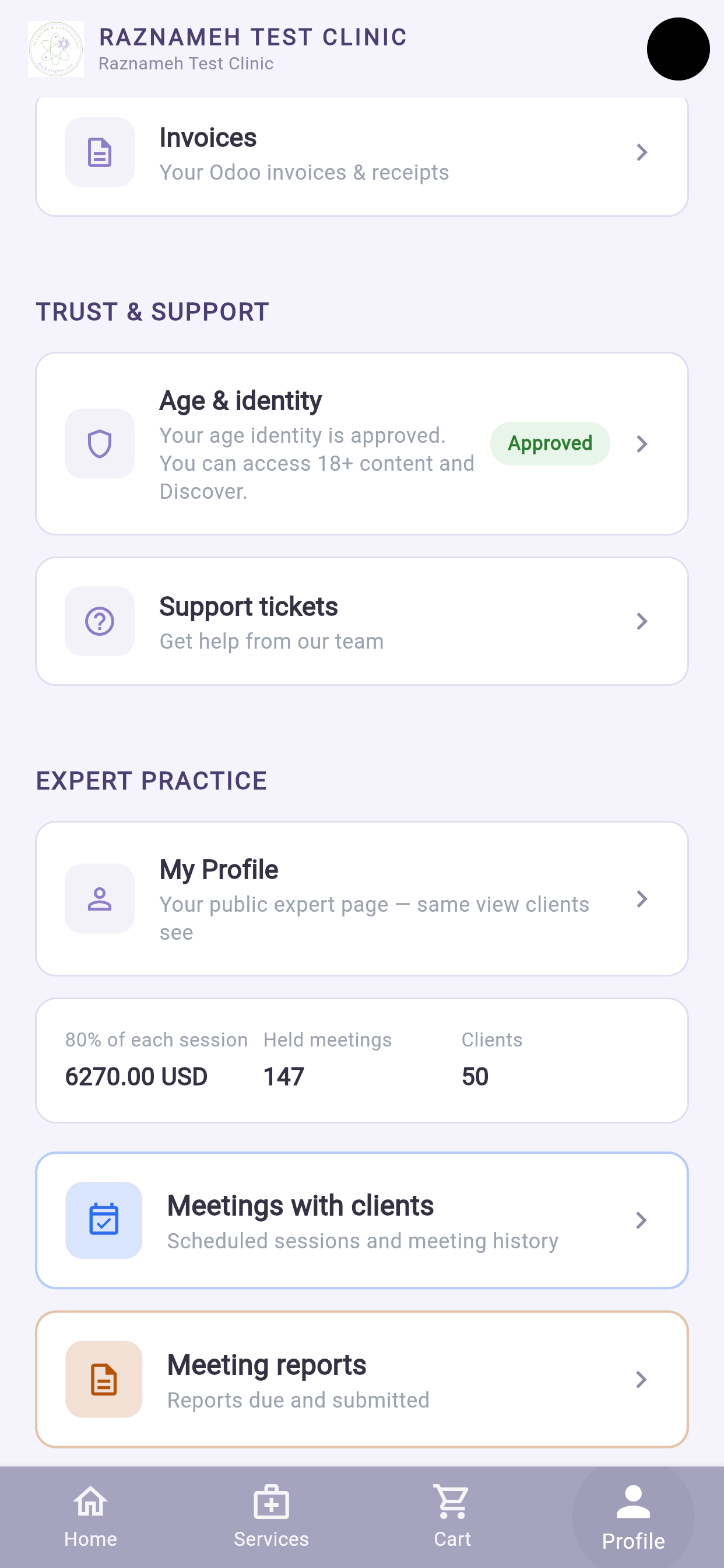
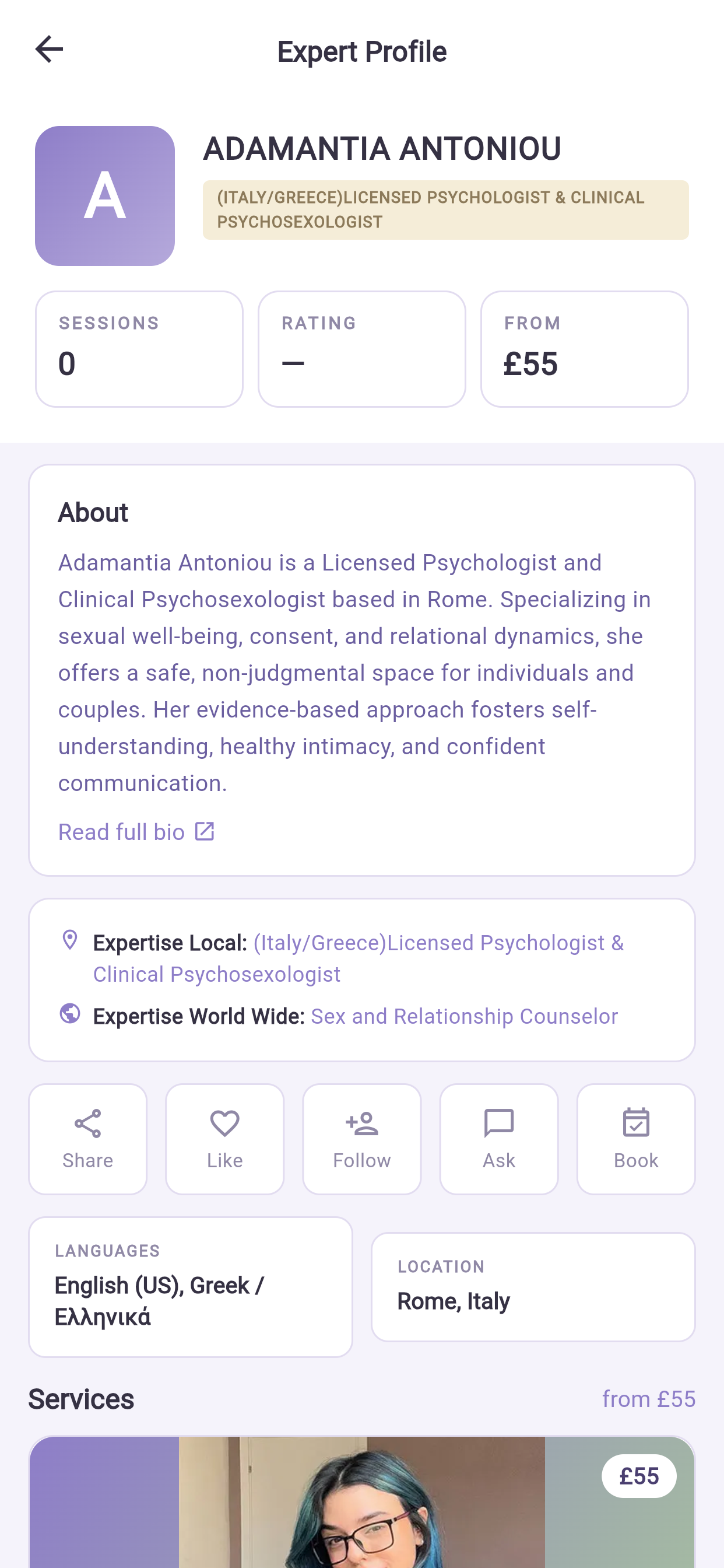
Profile tab → scroll to the bottom, to Expert practice:
| Item | What it is for |
|---|---|
| My Profile | Your public page, exactly as clients see it |
| Meetings with clients | Scheduled sessions and history |
| Meeting reports | Reports due and submitted |
| Chat with users | Client conversations |
| Asked questions | Questions on your page (opens on those awaiting an answer) |
| Profile comments | Approve, reject and reply publicly |
| Schedule availability | Timezone and weekly hours |
| My clients | Clients, contact details and session counts |
| Bookings analysis | Funnel, no-shows, utilization, lead time |
| Orders & meetings | Client orders linked to your sessions |
| Client invoices | Invoices related to your clients |
| Earnings | Session value, hours and activity by month |
| Cancellation history | Every cancellation and reschedule, and by whom |
If the section is not there at all, your account has not been linked to a professional profile yet. That is a one-click fix for your administrator — ask them rather than creating a second account, because a second account splits your history.
4What the app does well, and what to do at a desk#
Everything is available on the phone. Some things are simply more comfortable on a bigger screen, and it is worth knowing which before you start.
| Task | Best done |
|---|---|
| Checking today's sessions | Phone |
| Joining a session | Phone or desk |
| Replying to a client message | Phone |
| Blocking a day off | Phone |
| Filing a short session report | Phone |
| Filing a long or attached report | Desk |
| Building your weekly hours from scratch | Desk — many rules, easier to see |
| Reading the booking funnel | Desk — wide charts |
| Checking earnings for the month | Either |
| Reconciling a payment run line by line | Desk |
| Answering public questions well | Desk — they are permanent and public |
Nothing in this table is impossible on a phone. It is about how long it takes.
5Your dashboard — the four numbers#
At the top of Expert practice:
| Card | What it tells you |
|---|---|
| This month | Booked hours and your share. On a salaried contract, session counts instead |
| Going to earn | Your share of sessions bought but not yet held — your pipeline |
| Cancellations | Split into by you and by clients |
| Earned | Your share of sessions actually held |
Why the split matters. Going to earn is promised, not secured — a client can still cancel. Earned is work you have done. Keeping them apart stops you counting money you may not receive.
Cancellations are separated because yours are within your control and clients' are not. Whoever reviews your performance sees the same split, so you are never measured on the wrong number.
6Setting your availability from your phone#
The most important setup you do, and it works well on a phone once the pattern exists.
Profile → Expert practice → Schedule availability.
6.1 Set the timezone first#
At the top, choose how your booking timezone behaves:
| Option | Use it when |
|---|---|
| Fixed — always one zone | You always work from the same place. The safe default |
| Follow device — moves when you do | You genuinely travel and want your hours to move with you |
Tap Change to pick a zone, then Save timezone.
Think before choosing "Follow device" on a phone. Your phone changes timezone the moment you land somewhere. That will shift every slot you are offering. Right for a mobile practice, wrong for most people. If in doubt, choose Fixed.
6.2 Add your weekly hours#
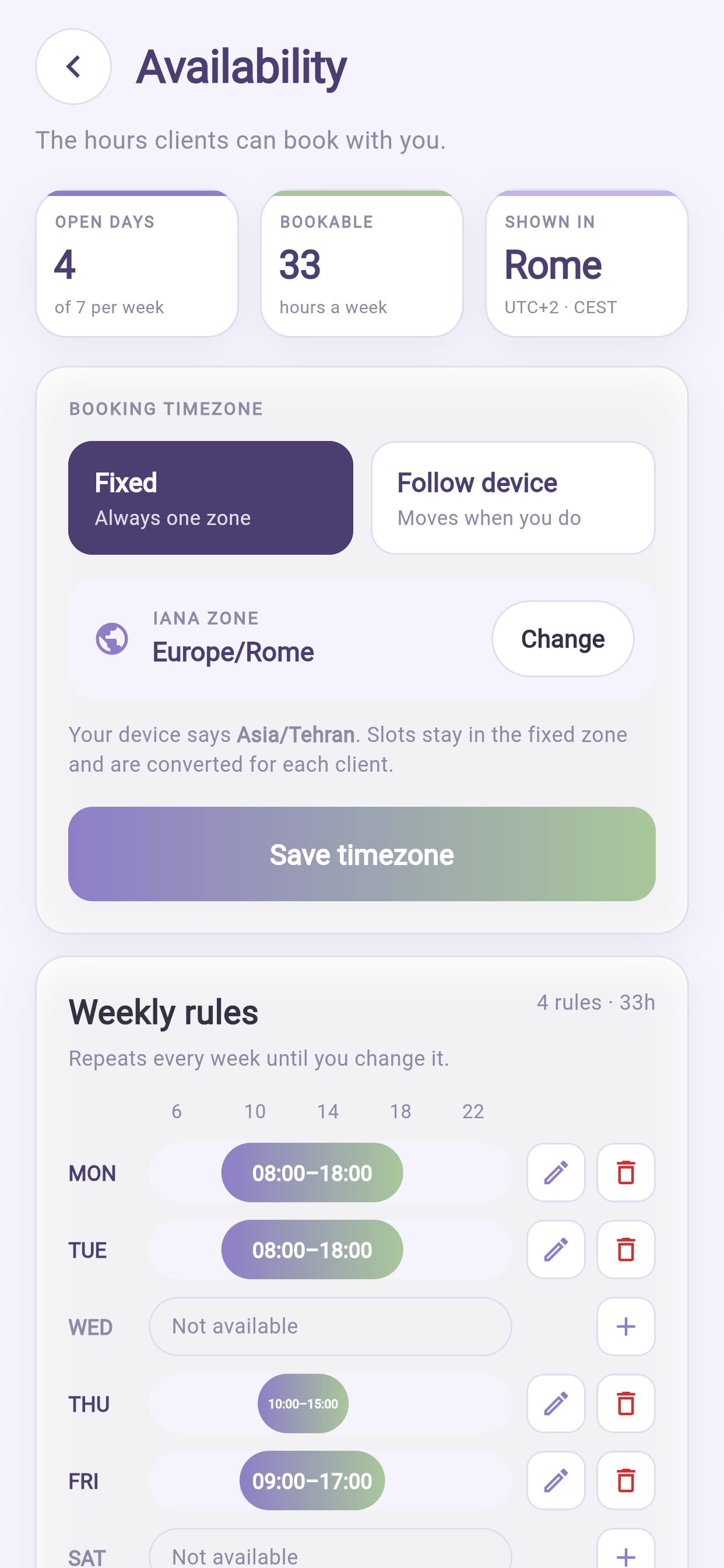
- Tap the day — MON, TUE, and so on.
- Set From and To.
- Tap Add.
- Repeat for each block.
Add several blocks to a day where you need a gap. A morning block and an afternoon block protect your lunch far better than one long block.
Three figures at the top confirm what you built:
| Figure | Meaning |
|---|---|
| Open days | Days a week you are available |
| Bookable | Total hours offered |
| Shown in | The timezone clients see |
To edit, tap a rule, change it, Save. To remove, tap it and choose Remove.
6.3 Block a day — the thing you will do most on your phone#
Exceptions override your weekly pattern for specific dates.
- Open Exceptions.
- Tap Add exception.
- Choose the date or range.
- Choose unavailable all day, or different hours.
- Save.
Do this the moment you know. Standing in a corridor after agreeing to something is exactly when the phone earns its place. An exception added after a client books is a cancellation that counts against you.
6.4 Why a client sees fewer slots than you offered#
A slot appears only when all of these are true: it is inside a weekly rule, no exception blocks it, nothing else is booked, a room is free where rooms are used, and it respects the notice period and buffers.
Usually the cause is the notice period or a room clash, not a fault.
7Your sessions#
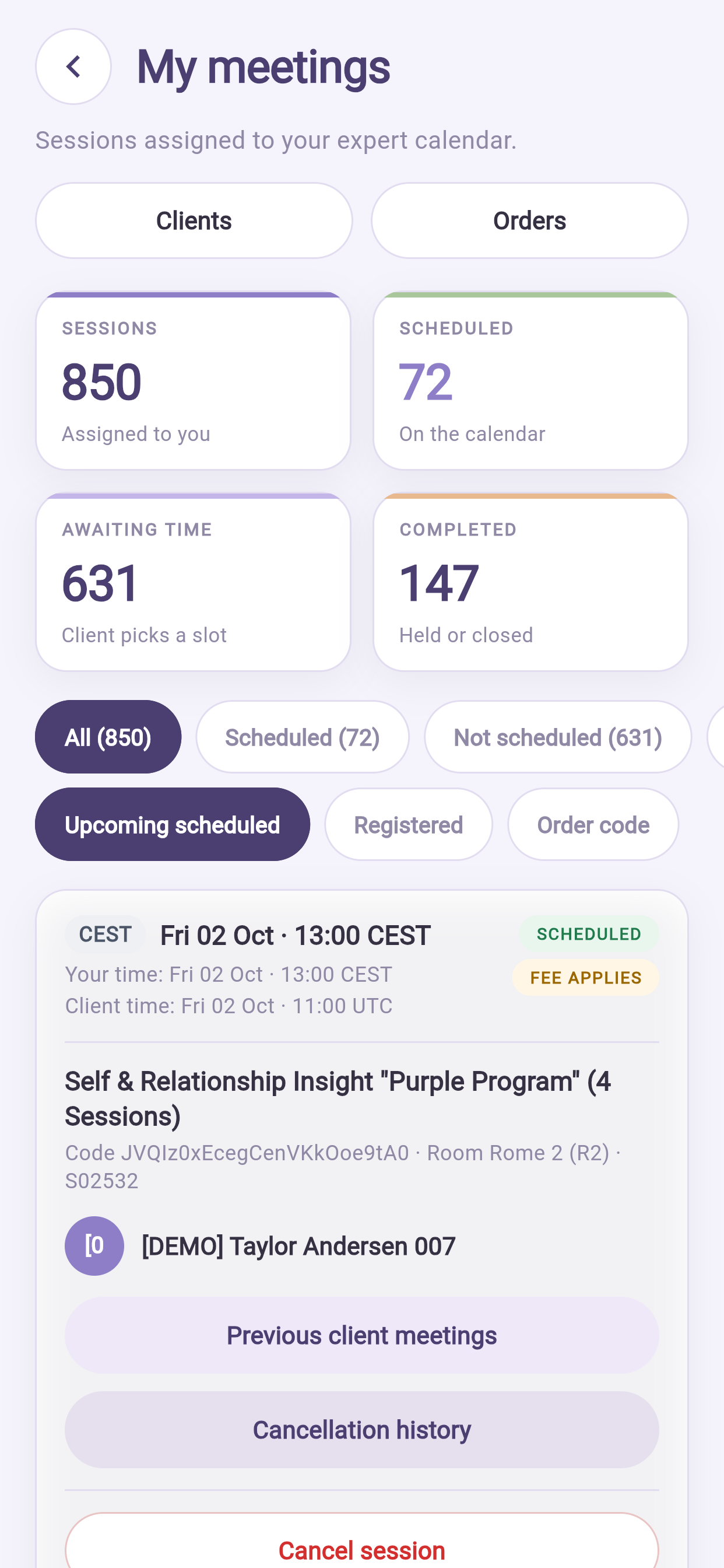
Profile → Expert practice → Meetings with clients.
| Total | Meaning |
|---|---|
| Sessions | Everything sold to you in the period |
| To book | Bought, no time chosen yet |
| Scheduled | Booked and upcoming |
| Completed | Held |
"To book" is money waiting#
These are paid-for sessions nobody has scheduled. The business has the revenue; you have not earned it; and clients who never book tend to drift away and ask for refunds.
Reviewing this list and sending a few messages is the highest-return ten minutes in your week — and it is a perfect phone task.
8Running a session on your phone#
8.1 Before#
- Open the session and read the intake answers if the service collects them.
- Check the client's history (§10) if you have seen them before.
- Charge the phone, or plug in. Video calls drain a battery fast.
- Use headphones — echo control, and privacy in a shared space.
- A do-not-disturb mode stops other alerts interrupting the session.
8.2 Joining#
Open the session and tap Join. It activates shortly before the start time.
Allow camera and microphone the first time. Keep the app in the foreground during the call.
8.3 Attendance is recorded#
The Platform records when each of you joined and how long you were both present.
This protects you. When a client disputes whether a session happened, the record answers it. It also feeds your administrator's stuck-sessions list — which is why §8.4 matters.
8.4 Close the session#
Mark it as held afterwards. Depending on your setup this happens automatically at the end time, or you confirm it.
This is the single most important habit in this guide. An unclosed session is not counted as earned, may delay your payment, and puts you on your administrator's daily problem list. Most "I was underpaid" conversations trace back to exactly this.
Closing takes one tap. Do it before you leave the room.
8.5 If a client does not arrive#
- Wait the period your business specifies — usually 10 to 15 minutes.
- Message them in the app.
- Mark the session as a no-show.
Do not leave it open. A recorded no-show is handled by the cancellation policy; an abandoned session is a problem someone has to chase.
9Filing session reports#
Where your business requires them.
9.1 What is due#
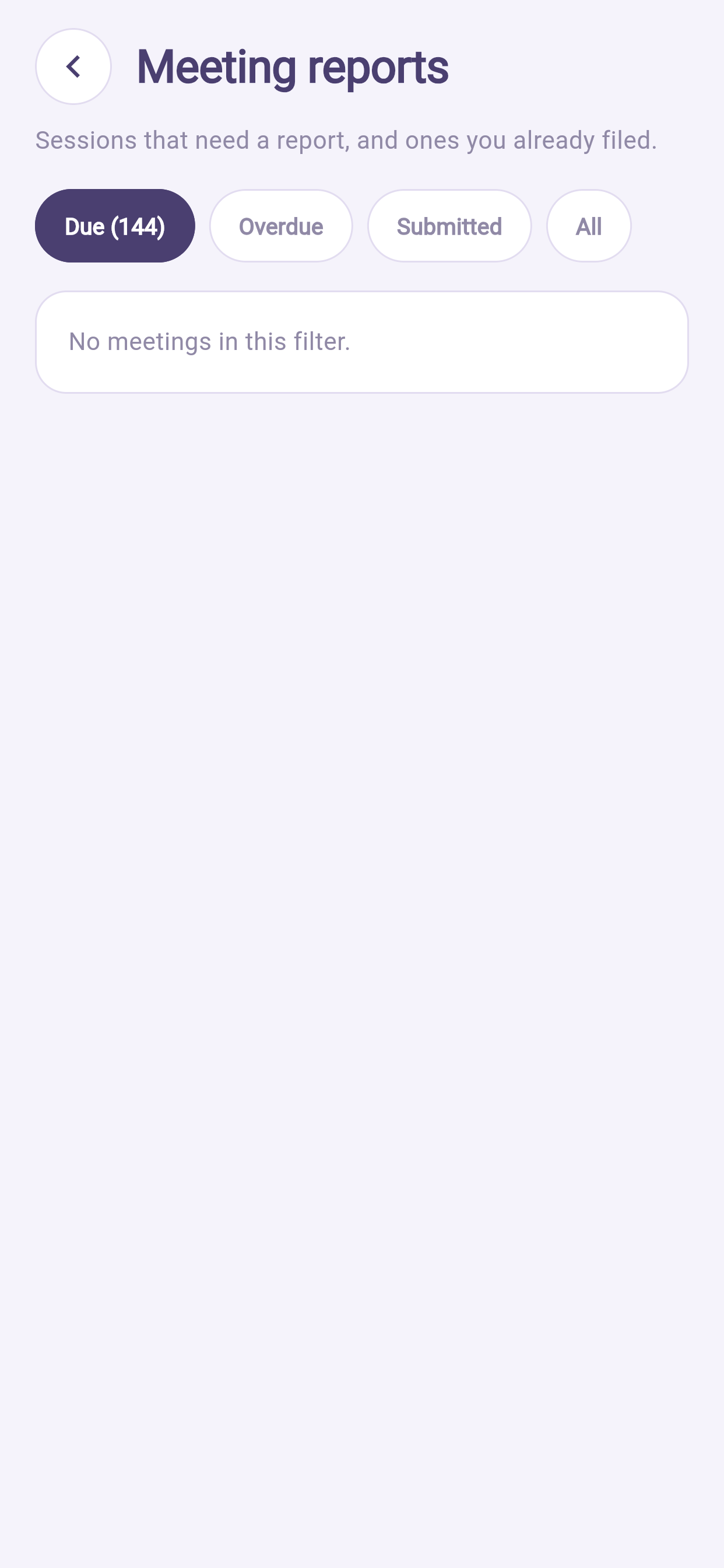
Profile → Expert practice → Meeting reports. Shows what is due and what is submitted. Requirements are set per service, so some of your services may need one and others may not.
9.2 Filing one from the phone#
- Open Meeting reports and pick a session that is due.
- Check the session and client name at the top.
- Either type the report, or attach a file you prepared elsewhere. Choosing one hides the other — if you attached a file and want to type instead, tap Remove file — type the report instead.
- Consider Keep this report private (§9.4).
- Tap Submit report.
9.3 File it the same day#
You will be reminded before the deadline and it is flagged overdue after — visible to your administrator.
The quality gap between a report written the same day and one written a week later is obvious to anyone who reads both. Ten minutes on the phone straight after the session beats an hour of trying to remember on Friday.
9.4 Who can read it#
Access is decided by one rule about who is on that client's care team — not by seniority, and not by who filed it. Being an administrator grants no access by itself.
Keep this report private narrows it further, usually to you alone. Use it for genuinely sensitive material, and understand the trade-off: a colleague covering for you cannot read it either.
9.5 How they are protected#
Encrypted individually. Closed by default. Every read is logged, in a record nobody can edit. A correction is a new version — the original is never overwritten. When retention expires, the key is destroyed rather than the evidence that a record existed.
If you ever need to know who has opened a report about your client, your administrator can produce that list, and it is complete.
9.6 Writing one on a phone, sensibly#
- Type it in the app rather than in a notes app first. Client notes should not sit unencrypted on your phone.
- If you must draft elsewhere, use a device your business approves, and delete the draft after filing.
- Never photograph a paper note and attach it from your camera roll without deleting the photo afterwards — your camera roll is probably backed up to a personal cloud account.
10Your clients#
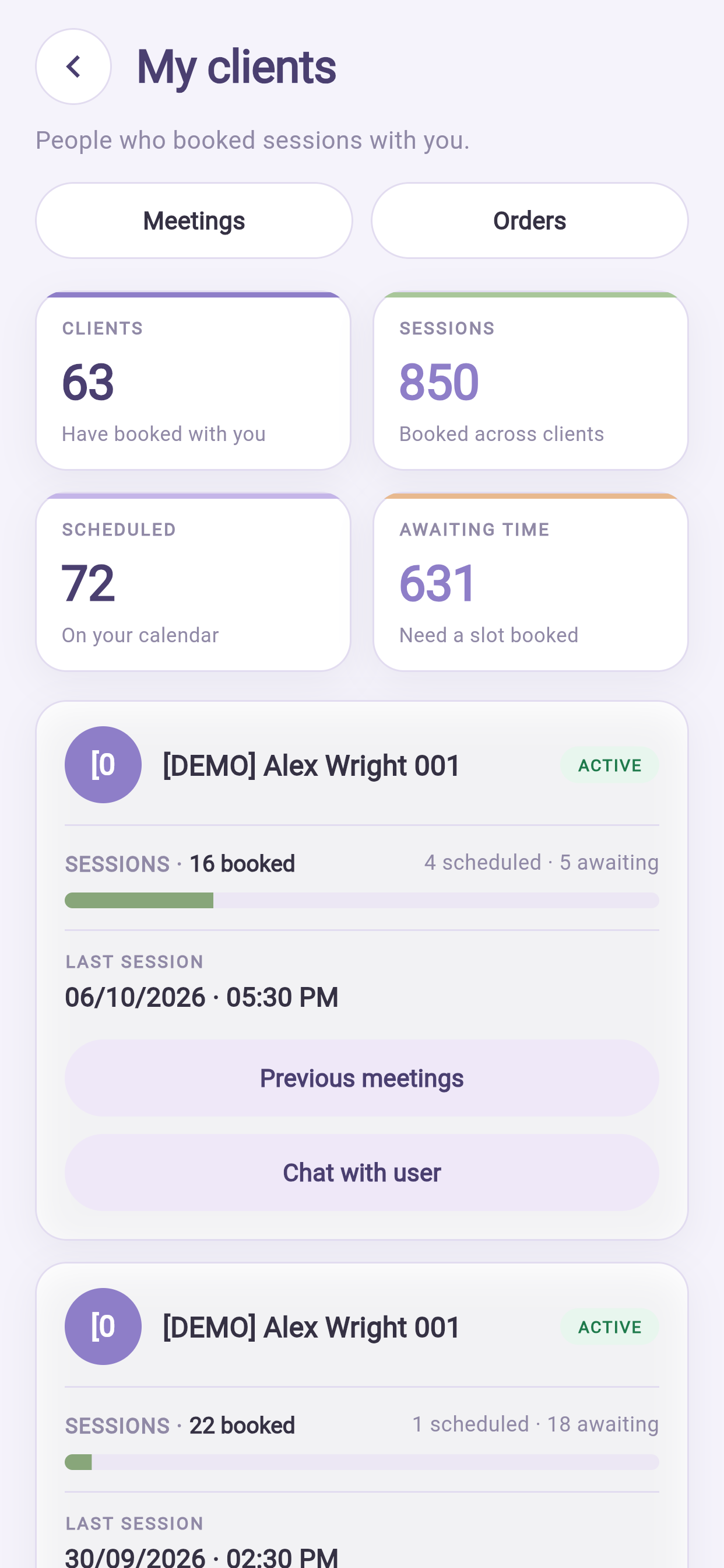
Profile → Expert practice → My clients.
Every client who has bought from you, with contact details, session counts, and how many sessions are waiting to be booked.
Tap a client for their full history: sessions held, still to book, previous orders, reports you can access, and cancellations.
Open this in the waiting room before a repeat session. Referring to something from last time is the cheapest way to show a client they are more than a slot in a diary.
You see only your own clients. Colleagues do not see them, and you do not see theirs.
11Cancellations#
11.1 Cancelling one#
- Open the session in Meetings with clients.
- Choose Cancel.
- Give a reason — it is recorded.
- Confirm.
The client is notified and their credit is returned in full. They pay no fee when the cancellation is yours.
Cancel as early as you can, and offer an alternative. Open the client's record and message them times that do work — a rescheduled session keeps both the relationship and the income.
11.2 When a client cancels#
You are notified. Whether a fee applies is decided by the published policy and the notice given — not by you and not by them. Your share of any fee is calculated and recorded automatically.
11.3 Your history#
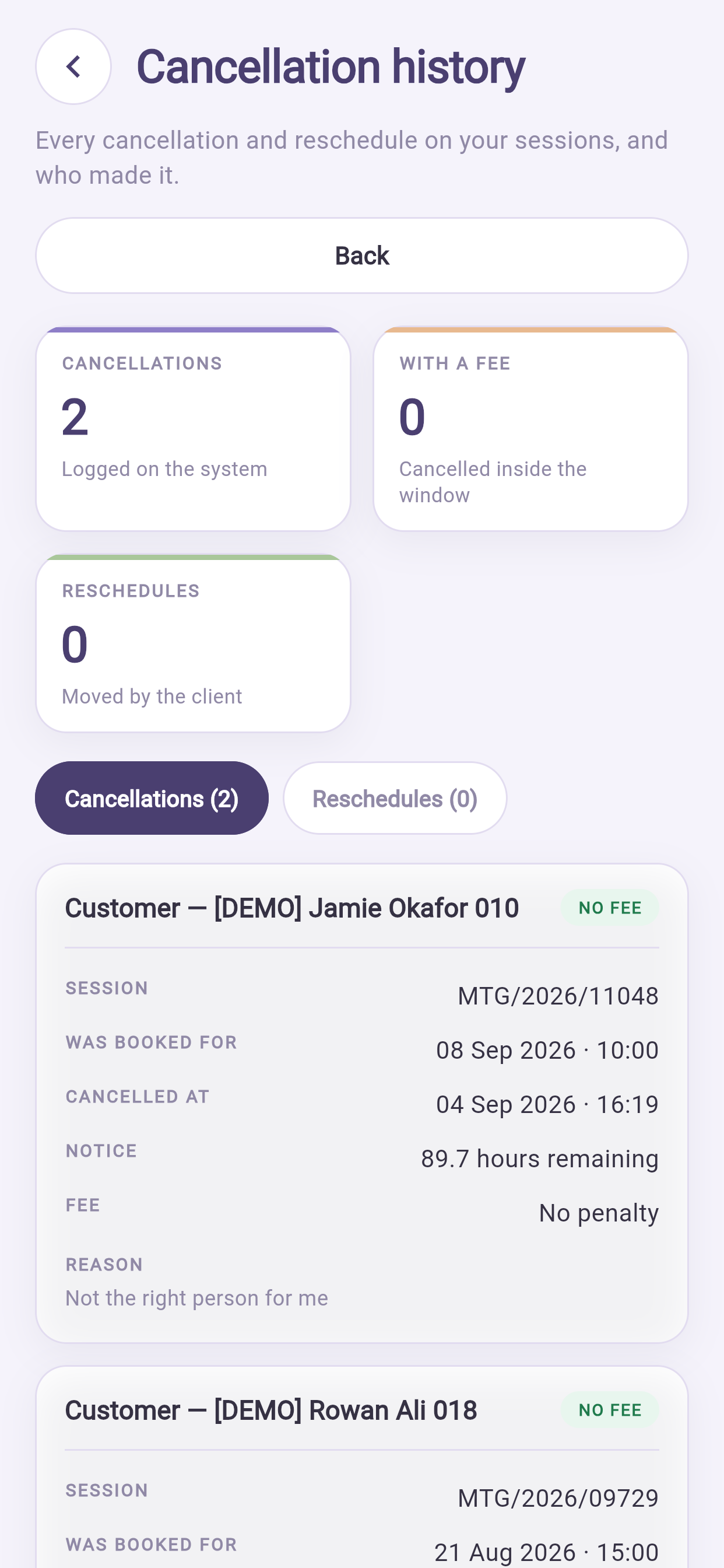
Profile → Expert practice → Cancellation history — every cancellation and reschedule, and who did it. Open this before any conversation about your reliability; it is the same record your administrator sees.
11.4 Freed slots refill themselves#
Anyone on the waitlist is offered a cancelled slot automatically. Late cancellations often refill without you doing anything.
12Earnings and payments#
12.1 The four buckets#
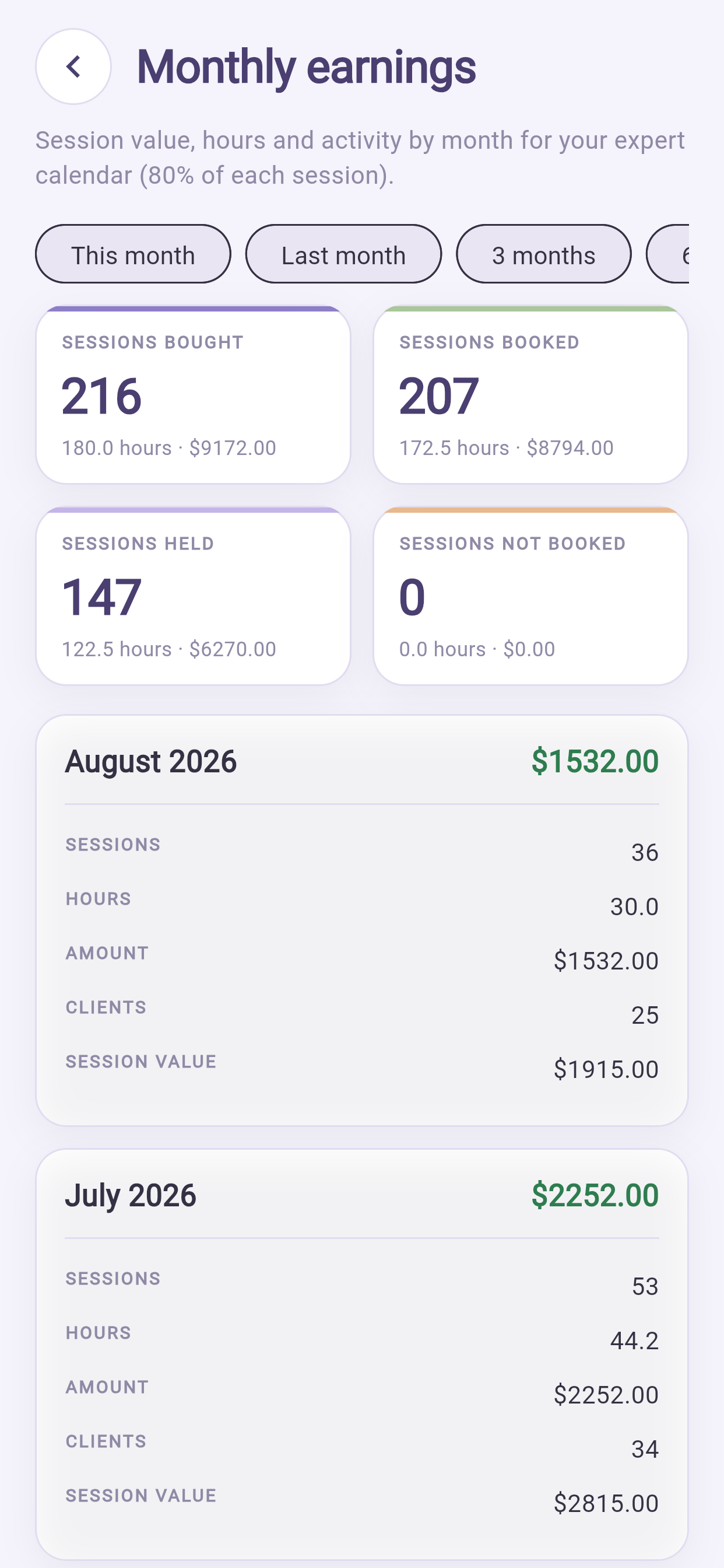
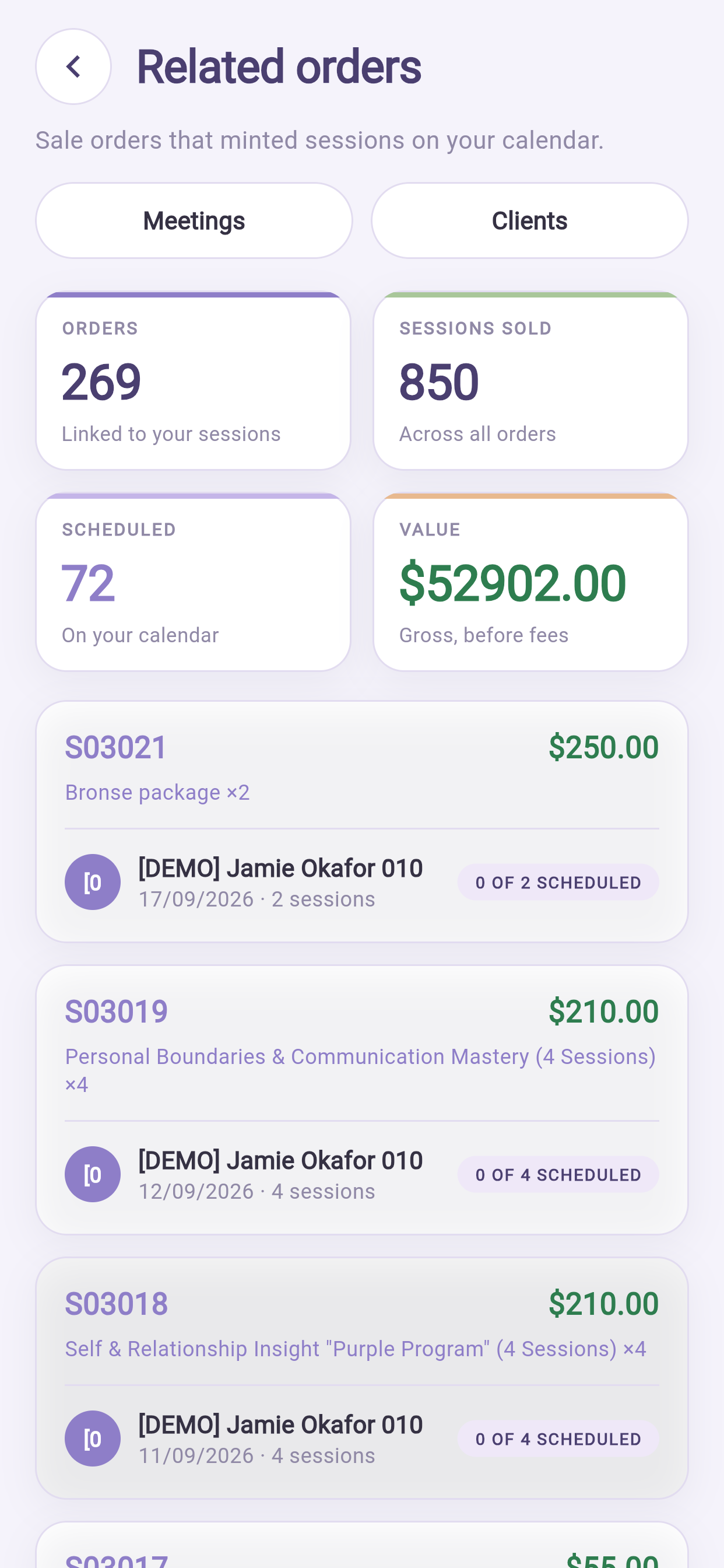
Profile → Expert practice → Earnings.
| Bucket | Meaning |
|---|---|
| Sessions bought | Clients purchased these from you |
| Sessions booked | Bought and now scheduled |
| Sessions held | Delivered — this becomes Earned |
| Sessions not booked | Bought, unscheduled — your follow-up list |
Each shows a count, hours, and money where your contract is money-based. Below is a table by month; change the window at the top.
12.2 Your share is locked when the client books#
Calculated from the terms in force at that moment, and fixed.
This protects you: if your terms change next month, work already done is not repriced. It also means a rate rise applies to new bookings — worth knowing before you ask for one.
12.3 If you are salaried#
Money figures are hidden and replaced with session counts, automatically, based on your contract. You are not missing a permission.
12.4 Payment history#
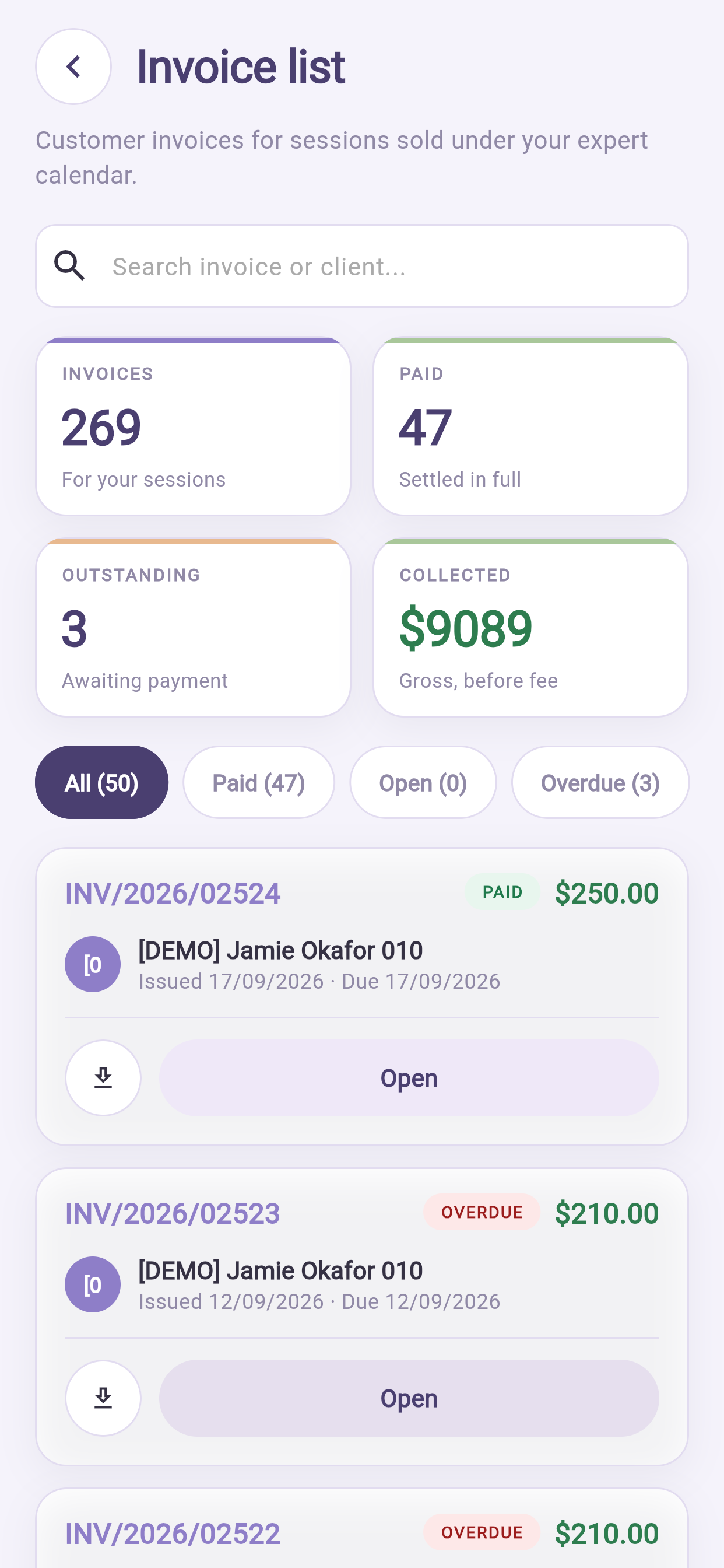
In Earnings, open payment history. Every past payment: the period, what was in it, the total, and its status — with the version of your contract that priced each line.
12.5 Making sure you are paid correctly#
Two habits cover nearly every dispute:
- Close every session (§8.4).
- Check your buckets before the cycle closes. Compare Sessions held against what you remember delivering, and raise anything odd before the run is billed. Correcting it afterwards is far more work.
12.6 Why a figure looks wrong#
| You see | Usual cause |
|---|---|
| A held session not in Earned | It was never closed |
| Going to earn higher than expected | It includes bought-but-unheld sessions. That is its definition |
| A low month | Check the window at the top |
| Amounts differ from your arithmetic | Your share was locked at booking, not at today's rate |
| A rate shows a dash | Fewer than five sessions. Small samples are deliberately not shown as percentages |
13Bookings analysis#
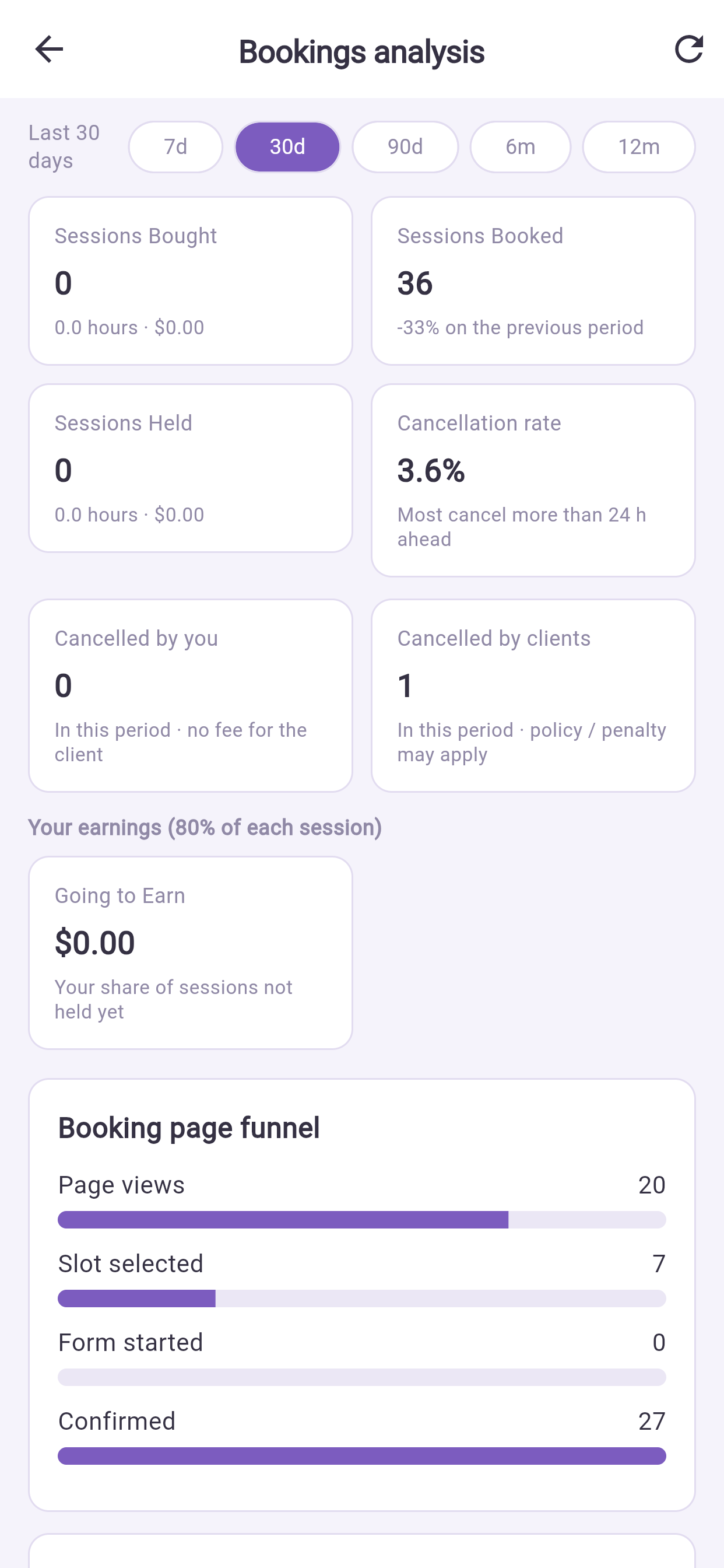
Profile → Expert practice → Bookings analysis. Choose 7, 30 or 90 days, 6 or 12 months.
The charts are readable on a phone but comfortable on a desk. What to look at on a phone is the funnel — find the biggest drop:
| Biggest drop | Likely cause | What to do |
|---|---|---|
| Few page views | Nobody is finding you | Improve your profile and specializations |
| Views, no slot picked | Nothing suitable was free | Open more hours, or different times |
| Slot picked, form abandoned | The form asks too much | Ask your administrator to shorten the intake questions |
| Form done, not confirmed | Price or terms surprised them | Make both clear before checkout |
Also here: how far ahead people book you, a per-client breakdown, and cancellations split by you and by clients.
14Reputation#
14.1 Reviews and comments#
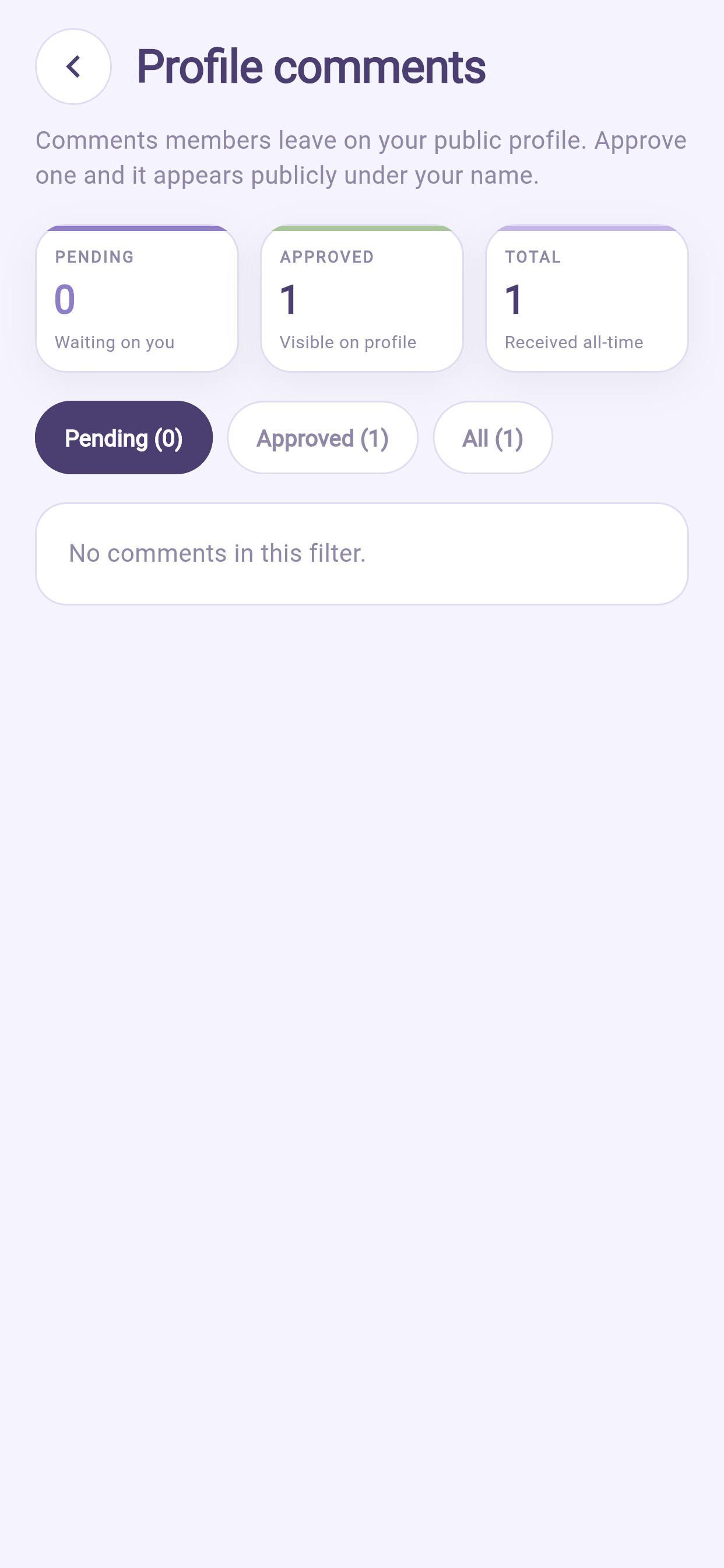
Profile comments under Expert practice. Approve, reject, or reply.
Only clients who actually had a session can review you.
Replying to a poor review, on a phone, is where people go wrong. It is quick, you are annoyed, and it is permanent and public. Draft it, wait an hour, then send. Thank them, acknowledge the specific point, say what you changed, stop. Never mention anything from their session — that stays confidential regardless of what they posted.
Reject a review only where it breaks the rules: abuse, personal data, or plainly not about a session. Rejecting criticism you disagree with is visible to your administrator.
14.2 Questions#
Public questions with public answers. A good answer keeps working for you for years.
Profile → Expert practice → Asked questions. The list opens on questions that still need an answer; use the chips for Saved, Sent, or All. Open a question, type the answer, Save (draft, client cannot see it yet) or Send to client (they see it under My questions).
Answer as though a stranger will read it in a year — because they will. Never give individual advice publicly; explain generally, then invite them to book.
15Client messages and calls#
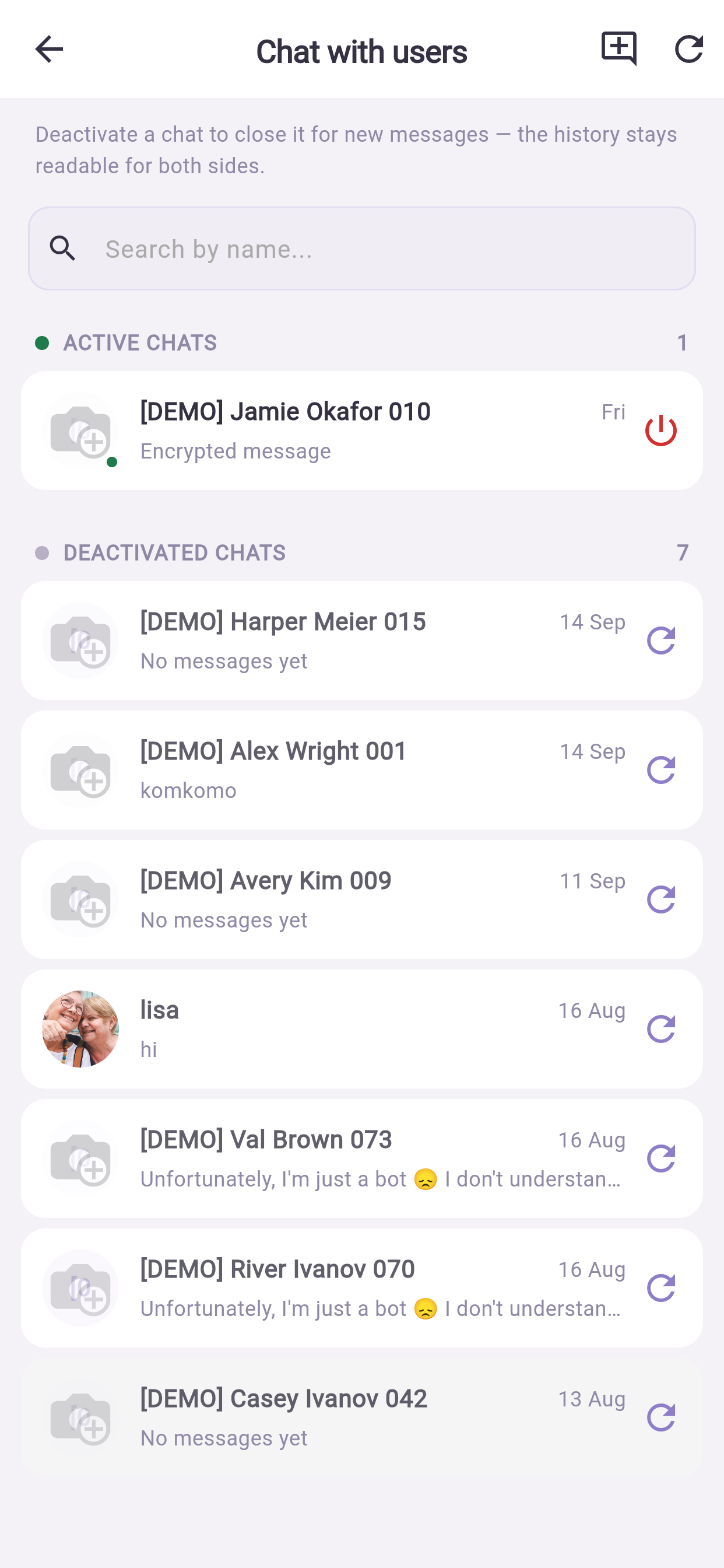
Profile → Expert practice → Chat with users. Active conversations on top, history below.
Depending on your setup, a chat may open for a booked session and close afterwards. You may be able to activate or deactivate one yourself.
Sensible practice#
- Agree response times with clients and hold to them. Having the app on your phone does not mean being available at midnight.
- Keep clinical or professional content in the session and the report, not in chat.
- Use the Platform's chat, never personal messaging apps. It is the record that protects you both — and a client's number in your personal phone is client data on an unmanaged device.
16Alerts you should not turn off#
Profile → Notifications → settings icon.
| Alert | Why keep it |
|---|---|
| New booking | So you learn about it before the day |
| Cancellation | So you can refill or use the time |
| Session starting | The full alarm before a session |
| Client message | Response time is most of perceived service quality |
| Report due | Overdue reports are visible to your administrator |
Turning off sound and vibration while leaving push notifications on is the good middle setting — you see everything without being interrupted mid-session.
If alerts arrive late on Android, check battery optimisation: Settings → Apps → the app → Battery → allow unrestricted background activity.
17Security — you are carrying client data#
Your phone holds more sensitive information than a client's does. Their app shows their own bookings; yours shows other people's names, histories and notes.
17.1 The three things to do#
- Turn on the app lock. Settings → Security → Lock after inactivity. Then a phone left on a table shows nothing.
- Have a lock screen on the phone itself, with biometrics. The app lock is a second layer, not the first. Wrong patterns are limited: four are free, then each one waits longer than the last, and after twenty the app forgets the pattern and asks for your password — which is the protection that matters if the phone is taken.
- Do not use a shared phone. If you must, choose Ask me to sign in each time rather than staying signed in.
17.2 In practice#
- Lock now before handing your phone to anyone, for any reason.
- Do not screenshot client screens. A screenshot leaves the encrypted system and lands in your camera roll, which is probably syncing to a personal cloud account.
- Be aware of who can see your screen in a waiting room or on public transport.
- Do not put client details into personal notes, messaging apps or email.
17.3 If your phone is lost or stolen#
- Change your password immediately from another device — this ends sessions elsewhere.
- Use your phone provider's find-and-erase tool.
- Tell your administrator the same day. They can check what was accessed, because every read of a client record is logged. This is exactly the situation that logging exists for, and telling them early makes it a manageable incident rather than a serious one.
18Between appointments — the phone routine#
Five minutes between clients, in priority order:
- Close the session you just finished. One tap. Everything downstream depends on it.
- File the report if one is due and it is short.
- Reply to any client message.
- Check the next session's intake answers.
End of day, still on the phone:
- Any session left open — close it.
- Any report due tomorrow — file it now.
- Tomorrow's diary — does it match your own calendar?
Weekly, better at a desk:
- To book — message clients who have not scheduled.
- Clear comments, reviews and questions.
- Next week's availability against your own commitments.
- One look at the booking funnel — one thing to improve.
19Troubleshooting#
| Problem | What to do |
|---|---|
| No Expert practice section | Your account is not linked to a professional profile. Ask your administrator |
| Clients cannot book me | Check: weekly rules exist; no exception blocks the dates; timezone is right; you are assigned to the service; a room is free |
| Slots at the wrong times | Timezone — especially if you chose Follow device and have travelled |
| Fewer slots than my hours | Notice period, buffers, room clash, or an existing booking |
| Held session not in Earned | It was never closed (§8.4) |
| Payment missing a session | Check it is closed and fell in that cycle, then contact your administrator with specifics |
| Cannot open a client report | Access is by care team, not seniority. Ask your administrator to check |
| Cannot attach a file to a report | Check type and size. If you typed text first, use Remove file — type the report instead |
| Cannot join a call | Allow camera and microphone in phone settings; close other apps using the camera |
| Call drops | Wi-Fi, turn your video off, keep the app in the foreground |
| Alerts arriving late | Battery optimisation (§16) |
| App locks too often | Adjust or turn off Lock after inactivity — but read §17 before turning it off |
| A rate shows a dash | Fewer than five sessions. Deliberate |
| Screen too cramped to edit hours | Build the weekly pattern at a desk once; use the phone for exceptions after that |
20Quick reference#
| I want to… | Tap |
|---|---|
| Close the session I just finished | Meetings with clients → the session → mark held |
| Block a day off | Schedule availability → Exceptions → Add exception |
| Change my working hours | Schedule availability |
| See today's sessions | Expert practice → Meetings with clients |
| File a report | Expert practice → Meeting reports |
| Check a client's history | Expert practice → My clients → the client |
| See what I have earned | Expert practice → Earnings |
| Check a past payment | Earnings → payment history |
| Chase clients who have not booked | Meetings → To book |
| Reply to a review | Expert practice → Profile comments |
| Cancel a session | Meetings with clients → the session → Cancel |
| Lock the app right now | Profile → Settings → Security → Lock now |
The four earnings figures#
| Figure | Meaning |
|---|---|
| Sessions bought | Purchased from you |
| Going to earn | Your share of bought-but-not-yet-held |
| Earned | Your share of sessions held |
| Not booked | Bought, unscheduled — follow these up |
The five habits#
- Close every session before you leave the room.
- File reports the same day.
- Add exceptions the moment you know, not the week before.
- Cancel early and offer an alternative.
- Check your buckets before the pay cycle closes, not after.
Features vary between businesses. If something here is not in your app, your business has turned it off — ask your administrator.