
1Aan de slag#
1.1 Uw account aanmaken#
- Open de app en tik op het welkomstscherm op Aan de slag (Get Started).
- Tik op Registreren (Register).
- Vul uw naam, e-mailadres en een wachtwoord in.
- Vul uw geboortedatum in. Die is verplicht, en ze wordt gebruikt om te bevestigen dat u de minimumleeftijd voor de dienst haalt. U kunt hier ook een verjaardagsherinnering aanzetten.
- Aanvaard de voorwaarden en de privacyverklaring.
- Tik op Account aanmaken (Create account).
U kunt zich ook op de website registreren — het account is hoe dan ook hetzelfde.
1.2 Aanmelden#
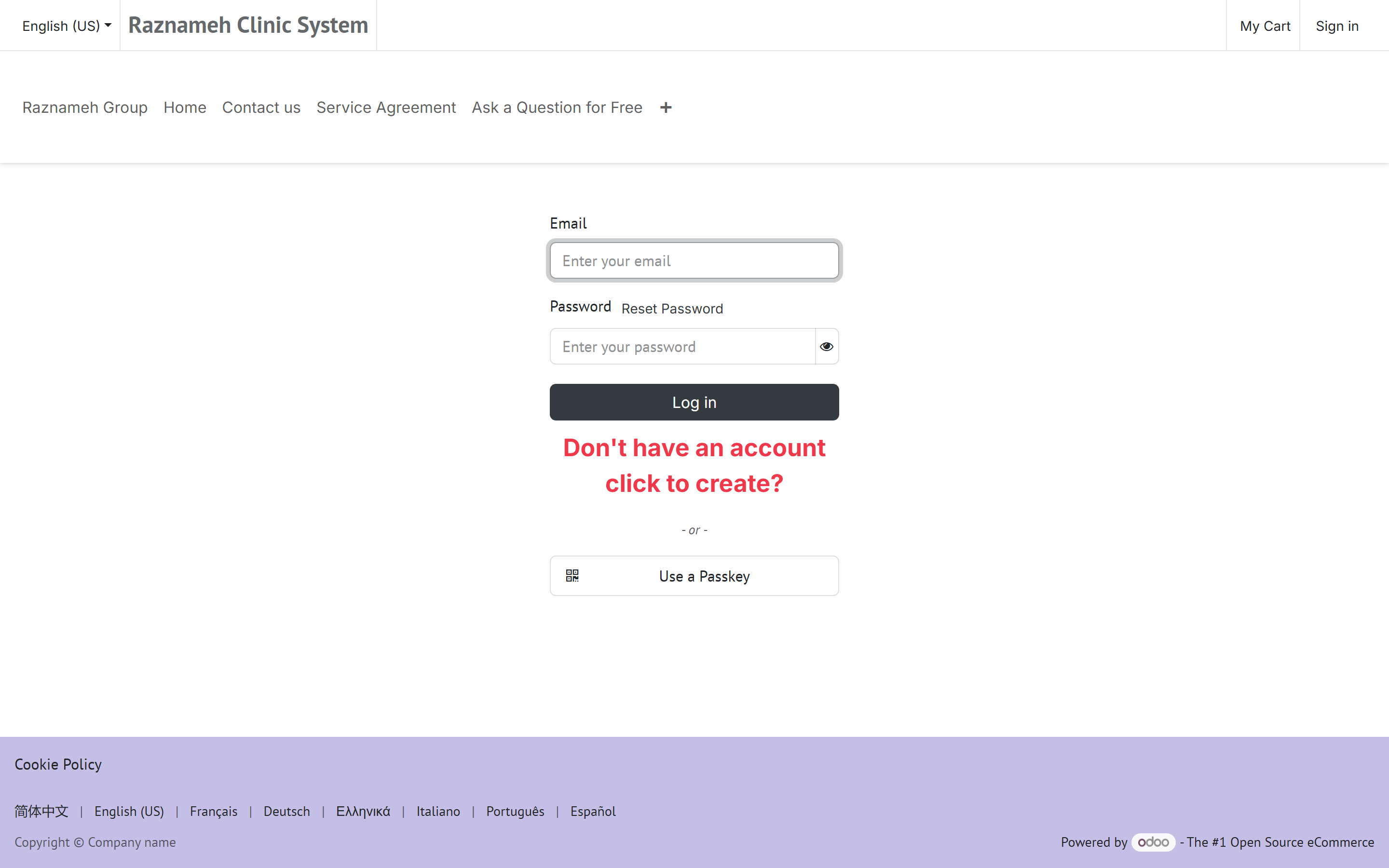
- Tik op Aanmelden (Log in).
- Vul uw e-mailadres en wachtwoord in, of tik op Doorgaan met Google (Continue with Google).
- Tik op Aanmelden.
Bij uw e-mailadres maken hoofdletters geen verschil.
1.3 Wachtwoord vergeten#
- Tik op het aanmeldscherm op Wachtwoord vergeten (Forgot password).
- Vul uw e-mailadres in en tik op Versturen (Send).
- Open de e-mail die u krijgt en volg de link om een nieuw wachtwoord te kiezen.
Komt de e-mail niet binnen een paar minuten aan, kijk dan in uw map met ongewenste post voordat u een nieuwe aanvraagt.
1.4 Uw identiteit en leeftijd bevestigen#
Sommige diensten vragen u uw leeftijd te bevestigen voordat u kunt boeken. Is dat bij u het geval, dan wordt het u gevraagd de eerste keer dat u zo'n dienst probeert te gebruiken.
Dat gaat op twee manieren, en de app probeert altijd eerst de makkelijkste:
De gezichtscontrole (de snelste)
- Tik op Verificatie starten (Start verification).
- Geef toegang tot de camera wanneer erom gevraagd wordt.
- Houd uw telefoon op ooghoogte, bij redelijk licht, met uw hele gezicht in beeld.
- Volg de aanwijzingen op het scherm en blijf stil tot het klaar is.
De meeste mensen worden meteen goedgekeurd.
Een identiteitsbewijs (alleen als de gezichtscontrole geen uitsluitsel geeft)
- Tik op Doorgaan met document (Continue with document).
- Fotografeer uw identiteitsbewijs — paspoort, rijbewijs of identiteitskaart — en volg daarbij de aanwijzingen op het scherm.
- Neem het korte selfievideootje op wanneer daarom gevraagd wordt.
- Tik op Indienen (Submit).
Wat u instuurt gaat daarna naar In beoordeling (Under review). Een medewerker kijkt ernaar, meestal binnen één werkdag. U krijgt een melding zodra het besluit genomen is.
Uw documenten zijn beschermd. Foto's en video's voor de identiteitscontrole worden versleuteld bewaard, zijn alleen zichtbaar voor het kleine aantal medewerkers dat ze beoordeelt, en worden automatisch verwijderd zodra de bewaartermijn verstrijkt. U kunt vragen om ze eerder te verwijderen — zie §13.5.
1.5 Kies uw taal en uw kalender#
- Ga naar het tabblad Profiel.
- Tik op Instellingen → Taal.
- Kies uw taal.
Er zijn 23 talen beschikbaar. Arabisch, Perzisch, Hebreeuws en Urdu zetten de hele app vanzelf om naar een leesrichting van rechts naar links.
Biedt uw praktijk ze aan, dan kunt u datums ook tonen in de gregoriaanse, de Perzische (Jalali) of de islamitische (Hidjri) kalender. Dat werkt overal door in de datums die u ziet, ook op de boekingspagina's.
2Uw weg vinden#
2.1 De tabbladen onderaan de app#
| Tabblad | Wat daar staat |
|---|---|
| Start (Home) | Uw inhoudsstroom — artikelen, video's en berichten |
| Diensten (Services) | Diensten en behandelaren doorbladeren, en boeken |
| Profiel (Profile) | Alles over u: sessies, facturatie, berichten, instellingen |
Uw app toont er misschien minder dan dit, of juist eentje meer. Dat is normaal — de praktijk die uw app draait, kiest welke functies meegaan, en deze handleiding behandelt de functies die elke app heeft.
2.2 Het tabblad Profiel, onderdeel voor onderdeel#
Het tabblad Profiel is het knooppunt. Het is in onderdelen verdeeld:
| Onderdeel | Wat erin zit |
|---|---|
| Sessies en boekingen (Sessions & Bookings) | Geboekte sessies · Mijn gekochte diensten · Annuleringsgeschiedenis |
| Bewaard (Saved) | Mijn behandelaren · Mijn diensten · Mijn inhoud |
| Berichten en vragen (Messages & Questions) | Meldingen · Chats met behandelaren · Groepschats · Mijn vragen |
| Facturatie (Billing) | Factuuradres · Facturen |
| Vertrouwen en ondersteuning (Trust & Support) | Leeftijd en identiteit · Ondersteuningstickets |
| Account | Instellingen, beveiliging, privacy, afmelden |
2.3 De website in plaats daarvan#
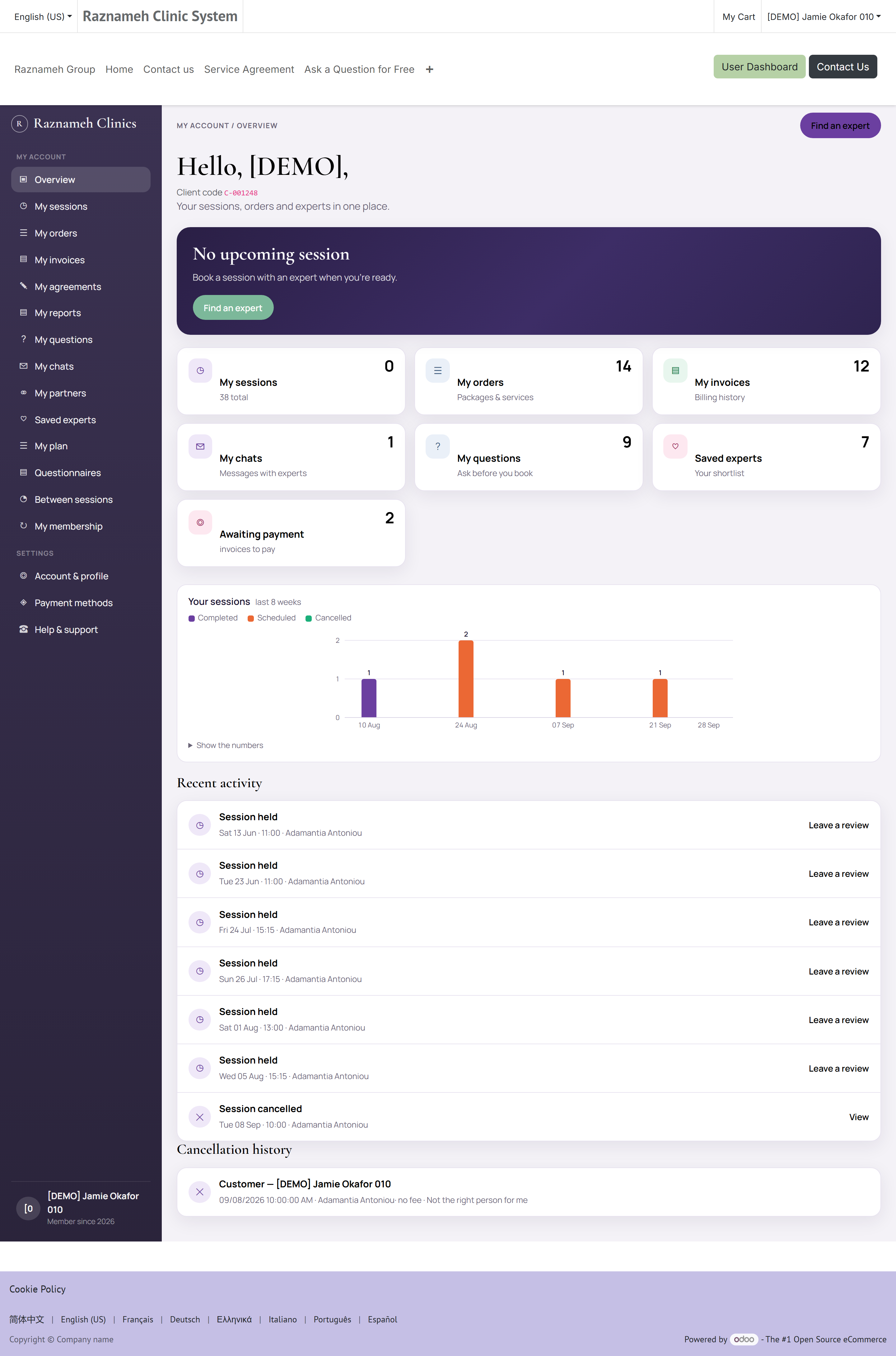
Alles hierboven staat ook op de website, onder Mijn account. De website zet een menu langs de linkerkant. Dit zijn de ingangen, in de volgorde waarin u ze ziet, met het adres dat elke ingang opent.
Mijn account
| Menu-ingang | Adres | Wat het is |
|---|---|---|
| Overzicht | /my | Uw dashboard — een samenvatting van alles hieronder |
| Mijn sessies | /my/meetings | Elke sessie die u bezit. Een getal ernaast telt de sessies die nog op een tijd wachten |
| Mijn bestellingen | /my/account/orders | Elke bestelling die u geplaatst hebt, en wat erin zat |
| Mijn facturen | /my/account/invoices | Uw facturen, elk als pdf te downloaden |
| Mijn vragen | /my/questions | Openbare vragen die u stelde, met de antwoorden |
| Mijn gesprekken | /my/chats | Gesprekken met behandelaren. Het getal ernaast telt de ongelezen berichten. Bij betaalde consulten staan de resterende minuten erbij |
| Mijn plan | /my/plans | Uw episodes, doelen, programma's, en alles wat u vandaag nog moet vastleggen — §6.6 |
| Mijn partners | /my/partners | Partnergroepen met een naam, eventueel een foto, uitnodigingen per e-mail, en per groep een deelnamelink. De groepspagina toont wie er meedoen en welke uitnodigingen nog niet aanvaard zijn. Maakte u de groep aan, dan kunt u een lid verwijderen, een uitnodiging intrekken of de groep opheffen. |
| Bewaarde behandelaren | /my/saved-experts | Uw favorieten |
| Mijn lidmaatschap | /my/memberships | Doorlopende plannen die u gekocht hebt — afbeelding, omschrijving, resterende sessies en consultminuten |
| Vragenlijsten | /my/instruments | Vragenlijsten die uw behandelaar u gevraagd heeft in te vullen — §6.7 |
| Mijn scores | /my/scores | De uitkomsten van de ingevulde lijsten, in de tijd — §6.7. Alleen waar uw praktijk ze toont |
| Tussen sessies door | /my/monitoring | Wat u tussen afspraken door vastlegt, en wat u vastgelegd hebt — §6.8 |
| Mijn verslagen | /my/reports | Wat er over u geschreven is en wat uw praktijk ervoor gekozen heeft met u te delen — §13.6 |
| Mijn overeenkomsten | /my/agreements | Dienstverleningsovereenkomsten: wat op uw handtekening wacht, en wat u getekend hebt — §4.2 |
Niet elke ingang staat in het menu van elke praktijk: een ingang verschijnt zodra de praktijk dat deel van het Platform gebruikt. Een menu zonder Vragenlijsten betekent dat niemand u er een gestuurd heeft, niet dat er iets stuk is.
Instellingen
| Menu-ingang | Adres | Wat het is |
|---|---|---|
| Account en profiel | /my/account/profile | Uw gegevens, tijdzone, taal en meldingsvoorkeuren — §13.1 en §13.2 |
| Betaalmethoden | /my/payment-methods | Bewaarde kaarten |
| Hulp en ondersteuning | /my/help | Ondersteuningstickets |
Pagina's zonder menu-ingang. Deze bestaan, en de pagina's die ze nodig hebben verwijzen ernaar, maar u vindt ze niet in het menu:
| Adres | Wat het is | Waar het vandaan gelinkt wordt |
|---|---|---|
| /my/bought-services | Pakketten die u kocht, met de resterende sessies — §8.2 | Overzicht, en het tabblad Profiel in de app |
| /my/account | Uw contactgegevens en factuuradres bewerken | Account en profiel → Gegevens bewerken |
| /my/security | Wachtwoord en beveiligingsinstellingen — §13.3 | Account en profiel |
| /my/documents | Wat er over u vastligt, waar uw praktijk het publiceert — §13.6 | Overzicht, zodra er iets te tonen is |
| /my/plans/goals/<id> | Eén doel, de programma's eronder, en wat u vastlegde (§6.6) | Mijn plan, elke doeltitel |
/my/meetings/<nummer> | Eén sessie, in vol detail | Tik op een sessie in de lijst |
/my/chats/<nummer>/statement | Hoe de consultminuten geteld zijn | Een link op een betaald gesprek |
Onderaan dat menu staan nog twee dingen. Links om de mobiele app te downloaden, en — als uw account ook dat van een behandelaar of een beheerder is — een overstap naar die werkomgeving. Een gewoon cliëntaccount toont geen van beide, en u mist niets als u ze niet ziet.
2.4 Hoe de onderdelen samenhangen#
Niets hier wordt in één stap gekocht en geboekt, en dat is met opzet: het is wat u toelaat vandaag een pakket te kopen en de afspraken over de komende maanden in te plannen. Dit is de hele weg, één keer op een rij:
flowchart LR
  A["Een behandelaar vinden"] --> B["Een sessie of een pakket kopen"]
  B --> C["De dienstverleningsovereenkomst aanvaarden"]
  C --> D["Betalen"]
  D --> E["Het sessietegoed staat onder Te boeken"]
  E --> F["Een tijd boeken"]
  F --> G["Bijwonen"]
  G --> H["Beoordeling en feedback"]
  D --> I["Factuur uitgegeven"]
  F -.->|"annuleren of verzetten"| J["Het annuleringsbeleid bepaalt de kosten"]
  J -.->|"het tegoed komt meestal terug"| E
Eén zin is het onthouden waard, want bijna heel §7 en §8 volgen eruit:
Een tegoed is wat u bezit. Een boeking is wanneer u het uitgeeft.
Kopen geeft u tegoeden. Boeken hangt er een tijd aan. Annuleren haalt die tijd er meestal weer af en geeft u het tegoed terug — en daarom is een geannuleerde sessie niet hetzelfde als een verloren sessie.
3De juiste behandelaar vinden#
3.1 Bladeren en zoeken#

- Ga naar het tabblad Diensten.
- Blader door de lijst, of gebruik het zoekvak bovenaan.
- Gebruik de filters om te versmallen op categorie, specialisatie, beoordeling of prijs.
- Tik op een behandelaar om diens profiel te openen.
3.2 Wat een profiel u vertelt#
| Op het profiel | Wat het betekent |
|---|---|
| Geverifieerd-label | De praktijk heeft de papieren van deze persoon nagekeken |
| Beoordeling | Het gemiddelde aantal sterren van cliënten die werkelijk een sessie hadden |
| Deelbeoordelingen | Aparte cijfers voor verschillende kanten van de dienstverlening |
| Specialisaties | Waar deze persoon zich op richt |
| Video en foto's | Kennismakingsmateriaal dat deze persoon gepubliceerd heeft |
| Diensten | Wat u kunt boeken, met duur en prijs |
| Recensies | Geschreven reacties, soms met het antwoord van de behandelaar erbij |
| Beschikbaarheid | Wanneer deze persoon geboekt kan worden |
Alleen wie een sessie gehad heeft kan een recensie achterlaten, dus het zijn geen anonieme meningen van mensen die nooit kwamen opdagen.
3.3 Bewaar de behandelaren die u bevallen#
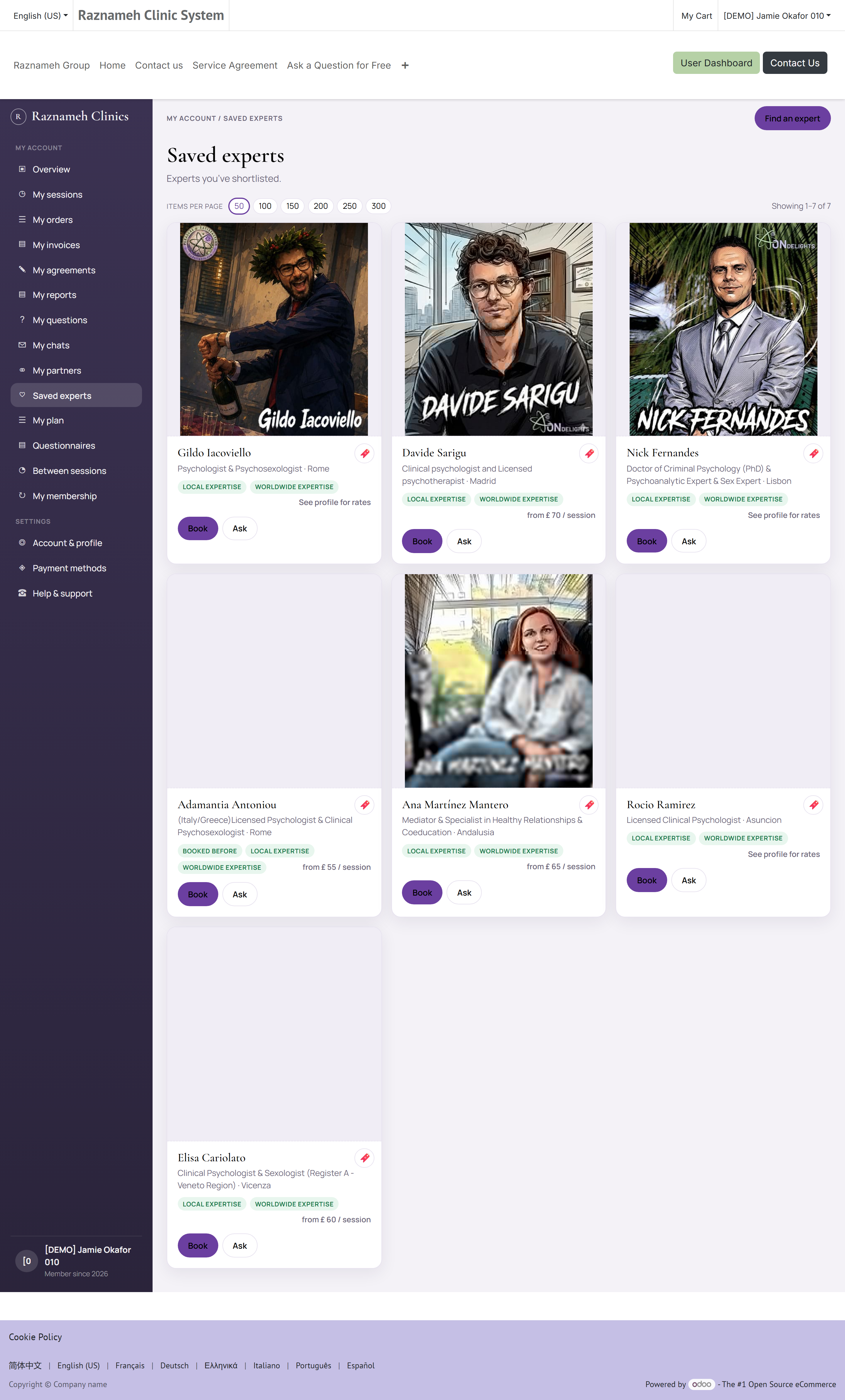
Tik op het hartje bij een profiel, een dienst of een artikel om het te bewaren.
U vindt wat u bewaarde later terug onder Profiel → Bewaard → Mijn behandelaren, Mijn diensten of Mijn inhoud.
3.4 Vraag het voordat u boekt#
Weet u niet zeker of een behandelaar bij u past:
- Stel een openbare vraag — open het profiel en tik op Stel een vraag (Ask a question). Het antwoord wordt voor iedereen gepubliceerd, dus blader eerst door de vragen die er al staan.
- Vraag een kennismaking aan — sommige praktijken bieden een kort kennismakingsgesprek. Kijk naar Kennismaking aanvragen (Request consultation) op het profiel of op de website.
4Sessies kopen#
Sessies worden eerst gekocht en daarna geboekt. Dat betekent dat u nu een pakket kunt kopen en de losse afspraken kunt inplannen wanneer het u schikt.
4.1 Eén sessie of een pakket kopen#
- Open het profiel van de behandelaar en kies een dienst.
- Kijk de duur, de prijs en het aantal inbegrepen sessies na.
- Tik op In de mand (Add to basket) om door te winkelen, of op Sessie boeken (Book Meeting) om meteen naar het afrekenen te gaan.
- Open de mand (als u daar bleef) en tik op Afrekenen (Checkout).
4.2 De dienstverleningsovereenkomst aanvaarden#
Voordat u de bestelling kunt versturen, krijgt u mogelijk een dienstverleningsovereenkomst te zien — de voorwaarden over annuleren, vervallen en wat er inbegrepen is.
- Lees haar. Ze is kort en ze doet ertoe — de annuleringsvoorwaarden uit §7 komen uit dit document.
- Vink Ik heb deze pakketovereenkomst gelezen en aanvaard deze aan.
- Ga door naar het afrekenen.
Uw aanvaarding wordt blijvend vastgelegd. U kunt de getekende overeenkomst achteraf terughalen vanaf de detailpagina van de sessie, zodat u nooit hoeft te onthouden waarmee u akkoord ging.
Alle overeenkomsten op één plek. Mijn overeenkomsten in het accountmenu (/my/agreements) toont elke dienstverleningsovereenkomst op uw bestellingen, met bovenaan wat eerst op uw handtekening wacht — niemand hoort te moeten scrollen om het ene ding te vinden dat gedaan moet worden. De getekende overeenkomsten staan eronder, en elke opent als een pdf die u kunt downloaden en bewaren.
4.3 Ter beoordeling versturen en betalen#
Bij het afrekenen wordt uw factuuradres gevraagd. Er zit in deze stap geen knop Nu betalen.
- Kijk het adres na en tik op Ter beoordeling versturen (Send for review).
- De bestelling blijft als offerte staan. U krijgt een melding zodra ze beoordeeld is.
- Is ze goedgekeurd, dan staat er in de e-mail een betaallink en de bank- of betaalinstructies.
- Betaal het bedrag volgens die instructies, open daarna de link, upload het betaalbewijs (een kwitantie of een bewijs van overboeking) en verstuur het.
- Zodra medewerkers de betaling bevestigen, is de bestelling betaald en verschijnen uw sessietegoeden, zoals in §4.4.
- Is de bestelling of de betaling niet goedgekeurd, dan krijgt u een melding met de reden. Bij een afgewezen betaling kunt u vanaf dezelfde link een nieuw bewijs uploaden.
4.4 Wat u nu bezit#
Na de betaling bezit u sessietegoeden — of, bij een dienst voor consult via de chat, een tegoed aan minuten bij de behandelaar. Pakketten vindt u onder Profiel → Sessies en boekingen → Mijn gekochte diensten, of op de website op /my/bought-services.
Elk tegoed is één sessie die u bij die behandelaar kunt boeken. Een tegoed zit niet aan een datum vast tot u het boekt, en ook daarna zit het niet aan die bepaalde datum vast — verzetten staat in §7.
Een tegoed onthoudt ook uit welke dienst het kwam. Een tegoed voor een « vervolggesprek van 60 minuten » boekt een vervolggesprek van 60 minuten; het wordt geen uur van iets anders. Wilt u een andere dienst, koop dan die dienst.
Consulten via de chat werken anders: u koopt tijd in het bestaande gesprek, geen vakje in de agenda. De winkel en de orderbevestiging tonen een tarievenkaart — hoe schrijven, spraak en video geteld worden. Na aankoop opent het gesprek met een balk met resterende minuten (§10.1). Koopt u later meer tijd, dan komt die bij hetzelfde gesprek.
4.5 Hoe lang een tegoed geldig blijft#
Tegoeden vervallen meestal. Uw praktijk stelt de termijn in — twaalf maanden na aankoop is de gebruikelijke instelling, en sommige praktijken zetten hem op nooit vervallen.
- De vervaldatum staat bij het pakket in Mijn gekochte diensten.
- Ongeboekte tegoeden die tegen hun vervaldatum aan lopen zijn een van de dingen waar de beheerders van uw praktijk actief achteraan gaan, dus het kan zijn dat u erover benaderd wordt.
- Een vervallen tegoed toont de status Verlopen (§8.4). Vraag het de ondersteuning voordat u aanneemt dat het weg is — praktijken zetten een tegoed dat om een reden buiten uw macht verliep routinematig weer terug.
Het praktische advies: boek van een pakket op zijn minst de eerste afspraak zodra u het koopt, ook als de datum nog ver weg ligt. U kunt haar altijd nog verzetten (§7.2), en een geboekte sessie is een sessie die niet stilletjes kan vervallen.
4.6 Lidmaatschappen#
Bij sommige diensten hoort ook een lidmaatschap — een plan dat elke week, maand, kwartaal of elk jaar doorloopt. Een plan kan boekbare sessies bevatten, chat met de behandelaren van het plan, consultminuten buiten de sessies om, of een mengsel daarvan.
U ziet het:
- op Lidmaatschappen — elk gepubliceerd plan (afbeelding, naam, prijs, korte omschrijving). Open een plan voor de volledige omschrijving, de behandelaren, en Dit plan kopen
- op de winkelpagina van de dienst, als tegels met een afbeelding en een omschrijving
- in de winkel onder Lidmaatschappen
- op de eigen productpagina van het plan
Een lidmaatschap kopen gaat via hetzelfde afrekenen als een pakket (In de mand / Dit plan kopen, overeenkomst, ter beoordeling versturen, betalen). Zodra medewerkers de betaling bevestigen, begint het lidmaatschap. Bevat het plan sessies, dan verschijnen de tegoeden van die periode onder Mijn sessies. Bevat het chat of consult buiten de sessies om, dan verschijnen de gesprekken onder Mijn gesprekken (de resterende minuten staan bij het gesprek wanneer de minutentelling aanstaat). Open /my/memberships voor de afbeelding, de omschrijving, wat er over is, en bij welke behandelaren u terechtkunt.
De gewone dienst kopen op een pagina die bij een plan hoort, koopt nog steeds een eenmalig pakket. Een lidmaatschap begint alleen wanneer u het plan koopt.
5Een tijd boeken#
5.1 Boeken vanaf een tegoed dat u al hebt#
- Ga naar Profiel → Sessies en boekingen → Geboekte sessies.
- Open het tabblad Te boeken (To book).
- Zoek de sessie op en tik op Inplannen (Schedule).
- De boekingspagina opent.
Dekt uw pakket of lidmaatschap meer dan één ding, dan vraagt stap 4 eerst welke — bij een pakket welke behandelaar, en bij een lidmaatschap welke dienst en bij wie. U krijgt hun foto's te zien en wat ieder van hen doet, en Bij hen boeken opent de eigen agenda van die behandelaar met deze sessie klaar om te boeken. De sessie die u uitgeeft is de sessie die u al betaald hebt, wie u ook kiest.
U kunt voor elke sessie in het pakket anders kiezen — nu de ene behandelaar zien, legt de rest van uw sessies niet bij die persoon vast. Een pakket dat voor één behandelaar verkocht is, slaat de vraag helemaal over en gaat meteen naar diens agenda.
5.2 Op de boekingspagina#
- Kijk de tijdzone na die bovenaan staat. Wijzig die als u op reis bent — alles op de pagina beweegt mee.
- Kies een datum uit de kalender.
- Kies een tijd uit de beschikbare tijdvakken. Alleen werkelijk vrije tijden worden getoond.
- Tik op Doorgaan (Continue).
- Vul het boekingsformulier in. Sommige praktijken stellen hier intakevragen — beantwoord ze goed, want de behandelaar leest ze vóór uw sessie.
- Tik op Boeking bevestigen (Confirm booking).
U krijgt een bevestigingspagina te zien en ontvangt een bevestiging als melding en per e-mail.
5.3 Als er geen tijdvakken vrij zijn#
U hebt twee mogelijkheden:
Op de wachtlijst
- Tik op de boekingspagina op Op de wachtlijst (Join the waitlist).
- Kies welke dagen of tijden u zouden schikken.
- Bevestig.
Annuleert iemand, dan wordt het tijdvak u vanzelf aangeboden. Zo'n aanbod geldt maar kort, dus reageer snel.
Probeer een andere behandelaar — open het tabblad Diensten en filter op beschikbaarheid.
5.4 Zet het in uw eigen agenda#
Tik op de bevestigingspagina en in de bevestigingsmail op Aan agenda toevoegen (Add to calendar). Dat downloadt een agendabestand dat werkt met Apple Calendar, Google Agenda, Outlook en andere.
5.5 Waarom een tijd die u wilde niet aangeboden wordt#
De agenda toont alleen tijden die elke toets hieronder doorstaan. Ontbreekt een tijdvak dat u verwachtte, dan is het bijna altijd een van deze en niet een storing:
| Toets | Wat het betekent | Gebruikelijke instelling |
|---|---|---|
| Binnen de uren van de behandelaar | Die publiceert een weekpatroon van werkuren | Door hem ingesteld |
| Niet geblokkeerd door een uitzondering | Vakanties, scholingsdagen en eenmalige sluitingen | Door hem ingesteld |
| Er staat nog niets geboekt | Iemand anders heeft die tijd | — |
| Er is een ruimte vrij, waar de praktijk met ruimtes werkt | Een sessie op locatie moet ergens plaatsvinden | — |
| Genoeg van tevoren | U kunt niet op het laatste moment boeken | Vaak 4 uur vooruit |
| Niet te ver vooruit | De agenda stopt bij een horizon | Vaak 60 dagen |
De laatste twee worden door uw praktijk ingesteld en kunnen per dienst verschillen, en daarom kan de ene behandelaar morgenochtend te boeken zijn en de andere niet.
Ziet de hele maand er leeg uit, kijk dan eerst de tijdzone bovenaan de pagina na, voor al het andere. Een tijdzone aan de andere kant van de wereld kan elk tijdvak buiten de dagen duwen waar u naar kijkt.
6Voor, tijdens en na een sessie#
6.1 Herinneringen#
U krijgt vanzelf een herinnering vóór uw sessie. Afhankelijk van uw instellingen komen herinneringen als pushmelding, als bericht in de app, per e-mail en via WhatsApp.
Wilt u wijzigen welke herinneringen u krijgt: Profiel → Meldingen → meldingsinstellingen.
6.2 Deelnemen aan een online sessie#
- Ga naar Profiel → Geboekte sessies → tabblad Ingepland.
- Zoek uw sessie op en tik op Deelnemen (Join).
De knop Deelnemen wordt kort voor de begintijd actief. Neem de eerste keer een paar minuten voorsprong, zodat u camera en microfoon kunt nalopen.
Voor de beste ervaring: gebruik een stabiele verbinding, geef toegang tot camera en microfoon wanneer erom gevraagd wordt, en gebruik een koptelefoon om echo te voorkomen.
6.3 Op locatie komen#
Uw bevestiging toont de locatie en, waar de praktijk met ruimtes werkt, de ruimte. Kom een paar minuten van tevoren.
Sommige praktijken vragen de behandelaar u te bevestigen vóór een sessie op locatie. Waar dat geldt, heeft de sessie een van drie toestanden, en u krijgt bericht wanneer die verandert:
| Toestand | Wat het betekent | Wat u doet |
|---|---|---|
| Wacht op de behandelaar | Geboekt, nog niet bevestigd | Nog niets. U krijgt bericht |
| Goedgekeurd | Die ziet u op de geboekte tijd | Kom. Lees de notitie — er staat vaak iets nuttigs in over waar u heen moet of wat u meeneemt |
| Afgewezen | Die ziet u op die tijd niet | Lees de notitie voor de reden, en boek daarna een andere tijd of een andere behandelaar (§5) |
Een afwijzing is geen annuleringskost. Het tegoed is van u; boek het opnieuw wanneer u wilt. Is een sessie afgewezen en kwam het tegoed niet terug, maak dan een ticket aan (§12.1).
Deze stap bestaat niet voor online sessies — de videoruimte laat u binnen — en veel praktijken gebruiken hem helemaal niet.
6.4 Na de sessie#
Twee dingen zijn het doen waard, en allebei verschijnen ze als knop bij de sessie in uw lijst:
- Feedback geven (Give feedback) — een korte, besloten vragenlijst. Ze gaat naar de praktijk, niet naar iemands profiel, en het is waarmee zij een dienst herstellen die niet werkt.
- Een beoordeling schrijven (Write a review) — een openbaar cijfer met commentaar op het profiel van de behandelaar.
6.5 Een beoordeling schrijven, in detail#
Profiel → Geboekte sessies → Afgerond → open de sessie → Een beoordeling schrijven. De bevestigingsmail die u na een sessie krijgt, draagt ook een beoordelingslink, en die link werkt zonder aanmelden — handig als u uw e-mail leest op een toestel waarop u niet aangemeld bent.
Het formulier vraagt om:
| Veld | Verplicht? | Opmerkingen |
|---|---|---|
| Algemeen cijfer | Ja | Eén tot vijf sterren |
| Uw eigen woorden | Ja | Een beoordeling zonder tekst wordt geweigerd — de ster alleen helpt niemand |
| Titel | Nee | Een korte kop bij de beoordeling |
| Vakmanschap | Nee | Apart beoordeeld, één tot vijf |
| Doeltreffendheid | Nee | Bereikte het waarvoor u kwam |
| Communicatie | Nee | Hoe helder er uitgelegd werd |
| Prijs-kwaliteit | Nee | Was het waard wat u betaalde |
De vier deelcijfers zijn wat de deelbeoordelingen op het profiel van een behandelaar oplevert (§3.2). Ze invullen kost een paar seconden en maakt het profiel voor de volgende persoon veel bruikbaarder dan een kaal aantal sterren.
Regels die gelden:
| Regel | Waarom |
|---|---|
| Pas nadat de sessie afgelopen is | U beoordeelt wat er gebeurd is, niet wat u hoopt |
| Eén beoordeling per sessie | Een pakket van vijf sessies geeft u vijf beoordelingen, niet vijf bewerkingen van één |
| Ze wordt niet meteen gepubliceerd | Elke beoordeling wordt eerst ter moderatie vastgehouden |
| Ze kan niet voor een geannuleerde sessie | Er valt niets te beoordelen |
Over die moderatie: beoordelingen vasthouden is geen manier om slechte weg te houden. Het bestaat omdat de beoordelingslink per e-mail uitgaat, en een gemailde link die willekeurige tekst zomaar op iemands openbare profiel zet, is een voor de hand liggend doelwit voor misbruik. Een echte kritische beoordeling wordt gepubliceerd; de behandelaar mag er openbaar op antwoorden, en dat antwoord verschijnt onder het uwe.
6.6 Mijn plan — episodes, doelen en programma's#
Mijn plan is de pagina voor uw behandelepisode. Open Mijn plan in het accountmenu, of /my/plans.
- Vandaag bovenaan toont alles wat u nog moet vastleggen. Elke titel opent het formulier.
- Lopende episodes tonen wanneer ze begonnen, de doelen erop, en de programma's onder elk doel. Klik op de naam van de episode, of op Openen →, voor het behandeltraject op een eigen pagina: dezelfde doelen, wat er vandaag op openstaat, en alles wat vastgelegd moet worden en niet aan een doel hangt. Klik op een doel om het doel zelf te openen, en op een programma om te openen wat u erin vastlegt. Afgeronde episodes tonen de begin- en einddatum, en openen op dezelfde manier.
- Op een doel: Vast te leggen opent het formulier voor wat nog openstaat; Wat u vastlegde zijn uw eigen invoeringen. Ik vind dit zwaar laat het uw behandelaar weten — die ziet het. De eigen uitkomstnotitie van de behandelaar staat hier niet.
- Het formulier om iets vast te leggen is één ding: een schuif of een getal bij een schaal, een notitie als u wilt, en dan Opslaan. Het is geen crisislijn: invoeringen worden door uw behandelteam gelezen, niet in de gaten gehouden op het moment zelf. Verkeert u in crisis, bel dan de hulpdiensten.
- Dagboeken en wat u uploadt kunnen versleuteld zijn — alleen u, uw behandelaar en de beheerders van de praktijk kunnen ze openen.
- Er kan een dagelijkse herinnering komen zolang er nog iets openstaat.
Uw behandelaar stuurt u een programma bij een van uw doelen, kiest er een dat al in de bibliotheek van de praktijk staat, en zet de begin- en einddatum. Een vragenlijst is zo'n programma, en niet iets aparts om bij te houden.
Twee dingen doet deze pagina nooit. Ze telt u niet, beoordeelt u niet en geeft u geen cijfer: iets wat niet vastgelegd is, leest als niet vastgelegd, en meer zegt het niet. En niemand kijkt mee terwijl u typt — uw behandelteam leest invoeringen wanneer zij ze openen, en daarom zegt elke pagina die ze draagt dat ook.
6.7 Vragenlijsten die uw behandelaar vraagt#
Vragenlijsten in het accountmenu, of /my/instruments.
De pagina bestaat uit drie delen:
- In te vullen — wat er van u gevraagd is, met de datum waarop het gevraagd werd. De titel opent het.
- Deze neemt uw behandelaar met u door — gevraagd, maar niet bedoeld om zelf in te vullen. Er valt voor u niets mee te doen; ze staan er zodat u weet dat ze bestaan.
- Al gedaan — wat u afgerond hebt.
Wat het formulier vraagt. U werkt de vragenlijst zelf uit en voert uw totaal in, met het bereik eronder. Het formulier is niet de vragenlijst — het is waar het totaal vastgelegd wordt, zodat het papier of de app die u invulde de bron blijft.
Of u een uitkomst ziet, is de keuze van uw praktijk. Waar zij haar tonen, krijgt u de bandbreedte waarin het totaal valt in plaats van een kaal getal, met een regel erbij dat uw behandelaar zal uitleggen wat het betekent. Waar zij haar niet tonen, zegt de pagina hoeveel u afgerond hebt en laat zij het gesprek aan de sessie. Geen van beide versies is een diagnose, en geen van beide is bedoeld om op zichzelf gelezen te worden.
Mijn scores (/my/scores) zijn dezelfde uitkomsten in de tijd, waar uw praktijk ze toont. Gaten worden als gaten getoond — een maand waarin u niets invulde blijft leeg, en wordt nooit aaneengetrokken tot een lijn die doet vermoeden dat er iets gemeten is.
6.8 Tussen sessies door#
Tussen sessies door in het accountmenu, of /my/monitoring.
Dit is hetzelfde vastleggen als bij Mijn plan (§6.6), maar andersom benaderd: per programma in plaats van per doel. Gebruik wat u het beste ligt — eronder ligt één vastlegging.
- De band bovenaan is wat er vandaag openstaat. Elke titel opent het formulier.
- Elk programma toont wat het is, het venster waarin het loopt, en wat u erin vastgelegd hebt.
- Ik vind dit zwaar staat op het programma zo goed als op het doel. Het laat het uw behandelaar weten; het stuurt geen alarm naar iemand met dienst.
De twee dingen die §6.6 over Mijn plan zegt, gelden hier woord voor woord: niets op deze pagina telt u, beoordeelt u of geeft u een cijfer, en niemand kijkt mee terwijl u typt. Invoeringen worden door uw behandelteam gelezen wanneer zij ze openen. Verkeert u in crisis, bel dan de hulpdiensten of de crisislijn bij u in de buurt — wacht niet tot een behandelaar de pagina ziet.
7Een boeking wijzigen of annuleren#
7.1 Begrijp eerst het beleid#
De praktijk publiceert een annuleringsbeleid: een ladder van treden op grond van hoe lang van tevoren u het doet. Hoe langer van tevoren, hoe minder het kost. Uw eigen ladder staat in de dienstverleningsovereenkomst die u bij het afrekenen aanvaardde (§4.2), en ze wordt opnieuw getoond voordat u iets bevestigt.
Een veelgebruikte ladder ziet er zo uit:
| Hoe lang van tevoren | Kosten |
|---|---|
| 24 uur of meer | Niets |
| 12 tot 24 uur | 25% |
| 6 tot 12 uur | 50% |
| 3 tot 6 uur | 75% |
| Minder dan 3 uur | 100% |
| Niet gekomen, niet geannuleerd | 100% |
flowchart LR
  A["24 uur of meer<br/>kosteloos"] --> B["12–24 uur<br/>25%"] --> C["6–12 uur<br/>50%"] --> D["3–6 uur<br/>75%"] --> E["Minder dan 3 uur<br/>100%"] --> F["Begin van de sessie"]
De getallen van uw praktijk kunnen anders zijn — de vorm niet. Kijk de uwe één keer na wanneer u koopt, en niet pas wanneer u ze nodig hebt.
De app toont u de kosten altijd voordat u iets bevestigt. U krijgt nooit annuleringskosten in rekening die u niet eerst gezien hebt, en het bedrag dat u ziet is gerekend op het moment dat u naar het scherm kijkt, niet op het moment dat u het opende.
Hangen er aan een sessie al kosten, dan draagt ze in de lijst het label Kosten van toepassing (Fee applies).
De kosten zijn een bedrag, geen verloren sessie. Die twee staan los van elkaar: §7.4 gaat over wat er met het tegoed gebeurt, en dat komt op de meeste treden gewoon bij u terug.
7.2 Verzetten#
- Ga naar Profiel → Geboekte sessies → Ingepland.
- Zoek de sessie op en tik op Verzetten / annuleren (Reschedule / cancel).
- Kies Verzetten.
- Kies een nieuwe datum en tijd uit de beschikbare tijdvakken.
- Bevestig.
Verzetten binnen het kosteloze venster kost doorgaans niets. Er gelden twee grenzen, allebei door uw praktijk ingesteld:
| Grens | Gebruikelijke instelling | Wat het betekent |
|---|---|---|
| Kosteloze keren verzetten per tegoed | 1 | Hoe vaak één sessie kosteloos verplaatst mag worden |
| Kosteloos verzetten tot | 24 uur van tevoren | Hoe lang van tevoren een verplaatsing kosteloos is |
Korter van tevoren wordt een sessie helemaal niet verplaatst. Dat verrast mensen, dus het is het waard om het gewoon uit te spreken: een laat « verzetten » wordt als een annulering afgehandeld — de annuleringskosten voor de termijn die u gaf worden gefactureerd, en uw tegoed wordt weer boekbaar zodra die factuur betaald is. De app vertelt u dit voordat u bevestigt, en de sessie krijgt ondertussen de status Boete openstaand (§8.4).
Zit u dus in het late venster en wilt u een andere tijd, dan kiest u tussen de kosten betalen en de afspraak houden die u hebt. Hem kosteloos verplaatsen is geen van de mogelijkheden meer.
7.3 Annuleren#
- Ga naar Profiel → Geboekte sessies → Ingepland.
- Zoek de sessie op en tik op Verzetten / annuleren.
- Kies Annuleren.
- Lees de samenvatting. Ze toont eventuele kosten, en of het sessietegoed naar uw account terugkomt.
- Bevestig.
7.4 Wat er met uw tegoed gebeurt#
| Situatie | Uitkomst |
|---|---|
| Geannuleerd binnen het kosteloze venster | Het tegoed komt terug bij Te boeken. Boek het opnieuw wanneer u wilt |
| Geannuleerd met kosten | De kosten worden gefactureerd. Het tegoed komt meestal terug en wordt boekbaar zodra die factuur betaald is |
| Laat verzet | Hetzelfde als hierboven — de verplaatsing wordt als annuleren-en-opnieuw-boeken afgehandeld (§7.2) |
| Niet gekomen zonder te annuleren | Behandeld als de laatste trede van het beleid. Het tegoed kan verbruikt worden |
| De behandelaar annuleerde | Het tegoed komt volledig en meteen terug, en u betaalt geen kosten |
| Het tegoed verliep voordat u het boekte | Status Verlopen. Vraag het de ondersteuning (§12) — dit wordt routinematig teruggezet |
Wanneer de behandelaar degene is die niet komt opdagen, krijgt u uw tegoed volledig terug, en sommige praktijken doen er een vergoeding bovenop — een creditnota of een extra sessie. Het tegoed zelf komt altijd kosteloos terug, wat uw praktijk er verder ook bij doet. Kwam een behandelaar niet opdagen en staat dat niet zo in uw dossier, maak dan een ticket aan met de datum en de tijd (§12.1); de aanwezigheidsvastlegging is wat de ondersteuning nakijkt.
7.5 Uw annuleringsgeschiedenis nakijken#
Ga naar Profiel → Sessies en boekingen → Annuleringsgeschiedenis.
Dit toont elke annulering en elke verzette afspraak op uw account, met wie het gedaan heeft. Bent u het ooit niet eens met een bedrag, dan is dit de eerste pagina om te openen, en het is dezelfde vastlegging die de ondersteuning ziet.
8Bijhouden wat u gekocht hebt#
8.1 Het sessiescherm#

Profiel → Sessies en boekingen → Geboekte sessies, of /my/meetings op de website.
Bovenaan staan vier totalen:
| Totaal | Betekenis |
|---|---|
| Sessies | Alles wat u gekocht hebt |
| Te boeken | Betaald, nog geen tijd gekozen — uw takenlijst |
| Ingepland | Geboekt en op komst |
| Afgerond | Al gehouden |
Eronder filteren vier tabbladen de lijst op dezelfde manier. Elke sessie toont de behandelaar, de dienst, de datum en tijd als ze geboekt is, en de huidige status.
8.2 Uw gekochte pakketten#
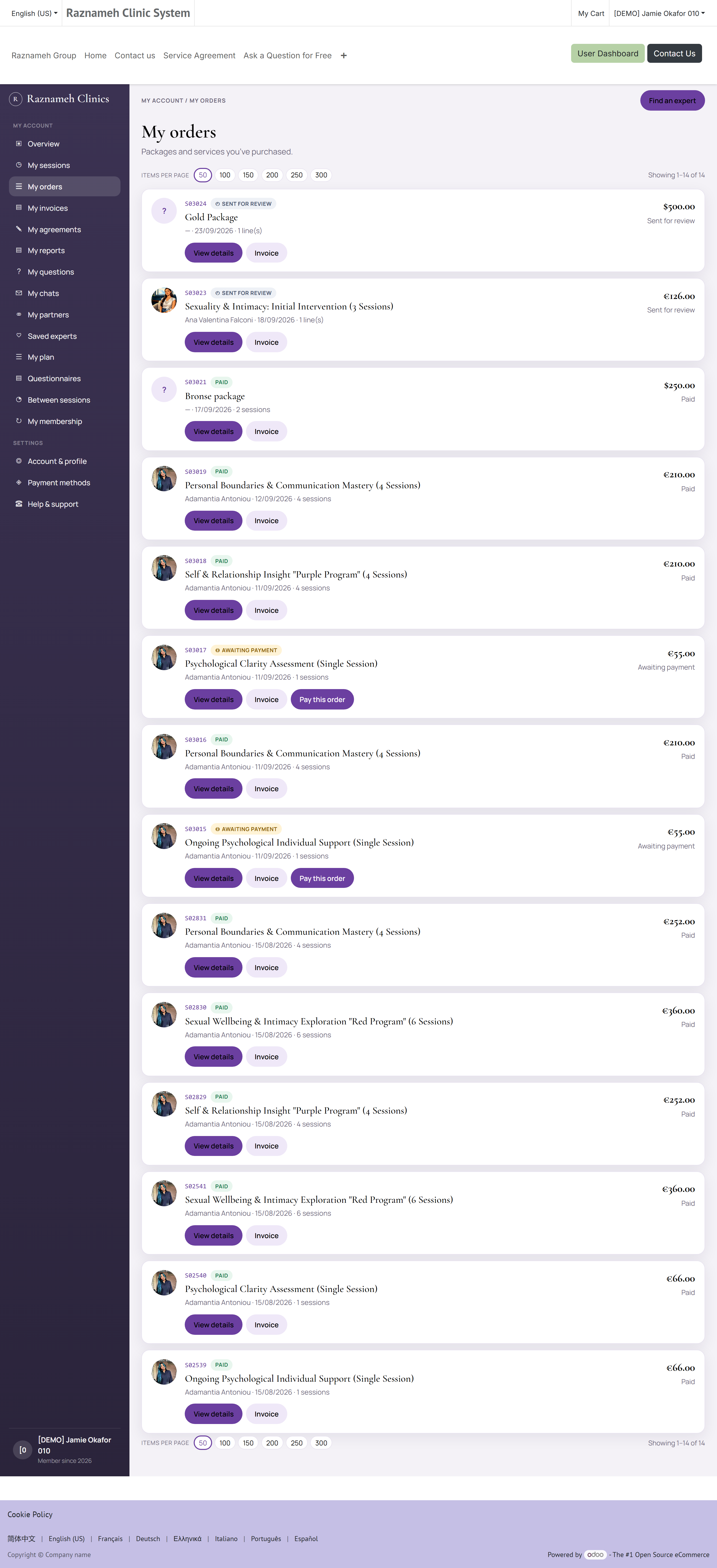
Profiel → Mijn gekochte diensten, of /my/bought-services.
Elk pakket toont wat u gekocht hebt, hoeveel sessies erin zaten, hoeveel er over zijn, en uit welke bestelling het kwam. Gebruik dit wanneer u wilt nakijken wat u nog hebt voordat u meer koopt.
8.3 Tegoeden#
Sommige apps tonen een apart scherm Tegoeden met uw resterende sessiesaldo per behandelaar. Het is dezelfde informatie als Te boeken, gepresenteerd als een saldo.
8.4 Elke status die een sessie kan hebben#
De tabbladen verdelen sessies in vier bakken. Daaronder draagt elke sessie een preciezere status, en dat is de status die de ondersteuning u zal noemen, dus het is goed om die te kunnen lezen:
| Status | Wat het betekent | Wat u doet |
|---|---|---|
| Beschikbaar — getoond als Te boeken | Betaald, geen tijd gekozen | Boek een tijd (§5.1) |
| Geboekt — getoond als Ingepland | Er hangt een datum en tijd aan | Kom, of verplaats hem (§7.2) |
| Verbruikt — getoond als Afgerond | Ze is gehouden | Beoordeel haar (§6.5) |
| Geannuleerd | Afgezegd door u of door de behandelaar | Kijk §7.4 na voor waar het tegoed heen ging |
| Boete openstaand | Een late annulering of late verplaatsing is gefactureerd en nog niet betaald | Betaal de factuur; het tegoed wordt dan weer boekbaar |
| Verlopen | De geldigheid van het tegoed liep af voordat het geboekt werd | Vraag het de ondersteuning (§12) |
| Concept | De bestelling is niet afgerond — meestal een betaling die nog loopt | Wacht even en ververs. Blijft het staan, zie §14 |
Boete openstaand en Verlopen zijn de twee die een tegoed tegenhouden. Allebei zijn ze te herstellen: de ene door de factuur te betalen, de andere door het te vragen. Geen van beide betekent dat de sessie u afgenomen is.
8.5 Uw boekingslink#
Elk tegoed dat u bezit heeft een eigen boekingslink, en de knop Een tijd boeken opent die gewoon. Die link hoort bij die ene sessie — het is geen algemene pagina om « van alles » te boeken. Daar volgen twee dingen uit:
- Deel hem niet. Wie hem opent, kan uw sessie boeken.
- Hij houdt op te werken zodra hij gebruikt is. Hebt u geboekt en lijkt de link nu dood, dan werkt hij precies goed. Beheer de boeking voortaan vanuit Geboekte sessies.
8.6 Uw lidmaatschap#
/my/memberships toont elk plan waarop u zit, met de afbeelding, de resterende sessies (wanneer het plan boeken bevat), de resterende consultminuten (wanneer het consult buiten de sessies om bevat), en wanneer het doorloopt. Open één plan voor de volledige omschrijving en de behandelaren erop — Een sessie boeken gaat naar Mijn sessies; Chat gaat naar Mijn gesprekken.
De openbare catalogus: /memberships (ook /shop/memberships).
Een lidmaatschap is niet dezelfde lijst als Mijn gekochte diensten (eenmalige pakketten). Boekbare tegoeden staan nog steeds onder Mijn sessies.
Wat uw lidmaatschap dekt staat op de eigen pagina van het plan: de inbegrepen diensten, en wie elke dienst geeft. Sommige diensten zijn alleen voor leden — uw praktijk biedt ze als deel van een lidmaatschap aan in plaats van ze los te verkopen. U zult ze op de pagina van de behandelaar gezien hebben, met de vermelding Alleen voor leden waar de boekknop gewoonlijk staat; zodra u lid bent, kunt u ze boeken.
Plant u een sessie in, dan vraagt uw sessielijst welke van die diensten u wilt en bij wie (§5.1), en opent daarna de agenda van die behandelaar. De sessie die u uitgeeft, is de sessie die uw lidmaatschap al betaald heeft, wie u ook kiest.
9Betalingen en facturen#
9.1 Bewaarde betaalmethoden#
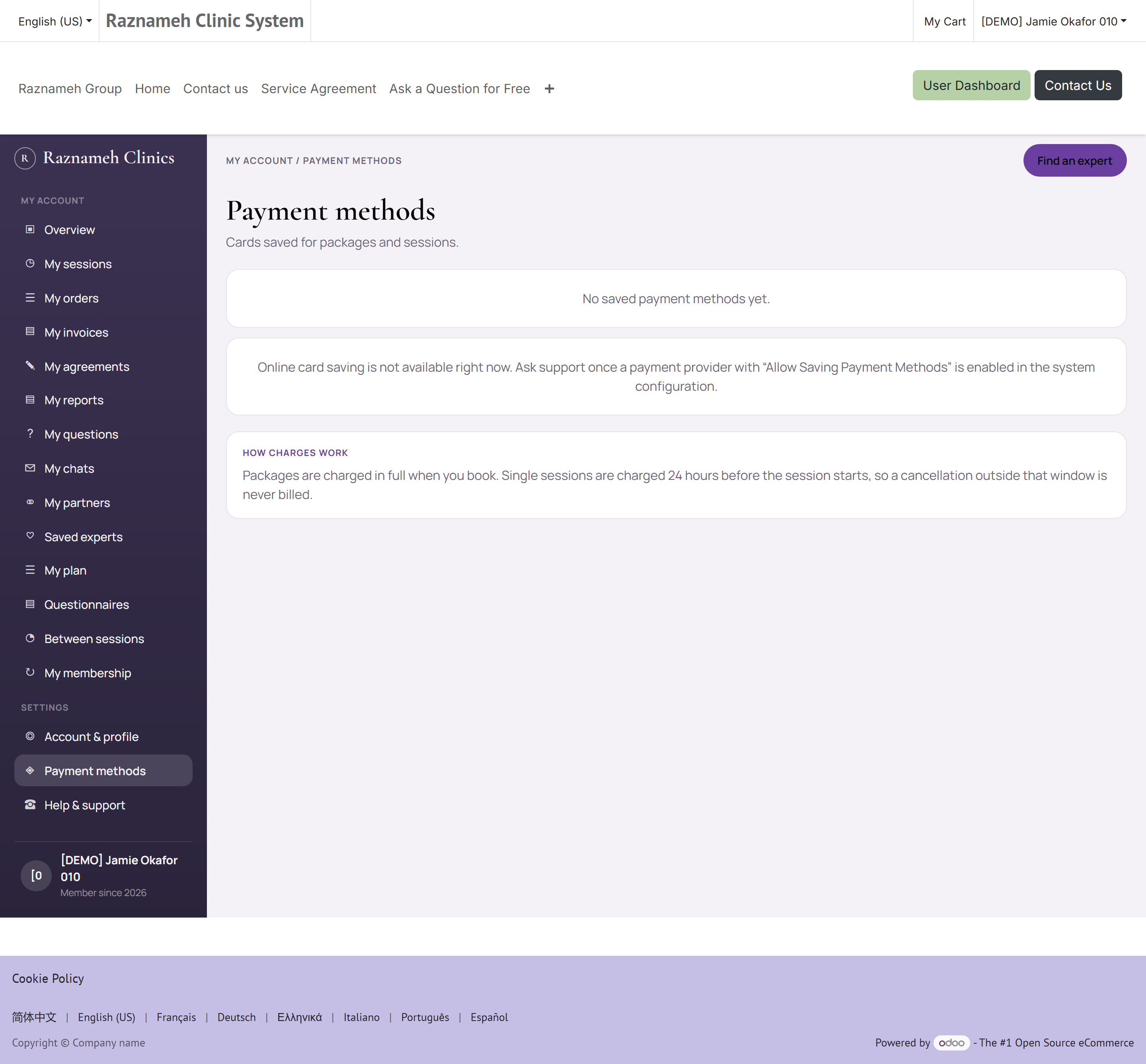
Profiel → Facturatie, of /my/payment-methods.
- Een kaart toevoegen — tik op Betaalmethode toevoegen (Add payment method) en volg de aanwijzingen.
- Een standaardkaart instellen — tik op de kaart en kies Instellen als standaard (Set as default).
- Een kaart weghalen — tik op de kaart en kies Verwijderen (Delete).
Er wordt alleen een beveiligde sleutelcode bewaard. Uw volledige kaartnummer wordt nooit door de praktijk bewaard.
9.2 Uw factuuradres#
Profiel → Facturatie → Factuuradres.
Dit adres verschijnt op uw facturen. Werk het bij vóór uw volgende aankoop als het veranderd is — een uitgegeven factuur valt achteraf niet meer te bewerken.
9.3 Facturen#
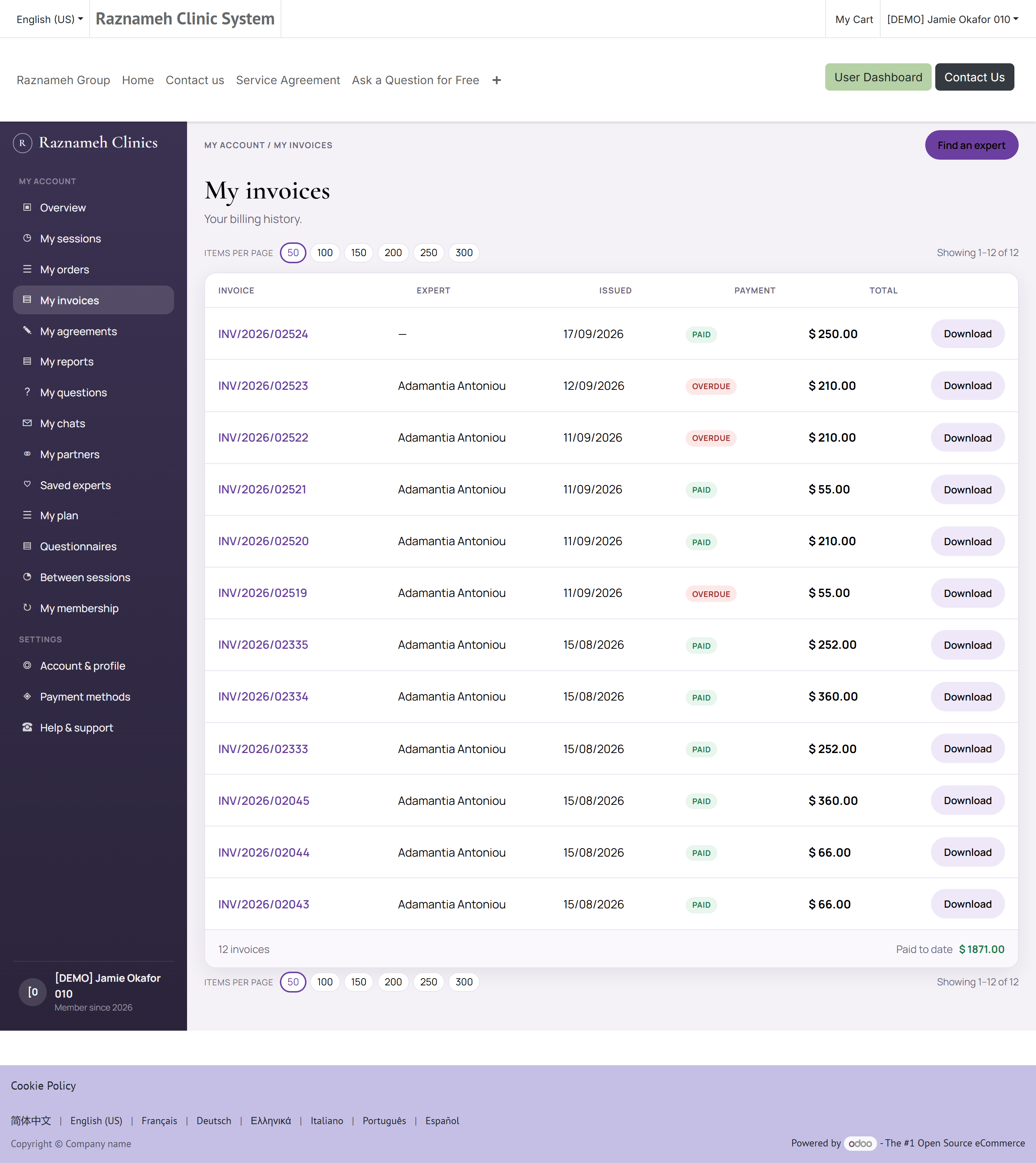
Profiel → Facturatie → Facturen, of /my/account/invoices.
Elke factuur toont het nummer, de datum, het bedrag en de betaalstatus. Tik op een factuur voor het detail, en download haar als pdf voor uw eigen administratie of voor uw werkgever.
9.4 Als een betaling mislukt#
- Kijk na of de kaart niet verlopen is en of er saldo is.
- Probeer een andere betaalmethode.
- Mislukt het dan nog, maak een ondersteuningsticket aan (§12) — vermeld de datum en het bedrag, maar stuur nooit uw volledige kaartnummer naar de ondersteuning.
Er wordt niets twee keer afgeschreven als u het opnieuw probeert. Het Platform beschermt tegen dubbele afschrijvingen na een weggevallen verbinding.
9.5 Uw bestellingen#
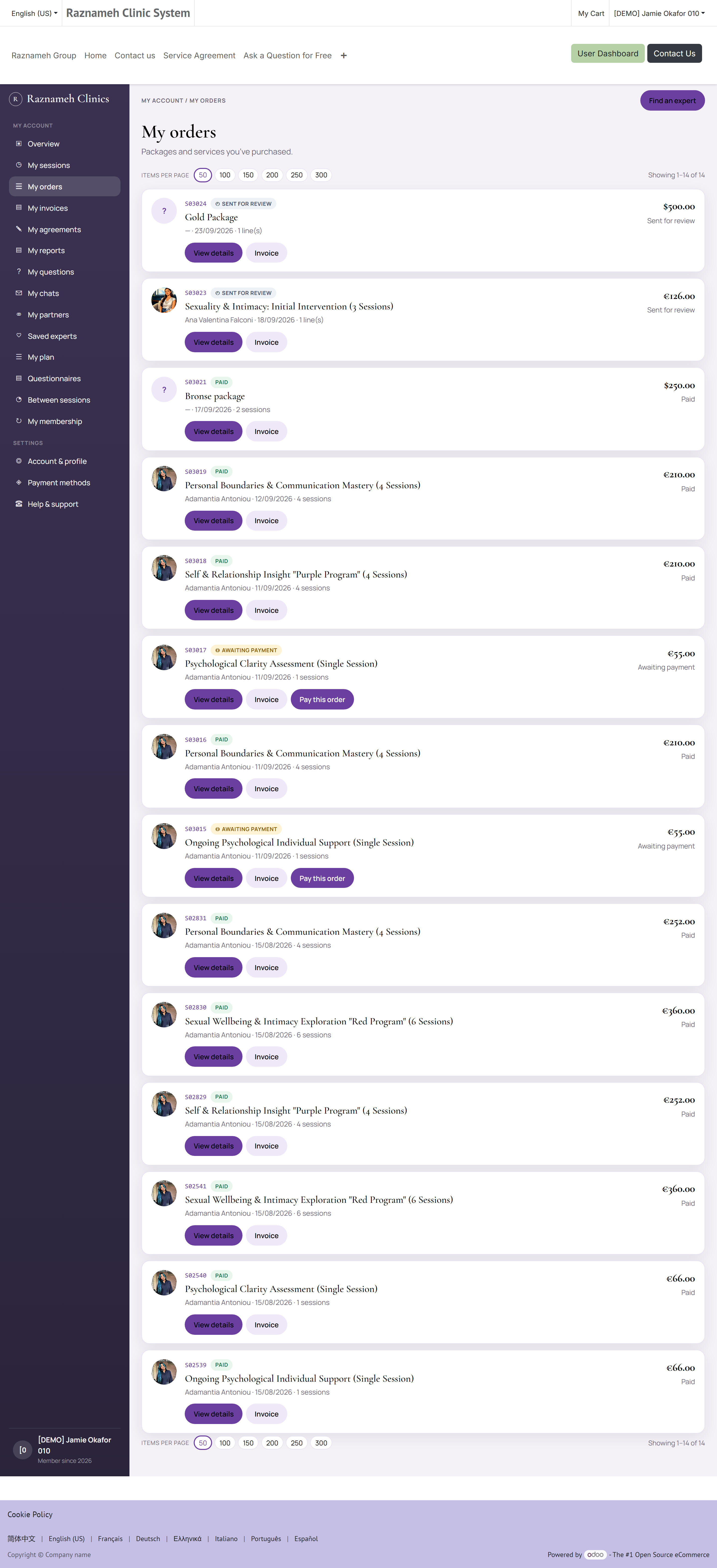
Mijn bestellingen, of /my/account/orders op de website.
Een bestelling is een aankoop. Een factuur is de betaalvordering die eruit voortkomt. Ze horen meestal één op één bij elkaar, maar niet altijd — een pakket dat in termijnen betaald wordt, levert één bestelling en meerdere facturen op.
Gebruik de bestelpagina wanneer u wilt weten « wat heb ik nu eigenlijk gekocht, en wanneer? » — ze toont per bestelling de datum, de regels, de behandelaar en de dienst op elke regel, hoeveel sessies die regel kocht, en het totaal. Gebruik de facturen (§9.3) wanneer u een document nodig hebt voor uw administratie, uw werkgever of uw boekhouder.
De keten is van begin tot eind kort:
flowchart LR
  A["Bestelling"] --> B["Sessietegoeden"]
  A --> C["Factuur"]
  C --> D["Betaling"]
  B --> E["Boekingen"]
Ontbreekt er een sessie die u betaald hebt, dan is dit de eerste pagina om na te kijken: zoek de bestelling op, bevestig de regel, en tel de sessies erop. Dat aantal is het aantal tegoeden dat u in Mijn gekochte diensten hoort te hebben (§8.2).
Waar een bestelling op u wacht, zegt de pagina dat, in plaats van het eruit te laten zien als elke andere bestelling. Een bestelling die goedgekeurd is en nog niet betaald, is aangemerkt als Wacht op betaling, en op uw dashboard staat een tegel die telt hoeveel facturen er nog te betalen zijn. Is een betaling die u stuurde niet aanvaard, dan staat de reden op deze pagina — waar degene die ermee aan de slag moet haar werkelijk leest — en kunt u vanaf dezelfde link een nieuw bewijs sturen (§4.3).
10Berichten, vragen en meldingen#
10.1 Chatten met uw behandelaar#
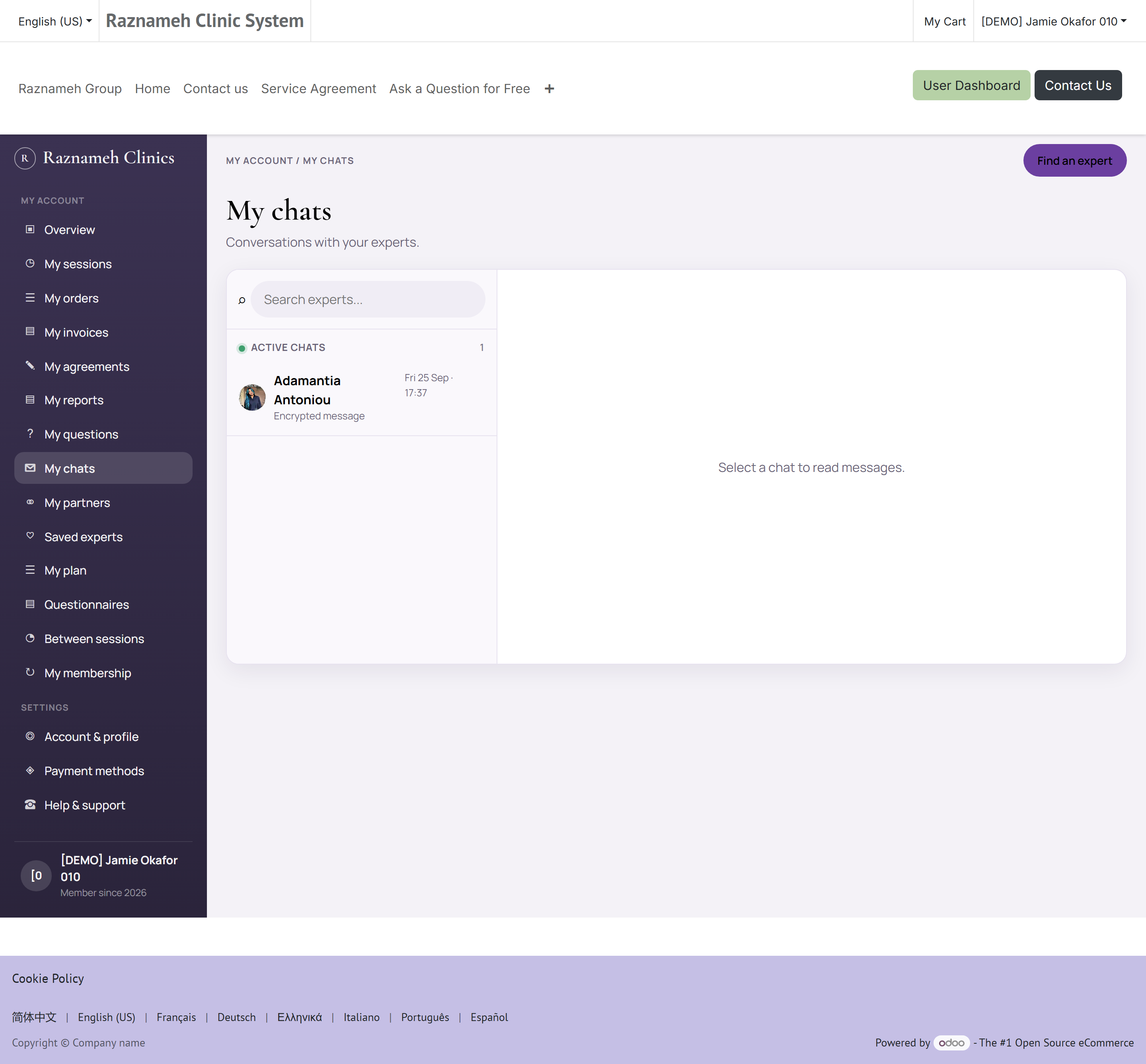
Profiel → Berichten en vragen → Chats met behandelaren, of /my/chats.
- Tik op een gesprek om het te openen.
- Typ in het vak onderaan en tik op versturen.
- Lopende gesprekken staan bovenaan; afgelopen gesprekken eronder.
- Op de website kunt u een spraakbericht sturen of een bestand of kort filmpje bijvoegen. De lengte van zo'n filmpje wordt aan het bestand zelf gemeten, niet aan wat de opnemer beweerde.
Sommige praktijken openen de chat alleen rond de tijd van een geboekte sessie. Kunt u geen bericht sturen, dan is dat meestal de reden.
Betaalde consulten. Kocht u een dienst voor consult via de chat, dan toont het gesprek de resterende minuten en een balk. Open Hoe de tijd geteld wordt voor de tarieven die op dit gesprek gelden. Afschrift bekijken (/my/chats/<nummer>/statement) toont elke afboeking. Bereikt de balk nul, dan blijft de geschiedenis zichtbaar; tik op Meer tijd kopen om minuten aan hetzelfde gesprek toe te voegen. Een gekocht consult vervalt niet, tenzij de dienst zelf een geldigheidsvenster meegaf.
Berichten in een versleuteld consult kunnen alleen door u en de toegewezen behandelaar gelezen worden.
10.2 Spraak- en videogesprekken#
Waar de praktijk het aanzet, heeft een chat een belknop. Geef toegang tot microfoon en camera wanneer erom gevraagd wordt. Gesprekken lopen binnen de app — u hoeft niets te installeren.
10.3 Groepsgesprekken#
Hoort u bij een groep — een gedeeld programma, of een partnergroep waarvoor u uitgenodigd bent — dan vindt u die onder Groepschats. U kunt de hele groep aanschrijven of één lid.
10.4 Vragen die u gesteld hebt#
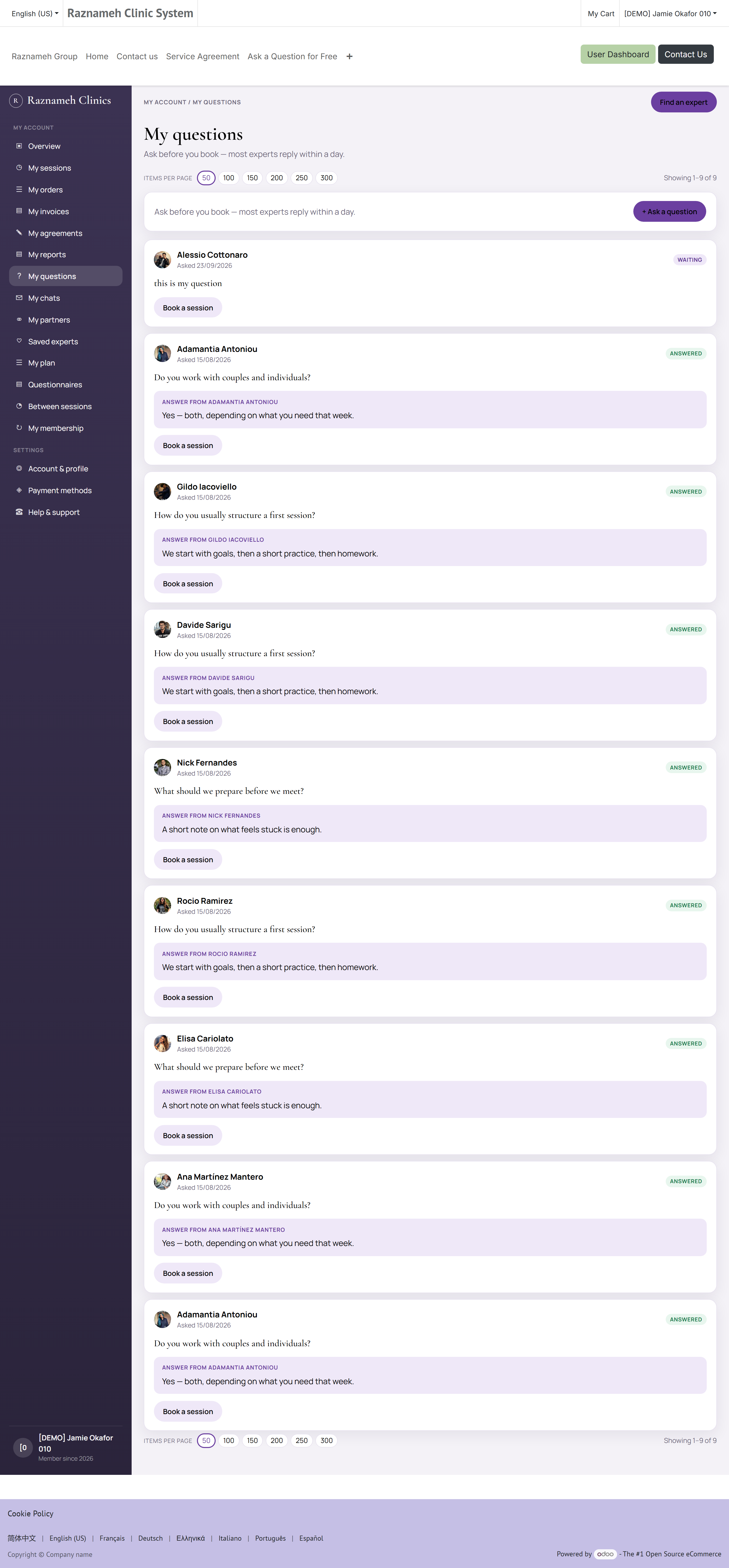
Profiel → Mijn vragen, of /my/questions.
Toont elke vraag die u stelde, met de antwoorden erbij. U krijgt een melding wanneer een behandelaar antwoordt.
10.5 Meldingen#
Profiel → Meldingen.
Uw postvak draagt elk signaal: boekingsbevestigingen, herinneringen, antwoorden en berichten over uw account.
Wilt u wijzigen wat u krijgt en hoe:
- Open Meldingen.
- Tik op het instellingenpictogram.
- Zet categorieën aan of uit, en kies de kanalen — push, e-mail, in de app, WhatsApp.
Sommige meldingen kunnen niet uit. Beveiligingssignalen, betaalbevestigingen en wijzigingen aan boekingen worden hoe dan ook verstuurd, omdat u ze nodig hebt.
11Inhoud en gemeenschap#
11.1 De stroom#
Het tabblad Start toont artikelen en video's die voor u gekozen zijn. Tik op een item om het te lezen. Binnenin kunt u het waarderen, er een reactie bij plaatsen, het delen, of het bewaren onder Mijn inhoud.
11.2 Auteurs#
Tik op de naam van een auteur om alles te zien wat die gepubliceerd heeft, en om die te volgen. Volgen zet nieuw materiaal van die auteur hoger in uw stroom.
11.3 De vragenstroom#
Blader door vragen die anderen aan behandelaren gesteld hebben, met de antwoorden. Zoek er eerst in voordat u uw eigen vraag stelt — vaak is ze al beantwoord.
12Hulp krijgen#
12.1 Een ondersteuningsticket aanmaken#
- Ga naar Profiel → Vertrouwen en ondersteuning → Ondersteuningstickets, of /my/help.
- Tik op Nieuw ticket (New ticket).
- Kies een onderwerp dat bij uw probleem past.
- Beschrijf wat er gebeurd is, met datums, bedragen en de naam van de behandelaar als die ertoe doet.
- Voeg een schermafbeelding toe als dat helpt.
- Tik op Indienen (Submit).
12.2 Het volgen#
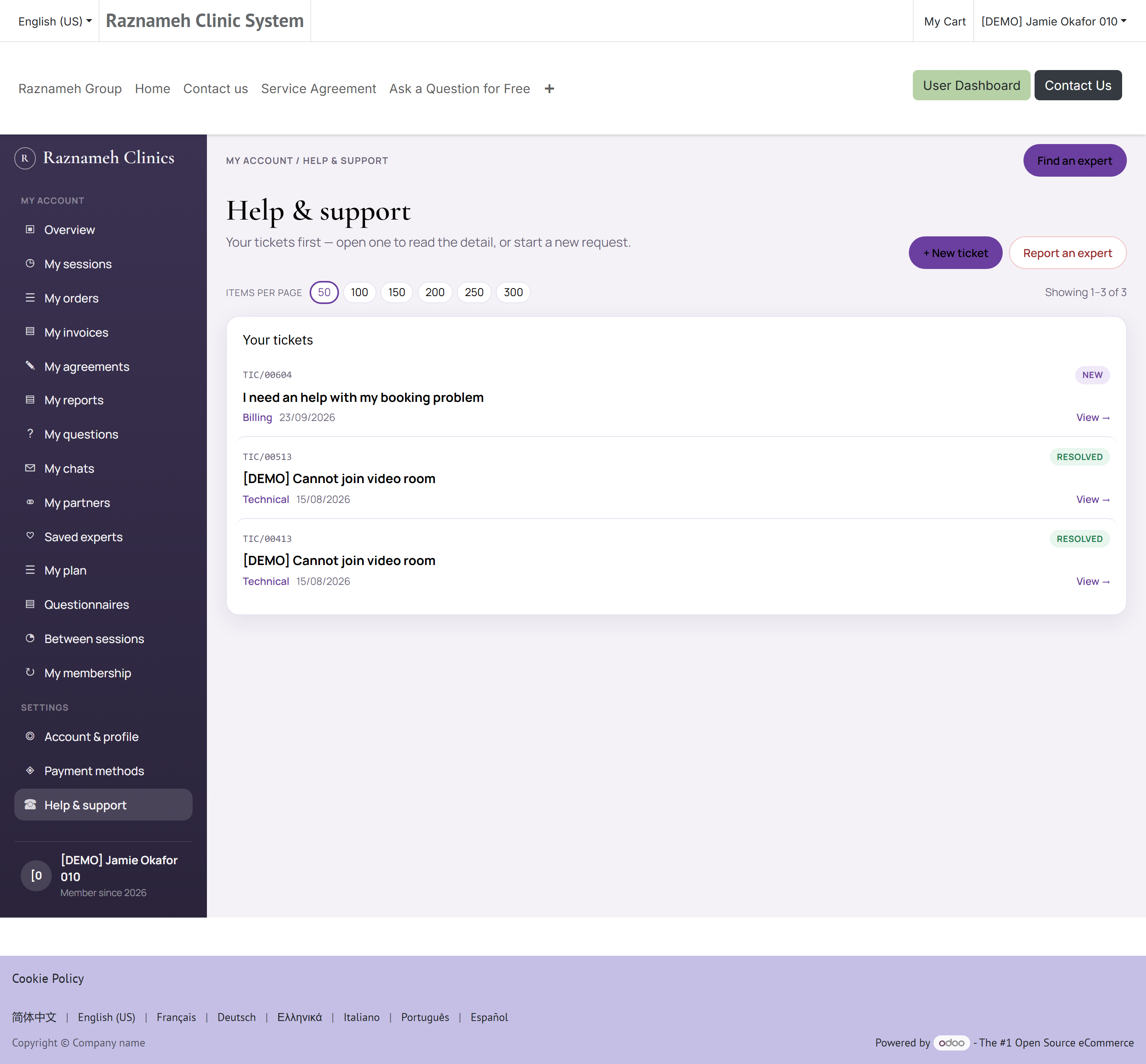
Open Ondersteuningstickets om al uw tickets en hun fase te zien. Tik op een ticket om antwoorden te lezen en te reageren. U krijgt een melding zodra de ondersteuning antwoordt.
12.3 Een probleem met een behandelaar melden#
Gaat uw zorg over het gedrag van een behandelaar en niet over een technische storing, gebruik dan Melden (Report) op diens profiel, of kies het meldonderwerp wanneer u een ticket aanmaakt. Die meldingen gaan naar een ander team en worden vertrouwelijk behandeld.
13Uw account, privacy en beveiliging#
13.1 Uw account- en profielpagina#
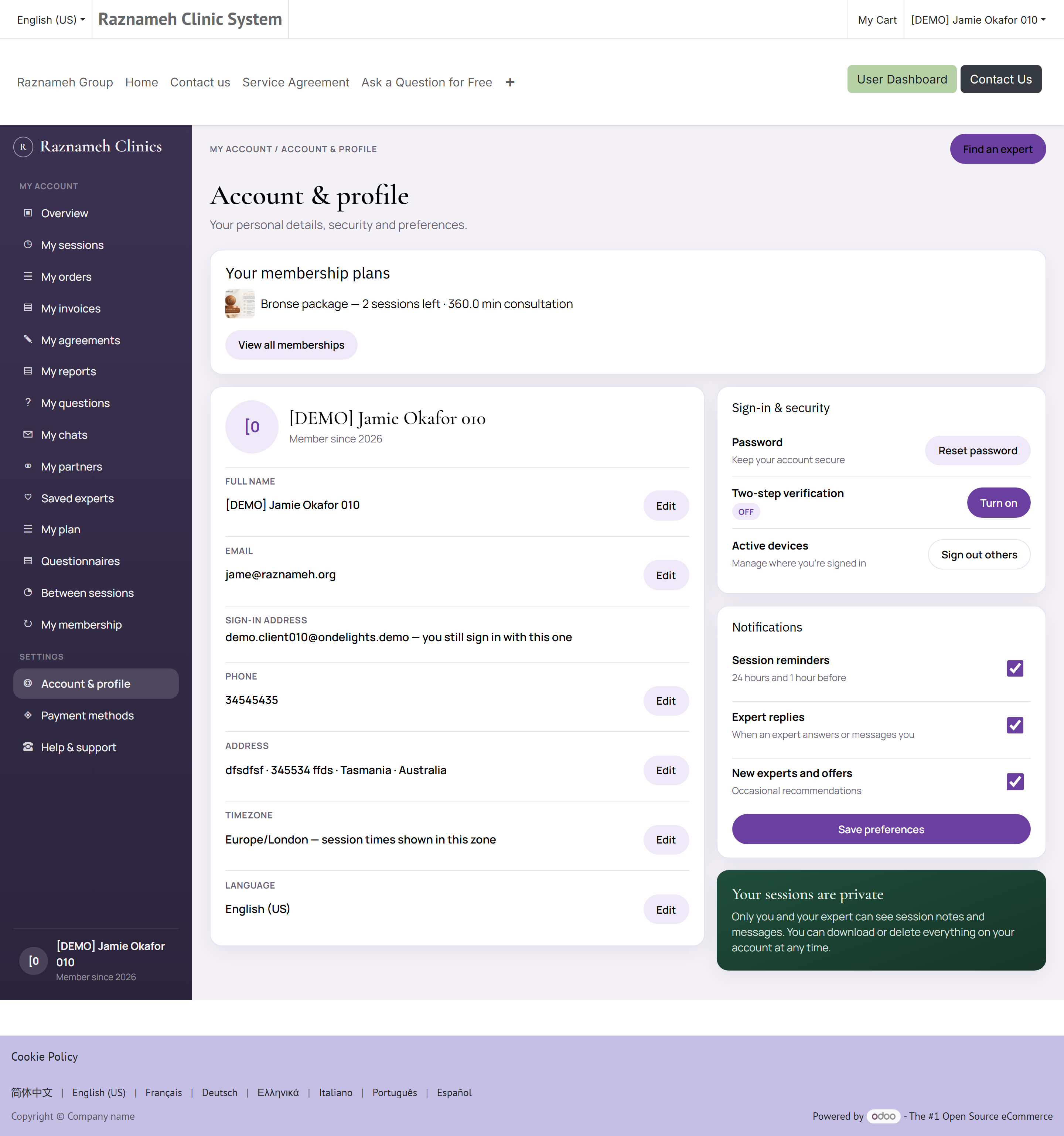
Profiel → Instellingen → Profiel bewerken in de app, of Account en profiel — /my/account/profile — op de website.
Uw cliëntcode — zoiets als C-001253 — staat op uw dashboard, onder de begroeting. Lees haar voor wanneer u de praktijk belt: ze wijst u aan zonder dat iemand uw naam hoeft te zeggen in een ruimte waar anderen bij zijn. Ze verandert nooit, en ze is geen wachtwoord — ze wijst uw dossier aan, ze opent het niet.
De pagina toont wat de praktijk over u vastgelegd heeft en laat u het meeste ervan wijzigen:
| Op de pagina | Wat het is | Te wijzigen |
|---|---|---|
| Naam | Hoe u verschijnt bij de behandelaren die u boekt | Ja, via Gegevens bewerken |
| Waar bevestigingen, herinneringen en facturen heen gaan | Ja, via Gegevens bewerken | |
| Telefoon | Gebruikt voor herinneringen waar uw praktijk die stuurt | Ja, via Gegevens bewerken |
| Adres | Uw factuuradres — het verschijnt op de facturen (§9.2) | Ja, via Gegevens bewerken |
| Tijdzone | Elke tijd die u ziet wordt hiernaar omgerekend | Ja |
| Taal | De taal van de site, de app en uw e-mails | Ja |
| Lid sinds | De datum waarop uw account aangemaakt werd | Nee |
Gegevens bewerken opent het volledige formulier. Wijzig wat u nodig hebt en tik op Opslaan, of op Verwerpen (Discard) om het te laten zoals het was.
13.2 Kiezen welke berichten u krijgt#
Dezelfde pagina draagt drie schakelaars. Ze bepalen welke berichten het Platform u uit zichzelf stuurt:
| Schakelaar | Zet aan en uit |
|---|---|
| Sessieherinneringen | De herinneringen vóór een geboekte sessie |
| Antwoorden van behandelaren | Signalen wanneer een behandelaar op een chatbericht of een vraag antwoordt |
| Aanbiedingen en nieuws | Marketing — acties, nieuwe diensten, aankondigingen |
Wijzig ze en druk op Opslaan; de pagina bevestigt met een bericht dat het opgeslagen is.
Sommige berichten trekken zich met opzet niets van deze schakelaars aan. Boekingsbevestigingen, berichten over annuleringen en kosten, betaalbewijzen en beveiligingssignalen gaan hoe dan ook uit. Het is geen marketing — het is de vastlegging van iets wat er met uw geld of uw account gebeurd is, en u hebt het nodig. Niets in het Platform laat ook maar iemand die voor u uitzetten.
Herinneringen gaan doorgaans twee keer uit — een dag van tevoren en een uur van tevoren — al stelt uw praktijk de precieze termijnen in, en kan zij er tot vier sturen. Over welk kanaal ze binnenkomen (push, e-mail, in de app, WhatsApp) stelt u in bij Meldingen (§10.5).
13.3 Uw wachtwoord wijzigen#
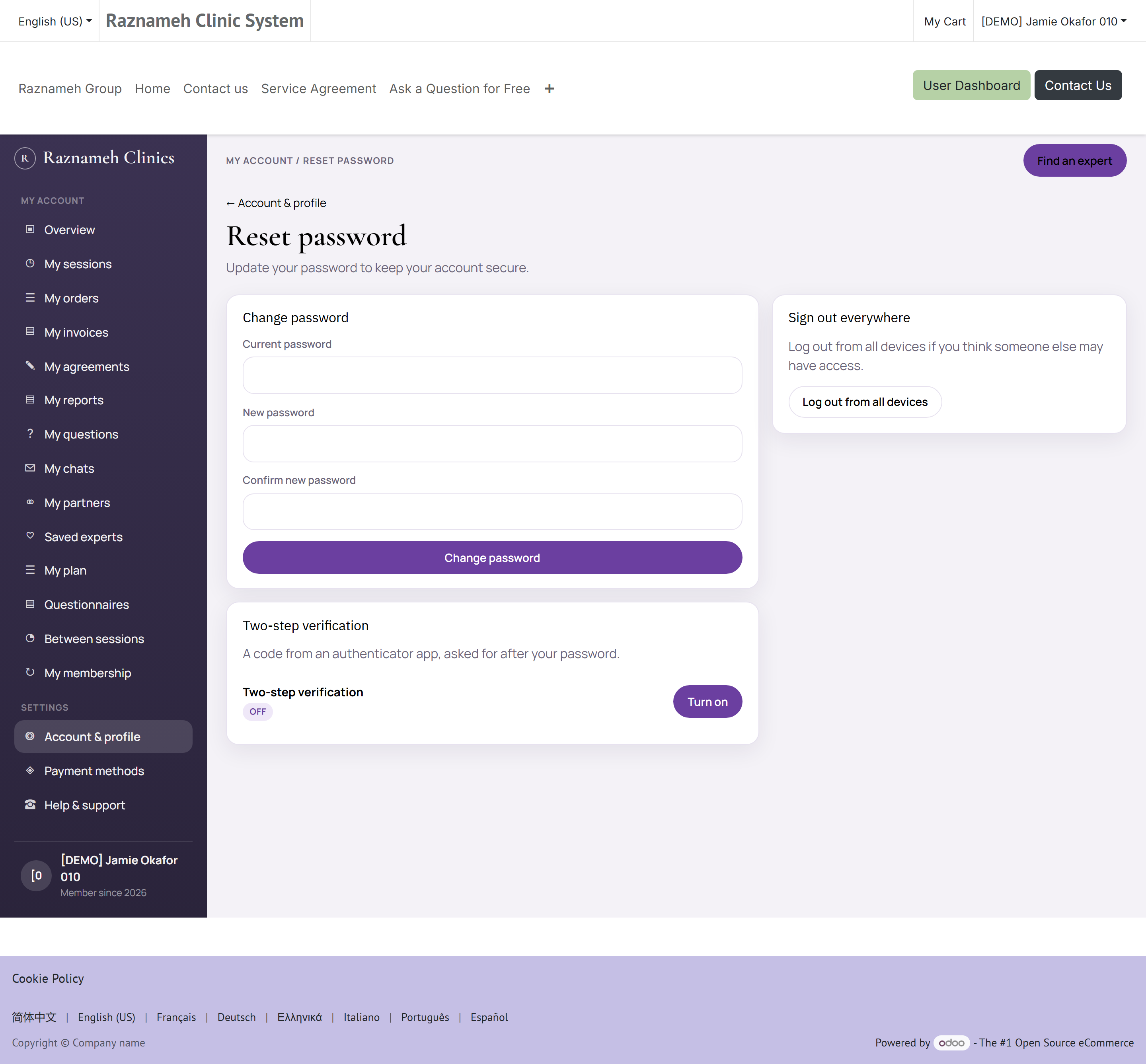
Profiel → Instellingen → Beveiliging, of /my/security.
Vul uw huidige wachtwoord in, daarna twee keer het nieuwe. Op dit toestel blijft u aangemeld; andere toestellen worden mogelijk afgemeld.
13.4 De app op uw toestel vergrendelen#
Profiel → Instellingen → Beveiligingsinstellingen.
Zet Appslot aan en kies ontgrendelen met vingerafdruk of gezicht, een pincode of een patroon. De app vergrendelt zichzelf dan na een tijd zonder gebruik, of wanneer u ervandaan schakelt.
Dit is het doen waard als er ooit iemand anders uw telefoon gebruikt.
13.5 Uw privacy-instellingen#
Profiel → Instellingen → Privacy-instellingen.
| Instelling | Wat ze doet |
|---|---|
| Zichtbaarheid van uw profiel | Wie uw profiel kan zien |
| Marketingvoorkeuren | Of u reclameberichten ontvangt |
| Verzoek om inzage | Vraag een kopie van uw gegevens |
| Verzoek om wissing | Vraag of uw gegevens verwijderd worden |
Een verzoek om wissing is een formeel verzoek waar de praktijk binnen de wettelijke termijn in uw land op moet handelen. U krijgt een bevestiging zodra het afgerond is.
13.6 Wat er over u vastligt#
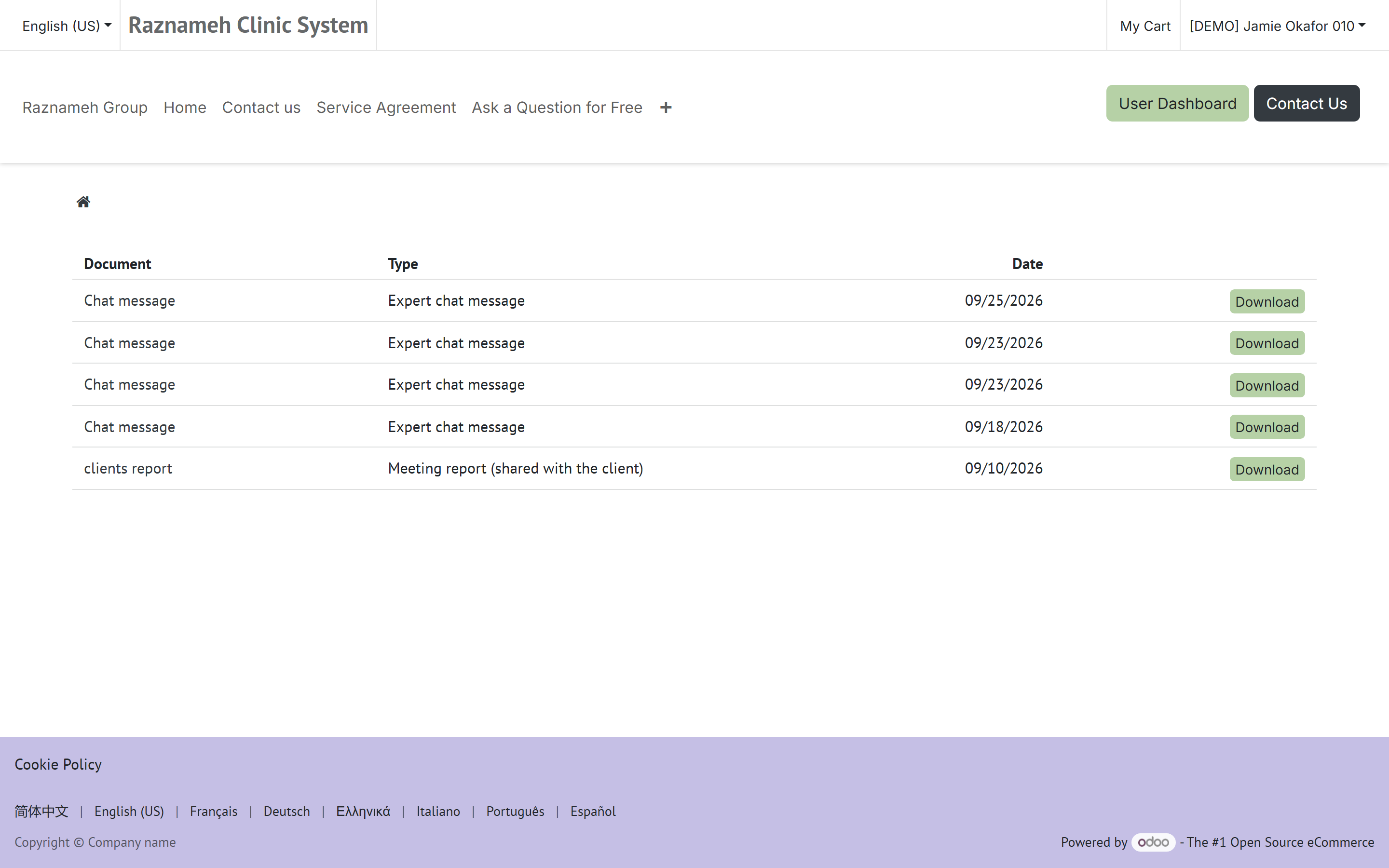
/my/documents op de website.
Waar uw praktijk de beveiligde dossiers van het Platform gebruikt — klinieken en praktijken doen dat meestal — toont deze pagina de documenten over u die zij ervoor gekozen hebben aan u zichtbaar te maken. Tik op een document om het te lezen, of download het.
Wat u wel en niet ziet:
| U ziet | U ziet niet |
|---|---|
| Documenten die de praktijk uitdrukkelijk aan u verstrekt heeft | Wat niet uitdrukkelijk aan u verstrekt is |
| Documenten waarin u de betrokkene bent | Documenten over wie dan ook anders, ooit |
| Documenten die er nog zijn | Wat al vernietigd is onder de bewaartermijn |
De sessienotities van een behandelaar staan hier niet vanzelf bij. Die zijn geschreven voor de behandelaar en voor de continuïteit van de zorg, en een praktijk beslist met opzet, per soort document, of de cliënt ze ziet. Een lege pagina betekent meestal dat uw praktijk niets aan cliënten verstrekt — niet dat er niets bestaat.
Twee dingen over deze pagina zijn het weten waard:
- Elke keer dat iets bekeken of gedownload wordt komt in het logboek, met wie, wat en wanneer. Dat logboek beschermt u: het is het bewijs als u ooit vraagt wie er in uw dossier gekeken heeft.
- Er geldt een frequentiegrens — ongeveer 60 documenten in vijf minuten. U komt er bij het lezen van uw eigen dossier nooit aan; ze bestaat om geautomatiseerd leegtrekken tegen te gaan.
Wilt u een kopie van alles wat er over u vastligt, ook van wat hier niet verstrekt is, dan is dat een verzoek om inzage (§13.5) en niet deze pagina.
Mijn verslagen (/my/reports) is dezelfde verzameling, gerangschikt om te lezen in plaats van om op te bergen: elke regel zegt wat voor soort stuk het is, uit welke sessie het komt, wie het geschreven heeft en wanneer het ingediend is, met het nieuwste bovenaan. Het is met opzet één lijst — een sessieverslag en een notitie van de praktijk zijn voor wie ze schrijft verschillende dossiers, maar voor u zijn ze hetzelfde: iets wat na uw sessie geschreven is en waarvan iemand vond dat u het moest lezen. Een regel openen gaat door dezelfde controle en hetzelfde logboek als de pagina hierboven.
13.7 Uw account verwijderen#
Profiel → Instellingen → Account verwijderen.
Lees de samenvatting goed — ze legt uit wat er verwijderd wordt en wat de praktijk wettelijk moet bewaren, zoals facturen voor de belasting. Bevestig om door te gaan.
Voordat u verwijdert: download de facturen die u nodig hebt, en gebruik ongebruikte sessietegoeden of vraag de ondersteuning naar terugbetaling. Verwijderen valt niet terug te draaien.
14Problemen oplossen#
| Probleem | Wat u doet |
|---|---|
| Aanmelden lukt niet | Kijk na of het e-mailadres goed gespeld is. Gebruik Wachtwoord vergeten. Staat er dat het account vergrendeld is, wacht dan een paar minuten — dat is de bescherming tegen het raden van wachtwoorden |
| Geen vrije tijdvakken | Wissel van maand, kijk de tijdzone bovenaan de pagina na, ga op de wachtlijst, of probeer een andere behandelaar |
| De tijden kloppen niet | De boekingspagina heeft bovenaan een tijdzonekeuze. Zet die op waar u werkelijk bent |
| De boeking mislukte bij de laatste stap | Iemand was u voor met het tijdvak. Ga terug en kies een andere tijd — er is niets afgeschreven |
| Betaling geweigerd | Kijk de vervaldatum en het saldo na, probeer een andere methode, en neem daarna contact op met de ondersteuning met de datum en het bedrag |
| Twee keer afgeschreven | Vrijwel zeker niet — het systeem voorkomt dubbele afschrijvingen. Kijk bij Facturen; staan er werkelijk twee, maak dan een ticket aan |
| Er ontbreekt een sessie in mijn lijst | Kijk op het tabblad Alles in plaats van op een gefilterd tabblad. Is ze net gekocht, trek dan omlaag om te verversen |
| De knop Deelnemen doet niets | Die wordt kort voor de begintijd actief. Kijk uw verbinding na, en of u toegang tot camera en microfoon gegeven hebt |
| Verificatie afgewezen | Probeer het opnieuw bij beter licht, met het hele document in beeld en zonder weerschijn. Mislukt het weer, maak dan een ticket aan — een mens kijkt ernaar |
| Ik krijg geen meldingen | Kijk de meldingsinstellingen in de app na, en daarna de instellingen van uw telefoon zelf voor de app. Kijk bij e-mail in de ongewenste post |
| De app is traag of loopt vast | Sluit hem en open hem opnieuw. Houdt het aan, kijk dan in uw appwinkel of er een update is |
| Verkeerde taal of leesrichting | Profiel → Instellingen → Taal |
| Annuleringskosten waar ik het niet mee eens ben | Open Annuleringsgeschiedenis — daar staat wie er geannuleerd heeft en wanneer. Maak een ticket aan dat naar die regel verwijst |
15Snelzoeker#
Veelvoorkomende taken#
| Ik wil… | Ga naar |
|---|---|
| Een sessie boeken die ik al betaald heb | Profiel → Geboekte sessies → Te boeken → Een tijd boeken |
| Aan een online sessie deelnemen | Profiel → Geboekte sessies → Ingepland → Deelnemen |
| Een sessie annuleren of verzetten | Profiel → Geboekte sessies → Verzetten / annuleren |
| Zien wat ik nog tegoed heb | Profiel → Mijn gekochte diensten |
| Een factuur ophalen | Profiel → Facturatie → Facturen |
| Mijn behandelaar een bericht sturen | Profiel → Chats met behandelaren |
| De resterende consultminuten zien | Open het gesprek — de balk staat bovenaan. Het afschrift is daarvandaan gelinkt |
| Mijn programma tussen sessies vastleggen | Mijn plan, of /my/plans |
| Mijn lidmaatschap zien | Mijn lidmaatschap, of /my/memberships |
| Door de lidmaatschappen bladeren | /memberships |
| Mijn herinneringen wijzigen | Profiel → Meldingen → instellingen |
| Openbaar een vraag stellen | Profiel van de behandelaar → Stel een vraag |
| Een probleem melden | Profiel → Ondersteuningstickets → Nieuw ticket |
| Mijn wachtwoord wijzigen | Profiel → Instellingen → Beveiliging |
| De app vergrendelen | Profiel → Instellingen → Beveiligingsinstellingen → Appslot |
Sessiestatussen#
| Status | Betekenis |
|---|---|
| Te boeken | Betaald, geen tijd gekozen. Aan u |
| Ingepland | Geboekt en op komst |
| Afgerond | Gehouden. U kunt haar beoordelen |
| Geannuleerd | Afgezegd door u of door de behandelaar |
| Boete openstaand | Er staat een gefactureerde, onbetaalde annuleringskost. Betalen maakt het tegoed vrij |
| Verlopen | De geldigheid van het tegoed liep af voordat het geboekt werd. Vraag het de ondersteuning |
| Kosten van toepassing | Er hangen annuleringskosten aan deze sessie |
Het volle detail per status staat in §8.4.
De woorden die deze handleiding gebruikt#
| Woord | Wat het hier betekent |
|---|---|
| Tegoed | Eén sessie die u betaald hebt en mag boeken. Wat u bezit |
| Boeking | Een tegoed met een datum en tijd eraan. Wat u bijwoont |
| Pakket | Meerdere tegoeden in één keer gekocht, meestal goedkoper per sessie |
| Lidmaatschap | Een plan dat elke periode doorloopt met sessies, chat en/of consultminuten buiten de sessies om, tot het eindigt of u opzegt (§4.6, §8.6) |
| Dienstverleningsovereenkomst | De voorwaarden die u bij het afrekenen aanvaardt, met de annuleringsladder erin |
| Annuleringsbeleid | De ladder van kosten naar hoe lang van tevoren u het deed (§7.1) |
| Termijn | Hoe lang vóór de begintijd u annuleerde of verplaatste |
| Kosteloos venster | De termijn waarboven er niets in rekening gebracht wordt |
| Bestelling | Eén aankoop. Ze levert tegoeden en een of meer facturen op |
| Factuur | De betaalvordering die uit een bestelling voortkomt |
| Wachtlijst | Een doorlopend verzoek om een tijdvak aangeboden te krijgen als er een vrijkomt (§5.3) |
| Sessieverslag | De schriftelijke vastlegging van een sessie door een behandelaar. Besloten, tenzij uw praktijk haar verstrekt (§13.6) |
| Consultminuten | Tijd die u gekocht hebt om met een behandelaar te chatten, geteld volgens de tarievenkaart bij dat gesprek (§10.1) |
| Monitoringprogramma | Wat u tussen sessies vastlegt wanneer uw behandelaar er een toegewezen heeft (§6.6) |
Waar u heen gaat wanneer er iets mis is#
| De vraag | De pagina die haar beantwoordt |
|---|---|
| « Waar is de sessie die ik betaald heb? » | Mijn bestellingen (§9.5), daarna Mijn gekochte diensten (§8.2) |
| « Waarom is dit in rekening gebracht? » | Annuleringsgeschiedenis (§7.5), daarna Facturen (§9.3) |
| « Wie heeft dit geannuleerd? » | Annuleringsgeschiedenis (§7.5) — er staat een naam bij |
| « Waarmee ben ik akkoord gegaan? » | De detailpagina van de sessie — de getekende overeenkomst staat erop (§4.2) |
| « Waarom kan ik niet boeken? » | §5.5, en daarna §8.4 voor de status |
| « Niemand heeft mij geantwoord » | Ondersteuningstickets (§12.2) — daar staat in welke fase elk ticket is |
Goede gewoonten#
- Boek vanuit Te boeken in plaats van opnieuw te kopen — misschien bezit u de sessie al.
- Kijk de tijdzone na voordat u een tijdvak kiest, zeker wanneer u op reis bent.
- Lees het annuleringsbeleid wanneer u koopt, niet wanneer u het nodig hebt.
- Laat een beoordeling achter — het is waar andere cliënten vooral op afgaan.
- Houd uw factuuradres bij vóór een aankoop, niet erna.
Schermen en menunamen kunnen per praktijk iets verschillen, omdat elke praktijk zelf kiest welke functies aanstaan. Komt iets uit deze handleiding niet overeen met wat u ziet, dan heeft uw praktijk die functie uitgezet — vraag het hun ondersteuning.